

Imagine asking ChatGPT to split a dinner bill — and instead of a paragraph explaining the maths, it hands you a little working calculator right inside the chat. You type in the total, tap the tip percentage, and the answer updates live. That is exactly what OpenAI launched on 7 October 2026: ChatGPT Intelligent UI, a new GPT-6 feature that turns answers into interactive tools.
ChatGPT no longer replies with just blocks of text. With ChatGPT Intelligent UI, when your question would be answered better with a chart, a form, a diagram, or a small working tool, GPT-6 now builds that interface directly inside the conversation. The best part for beginners: it rolled out to Free users starting 8 October 2026, so you can try it today without paying a single penny.
This guide walks you through everything step by step — what Intelligent UI is, who gets it, how to trigger it, the best prompts to try, and the honest limits you should know.
Step 1: Understand What ChatGPT Intelligent UI Actually Is
Traditional chatbots give you words. You read them, and if the task needs real work — comparing numbers, planning a route, learning a concept — you do that work yourself in another app.
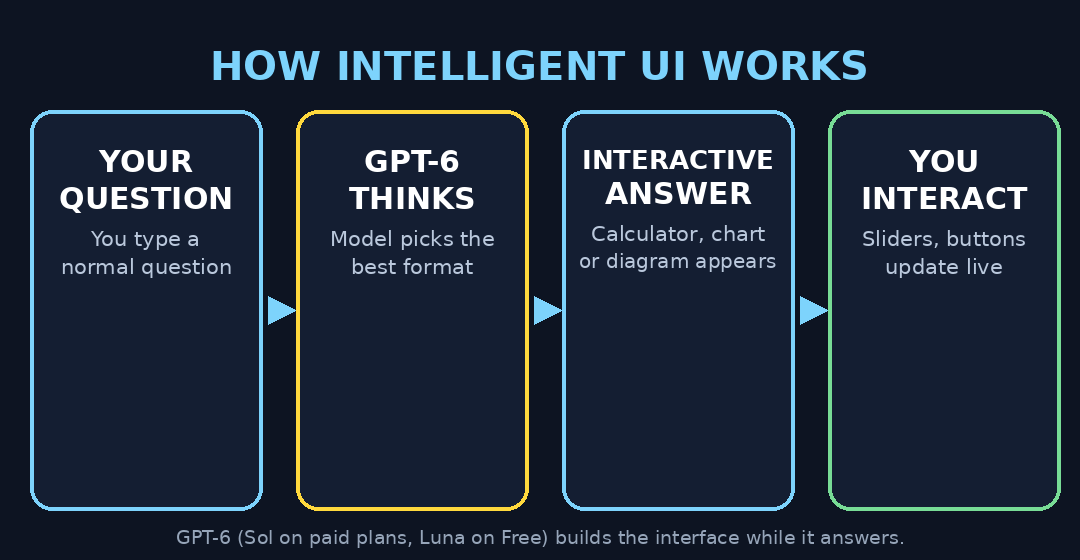
Intelligent UI flips this. OpenAI trained GPT-6 to compose answers from text, visuals, and interactive elements, choosing the mix that fits your question. Behind the scenes, there is a library of native components — buttons, sliders, charts, forms, diagrams, calculators — plus a compiler that renders them progressively while the model is still writing. That is why a chart can start appearing before the full answer is finished.
In simple words: ChatGPT now sometimes answers you with a mini-app instead of a mini-essay.
Step 2: Check If You Have Access (Most Likely, Yes)
OpenAI’s rollout schedule was fast and generous:
- Plus, Pro, Business and Enterprise users — access began 7 October 2026 on a model called GPT-6 Sol.
- Free and Go users — access followed from 8 October 2026 on GPT-6 Luna.
So if you have a free ChatGPT account, you almost certainly have Intelligent UI already. There is one notable exception: the Pro reasoning option runs on a different model (GPT-6 Astra) and does not support Intelligent UI. It also does not appear in the ChatGPT Work tab, Voice mode, or Codex — it is a Chat-tab feature.
If you don’t see interactive elements yet, your account may still be in the rollout queue, or your app may need an update. Which brings us to the next step.
Step 3: Create Your Free ChatGPT Account and Update the App
If you’re new to ChatGPT entirely, here’s the 2-minute setup:
- Go to chatgpt.com or install the ChatGPT app on your phone.
- Sign up with your email, Google account, or Apple ID — the free plan costs nothing and includes Intelligent UI.
- Make sure your app is on the latest version (the rollout continues through October, and newer builds handle the interactive components better).
- Start a new chat — Intelligent UI appears in the standard Chat tab.
Pro tip for students and beginners: the free plan has usage limits that refresh periodically, so save your heavy experiments for when you have time to play with them.
Step 4: Trigger Your First ChatGPT Intelligent UI Answer (Try the Bill Splitter)
There is no toggle to switch on. The model decides the format based on your question. The easiest way to see Intelligent UI in action is to ask a question that naturally wants a tool:
“Split a dinner bill of 2,450 rupees between 4 people with a 10 percent tip.”
Instead of a text explanation, GPT-6 is likely to build you an interactive bill splitter — inputs for the total, a tip slider, and a per-person result that updates live as you change the numbers.
Try this one too:
“I earn 85,000 rupees a month and want to save 20 percent. Build me a calculator.”
You’ll get a working savings calculator inside the chat. No spreadsheet. No formula bar. Just the tool.
Step 5: Ask ChatGPT Intelligent UI for Comparisons Instead of Walls of Text
Comparison questions are where Intelligent UI really shines. Old ChatGPT would give you a long pros-and-cons list you had to squint through. Now try:
“Compare the Samsung Galaxy A35 and the Pixel 8a side by side for a student on a budget.”
GPT-6 can lay this out as a side-by-side comparison panel with tappable sections — battery, camera, price — instead of one giant paragraph. When you’re comparing options at a digital agency project or helping a client choose software, this layout saves real time; agencies like the team at d365a.com deal with tool comparisons daily, and this kind of instant visual comparison is exactly how they present options to clients.
Other comparison prompts to try:
- “Compare two freelancing platforms, Upwork and Fiverr, for a beginner writer.”
- “Show me the difference between a 15 percent and 20 percent down payment on a 5 million rupee car.”
Step 6: Explore Interactive Diagrams and Charts
Asking “what is” questions can now produce something you can touch and explore. For example:
“Explain the water cycle with an interactive diagram.”
ChatGPT can render a diagram where you tap each stage — evaporation, condensation, precipitation — to learn about it. OpenAI’s own examples include the Monty Hall problem, the central limit theorem, and a 7-speed bike where you tap through five systems to understand how each works.
For learners, ChatGPT Intelligent UI is a genuine upgrade: instead of re-reading the same paragraph, you poke at the concept until it clicks.
Step 7: Plan Trips, Recipes and Schedules Visually
ChatGPT Intelligent UI is not only about money maths. Try lifestyle planning:
“Plan a 3-day trip from Lahore to Hunza with two possible detours. Show me on a map.”
GPT-6 can produce a trip map with stops you can add, remove, or rearrange — all without writing a new prompt for every change.
Or:
“I’m cooking chicken biryani for 8 guests instead of 4. Scale the recipe.”
A slider-style tool can let you change the guest count while the ingredient quantities update in real time. OpenAI showed a similar example with a lamb roast planner — adjust guests, recipe rescales.
Step 8: Explicitly Ask for a Tool When You Need One
You don’t have to wait for ChatGPT Intelligent UI to guess. OpenAI confirms you can directly ask ChatGPT to create a tool for a specific task. Use direct, concrete language:
- “Make me a mortgage calculator with monthly payments.”
- “Build a small quiz game to test my French vocabulary.”
- “Create a countdown checklist for my exam next week.”
The more specific you are about the inputs you want (amounts, dates, names), the better the generated tool fits your task. Think of it as describing what you need, and watching the interface assemble itself around your problem — which is exactly the philosophy OpenAI stated: “instead of people adapting to software, software will adapt to people.”
Step 9: Know When ChatGPT Intelligent UI Gives Plain Text (And Why That’s Fine)
Not every question gets a dashboard — and that’s deliberate. OpenAI says a plain text answer still appears when that is the most useful response. If you ask “write me a birthday message for my sister,” expect text, not a form.
If you ever feel the interface is too busy, OpenAI’s help center notes that setting Personalization > Layout and Visuals to “Simple” reduces visual and interactive elements (some may still appear).
Key limitations to remember:
| Feature / Area | Intelligent UI status |
|---|---|
| Chat tab (standard conversations) | Supported |
| Free and Go plans | Supported (from 8 Oct 2026) |
| Pro reasoning option (GPT-6 Astra) | Not supported |
| ChatGPT Work tab and Codex | Not supported |
| Voice mode | Not supported |
| OpenAI’s design judgment | Still improving — interfaces may occasionally look odd |
OpenAI is candid about this: “There’s still work ahead to improve the model’s design judgment and expand what it can create.” So if a generated calculator looks clunky, you’re seeing version one.
Step 10: Use Intelligent UI for Work and Client Projects
This is where beginners become power users. The real win of ChatGPT Intelligent UI is fewer round-trips: instead of asking five follow-up questions to tweak one number, you drag one slider.
Practical work examples:
- Budget reviews: build a budget calculator in-chat, then share screenshots with your team or client.
- Client proposals: if you run an agency or freelance practice, interactive comparisons make proposals clearer — the kind of AI automation services that modern agencies offer are increasingly built on exactly this idea: software that configures itself around the user’s problem.
- Learning faster: use interactive diagrams for any subject you’re studying — physics, maths, history timelines.
- Event planning: guest counts, budgets, schedules — all as adjustable in-chat tools.
One discipline to build early: verify the numbers. The interface is generated by the model, so double-check any calculation that matters (loan totals, tax estimates) with a second source before you act on it.
Frequently Asked Questions
Is ChatGPT Intelligent UI free?
Yes. OpenAI rolled it out to Free and Go users starting 8 October 2026 (paid plans got it on 7 October). You don’t need a subscription — a free ChatGPT account includes it, subject to the usual free-plan usage limits.
Do I need to turn ChatGPT Intelligent UI on?
No. There is no toggle. GPT-6 decides the answer format automatically based on your question. If a tool or visual fits, it builds one; if plain text is best, you get plain text.
Why don’t I see interactive answers?
Possible reasons: your app needs updating, your account is still in the rollout queue, you’re in the Pro reasoning mode (which uses GPT-6 Astra — no Intelligent UI), or you’re in the Work tab, Voice mode, or Codex, which are all excluded. Also, simple questions intentionally get plain text answers.
Can I ask ChatGPT to make a specific tool?
Yes — OpenAI confirms you can explicitly request one, e.g. “make me a bill splitter” or “build a quiz game.” Being specific about the inputs and task gives you a better result.
Is Intelligent UI safe to use for financial calculations?
It’s convenient but generated by AI, so treat it as a starting point. For decisions involving real money — loans, investments, taxes — verify the figures with an official calculator or a professional before acting.
Does Intelligent UI work on the ChatGPT mobile app?
Yes, it works in the Chat tab on web and mobile. Make sure your app is updated to the latest version for the best experience.
Final Thoughts
ChatGPT Intelligent UI is the most visible change to chatbots since ChatGPT itself launched: answers that are built, not just written. For beginners, the learning curve is almost zero — you ask a normal question, and the tool shows up.
The winners from this shift will be people who learn to think in tools, not text: instead of “tell me about budgeting,” ask “build me a budget planner.” That one habit turns ChatGPT from an encyclopedia into a personal software factory.
Try the three starter prompts in Steps 4–6 today. Once you’ve felt a bill splitter appear mid-chat, you’ll never want to go back to paragraphs.
Explore More Free AI Tools
Loved this guide? AIToolSteps publishes a new free AI tool tutorial every day. Check out these reader favourites:
- AI Title Generator — craft click-worthy headlines in seconds → https://aitoolsteps.com/
- Meta Description Generator — write perfect SEO snippets fast → https://aitoolsteps.com/
- AI Rewriter — refresh any paragraph instantly → https://aitoolsteps.com/
- Keyword Density Checker — keep your content SEO-balanced → https://aitoolsteps.com/