
Designing professional-looking graphics used to require expensive software and years of practice. Today, Canva AI for beginners changes everything: Canva’s built-in AI suite, called Magic Studio, lets anyone with a free account generate images, write copy, remove backgrounds, and build complete layouts using nothing but plain-language prompts.
In this beginner-friendly guide, you will learn how to use Canva AI step by step — from creating your free account to generating your first AI images, writing headlines with Magic Write, and designing social posts that look like they came from a studio. Everything below works on the free plan unless marked otherwise.
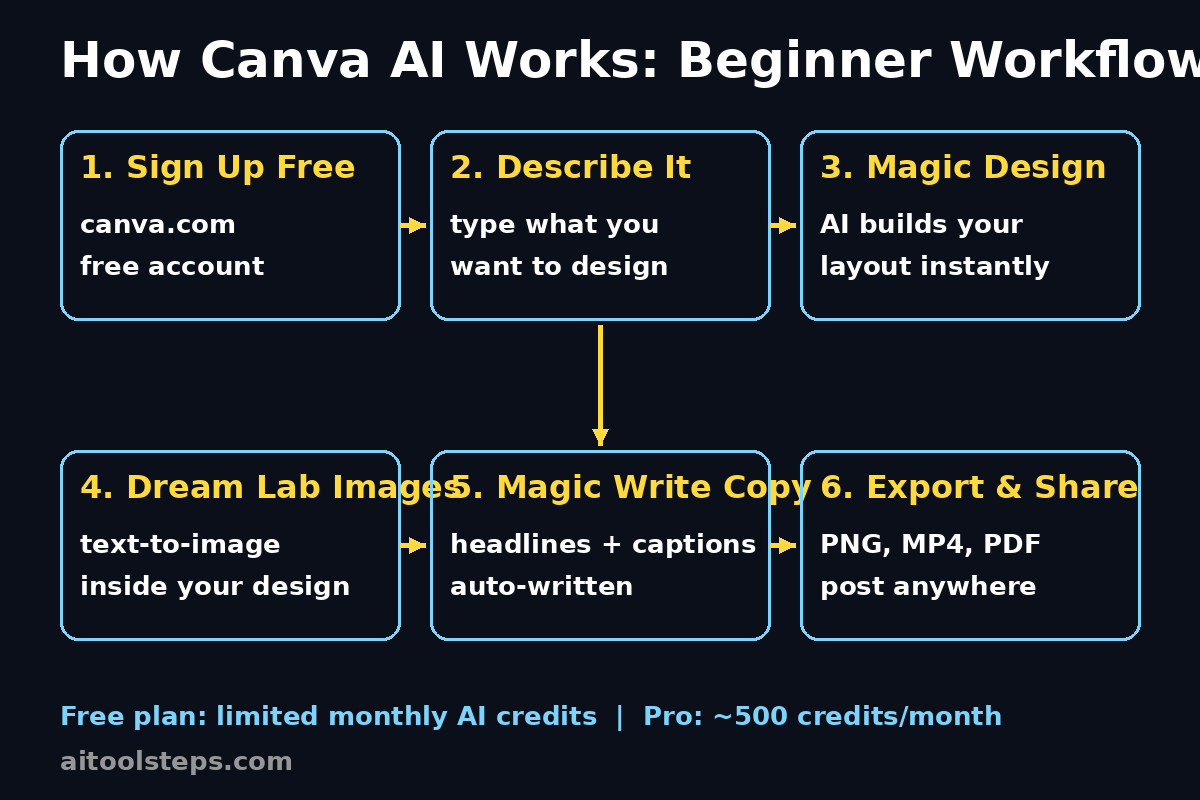
Step 1: Create Your Free Canva Account
Getting started with Canva AI for beginners begins with a free account, and signing up takes under two minutes.
- Go to canva.com and click “Sign up free” — you can register with Google, Facebook, Apple, or email.
- Choose whether you are using Canva for personal, work, or education use — this customizes your template suggestions.
- Confirm your email to unlock the free plan, which includes a generous library of templates, stock photos, and basic AI access.
- Download the Canva mobile app too — the AI tools work identically on phones and tablets, so you can design anywhere.
Pro tip: a tablet with a keyboard is the sweet spot for Canva on the go — this Android tablet with keyboard and 256GB storage handles the Canva app smoothly for designing anywhere. Disclosure: as an Amazon Associate, AIToolSteps earns from qualifying purchases.
Once you are inside the dashboard, click “Create a design” and pick any size. You are now inside the editor where all the AI magic happens.
Step 2: Find the Magic Studio AI Tools
Canva’s AI features are grouped under the “Magic” brand, and they live in different parts of the editor rather than one central hub. Here is where to find them:
- Apps / Magic Media: In the left sidebar, open “Apps” and search for Magic Media or Magic Design — the main AI generators.
- Canva AI chat: Look for the AI assistant button, where you can describe what you want in plain words and it builds editable design objects for you.
- Photo editor: Click any image, then “Edit photo” to find Magic Eraser, Magic Edit, and Magic Expand.
- Text box tools: Select a text box to reveal Magic Write for AI-generated copy.
Pro tip: because the tools are scattered, pin your favorites. Canva lets you star apps so your most-used AI features stay one click away. Also, spend five minutes improving your prompts with our guide on how to write better AI prompts — better prompts mean dramatically better AI images.
Step 3: Generate Your First AI Image with Dream Lab
Dream Lab (Canva’s text-to-image AI) is the most exciting free AI tool for beginners. Here is how to create your first image:
- In the editor, go to Apps and open “Dream Lab” (also listed under Magic Media in some regions).
- Pick an aspect ratio — square for Instagram posts, landscape for presentations, portrait for stories.
- Describe your image in detail: “a cozy coffee shop at sunset, warm lighting, illustrated style” beats “coffee shop”.
- Choose a style preset: photo, illustration, 3D, painting, and more.
- Click generate, wait a few seconds, and you will get 2–4 variations to pick from.
The free plan includes a limited monthly allowance of AI credits, and image generation uses them fastest — so generate deliberately, batch your ideas, and favorite the results you love. If you want to go deeper into AI imagery, check our AI image creation and editing guide.
Step 4: Write Headlines and Copy with Magic Write
Magic Write is Canva’s AI writing assistant, built right into your designs. It is perfect for beginners who stare at a blank text box:
- Click any text box in your design, then look for the Magic Write sparkle icon.
- Type a short instruction: “Write a catchy Instagram caption for a bakery sale”.
- Choose a tone — casual, professional, playful — and Magic Write drafts options you can insert directly.
- Use it for brainstorming too: headlines, taglines, product descriptions, and blog intros.
- Highlight existing text and ask Magic Write to shorten, expand, or rewrite it.
The free plan gives you limited Magic Write uses per month (around 25 free prompts), which is plenty for learning. Pair it with our Quillbot AI beginner’s guide if you want a dedicated AI writing tool alongside Canva.
Step 5: Let Magic Design Build a Layout for You
Blank canvas anxiety is real. Magic Design solves it by turning one sentence into a finished, editable layout:
- On the Canva homepage, describe your project in the “What will you design today?” prompt bar — for example, “an Instagram post announcing a weekend sale for a plant shop”.
- Canva AI generates a full set of starter designs: layouts, colors, fonts, and imagery chosen for you.
- Pick the one you like, then customize everything — swap the AI image for your own, change the headline, adjust colors.
- This works for presentations, posters, flyers, and even full slide decks.
Magic Design is one of the fastest ways to learn design by example: study how the AI arranged elements, then tweak. Within a week, you will start recognizing good layout instincts in yourself.
Step 6: Edit Photos Like a Pro with Magic Edit and Magic Eraser
Canva AI for beginners shines brightest in photo editing — tasks that once needed Photoshop are now one click:
- Magic Eraser: Brush over an unwanted object (a photobomber, a trash can) and the AI removes it and fills in the background naturally.
- Magic Edit: Brush over part of an image and describe what should be there instead — “turn the gray sky into a sunset” — the AI repaints just that area.
- Magic Expand: Got a photo in the wrong shape? Magic Expand fills in the missing edges so it fits a wide banner or tall story format.
- Background Remover: One click separates your subject from the background for clean product photos and thumbnails (note: full background removal is a Pro feature, but a limited free allowance exists).
These editing tools are also how our designers polish the thumbnails we use in tutorials like our Canva AI thumbnails beginner’s guide.
Step 7: Animate Static Designs with Magic Animate
A still graphic becomes a scrolling-stopping video clip in seconds with Magic Animate:
- Select your finished design elements, then apply Magic Animate from the animation panel.
- Choose an animation style that matches your content’s energy — subtle fades for business, bold pops for sales.
- Preview the animation, then download as an MP4 or GIF for Reels, TikTok, or stories.
- Combine Magic Animate with your AI-generated images for quick social videos that need zero video-editing skills.
This is a beginner superpower: one design, three formats — a post, a story, and a short video — all from the same canvas.
Step 8: Repurpose One Design Everywhere with Magic Switch
Why design the same content five times? Magic Switch reformats your work for every platform automatically:
- Finish one design — say, a square Instagram post.
- Open Magic Switch and convert it to a story, a Facebook cover, a flyer, or even a presentation slide.
- The AI rearranges your text and images to fit the new dimensions while keeping your style.
- You can also turn a document into a designed deck, or a YouTube script outline into a newsletter.
For content creators posting daily across platforms, Magic Switch alone can save hours every week — it is one of the biggest productivity wins in the free tier.
Step 9: Understand AI Credits and the Free vs Pro Limits
Before you go all-in, understand how Canva meters AI use so you never run out mid-project:
- Free plan: a limited shared monthly allowance of AI uses across all Magic Studio tools — enough to learn every feature, not enough for heavy daily production. Image generation burns credits fastest.
- Canva Pro (around $13/month): full Magic Studio with a much larger allowance (roughly 500 AI credits/month), plus Background Remover, Brand Kit, Magic Edit, Magic Eraser, and premium templates.
- Credits do not roll over — unused monthly credits expire, so use them or lose them each month.
- Students, teachers, and nonprofits: check Canva for Education — eligible users often get Pro-level access free.
The smart beginner strategy: learn everything on the free plan for a month. If you regularly hit the AI limits — especially for client work or daily posting — upgrade to Pro. For businesses producing branded content at scale, a professional digital agency can also help set up Canva Brand Kits and AI workflows so every team member designs on-brand automatically.
Step 10: Export, Share, and Publish Your AI Designs
Your AI-assisted design is done — now get it into the world:
- Click “Share” then “Download” and pick the right format: PNG for social posts, JPG for photos, PDF Print for flyers, MP4 for animations.
- Use “Share link” to send an editable version to collaborators or clients.
- Publish directly to social platforms from Canva — it connects to Instagram, Facebook, LinkedIn, and more.
- Save your best designs as templates: next month’s sale graphic takes 30 seconds when you start from last month’s AI-generated layout.
Designing with AI is a skill that compounds. And if you ever want to push beyond templates into automation-driven content systems — for example, auto-generating branded visuals at scale — companies like Agentic Affairs build AI automation services that connect tools like Canva into full content pipelines.

Canva Free vs Canva Pro: AI Features Compared
| AI Feature | Canva Free | Canva Pro |
|---|---|---|
| Magic Write (AI text) | Limited prompts/month | Unlimited |
| Dream Lab text-to-image | Limited credits | ~500 generations/month |
| Magic Design layouts | Limited uses | Unlimited |
| Magic Edit / Magic Eraser | Limited uses | Full access |
| Magic Expand | Limited uses | Full access |
| Background Remover | Limited allowance | Full access |
| Magic Animate | Basic animations | Full library |
| Magic Switch | Included | Included |
| Brand Kit (AI styling) | Not included | Included |
| Monthly cost | $0 | ~$13/month |
Frequently Asked Questions
Is Canva AI really free for beginners?
Yes. The free plan includes a limited monthly allowance of AI uses across Magic Studio — Magic Write, Dream Lab image generation, Magic Edit, Magic Eraser, and more. It is genuinely enough to learn every major feature. Heavy daily creators usually upgrade to Pro for the larger credit pool.
Which Canva AI tool should a beginner learn first?
Start with Magic Design (it builds layouts from a sentence) and Dream Lab (text-to-image). Together they cover 80% of what beginners need: an image and a layout. Add Magic Write for copy and Magic Eraser for cleanup next.
Do Canva AI-generated images have watermarks?
No — images you generate and designs you export from Canva do not carry a Canva watermark, even on the free plan. (Premium stock elements used inside a design may show watermarks until you license them, but AI-generated content is yours to use.)
Can I use Canva AI images commercially?
Yes, under Canva’s terms you may use AI-generated images in commercial projects. As always with AI imagery, avoid generating content that mimics real people’s likeness or trademarked characters, and check Canva’s current terms for the latest rules.
Why did my AI credits run out so fast?
Image generation consumes the most credits, and each regeneration round spends more. Draft your prompt carefully, generate once, and pick the best variation instead of re-rolling ten times. Also remember: credits reset monthly and never roll over.
Is Canva AI better than Midjourney for beginners?
For pure artistic quality, dedicated tools like Midjourney still lead. But for beginners who need a design — not just an image — Canva AI wins on simplicity: the generated image lands directly in an editable layout with text, templates, and export tools in one place.
Final Thoughts
Canva AI for beginners is the easiest on-ramp to professional-looking design that has ever existed. With a free account you can generate images, write copy, erase photobombers, animate posts, and reformat one design for every platform — all from plain-language prompts.
Start with one small project today: a social post using Magic Design, one Dream Lab image, and a Magic Write caption. By your third design, the blank-canvas fear will be gone — and you will wonder how you ever created content without AI.
Explore More Free AI Tools
- AI Title Generator — craft catchy headlines for your designs and posts: https://aitoolsteps.com/
- Meta Description Generator — write perfect SEO snippets for your pages: https://aitoolsteps.com/
- AI Rewriter — polish your Magic Write drafts into sharper copy: https://aitoolsteps.com/
- Keyword Density Checker — optimize the text on your Canva-made landing pages: https://aitoolsteps.com/