

Phone calls are where deals close, candidates get screened, and customers explain what they really need. They are also where good information goes to die. You hang up, you promise yourself you will write the notes later, and by the time you sit down, the exact numbers, the small promise, and the name of the person who has to approve the next step have all blurred together. Bluedot Phone Calls fixes that gap. It turns an ordinary phone call into a searchable transcript, a clean summary, and a list of action items — without a meeting bot, without a strange caller ID, and without you typing a single note.
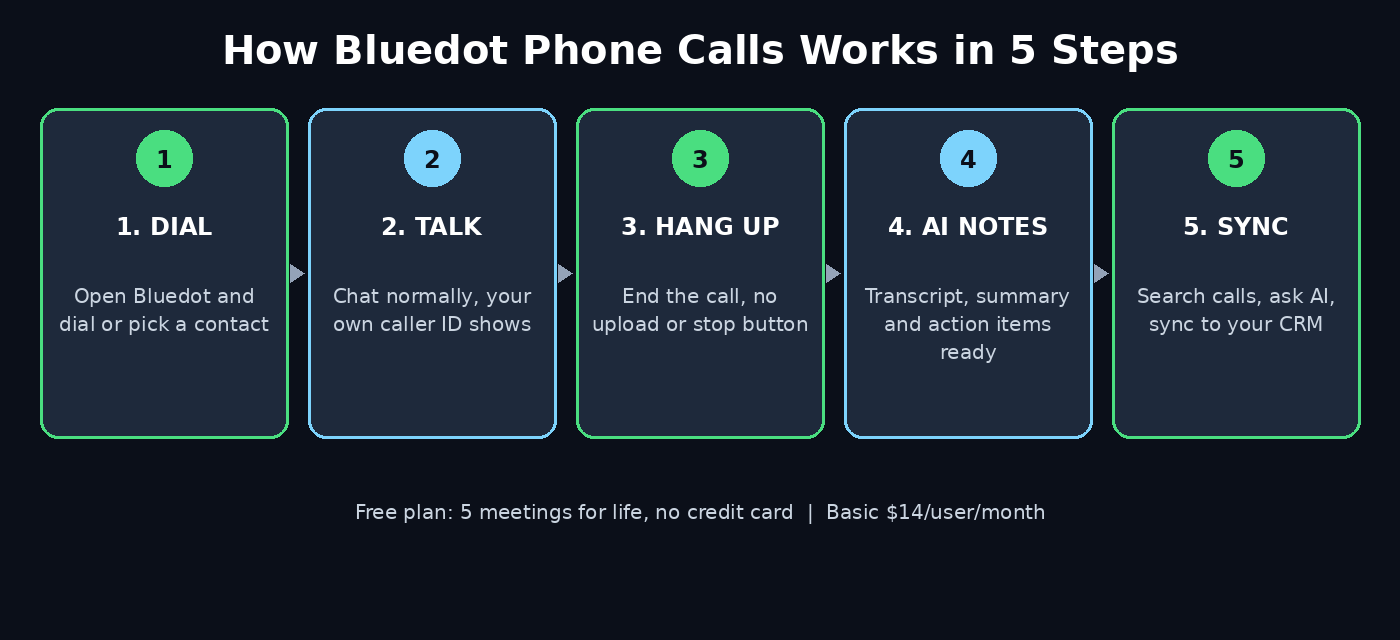
Bluedot Phone Calls launched on Product Hunt on November 19, 2026, extending Bluedot’s well-known bot-free meeting recorder from Zoom and Google Meet to the phone in your pocket. Instead of joining your call as a visible robot participant, Bluedot lets you dial straight from its app on iOS, Android, or the web. You keep your own caller ID, you talk exactly as you normally would, and when you hang up, the notes are already waiting in your meeting library. This guide walks you through the whole setup, from your free account to your first fully documented call, and shows you how to get real value out of a free plan that only gives you five lifetime meetings.
What Is Bluedot Phone Calls?
Bluedot is an AI note taker built around one idea: the recorder should never have to show up as another participant. Most AI meeting tools join your call as a bot, which changes the room — people watch what they say, someone has to admit the bot, and on a sensitive sales or hiring call, that extra attendee can quietly kill the conversation. Bluedot records from your own device instead, through a browser extension, a desktop app, or a mobile app. Phone Calls is the same idea applied to the oldest meeting format there is: the phone call.
Here is what Bluedot Phone Calls does for you:
- Dial from the app, keep your caller ID: You verify your phone number once, then dial any number or pick a contact inside Bluedot. The person you call sees your real number, not a proxy number, so they actually pick up.
- No bot, no link, no upload: There is no meeting link to send and no file to upload afterwards. You talk, you hang up, and the call appears in the same library as your online meetings.
- Full transcript with speaker names: Every call produces a complete transcript. Bluedot is built to catch speaker names, technical terms, and abbreviations accurately, so the transcript reads like a real conversation instead of a guessing game.
- Summary plus action items: Alongside the transcript you get an AI-written summary with the decisions made and the next steps, so you can forward the outcome in seconds.
- Note templates for every kind of call: Choose a template for sales notes, a Q and A, a customer check-in, or an interview, and Bluedot shapes the notes around that purpose. Paid plans let you build custom templates.
- One searchable library: Phone calls sit next to your online and in-person meetings in a single workspace, so you can search across every conversation you have ever captured.
- Free to start: The free plan costs nothing and needs no credit card. It includes five meetings for life, which is enough to test the whole workflow properly before you decide whether to pay.
If you run a small business, recruit candidates, or handle client calls for a living, the value is obvious: the follow-up writes itself. A sales rep can move straight from a discovery call to a CRM update, and a founder can stop reconstructing candidate screens from memory. Teams that handle a lot of client calls often pair a tool like this with a partner — for example, a digital agency that manages outreach for clients can keep every client conversation documented without adding admin work to the day.
Step 1: Create Your Free Bluedot Account
Start at bluedothq.com and click the sign-up button. You can create your account with Google or with an email address and password. The free plan asks for no credit card, so this is a genuine zero-risk test — you are not handing over payment details to try the product.
Once you are inside, take two minutes to look around the dashboard before you make any calls. The main areas are your meeting library, where every captured conversation lives, and your settings, where you will later turn on the recording consent message. Find your usage counter early, because the free plan is a trial in practice: five lifetime meetings is a small budget, and you want to spend those five on real calls, not on accidental test dials to your own voicemail.
One habit that saves beginners real frustration: decide your first real call before you touch any settings. A discovery call with a lead, a screening call with a candidate, or a check-in with an existing client all work well. Pick one, write down the call’s purpose, and keep that purpose in mind when you choose a note template later — the template is what turns a generic transcript into notes you can actually act on.
Step 2: Install Bluedot on Your Phone and Computer
Bluedot Phone Calls works from the Bluedot app, so install it where you actually make calls. The app is available on iOS and Android, and you can also dial from Bluedot on the web. If you already use Bluedot for online meetings, add the Chrome extension and the desktop app for Mac or Windows as well — that way your Zoom calls, your Google Meet calls, your phone calls, and even in-person conversations recorded on your phone all land in the same library.
The Apple Watch app is worth installing too if you own one. Bluedot 2.1 added the ability to record conversations directly from your Apple Watch and sync them into Claude through MCP, which means a hallway chat or a coffee meeting can become searchable context without you opening your laptop at all. You do not need the watch to use Phone Calls, but it shows the direction Bluedot is heading: every conversation you have, captured wherever it happens, filed in one place.
After installing, sign in with the same account you created in Step 1 on every device. Bluedot syncs your library across devices, so a call you dial from your phone in the morning shows up on your desktop when you sit down to write the follow-up email in the afternoon.
Step 3: Verify Your Phone Number
Before your first call, Bluedot asks you to verify your phone number once. This is the step that makes the whole product work, and it is worth understanding why. When you dial through Bluedot, the call goes out under your own verified number. The person on the other end sees the number they already know, not an unfamiliar proxy number, and that single detail is what keeps your answer rate high — especially for sales and recruiting calls, where an unknown number is the fastest way to get sent to voicemail.
The verification itself is simple: enter your number, confirm the code Bluedot sends you, and you are done. You only do this once. After that, every call you place from the app carries your caller ID automatically.
While you are in settings, look at two more switches. First, check which note template is set as your default, so your first call is summarized in a useful shape. Second, find the recording consent message setting, which we will come back to in Step 9 — it is off by default, and turning it on is a decision you should make deliberately, not by accident.
Step 4: Make Your First Phone Call from Bluedot
Here is the part that feels almost too simple: you do not open your phone’s dialer at all. Open the Bluedot app, dial the number or pick the contact inside Bluedot, and talk exactly as you normally would. There is no meeting link to send, no bot to admit, and no “can you hear me” dance at the start of the call. From the other person’s side, this is a completely ordinary phone call.
A few practical tips make the first call go smoothly:
- Call from somewhere quiet: Bluedot’s transcription is accurate, but it still depends on clean audio. A quiet room and a normal speaking voice beat a busy street every time.
- Use speakerphone only if you must: Holding the phone normally gives the cleanest capture. If you need your hands free, use earphones rather than speakerphone, which picks up room echo.
- Say the important things out loud: If a price, a date, or a decision matters, repeat it clearly during the call. The transcript will catch it, and your summary will too.
- Just hang up when you are done: There is no stop button to remember and no file to save. Ending the call is the whole workflow — the recording is already filed.
Within a few minutes of hanging up, the call appears in your meeting library with its transcript, summary, and action items ready. That short wait is the processing time while Bluedot turns the audio into text and the AI writes your notes.
Step 5: Read Your Transcript, Summary and Action Items
Open the call in your library and you will see three things: the full transcript, the AI summary, and the action items. Start with the summary. It tells you what was decided and what happens next, in a few short paragraphs, and for most calls it is genuinely all you need. If the summary mentions a number or a promise you want to check, click into the transcript and search for the exact words — the transcript is word-for-word, with speaker names attached, so you can find the precise sentence in seconds.
The action items are the part beginners underuse. Bluedot pulls out the commitments from the conversation: who promised what, and by when. Before you close the call, read that list once and ask yourself whether each item has an owner and a deadline. If an item is vague — “we should follow up soon” — add the date yourself while the call is still fresh. That thirty-second check is what turns an AI summary into a to-do list you can trust.
One more habit worth building from day one: rename or tag important calls. A library full of entries called “Call with +92 300…” is useless in a month. A short label — “Acme discovery — pricing agreed” — makes the whole library searchable, and Bluedot’s search covers the transcript text as well, so you can find a call by a product name, a price, or a person’s name months later.
Step 6: Pick the Right Note Template for the Call
A transcript is raw material. A template is what shapes it into notes for a purpose. Bluedot ships with templates for common call types, and choosing the right one before or right after the call changes the quality of the output more than any other setting.
- Sales notes: Structured around discovery — pain points, budget signals, decision makers, and next steps. Use it for every first call with a lead.
- Q and A: Organizes the conversation as questions and answers, which is ideal for support calls and product walkthroughs.
- Customer check-in: Focuses on satisfaction, open issues, and renewal signals. Use it for regular account calls.
- Interview: Built around candidate answers, strengths, and follow-up questions. Use it for screening calls so every candidate gets compared on the same shape of notes.
- Custom templates (Pro plan): If your team repeats the same call format every day, build a template that matches it exactly — the fields you always need, in the order you always need them.
If you are not sure which template fits, start with the general summary and switch templates after the call — Bluedot regenerates the notes in the new shape. The point is not to get it perfect on the first try; the point is to stop receiving the same generic summary for a sales call and a support call, because those two conversations need completely different notes.
Step 7: Send Notes to Your CRM and Favourite Apps
Notes that stay inside one app are only half the job. Bluedot connects to the tools your follow-up already lives in. On the Business plan, phone conversations sync directly to HubSpot and Salesforce, so a sales call lands in the CRM without anyone retyping it. That matters because the most common reason CRM data goes stale is not laziness — it is that logging a call takes five minutes nobody has right after hanging up.
Even on lower plans, the integrations cover most everyday workflows. Bluedot connects to Notion, Slack, Zapier, Make, and webhooks, and it exposes meeting context to Claude and ChatGPT through MCP, so you can ask an AI assistant to draft a follow-up email from the call, find patterns across ten calls, or pull every promise a client made this month. If you run an AI automation service or build agent workflows for clients, this is where Bluedot stops being a note taker and starts being a data source: every call becomes structured input your agents and automations can work with.
Set up one integration at a time. Start with the place your follow-up actually happens — Slack for a small team, Notion for a personal system, HubSpot or Salesforce if you sell. Get one call flowing end to end, from dial to CRM record, before you wire up the rest. A single working pipeline beats five half-connected ones.
Step 8: Ask Bluedot AI Questions About Your Calls
Once you have a few calls in the library, the most powerful feature is not the summary of one call — it is the ability to ask questions across all of them. Bluedot’s AI chat lets you query your meeting context directly: “What did every lead this week say about pricing?” or “Which candidates mentioned Python?” or “What did the client promise on the last call?”
This is where a call library earns its keep. A single transcript is a memory aid; a searchable library is a business memory. Before a follow-up call, ask Bluedot what was agreed last time so you walk in prepared. Before a pricing conversation, ask what objections came up before. Before a hiring decision, pull every candidate’s answer to the same question side by side.
Keep your questions specific. “Summarize my calls” gives you a generic answer. “List every delivery date mentioned in my calls with Acme this month” gives you something you can act on. The AI is only as good as the question, and after a few tries you will learn which phrasing gets you the answer you actually need.
Step 9: Turn On the Recording Consent Message
Recording a phone call creates a consent obligation, and the rules change by jurisdiction. Some places need one party’s consent, others need everyone’s. Bluedot handles this with an optional consent message that can announce the recording automatically at the start of the call — but it is off by default, and you must enable it yourself in Settings.
Here is the sensible approach for beginners:
- Turn the consent message on unless you have a clear legal reason not to. It costs you two seconds at the start of a call and removes the entire argument afterwards.
- Tell people in your own words too: A short “I’m recording this so I can send you accurate notes afterwards” at the start of a call is natural, honest, and usually appreciated — most people would rather you record than misremember.
- Check your local rules: If you call across borders, the strictest rule in the conversation applies. When in doubt, announce the recording and get a clear yes.
- Know the security story: Bluedot states it is GDPR-compliant and SOC 2 audited, which matters if you record client or candidate calls for a business.
This step is not optional admin. It is the difference between a tool that helps your business and a tool that creates a problem for it. Set it once, and it protects every call after that.
Step 10: Use the Free Plan Wisely (and Know When to Upgrade)
The free plan is Bluedot’s trial in practice, and beginners should treat it that way. You get five meetings for life, with a one-hour cap per recording and no imports. Five calls will not cover an active caller for a week — but five calls is exactly enough to learn whether Bluedot’s notes are good enough to pay for. Use them on five real calls, not test calls, and judge the product on the quality of those five summaries.
When you are ready to pay, the tiers are straightforward:
- Free — $0: Five meetings for life, one-hour recordings, no imports. Best for testing.
- Basic — $14 per user per month billed annually ($18 month to month): Unlimited audio-only meetings, still capped at one hour per recording, plus webhooks and MCP. Phone-call recording is unlimited for paid users at no extra cost.
- Pro — $20 per user per month billed annually ($25 month to month): Adds video, unlimited recording duration, custom note templates, and Zoom and Google Drive imports.
- Business — $32 per user per month billed annually ($39 month to month): Adds CRM and ATS integrations, single sign-on, retention controls, and organisation-wide MCP and webhooks.
Most solo users land on Basic: unlimited phone calls with no extra charge is the whole point of the product. Move to Pro when you want custom templates or longer recordings, and to Business when your CRM sync needs to be automatic rather than manual. If you are comparing costs, check the pricing page before you upgrade — prices change, and the free plan’s limits are the one thing that has stayed fixed.
Bluedot Phone Calls vs Other Call Note Takers
| Tool | How it records phone calls | Caller ID | Free plan | Best for |
|---|---|---|---|---|
| Bluedot Phone Calls | Dial from the app, no bot | Your own verified number | 5 lifetime meetings | Sales, recruiting and client calls where a bot would change the conversation |
| Otter.ai | Records meetings via a bot or live transcription | Not applicable to phone dialing | Limited monthly minutes | Transcribing scheduled video meetings |
| Fireflies.ai | Joins meetings as a bot participant | Not applicable to phone dialing | Limited credits | Teams that want a bot in every meeting |
| Phone built-in recorder | Native call recording on the device | Your own number | Free on supported phones | A raw audio file with no transcript, summary or search |
The table makes the trade-off clear. Otter and Fireflies are strong meeting tools, but they were built for scheduled video calls with a bot in the room. Bluedot Phone Calls was built for the calls that never had a meeting link — the quick call from the car, the supplier call, the candidate screen. If your important conversations happen on the phone, that is the gap it fills.
Frequently Asked Questions
Is Bluedot Phone Calls really free?
Yes, to start. The free plan costs $0 and needs no credit card, and it includes five meetings for life. Phone-call recording itself is unlimited for paid users at no extra cost — it is part of the normal subscription, not a metered add-on. Treat the free plan as a proper trial: five real calls is enough to judge the note quality before you spend anything.
Does the person I call see a different number?
No. You verify your phone number once, and Bluedot places the call using your own caller ID. The recipient sees your real number, which is one of the main reasons this beats proxy-number dialers for sales and recruiting — people answer numbers they recognise.
Is it legal to record a phone call with Bluedot?
It depends on where you and the other person are. Some jurisdictions need one party’s consent, others need everyone’s. Bluedot offers an optional consent message that announces the recording automatically, but it is off by default — enable it in Settings, tell the other person in your own words, and check the rules for the places you call from.
Does Bluedot Phone Calls work on iPhone and Android?
Yes. You can dial from Bluedot on iOS, Android, or the web. The same account also covers the Chrome extension and desktop apps for online meetings, plus an Apple Watch app for recording in-person conversations, so every kind of call lands in one library.
What happens to my notes if I cancel a paid plan?
Your recordings stay available during the plan, and Bluedot deletes recordings a month after cancellation, according to its FAQ. Export anything important before you cancel — summaries, transcripts, and action items for key clients and candidates are worth keeping in your own system.
How is Bluedot Phone Calls different from a normal call recorder?
A normal recorder gives you an audio file you will never listen to again. Bluedot gives you a searchable transcript, an AI summary with decisions and next steps, action items with owners, and templates shaped to the call — plus sync to your CRM and the ability to ask questions across every call you have ever made.
Final Thoughts
Bluedot Phone Calls is a small idea executed well: the phone call you already make, documented the moment you hang up, without changing anything about how the call feels. No bot joins the conversation, no strange number shows on the other person’s screen, and no notes need typing afterwards. The free plan is genuinely free, but it is also genuinely limited — five lifetime meetings — so spend those five on real calls and judge the product on the quality of the notes it writes for you.
If those five calls end with summaries you would happily forward to a client or a hiring manager, the upgrade decision makes itself. Basic at $14 a month buys unlimited phone calls, and that is a small price for never again reconstructing a conversation from memory. Set up your account, verify your number, turn on the consent message, and make your first call from inside Bluedot today. Your future self — the one writing the follow-up email at 6 p.m. — will be grateful.
Explore More Free AI Tools
Want to keep building your free AI toolkit? Try these free tools on our site: AI Title Generator for headlines that get clicks, Meta Description Generator for search snippets that earn the click, AI Rewriter for polishing rough drafts, and Keyword Density Checker for keeping your SEO on track — all free at aitoolsteps.com. Pair them with Bluedot’s call notes and one afternoon of phone calls can turn into a week of documented follow-ups.