

Your AI agent just told a customer the wrong refund policy. Nothing crashed. No error log fired. The customer found out first — and your team found out from the customer. This is the quiet failure problem that three.dev was built to solve. In this guide you will learn exactly how to use three.dev AI for free. You need no prior experience with testing AI agents.
three.dev is a new AI testing tool. It went generally available on November 10, 2026. It launched on Product Hunt on November 12, 2026, earning a top-10 Product of the Day spot. You do not write tests before launch. Instead, three.dev AI watches your live traffic and scores every AI request. It groups the problems it finds into failure modes ranked by severity. Setup takes one prompt to a coding agent, and there is no SDK to install. Do you run an AI feature in production? It could be a support chatbot, an agent that books appointments, or a tool that drafts replies. This beginner guide will take you from zero to your first fixed failure in under an hour.
Step 1: Understand What three.dev AI Actually Does
Most AI failures are silent. A traditional app either works or throws an error. An AI agent is different. It can answer confidently and still be wrong. It may invent an order status, apply a discount that does not exist, or quote a policy your company never wrote. three.dev AI catches these quiet failures. It sits between your app and your AI provider. It scores what actually happens in real conversations.
- Automatic failure detection: three.dev finds failures in your live traffic on its own. You do not write tests first or tell it what to look for.
- Failure modes, ranked by severity: Similar failures are grouped together. You see the biggest problem at the top, not a thousand individual bad answers.
- New-failure alerts: Failure modes that just appeared carry a “New” label. Every mode shows how it has moved over the past week. A growing problem stands out right away.
- Fix-ready reports: Open any failure mode to see the failing requests and why each one failed. Then hand that report to your coding agent to write the fix.
- Quality, latency and cost in one view: The overview shows what is breaking. It shows how fast your agent answers and what it costs.
Think of it as a safety net for AI features. You keep shipping, and three.dev tells you what your users are experiencing before they complain about it.
Step 2: Create Your Free three.dev AI Account
Start at the three.dev website and create a free account. The free plan lets you record live traffic and score requests up to a monthly limit. Recording stops after the data limit. Scoring stops after the request limit. Both limits reset each month. That is enough for a small app, a side project, or your first production test.
There is also a time-limited offer worth knowing about. Sign up by November 22, 2026, and you get the Starter plan free for six months. Even if you only use the free plan, create the account now so your traffic history starts building from day one. The earlier three.dev starts watching, the sooner it can show you real failure patterns instead of guesses.
- Sign up with your work email so your team can share the same dashboard later.
- Note down your project name. For example, use “Support chatbot” or “Booking agent”. three.dev AI groups failures by feature, so a clear project name keeps everything tidy.
- Bookmark the official docs at docs.three.dev; you will need them in Step 4 when you point your app at the proxy.
Step 3: Install the three.dev AI Setup Skill
three.dev setup is designed to be done by a coding agent, not by hand-editing config files. The team publishes a skills repository on GitHub at github.com/round3ai/skills. It includes a three-dev-setup skill that does the wiring for you.
Open your project in Claude Code, Cursor, or Codex and run the three-dev-setup skill in your repository. The skill finds your LLM calls, groups them by feature, generates the use cases for each feature, and wires everything up. In practice, you give your coding agent one prompt. It handles the boring parts. It locates every place your code calls an AI model. Then it routes those calls through three.dev AI.
- Claude Code users: open the repo, install the skills repo, and ask the agent to run the three-dev-setup skill.
- Cursor users: the same skill works in Cursor’s agent mode — point it at your project folder and let it find the LLM calls.
- Codex users: run the skill the same way; it works with any of the three coding agents.
- If you do not use a coding agent yet, read the docs at docs.three.dev first — the manual path is the same idea, just with more typing.
Beginner tip: run the setup on a test branch first. That way you can see exactly which lines changed before you merge anything into your live app.
Step 4: Point Your App at the three.dev AI Proxy
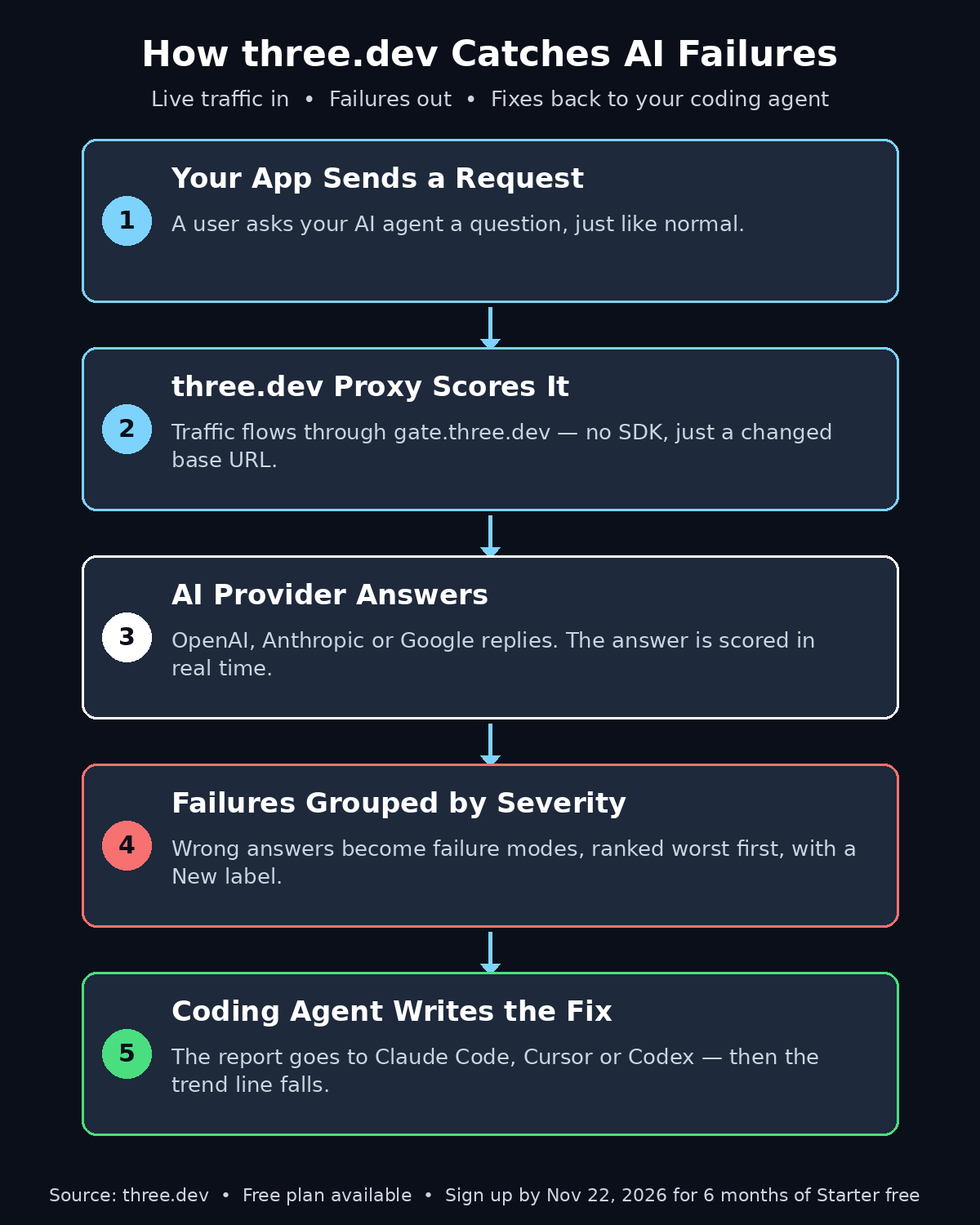
Here is the clever part: three.dev is a proxy, so there is no SDK to install and no code library to learn. You simply change the base URL your app uses to reach your AI provider, and point it at gate.three.dev instead.
For example, if you use OpenAI, you change the base URL to https://gate.three.dev/v1. Your app keeps using the official OpenAI, Anthropic, or Google GenAI SDKs exactly as before. The requests flow through the three.dev gate. They get scored and continue to your provider. Because it works at the HTTP level, three.dev supports every language that can make an HTTP call.
- Change only the base URL — keep your API keys, model names, and prompts exactly the same.
- Test with one feature first, such as your support chatbot, before routing every AI call through the gate.
- Send a few test requests and check the three.dev dashboard to confirm the traffic is arriving.
- If a request fails, switch the base URL back to the provider’s default — your app returns to normal instantly, because nothing else changed.
This proxy design is what makes three.dev beginner-friendly. You are not rewriting your app; you are changing one address and gaining a full testing layer on top of it.
Step 5: Let three.dev AI Score Your Live Traffic
Once the proxy is live, you do not need to do anything special. Real users keep talking to your agent, and three.dev scores each request in the background. This is the biggest difference from old-style testing: you are not guessing what might go wrong in a test file — you are watching what actually goes wrong with real people.
Give it a few days of normal traffic before judging the results. A handful of requests will show you the obvious problems. A week of traffic reveals the patterns. You may see the same wrong answer appearing on Tuesdays. Or the refund question that fails whenever a customer mentions a gift card. Or the booking flow that breaks when someone types a date in a different format.
- Do not change your prompts during the first scoring window — you want a clean baseline of how the agent behaves today.
- Check the dashboard daily for the first week so new failure modes do not sit unnoticed.
- Pay attention to the trend arrows: a failure mode that is growing week over week is more urgent than a big one that is shrinking.
Step 6: Read Your three.dev AI Failure Modes, Ranked by Severity
Open the three.dev AI overview. You will see your AI feature’s problems listed with the biggest ones at the top. Each failure mode is a group of similar bad answers. For example, “agent invents order status” or “agent applies unapproved discount”. Each mode shows a severity rank, a count of affected requests, and a trend line for the past week.
Start at the top and work down. The top failure mode is the one costing you the most trust, money, or support tickets right now. A failure mode marked “New” deserves a fast look, even if it is small. A brand-new failure often means something changed. It could be a prompt edit, a new model version, or a new kind of customer request your agent has never seen.
- Severity first: fix the top-ranked failure mode before worrying about the long tail.
- New labels: investigate any “New” failure mode the same day it appears.
- Trend lines: a mode that doubled this week is a fire; a mode that halved is a fix that worked.
- Ignore the noise: one weird request is not a failure mode — wait until three.dev groups it with similar requests before acting.
Step 7: Open a three.dev AI Failure Mode and See Why Each Request Failed
Click any failure mode. You will see the actual failing requests inside it, along with the reason each one failed. This is where three.dev AI earns its keep. Instead of a vague “your agent is 92 percent accurate,” you see the real conversation. You see the wrong answer and the explanation of what went wrong.
Read three or four examples inside a mode before deciding on a fix. Sometimes the pattern is obvious — the agent has no refund policy in its instructions, so it invents one. Sometimes it is subtle — the agent answers correctly when the customer writes in English but fails when they write in Roman Urdu or mix languages. The examples tell you which one you are dealing with.
- Copy the two worst examples into your notes — you will use them to verify the fix in Step 8.
- Check whether the failures share a trigger: a missing document, an unclear instruction, or a question type the agent was never trained to handle.
- Note the exact wording customers use. Real user phrasing is gold for writing better prompts and better test cases.
Step 8: Hand the three.dev AI Fix to Your Coding Agent
three.dev does not just find problems — it packages them so your coding agent can fix them. Take the failure mode report, with its examples and reasons. Give it to Claude Code, Cursor, or Codex with a simple instruction: “Fix this failure mode.” The coding agent gets what it needs to write the fix. It may add a missing policy to the prompt, tighten the instructions, or add a guardrail that routes tricky requests to a human.
After the fix ships, watch the same failure mode for a week. A good fix shows up as a falling trend line in three.dev. If the line does not fall, the fix missed the real cause — go back to the examples in Step 7 and look again. This loop — detect, fix, verify — is the whole workflow, and it is how teams keep AI agents trustworthy over time.
- Fix one failure mode at a time so you can tell which change worked.
- Re-run the two worst examples from your notes after every fix to confirm they now pass.
- Keep a simple log: failure mode, fix date, and whether the trend fell. Future you will thank present you.
Step 9: Track three.dev AI Quality, Latency and Cost in One Place
three.dev’s overview also tracks quality, latency, and cost together, which matters more than it sounds. A fix that makes your agent safer but three times slower is not a pure win, and a cheaper model that doubles your failure rate is not a saving. Check all three numbers whenever you change a model, a prompt, or a provider.
For small teams and solo builders, the cost view is especially useful: it shows whether a quiet failure is also an expensive one. An agent that loops, retries, or writes long wrong answers burns tokens on every bad reply. Fixing the failure often cuts the bill at the same time. If you run client projects through a digital agency, this combined view is exactly what you want in a client report. It shows fewer failures, steady speed, and controlled cost on one screen.
Step 10: Build a Weekly three.dev AI Failure-Review Habit
Tools only help if someone looks at them. Set a 20-minute weekly habit: open three.dev, read the top three failure modes, fix the worst one, and note the rest. That is it. Twenty minutes a week is enough to keep an AI agent honest, and it is far cheaper than the support tickets and refunds that silent failures create.
Share the habit with your team. Product people should read the failure examples because they show what customers actually ask for. Developers should own the fixes. And if you want to stay current on how agentic AI tools are evolving, follow trusted coverage such as agentic AI news and analysis alongside your own dashboard — the tools change fast, and the teams that keep up are the ones whose agents keep working.
three.dev vs Other AI Testing Tools
| Tool | What it does best | Free plan | Best for beginners? |
|---|---|---|---|
| three.dev | Finds live failures automatically and ranks them by severity | Yes — free plan, Starter free 6 months if you sign up by Nov 22, 2026 | Yes — one-prompt setup, no SDK |
| Langfuse | Observability and analytics for LLM apps | Yes — free tier | Good, but shows traces rather than auto-fixing failures |
| Perfai Security | Finds live security vulnerabilities in AI apps | Free | Good for security, not for answer-quality failures |
| Manual testing | You write test cases by hand before launch | Free (your time) | Slow, and it misses the failures real users create |
The honest summary: Langfuse is excellent at showing you what happened, but it does not group failures or hand a fix to your coding agent. Manual testing catches what you thought to test. three.dev is the only option in this list that finds the failures you never thought of, in live traffic, and ranks them so you know what to fix first.
Frequently Asked Questions
Is three.dev really free?
Yes. three.dev has a free plan with monthly limits on recording and scoring, and both limits reset each month. If you sign up by November 22, 2026, you also get the Starter plan free for six months. For most beginners and small projects, the free plan is enough to find your first real failures.
Do I need to know how to code to use three.dev?
You need a basic comfort with your own app’s code, but you do not need to write test code. The three-dev-setup skill runs in Claude Code, Cursor, or Codex and finds your LLM calls for you. If you can change a base URL in a config file, you can set up three.dev.
Does three.dev work with Claude and Gemini, or only OpenAI?
It works with OpenAI, Anthropic, and Google GenAI SDKs, because it operates as a proxy at the HTTP level. You keep using your provider’s official SDK and only change the base URL to gate.three.dev.
Will three.dev slow down my AI agent?
The proxy adds a small hop to each request, but it is designed to sit in the path without changing your app’s behavior. Route one feature through it first and watch the latency numbers in the three.dev overview — if the numbers look fine, roll it out to the rest.
What kind of failures does three.dev catch?
The quiet ones are wrong refund policies, invented order statuses, and unapproved discounts. They include answers made up when the knowledge base has no answer. And any repeated wrong answer that never triggers an error log. If your agent can be confidently wrong, three.dev can catch it.
Can I use three.dev on a personal or side project?
Absolutely — side projects are the perfect place to start. The free plan covers small traffic volumes, and a side project is where you can learn the detect-fix-verify loop without any pressure.
Final Thoughts
AI agents fail quietly. Quiet failures are the expensive kind. They cost refunds, trust, and customers. And you hear about them last. three.dev AI flips that order. It watches your live traffic and finds the failures on its own. It ranks them by severity and hands your coding agent exactly what it needs to fix them. Setup is one prompt and one changed URL. The free plan is genuinely usable. The Starter plan is free for six months if you sign up by November 22, 2026.
Start today. Create the free account, run the setup skill, route one feature through the proxy, and check the dashboard after a week of real traffic. Your first failure mode will probably surprise you — and fixing it before a customer reports it is exactly the point.
Explore More Free AI Tools
Want more free AI tools for your website and content? Try the AI Title Generator for catchy headlines. Try the Meta Description Generator for search-ready snippets. Use the AI Rewriter to polish your drafts. Use the Keyword Density Checker to keep your SEO on track. All are free on AI Tool Steps.