

What Is Skillbox AI?
If you use AI coding agents such as Claude Code, Cursor or Codex, you have probably felt the same frustration. Your best prompts, workflows and “skills” live in scattered folders, copied by hand from one machine to another. Every new project starts from zero. Skillbox AI fixes exactly that problem. It is a free AI skills library. Skillbox keeps every skill you collect in one place. It syncs them to Claude Code, Cursor and Codex, so your agents work the same way on every device. The tool launched on Product Hunt on November 11, 2026. It earned 155 upvotes and finished #5 Product of the Day. Skillbox is already one of the most useful new tools for anyone who works with AI agents every day.
Why Your Agent Skills Need One Home
Think of an agent skill as a small instruction pack: a SKILL.md file that tells your AI agent how to do one job well. That job could be writing a launch page, reviewing code, planning a marketing campaign or drafting a blog post. A single skill can save you dozens of repeated prompts. The trouble starts when you collect twenty or fifty of them. Is this version current? Is it safe to install? And which ones should this project actually load? Skillbox answers all three questions in one dashboard. In this guide, you will learn how to use Skillbox AI from your first sign-up to your first synced workflow.
Before we start, one important point: a skill is powerful because your agent follows it automatically. That is also why a bad skill is dangerous. A skill copied from a random repository can hide instructions that leak data, run unexpected commands or steal secrets. Skillbox scans every version of every skill for exactly those risks. That is why it is worth using instead of copying folders by hand. If your team builds AI-powered products for clients, use reviewed, versioned skills. A digital agency workflow built on them is far safer than a folder of unverified downloads.
Step 1: Understand What an AI Agent Skill Actually Is
Before you open Skillbox, it helps to know what you are organising. An agent skill is a folder containing a SKILL.md file plus any supporting scripts or reference files. When your request matches the skill’s job, the agent loads it and follows its method instead of guessing. Good skills are specific: “write a product launch page” is a skill, “be helpful” is not.
Skills come from many places: GitHub repositories, community collections, your own experiments and templates shared by colleagues. The Agent Skills standard is open. The same skill folder works in Claude Code, Codex and Cursor, with only small path differences. That openness is the reason a library tool makes sense. The skills are portable, but keeping them in sync across tools and machines is manual work. That is the first thing to understand when you learn how to use Skillbox AI. Skillbox takes over that boring part so you can focus on using the skills.
- Library: every skill you own, in one searchable place.
- Active set: only the skills a given tool or project actually loads, because every loaded skill costs context.
- Sources: the GitHub or GitLab repository a skill came from, so updates flow in automatically.
- Trust: a security scan on every version, checking for prompt injection, data exfiltration, command injection, hardcoded secrets and obfuscated code.
Step 2: How to Use Skillbox AI — Create Your Free Account
Head to the Skillbox website and create a free account. The free plan is permanent. It covers the library, sync, updates and Trust scanning, with no card required. You get 3 devices and up to 100 sources on the free plan. That is generous for a beginner and for most solo users.
Sign-up takes about a minute, and it is the first hands-on step in how to use Skillbox AI. Use an email you check regularly, because Skillbox will notify you when a skill you follow gets a new version. Once you are in, you will see an empty library. It offers options to add skills, connect a source and link your first agent tool. Do not rush to fill it. Start with three to five skills you actually use, and grow the library only when a new skill earns its place.
- Free plan: library, sync, updates and Trust scanning, 3 devices, 100 sources.
- Individual plan: £6.99 per month after a 7-day trial, adds Trim and AI features.
- Team plan: £12.99 per member per month, for shared team libraries.
Step 3: Add Your First Skill to Skillbox AI
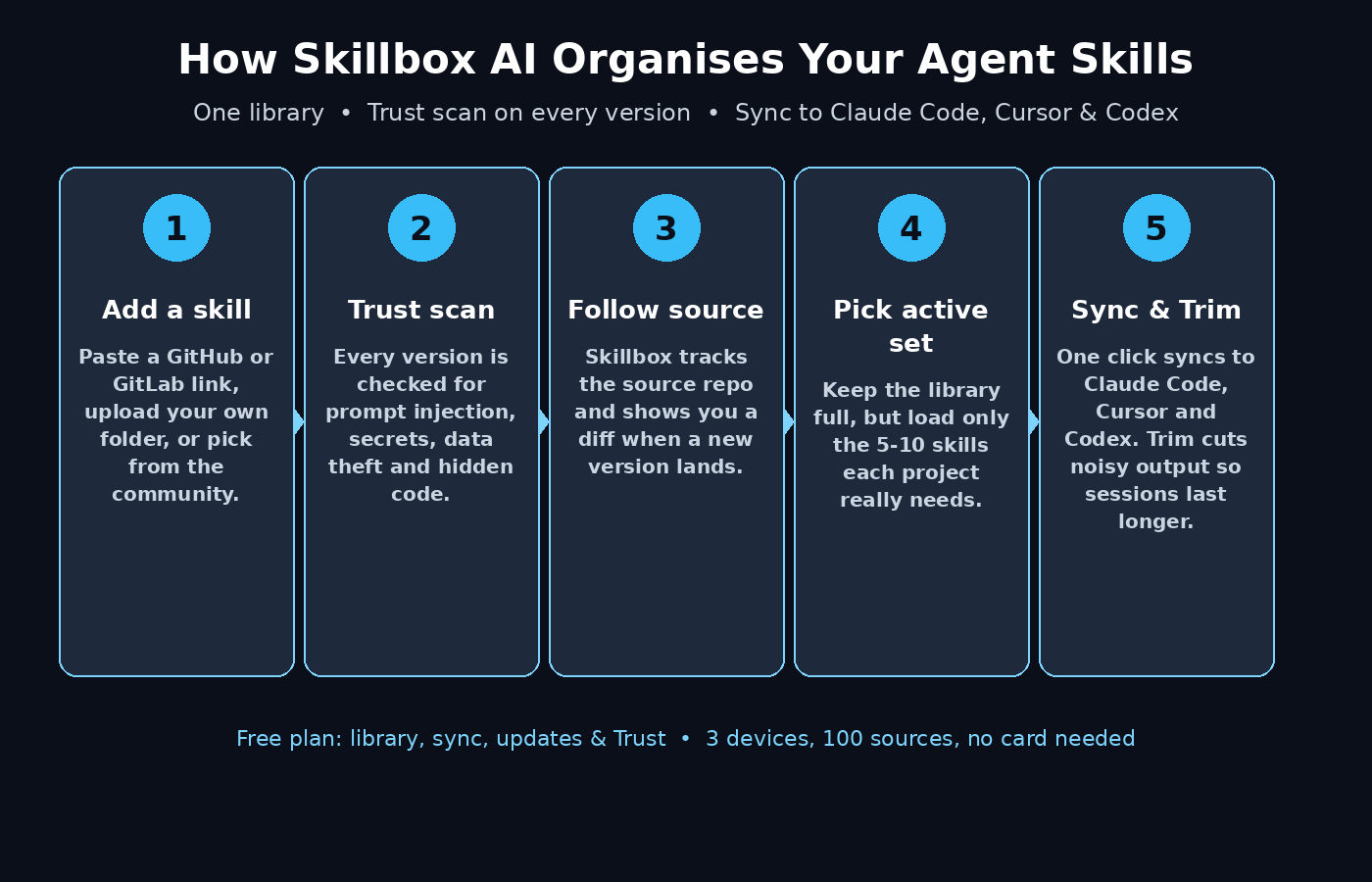
Adding a skill is the core action in Skillbox, and there are three ways to do it. The easiest is to paste the link of a GitHub or GitLab repository that contains skills. Skillbox reads the repository, lists the skills it finds, and lets you pick the ones you want. The second way is to upload a skill folder from your own computer. That is useful for skills you wrote yourself. The third is to browse the skills already in the community and add the ones that fit your work.
When you learn how to use Skillbox AI, start with one small, concrete skill, such as a writing skill or a code-review skill. Add it, open its detail page and read the full SKILL.md before you sync it anywhere. A good habit from day one: never add a skill you have not read. The library is only as trustworthy as the skills inside it, and reading the file takes two minutes.
When the skill is in your library, give it a tag that describes its job. Use tags such as “writing”, “code review” or “launch”. Tags become your fastest way to find the right skill later. They matter when the library holds dozens of entries and you need one in a hurry.
Step 4: Follow Skills from GitHub and GitLab Sources
The most powerful feature of Skillbox is that sources stay attached. When you add a skill from GitHub or GitLab, Skillbox remembers where it came from and keeps following that source. When the author publishes a new version, Skillbox shows you the update. You are never left on a stale copy forever.
This matters more than it sounds. Skills improve constantly: authors fix prompts, add edge cases and remove outdated steps. A skill you copied six months ago may quietly give worse results than the current version. With source following, you see a clear diff between the version you have and the new one. Then you decide whether to accept it. Review the diff the same way you would review a code change. A skill update can change how your agent behaves. This is the core of how to use Skillbox AI to stay current without extra work.
- Follow the source repository once, and updates arrive automatically.
- Read the diff before accepting a new version.
- Keep the old version available so you can roll back if the new one behaves badly.
Step 5: Review Every Version with Trust Before You Sync
Trust is the feature that separates Skillbox from a simple sync folder. Every version of every skill is scanned for prompt injection, data exfiltration, command injection, hardcoded secrets and obfuscated code. The scan includes Cisco’s Skill Scanner. The results appear on the skill’s page as a clear trust report. You can see exactly what was checked and what was found.
Make this a habit. Never sync a skill with a failed or warning trust report until you have read the flagged lines yourself. Most flags are easy to judge. A skill that reads an environment file may be legitimate. A skill that quietly sends file contents to an unknown server is not. If you cannot explain what a flagged line does, do not install that version. This single habit protects your code, your API keys and your clients’ data.
If you run a small studio or agency, Trust also gives you a simple policy to share with the team. Only skills with a clean trust report go into the shared library. Writers and marketers who use AI automation services for client work can point to that policy. It answers the client who asks how their data stays safe.
Step 6: How to Use Skillbox AI to Sync Skills to Claude Code, Cursor and Codex
If you want to know how to use Skillbox AI at its best, syncing is where it earns its keep. Connect Claude Code, Cursor and Codex from the Skillbox dashboard, and choose which skills each tool should receive. Skillbox places each skill where that tool expects it, for example ~/.claude/skills for Claude Code. You never have to memorise folder paths or copy files by hand again.
Sync works across your devices too. Set up a skill on your desktop, and it appears on your laptop as well. Both machines just need to be linked to your account. This ends the classic problem of tuning a skill on one computer and finding it missing on the other. Start with one tool, confirm the skill appears and works, then connect the second and third.
- Connect one agent tool at a time and verify the sync before adding the next.
- Check that the skill folder landed in the right directory for that tool.
- Run a quick test prompt that should trigger the skill, and confirm the agent actually uses it.
Step 7: Keep a Small Active Set and Save Your Context
Skillbox makes a distinction beginners often miss. Your library can hold everything, but only a smaller active set should be delivered to each tool or project. Every skill your agent loads costs context, and context is the most precious resource in a long agent session. Loading fifty skills “just in case” makes your agent slower, more confused and more expensive.
For each project, pick the five to ten skills that match the work. A writing project needs writing and editing skills, not database migration skills. A coding project needs the opposite. Review your active set once a week and remove skills the project has outgrown. Learning how to use Skillbox AI also means learning restraint. Skillbox makes this easy. Removing a skill from the active set does not delete it from the library. It stays there, ready to activate again whenever you need it.
Step 8: Use Trim to Make Long Sessions Last Longer
Trim is a Skillbox Individual feature. It shortens noisy test, git and build output before your agent reads it. Picture an agent burning thousands of tokens on a huge test log, just to find one failing line. If you have seen that, you know why this matters. Trim compresses that noise so the session lasts longer and costs less.
Trim currently works across more than the three main synced tools, though its session insights are deepest on Claude Code. You can try it during the 7-day Individual trial and measure the difference yourself. Run a similar task with Trim on and off, and compare how much context the session used. If you work with large codebases or long test suites every day, Trim alone can justify the Individual plan.
Step 9: Update Your Skillbox AI Library and Review Diffs
A library is only useful if it stays current, so part of how to use Skillbox AI is a short weekly routine. Once a week, open Skillbox and check the updates tab. For each skill with a new version, read the diff and check the fresh trust report. Accept the update if it looks good. This takes ten minutes and keeps your agents working with the best available instructions.
Pay special attention to skills from fast-moving authors. A skill for a tool that changed its interface or API can go stale quickly. An outdated skill can teach your agent the wrong steps. When an update looks risky or the diff is large, keep the old version active for one more week. Test the new version in a side project first. Rollback is painless when the old version is still in your library.
- Weekly routine: check updates, read diffs, check trust reports, accept or defer.
- Test big updates in a side project before rolling them into client work.
- Remove skills you have not used in a month; a tidy library is a fast library.
Step 10: Try Skillbox AI Individual and Decide What You Need
Spend a week learning how to use Skillbox AI on the free plan. Then you will know whether you need the Individual features. The 7-day trial unlocks Trim and the AI features. Judge them honestly by measuring three things. Do your sessions last longer? Do you spend less on tokens? And do you find skills faster? If the answer is yes, the Individual plan at £6.99 per month is cheap for a daily tool. If the answer is no, the free plan already covers the library, sync, updates and Trust. That is the core of Skillbox.
Teams should look at the Team plan instead of sharing one account. Shared libraries need clear ownership: who approves a new skill, who reviews trust reports, and who accepts updates. A shared Skillbox library with those rules becomes a genuine team asset, the same way a shared code style guide does.
Skillbox vs Managing Skills by Hand
| Task | Skillbox AI (free plan) | Copying folders by hand |
|---|---|---|
| Keep skills in one place | One searchable library | Scattered folders on each machine |
| Sync to Claude Code, Cursor, Codex | One click per tool | Manual copy into each tool’s folder |
| Stay updated | Sources followed, diffs shown | You must check each repo yourself |
| Security check | Trust scan on every version | No scan unless you run one |
| Context usage | Small active set per project | Easy to load everything by accident |
| Long output handling | Trim (Individual plan) | Full logs eat your context |
| Price to start | Free, no card required | Free, but costs your time |
The table makes the trade-off clear. Manual management costs nothing in money. But it quietly costs hours every month, and it offers no safety net when a skill turns out to be malicious. Skillbox is free to start, and its Trust scan alone is worth the switch for anyone who installs skills from public repositories.
Frequently Asked Questions
Is Skillbox AI really free?
Yes. Skillbox has a permanent free plan that covers the library, sync, updates and Trust scanning, with 3 devices and 100 sources and no card required. Trim and AI features are on the Individual plan at £6.99 per month after a 7-day trial, and teams pay £12.99 per member per month.
Which AI tools does Skillbox sync with?
Skillbox syncs to Claude Code, Cursor and Codex. Trim works more widely, but session insights are deepest on Claude Code. If you use more than one of these tools, Skillbox keeps the same skills available in all of them.
What does the Trust scan actually check?
Trust scans each skill version for prompt injection, data exfiltration, command injection, hardcoded secrets and obfuscated code, including a scan by Cisco’s Skill Scanner. The report shows what was found so you can judge it yourself before installing.
Do I need to install skills one by one?
No. You add skills to one library, then choose an active set per tool or project and sync. Adding a skill to the library does not force it into every agent session, which keeps your context usage under control. That is the simplest way to learn how to use Skillbox AI without drowning in setup.
Can I use skills I wrote myself?
Yes. Upload your own skill folder into the library, tag it, and sync it like any other skill. This is a good way to turn your own best workflows into reusable instructions your agent follows every time.
What happens when a skill I follow is updated?
Skillbox shows you the new version with a diff and a fresh trust report. You decide whether to accept it. The old version stays available, so you can roll back if the update behaves badly.
Final Thoughts
AI agents are only as good as the instructions they follow, and most people still manage those instructions like loose papers on a desk. Skillbox AI turns that pile into a proper library. You get one place for every skill, automatic updates from the source, a safety scan on every version, and one-click sync to Claude Code, Cursor and Codex. The free plan covers everything a beginner needs. The discipline it encourages will make your agents noticeably better within a week: a small active set, reviewed updates and trusted sources. Now that you know how to use Skillbox AI, start with three skills you already use, sync them to one tool, and grow from there. Your future self, opening a laptop where everything just works, will be grateful.
Explore More Free AI Tools
Want more beginner-friendly AI guides like this one? Visit AI Tool Steps for free step-by-step tutorials on the newest AI tools, and try our free AI Title Generator, Meta Description Generator, AI Rewriter and Keyword Density Checker to make your content rank higher.