

Long PDFs are where good information goes to die. Research papers, work reports, study material, contracts — you download them with the best intentions, and they sit unread in your downloads folder for weeks. Quillo AI fixes that by turning any document into natural-voice audio you can listen to anywhere, then letting you ask questions about what you just heard.
Quillo launched on Product Hunt on November 10, 2026, and it does two things most reading apps do not: it reads PDFs, Word files, EPUBs, photos and web articles aloud in a voice that sounds genuinely human, highlighting each sentence as it reads, and its built-in Quillo AI answers questions about your document, summarises it, and cites the exact page its answer came from. On top of that, every PDF tool — merge, split, compress, convert, sign, stamp, watermark and page numbers — is free.
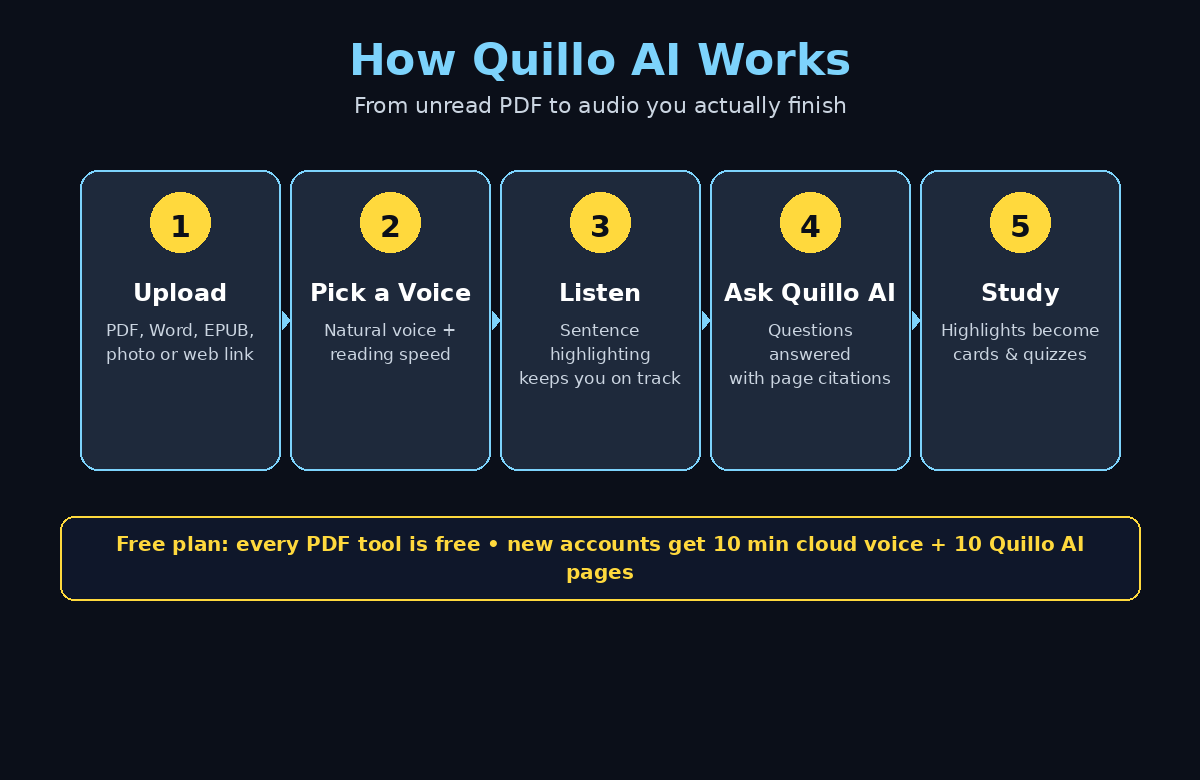
In this guide you will learn how to use Quillo AI step by step: creating your free account, uploading your first document, picking a voice, listening with sentence highlighting, asking Quillo AI questions, turning highlights into study cards and quizzes, and getting the most out of the free plan. No technical skills needed — if you can open an app and tap a button, you can use Quillo.
Step 1: Understand What Quillo AI Is and Who It Is For
Quillo is a reading and study app built around one idea: you listen to documents far more than you read them. It is made by Agah Emre Sözen and works on Android, iPhone and the web at quillo.tr, with one account and one library across all your devices. Start a paper on your laptop in the morning and finish it on your phone during your commute — your place, highlights and notes follow you.
Quillo is for students working through lecture notes and textbooks, professionals who need to get through reports and contracts, researchers drowning in papers, and anyone who prefers listening over staring at a screen. Quillo AI was also designed voice-first, so blind and low-vision users can operate the whole app by talking to it — accessibility is built in, not bolted on.
Here is the free plan in plain terms: everything except the cloud voice and Quillo AI is free, and every new account gets 10 minutes of cloud voice and 10 pages of Quillo AI as a gift. That is enough to test the full experience on a real document before you spend anything. The free PDF tools have no such limit — merge, split, compress, convert and sign as much as you like.
- Students: turn textbooks and lecture PDFs into audio for revision on the move.
- Professionals: listen to reports, proposals and contracts during your commute or workout.
- Researchers: get through papers faster, then ask Quillo AI for summaries and key findings.
- Teams: share the listening habit — and when a whole team needs documents processed at scale, a digital agency can help set up an AI document workflow around tools like Quillo.
Step 2: Create Your Free Quillo Account
Getting started takes about two minutes. Open quillo.tr in your browser, or download Quillo from Google Play or the App Store — search for “Quillo: Text to Speech & AI”. The web version is the fastest way to try it, because there is nothing to install.
Sign up with your email or your Google account. There is no credit card required for the free plan, and you do not need to enter payment details to claim your gift minutes. Once you are in, you will see your library — empty for now — and a big upload button. That is your home base: every document you add lives here, synced across your devices.
Before you upload anything, take thirty seconds to open the settings. Check that your library sync is on, pick your preferred default language, and look at the voice list so you know what is available. A small setup now saves you fiddling later, and it is the same habit that makes any new tool stick — configure once, then use it every day.
Step 3: Upload Your First PDF or Document
Tap the upload button and choose a file. Quillo accepts PDFs, Word documents, EPUBs, text files, Markdown, code files and even photos or scans of printed pages. You can also paste text directly or drop in a web article link, and Quillo will pull the article text for you.
Pick something real for your first test — a report you actually need to read, or a chapter you have been avoiding. A ten to twenty page document is ideal: long enough to feel the benefit, short enough to finish in one sitting. Quillo processes the file in seconds, extracts the text, and shows it as a clean, readable document with the original structure intact.
One thing Quillo does well during import: it skips footnotes and page numbers while reading, so the audio flows like a person reading aloud instead of a robot reciting headers and footers. Scanned pages work too — Quillo reads the text from the image — which makes it genuinely useful for old contracts, printed handouts and photographed book pages.
- PDF: the most common choice — reports, papers, ebooks and manuals.
- Word and EPUB: essays, drafts, novels and course material.
- Photos and scans: snap a printed page and listen to it seconds later.
- Web articles: paste a link and Quillo extracts the article text for listening.
Step 4: Pick a Voice and Start Listening
With your document open, tap the play button. Quillo starts reading in a natural voice, and the sentence being read is highlighted on screen so your eyes and ears stay in sync. That highlighting is more than a nice touch — it keeps you anchored in long documents and makes it easy to jump back to the exact sentence you want to re-read.
Open the voice picker and try two or three voices before you settle. Voices differ in tone, pace and warmth, and the right one makes a long listen feel effortless while the wrong one grates after ten minutes. Adjust the reading speed too: most people listen comfortably at 1.25x or 1.5x once they get used to it, which turns a forty-minute paper into a twenty-five-minute listen.
Your free account includes 10 minutes of cloud voice to start. Use those minutes on a document that matters, not on a test file you do not care about — you will learn far more about whether Quillo fits your routine from one real listen than from five minutes of random text. If you run out, the free PDF tools still work, and you can top up or upgrade when you are ready.
Step 5: Follow Along With Sentence Highlighting
Listening is only half the experience. As Quillo reads, each sentence lights up in turn, and you can tap any sentence to jump the audio straight to it. Lost your place because a notification pulled you away? Tap the last highlighted sentence and you are back in seconds.
This is where Quillo beats a plain audiobook version of a document. Because the text stays visible and synced, you can pause, re-read a tricky paragraph, highlight a key line, and keep going — all without losing your place in the audio. It is reading and listening at the same time, and for dense material like research or legal text, that combination helps far more than either one alone.
Build a simple habit around it: listen once through at normal speed to get the shape of the document, then replay the highlighted sections at a slower speed. Highlight as you go — every highlight becomes a study card later, which is exactly what Step 7 is about. If you work with long documents every day, this is also the kind of workflow that AI automation services can streamline for a whole team, turning a pile of unread PDFs into a listening queue everyone actually finishes.
Step 6: Ask Quillo AI Questions About Your Document
This is the feature that turns Quillo from a reader into a study partner. Open Quillo AI from inside any document and ask a question in plain language — by text or by voice. “What is the main argument of this paper?” “Summarise chapter three in five bullet points.” “What does the contract say about cancellation?” Quillo AI answers from your document, not from general knowledge, and cites the page each answer came from.
Those page citations matter. A lot of AI tools give confident answers with no way to check them; Quillo shows you exactly where in the document the answer lives, so you can tap through and verify it in seconds. For students, that means trustworthy revision notes. For professionals, it means you can quote a contract clause or a report figure without guessing.
Your free account includes 10 pages of Quillo AI. Spend them wisely: ask for a summary first, then two or three targeted questions about the parts that matter most to you. Good questions get good answers — ask about specifics (“What are the three risks listed on page 12?”) rather than vague ones (“Tell me about this document”). You can also ask Quillo AI to do web research with source links when your question goes beyond the document itself.
Step 7: Turn Highlights Into Study Cards and Quizzes
Every highlight you make while listening can become a study card. Quillo can generate cards from your highlights or from AI-generated content, so a forty-page paper becomes a deck of key facts you can review in five minutes. It is the fastest way to turn passive listening into active revision.
The AI Quiz Maker goes one step further: it turns your document into multiple-choice, true-or-false, fill-in-the-blank and matching questions. Students can test themselves on a chapter before an exam; trainers can turn a manual into a quick knowledge check for new hires; anyone learning a new topic gets instant feedback on what actually stuck.
Use this workflow for anything you need to remember, not just exams. Read a policy document, quiz yourself on the key rules. Listen to a sales playbook, test yourself on the objection handling. The quiz takes a minute to generate and tells you honestly which parts you understood and which parts need another listen.
- Study cards: generated from highlights or AI summaries for quick review.
- Quiz Maker: multiple-choice, true/false, fill-in-the-blank and matching questions.
- Voice chat: talk to Quillo AI hands-free and interrupt it mid-answer, just like a conversation.
- Drafting help: Quillo AI can draft letters and apply custom letterheads and signatures.
Step 8: Use the Free PDF Tools (Merge, Split, Compress, Sign)
Quillo is also a full PDF toolkit, and unlike the voice and AI features, these tools are completely free. From the tools menu you can merge several PDFs into one, split a big PDF into chapters, compress a file that is too large to email, convert between formats, add page numbers, stamp or watermark a document, and sign it electronically.
This is genuinely useful in daily work. A job application that needs your CV, cover letter and certificates in one file? Merge them. A 200-page manual where you only need chapter four? Split it out and listen to just that part. A scanned contract that needs your signature? Sign it in Quillo and send it on — no printer, no scanner, no separate app.
Because the tools sit inside the same app as the reader, the workflow is smooth: split out the chapter you need, then listen to it immediately. Or merge your meeting notes into one document and ask Quillo AI to summarise the whole set. Most people install a separate PDF app for these jobs; Quillo quietly replaces it.
Step 9: Listen on the Go With the Mobile App
Install Quillo on your phone and your library syncs automatically. The document you started on the web is waiting in the app, at the exact sentence where you stopped. This is where Quillo earns its keep: the dead time in your day — commuting, walking, cooking, waiting in line — becomes reading time.
The mobile app has the same voices, the same highlighting and the same Quillo AI, plus the document scanner: point your camera at a printed page and Quillo reads it aloud seconds later. That scanner alone is worth keeping the app installed — a whiteboard photo, a printed handout, a page from a library book, all listenable.
Set up one simple routine to make it stick: every morning, pick one document from your library and listen to it during your commute or your walk. Ten minutes a day clears a surprising backlog over a month, and because Quillo remembers your place, you never waste time finding where you stopped. Hands-free voice chat with Quillo AI means you can even ask questions about the document while you are driving or cooking.
Step 10: Get the Most From Your Free Minutes
The free plan is generous if you use it deliberately. Your 10 gifted cloud-voice minutes and 10 Quillo AI pages are a trial, not a ration — spend them on documents that matter, and learn the workflow properly before you decide whether to upgrade. Here is how to stretch them:
- Listen at 1.5x speed: you cover 50 percent more text per gifted minute.
- Skim first, listen second: use Quillo AI to summarise a long document, then listen only to the sections that matter.
- Batch your questions: ask Quillo AI for a summary and your top three questions in one session instead of spreading them out.
- Use the free PDF tools freely: merging, splitting, compressing and signing never touch your gift minutes.
- Highlight while you listen: highlights become study cards, so one listen keeps paying off during revision.
If you find yourself using Quillo daily, the paid plans unlock unlimited cloud voice and Quillo AI. But do not upgrade on day one — use the free minutes for a week on real documents first. The right time to pay is when you catch yourself wishing for more minutes, not before.
Quillo AI vs Other PDF Voice Readers
Quillo is not the only app that reads documents aloud, so here is how it compares with the best-known alternatives on the things beginners actually care about: price, free allowance, question answering, and extra tools.
| Feature | Quillo AI | Speechify | NaturalReader | ElevenLabs Reader |
|---|---|---|---|---|
| Free plan | Yes — free PDF tools, 10 min cloud voice + 10 AI pages gifted | Yes — limited voices and speed | Yes — limited voices, 20 min/day free | Free app with free voices |
| Reads PDFs, Word, EPUB, scans | Yes | Yes | Yes | Mostly EPUB, PDF and web |
| Ask AI questions about the document | Yes, with page citations | Yes, with AI summaries | Yes, with AI chat | No document Q&A |
| Sentence highlighting while reading | Yes | Yes | Yes | Yes |
| Built-in PDF tools (merge, split, sign) | Yes, all free | No | No | No |
| Quiz maker and study cards | Yes | No | No | No |
| Platforms | Android, iPhone, web | Android, iPhone, web, desktop | Android, iPhone, web, desktop | Android, iPhone |
Quillo’s edge is the combination: a genuinely good reader, document Q&A with verifiable page citations, and a free PDF toolkit in one app. If you only want listening, the alternatives are fine. If you want listening plus understanding plus document tools without juggling three apps, Quillo is the stronger pick — especially for students, where the quiz maker and study cards turn reading into revision.
Frequently Asked Questions About Quillo AI
Is Quillo AI really free?
Yes, the core of Quillo is free. All PDF tools — merge, split, compress, convert, sign, stamp, watermark and page numbers — are free with no limits. New accounts also get 10 minutes of cloud voice and 10 pages of Quillo AI as a gift. Paid plans unlock more cloud voice and Quillo AI, but you can use the free version indefinitely for reading and PDF work.
What file types can Quillo read aloud?
Quillo reads PDFs, Word files, EPUBs, text files, Markdown, code files, photos and scanned paper, and web articles via a pasted link. It highlights each sentence as it reads and skips footnotes and page numbers for a smooth listening flow. If you can open it or photograph it, Quillo can almost certainly read it.
How accurate are Quillo AI’s answers about my document?
Quillo AI answers from your document itself and cites the page each answer came from, so you can verify any answer by tapping through to the source page. That makes it far more trustworthy than a general chatbot for document questions — but you should still check citations for anything critical, like contract terms or exam answers.
Does Quillo work offline?
The basic reader works with documents already in your library, but cloud voices and Quillo AI need an internet connection, since the heavy work happens on Quillo’s servers. Download or open your documents while you have a connection, and your place, highlights and notes stay synced across Android, iPhone and the web.
Can I use Quillo AI for studying?
Yes — studying is one of Quillo’s strongest use cases. Listen to textbooks and lecture notes, highlight key lines as you go, turn highlights into study cards, and use the AI Quiz Maker to test yourself with multiple-choice, true/false, fill-in-the-blank and matching questions. The voice-first design also makes the whole app usable hands-free.
Is my document data private in Quillo?
Quillo processes your documents to read them aloud and answer questions about them, and your library syncs across your devices under one account. As with any cloud AI tool, avoid uploading highly sensitive documents you would not want processed on a server, and check Quillo’s current privacy policy in the app before uploading confidential work or personal files.
Final Thoughts
Quillo AI solves a problem almost everyone has and almost nobody fixes: the pile of documents you mean to read but never do. It turns that pile into audio you can finish during time you would otherwise waste, then helps you actually understand what you heard with page-cited answers, summaries, study cards and quizzes — and it throws in a complete PDF toolkit for free.
Start today with one real document: upload it, pick a voice you like, and listen to the first ten pages. Ask Quillo AI one question about it. If that ten minutes feels useful, you have found a tool that will quietly change how much you read every month — and the free plan is enough to prove it to yourself before you spend anything.
Explore More Free AI Tools
Quillo is one of many free AI tools that make everyday work easier. Explore more on AIToolSteps — including the AI Title Generator, Meta Description Generator, AI Rewriter and Keyword Density Checker — all free, all built for beginners.