

What Is Spellar AI?
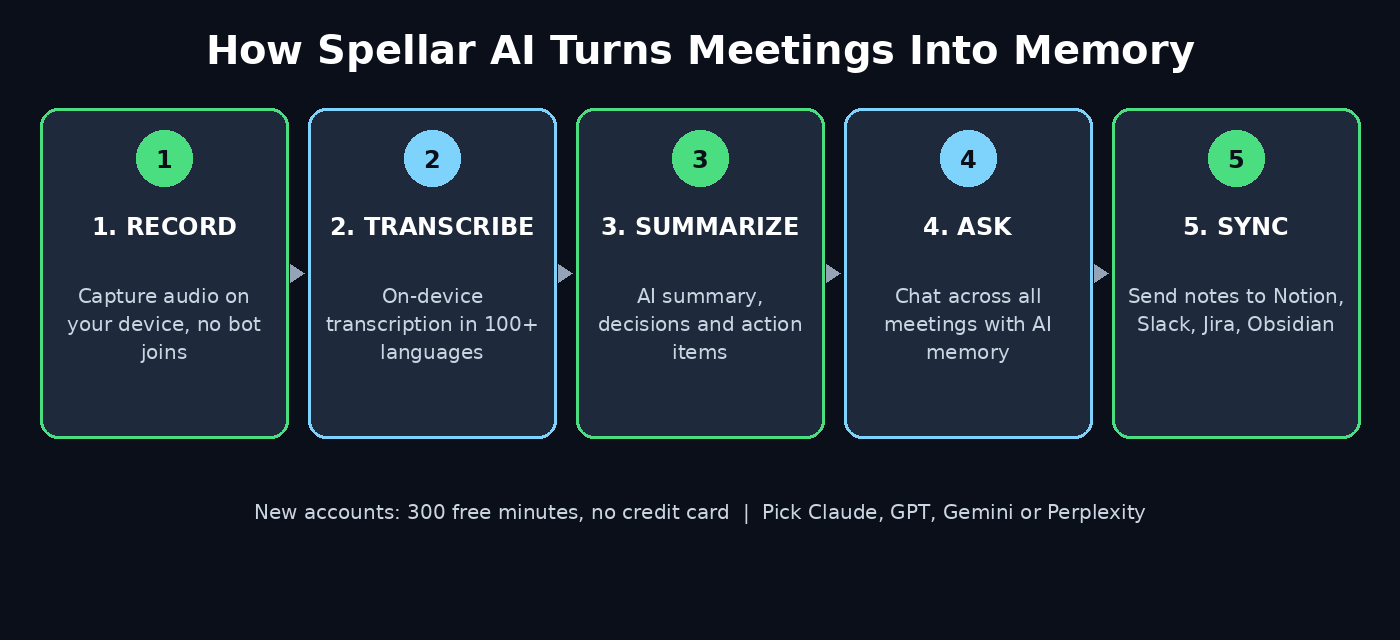
Spellar AI is a private AI meeting assistant that records your calls, writes the summary, and remembers what was decided — without ever sending a bot into your meeting. It works on Mac, iPhone, iPad, the web, and now through a free Chrome extension that launched on Product Hunt on November 19, 2026.
Most AI note takers announce themselves by joining your call as a visible participant. Spellar AI takes the opposite approach: it captures audio on your own device, so nobody else on the call sees anything different. You get a full transcript, a clear summary, decisions, and action items with owners — plus a searchable memory across every meeting you have ever recorded.
New accounts start with 300 free minutes of transcription and AI, with no credit card required. You can also choose which AI model writes your notes — Claude, GPT, Gemini, or Perplexity — or bring your own API key. In this guide, you will learn how to use Spellar AI for beginners, step by step, from your first free account to a full meeting-memory workflow.
Step 1: Create Your Free Spellar Account
Start at the Spellar website and create a free account with your email or Google sign-in. There is no credit card step: every new account gets 300 free minutes of transcription and AI straight away.
- Go to spellar.ai and click Get started or Download.
- Sign up with your email address or your Google account.
- Confirm your email if asked, then open the Spellar dashboard.
- Check your balance in Settings — you should see your 300 free minutes.
Your account works across every device: Mac, iPhone, iPad, the web app, and the Chrome extension all stay in sync, so a meeting recorded on your laptop is searchable from your phone later.
Step 2: Install the Chrome Extension or the Mac App
Spellar AI gives you two easy ways to record. Pick the one that matches how you meet.
- Chrome extension (easiest): install Spellar for Chrome from the Chrome Web Store, pin it to your toolbar, and sign in with the same account. It records audio straight from your browser tab during Zoom, Google Meet, or Microsoft Teams calls in the browser.
- Mac app (most powerful): download the Mac app for system-audio capture, the Live Copilot in your Mac’s notch, and automatic recording from your calendar.
- iPhone and iPad: install the mobile app to record in-person meetings and calls on the go.
Beginners should start with the Chrome extension: it takes under two minutes to install, and you do not need to change any system settings. Add the Mac app later when you want auto-recording and the live copilot.
Step 3: Connect Your Calendar So Spellar Auto-Detects Meetings
Spellar AI can spot your meetings before they start and offer to record them, so you never have to remember to press a button.
- Open Settings and connect your Google Calendar or Outlook calendar.
- Turn on auto-record for the calendars you use for work.
- When a scheduled meeting begins, Spellar detects it and starts recording automatically.
- Your meeting prep notes appear next to the recorder the moment recording starts.
Speakers are named automatically from your calendar invite and from Zoom, Slack, and Teams, so your transcript reads like a real conversation instead of “Speaker 1” and “Speaker 2”. If you prefer full control, leave auto-record off and start recording manually instead.
Step 4: Pick the AI Model That Writes Your Notes
One feature that makes Spellar AI different from most meeting tools is model choice. You decide which AI turns your audio into notes.
- Open Settings → AI Model and pick Claude, GPT, Gemini, or Perplexity.
- Prefer a particular writing style? Try one model for a week, then switch and compare the summaries.
- Advanced users can connect their own API key for unlimited usage with the model they already pay for.
- Spellar 4.0 also keeps your data private: you can keep audio on your device only, or delete it right after processing.
There is no wrong choice here. Claude tends to write tidy, structured summaries, GPT is strong on action items, and Gemini handles long meetings well. Start with the default, then experiment once you have a few meetings recorded.
Step 5: Record Your First Meeting — No Bot Joins
This is the moment Spellar AI feels different. Join your call exactly as normal. Nobody sees a bot join, nobody gets a notification, and the meeting runs exactly as it would without AI.
- Open your meeting in the browser (Chrome extension) or on your Mac (desktop app).
- Click the Spellar icon and press Record, or let auto-record start it for you.
- A small indicator shows recording is active, so you always know what is being captured.
- Take part in the meeting normally — no note-taking, no split attention.
- Press Stop when the meeting ends. Spellar starts transcribing within a few minutes.
Because recording happens on your device, Spellar AI works for in-person meetings too: open the iPhone app, set the phone on the table, and record the conversation in the room. Just remember to tell the people you are meeting that you are recording — it is polite, and in many places it is legally required.
Step 6: Read Your Summary, Decisions, and Action Items
A few minutes after the meeting ends, open Spellar and find your meeting on the dashboard. You will see four things that save you the re-read:
- Summary: a short, clear write-up of what was discussed and decided.
- Action items: every task, with the owner named where Spellar could identify them.
- Decisions: the calls that were actually made, separated from the discussion.
- Full transcript: searchable, speaker-labelled, in 100+ languages.
Skim the summary first, then check the action items. If something looks wrong — a name misspelled, a task assigned to the wrong person — fix it in the transcript view. Your corrections also help future summaries read more accurately, because Spellar learns your team’s names and vocabulary over time.
Step 7: Ask AI Questions Across All Your Meetings
This is where Spellar AI becomes a memory, not just a note taker. Its cross-meeting memory lets you chat with everything you have ever recorded.
- Open AI Chat and ask a question like “What did the client say about the budget three calls ago?”
- Ask for open action items across all meetings from last week.
- Request a weekly or monthly recap of decisions and unfinished tasks.
- Search one phrase and see every meeting where it came up, with the exact moment.
For freelancers and small teams, this replaces the “let me dig through my notes” scramble before every call. A digital agency juggling several clients, for example, can ask Spellar what each client agreed in their last meeting and walk in prepared in two minutes. The same memory helps founders track promises made to investors and partners across months of calls.
Step 8: Share Notes and Push Action Items to Your Tools
Meeting notes are only useful if they reach the people who need them. Spellar AI connects to 18+ productivity tools, so your action items land where work actually happens.
- Share a meeting with a link, or export the summary as a document.
- Send action items to Notion, Jira, Linear, Asana, or Google Docs.
- Post the summary to Slack so the whole team sees decisions without attending.
- Use folders, tags, and custom summary templates to keep client meetings organised.
Set one template per meeting type — a short template for stand-ups, a detailed one for client kick-offs — and Spellar will follow it every time. Shared links let teammates read the notes without needing a Spellar account of their own.
Step 9: Build a Second Brain With the Obsidian Export
Power users take Spellar AI one step further: every meeting note flows automatically into an Obsidian vault, where AI agents can read it alongside everything else.
- Open Settings → Connectors → Obsidian and choose your vault folder.
- Turn on auto-export. (Obsidian export is part of Spellar Pro.)
- After every meeting, Spellar writes a note into a
Meetings/folder asYYYY-MM-DD Title.md. - Your AI coding agents — Claude Code, Codex, Cursor — can read the vault like any other notes.
This setup turns scattered calls into a searchable knowledge base. Ask your agent “what did we promise the client in October?” and it can answer from the exported notes. Teams exploring AI automation services and agent workflows often start here, because clean meeting memory is the fuel that makes an AI assistant genuinely useful instead of forgetful.
Step 10: Connect Spellar to Claude or ChatGPT With the MCP Server
Spellar AI also ships an MCP server, which lets Claude or ChatGPT talk to your meetings directly — no copy-pasting transcripts into a chat window.
- Find the MCP setup in Spellar’s settings or developer docs and add the server to Claude or ChatGPT.
- Ask your AI assistant to search your meetings, summarise a client, or list open tasks.
- Keep Spellar as the source of truth: agents read your meeting notes, they never edit them.
- Combine this with the Obsidian export (Step 9) for long-term memory plus live search.
Beginners do not need this step on day one. Set it up once you are comfortable with Steps 1–8 and you want your everyday AI assistant to remember your meetings too.
Step 11: Manage Your Free Minutes and Upgrade Only When Needed
Your 300 free minutes go further than they sound: that is roughly five hours of meetings, enough for two to three weeks of light use. When they run low, you have options:
- Check your remaining minutes in Settings before a busy week.
- Record selectively — skip the meetings that do not need notes.
- Bring your own API key to keep using your preferred model at your own cost.
- Upgrade to Spellar Pro when you want unlimited recording, every AI model, the Obsidian export, and the Pro integrations.
There is no pressure to pay on day one. Use the free minutes to learn the workflow, prove the summaries save you time, and only upgrade when meetings genuinely pile up.
Spellar AI vs Other Meeting Note Takers
How does Spellar AI compare with the other free meeting tools beginners usually try? The biggest differences are the no-bot recording, the choice of AI model, and the memory that spans all your meetings.
| Tool | Bot joins your call? | Free minutes to start | Choose your AI model? | Cross-meeting memory |
|---|---|---|---|---|
| Spellar AI | No — records on your device | 300 free minutes, no card | Yes — Claude, GPT, Gemini, Perplexity | Yes — AI Chat across all meetings |
| Otter.ai | Yes — OtterPilot joins as a participant | 300 minutes per month | No — Otter’s own AI | Yes — Otter AI Chat |
| Fireflies.ai | Yes — Fred bot joins the call | 800 minutes of storage | No — Fireflies’ own AI | Yes — AskFred across meetings |
| MeetGeek | Yes — bot joins the call | 3 hours per month | No — MeetGeek’s own AI | Yes — searchable meeting library |
If the bot joining your calls bothers you or your clients, Spellar AI is the clear pick. If you need a bot that joins calls you are not attending, Otter or Fireflies may fit better. For most beginners, the free 300 minutes and the no-bot approach make Spellar the easiest tool to try first.
Frequently Asked Questions
Is Spellar AI really free?
Yes. Every new account gets 300 free minutes of transcription and AI with no credit card required. The free minutes cover summaries, action items, transcripts, and AI Chat. Spellar Pro is a paid upgrade for unlimited use, every AI model, the Obsidian export, and Pro integrations — but you can do real work on the free plan first.
Does Spellar add a bot to my meetings?
No. Spellar records audio on your own device — through the Chrome extension, the Mac app, or the iPhone app — so no bot ever appears in the participant list. Other people on the call see nothing different. You should still tell participants you are recording, as a courtesy and to follow local recording laws.
Which meetings does Spellar work with?
Spellar works with Zoom, Google Meet, Microsoft Teams, Slack calls, and in-person meetings. The Chrome extension covers any meeting in a browser tab; the Mac app captures system audio; the iPhone app records face-to-face conversations. It transcribes in 100+ languages and names speakers from your calendar invite and the call platform.
Can I choose which AI model writes my summaries?
Yes. In Settings you can pick Claude, GPT, Gemini, or Perplexity to generate your summaries, or bring your own API key for unlimited usage. Each model writes in a slightly different style, so try two of them on the same meeting and keep the one whose summaries you actually enjoy reading.
Is my meeting audio private?
Spellar is built around privacy: no bot joins your call, transcription can run on-device, and you can keep audio on your device only or delete it right after processing. Your notes stay in your account, and shared links are the only way someone else can read a meeting. Check Spellar’s privacy settings to match your own comfort level before recording sensitive calls.
What happens when my 300 free minutes run out?
Recording pauses until you top up. You can connect your own API key to keep going at your own cost, or upgrade to Spellar Pro for continued transcription and AI, every model, and the Pro integrations such as the Obsidian export. Your existing meeting notes and memory stay available either way.
Final Thoughts
Spellar AI solves the most annoying part of meetings: the note-taking. You join the call, talk to people, and walk away with a summary, decisions, and action items — without a bot announcing itself to the room. The 300 free minutes cost nothing to try, the Chrome extension installs in two minutes, and the cross-meeting memory turns months of calls into answers you can actually ask questions of.
Start small: install the extension, record one real meeting, and read the summary the same day. If the summary saves you even ten minutes, keep going — connect your calendar, pick your favourite AI model, and let the memory build. Within a month, “what did we decide?” stops being a question you have to guess at, because Spellar AI remembers for you.
Explore More Free AI Tools
Want to keep exploring? Try the free tools on AIToolSteps — the AI Title Generator, Meta Description Generator, AI Rewriter, and Keyword Density Checker — and come back for a new beginner-friendly AI guide every day.