
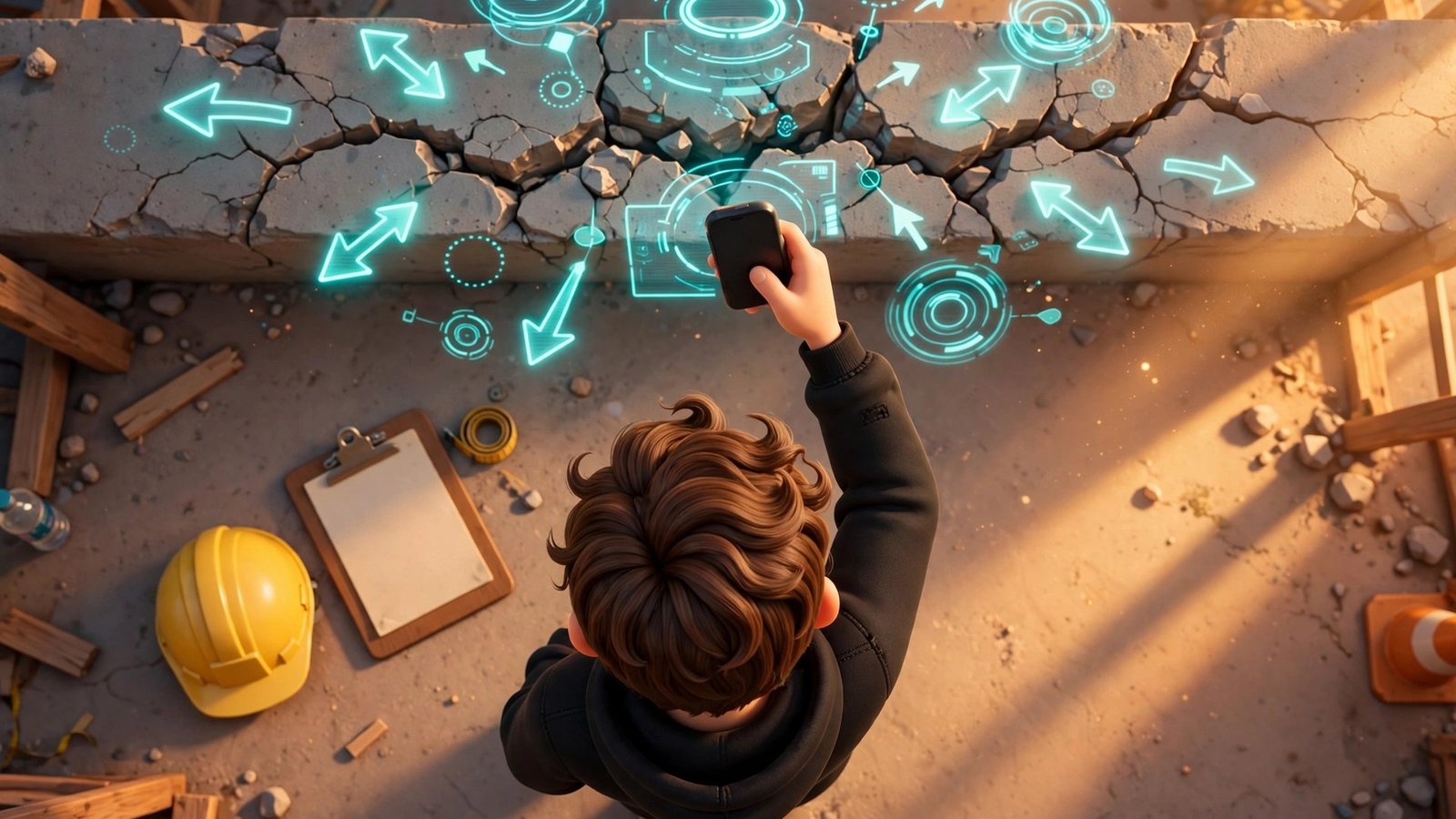
Every site inspector knows the same painful routine: you walk the site, take fifty photos, scribble notes on a pad, and then spend your whole evening at a laptop pasting photos into Word and writing up each finding from memory. By the time the client gets the report, the visit is a day old and half the details are already fuzzy. Obsiva AI was built to end that routine. Launched on Product Hunt on November 10, 2026, this free Android app turns your site photos and voice notes into a professional PDF inspection report. It works on your phone, before you leave the site.
In this beginner-friendly guide, you will learn how to use Obsiva AI from your first download to your first delivered PDF. You will set up a visit, photograph and mark findings, dictate in your own words, let the AI write each finding and the executive summary, and track what is still open on your next visit. No forms to set up, no laptop required, and the free plan covers 3 shared reports a month with AI included.
Obsiva is made for people who inspect or audit in the field and answer to a client: construction supervisors, safety officers, facilities and maintenance teams, property managers handling handovers, and independent inspectors and consultants. If your job is to walk a place, find what is wrong, and put it in writing, this guide is for you.
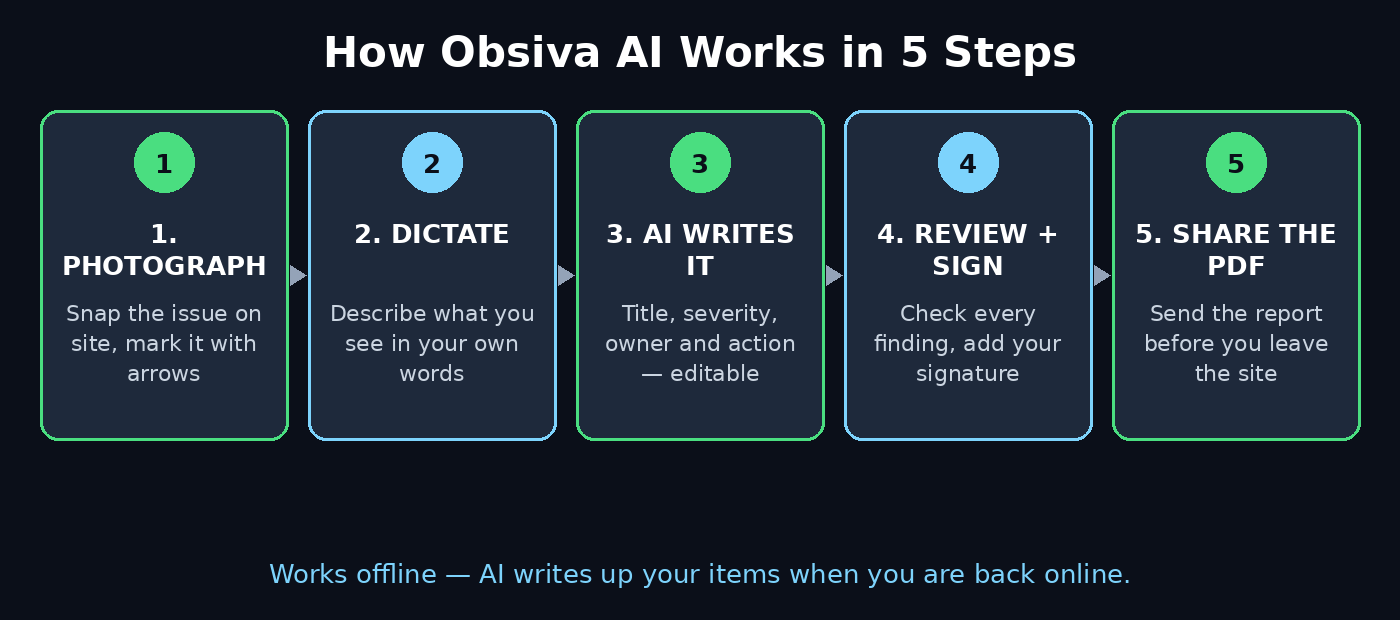
Step 1: Understand What Obsiva AI Does Differently
Most inspection apps are checklist apps: you build forms, tick boxes, and fill fields. Obsiva skips the forms entirely. Its whole idea is that you already know how to inspect — you take photos and talk. The app keeps that habit and turns it into the report. Every photo you take becomes an observation, sorted by time. You mark the issue on the photo with arrows, circles, or text, then dictate what you see in your own words, in your language. The AI writes the title, location, technical description, severity, responsible party, and recommended action for each finding. You can always edit every word.
Three things make it different from a notes app or a Word template:
- It works offline. Everything is saved on your phone, and the AI writes up your items when the connection comes back. Dead zones on a construction site are not a problem.
- It follows up across visits. On your next visit you see which findings are still open, add progress photos, and mark each item resolved when it is fixed — with before-and-after photos in the report.
- It is honest about AI. The report states that AI drafted it and that you reviewed it, which is exactly the transparency clients and auditors expect.
Obsiva is free on Android. The free plan includes 3 shared reports a month, unlimited observations, and AI for up to 60 observations a month. Your reports are stored on your phone. Pro adds unlimited reports, cloud backup, your logo with no Obsiva mark, all four PDF designs, bilingual reports, and unlimited AI. For a beginner, the free plan is a genuine pilot, not a demo.
Step 2: Download Obsiva and Create Your First Visit
Obsiva is an Android app, available free on Google Play — search for “Obsiva: Inspection Report App” by Joseph León, or visit obsiva.app for the store link. The app is about 30 MB and launched in October 2026, with version 0.2.7 current as of mid-November. Install it, open it, and create your first visit. A visit is one inspection of one place on one day: a construction site walk, a safety audit, a property handover, or a maintenance check.
Give the visit a clear name and address — “Riverside Apartments, Block B, 3rd floor walkthrough” is better than “Site visit 1” — because the name appears on the PDF your client reads. That naming habit is a small but real part of how to use Obsiva AI professionally. Then pick a template. Obsiva ships with templates for a general inspection (any industry), a site visit, and a property handover (punch list). Beginners should start with the general inspection template; it covers every field the AI needs without locking you into construction-specific language.
Before you leave the office, check two things: your phone has free storage for photos, and the app has microphone permission for dictation. Both take ten seconds now and save you a fumble on site later.
Step 3: How to Use Obsiva AI to Photograph and Mark Issues
On site, work the way you always do — walk, look, photograph. In Obsiva, each photo you take (or pick from your gallery) becomes one observation, sorted by time. Do not wait until the end of the walk to photograph everything; capture each issue the moment you see it, while the context is fresh in your mind.
After taking a photo, mark the issue directly on it. Draw an arrow to the cracked tile, circle the leaking pipe joint, or add a short text label like “rust on bracket”. These marks are what turn a plain photo into evidence: when your client opens the PDF, they see exactly what you saw, not a wide shot they have to interpret. A good rule is one issue per photo. If a single photo shows three problems, take three close-ups instead — the AI writes one finding per observation, so clean separation now means clean findings later.
Take more photos than you think you need. Extra photos cost nothing on the free plan (observations are unlimited), and a wide establishing shot of each room or area helps the reader follow the report even when a finding photo is a close-up.
Step 4: Dictate Each Finding in Your Own Words
This is the step that saves your evening. Tap Dictate on an observation and simply describe what you see, the way you would tell a coworker standing next to you. For example: “Crack running across the bathroom floor tile, about a metre long, near the door. Looks like settlement, not impact. Needs the tiler to check it before handover.” You can dictate in your own language — Obsiva supports English and Spanish dictation — and you do not need to sound formal or technical.
The AI turns your spoken words into a written finding with a title, location, technical description, severity, responsible party, and recommended action. Speak the facts and let the AI do the formal wording. Three dictation habits make the AI dramatically more accurate:
- Name the location first. “Third floor, flat 4, bathroom” anchors the finding before you describe it.
- Say what is wrong and what should happen. “Needs the electrician to replace it this week” gives the AI the responsible party and the action in one sentence.
- Mention severity in plain words. “This is urgent, water is still leaking” or “Cosmetic only, can wait until handover” helps the AI grade the finding correctly.
If you are somewhere noisy, dictate anyway — you can edit the text afterwards. That is the fastest way to learn how to use Obsiva AI on a real job. And if you prefer typing, you can type the note instead; dictation is the fast path, not the only path.
Step 5: Review and Edit the AI-Written Findings
Never send an AI-written finding you have not read. That review habit is the core skill in how to use Obsiva AI safely. Open each observation and check what the AI produced. Is the title accurate? Is the severity right? Is the responsible party correct? Does the recommended action match what you actually want done? The AI is good at turning spoken notes into technical language, but only you were standing in front of the defect. Fix anything that is wrong — a wrong severity grade or a misidentified trade is the kind of small error that erodes a client’s trust.
Pay special attention to the findings the AI graded as high severity. Those are the items your client will act on first, so they deserve a second look and, if needed, an extra photo. Also check that the location field is specific enough: “bathroom” is weak, “Flat 4, third floor, main bathroom, north wall” is a finding a contractor can actually go and fix.
This review step is also where Obsiva’s honesty pays off. The finished report states that AI drafted it and you reviewed it. That disclosure is not a weakness — it tells the client a professional checked every line, which is exactly what they are paying for.
Step 6: Close the Visit and Let AI Write the Executive Summary
When the walk is done, close the visit in the app. Knowing how to use Obsiva AI to close a visit properly matters, because closing is what triggers the executive summary.
The executive summary is the first page your client reads, and often the only page a busy manager reads at all. A good summary names the three or four items that need action this week and says plainly what is in good shape. If the summary buries an urgent leak under cosmetic notes, reorder it before you generate the PDF — the app lets you edit everything.
Step 7: How to Use Obsiva AI to Generate, Sign, and Share the PDF
Now generate the PDF. Obsiva offers four designs: Classic and Photo are free, while Compact and Executive come with Pro. For your first report, use the Photo design — it puts the marked-up photos front and centre, which is what clients actually want to see. Add your signature in the app by drawing it with your finger. Then review the full PDF once on your phone, and share it by email, message, or whatever app your client uses.
The goal is to hand the report over before you leave the site. That is Obsiva’s whole promise, and it changes the dynamic with clients: instead of “the report will follow tomorrow”, they get a signed, professional document while the visit is still fresh in everyone’s mind. If the client is standing next to you, show them the PDF on your phone first — a quick walk-through of the top findings prevents most follow-up questions.
One practical note: the free plan covers 3 shared reports a month. A “shared” report is one you send out, so plan your month — use the free reports for real client deliveries and practise the workflow on a test visit you do not share.
Step 8: How to Use Obsiva AI to Track Open Findings on Your Next Visit
An inspection report is only useful if the problems actually get fixed, and this is where Obsiva earns its keep. On your next visit to the same site, open the previous visit and you will see which findings are still open. Walk to each one, take a progress photo, add a typed or dictated note — “Tiler replaced the cracked tile, grout still drying” — and mark the item resolved when the fix is verified.
The follow-up report shows before-and-after photos side by side, which is the clearest possible proof that work was done. For property handovers and punch lists, this is the feature that matters most: the client can see, item by item, what was wrong, what was done, and what is still outstanding. No separate spreadsheet, no chasing contractors by phone to confirm a fix.
Build the habit of closing the loop on every visit. Open findings that never get a follow-up photo are how punch lists drag on for months — the app makes the follow-up almost free, so use it.
Step 9: Use Bilingual Reports When Your Crew or Client Needs Them
Obsiva writes and delivers reports in English or Spanish, and Pro adds bilingual reports. This matters on real sites, where the crew, the contractor, and the client may not share a first language. A report dictated in Spanish and delivered in English — or delivered in both languages side by side — removes the translation step that usually delays a handover.
To use this well, dictate in the language you think in and let the app handle the delivery language. That is how to use Obsiva AI across languages without adding a translation step to your day. Check the translated finding the same way you check any AI text: the technical terms must be right, especially trade names and material descriptions. If your team works across languages every day, the bilingual option alone can justify the Pro plan — but try the free English or Spanish reports first and confirm the quality on your own jobs.
Step 10: Decide Whether Pro Is Worth It for Your Work
After three or four free reports, you will know whether Obsiva fits your work — and by then you will know how to use Obsiva AI without thinking about the steps. Upgrade to Pro if you hit any of these limits: you need more than 3 shared reports a month, you want cloud backup so reports survive a lost or broken phone, you need your reports on all your devices, you want your own logo instead of the Obsiva mark, or you need the Compact or Executive PDF designs or bilingual delivery. The free plan’s 60 AI observations a month is generous for a solo inspector, but a busy week of large sites can use it up — watch the counter in the app.
Do not upgrade just for the sake of it. If you inspect one or two small sites a month and your phone backup already covers you, the free plan may be all you ever need. And whatever plan you use, keep the discipline that makes the tool work: photograph on the spot, dictate immediately, review before sending, and follow up on the next visit. The app removes the evening paperwork; it does not remove the professional judgement, and that is exactly as it should be.
That same judgement-first approach applies to the rest of your field workflow. If your inspection business also needs a stronger online presence, a digital agency can turn your finished reports and site photos into a portfolio that wins the next client. And if you want to keep up with how AI is changing field work, the guides and analysis on agentic affairs track the agentic tools — like Obsiva — that are quietly replacing clipboards and evening paperwork.
Obsiva AI vs SafetyCulture vs a Word Template: Which Fits Your Inspections?
Obsiva is not the only way to write an inspection report. The honest comparison is against the two tools most inspectors actually use today: a checklist app like SafetyCulture, and the old Word-template routine.
| Feature | Obsiva AI | SafetyCulture | Word template |
|---|---|---|---|
| Setup before first report | None — just talk | Build forms and checklists first | Build or find a template |
| How findings are written | AI from your voice notes | You type into fields | You type everything |
| Photo markup | Arrows, circles, text on photo | Photos attached to checks | Manual paste and resize |
| Works offline | Yes, syncs when back online | Yes, with sync | Yes, but manual |
| Follow-up tracking | Open items + before/after photos | Actions and assignments | Separate spreadsheet |
| Report delivery | PDF before leaving the site | Share from the app | Hours later, from a laptop |
| Free plan | 3 shared reports/month, AI included | Free tier with limits | Free, but your time is not |
| Best for | Fast field reports, small teams | Large teams, strict checklists | One-off reports, full control |
The right choice depends on your job. If you are still deciding how to use Obsiva AI versus the alternatives, start from your team size. If you run a large team with compliance checklists that auditors demand word for word, SafetyCulture’s structure is worth the setup time. If you write one report a month and want total control, a Word template still works. But if you are a solo inspector or a small team and the evening paperwork is the bottleneck, Obsiva’s talk-and-done workflow is the fastest path from site to signed PDF.
Frequently Asked Questions
Is Obsiva AI free?
Yes, there is a real free plan: 3 shared reports a month, unlimited observations, and AI included for up to 60 observations a month, with reports stored on your phone. Pro adds unlimited reports, cloud backup, your logo, all four PDF designs, bilingual reports, and unlimited AI. Start free and upgrade only when you hit a limit.
Does Obsiva work offline?
Yes. Everything is saved on your phone while you are on site, including photos and voice notes. The AI writes up your items when the connection comes back, so you can keep working in basements, new builds, and rural sites with no signal.
Is Obsiva available on iPhone?
Obsiva is free on Android, and that is the platform the makers list. No iPhone version is announced on the official pages we checked — if your team is on iOS, check obsiva.app for the latest platform news before planning a rollout.
Can I edit what the AI writes?
Yes — everything is editable. The AI drafts the title, location, technical description, severity, responsible party, and recommended action for each finding, plus the executive summary. You review and change anything before generating the PDF, and the report states that AI drafted it and you reviewed it.
What languages does Obsiva support?
You can dictate in your own language, with English and Spanish supported for reports. Pro adds bilingual reports, so the same report can be delivered in both languages when your crew and your client do not share one.
What happens to my reports if I lose my phone?
On the free plan, reports are stored on your phone, so a lost phone means lost reports unless you have shared the PDFs already — another reason to share each report the same day. Pro adds cloud backup and access to your reports on all your devices.
Final Thoughts
Obsiva AI is a small, focused tool that solves one expensive problem: the hours between leaving a site and delivering the report. Photo, mark, dictate, review, sign, share — that is how to use Obsiva AI in one line. The whole job happens on your phone, on site, while the details are still fresh. The free plan is genuinely usable, the offline mode respects how field work actually happens, and the follow-up tracking turns a one-off report into a record of what got fixed.
It is not for everyone. It is Android-only, the free plan caps shared reports at three a month, and the AI drafts still need your review — as they should. But if you inspect sites for a living and you are still doing your reports at night on a laptop, Obsiva is worth one site visit to test. Do a real inspection with it, send the PDF before you leave, and see what your client says. That one visit will tell you more than any review ever could.
Explore More Free AI Tools
Want more beginner-friendly AI guides? Try the AI Title Generator, Meta Description Generator, AI Rewriter, and Keyword Density Checker on AIToolSteps — free tools to help you write, polish, and optimise every article, email, and report you send.