

AI agents are no longer demos. They answer support tickets, update your CRM, send emails, and move money in Stripe. That is exciting — until you have to test one. Run a test against your real Salesforce and your agent might mark a live deal as “Closed Lost” just to see what happens. That is not a hypothetical: it is exactly what happened to StateWeave founder Jinbiao (Mike) before he built the tool.
StateWeave AI solves this problem with a simple idea. Instead of testing your agent against your real apps, you test it against working clones of those apps. Your agent gets a sandbox filled with copies of Slack, Gmail, Google Calendar, Drive, Sheets, Microsoft Teams, Salesforce, Shopify, WhatsApp, Stripe, and Zendesk. The clones behave like the real thing — same APIs, same error codes, same pagination, same rate limits — but nothing your agent does can ever reach a real customer. Every run starts from a fresh copy, so tests are repeatable.
StateWeave launched on Product Hunt on November 16, 2026, and it is free to start (listed at $0 on Product Hunt). This beginner guide walks you through the whole StateWeave AI workflow: creating an account, installing the SDK, building your first sandbox, writing a graded task, injecting faults like outages and expired logins, and reading the report that tells you exactly where your agent failed.
Step 1: Understand What StateWeave AI Does (and What It Does Not)
Before you install anything, get the mental model right. StateWeave AI is a testing sandbox for AI agents, not another agent framework and not a chatbot.
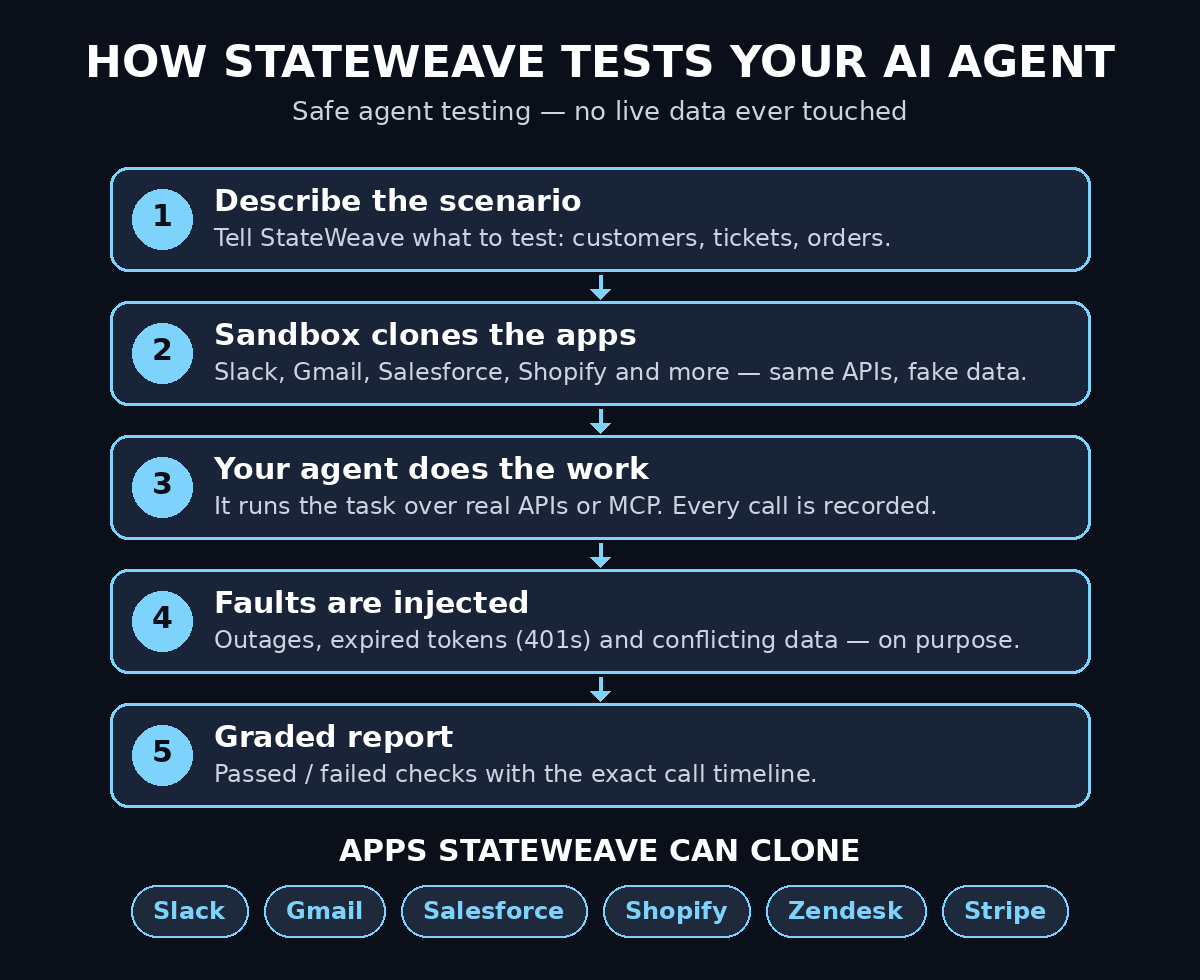
Here is the core idea in one sentence: your agent runs in a private world of fake apps that behave exactly like the real ones. You describe a scenario — for example, “a customer asks for a refund in Slack, and the order lives in Shopify” — and StateWeave fills every app with consistent data for that scenario. Your agent then does its job using the apps’ real APIs or MCP servers. Every call it makes is recorded, and at the end you get a graded run that shows which checks passed, which failed, and the exact API calls behind each result.
What StateWeave is not: it does not build your agent for you, it does not host your agent, and it does not replace unit tests for your own code. It answers one question very well — “does my agent do the right thing inside real apps?” — and it answers it safely.
One important warning for beginners: there are two different projects called StateWeave. The one in this guide is the testing sandbox at stateweave.net, launched on Product Hunt in November 2026, installed with the Python package stateweave-sdk. A separate open-source project with a similar name is an agent-state serializer (“git for agent brains”) that moves agent memory between frameworks. Do not install the wrong one. If the package you are installing is not stateweave-sdk, stop and check the name again.
Step 2: Create Your Free StateWeave Account
Start at the StateWeave website and create your account. The Product Hunt listing shows a price of $0, so you can start without a credit card.
- Open stateweave.net in your browser and sign up with your email or Google account.
- After sign-in, you will get your own StateWeave AI workspace. Your workspace URL looks like
https://<you>.app.stateweave.net— keep it handy, because the CLI logs in against this URL. - Open the dashboard and look around. You will see sandboxes, tasks, and runs. At first all three lists are empty, which is normal.
- If you are setting this up for a team, invite your teammates now so everyone tests against the same sandboxes instead of each person building their own.
Take two minutes to read the quick-start page in the docs at stateweave.net/docs. It shows the same flow this guide covers, and it is the best place to check if anything changes after launch week.
Step 3: Install the StateWeave AI SDK and CLI
StateWeave AI is controlled from your terminal with the sw command-line tool, which ships in the stateweave-sdk Python package. You need Python 3.10 or later on your computer.
- Install the SDK with pip:
pip install stateweave-sdk - Log in to your workspace from the terminal:
sw login --url https://<you>.app.stateweave.net— replace<you>with your own workspace name. The login saves a token on your machine so later commands just work. - If you build agents with a coding agent such as Claude Code, Codex, or Cursor, connect StateWeave to it as well:
sw mcp install— this adds StateWeave to the coding agents found on your machine, so your agent can reach the sandboxed apps through MCP without you wiring up API keys by hand. - Verify the install by asking the CLI for help (
sw --help). If you see the list of commands — sandbox, task, run, and mcp — you are ready.
If the sw command is not found after installing, your Python scripts folder is probably not on your PATH. Close the terminal, open a fresh one, and try again before changing anything else.
Step 4: Create Your First Sandbox
A sandbox is the private world your agent will work in. It is a set of apps plus the data inside them, and its ID always starts with p-. A brand-new sandbox is blank: each app holds only its account, its owner, and the owner’s token.
Create one from the terminal. This example builds a sandbox called Acme with Slack and Zendesk, which is a classic support-agent setup:
sw sandbox new Acme --apps slack,zendesk
StateWeave AI returns a sandbox ID such as p-7d21c4. Save it — every later command points at this sandbox.
A few tips that save beginners real time:
- Start small. Two or three apps are enough for your first test. You can add Gmail, Salesforce, Shopify, Google Calendar, Sheets, Drive, WhatsApp, Stripe, or Teams later.
- Give the sandbox a name that matches the scenario, not the app list. “Acme support refund” tells future-you far more than “test-1”.
- Remember that a sandbox is disposable by design. You will create many of them. Never store anything in a sandbox that you cannot recreate, because every test run starts from a fresh copy anyway.
Step 5: Fill the Sandbox With Realistic Data
A blank sandbox proves nothing. Your agent needs data that looks like real work: customers with order history, open tickets with messy descriptions, a calendar with real meetings, and a Slack channel with actual conversation.
StateWeave AI fills a sandbox from a scenario you describe in plain language. For example: “Acme Corp has 40 customers, 12 open Zendesk tickets about late deliveries, and a Slack channel where the support team discusses refunds.” StateWeave then creates consistent data across every app, so the ticket number in Zendesk matches the order in Shopify and the customer in Slack is the same person.
To fill a sandbox well:
- Use real shapes, fake values. Copy the structure of your real tickets and orders — fields, statuses, tags — but use invented names, emails, and order numbers.
- Include one edge case on purpose. A ticket with no order number, a customer with two accounts, or an order that was already refunded will teach you more about your agent than ten happy-path cases.
- Keep the scenario small enough to read. If you cannot describe the data in two sentences, your agent probably cannot reason about it either.
This is also where good test design starts to matter for real businesses. If you run a digital agency that ships AI agents for clients, testing in a sandbox is not optional — it is the difference between a demo that impresses a client and a deployment that emails the wrong customer. Many teams at a digital agency like D365A now treat sandbox tests as a required gate before any agent touches production, and the habit pays for itself the first time a test catches a mistake that would have cost a client relationship.
Step 6: Connect Your AI Agent (API or MCP)
Your agent does not run inside StateWeave. It stays exactly where it already runs — your laptop, your server, or your agent framework — and it reaches the sandboxed apps over their real APIs or over MCP. That is the whole point: the agent cannot tell the difference between a clone and the real app, because the clone speaks the same API.
- If your agent already talks to Slack, Gmail, or Salesforce through their APIs, point it at the sandbox credentials instead of your production credentials. The API shape, error codes, pagination, and rate limits are the same.
- If your agent uses MCP, the
sw mcp installstep from Step 3 already lets StateWeave AI expose the sandboxed apps as MCP servers. Point your agent at those servers and it will see the sandbox data. - Never paste production API keys or real OAuth tokens into a test setup. The sandbox gives your agent its own tokens, and mixing the two is how live data gets changed by accident.
Run a tiny smoke test first: ask your agent to list the open tickets in the sandbox. If it sees your fake tickets and nothing else, the connection is correct.
Step 7: Write Your First Graded Task
A task is a folder that contains two things: what you ask your agent to do, and how the run is judged. Judging happens only through the apps’ public APIs, your agent’s answer, and the requests it sent — StateWeave AI never peeks at your agent’s internal thoughts.
A good first task is small and checkable. For example:
- Ask: “A customer in Slack says their order arrived damaged. Find the order in Shopify, open a Zendesk ticket, and tell the customer the refund is being processed.”
- Checks: a Zendesk ticket exists for that customer; the ticket references the correct order number; the customer got a reply in Slack; no refund was issued twice.
Write checks as facts about the world after the run, not as opinions about the agent’s style. “Ticket created with the right order number” is a check. “Agent was polite” is not — save style judgments for a human review.
Keep your first task to three or four checks. You can add more once the basic loop works.
Step 8: Run the Test and Read the StateWeave AI Graded Report
Run your agent against the task in the sandbox. When the run finishes, StateWeave AI shows a graded report: which checks passed, which failed, and the exact API calls behind each result.
Read the report in this order:
- Failed checks first. Each one names the check and shows the calls your agent made, so you can see whether it looked at the wrong order, used the wrong channel, or never called the API at all.
- The call timeline. This is the most valuable part. It shows the real sequence — what the agent read, what it wrote, and in which order. Most agent bugs are ordering bugs: it replied before it checked, or it updated the CRM before confirming the refund.
- Passed checks last. A pass is only meaningful if the check is strict. If a check passes too easily, tighten it before you celebrate.
If everything passes on the first run, be suspicious, not happy. Loosen nothing, but add a harder variant of the task and run it again. A test suite that never fails is not testing anything.
Step 9: Inject Faults and Test How Your Agent Recovers
Real apps fail. APIs go down, tokens expire, and rate limits hit at the worst moment. StateWeave AI lets you inject these faults on purpose — outages, HTTP 401 errors, slow responses — so you can watch your agent recover instead of hoping it will.
Try these three fault drills:
- Expired token (401): your agent’s Slack token stops working mid-task. Does it refresh the token, tell the user, or silently fail?
- App outage: Zendesk returns errors for two minutes. Does your agent retry sensibly, or does it hammer the API and then give up?
- Conflicting data: the order in Shopify says “delivered” but the customer says it never arrived. Does your agent ask a clarifying question, or does it trust one source blindly?
Grade each drill the same way as a normal task. An agent that handles the happy path perfectly and panics on the first error is not ready for customers. Fault injection is what turns a demo into a product.
Step 10: Fix the Failures and Re-Run From a Fresh Copy
StateWeave AI starts every run from a fresh copy of the sandbox, so a fix is easy to verify honestly. Change your agent — a better prompt, a missing tool call, a guardrail that stops double refunds — then run the same task again. The data is identical, so any change in the result comes from your fix, not from luck.
Follow this loop and do not skip steps:
- Fix one thing at a time. If you change the prompt and the tools together, you will never know which change helped.
- Re-run the exact same task and compare the graded reports side by side.
- Keep a short log of what failed and what fixed it. After ten tasks you will have a personal playbook of your agent’s weak spots, which is worth more than any single passing run.
- When a task passes three times in a row from fresh copies, mark it stable and move on to a harder task.
Resist the temptation to edit the sandbox data to make a failing task pass. That is the testing equivalent of moving the goalposts, and it hides exactly the bugs you are trying to find.
Step 11: Add StateWeave AI Tests to Your CI Pipeline
The final step turns one-off testing into a habit: run your agent tests automatically, on every change, the same way software teams run unit tests.
StateWeave AI ships with a CI command that exits non-zero when a regression appears:
stateweave ci my-agent
Add it to your continuous integration pipeline so every pull request runs the task suite against fresh sandboxes. If a prompt tweak breaks the refund flow, CI catches it before the change ships — not after a customer complains.
A simple pipeline is enough to start: run the task suite on every pull request, and run the full suite with fault injection once a day. As your agent grows, add tasks the same way you add features — one task per new capability, written before the capability ships.
StateWeave AI vs Other Ways to Test an AI Agent
| Testing method | Risk to live data | API realism | Repeatable | Fault injection | Graded report |
|---|---|---|---|---|---|
| StateWeave sandboxes | None — clones only | Same APIs, errors, limits | Yes, fresh copy every run | Yes — outages, 401s | Yes, with call timeline |
| Testing on real apps | High — live deals, real customers | Real | No — data changes | No | No |
| Mocks and stubs | None | Low — you wrote the fake | Yes | Only what you coded | No |
| Manual testing | Medium — depends on care | Real | No | No | No |
| Unit tests only | None | None — no apps involved | Yes | No | No |
The table makes the trade-off clear. Mocks are cheap but they only test what you remembered to fake. Real apps are realistic but dangerous. StateWeave sits in the middle: realistic enough to catch real bugs, safe enough to run a hundred times a day.
Frequently Asked Questions
Is StateWeave AI really free?
StateWeave AI launched on Product Hunt at $0, and you can create an account and run sandboxes without a credit card. Pricing for larger teams and heavier usage may change as the product grows, so check the pricing page before you build a workflow that depends on a specific tier.
Which apps can StateWeave clone?
At launch, StateWeave supports working clones of Slack, Gmail, Google Calendar, Drive, Sheets, Microsoft Teams, Salesforce, Shopify, WhatsApp, Stripe, and Zendesk, with more apps coming. Each clone matches the real app’s API, including edge cases such as error codes, pagination, and rate limits.
Do I need to know how to code to use StateWeave?
You need basic terminal comfort — installing a Python package and running a few commands. Writing tasks is mostly describing scenarios in plain language and listing checks as facts. If you can write a support macro, you can write a StateWeave task. Developers get more out of the SDK and CI integration, but the core loop works for non-developers too.
What is the difference between stateweave-sdk and the stateweave package on PyPI?
They are different projects that share a name. stateweave-sdk is the testing sandbox in this guide, from stateweave.net. The stateweave package is an open-source agent-state serializer that moves agent memory between frameworks like LangGraph, CrewAI, and AutoGen. Install stateweave-sdk for agent testing.
Can StateWeave test agents built with any framework?
Yes. Your agent stays where it runs and reaches the sandboxed apps over their real APIs or MCP, so the framework does not matter. If your agent can call Slack or Salesforce, it can be tested in StateWeave.
Does StateWeave touch my real Slack, Gmail, or Salesforce data?
No. Your agent works only with the clones inside the sandbox, and every run starts from a fresh copy. Nothing your agent does in a test can reach a real customer, a live deal, or a real inbox.
Final Thoughts
Testing an AI agent on live apps is like test-driving a car in rush-hour traffic with no brakes. It might work, but the first mistake is expensive. StateWeave AI gives you an empty road that looks exactly like the real one: same signs, same intersections, same surprises — but no real people to hurt when something goes wrong.
Start small. Create one sandbox, write one task with three checks, and run it. Then inject one fault and watch what happens. That single afternoon of testing will teach you more about your agent than a week of careful prompting, and it will keep your customers safe while you learn.
The agentic AI wave is moving fast — new agent tools launch almost every week, and the teams that win are the ones that test before they ship. If you want to keep up with what is changing in the agent world, the coverage at Agentic Affairs is a useful place to watch the trend, and the guides here will keep showing you how to use each new tool the day it matters.
Explore More Free AI Tools
Want more free tools like StateWeave? Try our free AI tools — the AI Title Generator, Meta Description Generator, AI Rewriter, and Keyword Density Checker at aitoolsteps.com — and browse more beginner guides in our AI how-to section. Every guide is written for beginners, free to read, and tested before it is published.