

Every creator, student, and small business owner has the same problem: the most valuable information in their day is trapped inside audio. A one-hour client call, a lecture, a podcast interview, a voice memo recorded on the walk home — all of it is useful, and none of it is searchable. You could listen to the whole recording again, but that costs another hour. You could type it out yourself, but that costs even longer. Voysum AI exists to break that bottleneck. It turns audio and video recordings into editable, timestamped transcripts, then adds AI notes, summaries, chapters, translations, and ready-to-publish subtitles on top.
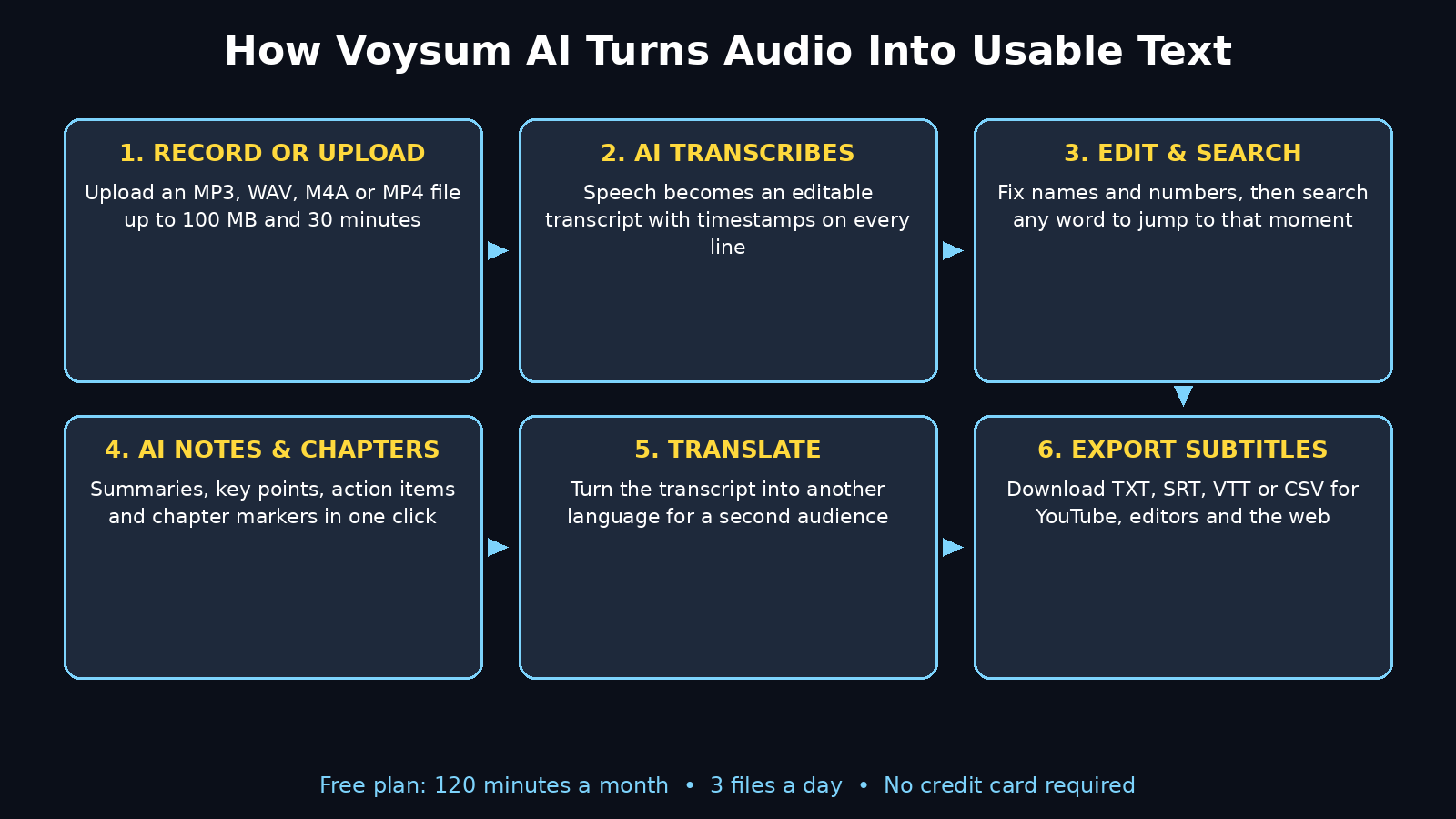
The free plan is genuinely usable: 120 minutes of transcription every month, with no credit card required. You can upload up to 3 files a day, each up to 30 minutes long and 100 MB in size, in common formats like MP3, WAV, M4A, MP4, MPEG, and WebM. That is enough to transcribe a weekly podcast episode, a handful of client calls, or a full set of lecture recordings without paying anything.
In this beginner-friendly guide, you will learn how to use Voysum AI from zero: creating a free account, uploading your first recording, editing the transcript, generating AI notes and chapters, translating it, and exporting subtitles you can drop straight into a video editor. You do not need any technical skills, any budget, or any experience with transcription tools. If you can upload a file, you can use Voysum AI. And if you work with meetings and presentations, you will also like our guide to Zoom Slides AI, which turns any Zoom meeting into ready-to-present slides automatically.
Step 1: Understand What Voysum AI Actually Is
Voysum AI is an audio and video transcription workspace. At its core, it does one job: it listens to a recording and writes down what was said, with a timestamp on every segment so you can click any line and jump straight to that moment in the audio. But the transcript is only the starting point. Once the words are on the page, Voysum lets you edit them, search them, turn them into structured notes, split them into chapters, translate them into another language, and export them as plain text or as timed subtitles.
That combination matters because raw transcription alone is only half the job. A 45-minute transcript is still 6,000 words to read. The AI notes and summaries are what turn those words into something you can actually use: the key points of a meeting, the action items from a client call, or the chapter markers for a long video. Think of Voysum as two tools in one — a transcriber and a reading assistant for everything you record.
Two more facts matter for beginners. First, transcription is a cloud service: you sign in, upload a file, and Voysum processes it on its servers. Second, Voysum also offers a set of free local browser tools — a video-to-audio extractor, an MP4 to MP3 converter, and an audio cutter — that process files on your own device and need no account at all. We will use those in Step 8.
Voysum appeared in the November 2026 roundups of new AI tools, and it fits a clear gap: most transcription tools either charge from the first minute or hide the useful features behind a paywall. Voysum’s free tier includes the full workflow — transcript, notes, translation, and subtitle export — which is exactly what a beginner needs to learn whether AI transcription earns a place in their routine.
Step 2: Create Your Free Account
Start by opening the Voysum website at voysum.com. You will see a simple upload area and a sign-in prompt. Transcription needs a free account, so click the sign-in or create-account button and register with your email address. There is no credit card step: the free plan is available the moment your account is created, with 120 minutes per month ready to use.
- Use an email you actually check. Voysum sends account and processing notifications there, and you will want them if a long file takes a while to finish.
- Check your monthly allowance on the dashboard. Your free plan shows 120 minutes per month, up to 3 files per day, and a 30-minute limit per file. Knowing these numbers before you upload saves you from wasting minutes on the wrong file.
- Do not upload anything sensitive on day one. Test with a short, unimportant recording first — a two-minute voice memo, for example — so you learn the workflow before you trust it with a client call.
Once you are signed in, take a minute to look around the workspace. You will see the upload area, your list of past transcripts, and the result workspace where a transcript, its notes, and its translation live side by side. You do not need to understand every button yet. The goal is simply to know where things are, so the later steps feel familiar.
Step 3: Upload Your First Audio or Video File
This is the step where the magic happens, and it takes less than a minute to start. Click the upload area, choose a file from your computer, and Voysum begins processing it. You can upload audio files (MP3, WAV, M4A) or video files (MP4, MPEG, WebM) up to 100 MB each, and each file can be up to 30 minutes long on the free plan.
- Pick a short file for your first run. A 3 to 5 minute recording is ideal. It processes fast, it costs almost nothing from your monthly allowance, and any mistakes in the transcript are easy to spot.
- Choose clear audio over long audio. A recording made close to the microphone, in a quiet room, with one person speaking at a time will transcribe far more accurately than a noisy two-hour meeting recorded from across the room.
- Video files work the same as audio. If you upload an MP4, Voysum listens to the soundtrack and transcribes the speech. You do not need to extract the audio yourself — although the free local tools in Step 8 can do that if you ever need just the audio.
- Wait for processing to finish. Short files finish in a minute or two. Longer files take longer, and you can leave the page and come back — your transcript will be waiting in your workspace.
A useful habit: name your files clearly before you upload them. “Client-call-acme-2026-11-17.mp3” is far easier to find later than “Recording (3).m4a”. Voysum keeps your files private while they are processed, and your transcript list becomes your searchable archive of everything you have recorded.
Step 4: Read, Search and Edit Your Transcript
When processing finishes, Voysum opens the result workspace. The transcript is shown as timed segments: each block of text carries a timestamp, so you can see exactly when each sentence was spoken. Clicking a line plays the audio from that moment, which makes checking a doubtful passage fast — you hear the original words instead of guessing.
- Read the transcript top to bottom once. Even good AI transcription makes mistakes, especially with names, brand words, numbers, and strong accents. A single read-through catches most of them.
- Fix names and numbers first. These are the errors that cause real damage: a misheard client name in meeting notes, or a wrong figure in a quote. Correct them the moment you spot them.
- Use search to find moments, not to re-listen. Need the part where the client mentioned the budget? Search for “budget” and jump straight there. This is the real time-saver: a searchable transcript turns an hour of audio into a document you can query in seconds.
- Edit in the workspace, not in a downloaded file. Corrections you make in Voysum stay attached to the timestamps and flow into every export — the text file, the subtitles, and the translation. Fix once, benefit everywhere.
Accuracy tip: if a transcript comes back messy, the problem is almost always the recording, not the tool. Background music, two people talking over each other, and a phone held far from the speaker are the three biggest causes of errors. Re-recording is rarely possible, but you can improve future recordings easily: sit closer to the microphone, ask people to speak one at a time, and record in a quiet room.
Step 5: Generate AI Notes, Summaries and Chapters
This is the step that turns a transcript from a wall of text into usable work. From the result workspace, you can switch between the timed transcript, structured notes, and a translation. Ask Voysum to generate AI notes and it will pull out the key points, the decisions, and the action items — the parts you would have highlighted if you had taken notes by hand.
- Generate a summary first. For a meeting or lecture, the summary tells you in a few paragraphs whether the full transcript is worth reading. Skim the summary, then read only the sections that matter.
- Use chapters for long recordings. A 30-minute video becomes much easier to navigate when it is split into labelled chapters. Chapters also make great video descriptions and timestamps for YouTube.
- Turn meeting notes into action items. Ask for meeting notes and you get decisions and next steps in a format you can paste straight into an email or a task list. If your team runs its work through a shared workspace, our guide to Pharen Hub AI shows how one workspace can hold tasks, docs, mail, and meetings together.
- Keep the human in charge. AI notes are a draft, not a verdict. Read them before you send them to anyone, and fix anything the AI misunderstood. A two-minute review beats an embarrassing correction later.
For content creators, this step is a quiet superpower. One podcast episode gives you a summary for the show notes, chapters for the video description, and a list of quotable moments for social media — all from a single upload. A digital agency handling several clients can turn every call into structured notes the same afternoon, without hiring a note-taker.
Step 6: Translate Your Transcript into Another Language
Voysum can translate your transcript into another language, which opens up an audience you could not reach with the original recording alone. A tutorial recorded in English can get Urdu subtitles for viewers in Pakistan. An interview in another language can become readable English notes for your team. Translation works from the edited transcript, so fix the important errors in Step 4 before you translate — mistakes in the original become mistakes in the translation.
- Translate after editing, not before. Clean the names, numbers, and key terms first. The translation will be noticeably better.
- Use translation for reach, not for legal precision. AI translation is excellent for subtitles, summaries, and general understanding. For contracts or anything legally binding, a human translator is still the right choice.
- Pair translation with subtitles. A translated transcript becomes translated subtitles in one more step (see Step 7), which is how small creators publish the same video to two audiences without recording it twice.
- Check the first minute of any translation. Read the opening lines in the target language. If the tone and key terms look right, the rest is usually fine. If something looks off, fix the source sentence and translate again.
If you run a business that serves customers in more than one language, this feature alone can justify the free plan. Product demos, onboarding calls, and support recordings can all be translated and subtitled without recording anything twice — and if you want to go further with multilingual content, specialist AI automation services can build that translation step into a regular publishing workflow.
Step 7: Export Subtitles and Text Files (SRT, VTT, TXT, CSV)
Exporting is where your work leaves Voysum and becomes useful everywhere else. Voysum offers four export formats, and each one has a clear job:
- TXT — plain transcript text. Best for blog posts, show notes, quotes, and anything you want to paste into a document. Copy the text from the workspace or download the file.
- SRT — subtitles for video editors. The standard subtitle format. Import it into CapCut, Premiere, DaVinci Resolve, or YouTube Studio and the captions appear timed to the speech. This is the format most beginners need.
- VTT — subtitles for the web. The format web video players use. If you embed a video on your own website, VTT is the right choice.
- CSV — timed segments as a spreadsheet. Best when you need to review, sort, or process the transcript in bulk — for example, checking every segment of a long interview before publishing.
To export, open the transcript, choose your format, and download. Then import the SRT or VTT file into your video editor alongside the original video. Most editors let you style the captions — font, size, colour, position — so the subtitles match your channel’s look. Check the first 30 seconds of the captioned video before you publish: if the timing lines up there, it will line up everywhere else.
One beginner mistake to avoid: exporting the SRT before you finish editing the transcript. Subtitles carry every error the transcript has, and fixing them in the video editor is slow and painful. Edit in Voysum first, export second, and your captions will be clean on the first try.
Step 8: Use the Free Local Tools (No Account Needed)
Voysum also ships a set of free browser tools that work entirely on your device — no account, no upload, no minutes used. These are genuinely useful, and many beginners will use them as often as the transcription itself:
- Video to Audio Extractor. Pull the audio track out of a video file. Useful when you only need the sound — for example, turning a recorded webinar into a podcast episode.
- MP4 to MP3 Converter. Convert a video file into a plain MP3 you can play anywhere, share easily, or feed into another tool.
- Audio Cutter. Trim an audio file to just the part you need. Cut the ten minutes of small talk off the start of a call before you transcribe it, and you save ten minutes of your monthly allowance.
These tools process files locally in your browser, which has two advantages: your file never leaves your computer, and the work costs nothing from your 120 free minutes. A smart workflow is to trim a recording with the audio cutter first, then upload only the useful part for transcription. A 30-minute call with five minutes of useful content becomes a five-minute transcription job — and you keep 25 minutes of allowance for something else.
Step 9: Make Your Free 120 Minutes Last All Month
The free plan gives you 120 minutes a month, up to 3 files a day, and 30 minutes per file. That is generous, but only if you spend it wisely. Here is how experienced free-plan users stretch it:
- Trim before you transcribe. Use the free audio cutter to remove introductions, dead air, and off-topic sections before uploading. Most recordings lose 10 to 20 percent of their length this way.
- Transcribe the important part only. A two-hour workshop rarely needs a full transcript. Cut out the single 25-minute session that matters and transcribe that.
- Batch short recordings together. If your tool allows it, combine several short voice memos on one topic into a single file before uploading. One 12-minute file costs less overhead than four separate 3-minute jobs.
- Use the free local tools for everything else. Converting, trimming, and extracting audio never touches your allowance, so do all of that prep work locally first.
- Save minutes for the recordings that earn money. A client call that becomes a proposal, or a podcast episode that becomes a blog post, is worth more than a casual voice memo. Spend your allowance where it pays you back.
If you regularly need more than 120 minutes, Voysum offers paid monthly and yearly plans with larger allowances. But do not upgrade in your first month. Learn the workflow on the free plan, measure how many minutes you actually use, and only pay when the free limit is genuinely holding you back.
Step 10: Voysum AI vs the Alternatives
Voysum is not the only transcription tool, and a beginner should know how it compares before committing to one. The table below compares it with three well-known alternatives on the points that matter most to a free-plan user.
| Feature | Voysum AI | Otter.ai | Notta | VoiceGo |
|---|---|---|---|---|
| Free minutes per month | 120 minutes | 300 minutes (free plan) | 120 minutes | 3 files a day |
| Credit card for free plan | No | No | No | No |
| Max file length (free) | 30 minutes | 30 minutes | 3 minutes per file | 30 minutes |
| File upload size | Up to 100 MB | Varies by plan | Varies by plan | Up to 30 min per file |
| AI notes and summaries | Yes | Yes | Yes | Basic |
| Chapters | Yes | Limited | Yes | No |
| Translation | Yes | Limited | Yes | Yes |
| Subtitle export (SRT/VTT) | Yes | Paid plans | Yes | Yes |
| Free local audio tools | Yes | No | No | No |
Otter.ai gives more free minutes and is excellent for live meetings, but its free plan is more limited on exports. Notta matches Voysum on free minutes but caps free files at just 3 minutes each, which makes long recordings awkward. VoiceGo is close to Voysum on the free tier, but it has no chapters and no free local tools. For a beginner who wants the full workflow — transcript, notes, chapters, translation, and subtitles — without paying, Voysum is the strongest all-round free choice. The honest advice is to try two of them with the same 5-minute recording and compare the transcripts yourself: accuracy on your voice, in your accent, matters more than any feature list.
Frequently Asked Questions
Is Voysum AI really free?
Yes. The free plan includes 120 minutes of transcription per month, up to 3 files per day, and files up to 30 minutes long and 100 MB in size. No credit card is required to sign up. Paid monthly and yearly plans exist for users who need more minutes, but the free plan includes the full workflow: transcript, AI notes, chapters, translation, and subtitle export.
What audio and video formats does Voysum AI support?
Voysum accepts MP3, WAV, and M4A audio files, and MP4, MPEG, and WebM video files. Each file can be up to 100 MB. If your recording is in another format, convert it first — Voysum’s own free MP4 to MP3 converter handles the most common case, and any audio converter can handle the rest.
Can I transcribe a video file with Voysum AI?
Yes. Upload an MP4, MPEG, or WebM file with audible speech and Voysum will transcribe the soundtrack. You can review and edit each timestamped segment, then export the text or the subtitles. You do not need to extract the audio first, although the free video-to-audio extractor is there if you want just the sound.
How accurate is Voysum AI transcription?
Accuracy depends mostly on the recording. Clear audio with one speaker at a time, recorded close to the microphone in a quiet room, transcribes very well. Background noise, overlapping speakers, heavy accents, and technical jargon cause more errors. Always read through the transcript once and fix names and numbers — Voysum’s editor makes this quick, and corrections flow into every export.
Can I use Voysum AI subtitles on YouTube and TikTok?
Yes. Export the transcript as an SRT file and upload it to YouTube Studio as captions, or import it into your video editor (CapCut, Premiere, DaVinci Resolve) and burn the captions into the video for TikTok and Instagram. SRT is the standard format both workflows accept, and VTT is the right choice if you embed video on your own website.
Does Voysum AI keep my recordings private?
Voysum states that files are stored privately while they are processed. As with any cloud service, avoid uploading recordings that contain passwords, financial details, or other sensitive information you would not want on a third-party server. For maximum privacy, use Voysum’s free local browser tools — the audio cutter, MP4 to MP3 converter, and video-to-audio extractor — which process files on your own device and never upload them.
Final Thoughts
Voysum AI solves a problem almost everyone has and almost nobody enjoys fixing: turning spoken words into written text you can actually use. The workflow is simple enough for a complete beginner — upload a file, read the transcript, generate notes, export subtitles — and the free plan is generous enough to cover a weekly podcast, a handful of client calls, or a full set of lectures every month.
The habits that matter most are the boring ones: record clearly, trim before you upload, edit the transcript before you export, and spend your 120 free minutes on the recordings that earn their keep. Do those four things and Voysum becomes a quiet part of your routine instead of another tool you tried once and forgot.
If you create content for a living, the real payoff is repurposing. One recording becomes a transcript, a summary, chapters, a translated version, and a set of subtitles — five pieces of content from a single upload. That is the kind of leverage that turns a small channel or a one-person business into something that punches above its weight. Start with a two-minute test file today, and you will know within ten minutes whether Voysum AI earns a place in your workflow.
Explore More Free AI Tools
If you liked Voysum AI, try the free tools on AI Tool Steps — our AI Title Generator, Meta Description Generator, AI Rewriter, and Keyword Density Checker help you turn transcripts and notes into polished, search-ready content in minutes.