

You just finished a long Zoom meeting. Everyone agreed on the plan, the client nodded along, and somebody said “great, send me the slides.” Then reality hits: nobody took proper notes, the recording is 47 minutes long, and building a deck from scratch will eat your whole afternoon.
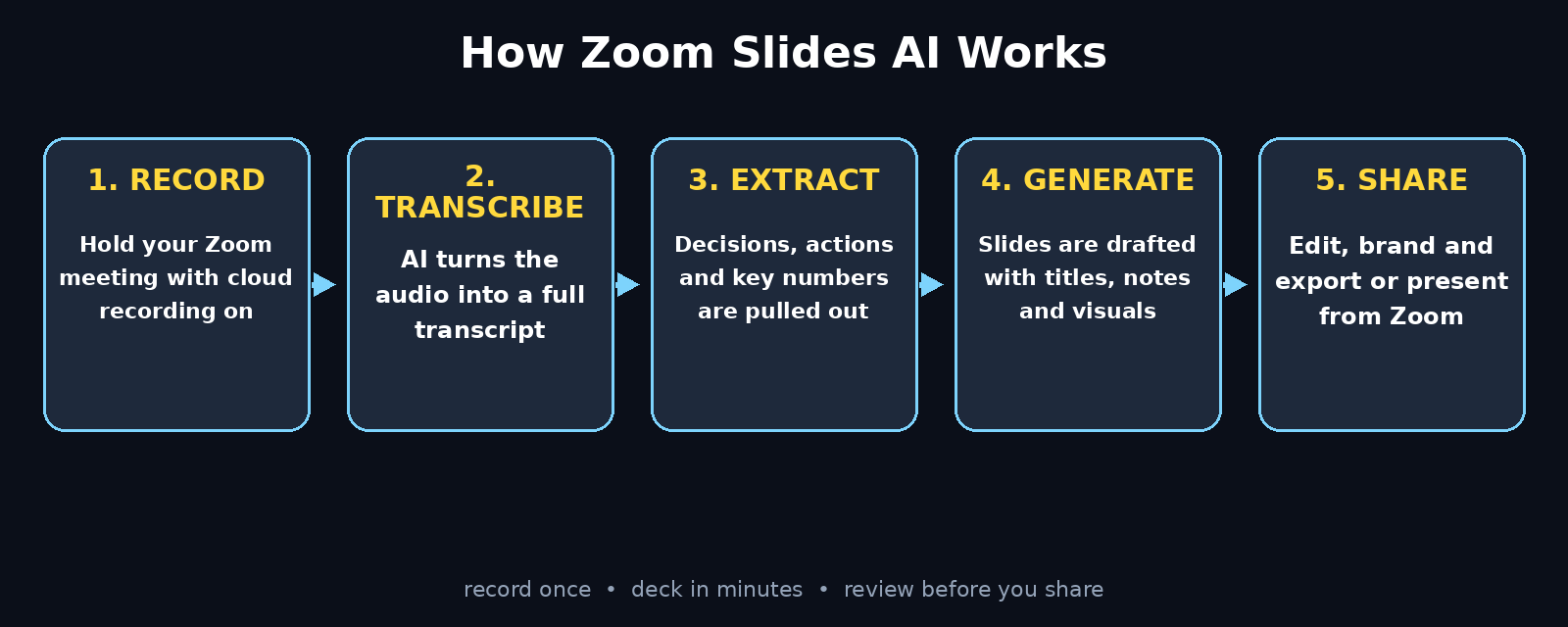
Zoom Slides AI fixes exactly that problem. Launched on November 16, 2026, and sitting at number one on Product Hunt on launch day, Zoom Slides is a new AI feature inside Zoom that turns your meeting recording and transcript into a ready-to-present slide deck automatically. You talk, it listens, and a few minutes later you have structured slides with titles, bullet points, speaker notes, and suggested visuals.
This guide walks you through the whole process step by step. No design skills needed, no blank-slide panic, and no extra app to install if you already use Zoom. By the end you will know how to generate your first deck, edit it so it sounds like you, brand it, and share it with your team or clients.
Step 1: Check That You Have Access to Zoom Slides AI
Before anything else, confirm the feature is available on your account. Zoom Slides is rolling out as part of Zoom’s AI Companion family of features, so availability depends on your plan and your admin settings.
- Open the Zoom desktop app and check for updates. Click your profile picture, then Check for Updates, and install the latest version. Zoom Slides needs a recent build.
- Sign in on the Zoom web portal and go to Settings, then AI Companion. Look for the Slides option and make sure it is switched on.
- If you are on a team or company account, your admin may need to enable AI features first. Ask them to turn on Zoom AI Companion if the toggle is greyed out.
- Free and Basic accounts get limited access, while Pro, Business, and Enterprise plans unlock the full slide generation features. If the button is missing entirely, check your plan or ask your admin.
A quick test: start a short meeting with yourself, record it, and see whether a Slides option appears after the meeting ends. That takes two minutes and tells you everything.
Step 2: Record Your Meeting With Transcription Turned On
Zoom Slides AI builds slides from what was actually said, so the quality of your deck depends on the quality of your meeting recording. A meeting with no recording and no transcript gives the AI nothing to work with.
- When you start the meeting, click Record and choose Record to Cloud. Cloud recording is what the AI reads.
- Turn on the AI Companion transcript or live transcription from the meeting toolbar. This creates the text the AI summarises into slides.
- Speak clearly and name your key points out loud. Saying “the three decisions we made today are…” helps the AI structure the deck around real conclusions instead of guessing.
- Ask participants to state their names when they speak for the first time. The AI uses speaker labels to attribute action items correctly.
- Keep the meeting focused. A tight 30-minute meeting produces a much cleaner deck than a rambling two-hour call with five topic changes.
Think of the recording as your raw material. Garbage in, garbage out applies here just as much as anywhere else in AI.
Step 3: Open Zoom Slides After the Meeting Ends
Once the meeting finishes, Zoom processes the recording and transcript in the background. This usually takes a few minutes, depending on the meeting length.
- Go to the Zoom web portal and open Meetings, then Recordings. Find the meeting you just held.
- Look for the Slides or Generate Slides button next to the recording. In the desktop app, the same option appears in the meeting summary panel.
- If the button is not there yet, wait a few minutes and refresh. Processing a one-hour meeting can take five to ten minutes.
- Click Generate Slides and Zoom Slides AI will show you a short setup screen before it builds the deck.
This is also the moment to decide who the deck is for. A deck for your own team can be rough and detailed. A deck for a client needs tighter language and cleaner visuals, so you will spend more time editing in Step 5.
Step 4: Let the AI Draft Your Deck
Here is the fun part. Zoom Slides AI reads the transcript, finds the decisions, action items, key numbers, and discussion topics, and arranges them into slides.
- Choose a deck length first. Short gives you five to eight slides for a quick update. Standard gives you ten to fifteen slides for a normal review. Detailed goes longer for training or handover decks.
- Pick a template. Zoom offers clean business templates, a bold modern style, and a minimal style. You can change this later, so do not overthink the first pick.
- Tell the AI the purpose of the deck if it asks. “Weekly team update,” “client proposal summary,” or “project kickoff recap” each produce a different structure.
- Click Generate and wait. Most decks are ready in under two minutes.
- Read through the generated deck once before you touch anything. Check the flow: does the story make sense from slide one to the last slide?
The first draft is usually about 80 percent right. Titles are sensible, bullets capture the real discussion, and action items land on their own slide. The remaining 20 percent is yours to fix, and that is where Step 5 comes in.
Step 5: Review and Edit the Slides So They Sound Like You
AI drafts are a starting point, not a finished product. A deck that goes out with robotic phrasing or a wrong number damages your credibility fast.
- Fix any wrong facts first. AI can mishear numbers, dates, and names, especially on a noisy call. Check every figure against your own notes.
- Rewrite the slide titles in your own words. “Q3 Marketing Discussion” becomes “Q3 Marketing: What We Decided and What Happens Next.”
- Cut filler slides. If two slides say the same thing, merge them or delete one. Short decks get read; long decks get skimmed and forgotten.
- Add the context only you know. The AI cannot know that the client prefers a conservative timeline or that the budget changed yesterday. Add one or two lines per section where your judgment matters.
- Use the built-in rewrite tools. Select any bullet and ask the AI to shorten it, expand it, or make it more formal. This is faster than retyping everything by hand.
A good rule: if you would be embarrassed to present a slide as it is, fix it now. Your name is on the deck, not the AI’s.
Step 6: Add Visuals, Charts, and Speaker Notes
Slides made only of bullet points are boring, and Zoom Slides AI knows it. The generator suggests visuals, and you can add your own in a few clicks.
- Accept the AI’s suggested images where they fit, and replace the ones that look generic. A real screenshot from your product beats a stock photo every time.
- Turn numbers into charts. If the meeting discussed revenue, growth, or survey results, select the numbers and use the chart option to build a simple bar or line chart.
- Check the speaker notes. Zoom Slides AI writes a short note under each slide based on the transcript. These are genuinely useful when you present, so keep the good ones and trim the rest.
- Add a simple diagram for processes. If the meeting covered a workflow, a three-box flow beats a paragraph of text.
- Keep one idea per slide. If a slide has eight bullets, split it into two slides. Your audience will thank you.
Visuals are also where a deck stops looking AI-generated and starts looking like yours. Even swapping in two or three real images makes a big difference.
Step 7: Brand the Deck With Your Colors and Logo
A deck that looks like your company builds trust. A deck that looks like a default template does not.
- Open the theme settings and set your brand colours. Most teams need just two: a main colour and an accent colour.
- Upload your logo and place it in the same corner on every slide. Consistency matters more than size.
- Set your fonts once. Use your company font if it is available, or pick one clean sans-serif font for headings and one for body text.
- Save the result as a team template. The next time anyone generates a deck from a meeting, they can start from your branded template instead of the default.
- If you work at a digital agency, this step is where client work gets its polish. A branded recap deck after a strategy call is a small touch that makes an agency look organised and professional, and it is exactly the kind of deliverable a team at a digital agency like D365A would send after a client workshop.
Branding takes five minutes and pays off every single time the deck is opened.
Step 8: Share or Export the Deck
Once you are happy with the deck, get it into the hands of the people who need it.
- Share a view link from inside Zoom. Recipients can open the deck in their browser without a Zoom account in most cases.
- Export to PowerPoint if your team works in Microsoft tools. The export keeps the layout, text, and images editable, so colleagues can tweak slides without starting over.
- Export to PDF when the deck is final and you want a fixed version. PDF is the right choice for clients and for email attachments.
- Set permissions before you share. Use “anyone with the link can view” for internal updates, and restrict editing to named people only.
- Send the deck with a short message. One sentence about what was decided and one sentence about the next step beats a bare link every time.
A handy habit: share the deck within 24 hours of the meeting while the discussion is still fresh. A deck that arrives a week later has already lost half its value.
Step 9: Present Directly From Zoom
You do not need to download anything to present. Zoom Slides AI decks can be presented inside a Zoom meeting, which is ideal for the follow-up call.
- Open the deck and click Present. Choose whether to present in the current meeting or a new one.
- Use presenter view to see your speaker notes while the audience sees only the slides.
- Advance slides with your keyboard or the on-screen controls, just like any other presentation tool.
- Watch for questions in the chat while you present. Because the deck came from a real meeting, people often ask about a decision or a number on a specific slide.
- Record the presentation meeting too. That gives you a new recording, and yes, you can generate a fresh summary deck from it if the discussion changes anything.
Presenting from Zoom also keeps everything in one place: the meeting, the recording, the transcript, and the deck all live under the same account.
Step 10: Build a Reusable Workflow for Your Team
One deck is a nice trick. A team workflow is a real productivity gain. Set up a simple system so every meeting produces a useful deck without extra effort.
- Agree on a naming pattern, such as “2026-11-16 Client Name Weekly Update.” Everyone finds decks faster when names are consistent.
- Create one template per meeting type: weekly updates, client recaps, project kickoffs, and training sessions.
- Assign one person per meeting to review the AI draft before it is shared. A five-minute review catches the errors that damage trust.
- Store finished decks in a shared folder or your team’s document system so new joiners can catch up on past decisions.
- Review the workflow monthly. If the AI keeps making the same mistake, change how you run meetings. Clear agendas and spoken decisions at the end of each call improve every deck the AI generates.
Teams that run this workflow well report saving several hours a week on documentation alone. The meeting itself becomes the first draft of the record, and the deck becomes the version people actually read. That is also why AI automation matters beyond slide decks: when meeting notes, follow-ups, and reporting connect into one flow, small teams punch far above their weight, which is the same promise behind the agentic AI tools covered over at Agentic Affairs.
Zoom Slides AI vs Other Slide Tools
Zoom Slides AI is not the only AI slide tool, so here is how it compares with the usual alternatives. The right choice depends on where your content starts.
| Tool | Best for | Input | Price starting point | Learning curve |
|---|---|---|---|---|
| Zoom Slides AI | Turning real meetings into decks | Meeting recording and transcript | Included in eligible Zoom plans | Very easy |
| Gamma | Fast, stylish decks from a prompt | Text prompt or document | Free plan available | Easy |
| Tome | Storytelling and narrative decks | Text prompt | Free plan available | Easy |
| Canva Magic Design | Designed decks with brand kits | Text prompt or document | Free plan available | Easy |
| Manual PowerPoint | Full control over every detail | Your own writing | Part of Microsoft 365 | Medium |
| Google Slides with Gemini | Collaborative decks in Google Workspace | Text prompt or document | Included in Workspace plans | Easy |
The key difference is the input. Gamma, Tome, and Canva start from what you type. Zoom Slides AI starts from what was actually said in a meeting, which means the deck reflects real decisions and real numbers instead of a prompt you wrote from memory. If your work lives in meetings, Zoom Slides AI saves the most time. If you start from a blank page, a prompt-based tool may suit you better.
Frequently Asked Questions
Is Zoom Slides AI free?
Zoom Slides AI is included in eligible Zoom plans that have AI Companion enabled. Some features are limited on Free and Basic plans, while Pro, Business, and Enterprise plans unlock full slide generation. Check your plan in the Zoom web portal under Settings, then AI Companion, to see exactly what you can use.
Does Zoom Slides AI work with meetings I did not record?
No. The AI needs a cloud recording and a transcript to build a deck. If a meeting was not recorded, there is nothing for it to summarise. Turn on cloud recording and transcription before your next meeting and generate the deck after it ends.
How accurate are the slides it generates?
Accuracy is usually good for decisions, topics, and action items, but numbers, names, and dates can be misheard, especially on calls with background noise or heavy accents. Always review the draft before sharing, and check every figure against your own notes. Treat the first draft as a starting point, not a finished document.
Can I edit the slides after the AI generates them?
Yes. Every part of the deck is editable: text, titles, images, charts, colours, and speaker notes. You can also ask the AI to rewrite individual bullets, shorten a slide, or change the tone. Export to PowerPoint gives you full editing freedom in Microsoft tools.
Can I use Zoom Slides AI for client-facing decks?
Yes, and many teams do, but review the deck carefully first. Fix the facts, brand it with your colours and logo, replace generic images with real ones, and read it once as if you were the client. A polished, reviewed deck is a professional deliverable. An unreviewed AI draft is not.
Does Zoom Slides AI store or train on my meeting data?
Zoom states that AI Companion features do not use your meeting content to train its models, and meeting data is handled under your Zoom account’s privacy settings. Admins can control AI features from the web portal. If your company has strict data rules, ask your admin to confirm the current policy before enabling the feature.
Final Thoughts
Zoom Slides AI solves a boring, universal problem: the gap between a good meeting and a usable record of it. Instead of spending your afternoon turning a 47-minute recording into slides, you let the AI draft the deck in two minutes and spend your time on the part only you can do: checking the facts, adding judgment, and making it look like your work.
Start small. Generate a deck from your next team meeting, review it for five minutes, and share it. If the team finds it useful, set up the templates and the review step from Step 10 and make it part of how your team works. The meetings will not get shorter, but the work after them certainly will.
Explore More Free AI Tools
Want to keep building useful content faster? Try these free tools on AI Tool Steps: the AI Title Generator for headlines that get clicked, the Meta Description Generator for search snippets that earn the click, the AI Rewriter for polishing rough drafts, and the Keyword Density Checker for keeping your pages SEO-friendly. All of them are free at https://aitoolsteps.com/ and they pair perfectly with the workflow in this guide.