

If you use AI coding agents, you know the chaos. One Claude Code session runs in a terminal tab, a Codex job spins in another window, a Cowork conversation sits in the Claude desktop app, and a Gemini task is buried somewhere else entirely. You lose track of which agent is doing what, which one is waiting for your permission, and which one already finished and changed your files.
OffiAI fixes that with a simple idea: give every AI agent a desk in a 3D office. Launched on October 31, 2026, OffiAI is a free Mac app from Delicatino GmbH in Bremen, Germany, that shows your Claude Code, Codex, Claude Cowork, and Gemini sessions as desks in one visual office. You brief an agent at Reception, it takes a desk, and you can see at a glance who is working, who is waiting for you, and who is done.
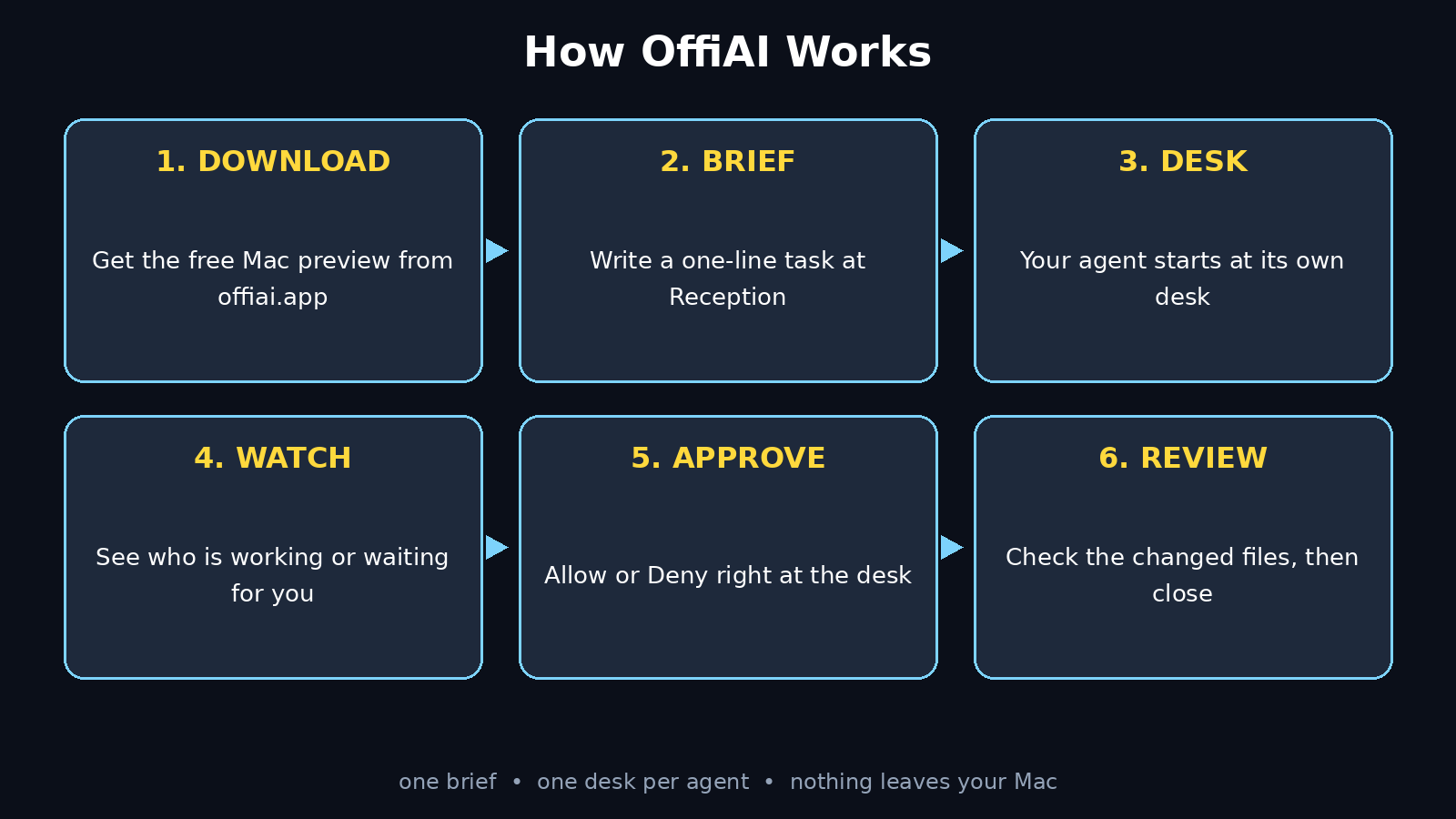
This beginner guide walks you through how to use OffiAI from zero to your first finished task. You will learn how to install it, brief your first agent, answer approvals without touching the terminal, and review exactly what each agent changed. No coding experience is needed to follow along, and the app itself is free in its current public preview.
Step 1: Check That Your Mac Can Run OffiAI
Before you download anything, make sure your machine meets the requirements. OffiAI is still in public beta, and its first release is deliberately narrow: Mac only, Apple silicon only.
- You need a Mac with Apple silicon, such as an M1, M2, M3, or M4 chip. Intel Macs are not supported in the preview.
- You need Claude Code installed and signed in if you want Claude Code desks. To see sessions, Claude Code 2.1.272 or newer is required, and to start or continue work from inside OffiAI you need 2.1.302 or newer. Run
claude --versionin your terminal to check yours. - Claude Code 2.2 is not supported yet, so do not upgrade past the supported range if you want OffiAI to keep working.
- For Codex desks you need the Codex CLI, and for Gemini desks you need the Antigravity CLI, which needs no separate install. Cowork sessions come through the Claude desktop app.
- The app interface is available in English, Spanish, and German.
If you do not have Claude Code yet, install it first and sign in with your own Anthropic account. OffiAI runs no AI model of its own, so every agent keeps its own tools and its own subscription. OffiAI is the office, not the worker.
Step 2: Download and Install the OffiAI Preview
Getting the app takes only a few minutes, and there is no account to create. That is a deliberate choice: OffiAI has no account system, no analytics, and no crash reporting.
- Go to the official website at offiai.app and follow the link to the macOS preview, which is hosted on GitHub.
- Download the app and move it into your Applications folder, just like any other Mac app.
- Open OffiAI. The first time you launch it, macOS may ask you to confirm that you want to open an app downloaded from the internet. Click Open.
- OffiAI reads Claude Code session files stored locally on your Mac, so existing terminal sessions can show up in the office without any plugin or hook.
- There is nothing to sign up for and no licence key to paste. The preview is free, with all desks included.
Because OffiAI contacts its own server only when you press Send feedback, nothing about your work leaves your Mac unless you choose to send it. Provider installs, update checks, and downloads also happen only when you click Install, Check now, or Update.
Step 3: Take the Tour of Your New Office
When OffiAI opens, you see a 3D office instead of a list of tabs. Learning the layout takes about a minute, and it is the whole point of the app, so take the tour before you start any work.
- Reception: this is where new work starts. You pick a working folder, write a short brief, choose an agent, and the session starts at a free desk.
- Desks: every active session gets its own desk, with its own conversation. The standard office has six desks, and the office can hold at most twelve.
- The robot: one robot moves around the office, and while it is elsewhere, every desk whose session is working or waiting for you shows a hologram, so you can spot busy desks instantly.
- Session states: each desk shows whether its agent is working, waiting for your permission, or done. The colour and hologram tell you the state without opening anything.
- Desk cards: if you prefer a plain list, the newer interface shows the same desk states as cards, with the same information in a compact form.
Think of it like a real office floor. You would not manage ten employees by staring at ten identical terminal windows. You would walk the floor and see who needs you. OffiAI gives you that floor.
Step 4: Brief Your First Agent at Reception
Your first task should be small and safe, such as asking Claude Code to write a summary of a project folder or fix a typo in a document. A small first brief teaches you the flow without risking real code.
- Click Reception and pick the working folder for the task. In eligible Git repositories, a Claude Code task started from OffiAI gets its own branch and working folder by default, which keeps experiments away from your main code. You can turn this off.
- Write a one-line brief in plain language. For example: “Summarise this project in a short README file” or “Fix the spelling mistakes in the docs folder.”
- Choose your agent: Claude Code, Codex, or Gemini. Cowork is offered through the Claude desktop app.
- Click Start at the next free desk. The session begins, and the agent appears at a desk in your office.
- Stay nearby for the first run. Your agent will probably ask you something within a minute, and you will see its desk light up.
A good brief is short and specific. Say what you want, where it lives, and what done looks like. “Improve the website” is a bad brief. “Add a contact section to the homepage with an email link” is a good one.
Step 5: Watch Your Agent Work at Its Desk
Once a session starts, you do not need to babysit it. The desk shows you the live state, and you can dip into the conversation whenever you want.
- Click any desk to open that session and read the conversation, exactly as it happened.
- The desk view shows the latest turn the agent delivered and whether it is waiting for your review.
- Changed files are listed at the desk, so you can see what the agent touched without digging through your project.
- Terminal sessions you started outside OffiAI also show up next to the ones you started in the app, because OffiAI follows the session files Claude Code writes on your Mac.
- If a desk goes quiet for a long time, check whether the agent is waiting on you. A waiting desk is the most common reason a session looks stuck.
This is where OffiAI earns its keep for beginners. In a terminal, five sessions look identical. In the office, the one that needs you is the one with the hologram.
Step 6: Answer Approvals Without Opening the Terminal
AI coding agents often need permission before they run a command or edit a file. In a terminal, that means switching windows and typing yes. In OffiAI, you answer right at the desk.
- When an agent needs permission, its desk shows the request as written, the folder it applies to, and how long it has been waiting.
- Click Allow to let it continue, or Deny to stop that action. The choice is yours, and the agent will work around a denial.
- Approvals work at the desk for Claude Code tasks you started in OffiAI, for terminal sessions you message from OffiAI, and for terminal sessions with the opt-in hook.
- For Codex tasks started in the app, supported command approvals also work at the desk. External Codex approvals stay in the terminal, so check there if a Codex desk looks idle.
- Read the request before you approve it. If the command touches files you do not recognise, deny it and ask the agent to explain what it is doing.
Approvals are the safety net that makes agent coding feel safe for beginners. You are the manager, and nothing runs without your say-so unless you chose full autopilot elsewhere.
Step 7: Review What Changed and Keep or Revert It
When a desk shows done, your job is not finished. Reviewing the work is the most important step, and OffiAI makes it easy to see what actually happened.
- Open the finished desk and read the agent’s summary of what it did.
- Open the changed-files list and look at each file the agent edited. Check that the changes match the brief you wrote.
- Test the result yourself. If the agent wrote code, run it. If it edited a document, read it. Never assume finished means correct.
- If a change is wrong, ask the agent at the same desk to fix it, or revert the file yourself. In a Git repository with its own branch, reverting is safe and quick.
- When you are happy, close the session. Every session OffiAI has seen stays in a searchable archive, so you can find it again later.
Beginners sometimes skip this step because the agent sounds confident. Confidence is not correctness. A two-minute review now saves a two-hour debugging session later.
Step 8: Run Claude Code, Codex, Cowork, and Gemini Side by Side
Once you trust the flow, the real power of OffiAI appears: running several different agents at once and comparing them. Each agent keeps its own tools and strengths, and OffiAI gives them all the same office.
- Start a Claude Code session for a coding task, a Codex session for a second job, and a Gemini session for research, all from Reception.
- Each session takes its own desk, so you can tell them apart at a glance instead of juggling terminal tabs.
- Give different agents different jobs. For example, let Claude Code refactor the code while Gemini drafts the documentation for the same project.
- Watch which agent finishes first and which one asks the smartest questions. That tells you which tool fits which kind of work for you.
- Keep the total number of live sessions small at first. Three desks are easier to manage than ten, and the free plan is designed around three desks side by side.
Teams exploring this kind of multi-agent workflow often pair the tooling with outside help. If your business wants to roll out AI coding agents across a whole team, a digital agency can help you set up the workflow, the permissions, and the review habits so the agents help instead of creating chaos.
Step 9: Find Any Past Session in Seconds
After a week of using OffiAI, you will have dozens of sessions. The searchable archive is what stops that history from becoming clutter.
- Use the search to find a session by what it did, not just by its date. Search for the file it changed or the task you asked for.
- Reopen an old desk to see the full conversation, including any commands you denied. That record is useful when you need to remember why a decision was made.
- Compare a new session with an old one that did similar work. If the old approach worked, reuse the brief that produced it.
- Archive finished sessions instead of deleting them. Disk space is cheap, and your own history is the best prompt library you will ever build.
Good session hygiene is a habit, not a feature. Search once a week for sessions you never reviewed, and close the loop on them.
Step 10: Build Habits That Keep the Office Tidy
OffiAI is easy to start and easy to misuse. A few habits will keep your office useful as the number of sessions grows.
- One desk, one job. Do not brief an agent with three unrelated tasks. Split the work and give each task its own desk.
- Use separate folders or branches for experiments, so a bad agent run cannot damage your main project.
- Answer approvals promptly. A session waiting for permission is a desk doing nothing, and the longer it waits, the colder the context gets.
- Review every finished desk before you start a new one. A tidy office is one where done means checked, not just finished.
- Keep your CLIs updated within the supported range. OffiAI follows the versions its integrations support, and an unsupported CLI version simply will not appear.
The agentic AI world moves fast, and tools like OffiAI are only one part of the picture. To keep up with how agent workspaces, agent identity, and multi-agent workflows are evolving, Agentic Affairs is a useful place to follow the wider agentic AI landscape while you build your own habits.
OffiAI vs the Alternatives
OffiAI is not the only way to run AI coding agents, but it is the only one that turns session management into a place you can see. Here is how it compares with the usual alternatives.
| Feature | OffiAI | Terminal tabs only | Typical AI dashboard |
|---|---|---|---|
| See all sessions at a glance | Yes, as desks in a 3D office | No, tabs all look alike | Yes, as a list |
| Start Claude Code, Codex, Cowork, Gemini | Yes, from Reception | Yes, manually in each terminal | Usually one agent only |
| Answer approvals in the app | Yes, Allow or Deny at the desk | Yes, by typing in the terminal | Sometimes, if supported |
| Changed files per session | Yes, listed at each desk | No, check Git yourself | Sometimes |
| Searchable session archive | Yes | No, scrollback only | Usually yes |
| Account required | No account at all | No | Almost always yes |
| Price in preview | Free | Free | Often paid |
| Platform | Mac, Apple silicon only | Any platform | Usually web based |
The honest trade-off is the platform limit. If you are on Windows or Linux, OffiAI cannot help you yet. A Windows version is on the public roadmap, and iPhone and Android apps are in development, but for now the office is Mac only.
Frequently Asked Questions
Is OffiAI really free?
Yes. The macOS preview is free, with every desk included and no ads, ever. A paid Pro plan is planned for launch, with the free plan keeping three desks side by side, but none of the Pro extras are in the preview yet. The preview has one office, one window view that follows your clock, and all its desks.
Does OffiAI work on Windows or Intel Macs?
Not yet. The preview runs on macOS with Apple silicon only. A Windows version is on the public roadmap, and iPhone and Android apps are in development. If you are on Windows, you will need to wait or use a Mac for now.
Does OffiAI run its own AI model or see my code?
No. OffiAI runs no model of its own and has no server that receives your sessions, prompts, answers, or files. It reads Claude Code session files stored locally on your Mac, and the Codex and Gemini integrations and the Cowork plugin reach it over your own machine only. Each agent keeps its own account and provider, and agents use your own subscriptions.
Which version of Claude Code do I need?
To see sessions you need Claude Code 2.1.272 or newer, and to start or continue work from inside OffiAI you need 2.1.302 or newer. Claude Code 2.2 is not supported yet, so check your version with claude --version before you begin.
Can I use OffiAI if I only use Gemini or Codex?
Yes. Reception can start Codex and Gemini sessions as well as Claude Code, and Cowork is offered through the Claude desktop app. Gemini works through the Antigravity CLI, which needs no separate install, and each session still gets its own desk.
Do I need to create an account to use OffiAI?
No. OffiAI has no account, no analytics, and no crash reporting. The app contacts its server only when you press Send feedback, and provider installs and update checks happen only when you click them.
Final Thoughts
OffiAI will not write your code for you, and it does not pretend to. What it does is smaller and more useful: it gives your AI agents a place you can see, so you stop losing track of them. A brief at Reception, a desk for each session, an approval answered with one click, and a review of what changed. That is the whole workflow, and it is enough to turn agent coding from a pile of terminal tabs into something a beginner can actually manage.
Start small. Brief one agent on one small task, watch its desk, answer its approval, and review its work. Once that feels natural, add a second agent and compare them. By the end of your first week, your office will feel like the obvious way to work, and going back to a dozen identical terminal windows will feel like working blindfolded.
Explore More Free AI Tools
OffiAI is free in preview, but it is only one tool in a much bigger free AI toolbox. If you liked this guide, try our other free tools on AIToolSteps: the AI Title Generator for headlines that get clicks, the Meta Description Generator for search snippets, the AI Rewriter for polishing rough drafts, and the Keyword Density Checker for keeping your SEO on track. Every tool is free, and every guide on this site is written for beginners.