

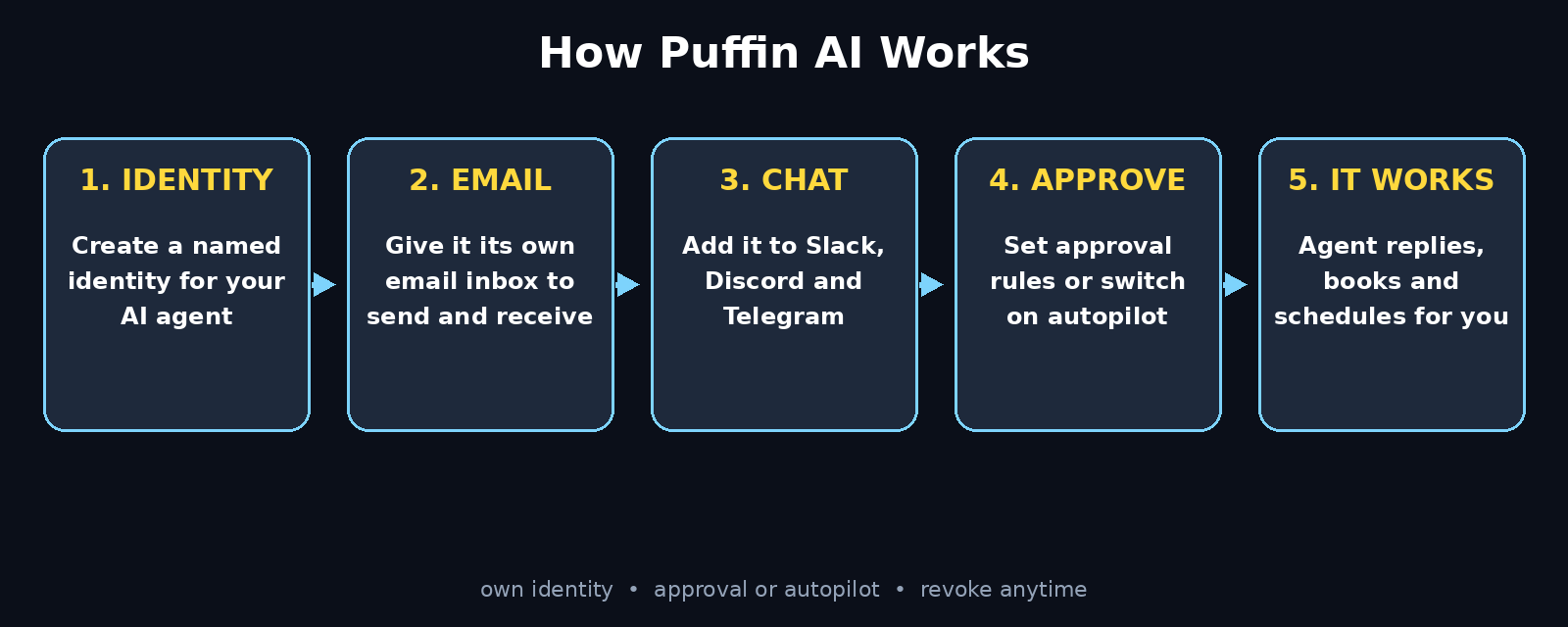
AI agents can now write emails, book meetings, and reply in Slack — but there is one awkward problem nobody talks about: whose email address do they use? If your agent replies from your personal inbox, every message looks like it came from you. If it has no inbox at all, it cannot do the job. Puffin AI fixes exactly this. It gives each of your AI agents its own identity — a real email address, a seat in Slack, Discord, and Telegram, and a calendar of its own — so your agents can work like teammates instead of borrowing your name.
In this beginner-friendly guide, you will learn how to use Puffin AI from zero: creating your free account, setting up your first agent identity, connecting email and chat apps, choosing between approval mode and full autopilot, and sending your first real task. No coding is needed, and you can finish the whole setup in about fifteen minutes.
Step 1: What Puffin AI Is (and Why AI Agents Need an Identity)
Puffin AI is a new identity and inbox platform for AI agents, launched on Product Hunt in November 2026. Think of it as an HR department for your AI workforce. Instead of your agents sharing your accounts, Puffin creates a separate, real identity for each agent — with its own email address, its own seat in your team chat tools, and its own calendar.
Why does this matter? Three reasons:
- Trust: When an agent emails a client from
support@yourcompany.comusing its own identity, the reply goes to the agent, not to your personal inbox. People always know who — or what — they are talking to. - Control: Every message your agent sends can pass through your approval first, or run on full autopilot once you trust it. You decide per agent, per channel.
- Separation: If you ever switch agents or stop using one, you revoke its identity. Your own email, Slack, and calendar stay untouched.
Until now, most people either let agents impersonate them or kept agents locked out of email and chat entirely. Puffin sits in the middle: agents get real access, but on their own identity, under your rules. If you follow the fast-moving world of agentic AI, you will recognise this as one of the missing pieces of the agent stack — and sites like Agentic Affairs track exactly these kinds of launches, so it is worth keeping an eye on how agent identity standards develop over the next year.
Step 2: Create Your Free Puffin Account
Getting started takes about two minutes:
- Open the Puffin website and click Sign up or Get started free.
- Sign up with your email address or with Google. Use a work email if you plan to connect work tools later — it makes the Slack and calendar connections smoother.
- Confirm your email by clicking the verification link Puffin sends you.
- Complete the short onboarding: your name, what you want agents to help with, and your team size. These answers only shape the default suggestions — nothing is locked in.
Once you land on the Puffin dashboard, you will see an empty workspace with a big Create agent identity button. That is your starting point for Step 3. The free plan covers the basics — one or more agent identities with email and chat access — so you can test the full workflow before paying anything.
Step 3: Give Your First AI Agent an Identity
An identity is the core idea of Puffin. It is a named profile for one agent, with its own contact details. Here is how to create your first one:
- Click Create agent identity on the dashboard.
- Give the agent a clear name and role, for example
Support Scout — customer support agentorResearch Robin — market research agent. The name shows up in emails and chat, so make it obvious this is an AI agent, not a human colleague. - Choose an email handle for the agent, such as
scout@on your domain or on a Puffin-provided address. This becomes the address the agent sends from and receives mail at. - Pick an avatar and a short bio describing what the agent does. A one-line bio — “I triage support tickets and draft replies for approval” — helps teammates understand what to send it.
- Choose the underlying AI for the agent: Puffin can reply with its built-in AI, or connect to your own agent built in tools like Claude, ChatGPT, or Codex.
Save the identity. You now have a distinct digital employee with its own contact details. Repeat this step for every agent you run — a sales agent, a research agent, and a support agent should each have their own identity, just like human teammates have their own accounts.
Step 4: Connect an Email Inbox for Your Agent
Email is where Puffin shines first. Your agent gets a real inbox that it can read and reply from:
- Open your agent identity and go to the Email tab.
- Your agent already has a Puffin email address. If you want it on your own domain instead, add the domain and follow the DNS steps Puffin shows you (a couple of records — it takes about five minutes, and Puffin checks them automatically).
- Set the inbox rules: which senders the agent may reply to, which folders it can read, and whether it should draft replies only or send them directly.
- Send a test email to the agent address from your own inbox. Watch it appear in the Puffin dashboard, and try the built-in reply to see how the agent responds.
A practical tip: start with draft-only mode. The agent reads incoming mail and prepares replies, but nothing goes out until you approve it. After a week of good drafts, you can let it send routine replies on its own. This one setting is the difference between a helpful agent and an embarrassing auto-reply accident.
Step 5: Add Your Agent to Slack, Discord, and Telegram
Agents are far more useful when they live where your team already talks. Puffin gives each agent a seat in your chat tools:
- In the identity settings, open the Chat tab and choose Slack, Discord, or Telegram.
- Authorise the connection. For Slack, this installs the Puffin app into your workspace and creates a bot user with your agent’s name and avatar. For Discord and Telegram, it links the agent as a member of your server or group.
- Invite the agent into the channels where it should work — for example, a
#supportchannel for the support agent, or a#researchchannel for the research agent. Keep it out of channels where it has no job. - Set its chat permissions: can it reply in threads, post new messages, or only answer when mentioned? Start with mention-only so it never jumps into conversations uninvited.
Once connected, try it: mention the agent in Slack and ask it a question it can answer from its email or documents. You will see the reply come from the agent’s own profile, not yours. That visible separation is the whole point — your teammates always know when they are talking to an agent.
Step 6: Give Your Agent a Calendar
An agent without a calendar cannot book a meeting or check whether you are free. Puffin gives each agent its own calendar:
- Open the Calendar tab in the identity settings.
- Connect Google Calendar or Outlook, and choose whether the agent gets its own calendar or a view into yours.
- Set the agent’s working hours and meeting rules — for example, “book 30-minute calls, weekdays 9 to 5, never double-book, and leave 15 minutes between meetings.”
- Decide what the agent may do: check availability only, propose times, or actually create and reschedule events.
Now email a test: “Can we meet Thursday at 2pm?” The agent can check the calendar, propose a slot, and send the invite — all from its own identity. For a small business owner, this alone can save an hour of scheduling back-and-forth every week. If you run a digital agency or a small team, giving each client-facing agent its own calendar also keeps client meetings cleanly separated from your personal schedule.
Step 7: Set Approval Rules (or Let It Run on Autopilot)
This is the most important step in the whole guide. Puffin offers two modes, and you can mix them per agent and per channel:
- Approval mode (recommended to start): the agent drafts every message, email, and calendar action, and you approve each one with a single click — or edit it first. Nothing leaves Puffin without your say-so.
- Autopilot mode: the agent acts on its own within the rules you set. You review an activity log afterwards instead of approving in advance.
Good approval rules to start with:
- External emails to new contacts: always require approval.
- Replies to existing customers about routine topics: autopilot after a week of clean drafts.
- Calendar changes and money-related actions: always require approval.
- Internal Slack answers: autopilot is usually safe from day one.
You can change the mode any time, per agent. Many teams run new agents in approval mode for two weeks, then switch the boring, low-risk tasks to autopilot while keeping approvals for anything customer-facing or financial. That gradual handover is the smart way to build trust in an agent.
Step 8: Send Your First Task to Your Agent
Time to put the agent to work. Pick a small, real task — not a demo:
- Email your agent a task from your own inbox, for example: “Please reply to Sara’s email about pricing and offer her a call on Thursday.”
- Or message it in Slack: “@Support Scout, summarise the three open tickets in #support and draft a reply to the oldest one.”
- Watch the Puffin dashboard as the agent reads the context, checks the calendar, and drafts its response.
- Review the draft, fix anything you would phrase differently, and approve it. The reply goes out from the agent’s own email address, with the meeting invite attached.
Your first task will not be perfect. That is normal — and useful. Every edit you make teaches you what instructions the agent still needs. Add the missing context to the agent’s bio or instructions (“always offer a call, never quote prices above the standard rate”) and the second task will already be better. This feedback loop is how a generic agent becomes your agent.
Step 9: Review Replies, Approvals, and Activity
Puffin keeps a full activity log for every agent identity. Make reviewing it a short daily habit:
- Open the Activity tab to see everything the agent sent, drafted, approved, and skipped — with timestamps and the channel it used.
- Check the Pending approvals queue each morning. A queue that keeps growing means the agent is ready for more autopilot, or its instructions need tightening.
- Look for patterns in your edits. If you keep correcting the same greeting or the same pricing detail, update the agent’s instructions once instead of fixing it twenty times.
- Watch the reply quality: are customers responding well? Are teammates finding the agent helpful or noisy? Adjust its channels and permissions based on real reactions, not guesses.
If you already use other agent tools — for example, an open-source agent runner like OpenClaw AI or a general agent platform like Manus AI — Puffin slots in beside them. Those tools do the thinking; Puffin gives the thinking a name, an inbox, and a seat at the table.
Step 10: Scale Up — Multiple Agents, One Dashboard
Once your first agent works well, scaling is just repeating Steps 3 to 7 with a new name and role:
- Create a separate identity per job: support, sales follow-up, research, scheduling, and social replies each get their own agent.
- Keep the dashboard as your control room: all inboxes, all approvals, and all activity in one place, instead of hunting through five different apps.
- Set shared rules at the workspace level — for example, “no agent ever sends payment links” — and let individual agents add their own tighter rules on top.
- Revoke or pause an identity in one click when a project ends. The agent’s history stays in the log, but it cannot send anything new.
Start small — one agent, one channel, approval mode — and add the next agent only when the first one earns your trust. Teams that scale too fast end up with five noisy agents and an approval queue nobody reads. Teams that scale one agent at a time end up with a genuinely useful AI workforce.
Puffin AI vs the Alternatives
Before Puffin, there were only awkward workarounds for giving agents access. Here is how they compare:
| Approach | Agent identity | Approval control | Easy to revoke | Best for |
|---|---|---|---|---|
| Puffin AI | Own email, chat seat & calendar | Per-agent, per-channel | One click | Teams running agents daily |
| Agent uses your personal email | None — it is you | None | Change your password | Nobody — avoid this |
| Shared team inbox | Shared, unclear sender | Manual forwarding | Hard to untangle | Small teams, low volume |
| No email/chat access at all | None | Full control, zero usefulness | Trivially | Testing only |
The pattern is clear: Puffin is the only option that gives agents real access and you real control at the same time. The other approaches trade one for the other.
Frequently Asked Questions
Is Puffin AI free?
Puffin launched with a free plan that covers the core workflow — creating agent identities with their own email, chat seats, and calendar, plus approval-based sending. Paid plans add more agents, more channels, and advanced controls like workspace-wide rules and priority support. For a beginner testing one or two agents, the free plan is enough to learn the whole system.
Does Puffin AI replace ChatGPT or Claude?
No. Puffin is not a chatbot or a model — it is the identity layer around your agents. Your agent can use Puffin’s built-in AI for replies, or you can connect your own agent built with ChatGPT, Claude, Codex, or another platform. Think of Puffin as the agent’s office, email address, and phone line — the brain can come from anywhere.
Can my AI agent send emails without my approval?
Only if you let it. Puffin defaults to approval mode, where every outbound message waits for your click. You can switch specific agents or channels to autopilot when you trust them, and switch back any time. Sensitive actions like calendar changes and external emails can stay on approval forever while routine internal replies run on autopilot.
Is it safe to give an AI agent its own email address?
It is safer than the alternative — letting the agent use yours. With its own identity, the agent’s access is limited to its own inbox and the channels you choose. You can revoke the identity in one click, and the full activity log shows everything it sent. The key safety habits are: start in approval mode, keep money and new contacts on approval, and review the log daily for the first two weeks.
Which apps does Puffin AI work with?
At launch, Puffin covers email, Slack, Discord, and Telegram, plus Google Calendar and Outlook calendars. The agent can also be powered by your own AI agent from tools like Claude, ChatGPT, and Codex. More integrations are expected as the platform grows, since agent identity touches every tool an agent might need to use.
Who should use Puffin AI?
Anyone who runs AI agents that need to talk to real people: small business owners, support teams, agencies, freelancers, and founders. If your agent only writes drafts for you and never contacts anyone, you do not need Puffin yet. The moment your agent needs to email a customer, reply in Slack, or book a meeting, it needs its own identity — and that is exactly what Puffin provides.
Final Thoughts
AI agents are moving from chat windows into real work — emailing customers, joining team chats, and booking meetings. That shift creates a simple question every team has to answer: who is the agent, and who is responsible for what it sends? Puffin AI answers it cleanly by giving each agent its own identity, its own inbox, and its own seat in the tools your team already uses, with you holding the approval switch.
Start with one agent, one channel, and approval mode. Give it a real task, review its first drafts, and tighten its instructions from what you learn. Within a week you will know whether to hand it more — and within a month you may have a small team of agents working under their own names while you focus on the work only you can do. That is the promise of agent identity done properly, and Puffin makes it a fifteen-minute setup instead of a engineering project.
Explore More Free AI Tools
Want more free AI tools like Puffin? Try the AI Title Generator, Meta Description Generator, AI Rewriter, and Keyword Density Checker on AIToolSteps — free tools to help you write, optimise, and publish better content every day.