

Google launched Gemini 4 Hydrogen AI on November 12, 2026. It is the fast, low-cost member of the new Gemini 4 family. Google built it for everyday coding and agentic work. That means tasks where the AI takes several steps on its own to finish a job.
Here is the good news for beginners. Gemini 4 Hydrogen is free to try. You can use it in Google AI Studio on the free tier. You can also reach it in the Gemini app through Auto model selection. This guide shows you how to use Gemini 4 Hydrogen AI step by step. You will learn where to find it, how to pick the right thinking level, and how to keep your usage free.
For example, Google says Gemini 4 Hydrogen AI finishes tasks about 2.5 times faster than Gemini 3.8 Flash at its default High thinking level. It also costs less. Developers pay $1.50 per million input tokens and $7.50 per million output tokens. The free tier in AI Studio covers both input and output at no charge, within its limits. That makes Gemini 4 Hydrogen a strong first model to learn with.
Step 1: Try Gemini 4 Hydrogen in the Gemini App (Free)
The easiest way to meet Gemini 4 Hydrogen AI is the Gemini app. Open gemini.google.com and sign in with your Google account. Free users reach Gemini 4 Hydrogen AI through Auto model selection. The app picks it when your prompt needs more reasoning.
Here is how to try it:
- Open the Gemini app on the web or on your phone.
- Make sure Auto model selection is turned on in the model picker.
- Ask a coding or multi-step question. For example: “Write a Python script that renames all files in a folder and logs each change.”
- Watch the answer. The app chooses Gemini 4 Hydrogen AI when the task fits its strengths.
Free users cannot always pick Gemini 4 Hydrogen AI by hand in the app. Google shows it in the picker as “Everyday help” for paid users. Free users get it through Auto. That is fine for learning. Your prompts still run on the new model when they need it.
Try a second prompt that needs research. Ask Gemini 4 Hydrogen AI to compare two options and cite its sources. It can work over PDFs, spreadsheets, charts, audio, and recorded video. It then produces a cited report or a structured deliverable. This is a good test of its agentic side.
Step 2: Open Google AI Studio and Pick Gemini 4 Hydrogen AI
Google AI Studio is the best place to use Gemini 4 Hydrogen AI on purpose. It is free to start. Open aistudio.google.com and sign in with the same Google account.
Follow these steps:
- Click “Create prompt” or open a new chat in AI Studio.
- Open the model dropdown at the top of the screen.
- Select
gemini-4-hydrogenfrom the list. - Type your prompt and press Enter.
In addition, AI Studio shows the model name, the token count, and the response time for each run. That makes it easy to compare Gemini 4 Hydrogen AI with other models. Try the same prompt on Gemini 4 Hydrogen and on another model. You will see the speed difference for yourself.
AI Studio also lets you tune the thinking level, add files, and test API code. That is why developers prefer it. Beginners should still start here. It is the clearest way to see what Gemini 4 Hydrogen can do.
Step 3: Get Your Free Gemini API Key
An API key lets your own apps and tools call Gemini 4 Hydrogen AI. However, you do not need one for the app or AI Studio. You need one when you want to use the model in code, in a coding agent, or in an automation.
Get a free key in under two minutes:
- Open Google AI Studio and click “Get API key” in the top menu.
- Choose “Create API key” and pick a Google Cloud project, or create a new one.
- Copy the key and store it somewhere safe. Never paste it into a public chat or a shared file.
- Test it with one small request before you build anything on it.
In fact, the model ID for the API is gemini-4-hydrogen. Use that exact name in your code. The free tier covers input, output, and implicit caching at no charge, within rate limits. Google notes that free-tier prompts can be used to improve its products. Keep that in mind if you work with private data.
Once you have a key, you can also connect Gemini 4 Hydrogen to coding agents like Claude Code, Codex, or Cursor. Set the model name to gemini-4-hydrogen in the tool’s model settings. The agent then uses it for everyday coding tasks.
Step 4: Run Your First Coding Prompt with Gemini 4 Hydrogen AI
Now it is time for a real task. Gemini 4 Hydrogen AI shines at everyday coding. That includes writing functions, fixing bugs, and explaining code you did not write.
First, try this prompt in AI Studio:
“Write a Python function that reads a CSV file of customer orders, finds the five best-selling products, and prints them as a simple table. Add comments that explain each step.”
Next, try a debugging prompt:
“Here is my code. It crashes with an index error on line 14. Explain why, and show the fixed version.”
Good habits for coding prompts with Gemini 4 Hydrogen:
- Paste the full error message, not just your summary of it.
- Say which language and framework you use.
- Ask for one change at a time when the code is long.
- Test the answer in your own editor before you trust it.
In addition, Google reports strong benchmark results for Gemini 4 Hydrogen. It scored 58.8% on HLE-Diamond and 71.6% on Agents’ Last Exam v1.1. It also ranked first on a tax-agent benchmark at 52.3%. These are Google’s own figures. They still tell you where the model aims: agent-style work, not just chat.
Step 5: Set the Thinking Level in Gemini 4 Hydrogen AI
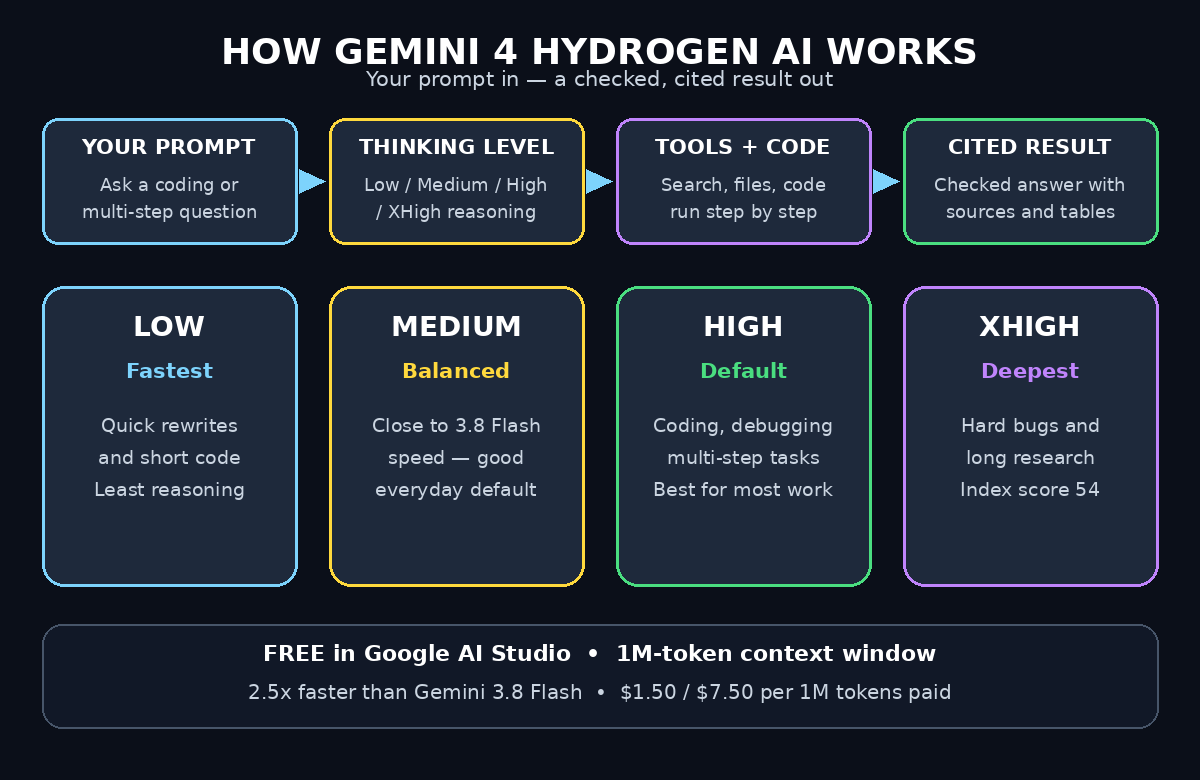
Gemini 4 Hydrogen AI has four thinking levels: low, medium, high, and extra-high. The thinking level controls how much reasoning the model does before it answers. It also affects speed and cost.
- Low: fastest answers for simple tasks like rewrites and short code.
- Medium: a good balance. Google says this feels close to Gemini 3.8 Flash speed.
- High: the default. Best for coding, debugging, and multi-step tasks.
- Extra-high: deepest reasoning. Google reports an Artificial Analysis Intelligence Index score of 54 at extra-high, versus 51 at the default setting.
Next, set the thinking level in AI Studio before you send a prompt. As a rule, start at high for most work. Drop to medium when you want faster answers and the task is simple. Raise it to extra-high only for hard problems, like a tricky bug or a long research task.
One migration tip matters here. If you move code from Gemini 3.8 Flash, set thinking_level explicitly. Gemini 4 Hydrogen AI defaults to high, not medium. Also raise or remove low max_output_tokens caps. Input, thinking, and output now share one 1M-token window.
Step 6: Give Gemini 4 Hydrogen Files, PDFs and Spreadsheets
Gemini 4 Hydrogen AI has a 1M-token context window. That is a huge workspace. You can upload long documents and ask the model to work across all of them at once.
For example, try these beginner tasks:
- Upload a PDF report and ask for a one-page summary with the three main findings.
- Upload a spreadsheet and ask which month had the highest sales, and why.
- Upload a chart image and ask what trend it shows.
- Upload meeting audio and ask for action items with owners and dates.
In AI Studio, click the attachment button and add your file before you type the prompt. Tell the model exactly what output you want. For example: “Give me a table with Product, Units Sold, and Revenue, sorted by revenue. Add one sentence of analysis below the table.”
However, be careful with private files. The free tier may use prompts to improve Google’s products. Do not upload files with passwords, private customer data, or unreleased business plans. Use the paid tier or a local tool for sensitive work.
Step 7: Build a Multi-Step Agent Task with Gemini 4 Hydrogen AI
An agentic task is a job with several steps. You give the goal. The model plans the steps, uses tools, and checks its own work. Gemini 4 Hydrogen AI was built for this kind of work. Google calls it the “high-efficiency execution engine” in multi-model workflows. In plain words: it does the fast, everyday agent jobs, while bigger models like Carbon and Argon handle the hardest reasoning.
Here is a beginner agent task to try in AI Studio or in a coding agent:
- Goal: “Research the five best free invoicing tools for freelancers in 2026.”
- Steps: search the web, open the top results, compare pricing and free plans, and write a short report.
- Output: a table with Tool, Free Plan, Best For, and Link, plus a one-paragraph verdict.
Next, give the model permission to use tools like web search. Then let it run. Check the final report against one or two sources yourself. That habit keeps you in control while the agent does the heavy work.
In fact, small teams use this pattern a lot. A digital agency can hand routine research and first drafts to an agent, then let a human polish the result. The same idea works for freelancers and students. You stay the editor. Gemini 4 Hydrogen AI does the first pass.
For deeper reading on how agentic systems are changing work, see Agentic Affairs. It covers agent tools and workflows in plain language. That context helps you pick the right task for an agent, and the right task to keep for yourself.
Step 8: Use Gemini 4 Hydrogen in Google Search and Sheets
Gemini 4 Hydrogen AI is not only for developers. Google is rolling it out to everyone through Search and the Gemini app. In Search, it powers deeper answers for hard questions. In the Gemini app, free users meet it through Auto model selection.
Google AI Pro and Ultra members get more. They can use Gemini 4 Hydrogen in Google’s agent coding app. They can also use it in Gemini in Google Sheets. In that app, a new model-switching feature moves between Carbon and Hydrogen in one session. Hydrogen runs the worker and checker agents in Carbon’s /swarm teams. That setup is for paid users, but it shows where the model fits: fast execution inside bigger agent teams.
For beginners, however, the free routes are enough:
- Gemini app with Auto on: everyday questions and coding help.
- Google AI Studio free tier: full control, files, thinking levels, and API code.
- Google Search: deeper answers on hard topics, as the release reaches you.
On the other hand, if a feature is missing in your account today, wait a few days. Google says the release is gradual. It has not named any countries that miss out.
Step 9: Move a Project from Gemini 3.8 Flash to Gemini 4 Hydrogen AI
Google describes Gemini 4 Hydrogen as the upgrade path from Gemini 3.8 Flash. If your code already calls Flash, the move takes minutes. Follow these steps:
- Change the model ID from the Flash model name to
gemini-4-hydrogen. - Raise or remove low
max_output_tokenscaps. The 1M-token window now covers input, thinking, and output together. - Set
thinking_levelexplicitly. Use medium for Flash-like latency, or high for better quality. - Remove
temperature,top_p,top_k, and explicit caching fields. Google says they are ignored or unsupported. - Declare tools directly with function calling, or use structured outputs. Do not ask for raw-text JSON tool calls.
Finally, test the same prompts before and after the switch. Compare speed, answer quality, and cost. Google says Hydrogen finishes tasks about 2.5 times faster than 3.8 Flash at the default High setting. Your own prompts are the real test. Run five of them on each model and keep notes.
In addition, watch for one safety note. Google says Gemini 4 Hydrogen AI refuses more harmless requests than older models, mainly for prompts with images and audio. If a fair prompt gets refused, rephrase it with more context. The full safety report was still due when the model launched.
Step 10: Watch Your Usage and Stay on the Free Tier
However, free does not mean unlimited. The free tier in AI Studio and the Gemini API has rate limits. Those limits reset over time. Heavy use can hit them, and then requests pause until the limit resets.
Stay free with these habits:
- Use the Gemini app for quick questions. Save AI Studio for work that needs files or settings.
- Keep prompts short. Long pasted context eats tokens fast.
- Use low or medium thinking for simple tasks. Save high and extra-high for hard ones.
- Check the token count in AI Studio after each run. You will learn how much a task costs.
- Move to the paid tier only when free limits block real work. Paid pricing is $1.50 per million input tokens and $7.50 per million output tokens.
Finally, one more check matters. The model card lists a knowledge cutoff of March 2026. Some topics may be older than that. For news after March 2026, ask Gemini 4 Hydrogen AI to search the web. Do not trust its memory for fresh launches, prices, or rules.
Gemini 4 Hydrogen AI vs the Alternatives
Gemini 4 Hydrogen is one of three Gemini 4 models. Each one has a job. This table shows how they compare, plus the older model most people are moving from.
| Model | Best for | Speed | Price (per 1M tokens) | Free tier |
|---|---|---|---|---|
| Gemini 4 Hydrogen | Everyday coding and agentic work | Very fast (2.5x Flash) | $1.50 in / $7.50 out | Yes, in AI Studio and API |
| Gemini 4 Argon | Frontier reasoning and deep work | Slower, deeper | Higher than Hydrogen | No free tier reported |
| Gemini 4 Carbon | Security and long engineering | Slowest, strongest | $2 in / $10 out (intro) | No, paid only |
| Gemini 3.8 Flash | Older fast model | Fast | Lower than Hydrogen | Yes, in AI Studio |
The pattern is simple. Pick Gemini 4 Hydrogen for daily work. Pick Argon or Carbon when a task needs the deepest reasoning and you can pay for it. Keep Flash only if your old code depends on it. For most beginners, Gemini 4 Hydrogen is the right default.
Frequently Asked Questions About Gemini 4 Hydrogen AI
Is Gemini 4 Hydrogen really free?
Yes, with limits. Free users reach it in the Gemini app through Auto model selection. Developers get a free tier in Google AI Studio and the Gemini API. Input, output, and implicit caching are free on that tier, within rate limits. Paid use costs $1.50 per million input tokens and $7.50 per million output tokens.
How is Gemini 4 Hydrogen AI different from Argon and Carbon?
Hydrogen is the fast, low-cost model for everyday coding and agentic work. Argon and Carbon are the frontier models for deep, long reasoning. Google calls Hydrogen the execution engine that pairs with them. In Google’s agent coding app, Hydrogen runs the worker agents while Carbon leads the team.
Can free users pick Gemini 4 Hydrogen manually?
Not always. In the Gemini app, free users get it through Auto model selection. They cannot always choose it by hand. In Google AI Studio, you can pick gemini-4-hydrogen directly from the model list, even on the free tier. Use AI Studio when you want full control.
What is the thinking level, and which one should I use?
The thinking level sets how much reasoning the model does. Low is fastest. Medium feels close to Gemini 3.8 Flash. High is the default and best for most coding. Extra-high is deepest. Start at high. Drop to medium for simple tasks. Use extra-high only for hard problems.
Is Gemini 4 Hydrogen AI good for coding beginners?
Yes. It writes and explains code, fixes bugs, and works across files. Its 1M-token context window holds large projects. Beginners should still read every answer and test the code. The model is a fast helper, not a replacement for learning.
Where else can I use Gemini 4 Hydrogen AI?
It is rolling out in Google Search for all users. It is in the Gemini app and Google AI Studio. Paid Google AI Pro and Ultra members also get it in the agent coding app and in Gemini in Google Sheets. Android Studio offers it on the paid tier.
Final Thoughts
Gemini 4 Hydrogen is the most useful Gemini 4 model for most beginners. It is fast, it is cheap, and it has a real free tier. You can try it in the Gemini app today with no setup. You can control it fully in Google AI Studio with a free API key.
First, start small. Run one coding prompt and one file task. Set the thinking level to high and watch the result. Then try a multi-step agent task and check its work. That loop — prompt, check, improve — is how you learn any AI model. Gemini 4 Hydrogen rewards it with speed.
Finally, remember the two limits. The knowledge cutoff is March 2026, so search the web for fresh facts. The free tier has rate limits, so keep prompts short and thinking levels modest. Within those limits, Gemini 4 Hydrogen is a strong daily tool for coding, research, and agent work.
Explore More Free AI Tools
Want to keep building with free AI? Try the free tools on AI Tool Steps: the AI Title Generator for better headlines, the Meta Description Generator for search snippets, the AI Rewriter for cleaner drafts, and the Keyword Density Checker to keep your pages on topic. Each tool is free and takes less than a minute to try.