

AI agents are getting smarter, but they still have a memory problem. Every time a new session starts, your agent forgets what it learned yesterday. It forgets your customers, your projects, your decisions, and the connections between them. That is exactly the problem Omnigraph AI was built to solve. Omnigraph is a free, open-source graph database made for AI agents. In this guide, you will learn how to use Omnigraph AI from zero to your first working agent memory in under an hour.
Omnigraph launched on Product Hunt on November 12, 2026, where it earned the number 3 Product of the Day spot with 289 upvotes. That launch is a good reason to learn how to use Omnigraph AI now, while the tool is young and free. It comes from Modern Relay, is released under the MIT license, and costs nothing to download, run, and use. A normal database stores rows in tables. Omnigraph stores knowledge as a graph instead. People, projects, and ideas become nodes. The relationships between them become edges. Your agents can read that graph, update it, and even work on separate branches of it, just like developers use Git branches for code.
Have you ever wished your AI assistant remembered context across chats? Or that two agents on the same project could share one source of truth? This guide is for you. No database experience is needed. We will install Omnigraph, build a small knowledge graph, ask it questions, and connect it to a coding agent, step by step.
Step 1: Understand What Omnigraph AI Actually Is
Before you install anything, it helps to understand the three ideas that make Omnigraph different from every other database your agents might use.
First, Omnigraph is a graph database. Instead of tables, it stores nodes and edges. A node could be a person, a document, a task, or a product. An edge says how two nodes relate. For example: “Aisha manages the website project.” Or: “the website project depends on the design task.” Agents think in relationships. So a graph matches how they reason far better than a spreadsheet ever could.
Second, Omnigraph has a typed ontology. You write a small schema file that declares which node types and edge types are allowed, and the engine enforces those rules on every write. If your schema says a task must have an owner, an agent cannot save an ownerless task by mistake. This is what stops agents from inventing messy, inconsistent data over time.
Third, Omnigraph has Git-style branching. Each agent, or each task, can work on its own branch of the graph. Changes are reviewed and merged back into the main graph, exactly like a pull request. That means an agent can experiment freely without corrupting the shared knowledge everyone else relies on. You can even time-travel and look at the graph as it was last week.
Under the hood, Omnigraph is written in Rust. It stores your data in the open Lance format. You can keep it on local disk or any S3-compatible object storage, such as MinIO, AWS S3, or Cloudflare R2. Your data stays in your hands, in an open format, with no hosted memory API or proprietary storage required.
Step 2: Install Omnigraph on Your Computer
Installing Omnigraph takes about two minutes. The install is the easiest part of learning how to use Omnigraph AI. The project ships as a single command-line tool and server, and the fastest way to get it is the official install script.
On macOS or Linux, open your terminal and run the install command from the project’s GitHub repository, ModernRelay/omnigraph. The script downloads the omnigraph binary and the omnigraph-server binary and places them on your system path. macOS users can also install it with Homebrew, which gives you the same CLI and server with one command.
After the install finishes, check that it worked by running omnigraph --version in your terminal. If you see a version number, you are ready. The latest stable release at the time of writing is v0.15.0, published on November 9, 2026, so make sure your install is at least that new.
Omnigraph also ships a desktop app called Omnigraph Studio, which lets you browse your graph visually, type by type, without writing queries. Install it alongside the CLI if you like seeing your data; it makes the first week with the tool much friendlier for beginners.
Step 3: Start Your First Graph Server
Omnigraph can run embedded inside an application, or as a standalone server your agents talk to over the network. For your first graph, the server mode is the easiest to understand.
Create a folder for your project, for example my-first-graph, and start the server with its default settings. By default it stores data on your local disk, so there is nothing to configure and no cloud account to create. The server prints a local address, usually on localhost, and it is now ready to accept connections.
Open Omnigraph Studio and connect it to that local address. You will see an empty graph, which is exactly what you want. An empty graph is a blank whiteboard, and the next steps will fill it with your first real knowledge.
If you later want your graph to live in the cloud, the same server can point at your own S3-compatible storage instead of local disk. That is one of Omnigraph’s biggest advantages for small teams: storage and compute are decoupled, so you can keep data cheap and move it whenever you like. A hosted Omnigraph Cloud exists too, but it is in private preview on a waitlist, so self-hosting is the way to start for free.
Step 4: Design Your First Typed Schema
A graph without a schema is just a pile of notes. A graph with a schema is a system. Omnigraph uses .pg schema files to declare your world model, and writing your first one is simpler than it sounds.
Think of a small example: a freelance business. You might define three node types, Person, Project, and Task, and two edge types, OWNS and DEPENDS_ON. You can add rules too: every Task must have a title, every Project must have an owner, and a Task can only depend on another Task, never on a Person.
Write these declarations in a .pg file and load it into your graph. From that moment, Omnigraph enforces the model. If an agent tries to create a Task without a title, the write is rejected. The same happens if it links a Person to a Project with the wrong edge type. The error message is clear, so the agent can fix the mistake. That enforcement is what keeps a graph trustworthy after hundreds of agent sessions.
Keep your first schema small. Three to five node types is plenty. This small-schema habit is the best first step when you learn how to use Omnigraph AI. You can evolve the schema later as you learn what your agents actually need, and Omnigraph supports schema evolution, so you are never locked into your first draft.
Step 5: Load Your First Data Into the Graph
With the schema in place, it is time to add real knowledge. You can add nodes and edges one at a time from the CLI, or load a batch from a file.
Start with something you already know well. Add yourself as a Person, add two or three real projects, and add a handful of tasks for each project. Connect them with edges: you own each project, and each task belongs to its project. Add one dependency edge between two tasks so you can see how relationships work in practice.
Open Omnigraph Studio after loading the data. You should see your nodes connected in a small web, and you can click any node to inspect its properties. This visual check matters: if the graph looks right in Studio, your agents will read the right facts from it.
For larger imports, Omnigraph’s cookbooks repository is the fastest shortcut. It ships ready-to-run graphs with real seed data, including a company brain, a second brain, a venture capital operating system, and pharma industry intelligence. Loading a cookbook shows you what a mature graph looks like, and you can copy its patterns into your own project.
Step 6: How to Use Omnigraph AI to Ask Questions With One Hybrid Query
Here is where Omnigraph earns its keep. Most agent memory systems force you to choose between keyword search, vector search, or graph traversal. Omnigraph combines all of them in a single query, written in its .gq query language.
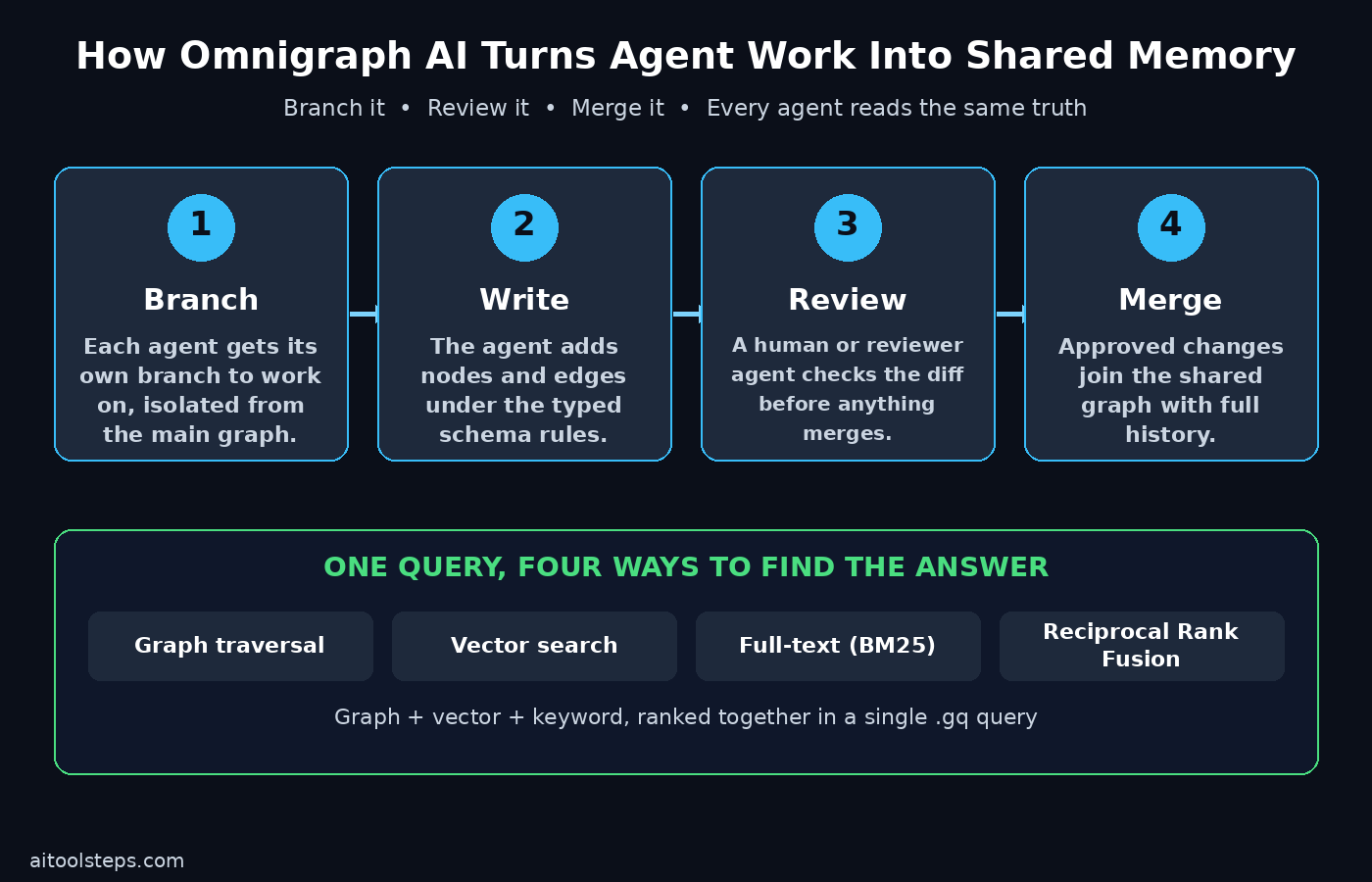
One query can traverse the graph. It can run a vector search over embeddings and a BM25 full-text search over your text. It applies your filters, then merges everything with Reciprocal Rank Fusion. In plain language, that means your agent asks one question and gets the most relevant answer, whether the answer lives in a relationship, a similar document, or an exact keyword match.
Try a practical question against your freelance graph: “Which tasks are blocking the website project, and who owns them?” A pure vector search would return similar-sounding tasks. A pure keyword search would miss tasks that use different words. Omnigraph’s hybrid query walks the dependency edges, checks the owners, and ranks the results, so the answer is precise and complete.
Practice with five or six questions like this before you connect any agent. When you can predict what the graph will return, you will trust it, and trust is the whole point of giving agents shared memory.
Step 7: Give Each Agent Its Own Branch
Now we reach the feature that makes Omnigraph genuinely different: branching. In a normal database, every agent writes straight to the same shared state, and one bad update can corrupt everything. In Omnigraph, each agent or task gets its own branch.
Create a branch for a research task, for example research/pricing. Your agent works only on that branch. It can add competitor nodes, update prices, and link new findings to your existing projects, all without touching the main graph. Nothing it does is visible to your other agents until the branch is merged. Once you know how to use Omnigraph AI branches, you can let agents run freely without fear.
This is a huge safety win for beginners. You can let an agent run freely, knowing its mistakes are contained. If the branch turns out to be garbage, delete it. If it turns out to be gold, merge it. Teams that run several agents at once get the same benefit: no agent steps on another agent’s work.
Branching also makes experimentation cheap. Want to test a new way of organizing your projects? Do it on a branch. If the new structure is better, merge it. If not, throw it away and keep the original. Your main graph never pays for an experiment that fails.
Step 8: Review, Merge and Time-Travel in Omnigraph AI
A branch is only useful if you can review what changed before it becomes shared truth. Omnigraph gives you a diff for every branch, showing exactly which nodes and edges were added, changed, or removed.
Review the diff yourself, or let a second agent review it. When you are happy, run a three-way merge back into main. Omnigraph handles conflicts the same way Git does: if two branches changed the same thing in different ways, you see the conflict and choose the right resolution.
Every merge is recorded, and that history gives you time travel. You can query the graph as it looked at any point in the past, which is invaluable when something goes wrong. Suppose a bad merge slipped through last Tuesday. You can look at the graph as it was last Monday. Find the exact change, and roll it back with confidence.
For teams, this review step is also a governance step. You can require that no agent write reaches main without a human or a reviewer agent approving the diff. That single rule turns a shared agent memory from a risk into an asset. If you run a digital agency where several AI agents touch client knowledge every day, this workflow matters even more. Review-before-merge is the difference between a memory you trust and a memory you are afraid of.
Step 9: How to Use Omnigraph AI With Your Coding Agent (MCP Server)
Omnigraph is built to be operated by coding agents, and the easiest connection is its MCP server. MCP, the Model Context Protocol, lets tools like Claude Code, Cursor, and Codex talk to Omnigraph directly, without you writing integration code.
The setup takes three moves. First, start the Omnigraph server. Second, add the MCP server to your coding agent’s configuration so the agent can see the graph tools. Third, teach the agent the playbook. Omnigraph ships an agent skill you can export into your agent’s skills folder with one command. It covers cluster mode, configuration, query linting, data writes, branches, and the common gotchas.
Once connected, try a simple instruction in plain language: “Read the onboarding reference in the Omnigraph repository and set up Omnigraph for me.” A capable coding agent will follow the skill’s playbook, configure the server, and verify the setup itself. From then on, your agent can read the graph before answering, write new facts to a branch, and ask you to review the merge.
This is also where Omnigraph fits naturally into bigger automation work. If your agents already coordinate campaigns, content, or client projects, a shared graph gives every agent the same facts. Teams building AI automation services often use this pattern: one graph as the source of truth, many agents reading and writing through branches, and a human reviewing merges. It is the same idea as a shared drive, but with structure, history, and rules.
Step 10: Try a Cookbook: Build a Company Brain With Omnigraph AI
The fastest way to feel Omnigraph’s value is to build a company brain, the flagship use case in the project’s cookbooks. A company brain unifies your organization’s knowledge into one graph that every agent can query.
Start from the cookbook’s seed data, then replace it with your own facts: your clients, your services, your active projects, your key documents, and the people involved. Link clients to projects, projects to tasks, and tasks to the documents that describe them. Add a branch for each new client onboarding, and merge it once the facts are verified.
Within a week, you will notice the difference. New agents onboard in minutes instead of days, because the graph answers their questions. Old agents stop repeating questions you already answered, because the answers live in the graph. And when two agents disagree about a fact, the graph settles it, because there is one version of the truth with a visible history.
Keep the company brain small at first and grow it deliberately. A graph with a hundred verified facts beats a graph with ten thousand unverified ones, every single time.
Omnigraph AI vs Other Agent Memory Options
How does Omnigraph compare with the alternatives you might already know? The table below gives a quick, honest comparison for beginners.
| Option | Best for | Branching | Typed schema | Price |
|---|---|---|---|---|
| Omnigraph | Shared agent memory with review | Yes, Git-style | Yes, enforced | Free, MIT open source |
| Neo4j | General graph apps | No native branching | Flexible, optional | Free community edition |
| Mem0 | Personal agent memory | No | No | Free self-hosted tier |
| Plain vector database | Similarity search only | No | No | Varies |
Omnigraph is the strongest choice when several agents share one body of knowledge and you want review and history on every change. Neo4j is a proven general graph database, but it was not designed around agent branching. Mem0 is excellent for a single agent remembering one user, but it is not built for teams of agents sharing a world model. A plain vector database finds similar text well, but it cannot walk relationships or enforce a schema at all.
If you already use agent tools that need long-term memory, Omnigraph pairs well with them rather than replacing them. For example, our guides to AgentRun AI, Harness Memory AI, and three.dev AI cover the testing and memory side of the same agent stack. Omnigraph can serve as the shared memory layer underneath all of them.
Frequently Asked Questions About Omnigraph AI
Is Omnigraph AI really free?
Yes. Omnigraph is open source under the MIT license, and the price on Product Hunt is listed as 0 USD. You can download it, run it on your own computer or server, and use it in commercial projects without paying. A hosted Omnigraph Cloud is in private preview on a waitlist, which may have paid plans later, but self-hosting is free.
Do I need to know databases to learn how to use Omnigraph AI?
No. If you can write a simple list of things and how they connect, you can write a schema. The CLI, the Studio desktop app, and the agent skill do the heavy lifting, and the cookbooks give you working examples to copy. Beginners should start with a tiny graph and grow it, rather than designing a huge schema on day one.
How is Omnigraph different from Neo4j?
Both are graph databases, but Omnigraph was designed for AI agents first. Its two defining features are Git-style branching with review and merge, and a strictly enforced typed ontology. It also stores data in the open Lance format on object storage, so you are not tied to a dedicated database cluster or a proprietary format.
Can Omnigraph work with Claude Code and Cursor?
Yes. Omnigraph ships an MCP server plus SDKs, including a TypeScript SDK, and an agent skill that teaches coding agents how to operate it. Connect the MCP server in Claude Code, Cursor, or Codex. Export the skill into the agent’s skills folder. Then the agent can read, branch, and update the graph through the same tools it already uses.
Where does my data live?
Wherever you choose. Omnigraph is object-storage native: run it on local disk, or point it at your own S3-compatible storage such as MinIO, AWS S3, Cloudflare R2, or Google Cloud Storage. Your graph data uses the open, versioned Lance format, so you can move it or inspect it with other tools. No hosted memory API or proprietary storage is required.
What can I build with Omnigraph?
The most common projects are a company brain, a second brain for personal knowledge, a research graph for papers and findings, and a versioned data layer for agent experiments. The cookbooks repository includes runnable examples for industry intelligence, pharma intelligence, a venture capital operating system, and a beads-style work queue, so you can start from a working template instead of a blank page.
Final Thoughts on How to Use Omnigraph AI
Omnigraph AI solves a problem every agent builder hits sooner or later: agents that forget, disagree, and overwrite each other’s work. It gives your agents one typed, versioned graph with Git-style branches. It adds one hybrid query that combines graph traversal, vector search, and full-text search. Together, they turn agent memory from a fragile hack into a system you can trust.
Start small. Install the CLI, build a three-node-type schema, load a dozen real facts, and ask five questions. Then give an agent its own branch and review the merge. That single loop, branch, review, merge, is the whole workflow, and once you have run it twice, you will wonder how you ever let agents share memory any other way.
Omnigraph is free, open source, and already proven enough to take the number 3 Product of the Day spot on Product Hunt. If you are building anything with more than one AI agent, it deserves a place in your stack.
Explore More Free AI Tools
Want to keep building your AI toolkit? Try the free tools on AIToolSteps. The AI Title Generator writes click-worthy headlines in seconds. The Meta Description Generator crafts search-ready descriptions. The AI Rewriter polishes any draft. And the Keyword Density Checker keeps your content SEO-friendly. They are free, beginner-friendly, and built for the same creators who read these guides.