

You know that moment. You have written an email, a LinkedIn post, or a reply to a client, and it reads fine in your head but stiff on the screen. So you open a new tab and paste the text into an AI chatbot. Then you wait for the rewrite, copy it back, and paste it into the original message — hoping you did not lose a sentence along the way. ClarifierAI for Chrome removes that whole dance. It is a Chrome extension. It rewrites, fixes, and translates the exact text you select, right inside the box you are already typing in. No new tab. No copy-paste. Only the highlighted words change, and the rest of your message stays exactly as you wrote it.
ClarifierAI started as an iOS keyboard, and the Chrome version launched on Product Hunt on November 7, 2026, bringing the same one-tap actions to the desktop. With one click you can Improve, Clarify, fix Grammar, sound more Polite, Shorten a long message, or Translate into 119 languages. Every change is shown highlighted, and you can undo a single edit instead of accepting everything at once. The extension only reads your text when you open it on that text — no browsing history, no tracking, no ads. In this beginner-friendly guide, you will learn how to install it and how each action works. You will also see how to use it in Gmail, LinkedIn, Slack, and Notion without ever leaving the page you are on.
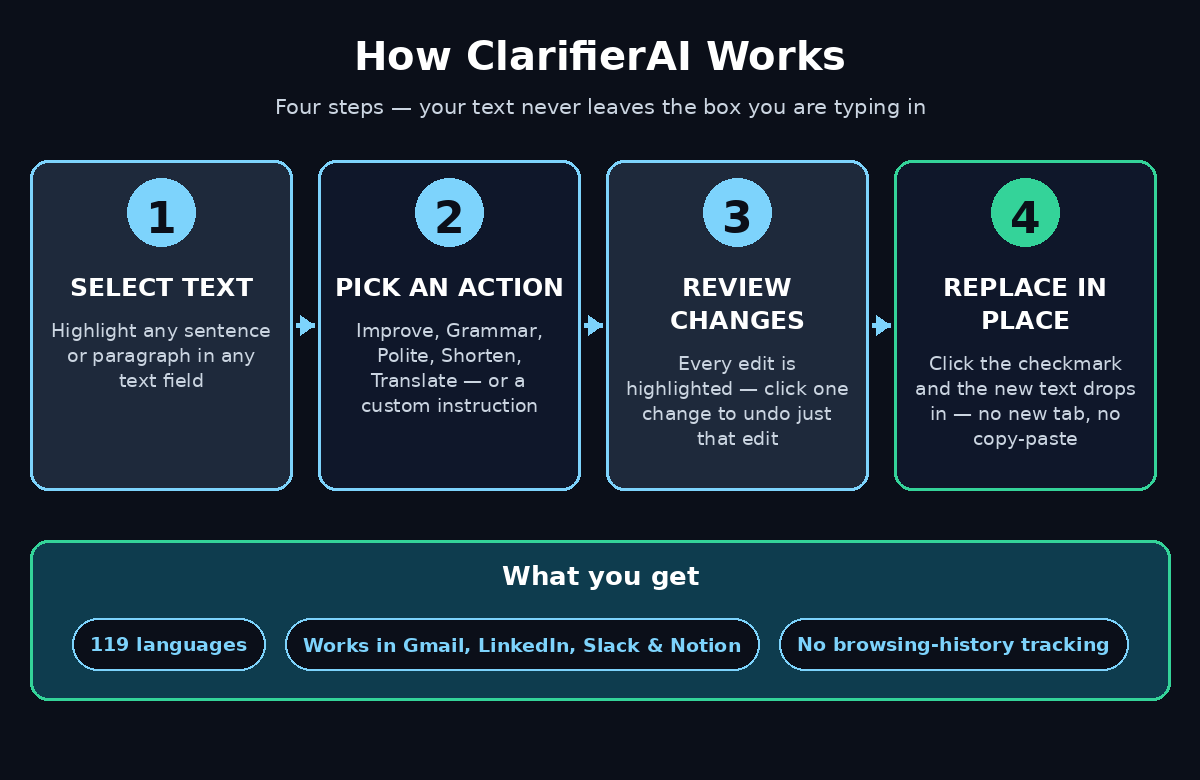
Step 1: Install ClarifierAI from the Chrome Web Store
Installing ClarifierAI takes about a minute, and it is free to install from the Chrome Web Store. Open Chrome on your computer and search the Web Store for “ClarifierAI”, or open the extension listing from the official ClarifierAI website. Check that the listing shows the ClarifierAI name and logo before you click anything. Lookalike extensions exist for every popular tool.
- Click “Add to Chrome”: Chrome will show a small permission window. Read it once, then confirm. The extension needs permission to work inside text fields, which is how it can edit your selected words.
- Wait for the confirmation: when the install finishes, the ClarifierAI icon appears in your toolbar, near the top-right of Chrome.
- Pin the icon: click the puzzle-piece icon in the toolbar, find ClarifierAI in the list, and click the pin next to it. A pinned icon means one click to open it, instead of digging through a menu every time.
- Check the version: the Chrome listing showed version 1.4.0 updated on October 30, 2026. If your install shows an older version, Chrome will update it automatically in the background.
ClarifierAI for Chrome is a desktop extension, so it works on Chrome for Windows, Mac, and Linux. The same tool on iPhone works as a keyboard, while Mac and Android support are still on a waitlist. If you do most of your writing on a laptop or desktop, the Chrome extension is the version you want.
Step 2: Open ClarifierAI for the First Time
After installing, open any website with a text box — Gmail is a good first test — and click into the box. You do not need to create an account just to try the basic actions, and you do not need to change any settings before your first rewrite. The extension is designed to stay out of the way until you call it.
Type a rough sentence, for example: “i need the report by Friday can you send it asap thanks”. Now highlight that sentence with your mouse. A small ClarifierAI button appears near your selection. Click it, press the keyboard shortcut Alt + Shift + C, or right-click and choose “Format with ClarifierAI”. All three open the same panel with the same actions. Pick the shortcut that feels natural and stick with it — after a few days it becomes muscle memory.
The panel shows your selected text and a row of actions: Improve, Clarify, Grammar, Polite, Shorten, and Translate. Below them sits a space for custom instructions, where you can type your own request in plain words, such as “make this sound friendly but firm”. Nothing is sent anywhere until you choose an action, so you can open the panel, look around, and close it without changing a word.
Step 3: Select Text the Smart Way
The single most important idea in ClarifierAI for Chrome is selection-scoped editing. Only the text you highlight gets changed. Everything else in the message stays untouched. That is what makes it different from pasting a whole email into a chatbot, where the AI can quietly rewrite parts you never asked it to touch.
- Select a sentence: highlight one rough sentence inside a long email, and only that sentence is rewritten. The greeting, the signature, and the rest of the email stay exactly as you wrote them.
- Select a paragraph: highlight a full paragraph when the whole block needs work, such as a project update that rambles.
- Select nothing: if you highlight nothing at all, ClarifierAI works on the entire field. Use this only for short messages, because a long field means a long rewrite you did not ask for.
- Select across lines: selections work inside standard text boxes, text areas, and most web editors, including Gmail, LinkedIn, Slack, Notion, and ordinary web forms.
Think before you highlight. A good habit is to select the smallest piece of text that actually needs help. If one sentence is awkward, select one sentence. Beginners often highlight an entire email for a two-word fix, and then spend five minutes checking a rewrite they never needed. Small selections also keep your own voice intact, because most of the message remains your own writing.
Step 4: Use Improve in ClarifierAI for Chrome to Polish Rough Drafts
Improve is the action you will use most. It takes your selected text and rewrites it to be clearer and more natural, without changing what you meant. It fixes word choice, sentence flow, and awkward phrasing in one pass, and it is the best first choice when you are not sure which action fits.
Try it on a real draft. Select this sentence: “We wanted to inform you that the delivery will be delayed because of some issues and we apologize for any inconvenience this may cause.” Click Improve. A cleaner version comes back, something like: “We wanted to let you know your delivery will be delayed, and we are sorry for the inconvenience.” The meaning is identical, but the sentence is shorter, warmer, and easier to read.
Improve is ideal for first drafts written in a hurry, messages typed on a phone keyboard and finished on a laptop, and any text that feels correct but reads clumsy. It is not a fact-checker, though. If your draft says the meeting is on Thursday when it is actually on Friday, Improve will polish the wrong day into a beautiful wrong sentence. Always re-read the facts in your message after any rewrite, especially dates, names, prices, and promises. A digital agency sending client updates, for example, can polish the wording with Improve and still double-check every deadline in the text before hitting send.
Step 5: Fix Grammar Without Changing Your Meaning
Grammar is the most careful action in the ClarifierAI for Chrome panel. It corrects spelling, punctuation, verb agreement, and sentence structure, and it tries hard not to change your tone or your word choices. If Improve is a friendly editor who rewrites your sentence, Grammar is a proofreader who only fixes what is actually wrong.
Use Grammar when your message is already well written and you only want a safety net. A job application email, a message to a senior manager, or a post you are about to publish are all Grammar moments. Select the text, click Grammar, and review the highlighted fixes. Because the changes are small, the review takes seconds: a missing comma here, a corrected verb there.
One warning applies to every grammar tool, not just this one. Grammar checkers sometimes “fix” things that were correct — a brand name, a technical term, or a sentence written in your own style. That is why ClarifierAI shows each change highlighted and lets you click any single edit to revert just that one. If it changed a product name you spelled correctly on purpose, click that edit and put your original word back. Keep your voice; let the tool handle only the real mistakes.
Step 6: Change Tone with Polite and Shorten
Sometimes the words are correct but the tone is wrong. A message written in a rush can sound blunt, and a careful message can run three paragraphs when one would do. Polite and Shorten in ClarifierAI for Chrome fix tone problems without touching your facts.
- Polite: softens a direct message so it reads as respectful, not demanding. “Send me the files now” becomes “Could you please send me the files when you get a chance?” Use it for clients, managers, and anyone you want to keep on good terms with.
- Shorten: cuts a long message down to its essentials. Long explanations, repeated points, and filler sentences disappear, while the key information stays. Use it for busy people who skim, such as executives and support agents.
- Clarify: the third tone action, rewrites confusing text so the reader understands it on the first read. Use it when your message has too much jargon, a tangled sentence, or an idea that made sense in your head but not on the screen.
Combine them when a message needs two fixes. A long, blunt email can go through Shorten first and Polite second — or the other way around. Do one action at a time and review each result, because stacking actions blindly can drift away from your original meaning. And remember that tone tools cannot fix a genuinely difficult message. If you need to say no to a client or deliver bad news, write the honest version yourself first, then let Polite soften the edges. The tool polishes your message; it does not decide what your message should say.
Step 7: Translate with ClarifierAI for Chrome into 119 Languages
Translation is where ClarifierAI saves the most time. Select your text, click Translate, and pick the target language from a searchable picker that keeps your recent languages at the top. The translation replaces your selection inside the same text box, so you never leave the page, open a translator tab, and paste the result back.
This matters most when you write to people in another language every day. A freelancer replying to a client in Spanish, a support agent answering a ticket in French, or a student emailing a professor in German can all write in the language they think in. Then they translate the exact sentence before sending. With 119 languages supported, most everyday pairs are covered, from English to Urdu, Arabic, Chinese, and Japanese.
Two cautions keep translations safe. First, always re-read a translation if you cannot read the target language — machine translation can miss the tone of a formal request or the politeness level a culture expects. If the message matters, show it to a native speaker once before you rely on it regularly. Second, translate after you finish writing, not sentence by sentence while you draft, because translating a half-finished thought usually produces a half-finished translation.
Step 8: Create a Custom Action for Your Own Style
The preset actions cover most needs, but the custom instruction box is where ClarifierAI for Chrome becomes personal. Instead of clicking a preset, you type what you want in plain words, and the AI follows your instruction for the selected text only.
Here are custom instructions that work well for beginners:
- “Rewrite this as a friendly WhatsApp message, keep it under 30 words.”
- “Turn this into a professional LinkedIn post opening line.”
- “Make this sound confident, not arrogant.”
- “Simplify this so a 12-year-old can understand it.”
- “Turn these bullet points into one smooth paragraph.”
Save the instructions you reuse. If you write the same kind of message every day — client follow-ups, meeting summaries, product descriptions — a good custom instruction turns a 10-minute writing task into a 30-second one. Be specific in your instruction, because vague prompts get vague rewrites. “Make it better” tells the AI almost nothing; “make it shorter and more formal, keep the date and the price” tells it exactly what to protect and what to change. Teams exploring agentic AI workflows often build the same habit: a small library of reusable prompts that keeps every agent and every human writing in one consistent voice.
Step 9: Review Highlighted Changes Before You Accept
Every ClarifierAI for Chrome result is shown with its changes highlighted, and this review step is the feature that separates a good rewrite from a risky one. Do not skip it. The highlight view shows exactly which words changed, so you can spot a swapped date, a softened promise, or a word that changed your meaning before anyone else sees it.
- Click one change to undo it: you do not have to accept or reject the whole rewrite. If three edits are good and one is wrong, click the wrong one and your original wording returns for that spot only.
- Press the check mark to replace: when the result looks right, click the check mark and the rewritten text drops into your message, replacing only your selection.
- Press Control + Z to undo: even after accepting, the standard undo shortcut takes you back to your original text. Nothing is permanent until you send the message.
- Re-read the whole message: after accepting, read the full message once from the top. A perfect sentence can still clash with the sentence next to it.
This review habit is also your privacy habit. ClarifierAI reads your text only when you open it on that text, and it sends the selection over HTTPS to its server and then to OpenAI for rewriting. It does not collect your browsing history or run ads. Even so, never paste passwords, private customer data, or confidential business details into any AI rewriting tool — including this one. If a message contains sensitive information, rewrite it yourself or remove the sensitive parts before you use the extension.
Step 10: Use ClarifierAI for Chrome in Gmail, LinkedIn, Slack, and Notion
ClarifierAI works in most web text boxes, so the real skill is knowing where it helps most. Start with the four places where most people write every day, and build one workflow in each.
- Gmail: draft the reply fast, select the rough sentences, run Improve, then Grammar. Your emails get cleaner without becoming robotic. For important emails, translate the final sentence only if the recipient prefers another language.
- LinkedIn: write your post in plain words, select the opening lines, and use a custom instruction such as “make this hook punchier”. Shorten long posts before publishing, because the first two lines decide whether anyone clicks “see more”.
- Slack: keep messages short. Select a long explanation, run Shorten, and send the tight version. Your team will thank you, and fewer words mean fewer misunderstandings.
- Notion and web forms: polish meeting notes, project descriptions, and form answers in place. Select the messy paragraph, run Clarify, and the note becomes something a teammate can actually follow.
Try the Free Install Before You Pay
One more practical note: ClarifierAI is a paid product with a free install. Pricing on the official site lists $4.99 per month, $29.99 per year, or a $79.99 one-time lifetime deal for unlimited rewriting, translation, and paraphrasing. Product Hunt labeled the Chrome launch as free, and the exact free limits for Chrome were not fully spelled out, so try the free install first and check what it covers for your daily volume before you pay. If you write a few messages a day, the free tier may be all you need. If you rewrite all day, the yearly plan costs less than a coffee a month. A digital agency that answers client mail in three languages, for example, can test the free install on one inbox for a week and measure the time saved before rolling it out to the whole team.
ClarifierAI vs Other Ways to Fix Your Writing
ClarifierAI is not the only way to clean up text. The table below compares it with the tools most beginners already use, so you can see exactly what changes when the rewriting happens where you type.
| Method | Rewrites Where You Type | Edits Only Your Selection | Translation | Cost to Start |
|---|---|---|---|---|
| ClarifierAI for Chrome | Yes — inside any text field | Yes — selection only | 119 languages, in place | Free install; paid plans from $4.99/month |
| Grammarly browser extension | Yes — suggestions inside the field | No — checks the whole text | Not a translator | Free basic plan; Premium paid |
| Google Translate tab | No — separate tab, copy-paste | No — whole text | 100+ languages | Free |
| Copy-paste to ChatGPT | No — new tab, copy-paste both ways | No — rewrites everything pasted | Yes, in chat | Free tier; Plus paid |
The pattern is clear. Grammarly is strong for catching errors as you type, Google Translate is free and excellent for translation alone, and ChatGPT can rewrite anything if you do not mind the copy-paste round trip. ClarifierAI wins on one thing the others do not offer: it changes only the words you selected, in the box you are already typing in, and lets you undo a single edit. If your biggest annoyance is the tab-switching routine, that one difference is worth the install. If you only need spell-checking, a free grammar extension may already be enough.
Frequently Asked Questions
Is ClarifierAI free?
ClarifierAI for Chrome is free to install, and Product Hunt labeled the Chrome launch as free. Unlimited rewriting, translation, and paraphrasing are part of the paid plans: $4.99 per month, $29.99 per year, or a $79.99 one-time lifetime deal. Try the free install first to see what it covers for your daily writing volume.
Does ClarifierAI work in Gmail and LinkedIn?
Yes. The official listing names Gmail, LinkedIn, Slack, Notion, and web forms, and it works in most standard web text boxes. Support can vary in unusual editors, so test it in the apps you use most during your first week.
Is my text private with ClarifierAI?
The extension reads your text only when you open it on that text. It does not collect browsing history, run tracking, or show ads. Your selected text travels over HTTPS to its server and then to OpenAI for rewriting, so avoid pasting passwords or confidential data into any AI rewriting tool.
What is the difference between Improve and Clarify?
Improve polishes your text to sound more natural and fluent while keeping your meaning. Clarify rewrites confusing text so it is easier to understand, which helps most when your message has jargon, a tangled sentence, or an idea that is clear in your head but not on the screen.
Can I undo a change ClarifierAI made?
Yes, in two ways. Before accepting, click any single highlighted change to revert just that edit. After accepting, press Control + Z (or Command + Z on Mac) to undo the replacement. Nothing is permanent until you send the message.
Does ClarifierAI work on phones?
The Chrome extension is for desktop Chrome. On iPhone, ClarifierAI works as a keyboard in any app. Mac and Android support are on a waitlist, so desktop Chrome is the best place to use it for now.
Final Thoughts
ClarifierAI for Chrome solves a small problem that wastes a surprising amount of time: the copy-paste round trip between where you write and where AI helps you write. By editing only the text you select, inside the box you are already typing in, it keeps your voice intact and your workflow in one place. Install it, pin the icon, and practice on one rough email a day for a week. Learn Improve first, then Grammar, then Translate, and save one custom instruction for the message you write most often. Review every highlighted change before you accept it, and never let a rewrite change a fact you have not checked. That is the whole skill.
The tool does the polishing; you stay in charge of what the message says. And if you want to keep up with how tools like this fit into the bigger picture of AI that acts on your behalf, follow agentic AI news and analysis — selection-scoped editing is exactly the kind of quiet, practical AI feature that becomes standard everywhere within a year.
Explore More Free AI Tools
Want to sharpen your AI workflow even further? Try the free tools at AIToolSteps. The AI Title Generator, Meta Description Generator, AI Rewriter, and Keyword Density Checker help you write, polish, and optimize content in minutes. Pair them with ClarifierAI: draft a title with the generator, polish the message with the extension, and check the final text with the density checker before you publish.