

AI agents do a lot of small jobs all day. They call tools, read files, sort requests, pull facts out of long documents, and run the same coding subtask fifty times while you watch the big picture. Those small jobs do not need the biggest, most expensive model in the world — they need a fast, cheap model that gets them right the first time. That is exactly the job Muse Ember AI was built for.
Muse Ember is Meta’s smallest and most efficient model in the Muse family. It was released on November 9, 2026, and launched on Product Hunt on November 11, 2026. It is a multimodal reasoning model that handles text, images, video, audio, and PDF files, with a context window of about 1 million tokens. Its price is what makes people pay attention: $0.10 per million input tokens and $0.50 per million output tokens, which matches the list price of Claude Haiku 5.5. Meta says Ember matches Haiku 5.5’s best benchmark score at roughly a third of the cost, although those are Meta’s own numbers and have not been independently verified yet.
In this beginner-friendly guide, you will learn how to use Muse Ember AI from zero: how to try it in your browser, how to get an API key, how to make your first API call, and how to run it inside Muse Code as the hard-working subagent behind a bigger model. No technical background is needed, and a few cents of API credit is enough to test everything in this guide.
Step 1: What Is Muse Ember AI and What It Does
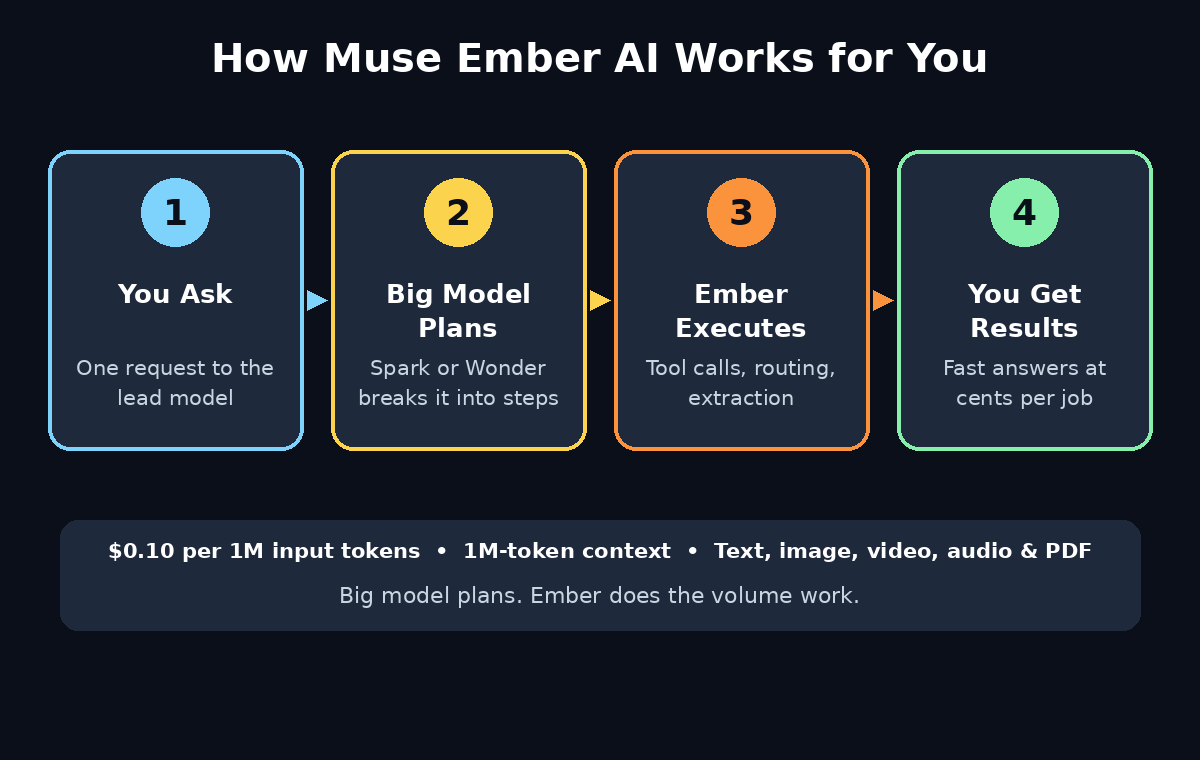
Muse Ember is the efficient execution model in Meta’s Muse family. Think of an AI agent team like a small company. The big model — Muse Spark or Muse Wonder — is the manager: it reads the problem, makes a plan, and decides what should happen next. Muse Ember is the team of workers that carries out the plan. It runs the steps an agent repeats all day, and it runs them cheaply and quickly.
Here is what Muse Ember is built for:
- Tool calls: the hundreds of small calls an agent makes to search, read files, or check a database.
- Coding subtasks: small, bounded coding jobs such as writing one function, fixing one bug, or adding one test.
- Routing: deciding where a request should go — which tool, which department, which workflow.
- Extraction: pulling names, dates, prices, and facts out of messy documents.
- Long document parsing: reading very long files, reports, and collections of records without losing track.
Its model ID is muse-ember-1.0. It accepts the same request format as Muse Spark, so switching from Spark to Ember is usually just a model ID change. It is also the first model Meta trained using Muse Wonder Full, its most capable model, which is how a small model learned to do reasoning work well.
One thing to know up front: Muse Ember is not open-weight. You cannot download it and run it on your own computer the way you can with Muse Spark Open. You use it through Meta’s Model API, through Muse Code, or through Google Cloud and Oracle Cloud, which also host it.
Step 2: What You Need Before You Start
Muse Ember is simple to set up, but check these four things first so nothing surprises you later.
- A Meta account: you will sign in at dev.meta.ai to get an API key and to try the model in your browser.
- A payment method for the API: the Model API is pay-as-you-go. There is no big upfront cost — at $0.10 per million input tokens, a single test prompt costs a fraction of a cent.
- Python or a terminal (for the API steps): if you want to call the API from your own code, you need Python installed and the OpenAI Python package, because Meta’s API is OpenAI SDK-compatible.
- A computer for Muse Code (optional): Muse Code runs on macOS, Linux, and Windows. If you only want to try Ember in the browser, you can skip this entirely.
Decide how you want to use Ember before you start. Beginners who just want to see what it can do should start in the browser (Step 3). To build something with it, get an API key (Step 4). Coders who work with AI agents should install Muse Code (Step 6).
Step 3: Try Muse Ember in Your Browser First
The fastest way to meet Muse Ember is in your browser at dev.meta.ai. You do not need to install anything, and you do not need to write a single line of code.
- Open dev.meta.ai in your browser and sign in with your Meta account.
- Find the model picker and choose Muse Ember (model ID
muse-ember-1.0). - Ask it something small first. Try a routing task, the kind of job Ember is made for: paste a short customer message and ask it which department should handle it and why.
- Try a document task next. Paste a long piece of text and ask Ember to pull out every date, name, and price. Watch how fast it answers.
- Try an image or a PDF. Upload a screenshot or a PDF and ask Ember to describe what is in it or summarize it. This is the multimodal part — Ember reads more than plain text.
Pay attention to two things during this first test: speed and cost. Ember is designed to answer the small repeated jobs quickly, and each answer costs very little. This first browser test is the easiest way to learn how to use Muse Ember AI without installing anything. If the answer looks right, you are ready to use it in a real workflow. If a task needs deep planning or creative thinking, that is a job for the bigger model — Ember is the worker, not the manager.
Step 4: Get Your Meta Model API Key
To use Muse Ember in your own apps, scripts, or agents, you need an API key from Meta’s Model API. The setup takes a few minutes.
- Go to dev.meta.ai and sign in with your Meta account.
- Open the API keys section in your account or project settings.
- Create a new key and give it a clear name, such as “Ember testing”.
- Copy the key immediately and store it somewhere safe, like a password manager. Meta shows the full key only once.
- Set a spending limit if the dashboard offers one. Because the API is pay-as-you-go, a small monthly cap is a smart safety net while you are learning.
Your key is called MODEL_API_KEY in Meta’s documentation. Never paste it into a public chat, a shared document, or a code file you upload to the internet. Treat it like a password, because anyone with it can spend your API credit.
Step 5: Make Your First API Call with Python
Meta’s Model API is OpenAI SDK-compatible, which is great news for beginners: if you have ever used the OpenAI Python package, you already know how to call Muse Ember. You only point the client at a different base URL and use a different model name.
- Install the OpenAI Python package by running
pip install openaiin your terminal. - Set your key as an environment variable so it never sits inside your code:
export MODEL_API_KEY="paste-your-key-here"
- **Create a file called
ember_first_call.py** and paste this code:
from openai import OpenAI
client = OpenAI(base_url="https://api.meta.ai/v1", api_key="YOUR_MODEL_API_KEY")
response = client.chat.completions.create(model="muse-ember-1.0", messages=[{"role": "user", "content": "Extract the meeting date, the budget, and the three action items from this email: ..."}])
print(response.choices[0].message.content)
- Run it with
python ember_first_call.pyand read the answer.
The base URL is https://api.meta.ai/v1, and the model string is exactly muse-ember-1.0. A wrong model ID is the most common beginner mistake — Muse Code rejects a guessed ID, so copy it exactly. The API also supports the Responses API and Messages endpoints, but the Chat Completions call above is the easiest place to start.
Try a second call with a longer document. Ember’s context window is 1,048,576 tokens — roughly a million tokens, or hundreds of pages of text — with up to 524,288 output tokens. That means you can hand it a whole report, a long contract, or a folder of notes in one request and ask for a summary, a table of facts, or a list of action items.
Step 6: Install Muse Code and Run Ember in Your Terminal
Muse Code is Meta’s coding agent for the terminal. It plans, edits files, and runs commands in your project, and it is the most natural home for Muse Ember, because a coding session is full of exactly the small repeated jobs Ember is built for.
- Install Muse Code on macOS or Linux with this command:
curl -fsSL https://dev.meta.ai/install.sh | bash
On Windows, use PowerShell:
irm https://dev.meta.ai/install.ps1 | iex
- Start it by typing
musein your terminal. On the first run, choose browser sign-in or paste your API key. - Run a whole session on Ember with this command:
muse --model muse-ember-1.0
- Switch models inside a running session by typing
/modelsand picking Muse Ember from the list. - Give it a small coding job first. Ask it to add a function, write a test, or explain one file in your project. These bounded jobs are Ember’s sweet spot.
Muse Code also sells subscriptions if you prefer a flat monthly price instead of pay-as-you-go API billing: Everyday at $5 a month, High at $15, Power at $50 (which adds Muse Wonder Full access), and Maximum at $200. Each tier buys a larger usage allowance than the one below it. Muse Ember is available on pay-as-you-go and with any subscription, from the Everyday plan up.
Step 7: Use Ember as Your Subagent Model — the Pattern That Saves Money
This step is the whole point of Muse Ember, and it is where beginners save the most money. The pattern Meta recommends is simple: a big model plans, and Ember executes.
Here is how it works in practice. You start a Muse Code session with a big model — Muse Spark or Muse Wonder — as the lead. The lead reads your request, breaks it into pieces, and hands each piece to a subagent. Each subagent runs on Muse Ember, does its one small job, and reports back. The lead then puts the results together. You get the big model’s judgment where it matters, and Ember’s low price everywhere else.
To use it, name the model in your prompt. Meta’s own example is: “Split the test suite into four parts and run each part in a subagent using muse-ember-1.0. If that model isn’t available, stop and tell me.” Use the exact model ID — with only the name, the lead model may guess an ID, and Muse Code rejects a wrong one.
Set Up Ember Subagents Once, Reuse Them Forever
For jobs you repeat often, define the agent once in an agents.json file, or keep the definition as a Markdown file in an .agents/agents/ folder in your project. That way every run uses Ember for the volume work without you typing the instruction again.
This lead-and-worker pattern is the same idea behind modern agent teams everywhere. If you run a small business or a content operation, the savings add up fast — and teams at Agentic Affairs cover exactly this kind of agent workflow, where a cheap execution model does the repetitive work while a stronger model keeps the plan on track. The same pattern also fits a digital agency juggling client work: the strategy stays with the senior model, while Ember handles the routine drafting, checking, and formatting that used to eat the day.
Step 8: Feed Ember Long Documents, Images, Audio and Video
Muse Ember is multimodal, which means it accepts more than text. This step shows you what to feed it and what to expect back.
- Long documents: paste a whole report or upload a PDF and ask for a summary, a timeline, or a table of every number in it. The 1M-token context window means you rarely need to split a file.
- Images: upload a screenshot, a photo, or a chart and ask Ember what it shows, what is wrong with it, or what text it contains.
- Audio: send a voice note or a meeting recording and ask for a transcript-style summary with the key decisions.
- Video: upload a short clip and ask Ember to describe what happens in it, scene by scene.
- Collections: point it at a folder of files or records and ask the same question across all of them — for example, “find every invoice over $500 in these files.”
A practical tip: give Ember one clear job per call. “Summarize this 40-page report in 10 bullet points” works far better than “read this and tell me everything.” The clearer the instruction, the cleaner the output — and because each call is cheap, you can afford to run two or three focused calls instead of one vague one. When you learn how to use Muse Ember AI with files, that one-clear-job rule is what keeps the answers useful.
Step 9: Control Costs — Pricing, Limits and Tracking
Muse Ember is cheap, but “cheap” still needs a budget. Here is how to keep costs under control from day one.
- Know the price: $0.10 per million input tokens and $0.50 per million output tokens. A typical short prompt costs a fraction of a cent, so a few dollars of credit goes a very long way.
- Watch your output length: output tokens cost five times more than input tokens, so ask for short answers when a short answer is enough. “Answer in 5 bullet points” is cheaper than “write a full report.”
- Keep prompts tight: do not paste a whole document when only two pages matter. The 1M-token window is a capability, not a target.
- Use Ember for volume, big models for planning: every routine job you move from a flagship model to Ember cuts that job’s cost sharply. Keep the expensive model for the decisions only it can make.
- Track usage weekly: if you are still learning how to use Muse Ember AI, check your usage dashboard at dev.meta.ai once a week. Look for surprise spikes — usually a loop that called the API hundreds of times, or a prompt that pasted the same long file on every call.
- Set a cap: put a monthly spending limit on your API key so a bug can never turn into a bill.
If you run a digital agency, this pricing is what makes agent workflows affordable for clients. A workflow that routes, extracts, and summarizes all day can run on Ember for a few dollars a month — and a team that plans its agent spending this way can offer AI services at prices small businesses can actually pay, which is the kind of practical edge a digital agency builds its services around.
Step 10: Stay Safe — Privacy, Limits and Good Habits
An API key and a powerful model need a few basic safety habits. None of these are hard, and all of them save trouble later.
- Standard mode protects your data: on the Model API, Ember runs in Standard mode only, which means your content is not used to train Meta’s models. That is the default for API calls.
- Check Contributor mode in Muse Code: a Muse Code subscription defaults to Contributor mode, which lets Meta train on your content until you turn it off in
/settings. If you work with private or client data, turn it off first. - Never send secrets to the API: do not paste passwords, private keys, or customer card details into a prompt. If a document contains secrets, remove them before you send it.
- Keep your key private: never commit an API key to a public code repository or paste it into a shared chat. If a key leaks, delete it and make a new one immediately.
- Know Ember’s limits: it is not open-weight, it is not the model for the hardest coding problems, and it is not a replacement for human judgment on important decisions. Use it for the high-volume work it was built for, and bring in a bigger model — or a person — when the stakes are high.
- Verify important outputs: if Ember extracts facts from a contract or a medical document, check the key numbers against the original before you act on them. Fast and cheap is not the same as always right.
Muse Ember vs Other Low-Cost AI Models
| Feature | Muse Ember | Claude Haiku 5.5 | GPT-6 Luna | Muse Spark |
|---|
| Made by | Meta | Anthropic | OpenAI | Meta |
|---|
| Model ID | muse-ember-1.0 | claude-haiku-5.5 | gpt-6-luna | muse-spark-1.3 |
|---|
| Input price (per 1M tokens) | $0.10 | $0.10 | $0.10 | Higher |
|---|
| Output price (per 1M tokens) | $0.50 | $0.50 | $0.50 | Higher |
|---|
| Context window | ~1M tokens | 200K tokens | 1M tokens | ~1M tokens |
|---|
| Multimodal input | Text, image, video, audio, PDF | Text, image, PDF | Text, image, audio | Text, image, video, audio, PDF |
|---|
| Open-weight | No | No | No | Open version available |
|---|
| Best for | High-volume agent work, tool calls, extraction | Fast general chat and coding | Low-cost reasoning tasks | Planning and leading agents |
|---|
| Try it in | Meta Model API, Muse Code, Google Cloud, Oracle Cloud | Anthropic API, Claude apps | OpenAI API, ChatGPT | Meta Model API, Muse Code |
|---|
The table makes the trade-off clear. Ember matches Haiku 5.5 and GPT-6 Luna on list price, with a much larger context window than Haiku 5.5 and the same multimodal range as the bigger Muse models. Its edge is not raw power — it is price per repeated job. If you run an agent that makes hundreds of small calls a day, Ember is the cheapest way to make those calls well.
Frequently Asked Questions
Is Muse Ember AI free?
Muse Ember is not free, but it is very close to it for beginners. The Model API is pay-as-you-go at $0.10 per million input tokens and $0.50 per million output tokens, so a single test prompt costs a fraction of a cent. You can try the model in your browser at dev.meta.ai, and Muse Code subscriptions start at $5 a month for the Everyday plan. A few dollars of credit is enough to test everything in this guide.
What is the model ID for Muse Ember?
The model ID is muse-ember-1.0. Use it exactly as written when you call the API or start Muse Code with muse --model muse-ember-1.0. A wrong or guessed ID will be rejected, so copy it character for character.
How is Muse Ember different from Muse Spark?
Muse Spark is the bigger, more capable model that plans and leads. Muse Ember is the smaller, cheaper model that executes the repeated work — tool calls, routing, extraction, and coding subtasks. They take the same requests, so switching between them is usually just a model ID change. The recommended pattern is to pair them: Spark or Muse Wonder plans, Ember does the volume.
Can I use Muse Ember with Claude Code or other coding agents?
Yes. Meta’s Model API is OpenAI SDK-compatible and works with OpenAI-compatible agent CLIs, and Ember is also available on Google Cloud’s Model Garden and Oracle Cloud. Inside Muse Code, you can run a whole session on Ember or assign it to subagents. For other agents, point them at the Model API base URL https://api.meta.ai/v1 with the model muse-ember-1.0.
What can Muse Ember understand — text only, or more?
Muse Ember is multimodal. It accepts text, images, video, audio, and PDF input, with a context window of 1,048,576 tokens and up to 524,288 output tokens. That means you can ask it to summarize a long PDF, describe a screenshot, pull facts from a recording, or work through a whole folder of documents in one go.
Is my data used to train Meta’s models when I use Muse Ember?
On the Model API, no. Ember runs in Standard mode only, and your content is not used to train Meta’s models. Muse Code subscriptions are different: they default to Contributor mode, which does allow training on your content until you turn it off in /settings. Check that setting before you use Muse Code with private or client data.
Final Thoughts
Learning how to use Muse Ember AI takes less than an hour, and the payoff starts with the very first agent workflow you move onto it. The model will not write your strategy or make your hardest decisions — that is still a job for a bigger model, or for you. But the hundreds of small jobs in between — the tool calls, the routing, the extraction, the long documents — are now cheap enough to automate properly.
Start in the browser at dev.meta.ai. Give Ember one small, real job and check the answer. Then get an API key, make your first call, and try the lead-and-worker pattern in Muse Code: a big model plans, Ember executes. Once you see a day of agent work cost cents instead of dollars, you will understand why Meta built its smallest model first for the work agents repeat all day.
Explore More Free AI Tools
Want to keep exploring? Try our free tools — the AI Title Generator, Meta Description Generator, AI Rewriter, and Keyword Density Checker — all available at AIToolSteps.com. They are free, need no sign-up, and pair perfectly with the AI workflow you just built with Muse Ember.