

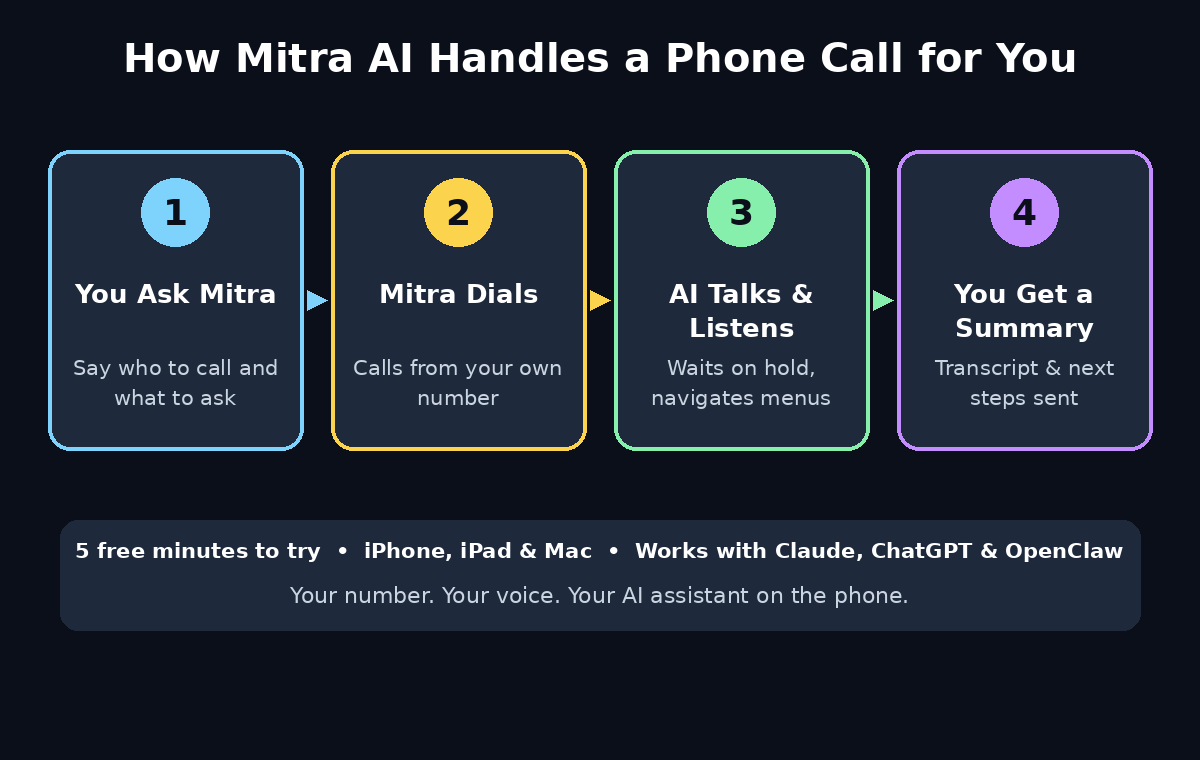
Your phone rings while you are in a meeting. It is a delivery driver, a clinic confirming an appointment, or a company asking you to wait on hold for twenty minutes. You cannot answer, and by the time you call back, the moment has passed. Mitra AI exists for exactly this problem. It is a personal AI assistant that handles phone calls using your own number — it makes calls for you, answers the ones you miss, waits on hold, talks its way through phone menus, and sends you a short summary and a full transcript when the call is done.
In this beginner-friendly guide, you will learn how to use Mitra AI from the first download to your first hands-free phone call. No technical background is needed. Mitra launched on September 23, 2026, and its MCP version — which gives your AI agent its own phone line — landed on Product Hunt on November 10, 2026. Everyone starts with 5 free minutes, so you can try a real call before you pay anything.
Step 1: What Is Mitra AI and What It Does
Mitra AI is a personal AI assistant that lives on your phone and talks to real people on your behalf. Unlike a chatbot that only answers text, Mitra speaks out loud, listens to the other person, and reacts to what they say in real time. It calls people using your own caller ID, so the people you know actually pick up and businesses do not mark the call as spam.
Here is what Mitra AI can do for a beginner:
- Make outbound calls: Ask Mitra to call a restaurant, a clinic, a shop, or a friend, and it dials, speaks, and reports back.
- Answer missed calls: When you cannot pick up, Mitra answers in your place and takes a message.
- Wait on hold: Mitra sits through the hold music and the “your call is important to us” loop, then talks to the agent when one finally appears.
- Navigate phone trees: It presses the right options and says the right words to reach a human instead of looping through menus.
- Filter spam: Unwanted callers get screened out before they ever reach you.
- Escalate emergencies: If a call sounds urgent, Mitra can bring you in right away.
- Send a summary and transcript: After every call you get a short summary plus the full word-for-word transcript, so you always know what happened.
Calls are only the starting point. Mitra can also send texts and emails, message on Slack from your connected accounts, book appointments, update your calendar, and keep documents and spreadsheets up to date. Think of it as a personal assistant that happens to be very good on the phone.
Step 2: What You Need Before You Start
Mitra AI is simple to set up, but check these three things first so nothing surprises you later.
- An iPhone, iPad, or Mac: Mitra launched on Apple devices first. It is iOS only at launch, with Android support planned, so Android users will need to wait for now.
- Your own phone number: Mitra works from your existing number. You do not get a strange new number, and your contacts see your name when Mitra calls them.
- 5 free minutes: Every new user gets 5 minutes free. That is enough for one or two real calls, so you can test the voice quality and the summaries before choosing a plan. After that, Mitra runs on a straightforward subscription with no advertising and no sale of your data.
One more thing to decide up front: which voice you prefer. Mitra offers two voices to choose from, male and female. Pick the one that sounds most natural to you — it is the voice your contacts will hear.
Step 3: Download Mitra and Set Up Your Account
Setting up Mitra takes only a few minutes.
- Download the app: Find Mitra in the App Store on your iPhone, iPad, or Mac and install it.
- Create your account: Sign up with your email address and confirm it.
- Verify your phone number: Mitra links to your own number, so it will ask you to verify it with a code sent to your phone. This step is what lets your calls show your real caller ID.
- Choose your voice: Pick the male or female voice you want Mitra to use on calls.
- Set your preferences: Tell Mitra how you want it to introduce itself, what it should never agree to on your behalf, and when it should escalate a call to you live.
Take your time with the preferences. A clear instruction such as “never share my card details” or “always check with me before confirming a booking over $50” is what keeps an AI assistant safe to use every day.
Step 4: Connect Mitra MCP to Claude, ChatGPT, or OpenClaw
This is the step that turns Mitra from a phone app into a superpower. Mitra MCP connects Mitra to your AI agent through the Model Context Protocol, so your agent — not just the app — can place and read calls. It works with Claude, ChatGPT, Grok, OpenClaw, Hermes, and any MCP client.
- Open your AI agent’s settings: In Claude, ChatGPT, or OpenClaw, find the MCP servers or integrations section.
- Add the Mitra MCP server: Follow the connection instructions in the Mitra app, which gives you the server details to paste in.
- Authorise the connection: Confirm that your agent may use Mitra to make calls and read call results.
- Test it with one sentence: Type something like “Call the pharmacy and ask if my prescription is ready.” Your agent sets the call up through Mitra, and you never have to touch the phone.
Once connected, your agent can read the summary and transcript after every call, so the result of a phone conversation becomes part of your agent’s memory. If you already use OpenClaw as your personal agent, this is where Mitra shines — read our OpenClaw beginner guide if you have not set one up yet.
Step 5: Make Your First AI Phone Call
Your first call should be something low-stakes, so you can listen to how Mitra sounds and how the other person reacts.
- Open Mitra and tap New Call.
- Say who to call and why: For example, “Call the dentist and ask what time my appointment is on Thursday.”
- Let Mitra dial: It calls from your number and introduces itself as your AI assistant.
- Watch it live: You can monitor the call as it happens and jump in if you want to take over.
- Read the summary: When the call ends, Mitra sends you a short summary and the full transcript.
Listen to the first call yourself. Check that Mitra pronounced names correctly, that it asked the right question, and that the summary matches what was actually said. If anything sounds off, adjust the instructions in your preferences before the next call.
Step 6: Let Mitra Answer the Calls You Miss
Missed calls are where Mitra quietly saves the most time. Instead of a voicemail nobody listens to, you get a real conversation and a readable summary.
- Turn on call answering: In the Mitra app, enable answering for missed calls.
- Set the greeting: Tell Mitra how to introduce itself, for example, “Hi, this is Muhammad’s AI assistant. He is not available right now — how can I help?”
- Decide what it can promise: Mitra can take a message, confirm a time, or book a slot. Tell it clearly what it may agree to and what needs your approval first.
- Read the summary: Every answered call lands in your inbox as a summary with a transcript, so you can reply to the person later with full context.
This is also how Mitra filters spam. Unknown callers get screened by the assistant first, and only the genuine ones reach you as a summary. The robocalls simply disappear.
Step 7: Use Mitra to Wait on Hold and Beat Phone Trees
Nobody likes hold music. Mitra does not mind it at all, which makes it the perfect tool for the calls everyone puts off.
- Ask Mitra to wait: Tell it to call the bank, the airline, or the internet provider and wait until a human answers.
- Let it navigate the menu: Mitra listens to the options, presses the right numbers, and says the account details you have approved it to share.
- Get called back when a human is there: When an agent finally picks up, Mitra can bring you into the call or handle the simple part itself and summarise the rest.
A practical tip: keep these calls short and specific. “Ask the airline to change my flight to the evening one and tell me the fee” works far better than a vague “sort out my flight.” The clearer your instruction, the cleaner the transcript.
Step 8: Book Appointments and Update Your Calendar
Mitra is not only for calls. Because it connects to your accounts, it can finish the job after the call ends.
- Book appointments: Ask Mitra to call a clinic or salon, find a free slot, and add it to your calendar.
- Send follow-up messages: After a call, Mitra can text or email the person with the details you agreed.
- Update documents: It can record the outcome in a document or spreadsheet, so your notes stay current without you typing a word.
- Message on Slack: If you connect Slack, Mitra can pass updates to your team from the same call.
Small businesses get the most from this step. If you run a shop or an agency, an AI assistant that answers calls, books appointments, and updates your calendar is like hiring a receptionist who never sleeps. For a digital agency juggling client calls all day, that kind of help pays for itself fast — and the same workflow fits a clinic, a salon, or any business where the phone never stops ringing.
Step 9: Read Summaries, Transcripts, and Live Monitoring
After every call, Mitra sends back two things: a short summary and a full transcript. Here is how to use them well.
- Skim the summary first: It tells you what was agreed, what is still open, and what needs your reply.
- Search the transcript: If you need an exact quote, a price, or a time, the transcript has the exact words.
- Monitor live when it matters: For important calls, watch the live view so you can take over the moment something needs a human decision.
- Keep a call log: Your summaries build a searchable history of every conversation, which is useful for disputes, follow-ups, and remembering what a supplier promised.
If you write about AI tools or run a content site, these transcripts are also a goldmine for real examples. Teams at Agentic Affairs cover exactly this kind of agent workflow, and a Mitra call transcript is the kind of proof that turns a vague “AI can do this” claim into a story your readers can trust.
Step 10: Stay Safe — Privacy, Limits, and Good Habits
An AI that talks on your behalf needs clear boundaries. Mitra is built with a subscription model and no advertising or sale of user data, but your own habits still matter.
- Never share sensitive details by default: Do not let Mitra share card numbers, passwords, or one-time codes unless you have explicitly approved it for that one call.
- Tell people it is AI: Mitra introduces itself as your AI assistant. Keep that greeting honest — people should know they are talking to an assistant.
- Check the first few transcripts: Until you trust it, read every transcript. You will quickly learn where Mitra is strong and where your instructions need tightening.
- Set spending limits: If Mitra can confirm bookings, set a price limit above which it must ask you first.
- Know the limits: Mitra is iOS only for now, the free tier is 5 minutes, and very complex negotiations still need a human. Use Mitra for the routine calls, and take the tricky ones yourself.
Mitra AI vs Other AI Phone Assistants
| Feature | Mitra AI | Typical AI receptionist | Plain voicemail |
|---|---|---|---|
| Calls from your own number | Yes | Usually a new number | No |
| Answers missed calls | Yes | Yes | Message only |
| Waits on hold | Yes | Rarely | No |
| Navigates phone trees | Yes | Sometimes | No |
| Transcript + summary after every call | Yes | Sometimes | No |
| Connects to Claude / ChatGPT via MCP | Yes | Rarely | No |
| Books appointments & updates calendar | Yes | Sometimes | No |
| Free minutes to try | 5 minutes free | Varies | Free, but no AI |
| Platform | iPhone, iPad, Mac | Web or phone | Built into your phone |
The table makes the difference clear. A normal AI receptionist gives your business a new number and a generic voice. Mitra gives your own AI agent your own number, so the person on the other end hears from you — through an assistant that knows your calendar, your contacts, and your preferences.
Frequently Asked Questions
Is Mitra AI free?
Mitra AI gives every new user 5 minutes free, which is enough for one or two real calls. After that it runs on a subscription. There is no advertising, and Mitra says it does not sell user data. Check the app for the current plan prices before you commit.
Which devices can I use Mitra AI on?
Mitra launched on iPhone, iPad, and Mac. It is iOS only at launch, with Android support planned. If you are on Android, you will need to wait for the Android release.
How does Mitra MCP work with Claude and ChatGPT?
Mitra MCP is a server that connects Mitra to any MCP client, including Claude, ChatGPT, Grok, and OpenClaw. Once connected, your AI agent can ask Mitra to place calls and can read the summary and transcript afterwards, so phone calls become just another tool your agent can use.
Does Mitra use my real phone number?
Yes. Mitra calls people using your caller ID, so your contacts see your name and pick up, and businesses do not mark the call as spam. You do not get a new or unfamiliar number.
Can Mitra AI wait on hold for me?
Yes, and this is one of its best uses. Mitra will call a company, sit through the hold music, navigate the phone menu, and talk to a human agent when one answers. You can monitor the call live or just read the summary when it is done.
Is it safe to let an AI answer my calls?
It is safe when you set clear rules: tell Mitra what it may agree to, what it must never share, and when it should bring you in live. Read the first few transcripts, set a spending limit for bookings, and remember that Mitra introduces itself as your AI assistant, so the other person always knows.
Final Thoughts
Learning how to use Mitra AI takes less than an hour, and the payoff starts with the very first call you do not have to make yourself. The missed call that gets answered, the twenty minutes of hold music you never hear, the appointment that books itself while you are in a meeting — these small wins add up to hours saved every week.
Start with the 5 free minutes. Make one low-stakes call, read the transcript, and see how it feels. Then connect Mitra MCP to Claude or ChatGPT and let your AI agent handle the phone for you. The phone has been the one tool AI could not touch for years. With Mitra, that has finally changed.
Explore More Free AI Tools
Want to keep exploring? Try our free tools — the AI Title Generator, Meta Description Generator, AI Rewriter, and Keyword Density Checker — all available at AIToolSteps.com. They are free, need no sign-up, and pair perfectly with the AI workflow you just built with Mitra.