

Meetings eat your day, and then the real work starts: remembering what was decided, who promised what, and where that one important number was mentioned. On November 11, 2026, ElevenLabs announced a new app that is built to end that second job. It is called ElevenAI, and it works like an AI teammate that sits in on your conversations, takes the notes, and hands everyone a summary with action items when the call ends.
ElevenAI was the headline of ElevenLabs’ New York Summit, where the company unveiled 13 new products and upgrades. The most important detail for beginners is the price: free early access opened on the day of the announcement, and ElevenLabs has not published any pricing for what comes afterwards. That means right now is the cheapest possible moment to try it. This guide shows you exactly how to use ElevenAI, from creating your free account to running your first meeting, dictating text into any app, and getting live help mid-call.
By the end of this guide, you will know how to set up ElevenAI, run a meeting with it, read and share the summary it produces, and use it as a dictation tool for everyday writing. You do not need any technical skill, and you do not need a credit card to start.
Step 1: What Is ElevenAI — and Why Everyone Is Talking About It
ElevenAI is a new app from ElevenLabs that acts as an AI teammate for employees. Instead of opening a separate recorder, a separate transcription tool, and a separate notes document, you get one app that listens to spoken conversations, including in-person meetings, and turns them into useful written work.
Here is what ElevenAI does, in plain language:
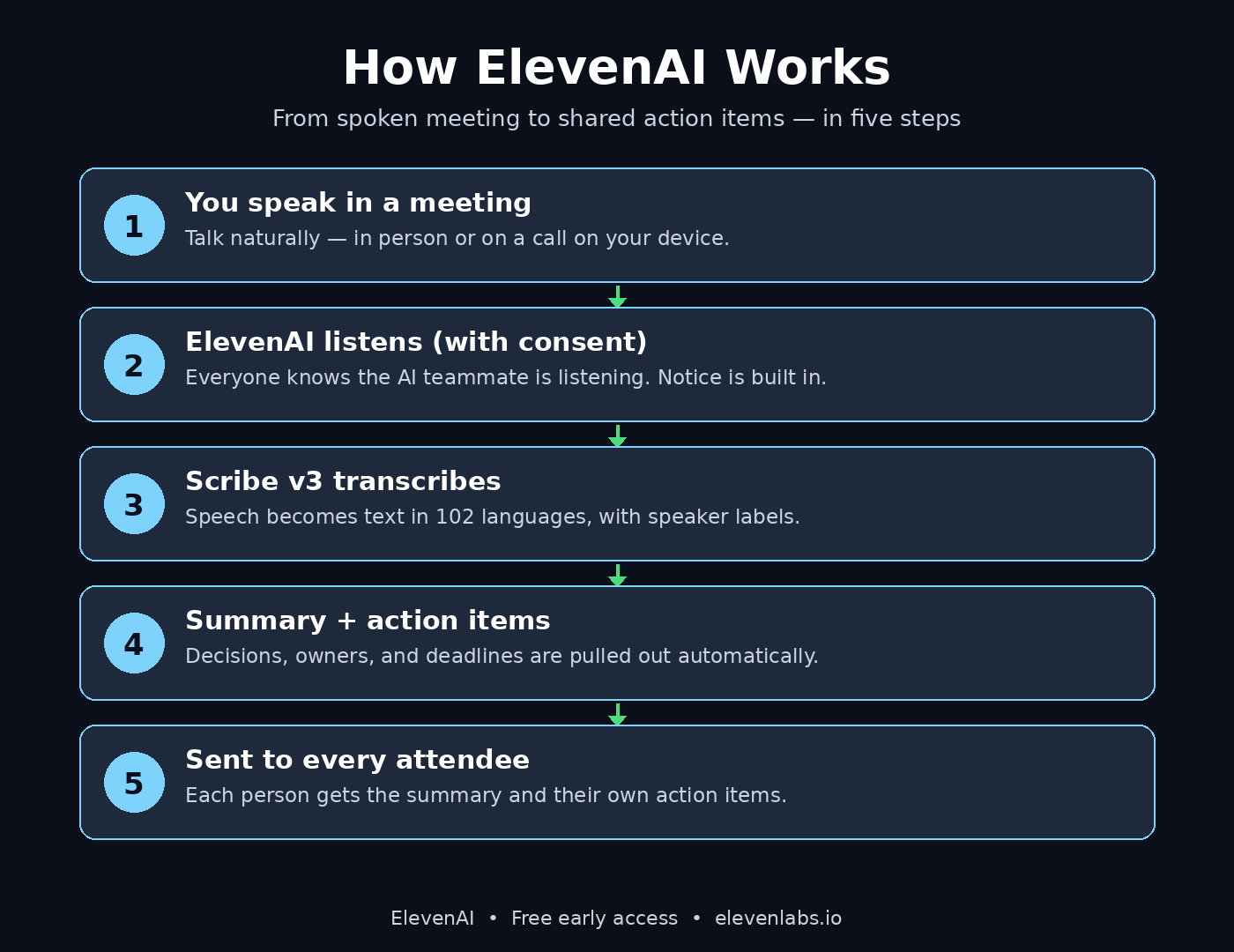
- Listens to meetings. ElevenAI listens to a live conversation, whether it happens across a table or on a call on your device, and keeps track of everything that was said.
- Takes notes with consent. Notice and consent mechanisms are built into the app rather than added as an afterthought, so everyone in the room knows the AI is listening.
- Writes the summary. When the conversation ends, ElevenAI produces a summary and a list of action items, and delivers them to each attendee.
- Dictates into any app. You can speak and have your words typed into whatever app you are using, from an email to a document to a chat message.
- Helps live during a call. You can ask ElevenAI for assistance while a conversation is still happening, instead of waiting until afterwards.
Under the hood, ElevenAI runs on Scribe v3, the speech-to-text model ElevenLabs launched one day earlier, on November 10, 2026. Scribe v3 covers 102 languages and, on ElevenLabs’ own tests, is its most accurate transcription model yet. That matters because a meeting notetaker is only as good as its ears: if it mishears names, numbers, and decisions, the summary is useless. Scribe v3 is the reason ElevenAI can keep up with fast, messy, real-world conversation, including heavy background noise and people talking over each other.
ElevenAI is not another voice generator. ElevenLabs is famous for text-to-speech voices, but this app is about the opposite direction: turning your spoken work into written work. If you already use a dictation tool such as Wispr Flow, or a meeting notetaker such as Fireflies.ai, ElevenAI is playing in exactly that territory — and right now it costs nothing to try.
Step 2: What You Need Before You Start
ElevenAI is a beginner-friendly tool, and the setup is short. Before you begin, check that you have these four things ready:
- An ElevenLabs account. ElevenAI lives inside the ElevenLabs ecosystem, so you need a free ElevenLabs account. If you already use ElevenLabs for voices or Scribe, you can use the same account.
- A device with a microphone. ElevenAI listens through your device, so a laptop, phone, or tablet with a working microphone is enough. For in-person meetings, sit close enough that every speaker is audible.
- A stable internet connection. The transcription and summaries are processed online, so a steady connection keeps the live notes flowing.
- Permission from the people in the meeting. This is the one requirement that is not technical. ElevenAI listens to real conversations, so tell everyone in advance and get their agreement. Consent is built into the app, but the responsibility for using it honestly stays with you, and the rules about recording conversations vary by country.
One honest note for beginners: ElevenAI is brand new. It opened to free early access on November 11, 2026, which means menus, buttons, and features may shift in the first weeks. If a button has moved since this guide was written, check the official ElevenAI page inside your ElevenLabs account for the current layout before assuming something is broken. Early access also means there is no published end date and no published price for what comes next, so treat the free period as a chance to learn the tool, not a promise that it will stay free forever.
Step 3: Create Your Free ElevenLabs Account and Join ElevenAI Early Access
Your first job is to get inside the ElevenLabs account where ElevenAI lives. The whole process takes about five minutes.
- Open the ElevenLabs website. Go to elevenlabs.io and click the sign-up button. You can register with an email address or continue with a Google account.
- Confirm your email. ElevenLabs sends a confirmation message to the address you used. Open it and click the confirmation link to activate your account.
- Look for ElevenAI. Once you are signed in, look for ElevenAI in your account dashboard or on the ElevenLabs products page. Because free early access opened on November 11, 2026, ElevenAI is listed as an early-access app, so it may appear with an “early access” or “try now” label rather than as a finished product.
- Join the early access. Follow the on-screen steps to enable ElevenAI for your account. There is no payment step: free early access means you can start without entering card details.
- Open the ElevenAI app. ElevenLabs will point you to the version of ElevenAI that matches your device. Install or open it, then sign in with the same ElevenLabs account you just created.
If you already have an ElevenLabs account, skip the sign-up and go straight to finding ElevenAI in your dashboard. The same free credits and account settings carry over, because ElevenAI shares the ElevenLabs account you already own. If you cannot see ElevenAI yet, give it a day and check again: early access sometimes rolls out to accounts in waves rather than all at once.
Step 4: Set Up ElevenAI for Your First Meeting
Before your first real meeting, spend ten minutes setting ElevenAI up properly. A little preparation is the difference between a clean summary and a confusing one.
- Allow microphone access. The first time ElevenAI opens, it asks for permission to use your microphone. Allow it. Without microphone access, the app cannot hear anything, and no transcript will be produced.
- Test your audio first. Speak a few sentences at your normal meeting volume and check that ElevenAI hears you clearly. If you plan to use it in a room, test from the seat you will actually sit in, with the same background noise you expect.
- Check the language setting. ElevenAI is powered by Scribe v3, which covers 102 languages, from English and Spanish to Urdu, Hindi, and Arabic. Make sure the language matches the language your meeting will be held in, so names and terms are transcribed correctly.
- Decide who gets the notes. Think about who should receive the summary and action items when the meeting ends. ElevenAI delivers them to each attendee, so have your attendee list ready before you start.
- Tell the room. At the start of the meeting, say clearly that an AI notetaker is listening and that a summary will be shared afterwards. This is not just polite: in many places it is a legal requirement, and it builds trust with the people you work with.
A useful habit is to run a two-minute practice session before your first real meeting. Record yourself talking through tomorrow’s agenda, stop the session, and read the summary ElevenAI produces. If the summary is accurate, you are ready. If names or numbers are wrong, adjust your microphone position or speak slightly more slowly and try again.
Step 5: Record Your First Meeting and Let ElevenAI Take Notes
Running a meeting with ElevenAI is simple, because the app does the hard work while you focus on the conversation. Here is the flow:
- Start a new session. Open ElevenAI and start a new meeting session before the conversation begins. Give the session a clear name, such as the project name or the client’s name, so you can find it later.
- Confirm consent is visible. Make sure the app’s notice is active so everyone present knows recording is on. If someone joins late, tell them when they arrive.
- Speak naturally. You do not need to slow down or use special words. Talk the way you normally talk in a meeting. ElevenAI’s transcription is built for messy real-world audio, including pauses, interruptions, and background noise.
- Say decisions out loud. The app can only record what is actually said, so state decisions and owners clearly. Instead of a vague “someone should handle this,” say “Sara will send the proposal by Friday.” Clear sentences produce clear action items.
- Ask for a recap at the end. Before you close the session, spend thirty seconds restating the key decisions and next steps out loud. This gives ElevenAI a clean, explicit ending to build the summary around.
- Stop the session. End the session when the meeting ends. ElevenAI then processes the conversation and prepares the summary and action items.
For in-person meetings, place your device in the middle of the table rather than at one end, so every voice reaches the microphone at a similar volume. For calls on your device, use a headset with a microphone if you have one: it separates your voice from room noise and makes the transcript noticeably cleaner. If two people talk at the same time, the transcript may mix their words, so a gentle “one at a time” habit pays off quickly.
Step 6: Read Your Summary and Action Items Like a Pro
The summary is where ElevenAI earns its place. After a session ends, open it in the app and you will find the conversation turned into something you can actually use.
- Start with the summary. Read the short summary first. It should capture the purpose of the meeting, the main points discussed, and the decisions that were made, in a few paragraphs.
- Check the action items. ElevenAI pulls out the tasks, along with who owns each one and any deadline that was mentioned. Go through this list line by line: it is the part your team will act on.
- Fix mistakes immediately. No transcription is perfect. If a name is misspelled or a number is wrong, correct it while the meeting is still fresh in your memory. A summary corrected today is trustworthy next week; a summary corrected never is a trap.
- Search the full transcript. If you need the exact wording of something, search the transcript for a keyword or a name. This is far faster than replaying a recording, and it is the reason a written record beats an audio file.
- Share it with the attendees. Send the summary and action items to everyone who was in the meeting. ElevenAI is designed to deliver these to each attendee, so use that delivery rather than copying text into a separate email.
Here is a workflow that works well for small teams and freelancers: hold the meeting, let ElevenAI write the summary, spend five minutes fixing names and deadlines, then share it the same day. People remember the meeting, the tasks are fresh, and nobody has to ask “what did we decide?” three days later. If you run a small business or a digital agency where one missed follow-up can cost a client, that same-day habit is worth more than any single feature in the app.
Step 7: Use Dictation to Write Into Any App
Meetings are only half of ElevenAI. The other half is dictation: speaking your words and having them typed into any app you are using. This is the feature that replaces typing for a surprising amount of daily work.
- Turn on dictation mode. Open ElevenAI’s dictation feature and choose the app you want to write in, such as your email, a document, or a chat window.
- Speak in full sentences. Dictate the way you would write, including punctuation cues such as “comma” and “new paragraph” where the app supports them. Short, complete sentences transcribe far better than long, wandering ones.
- Draft emails in seconds. Instead of typing a reply, dictate it while the idea is fresh, then read it once and send. A three-paragraph email that takes five minutes to type often takes ninety seconds to dictate.
- Capture ideas anywhere. When an idea arrives while you are walking or cooking, dictate it into your notes app before it disappears. Spoken notes are faster than typed ones, and ElevenAI turns them into searchable text.
- Review before you send. Dictation can mishear a word, especially a name or a technical term. Always read a dictated message once before sending it, the same way you would proofread a typed one.
Dictation is also a genuine accessibility win. If typing hurts your hands, or if you think faster than you type, speaking your first draft and editing it afterwards is often the fastest way to write. Try it for one week on emails and short documents, and compare the time it takes against typing: most people never go back.
Step 8: Ask ElevenAI for Live Help During a Call
ElevenAI does not only work after the meeting. It can also help while the conversation is still happening, which is the feature that makes it feel like a teammate rather than a recorder.
- Ask a question mid-call. If you need a fact from earlier in the same conversation, ask ElevenAI while you are still on the call. It can look back at what was already said and answer from the live transcript.
- Check a number before you quote it. If a client asks for a price, a date, or a figure that was mentioned ten minutes ago, ask ElevenAI instead of guessing. A wrong number quoted live is much harder to fix than a wrong number in a draft.
- Get a quick recap on demand. If you join a call late, ask for a short recap of what has been covered so far, so you can contribute immediately instead of sitting quietly for ten minutes.
- Keep the questions short. Live help works best with short, specific questions: “What deadline did we agree?” beats “Summarize everything so far.” Short questions get short, useful answers.
Use live help sparingly at first. It is a new capability, and the right balance is to let the conversation flow and ask only when an answer would genuinely change what you say next. Over time you will learn which questions it answers well, and those become part of your meeting habit.
Step 9: Organize, Search, and Share Your Meeting Notes
One meeting summary is useful. A hundred searchable summaries is a second brain for your work. ElevenAI becomes far more valuable once you treat it as a library, not a one-off tool.
- Name sessions clearly. Use a consistent pattern, such as client name, project, and date. “Acme website redesign, Nov 12” is findable in six months; “Meeting 14” is not.
- Search before you ask. Before messaging a colleague to ask what was decided last month, search your ElevenAI sessions for the project name. The answer is usually already written down.
- Build a weekly review habit. Once a week, open your recent sessions and check the open action items. Close the finished ones, chase the overdue ones, and carry the rest into next week. Ten minutes of review replaces an hour of “what did we miss?” messages.
- Share selectively. Send summaries to the people who were in the meeting or who need the outcome. Avoid forwarding full transcripts to people who were not there, since a transcript can contain side remarks that were never meant to travel.
- Export what matters. If your team keeps records in a document or a project tool, copy the summary and action items there. A note that lives only inside one app is a note that gets lost when the app changes.
This is also where ElevenAI fits naturally into bigger AI workflows. The meeting notes it produces are clean, structured text, which means an AI automation service or a teammate can turn them into tasks, follow-up emails, and project updates without anyone retyping anything. The value of a good transcript is not the transcript itself: it is everything you can build on top of it.
Step 10: Privacy, Consent, and Smart Settings
An app that listens to your meetings deserves a careful look at privacy. ElevenAI builds notice and consent mechanisms into the app, but the settings and the habits are yours to manage.
- Always announce it. Tell everyone, every time, that an AI notetaker is listening. Never record a conversation secretly: it breaks trust, and in many places it breaks the law.
- Know your local rules. Recording laws vary by country and by state. Some places need only one person to agree, others need everyone. If you meet people across borders, check the strictest rule that applies and follow that one.
- Check what is stored. Open the app’s settings and see how long recordings and transcripts are kept, and whether you can delete a session. Delete sensitive sessions when you no longer need them.
- Be careful with sensitive topics. Avoid recording conversations that contain passwords, medical details, or private personal information. If a sensitive topic comes up, pause the session until it passes.
- Review the sharing defaults. Make sure summaries go only to the people you intend. A summary sent to the wrong person is a small mistake with a large cost, so check the recipient list before you share.
- Watch for pricing changes. Free early access has no published end date. Check the ElevenLabs pricing page from time to time, so a future paid tier never surprises you in the middle of a project.
The honest trade-off is this: ElevenAI saves you hours of note-taking, and in exchange you take on the responsibility of using a listening app openly and carefully. Used with consent and good settings, it is one of the most practical AI tools a beginner can adopt. Used carelessly, it creates problems no summary is worth.
ElevenAI vs Other Meeting and Dictation Tools
ElevenAI is not the only app in this space, so here is a quick comparison with the tools beginners usually consider. Prices and features change often, so check each tool’s official pricing page before you commit.
| Tool | Best for | Meeting notes | Dictation | Live help | Price to start |
|---|---|---|---|---|---|
| ElevenAI | Meetings plus dictation in one app | Yes, with summary and action items | Yes, into any app | Yes, during the call | Free early access |
| Fireflies.ai | Teams that live on video calls | Yes, with integrations | No | Limited | Free plan available |
| Otter.ai | Simple live transcription | Yes, with live captions | Yes, basic | No | Free plan available |
| Wispr Flow | Fast dictation and voice writing | No | Yes, excellent | No | Free tier available |
| Manual notes | Nothing to set up | Slow and incomplete | No | No | Free, costs your time |
ElevenAI’s advantage is that it combines three jobs — meeting notes, dictation, and live help — in one free app, powered by a transcription model that covers 102 languages. Fireflies.ai and Otter.ai are strong meeting tools, and Wispr Flow is a superb dictation tool, but none of them does all three. The fair advice is to run ElevenAI alongside your current tool for two weeks before your next renewal, and compare them on your real meetings rather than switching on day one.
Frequently Asked Questions About ElevenAI
Is ElevenAI really free?
Yes, for now. Free early access opened on November 11, 2026, and you can start without entering payment details. ElevenLabs has not published pricing for what comes afterwards, and there is no stated end date for the free period, so enjoy it while it lasts and check the pricing page regularly.
Is ElevenAI the same as Scribe v3?
No. Scribe v3 is the speech-to-text model that ElevenLabs launched on November 10, 2026. ElevenAI is the app that uses Scribe v3 to listen to meetings, write summaries, dictate text, and help you live during calls. Think of Scribe v3 as the ears and ElevenAI as the teammate that uses them.
Does ElevenAI record people without telling them?
No. Notice and consent mechanisms are built into the app, and everyone in a meeting should know the AI is listening. You should still announce it yourself at the start of every meeting, and you must follow the recording laws where you and the other people are located.
Which languages does ElevenAI understand?
ElevenAI is powered by Scribe v3, which covers 102 languages, including English, Spanish, Urdu, Hindi, and Arabic. Set the language to match your meeting for the most accurate transcript.
Can ElevenAI join my Zoom or Google Meet calls?
ElevenAI listens through your device, so it works for in-person meetings and for calls happening on your device. If you need a bot that joins a call as a separate participant, check the current feature list inside the app, because the exact call integrations can change while the app is in early access.
What happens to my notes if free early access ends?
ElevenLabs has not said. That is why it is smart to export the summaries that matter into your own documents or project tools as you go. Your notes are most valuable when they live somewhere you control, not only inside one app.
Final Thoughts
ElevenAI is the most practical kind of AI launch: it does not ask you to learn a new skill, it removes a job you already hate. Meetings still happen, people still talk, decisions still get made — but the note-taking, the summary, and the follow-up list now write themselves. For a beginner, that is the perfect first AI teammate: free to try, easy to set up, and useful from the very first meeting.
The smartest way to start is small. Try it on one low-stakes meeting this week, fix the names and deadlines in the summary, and share it the same day. Then try dictation for your next three emails. If both feel natural, make ElevenAI part of every meeting. And remember the two rules that matter most: always tell people it is listening, and always export the notes that matter. Do those two things, and ElevenAI will quietly save you hours every single week.
Explore More Free AI Tools
Want more free AI tools like ElevenAI? Try our AI Title Generator, Meta Description Generator, AI Rewriter, and Keyword Density Checker — all free on AIToolSteps, no sign-up needed.