
If you have ever sat through a long meeting recording, a podcast episode, or a lecture video wishing someone would just type it all out for you, ElevenLabs Scribe v3 is the tool you have been waiting for. Launched on November 10, 2026, ElevenLabs Scribe v3 is the company’s newest speech-to-text model. It is a serious leap forward. First, it makes 27% fewer word errors than Scribe v2 across 102 languages. Second, it tells up to 32 different speakers apart. Finally, it even tags sounds like laughter and applause in your transcript.
The best part for beginners is the low barrier to entry. You do not need any technical skill, any software install, or any money to start. The free ElevenLabs plan includes speech-to-text. That means you can upload your first recording and get an accurate transcript in minutes. Whether you want captions for a YouTube video or notes from a client call, this guide walks you through every step. The same steps work for a written version of a podcast or searchable text from a voice memo.
By the end of this guide, you will know how to transcribe your first file with ElevenLabs Scribe v3. You will also learn how to clean up the results, export captions, try live real-time transcription, and automate the whole process with the API.
Step 1: What Is ElevenLabs Scribe v3 — and What’s New?
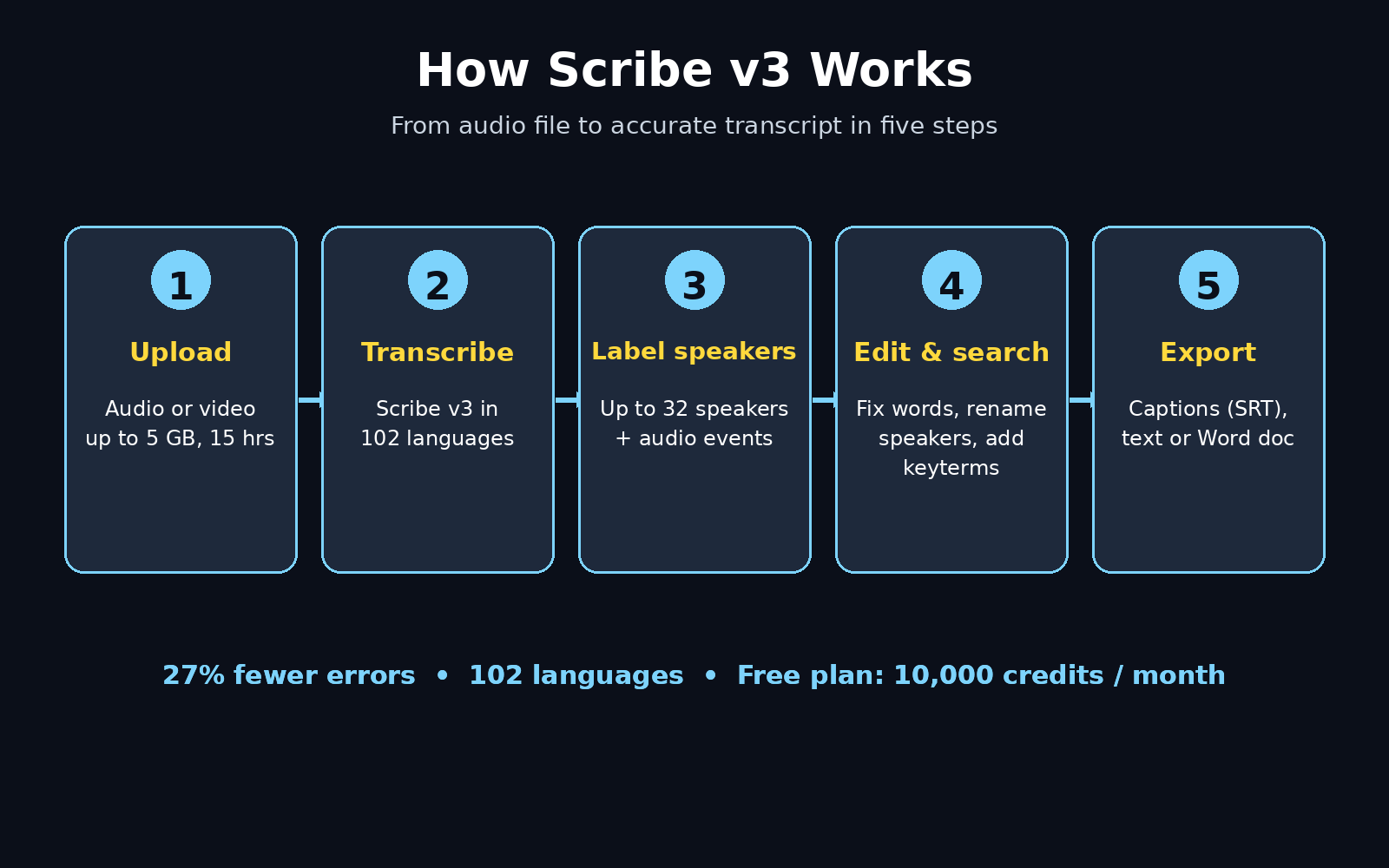
ElevenLabs Scribe v3 is an AI speech-to-text model that turns spoken audio into written text. You give it an audio or video file. In return, it produces a full transcript with word-level timestamps, speaker labels, and punctuation. It works in 102 languages, from English and Spanish to Urdu, Hindi, Arabic, and Thai.
Here is what changed in version 3 compared with Scribe v2:
- 27% fewer word errors. On ElevenLabs’ own tests across all 102 languages, the word error rate fell from 17.0% to 12.4%. In plain terms, roughly one in every four mistakes the old model made is now gone.
- Better speaker labels. ElevenLabs Scribe v3 tracks up to 32 speakers in one recording. As a result, it makes about 12% fewer speaker-identification mistakes than v2. On recordings with three or more speakers, the improvement reaches 17%.
- Audio event tagging. The model now stamps sounds like laughter, applause, and music into the transcript. That way, you can see exactly where the audience reacted.
- Keyterm prompts. You can give Scribe up to 1,000 keyterms. These can be names, product names, or technical words. With that hint, the model spells them correctly instead of guessing.
- Smarter formatting. You can also tell Scribe to write numbers as digits or words. In addition, you can fix transcript text with plain-English rules. For example, you can write every date as YYYY-MM-DD.
- A live sibling model. Scribe v3 Live transcribes in real time with about 150 milliseconds of latency. Moreover, it is the first Scribe model that labels speakers while the conversation is still happening.
If you have used ElevenLabs before for its famous text-to-speech voices, Scribe lives in the same app. It shares the same free credits too, so there is nothing new to install.
Step 2: Create Your Free ElevenLabs Account
Everything starts with a free account, and setup takes about two minutes.
- Go to elevenlabs.io and click Sign up. You can register with an email address or continue with Google.
- Confirm your email if asked, then pick a username. There is no credit card step on the free plan.
- The free plan gives you 10,000 credits a month. Speech-to-text costs 330 credits per minute of audio. Your free credits therefore cover roughly 30 minutes of transcription every month. That is plenty for testing, short meetings, and a few podcast episodes.
- Keep in mind two free-plan rules. First, content made on the free plan cannot be used commercially. Second, anything you publish from it must credit ElevenLabs. If you later need client work, paid plans start at $6 a month for Starter and add a commercial licence.
Once you are signed in, you will land on the ElevenLabs dashboard. The left sidebar lists every product: Text to Speech, Speech to Text, Voice Design, Music, and more. For this guide, you only need Speech to Text.
Step 3: Open Speech to Text in the ElevenLabs App
From the dashboard, click Speech to Text in the left sidebar. This opens the Scribe workspace. ElevenLabs Scribe v3 is now the default transcriber there, so you do not need to switch any model setting.
The workspace is deliberately simple. You will see a large upload area in the middle. On the side, you will find a list of your past transcripts. You will also see a few options for language and output format. There is no timeline editor to learn and no audio software to open. If you can drag a file into a browser window, you can use Scribe v3.
Before your first upload, take ten seconds to check the model indicator near the upload area. It should read Scribe v3. If you ever see an older model name there, click it and select Scribe v3. That way, you get the improved accuracy and the new features described in this guide.
Step 4: Upload Your First Audio or Video File
Now for the fun part. This is where ElevenLabs Scribe v3 does its work. It accepts audio and video files up to 5 GB in size and up to 15 hours long. That covers everything from a 30-second voice memo to an all-day conference recording.
- Drag your file into the upload area, or click to browse your computer. Common formats such as MP3, WAV, MP4, MOV, and M4A all work.
- While the file uploads, Scribe starts processing automatically. A one-hour recording usually finishes in a few minutes. Meanwhile, a short clip often takes less than a minute.
- You can close the tab and come back later. Your transcript will wait for you in the sidebar under your past transcriptions.
- For your very first test, use a short, clear recording. A two-minute voice note or a short video clip works well. In addition, a clean test file lets you see the quality quickly. It also lets you learn the editing tools without waiting on a long upload.
One practical tip: Scribe v3 is good with noisy audio, but it is not magic. A recording made in a quiet room will always transcribe better. Keep the speaker close to the microphone. A recording made across a noisy hall will always be harder to transcribe. If a transcript comes back messy, the recording quality is usually the reason, not the model.
Step 5: Choose Your Language and Turn On Speaker Labels
Before you press transcribe on an important file, check two settings that make the biggest difference to quality.
Language. ElevenLabs Scribe v3 supports 102 languages. In most cases, it can detect the language on its own. If your recording is in one language only, select that language manually. For example, pick English for a meeting entirely in English, or Urdu for a lecture entirely in Urdu. That gives the model a head start and slightly better accuracy. If your speakers switch languages mid-sentence, leave language detection on automatic. The new model handles code-switching far better than v2. It transcribes mixed English, Hindi, Spanish, or Thai in the same sentence without garbling the switch.
Speaker diarization. This is the feature that labels who said what. Turn it on for any recording with more than one person — meetings, interviews, podcasts, panel discussions. The tool assigns labels such as Speaker 0, Speaker 1, and Speaker 2. Afterwards, you can rename them to real names. For a solo voice memo or a single narrator, you can leave diarization off and save a little processing time.
Together, language selection and speaker labels turn a wall of text into a readable conversation you can actually follow.
Step 6: Add Keyterms So Names and Jargon Come Out Right
Every transcription tool struggles with the same thing: unusual names, brand names, product names, and technical jargon. Scribe v3 gives you a direct fix — keyterms.
Before transcribing, you can add up to 1,000 keyterms. These can be the names of people in the meeting, your company name, or product names. You can also add acronyms and any word the model might otherwise mishear. Scribe treats these as hints, not commands. As a result, it will only use a keyterm when the audio sounds like a match. That keeps the transcript honest while fixing the words that matter most to you.
For example, if you are transcribing a podcast about a tool called “Scribe” itself, adding the keyterm “Scribe” stops the model from writing “scribe,” “Scribd,” or “described.” If you transcribe client calls for a digital agency, adding your clients’ brand names and industry terms the same way keeps every transcript clean — and if your agency work involves turning those transcripts into content, a good digital agency partner can help you turn raw meeting notes into published guides and campaigns.
Keyterms are the single most underused Scribe feature, and they take thirty seconds to add. Use them on every important recording.
Step 7: Read, Search, and Fix Your Transcript
When processing finishes, your transcript opens in the ElevenLabs editor. This is where ElevenLabs Scribe v3 earns its keep. A transcript is only useful if you can work with it.
- Click any word to jump to that exact moment in the audio. Every word carries its own timestamp. That means you can verify anything you doubt in one click, instead of scrubbing through a recording.
- Search the whole transcript with Ctrl+F or the built-in search. Looking for the moment someone mentioned a price, a deadline, or a competitor takes seconds.
- Rename speakers. Click a speaker label and type a real name. For example, type “Ayesha” instead of “Speaker 1”. Every line from that person updates at once.
- Fix text with plain-English rules. Instead of editing every date or number by hand, give Scribe a plain-English instruction. For example, ask it to write every date as YYYY-MM-DD. It then applies the rule across the whole transcript.
- Edit words directly. Click any word and retype it. Scribe highlights low-confidence words. Start with those, because they are the likeliest mistakes.
A good habit is to read through the transcript once while listening to the tricky parts. Even at 27% fewer errors, no AI transcriber is perfect. A five-minute skim still catches the errors that matter. Those are a wrong number, a misheard name, or a flipped “not” that changes the meaning of a sentence.
Step 8: Export Captions, SRT Files, and Text
A transcript sitting inside the ElevenLabs app helps only you. Exporting it is what turns it into captions, blog content, show notes, or searchable notes.
ElevenLabs Scribe v3 offers several export formats. The right one depends on your goal:
- Plain text (.txt) for pasting into a document, a blog draft, or an email summary.
- SRT or VTT caption files for uploading to YouTube, TikTok, or any video editor. Because every word has a timestamp, the captions line up with the audio automatically.
- Word document (.docx) for meeting notes you need to share with a team.
- JSON if you are a developer and want the raw data — timestamps, confidence scores, speaker labels, and audio events — for your own app.
For creators, the SRT export is the hidden gem. Accurate captions make videos watchable with the sound off. They also improve accessibility. In addition, they help search engines understand your video content. Transcribe once in Scribe and export the SRT. Then upload it with your video. You now have professional captions in minutes, instead of hours of manual typing. Teams that publish a lot of video often pair this workflow with AI automation services. Those specialists build automated content pipelines. They can transcribe, caption, and publish video at scale without adding headcount.
Step 9: Try Scribe v3 Live for Real-Time Transcription
Scribe v3 Live is the real-time version of the model, and it is the most exciting part of this launch for anyone who runs live meetings or builds voice agents.
Instead of uploading a finished recording, Scribe v3 Live listens to an audio stream as it happens. It returns words with about 150 milliseconds of latency. That is fast enough to feel instant. It is the first Scribe model that labels speakers in real time. As a result, a live meeting transcript already shows who is speaking while the meeting is still going on. It also has a multilingual mode for conversations that switch languages mid-sentence. In addition, it offers a keyterm library of up to 10,000 terms. That covers large specialist vocabularies, such as legal or medical terms.
You can try it today inside ElevenAgents, ElevenLabs’ platform for building voice agents. For beginners, the simplest test is easy. Start a live agent conversation and watch the transcript appear word by word. For developers, Scribe v3 Live works over a WebSocket connection. Its model ID is scribe_v3_live. Meanwhile, the recorded model uses scribe_v3.
Real-time transcription is where meeting notes stop being a chore: the notes write themselves while the meeting happens.
Step 10: Automate Transcription with the Scribe API
If you transcribe the same kind of file every day, doing it by hand in the browser gets old fast. Podcast episodes, support calls, and lecture recordings all add up. The ElevenLabs API lets you send files to ElevenLabs Scribe v3 automatically.
Fortunately, the basic flow is simple, and you do not need to be a senior developer to follow it:
- Get an API key from your ElevenLabs account settings.
- Send your audio file to the speech-to-text endpoint with the model ID
scribe_v3. - Receive the transcript back as structured data, with timestamps, speakers, and confidence scores included.
- Save it, email it, or feed it into your next tool — a document, a database, or a content pipeline.
API pricing for speech-to-text is listed at $0.22 per audio hour for the previous version. ElevenLabs Scribe v3 is available through the same ElevenAPI. For a small team, that means an hour of meeting audio costs less than a cup of tea to transcribe. If you are building a product around transcription, note that Scribe also offers a Zero Retention mode. That mode deletes audio and text when a request completes. It also offers SOC 2, ISO 27001, and HIPAA-eligible deployment options for regulated work.
Start with the browser app to learn the quality, then move to the API when the volume justifies it.
Scribe v3 vs Scribe v2 vs Whisper vs Otter AI: Which Transcriber Should You Use?
| Feature | Scribe v3 | Scribe v2 | OpenAI Whisper | Otter AI |
|---|---|---|---|---|
| Languages supported | 102 | 99 | 99 | English, Spanish, French |
| Word error rate | 12.4% (27% lower than v2) | 17.0% | Varies by model size | Not published |
| Speaker diarization | Up to 32 speakers | Up to 32 speakers | No built-in diarization | Yes, limited |
| Real-time transcription | Yes, Scribe v3 Live (~150 ms) | Yes, Scribe v2 Realtime | No official live mode | Yes, live notes |
| Audio event tagging | Yes (laughter, applause, music) | No | No | No |
| Keyterm prompts | Up to 1,000 terms | Limited | No | No |
| Free plan | 10,000 credits/month | Same | Free, self-hosted | 300 minutes/month |
| Best for | Accurate multilingual transcripts, captions, voice agents | General transcription | Developers, offline use | Live meeting notes |
The table makes the choice simple. If you want the most accurate transcript with the least effort, ElevenLabs Scribe v3 wins for beginners. Developers who need a free offline model should pick Whisper instead. And if your main need is live meeting notes with a bot that joins your calls, Otter AI is built exactly for that.
Frequently Asked Questions
Is ElevenLabs Scribe v3 free to use?
Yes. The ElevenLabs free plan includes speech-to-text with 10,000 credits a month, which covers roughly 30 minutes of transcription. You do not need a credit card to sign up. The free plan is for personal, non-commercial use, and published content must credit ElevenLabs. Paid plans start at $6 a month and add a commercial licence.
How accurate is ElevenLabs Scribe v3?
On ElevenLabs’ own tests across 102 languages, ElevenLabs Scribe v3 has a word error rate of 12.4%. That is down from 17.0% on Scribe v2, a 27% improvement. On real meetings and voice notes, speaker identification errors dropped about 12% overall. Accuracy is best on clear audio; noisy recordings, heavy accents, and overlapping speakers will still produce some errors, so always skim important transcripts.
How many languages does ElevenLabs Scribe v3 support?
ElevenLabs Scribe v3 supports 102 languages. These include English, Spanish, French, German, Urdu, Hindi, Arabic, Chinese, and Thai. It can detect the language automatically, and it handles code-switching — speakers changing language mid-sentence — better than any previous Scribe version.
Can ElevenLabs Scribe v3 transcribe a video file?
Yes. You can upload video files such as MP4 and MOV directly, and Scribe extracts the audio track and transcribes it. Files can be up to 5 GB and up to 15 hours long. The transcript includes word-level timestamps, so you can export SRT caption files that sync with your video.
What is the difference between ElevenLabs Scribe v3 and Scribe v3 Live?
ElevenLabs Scribe v3 transcribes recorded audio and video files after you upload them. Scribe v3 Live, on the other hand, transcribes audio streams in real time with about 150 milliseconds of latency. It is the first Scribe model to label speakers live while a conversation is happening. Use v3 for files you already have, and v3 Live for live meetings and voice agents.
Does ElevenLabs Scribe v3 work with Zoom, Teams, or Google Meet recordings?
Yes. Record your meeting in Zoom, Teams, or Google Meet. Then download the recording file and upload it to ElevenLabs Scribe v3. Turn on speaker diarization and the transcript will show who said what. For live transcription during a meeting, use Scribe v3 Live through ElevenAgents instead.
Final Thoughts
ElevenLabs Scribe v3 is one of those rare upgrades that is both measurably better and just as easy to use as the version it replaces. You get a 27% drop in word errors. On top of that, you get speaker labels that actually work in crowded meetings. Keyterms fix the names and jargon you care about. Finally, a live model transcribes while people are still talking. All of this sits inside a free plan that costs nothing to try.
The workflow is simple enough to remember. First, sign up free and upload a file. Second, check the language and speaker settings. Third, add your keyterms. Finally, read the transcript and export it as text or captions. Do that once with a short recording and you will see the quality for yourself. Keep doing it every day, and you will wonder how you ever managed meetings, podcasts, and videos without a transcript.
Start with your next meeting recording or your latest video. Transcribe it with ElevenLabs Scribe v3, export the captions, and see how much time you save. The free credits reset every month, so there is no reason not to try it today.
Explore More Free AI Tools
Want to keep exploring free AI tools? Try our AI Title Generator, Meta Description Generator, AI Rewriter, and Keyword Density Checker — all free at AIToolSteps.com.