

Some text on your Mac simply refuses to be selected. It sits inside a video, a scanned PDF, a photo, a slide deck, or an app window that never offers a cursor — and retyping it by hand wastes minutes every single day. Textly AI ends that frustration. It is a native Mac app that captures text and whole tables from almost anything on your screen, reads them with on-device OCR, and drops the result straight into your clipboard.
Textly, made by MacThru, topped Product Hunt’s daily launch list on November 9, 2026, and it earned that spot for a simple reason: it solves a small, daily annoyance better than anything built into macOS. In this beginner-friendly guide, you will learn exactly how to use Textly AI: what it is, whether your Mac can run it, how to capture your first text in seconds, how to pull a full table out of a screenshot and export it as a spreadsheet, how to translate what you capture, and how to find anything you copied ever again with its clipboard history. You do not need any technical skills, and you can start with the free trial before paying anything.
Step 1: Understand What Textly AI Actually Is
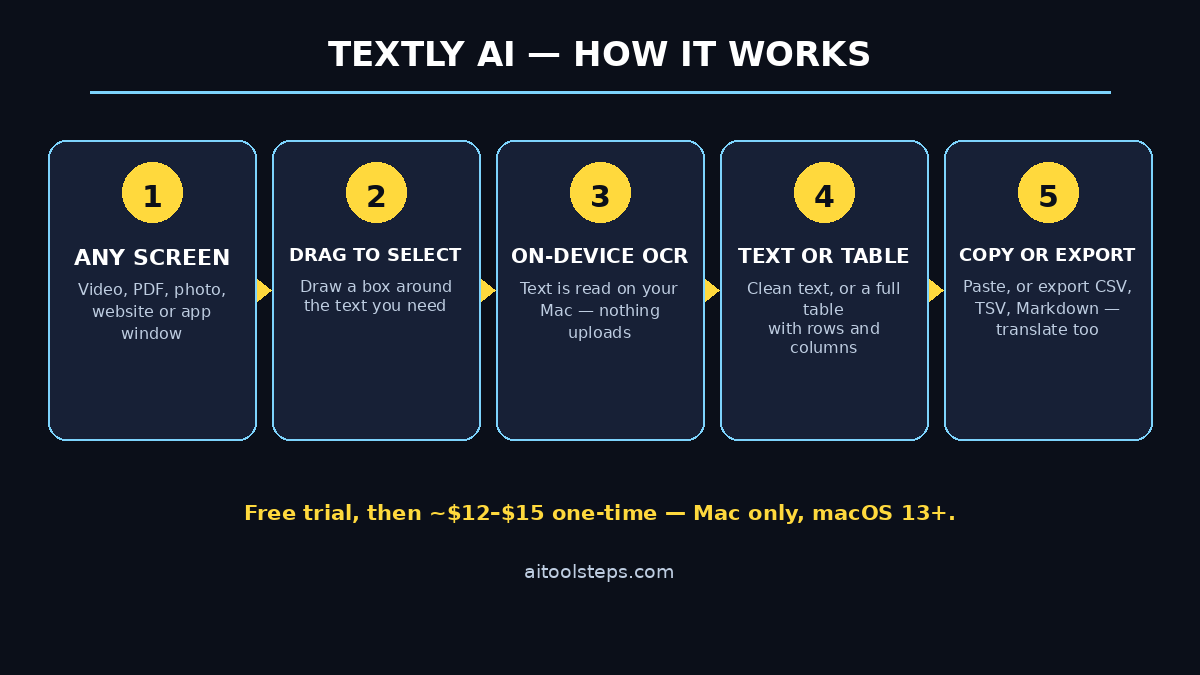
Textly AI is not a chatbot, and it is not a cloud service. It is a small, fast Mac utility built around one idea: any text you can see on your screen should be text you can copy. When you drag a box around part of your screen, Textly reads the pixels with optical character recognition (OCR) and hands you clean, editable text — usually in under a second.
Here is what makes it different from the text tools already on your Mac:
- It captures text from anywhere. Videos, images, PDFs, websites, presentations, photos, Zoom and Teams meetings, app screens, and code in screenshots — even when the source offers no way to select the text normally.
- It captures whole tables, not just lines. Textly recognises the rows and columns of a table, so you can export a pricing list or a report as CSV, TSV, or Markdown instead of rebuilding it cell by cell.
- It translates what you capture. Grab a paragraph in another language and translate it on the spot, without opening a browser tab.
- It remembers everything you copy. A built-in clipboard history keeps every captured text searchable, so yesterday’s snippet is one search away.
- It works entirely on your device. Text recognition happens on your Mac with on-device processing. There is no internet connection needed for capture, and your screenshots and text never leave your computer.
Think of it as a pair of scissors for text: see it, cut it out, paste it wherever you need it. Students pull quotes from lecture slides, researchers lift data from PDFs, developers grab error messages from videos, and office workers rescue numbers from scanned invoices — all with the same two-second gesture.
Step 2: Check Whether Your Mac Can Run Textly AI
Before you download anything, check the one hard requirement: Textly needs macOS 13.0 or later. That covers Macs from roughly the last five years, including every Apple silicon Mac (M1, M2, M3, and M4) and recent Intel Macs running Ventura, Sonoma, or Sequoia.
To check your version, click the Apple menu in the top-left corner of your screen and choose About This Mac. If the version number is 13.0 or higher, you are ready. If it is lower, update macOS first from System Settings, then come back.
There is no Windows version, no iPhone app, and no web version — Textly is Mac only, by design, because it hooks into macOS screen capture and on-device OCR. You also need about 100 MB of free space for the app itself. No account is required just to try the capture features, and there is no subscription to cancel later: Textly is sold as a one-time purchase after the free trial.
Step 3: Download Textly AI and Start the Free Trial
Getting Textly onto your Mac takes about two minutes:
- Open the official Textly page. Search for “Textly by MacThru” and open the official site, or follow the launch link from the Product Hunt page where it topped the daily list on November 9, 2026. Always download from the official source, never from a random mirror.
- Download the app. The download is a standard Mac app file. Open it and drag Textly into your Applications folder, just like any other Mac app.
- Grant the permissions it asks for. The first time you launch Textly, macOS will ask for screen-recording permission — the app cannot see your screen without it. Open System Settings, go to Privacy & Security, then Screen Recording, and switch Textly on. This is the same permission every screenshot tool needs, and it stays entirely on your machine.
- Start the free trial. Textly offers a free trial so you can test every capture feature before paying. After the trial, it is a one-time purchase of around $12 to $15 — listings show $11.99 on some stores and $14.99 on others — so check the price shown on the official page before you buy, because early-launch pricing can change.
Once the app is running, you will see a small Textly icon in your Mac menu bar at the top of the screen. That icon is your control centre: click it to open settings, view your clipboard history, or check whether capture is active.
Step 4: Capture Your First Text From Any Screen
This is the core move, and it takes about five seconds once you know it:
- Open anything with text you need. A YouTube video paused on a slide, a PDF that will not let you select, a photo of a whiteboard, a website with copy protection — anything visible on screen works.
- Trigger a capture. Use Textly’s keyboard shortcut or click the menu-bar icon and choose Capture. Your cursor turns into a crosshair.
- Drag a box around the text. Click and drag over exactly the words you want, then release. Textly reads the selection with OCR and copies the recognised text to your clipboard automatically.
- Paste it wherever you need it. Switch to your document, note, email, or chat and press Command + V. The text appears as clean, editable characters — not an image.
Two habits make your captures far more accurate. First, capture tightly: include only the text you need, with a small margin around it, and leave out logos, icons, and decorative borders that confuse the recogniser. Second, capture at a readable size: if the text is tiny on screen, zoom the window or the video first, then capture. OCR accuracy depends on how clearly the letters are rendered, and a larger, sharper selection reads almost perfectly.
If a capture comes back with a wrong character or two, fix it as you paste — a quick proofread is still far faster than retyping a whole paragraph. Long passages in a clean font usually come back letter-perfect.
Step 5: Capture a Full Table and Export It as a Spreadsheet
Plain text capture is useful. Table capture is where Textly earns its keep, because rebuilding a table by hand is the most tedious copy job on a computer. A pricing sheet in a PDF, a stats table in a video, a comparison chart on a website — Textly reads the grid and keeps the rows and columns intact.
- Drag around the whole table. Include the header row and every column, with a small margin. Textly detects the table structure automatically.
- Check the preview. Before it copies, Textly shows you the recognised table so you can see whether every cell landed in the right column.
- Choose your export format. Copy it as CSV to open in Excel or Google Sheets, as TSV for plain-text tools, or as Markdown to paste straight into a document, a note app, or a blog draft.
- Paste and tidy up. Open your spreadsheet, paste, and spend thirty seconds checking merged cells or wrapped numbers. Even with one quick check, you have saved the twenty minutes of manual retyping.
This is a genuine time-saver for anyone who works with numbers other people publish as pictures. If you run a digital agency and pull competitor pricing tables out of client PDFs every week, or you collect supplier price lists that arrive as scanned images, one table capture replaces an afternoon of data entry. The same trick works for students copying lab results, researchers gathering figures from papers, and small business owners moving invoice lines into their accounts.
Step 6: Translate Captured Text Instantly
Textly does not stop at copying. It can translate what you capture, right on your Mac, without sending the text to a server.
- Capture the foreign-language text exactly as in Step 4 — a product label, a comment, a document, a subtitle.
- Choose Translate from the result panel and pick your target language.
- Copy the translation and paste it into your reply, your notes, or your document.
Textly recognises text in many languages, including English, French, Italian, German, Spanish, Portuguese, Chinese (Simplified and Traditional), Korean, Japanese, Ukrainian, and Russian. That makes it handy for reading instructions on imported products, understanding comments on international videos, or pulling a quote from a source in another language into your own work. Because translation runs on-device, the text you translate stays private — nothing is uploaded to a translation server.
Step 7: Find Anything Again With Clipboard History
Every text you capture lands in Textly’s clipboard history, and this quiet feature is the one people miss most when they stop using the app. Instead of one clipboard slot that forgets everything the moment you copy something new, you get a searchable list of everything you have captured.
- Open the history from the menu-bar icon. You will see each captured text as a short preview, newest first.
- Search it. Type a word you remember from the text — a name, a number, a phrase — and Textly finds the matching capture instantly.
- Click to copy it again. One click puts an old capture back on your clipboard, ready to paste.
Build one small habit around this: when you capture something you will need later — a tracking number, an address, a code snippet, a quote — let it sit in the history instead of pasting it into a random note you will never find again. The history is stored on your Mac, not in the cloud, so it stays private and it works offline.
Step 8: Grab Text From Videos and Live Meetings
Some of the best information on the internet is locked inside video frames: a tutorial slide, a code sample flashed on screen for three seconds, a chart in a webinar. Textly treats a paused video exactly like any other part of your screen.
- Pause the video on the frame you need. Use the player’s pause button, or step frame by frame if the player allows it.
- Capture the text with the same drag gesture. Code, URLs, commands, and bullet points all come out as editable text.
- Repeat for the next slide. Each capture takes seconds, so working through a ten-slide tutorial is a ten-minute job, not an hour of pausing and typing.
The same trick works in live meetings. When a colleague shares a slide or a document in Zoom or Microsoft Teams, capture the key lines while they are on screen — no need to ask them to send the file afterwards, and no need to screenshot and retype. If you are building AI automation services or meeting-note workflows for clients, captured meeting text drops straight into your notes, your CRM, or your agent’s knowledge base without a single retyped line.
Step 9: Use URL Actions and QR Codes
Textly watches for two special kinds of content inside your captures and turns them into one-click actions:
- URLs. If the text you capture contains a web address, Textly can copy it and open it in your default browser instantly. That is perfect for links shown in videos, slides, or printed material — capture the slide, click the link, and you are on the page.
- QR codes. Textly scans QR codes on your screen, so a code in a presentation, a poster, or a video opens its link without you reaching for your phone.
These sound like small touches until you use them daily. A tutorial video that flashes a GitHub link, a webinar slide with a sign-up URL, a conference poster with a QR code — each one becomes a click instead of a careful transcription of a long address you will probably mistype.
Step 10: Set Up Shortcuts and Privacy Settings
A few minutes in settings turns Textly from a tool you remember to use into a reflex:
- Learn the capture shortcut. Memorise the keyboard shortcut for capture so you can trigger it without touching the mouse. After a day, your fingers will do it before you think about it.
- Choose what the clipboard keeps. Decide how much history Textly stores and clear it whenever you like. Because everything is on-device, there is no cloud copy to worry about, but a tidy history is a faster history.
- Check the OCR languages. If you regularly capture text in a language other than English, make sure that language is enabled in Textly’s recognition settings so accuracy stays high.
- Keep it running in the background. Let Textly sit in the menu bar and start with your Mac. It uses very little memory, and it is only useful if it is there the moment you need it.
One privacy note worth repeating: Textly’s recognition happens directly on your Mac, and the app works completely offline. Your captures — meeting notes, code, private documents — never travel to a server. That is a real advantage over browser-based OCR tools, where every image you upload is a copy you no longer control.
Step 11: Understand the Free Trial and When to Upgrade
Textly is not a free app, and it is worth being straight about that: it is a paid Mac app with a free trial, sold as a one-time purchase rather than a monthly subscription. The trial lets you test capture, table export, translation, and clipboard history before you spend anything, and the one-time price is around $12 to $15 depending on the store listing — confirm the current price on the official page, since early-launch pricing can shift.
Here is how to decide whether it is worth it for you:
- Try the trial on real work, not a demo. Spend a week capturing from your actual PDFs, videos, and meetings. Count how often you reach for it.
- If you capture text daily, buy it. A one-time payment of roughly the price of two coffees pays for itself the first week if it saves you even an hour of retyping.
- If you capture text rarely, stick with macOS Live Text. The built-in Live Text in Preview and Safari handles occasional image text for free — Textly earns its price when the work is frequent, when tables are involved, or when clipboard history matters.
One honest note for beginners: Textly is a young product from a small team — MacThru, a startup tracked since March 2025 — and it is Mac only. Early tools change fast, so treat the official pricing page and the Product Hunt launch listing as the source of truth, and expect small improvements and rough edges in the first weeks after launch.
Textly AI vs the Alternatives
Textly is not the only way to get text off a screen. Here is how it compares with the tools most Mac users already have:
| Tool | What it does best | Table capture | Clipboard history | Price |
|---|---|---|---|---|
| Textly AI | Capture text and tables from any screen, translate, QR codes | Yes — CSV, TSV, Markdown export | Yes, searchable | Free trial, then ~$12–$15 one-time |
| macOS Live Text | Built-in text in photos, Safari, and Preview | No | No | Free, built into macOS |
| Raycast | Launcher with OCR and many extensions | Limited | Yes, with extensions | Free tier, Pro from $8/month |
| Maccy | Lightweight clipboard history manager | No OCR at all | Yes, fast and simple | Free, open source |
The pattern is clear: Live Text is fine for the occasional photo, Maccy is excellent if you only need clipboard history, and Raycast covers OCR as one feature among many. Textly wins when capturing text — especially tables — is the job itself, several times a day, and you want the result private and offline.
Frequently Asked Questions About Textly AI
Is Textly AI really free?
Textly offers a free trial so you can test all the capture features before paying. After the trial, it is a one-time purchase of around $12 to $15 — there is no monthly subscription. Check the official page for the current price before you buy.
Is Textly AI available on Windows?
No. Textly is Mac only and needs macOS 13.0 or later. There is no Windows version, iPhone app, or web version announced. Windows users can try browser-based OCR tools, but they upload your images to a server instead of processing them on-device.
Does Textly AI work offline?
Yes. Text recognition, translation, and clipboard history all run directly on your Mac. You need the internet only to download the app and to buy it — capturing text works with no connection at all.
Which languages can Textly AI recognise?
Textly supports OCR in many languages, including English, French, Italian, German, Spanish, Portuguese, Chinese (Simplified and Traditional), Korean, Japanese, Ukrainian, and Russian. Enable the languages you need in the app settings for the best accuracy.
Can Textly AI capture a table from a video?
Yes. Pause the video on the frame showing the table, drag around the whole grid, and Textly detects the rows and columns. Export it as CSV for a spreadsheet, TSV for plain text, or Markdown for a document. The clearer and larger the table is on screen, the more accurate the result.
Is my captured text private?
Yes. Textly processes everything on your device and stores clipboard history locally on your Mac. Nothing you capture is uploaded to a server, which is why it works offline and why it is a good choice for sensitive documents, meeting notes, and code.
Final Thoughts
Textly AI is a small tool with an outsized effect on a working day. It does one thing — turn text you can see into text you can use — and it does it from anywhere on your Mac, with tables, translation, and a searchable clipboard history built in. The on-device processing keeps your captures private, the one-time price keeps it cheap, and topping Product Hunt on launch day suggests plenty of other Mac users were waiting for exactly this.
Start with the free trial and use it on your real work for a week: capture from a video, pull a table out of a PDF, translate a paragraph, and search your clipboard history for yesterday’s snippet. If you find yourself reaching for it every day, the one-time purchase is an easy yes. And if you pair it with a voice tool — for example, dictating long prompts instead of typing them — check our guide to Kivo AI, another free on-device Mac app that turns your voice into text anywhere on your computer. Together, they remove the two slowest parts of working with text: typing it, and retyping it.
Explore More Free AI Tools
Want more free AI tools like Textly? Try our AI Title Generator, Meta Description Generator, AI Rewriter, and Keyword Density Checker — free tools on AIToolSteps.com to help you write, optimise, and publish faster.