

Typing is the slowest part of working with AI. You have a clear idea in your head, but by the time you have typed it into a chat box, the idea has lost half its energy — and a long prompt to an AI agent can take ten minutes of careful typing. Kivo AI was built to remove that bottleneck. It is a free dictation app for Mac that turns your voice into clean text anywhere on your computer, and it does it entirely on your device, with no account and no audio uploads.
Kivo launched on Product Hunt on November 5, 2026, built by solo developer Gokulakrishnan. The idea is deliberately simple: hold the Option key, speak, and let go. Your words appear at the cursor in any app — your email, your notes, a document, or the prompt box of an AI coding agent. Kivo even removes filler words and resolves corrections as you speak, so what lands on the page reads like writing, not a raw transcript.
In this beginner-friendly guide, you will learn exactly how to use Kivo AI: what it is, what your Mac needs to run it, how to install it, how to dictate your first text, how to correct mistakes by voice, and how to use it for the long prompts that AI agents love. You do not need any technical skills, and you do not need a credit card to start — Kivo is free, with no account to create.
Step 1: Understand What Kivo AI Actually Is
Kivo AI is a push-to-talk dictation app for macOS. It is not a chatbot, it is not a voice recorder, and it is not a cloud transcription service. It is a small utility that sits quietly on your Mac and waits for one gesture: hold Option, talk, release.
Here is what makes Kivo different from the dictation tools you may already know:
- It works in any app. Kivo inserts text at your cursor wherever you are typing — Mail, Notes, Google Docs, Slack, your browser, or the prompt box of Claude Code, Cursor, or any AI agent. There is no separate window to copy from.
- It runs entirely on your Mac. Transcription happens on your own computer. Your audio is never uploaded to a server, which means private conversations, client work, and unreleased ideas stay on your machine.
- It cleans up your speech. Kivo removes filler words like “um” and “uh” and resolves corrections, so if you say “send it to — actually, send it to Sarah,” the text that appears is the corrected version.
- It is free with no account. There is no sign-up, no email address, no licence server, and no subscription. You download it and start talking.
- It is built for AI agents. The maker’s own tip is to try Kivo on your next long prompt to an AI agent — the kind of detailed, multi-paragraph instruction that is painful to type but easy to say.
One honest note for beginners: Kivo is an early preview. At launch it is English only, Mac only, and a little slower than the maker wants it to be. Expect updates, small rough edges, and new features in the weeks after launch — that is normal for a brand-new tool, and it is also why the tool is free.
Step 2: Check Your Mac Can Run Kivo
Before you download anything, make sure your computer matches what Kivo needs. Kivo is a Mac app, and it does its transcription with a model that runs on your own machine, so the requirements are simple but firm:
- A Mac. Kivo is Mac only at launch. There is no Windows version, no iPhone app, and no web version announced yet. If you use Windows, check the Product Hunt page later for platform updates — and never download Kivo from unofficial sites, which can be unsafe.
- English speech. The preview supports English only. If you dictate in another language, accuracy will drop. More languages may arrive as the model improves.
- About 460 MB of free space for a one-time model download. The model is what lets Kivo transcribe without the cloud, and it downloads once when you first set the app up.
- A working microphone. Your Mac’s built-in microphone is fine. A headset or external mic will give you cleaner results in a noisy room, but it is not required.
If you already use a voice dictation app on your Mac, Kivo will feel familiar — the hold-a-key-and-talk gesture is the same idea. The difference is under the hood: Kivo ships its own on-device model instead of relying on the operating system’s speech engine.
Step 3: Download Kivo from Product Hunt
Kivo launched on Product Hunt, and that launch page is the safest place to find the official download link. New tools attract copycat download pages quickly, so always start from the source the maker controls.
- Find the official page. Search for “Kivo” on Product Hunt and open the launch page titled “Kivo: Free on device dictation for any Mac app and AI agent,” or search the web for “Kivo Mac dictation” and open the official site from the launch listing.
- Download the app. The download is free, with a listed price of $0. There is no payment step and no account creation — the maker built Kivo as a solo project and released the preview free.
- Check the file. Because Kivo is not signed yet at launch, macOS will not recognise the developer on the first run. That is expected for an early preview, and Step 4 shows you how to allow it safely.
Step 4: Allow the First Launch in Privacy & Security
This step surprises some beginners, so here it is in plain language. Apple only lets apps from identified developers open with a double-click. Kivo is so new that it is not signed yet, which means macOS will block the first launch with a warning. You are not doing anything wrong — you just need to tell your Mac, once, that you trust this app.
- Try to open Kivo. Double-click the app. macOS will show a message saying it cannot be opened because the developer cannot be verified.
- Open System Settings. Go to Privacy & Security and scroll down to the Security section, where you will see a note about Kivo being blocked.
- Click “Open Anyway.” Confirm the choice, and Kivo will launch. You only do this once — after the first allowed launch, Kivo opens normally like any other app.
- Grant microphone access. The first time Kivo needs your microphone, macOS will ask permission. Allow it, because a dictation app without microphone access cannot hear anything.
Only allow apps you downloaded from the official Product Hunt listing or the maker’s own page. If a download came from a random site, do not bypass the warning — delete it and get the real one.
Step 5: Download the 460 MB On-Device Model
When Kivo first runs, it downloads its speech model — about 460 MB — onto your Mac. This is the one-time cost of on-device dictation: instead of sending your voice to a server, your Mac carries the model that understands it.
- Start the download and wait. The first launch triggers the model download. Keep Kivo open and stay connected to Wi-Fi until it finishes. The exact time depends on your connection, but it is a single download, not a recurring one.
- Do not judge speed on the first run. The maker is open that the preview is slower than his target speed. The first dictation may take a moment longer than you expect while the model warms up — later dictations should feel snappier.
- Your audio still never leaves the Mac. The model download is the only thing that comes from the internet. Your voice, your words, and your prompts are transcribed locally and never uploaded.
For anyone who works with sensitive material — client briefs, unreleased products, private messages — this is the point of Kivo. A digital agency handling confidential client work, for example, can let its team dictate freely without wondering which server their voice just visited.
Step 6: How to Use Kivo AI to Dictate Your First Text in Any App
Now the fun part. Kivo’s whole interface is one gesture, and you can learn it in under a minute.
- Click where you want the text. Open any app — your email, a notes app, a document, or an AI chat window — and click into the text field so the cursor is blinking where you want words to appear.
- Hold the Option key. Press and hold Option on your keyboard. Kivo starts listening.
- Speak normally. Talk at your usual pace, in complete sentences. You do not need to speak like a robot or pause between every word.
- Let go of Option. Release the key, and your words appear at the cursor, cleaned up and punctuated.
Try it first somewhere low-stakes, like a blank note. Dictate a sentence or two about your day and watch what appears. If something looks wrong, you can edit it like normal text — Kivo is a typing replacement, not a locked-in transcript.
A good first test is a short email. Hold Option, say “Hi Sarah, thanks for sending the report — the numbers look good, let’s discuss the timeline on Thursday,” release, and you have a draft that needed no typing at all.
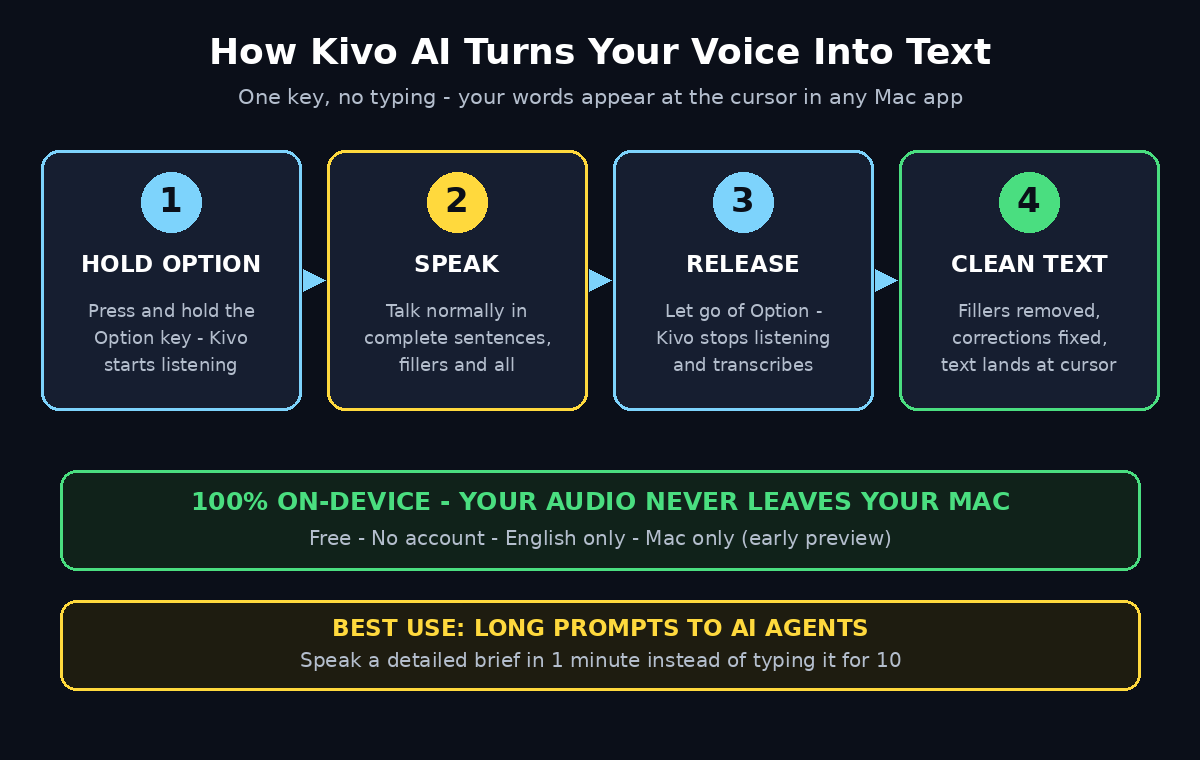
Step 7: Speak Naturally — Let Kivo Clean Up Fillers
Most people hesitate to dictate because they imagine their speech, fillers and all, landing on the page. Kivo is built to handle the way people actually talk.
- Fillers disappear. The “ums,” “uhs,” and “you knows” that pepper normal speech are removed before the text is inserted, so the result reads like something you wrote, not something you mumbled.
- Corrections resolve themselves. If you catch yourself mid-sentence and restart — “the meeting is on Tuesday, no, Wednesday” — Kivo resolves the correction and keeps the final version.
- Punctuation is automatic. Speak in sentences and Kivo places the punctuation. You can also say punctuation out loud (“comma,” “full stop”) if you want exact control over a tricky sentence.
- Speak in thoughts, not words. The best dictation habit is to think in complete sentences and say them out loud. Short bursts work too, but full sentences give the cleanup step more context to work with.
Give yourself a day of practice before judging accuracy. Dictation is a skill, and most people get noticeably better — and faster — after their first few sessions, simply because they learn to think in speakable sentences.
Step 8: Fix Mistakes by Voice with Corrections
No dictation tool is perfect, and Kivo’s preview is no exception. What matters is how quickly you can fix a mistake and keep going. Kivo gives you two ways to correct text.
- Correct as you speak. When Kivo mishears a word, just say the sentence again with the correction — “I meant Wednesday, not Tuesday” — and the cleanup resolves it to the corrected version.
- Fix it by hand. The text Kivo inserts is ordinary text in your app. Click on a wrong word and retype it, or select a sentence and dictate it again. There is no special editing mode to learn.
- Watch for names and jargon. Unusual names, brand names, and technical terms are the most common mishears in any speech model. Say them slowly the first time, and check them before you send anything important.
- Keep the preview in mind. Kivo is early software. If a dictation comes out garbled, it is usually a one-off — try the sentence again rather than fighting the app. Reporting odd results on the Product Hunt page also helps the solo maker improve the model.
Step 9: How to Use Kivo AI for Long Prompts to AI Agents
This is the use case the maker calls out, and it is where Kivo earns its place on your Mac. Long prompts are where typing hurts most and speaking helps most.
- Open your AI agent’s prompt box. That could be Claude Code, Cursor, ChatGPT, Gemini, or any agent you work with. Click into the prompt field.
- Hold Option and describe the task out loud. Explain what you want the way you would explain it to a colleague: the goal, the context, the constraints, and what done looks like. Speaking a detailed brief takes a minute; typing it can take ten.
- Review the text before you send it. Read the prompt Kivo inserted. Fix any misheard names or numbers, add anything you forgot, then send it.
- Iterate by voice too. When the agent replies and you need a follow-up, dictate that as well. A back-and-forth with an agent becomes a conversation instead of a typing exercise.
Teams building AI automation services and agent workflows live in prompt boxes all day, and the people who prompt best usually prompt most. If speaking your prompts lets you give an agent twice the context in half the time, the quality of what comes back improves too — better instructions in, better work out.
One practical tip: dictate prompts in a quiet room when you can. Background noise is the single biggest cause of misheard words, and a clear recording means a clean prompt with no fixes needed.
Step 10: Build a Daily Voice Workflow
Kivo is most useful when it stops being a novelty and becomes a habit. Here is a simple daily workflow that takes a week to settle in:
- Morning planning: dictate your to-do list and the day’s priorities into your notes app instead of typing them.
- Email triage: dictate replies to routine emails. Short replies are the easiest dictation of all, and they clear an inbox fast.
- Writing drafts: dictate the rough draft of a document, a post, or a report, then edit it by keyboard. Speaking first drafts is usually faster than typing them, and editing is where the polish happens anyway.
- Agent sessions: keep Kivo ready whenever you open an AI agent. The longer the prompt, the more time speaking saves you.
- End-of-day notes: dictate a two-minute summary of what you finished and what is next, so tomorrow starts from a clear note instead of a blank page.
Because Kivo is free and has no account, there is no trial clock ticking and no subscription to cancel if you stop using it for a week. That makes it a low-risk habit to try: install it, use it for your longest prompt of the day, and see whether your keyboard starts feeling optional.
Kivo AI vs Other Dictation Tools
Kivo is not the only way to turn speech into text on a Mac. Here is how it compares with the tools beginners usually consider, so you can pick the one that fits your work:
| Tool | How it works | Privacy | Free tier | Best for |
|---|---|---|---|---|
| Kivo | Hold Option, speak, text appears anywhere | On-device, no uploads | Free, no account | Long AI agent prompts on Mac |
| HoldTalk | Hold fn, speak, text appears anywhere | On-device via Apple speech engine | 2,000 words/week after trial | Mac dictation with a personal dictionary |
| Wispr Flow | Hold a key, speak, text appears anywhere | Cloud transcription | 2,000 words/week | Cross-platform dictation with AI edits |
| Apple Dictation | Built into macOS, press a key to dictate | On-device in newer macOS | Free with macOS | Basic dictation with no install |
| superwhisper | Hold a key, speak, AI cleans up text | On-device models available | 3,000 words free, then limits | Polished dictation with voice modes |
Kivo’s clearest edge is the combination of free, no account, and fully on-device — no other tool in this list offers all three at once. Its trade-off is maturity: it is a brand-new preview, English only and Mac only, while the alternatives have had longer to polish their models and add languages.
Frequently Asked Questions About Kivo AI
Is Kivo AI really free?
Yes. Kivo is free, with a listed price of $0 on Product Hunt and no account to create. There is no subscription, no trial that runs out, and no payment step during setup. As with any new launch, free limits and paid plans can change as the product grows, so check the official listing before you build a workflow your business depends on.
Does Kivo AI work on Windows?
Not at launch. Kivo is Mac only in its early preview, and the maker has not announced a Windows version. If you use Windows, watch the Product Hunt page for platform updates, and do not download Kivo from unofficial sites.
Is my voice really private with Kivo?
Yes, by design. Kivo runs its speech model on your Mac, so your audio is never uploaded to a server. The only download is the one-time 460 MB model when you first set it up. Nothing you say leaves your computer during dictation.
Why does Kivo need a 460 MB download?
That download is the speech model itself. Because Kivo transcribes on your device instead of in the cloud, your Mac needs the model locally. It downloads once, and after that dictation works without sending your voice anywhere.
What languages does Kivo AI support?
English only in the early preview. Dictating in other languages will reduce accuracy. More languages are a natural next step as the product matures, so check the official listing for updates if you need another language.
How is Kivo different from HoldTalk?
Both are free-ish Mac dictation apps with a hold-a-key gesture, but they work differently under the hood. HoldTalk runs on Apple’s on-device speech engine in macOS 26 and adds a personal dictionary that learns your words. Kivo ships its own on-device model, removes fillers, resolves spoken corrections, and is free with no account and no word limit mentioned at launch. Kivo is also the newer and rougher of the two — an early preview, while HoldTalk is further along.
Final Thoughts
Kivo AI is a small tool with a clear idea: the fastest way to give an AI agent a good prompt is to say it out loud. Hold Option, speak, let go — and the words appear wherever your cursor is, cleaned up, punctuated, and private, because nothing ever leaves your Mac. For a free preview from a solo maker, that is a strong start.
The honest trade-offs are the ones the maker states himself: English only, Mac only, a little slower than the target speed, and a first launch that needs a manual allow in Privacy & Security. None of those should stop a beginner from trying it. Install Kivo, dictate your longest prompt of the day, and see how much faster the work feels when your keyboard stops being the bottleneck. If voice-first prompting clicks for you, Kivo may quietly become the most-used app on your Mac.
Explore More Free AI Tools
Want more free AI tools like Kivo? Try our AI Title Generator, Meta Description Generator, AI Rewriter, and Keyword Density Checker — all free on AIToolSteps, no sign-up needed.