

Most AI tools give you words about the work. You ask for a website and you get a plan for a website. You ask for a slide deck and you get an outline of a slide deck. Then the real work — the building, the formatting, the fixing — still lands on your desk. Tesseract AI for beginners flips that around completely. You type one sentence, and you get back the finished thing: the website, the slide deck, the video, the logo, the research spreadsheet. That is the whole idea, and it is why this free AI agent is one of the most interesting launches of November 2026.
Tesseract is a free desktop app for Mac, Windows and Linux with an AI agent that does the work instead of describing it. It launches on Product Hunt on November 14, 2026, but you can already download it and try it today. In this beginner-friendly guide, you will learn exactly how to use Tesseract AI for beginners — what it is, how to install it, how to pick your AI agent, how to write a one-sentence request that actually works, how to review the plan before anything runs, and how to use its thirty guided makers to turn everyday jobs into finished files. You do not need any coding skills, and you do not need an API key to start.
Step 1: Understand What Tesseract AI Actually Is
Tesseract AI for beginners is easiest to understand as a worker, not a chatbot. A chatbot answers questions. Tesseract finishes jobs. You say what you need in one sentence, and it plans the job, does the job on your own computer, and hands you the finished result as a real file you can open, edit and share.
Ask it to build a website for your bakery, with a menu and a pre-order page, and it writes the pages, shows them in a live preview and saves them in your folder. Have it turn your notes into a pitch deck and you get slides that open in PowerPoint as real, editable text boxes and native charts — not pictures of slides. Request a video and you get scenes with voice, music and captions, plus a full editor to trim and reframe. Or ask for a logo and you get a palette, lockups, a favicon and social images from a single color.
Here is what Tesseract can hand you as finished work:
- Websites — pages with a live preview, built from one of more than 250 templates and 14 design themes
- Presentations — decks that export to editable PowerPoint and PDF
- Videos — scenes with voice, music and captions, plus a full editor
- Logos and brand kits — a palette, lockups, a favicon and social images from one color
- Fonts — a typeface built from a description, or even from your own handwriting
- Deep research — a sourced report, or a spreadsheet you can sort and share
- Spreadsheets, PDFs, diagrams, drawings, motion graphics, audio, wireframes, invoices, newsletters, comics and forms — through the thirty guided makers on the Home screen, or by simply asking in the chat
Why Tesseract AI for Beginners Is Different From a Chatbot
The difference that matters most for a beginner is this: you stay in charge, but you do not do the typing. Tesseract researches and shows you a plan you can edit before anything runs. Every file it touches lands in a diff you can review and undo. And any step that could remove something or send something waits for your yes. That approval-first design is what makes an agent safe enough for a first-time user.
Step 2: Check What You Need Before You Start
Tesseract AI for beginners is light on requirements, and that is deliberate. Before you begin, make sure you have these four things ready:
- A Mac, Windows or Linux computer. Tesseract is a desktop app, so pick the machine where your files already live. The same app also runs at app.tesseract.dev when you are away from your own computer.
- An internet connection for setup. You need to be online to download the app and to let the agent research and work. Your files themselves stay on your own computer.
- An existing AI account — or nothing at all. Tesseract runs the agents developers already trust, and it signs in with your own account. If you already pay for Claude or ChatGPT, Tesseract costs nothing on top and never meters it. If you have no plan, there is a free allowance that refills, and prepaid credit from $10 for the premium models. There is no subscription.
- One real job to try first. The fastest way to learn Tesseract is to give it something you actually need: a one-page website for a side project, a deck from meeting notes, or a logo for a new idea. A real job teaches you more in ten minutes than a demo ever will.
One honest note before we start: Tesseract is brand new. Its Product Hunt launch is November 14, 2026, and the Uneed launch follows on November 19. Brand-new tools change fast in their first weeks — features appear, small bugs get fixed, and details such as pricing can change after launch week. The official site at tesseract.dev and the Product Hunt launch page are the reliable sources for the latest information, so always check there if something in this guide looks different from what you see on screen.
Step 3: Download and Install Tesseract AI for Beginners
Getting started with Tesseract AI for beginners takes only a few minutes. Open your browser and go to the official site at tesseract.dev, or find Tesseract on Product Hunt and follow the launch link to the official site. Starting from the official site matters: new apps attract copycat download pages quickly, and the official link is the only one you should trust.
On the homepage, look for the download button and pick your system — Mac, Windows or Linux. Download the installer, open it, and follow the normal install steps for your computer. There is nothing to configure from a command line, no plug-in to set up, and no settings maze to survive first. When the app opens for the first time, you will see the Home screen with its thirty guided makers: the common jobs, laid out as one-tap starting points.
Your First Look at Tesseract AI for Beginners
Take two minutes to look around before you ask for anything:
- The Home screen makers. Thirty guided starting points cover the common jobs — website, presentation, video, logo, font, deep research, spreadsheet, invoice, newsletter, comic and more. Anything outside the makers you simply ask for in the chat.
- The chat box. This is where your one-sentence requests go. One sentence in, finished work out.
- Your files. Tesseract works on your own computer, so your files stay in your folders. Every file it touches lands in a diff you can review and undo.
If you work on more than one machine, this is also the moment to notice one of Tesseract’s quieter superpowers: it treats every computer you own as one. Remote desktop between your machines, each machine’s files as a folder in Finder or Explorer, one clipboard across all of them, and agents that keep running on another computer after you close the laptop. You do not need any of that on day one — but it is there when you do.
Step 4: Pick Your AI Agent or Start on the Free Allowance
Here is the part that confuses most beginners, so let us make it simple. Tesseract does not force you to use one AI model. It runs the agents developers already trust — Claude Code, Codex, Gemini CLI, OpenCode, Antigravity CLI, Cursor Agent, Kimi Code, Qwen Code, Grok Build, MiniMax Code, CodeBuddy, Hermes, OpenClaw and NanoClaw — one per conversation, signed in with your own account.
That sounds like a lot of choice, but in practice the decision is easy:
- If you already pay for Claude or ChatGPT, pick that agent. Tesseract costs nothing on top and never meters it, so your existing plan does the work.
- If you have no paid plan, start on the free allowance. It refills, and it is enough to finish real jobs and learn the workflow. When you need the premium models, prepaid credit starts from $10 — and there is no subscription to cancel later.
- If you are not sure, start with the free allowance and the default agent. You can switch agents per conversation, so nothing is locked in.
The practical rule for your first week with Tesseract AI for beginners: do not spend your time comparing agents. Pick one, finish three real jobs with it, and only then try another one to see if you notice a difference. For most beginner jobs — a website, a deck, a spreadsheet — the workflow matters far more than the model name. The plan-review step in the next section is where the quality actually comes from.
Step 5: Write Your First One-Sentence Request
This is the skill that makes Tesseract AI for beginners work, and it is simpler than it looks. A good request has four ingredients: what you want, who it is for, what it must include, and what finished looks like. One sentence can hold all four.
Weak request: “Make me a website.” The agent has to guess everything — the topic, the audience, the pages, the style — and you will spend your time correcting guesses.
Strong request: “Build a one-page website for my home bakery, with a menu, prices, and a pre-order form, in a warm and friendly style.” That single sentence tells Tesseract the product, the audience, the contents and the tone. It can plan properly and build properly, because nothing important was left to guesswork.
Try these starter requests for your first three jobs:
- Website: “Build a website for my bakery, with the menu and a pre-order page.”
- Deck: “Turn these notes into a 10-slide pitch deck for first-time investors, with one chart on slide 6.”
- Research: “Research the five best budget microphones for YouTube beginners and put the results in a spreadsheet I can sort by price.”
Notice what each request does: it names the finished thing, it names the audience or purpose, and it names one concrete detail. That is all the agent needs to start well. If your request is missing one of those, add it before you send — thirty seconds of clarity here saves ten minutes of corrections later.
Step 6: Review and Edit the Plan Before Anything Runs
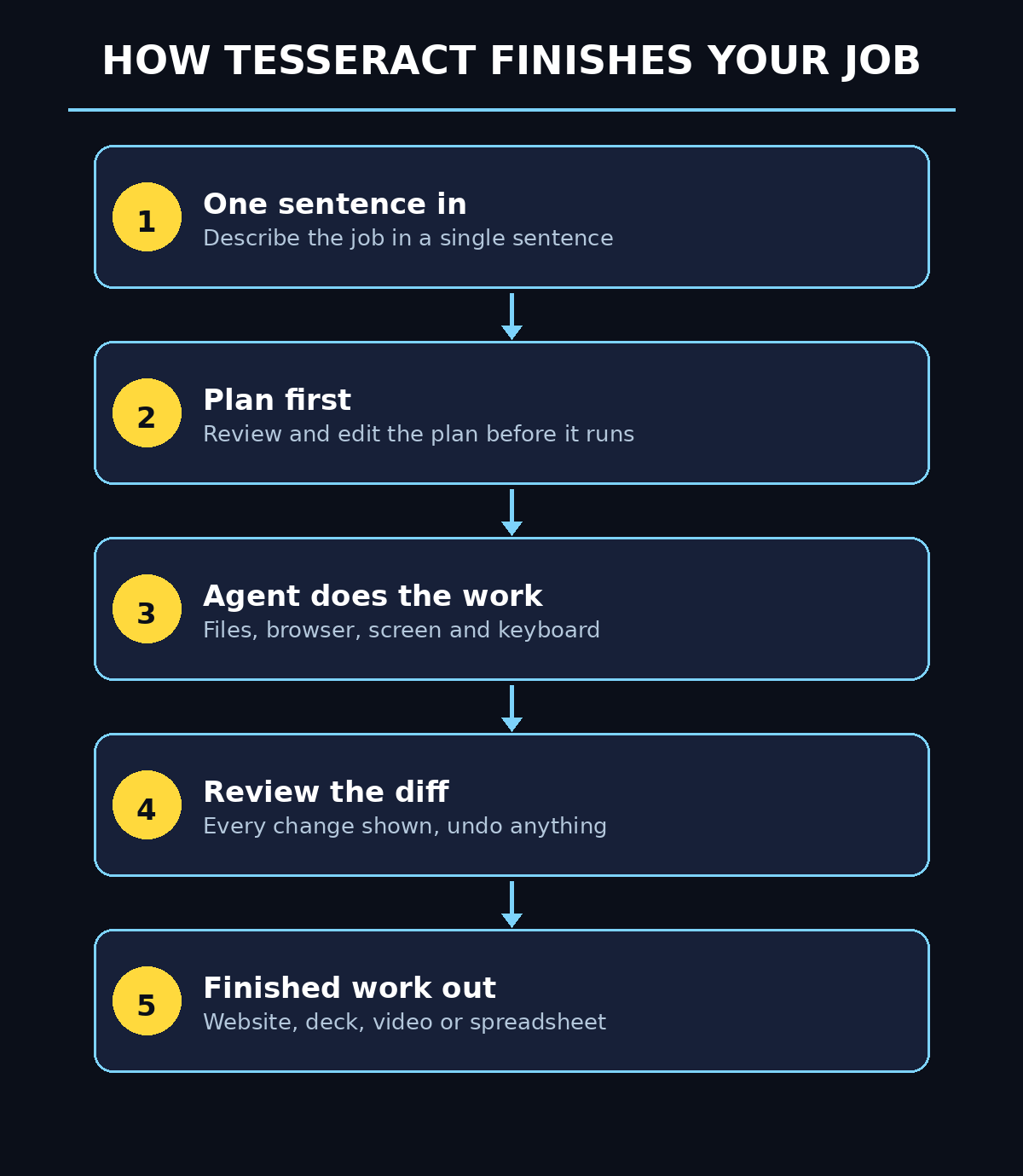
Every bigger job in Tesseract follows the same three steps, and this is the step beginners should never skip. First, Tesseract researches and shows you a plan you can edit: keep a step, change it, drop it or add one. Nothing runs until you approve.
When the plan appears, read it like a checklist, not like a contract. Ask yourself three questions:
- Is anything missing? If your website needs a contact page and the plan has no contact page, add that step now.
- Spot anything wrong? If the plan assumes the wrong audience, the wrong prices or the wrong tone, change that step before it runs.
- Notice anything unnecessary? If the plan adds a blog, a gallery and a newsletter sign-up to a one-page bakery site, drop the steps you do not need.
This plan review is also where Tesseract AI for beginners earns its trust. A chatbot that starts typing immediately can wander off in the wrong direction for ten minutes before you notice. Tesseract shows you the route before it drives, and you can redraw the route in seconds. For a small business owner handing an agent their website, that difference is everything. If you run a digital agency or you manage client work, this is the step you show your team first: the plan is the quality control.
Approve the plan only when you would be happy if every step happened exactly as written. From here on, Tesseract does the work — using the tools a person would, files, the browser, the screen and keyboard — while you watch the progress.
Step 7: Let the Agent Do the Work and Check the Diff
Once you approve the plan, Tesseract gets to work. The second of its three steps is the doing: it uses the tools a person would use, and every file it touches lands in a diff you can review and undo. That diff is your safety net, and learning to read it is the second core skill of Tesseract AI for beginners.
While it works, you will see progress as it happens. Files appear in your folder, pages take shape in the live preview, slides fill in one by one. You do not need to watch every second — in fact, the third step of the workflow is that Tesseract keeps going when you step away. Leave it working overnight. It notes every decision it made, and any step that could remove or send something waits for your yes. In the morning you read the list.
How Tesseract AI for Beginners Keeps Your Files Safe
When the job finishes, check the diff before you call it done:
- Open the finished file yourself. Click the website preview, open the deck in PowerPoint, play the video. Do not judge the job from the chat summary alone.
- Read what changed. The diff shows every file Tesseract touched. If something looks wrong, undo that change instead of starting over.
- Check the details that matter. Prices, dates, names, phone numbers and links are the details agents get wrong most often. Verify them against your own source, every time.
- Ask for fixes in plain language. “Make the headline shorter” or “change the prices to the new menu” works. You do not need to learn any commands.
One habit separates happy Tesseract users from frustrated ones: they review the finished file, not the conversation. The chat will always sound confident. The file is the truth. Open it, read it, click through it — and only then share it with anyone else.
Step 8: Use the 30 Guided Makers for Common Jobs
The thirty guided makers on the Home screen are the fastest way to learn Tesseract AI for beginners inside out, because each one is a job with the questions already worked out. Instead of writing a perfect one-sentence request from scratch, you pick the maker, answer two or three prompts, and the agent builds the finished thing.
Here is how the main makers map to everyday jobs:
- Website maker — pages with a live preview, from more than 250 templates and 14 design themes. Best for a business page, a portfolio or a landing page.
- Presentation maker — a deck that exports to editable PowerPoint and PDF, with real text boxes and native charts. Best for pitches, lessons and reports.
- Video maker — scenes with voice, music and captions, plus a full editor to trim and reframe. Best for explainers and social clips.
- Logo and brand kit maker — a palette, lockups, a favicon and social images from one color. Best for a new business or a rebrand.
- Font maker — a typeface from a description, or from your own handwriting. Best for creators who want a personal touch.
- Deep research maker — a sourced report or a spreadsheet you can sort and share. Best for comparisons, supplier lists and market checks.
The other makers cover spreadsheets, PDFs, diagrams, drawings, motion graphics, audio, wireframes, invoices, newsletters, comics and forms. The practical way to learn them is to spend one afternoon clicking through five makers with small test jobs. You will quickly learn which ones save you real time and which ones you will rarely touch. Anything outside the makers you simply ask for in the chat — the makers are starting points, not limits.
Step 9: Build a Website, a Deck and a Spreadsheet the Smart Way
Knowing the buttons is not the same as getting good results, so here is a realistic first-week workflow that uses Tesseract AI for beginners the way it was designed to be used. It takes three jobs — the three most common beginner jobs — and shows the smart way to run each one.
The website: start from the website maker and pick a template close to your business, then write your one-sentence request with the pages you need. Review the plan, approve it, and check the live preview on your phone as well as your computer. Most visitors will see your site on a phone first, and a layout that looks perfect on a laptop can feel cramped on a small screen. Ask Tesseract to fix anything that looks tight, then save the pages in your folder and keep a copy of the finished files.
The deck: paste your real notes into the chat instead of summarizing them from memory. The agent can only use what you give it, and your notes contain the numbers, names and examples that make a deck believable. Ask for editable PowerPoint output, then open the file in PowerPoint and check that every chart is a native chart you can edit — not a picture of a chart. That editable output is the feature that makes Tesseract decks genuinely useful for work, because you can fix a number on slide 6 without rebuilding the whole deck.
The spreadsheet: use the deep research maker for anything that needs comparing — suppliers, tools, prices, options. Ask for a spreadsheet you can sort, and name the columns you want in your request: name, price, key feature, and a link to the source. Then sort it yourself and delete the rows that do not fit. A spreadsheet you can sort is worth ten times a report you can only read. And if you are comparing tools or services for your business, a team that offers AI automation services can help you turn that shortlist into a working system, instead of a file that sits in a folder.
Tesseract AI for Beginners: Save the Requests That Work
One more practical tip for all three jobs: save your best requests. When a one-sentence request produces a great result, copy it into a note. Next month, when you need a similar website, deck or spreadsheet, you will start from a request that already works instead of from a blank box.
Step 10: Work Across Your Computers, Browser and Team
The last step is the one most beginners skip — and the one that turns Tesseract AI for beginners from a handy tool into a daily habit. Tesseract is built as a whole workspace, not a single-purpose app, and its extra pieces solve the small frictions that usually slow people down.
- Every computer you own, as one. Remote desktop between your machines, each machine’s files as a folder in Finder or Explorer, one clipboard across all of them, and agents that keep running on another computer after you close the laptop. Start a long job on your desktop, check it from your laptop.
- Your own browser. The Tesseract Companion extension for Chrome lets the agent work in the browser where you are already signed in, and fills your passwords from an encrypted vault. That means the agent can do real web jobs — filling forms, checking pages, gathering information — without you handing over logins in the chat.
- Your team. Atrium, the built-in team chat, has channels, threads and an AI teammate that can post its results for everyone. A finished research spreadsheet or a draft deck can land in the team channel instead of in an email attachment.
- The web, when you are away. The same app runs at app.tesseract.dev, so you can check on a job from any computer, not just the one where you started it.
Do not try to set all of this up on day one. Install the desktop app, finish three real jobs, and then add one piece at a time: the Chrome extension first, then the second computer, then Atrium when a teammate needs to see the results. Tools become habits one piece at a time, not all at once.
Tesseract AI vs Other AI Tools: What Makes It Different
Tesseract AI for beginners looks like several tools you already know, but it is not quite any of them. The table below shows the honest difference, so you can decide when to use it and when to use something else.
| Tool | What you get | Best for | Cost to start |
|---|---|---|---|
| Tesseract AI | Finished files: website, deck, video, spreadsheet | Jobs you want done, not described | Free — allowance refills, no subscription |
| ChatGPT / Claude chat | Answers, drafts and explanations in chat | Questions, brainstorming and writing help | Free tier, paid plans available |
| Claude Code / coding agents | Code, built by an agent in your terminal | Developers building software | Depends on your plan |
| Website builders | A site from templates you fill in yourself | Simple sites you build by hand | Free tier, paid plans for custom domains |
| Slide tools | Decks from templates or prompts | Quick presentations | Free tier, paid plans available |
The honest takeaway: if you want an answer, ask a chatbot. If you want a finished file, use Tesseract. And if you already pay for Claude or ChatGPT, Tesseract adds the doing on top of the plan you already pay for — it costs nothing extra and never meters your use. The two tools work better together than either one does alone.
Frequently Asked Questions About Tesseract AI for Beginners
Is Tesseract AI really free?
Yes, to start. Tesseract is a free desktop app for Mac, Windows and Linux, with a free allowance that refills. If you already have a Claude or ChatGPT plan, Tesseract costs nothing on top and never meters it. If you need the premium models without a plan, prepaid credit starts from $10. There is no subscription. Check the pricing page inside your account for the current split between free and paid, because launch pricing can change.
When does Tesseract launch on Product Hunt?
Tesseract launches on Product Hunt on Saturday, November 14, 2026, at 12:01 am Pacific, and on Uneed on Thursday, November 19, 2026. You can already download the app and try it before the launch, and the team answers every comment on the launch page. It is also listed on AI Agents List and G2.
Do I need an API key to use Tesseract?
No. Tesseract runs the agents developers already trust — Claude Code, Codex, Gemini CLI, OpenCode, Antigravity CLI, Cursor Agent, Kimi Code, Qwen Code, Grok Build, MiniMax Code, CodeBuddy, Hermes, OpenClaw and NanoClaw — one per conversation, signed in with your own account. No API key is needed, and with a Claude or ChatGPT plan, Tesseract costs nothing on top.
Can Tesseract really build a website from one sentence?
Yes, and that is the core of the product: one sentence in, finished work out. You ask for a website for your bakery with a menu and a pre-order page, and it writes the pages, shows them in a live preview and saves them in your folder, built from one of more than 250 templates and 14 design themes. The plan-review step before it runs is what keeps the result accurate — approve the plan, then check the finished pages yourself.
Is my work safe? Can Tesseract delete or send my files?
Tesseract is designed approval-first. It researches and shows a plan you can edit before anything runs, every file it touches lands in a diff you can review and undo, and any step that could remove or send something waits for your yes. Your files stay on your own computer. That said, always keep your own backup of anything important — no tool should ever be your only copy.
What can I make with Tesseract besides websites?
Plenty. The thirty guided makers cover presentations that export to editable PowerPoint and PDF, videos with voice, music and captions, logos and brand kits from one color, fonts from a description or your handwriting, deep research as a sourced report or spreadsheet, and spreadsheets, PDFs, diagrams, drawings, motion graphics, audio, wireframes, invoices, newsletters, comics and forms. Anything outside the makers you simply ask for in the chat.
Final Thoughts on Tesseract AI for Beginners
Tesseract AI for beginners comes down to one change in how you work: stop asking AI to describe the work, and start asking it to finish the work. Type one sentence, review the plan, approve it, and check the finished file. That loop — request, plan, approve, review — is the whole skill, and you can learn it in a single afternoon with three real jobs.
Start small and start real. Pick one job you actually need done this week: a one-page website, a deck from your notes, or a comparison spreadsheet. Write your one-sentence request with the four ingredients — what you want, who it is for, what it must include, and what finished looks like. Review the plan before anything runs, check the diff and open the finished file yourself, and save the request that worked so you can reuse it next time.
The tools that win are rarely the ones with the longest feature list. They are the ones that give you back your afternoon. Tesseract’s promise is exactly that: one sentence in, finished work out — and a free allowance that lets you test the promise before you spend anything. Download it, try one real job, and judge it by the file it hands you, not by the launch-day excitement.
Explore More Free AI Tools
Finished your first Tesseract job? Keep the momentum going with more free tools from AI Tool Steps. Try the AI Title Generator to write headlines that get clicked, the Meta Description Generator to craft search snippets that earn the click, the AI Rewriter to polish any draft in seconds, and the Keyword Density Checker to keep your pages search-friendly. Every tool is free, and every guide on this site shows you exactly how to use it.