

Most AI assistants live inside a chat window. You open an app, type a question, get an answer, and close the tab. Wisp AI flips that idea around. It is a small AI fairy who actually lives on your desktop, floats beside your cursor, watches your screen, opens your apps, tidies your folders, answers your email, and even plays games with you when the work is done. It launched on Product Hunt on November 5, 2026, and it is one of the most charming new AI tools of the year. In this guide, you will learn how to use Wisp AI from the first download to your first real tasks, including how to run it almost for free with a local model.
What Is Wisp AI?
Wisp AI is a desktop AI agent with a body. Instead of a faceless chatbot, you get a tiny glowing character — Mira is the default fairy — who stands at the edge of your screen. She is always on top, breathing, blinking, and shifting her weight now and then, but clicks pass straight through her, so she never gets in the way of your work. Talk to her and she answers. Ask her to do something and she actually does it. And she remembers what you told her last time.
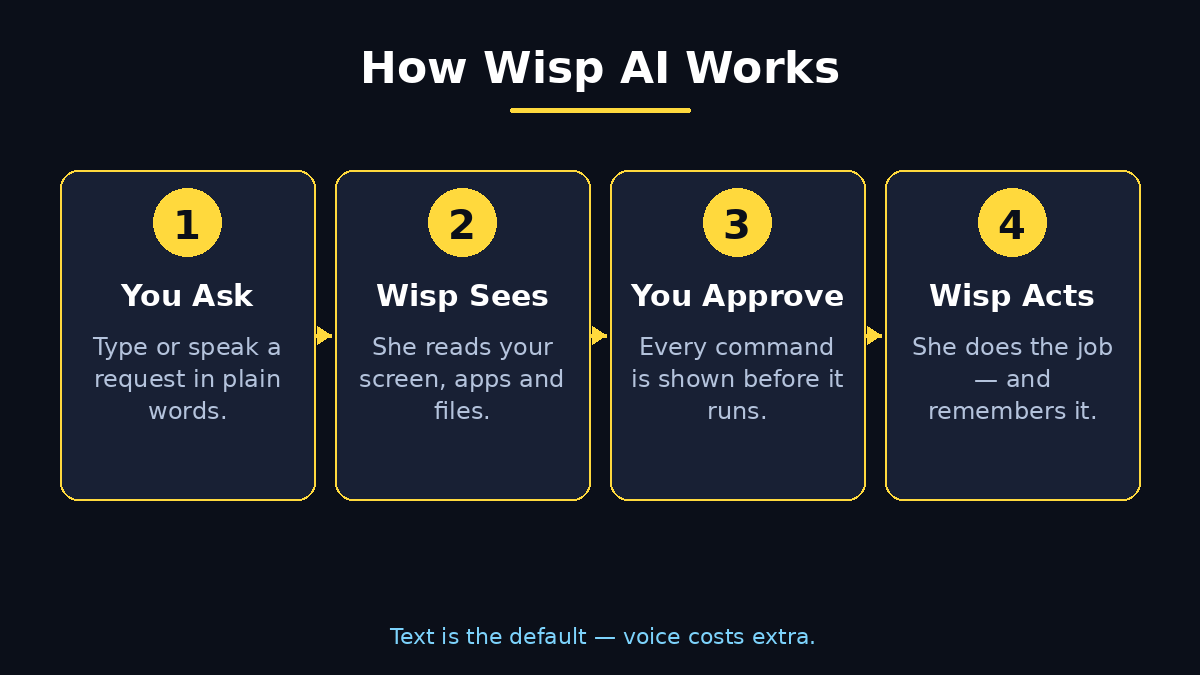
Under the surface, Wisp is a full AI agent. She can see your screen, open apps, websites, and files, arrange windows, and tidy folders. She reads and replies to your email, controls your calendar, Slack, Google Drive, and to-do lists. She builds small software, draws sketches, and makes designs. When you want a break, she plays tennis, fetch, pinball, and board or card games with you, and she even tends a shared virtual farm with you. It sounds like a toy, but the agent underneath is serious: every command she runs on your machine is shown to you first, and nothing happens without your approval.
The pricing is refreshingly simple. Wisp costs $10 as a one-time purchase, with no subscription and free updates. The catch, if you can call it one, is that Wisp runs on your own AI account. Text chat through OpenAI costs roughly $1 a month for light use. Voice conversation uses OpenAI Realtime and costs about $3 to $6 an hour, so text is the default for a reason. If you would rather spend nothing at all, you can point Wisp at a model running on your own machine with Ollama or LM Studio, and text chat costs zero. Voice needs OpenAI, so that part will not work with a local model.
Step 1: Download and Install Wisp
Start at the official Wisp website, which you can reach from the Product Hunt launch page. Download the installer for your Mac and open it like any other app. On the first launch, Wisp will ask for a few permissions, and each one has a clear purpose:
- Screen recording permission: this is how Wisp sees your screen, so she can read what is open and help with what is in front of you.
- Accessibility permission: this lets her open apps, click buttons, and arrange windows on your behalf.
- Notifications permission: this is how she tells you when a long task finishes or when a reminder is due.
Grant the permissions one by one and restart the app if macOS asks you to. Once Wisp is running, you will see Mira standing quietly at the edge of your screen. She is small on purpose. Hover over her or click her to open the chat panel, and you are ready for the next step.
Step 2: Connect Your AI Account or Use a Free Local Model
Wisp does not come with its own AI subscription. You connect the brain yourself, and you have two good options. The easy option is an OpenAI account. Open the Wisp settings, paste your OpenAI API key, and you are done. Light text use costs around $1 a month, and Wisp shows a running cost estimate in settings so the bill never surprises you.
The free option is a local model. Install Ollama or LM Studio, download a small chat model, and point Wisp at it. Everything then runs on your own machine, nothing is sent to a cloud provider, and text chat costs nothing. The trade-off is that voice conversation needs OpenAI Realtime, so voice will not work with a local model. For most beginners, the smart move is to start with a local model for free text chat, and add an OpenAI key later only if you want voice. Either way, set a spending limit in your OpenAI account if you use one, and remember that voice is not cheap — several dollars an hour adds up fast if you leave it running.
Step 3: Meet Mira and Set Up Your Fairy
Mira ships with the app as the default character, a small glowing fairy who fits the name Wisp perfectly. But Wisp can look like anyone. Any VRM model works, and motion uses the standard .vrma format, so the same animation looks right on any model you load. If you have a favourite VRM character, import it from settings and watch it take Mira’s place at the edge of your screen.
Spend two minutes on the basics before you do anything else:
- Position: choose which edge of the screen she stands on, and whether she follows you to an external monitor.
- Size and glow: set her scale and brightness so she is visible but never distracting.
- Voice: pick a voice and speaking speed if you plan to use voice chat, or keep text-only for now.
- Name: give her a name you will actually use when you talk to her, because natural commands work best.
She is designed to feel alive rather than robotic. She breathes, blinks, and shifts her weight while she waits. That little bit of life is the whole point of Wisp: an assistant you can see is an assistant you remember to use.
Step 4: Talk to Wisp for the First Time
Click Wisp and type your first message in plain language, exactly as you would ask a helpful colleague. There is no special syntax to learn. Good first prompts include:
- “What apps do I have open right now?”
- “Open my browser and go to aitoolsteps.com.”
- “Summarize the document on my screen in three bullet points.”
- “Remind me to drink water every hour.”
Watch how she answers. She thinks before she answers, and when your request involves doing something on your machine, she shows you exactly what she is about to run before she runs it. That preview is your safety net. Read it, approve it, and let her work. If a command looks wrong, say so in plain words and she will adjust it. Short, specific requests work better than long, vague ones, especially while you are learning what she can do.
Step 5: Let Wisp See Your Screen and Open Apps
Screen awareness is what makes Wisp different from a chatbot in a browser tab. Because she can see your screen, you can ask questions about what is actually in front of you instead of copying and pasting context yourself. Ask her to read the article open in your browser, explain the error message in your terminal, or compare two windows side by side.
She can also act on what she sees. Ask her to open an app, a website, or a file by name, and she will find it and open it. Ask her to arrange your windows for a focus session — writing app on the left, reference material on the right — and she will set the layout up for you. This is where Wisp starts saving real time. A task that used to take five clicks and two app switches becomes one sentence. Try it with your morning routine first: “Open my email, my calendar, and my to-do list, and arrange them side by side.” Once that works, you will start trusting her with bigger routines.
Step 6: Tidy Your Desktop and Arrange Windows
A messy desktop slows everyone down, and Wisp is surprisingly good at fixing it. Ask her to tidy a folder and she will sort files into sensible groups. Ask her to clean your desktop and she will move stray screenshots, downloads, and documents into place. Always check the result the first few times, because her idea of tidy and yours may differ at first — and she learns from corrections.
Window arranging works the same way. Give her a layout in words: “Put my code editor on the left, the browser on the right, and keep my notes app small in the corner.” She will move and resize the windows for you. If you work with the same layout every day, save it as a routine you can trigger with a single sentence. Freelancers and students get the most from this step, because a clean workspace at the start of the day means less time hunting for files and more time doing the actual work.
Step 7: Hand Wisp Your Email, Calendar, and To-Dos
Once you trust Wisp with your screen, connect the apps that run your day. Wisp can read and reply to your email, check your calendar, look at Slack, open files in Google Drive, and manage your to-do lists. The key rule stays the same: she shows you what she is about to send before she sends it, so an email never goes out without your approval.
Start with low-risk jobs and build up. Ask her to summarize your unread emails each morning, draft replies for you to approve, add events to your calendar from a message, or pull your top three tasks for the day from your to-do list. If you run a small business, this is where Wisp earns her keep. A digital agency owner, for example, can have Wisp draft client follow-ups and prepare the day’s meeting notes while the human focuses on the creative work that actually needs a person. Keep the approval step on for anything that leaves your computer, and you get the speed of an agent with the safety of a human in the loop.
Step 8: Build Small Software and Sketches with Wisp
Wisp is not only an organizer. She builds small software, draws sketches, and makes designs on request. Ask for a simple landing page, a small script that renames your files, or a quick sketch of a logo idea, and she will create it. Long jobs hand off to the Terminal, so nothing gets cut off halfway through, and you can watch the progress as it runs.
Two habits make this step work well. First, always review the command preview before you approve it, especially when the job touches your files. Second, describe the result you want, not the code: “Build me a one-page site with a headline, three features, and a contact button” beats a paragraph of technical instructions. Beginners can use this to learn by watching — every command she runs is visible, so you can see how a small program comes together, ask her to explain each part, and change it yourself next time.
Step 9: Play Games and Tend the Shared Farm
Here is the part no other desktop assistant offers. When the work is done, Wisp plays with you. She plays tennis, fetch, pinball, and board or card games right on your desktop, and she tends a shared virtual farm with you — a small garden you grow together over days and weeks. It is deliberately playful, and that is the point. A companion you enjoy spending time with is one you will actually keep using.
Do not dismiss the games as a gimmick. They are the fastest way to learn how Wisp responds, how quickly she reacts, and how to talk to her naturally. Five minutes of fetch teaches you more about her timing and personality than a manual ever will. And on a long workday, a two-minute game is a better break than another scroll through social media.
Step 10: Teach Wisp to Remember
Most chatbots forget everything when you close them. Wisp does not. She writes down the parts of a conversation worth keeping, so it is still there next time you talk to her. If you use Obsidian, she can save those memories directly into your Obsidian vault. If you do not, she keeps them inside the app. Either way, the memory is yours and it persists across sessions.
Teach her deliberately. Tell her things like “Remember that I prefer short emails” or “My project deadline is December 1” or “I like my code with comments.” Then test the memory a day later: “What is my project deadline?” Good memory turns Wisp from a tool you command into an assistant who knows you. If you ever want a clean slate, clear the stored memories from settings and start again.
Step 11: Keep Costs Low and Stay in Control
Wisp is cheap to run, but only if you respect the two things that cost money: voice and heavy API use. Keep text as your default, use a local model through Ollama or LM Studio when you can, and treat voice as a treat rather than the default. Check the running cost estimate in settings once a week. If you connected OpenAI, set a monthly spending limit in your OpenAI account so a forgotten voice session can never surprise you.
Control matters just as much as cost. Wisp never acts without showing you the command first, and that approval step is not a setting you should ever switch off. Review what she runs, keep approvals on for emails and file changes, and remember that everything she does happens on your machine, under your account, with your AI key. That is also why the wider world of agentic AI is moving in this direction: small agents that live where you work, remember what matters, and ask before they act. Wisp is one of the friendliest ways to step into that world.
Wisp AI vs Other Desktop AI Assistants
How does Wisp compare with the better-known desktop assistants? The table below shows the practical differences at launch.
| Feature | Wisp AI | ChatGPT Desktop App | Microsoft Copilot |
|---|---|---|---|
| Visible on-screen character | Yes — a living fairy at the screen edge | No | No |
| Sees your screen | Yes, continuously | Screenshots on request | Yes, in Copilot Vision sessions |
| Opens apps, files, and websites | Yes | Limited | Limited |
| Runs commands on your machine | Yes, with your approval | No | No |
| Email, calendar, and to-do control | Yes | Via connectors | Yes, in Microsoft 365 |
| Memory that persists | Yes, incl. Obsidian vault | Yes, in chat | Yes, in Microsoft 365 |
| Plays games with you | Yes — tennis, fetch, pinball, cards | No | No |
| Price model | $10 one-time + your own AI account | Free tier + subscription | Free tier + Microsoft 365 |
Wisp wins on charm, on-screen presence, and direct control of your machine. The bigger apps win on ecosystem depth if you already live inside Microsoft 365 or pay for ChatGPT. For a beginner who wants an assistant that feels alive and can run on a free local model, Wisp is the more interesting choice.
Frequently Asked Questions About How to Use Wisp AI
Is Wisp AI free?
Wisp itself costs $10 as a one-time purchase, with no subscription and free updates. The AI behind it is billed separately by your provider: text through OpenAI costs roughly $1 a month for light use, voice costs about $3 to $6 an hour, and text through a local model with Ollama or LM Studio costs nothing at all.
Does Wisp AI work on Windows?
Wisp launched for Mac, and the launch describes it floating beside the cursor on a Mac desktop. Check the official website for the latest platform support before you buy, because new platforms are often added quickly after launch.
Is Wisp safe? Can it act without asking me?
No. Wisp shows you exactly what she is about to run on your machine every time, and nothing happens without your approval. That approval step is the core safety design of the app, so keep it switched on, especially for emails and file changes.
Can I use Wisp without an OpenAI account?
Yes, for text chat. Point Wisp at a model running on your own machine with Ollama or LM Studio and text costs nothing. Voice conversation is the only feature that needs OpenAI, because it uses OpenAI Realtime.
What is the shared farm in Wisp?
The shared farm is a small virtual farm you tend together with Wisp over days and weeks. It is a playful companion feature rather than a productivity tool, and it is part of what makes Wisp feel like a companion instead of just another app.
Can Wisp remember things about me?
Yes. Wisp writes down the parts of a conversation worth keeping, and the memory is still there next time. If you use Obsidian, she can save memories into your Obsidian vault; otherwise she keeps them inside the app.
Final Thoughts
Wisp AI is the rare AI tool that is both useful and delightful. The $10 one-time price and the free local-model option make it cheap to try, the approval-before-action design makes it safe to trust, and the little fairy at the edge of your screen makes it the kind of tool you actually remember to use. Start with the free local-model setup, teach her your routines one at a time, and let her earn bigger jobs — email drafts, window layouts, small software — as your confidence grows. The future of personal AI looks a lot like this: small, visible, and living where you work.
Explore More Free AI Tools
Want to keep building your free AI toolkit? Try the AI Title Generator, Meta Description Generator, AI Rewriter, and Keyword Density Checker at aitoolsteps.com — free tools that pair perfectly with your new desktop fairy.