

Most of us start the working day the same way: one tab for email, another for the calendar, a third for notes, a fourth for tasks, and a fifth for the spreadsheet we forgot we opened yesterday. By lunch we have spent more time switching between apps than doing the actual work. Stitch.ai was built to end that tab-hopping. It brings mail, calendar, contacts, tasks, notes, sheets, slides, boards and files into one connected workspace, with an AI assistant called Stitchy working across all of it.
Stitch.ai launched on Product Hunt on November 5, 2026, and it took the number one spot the next day, which tells you how many people feel this pain. This beginner-friendly guide shows you exactly how to use Stitch.ai: what it is, how to create your free account, how to bring your mail and calendar in, how to organise notes and tasks, and how to let Stitchy find information, schedule events, draft emails and surface files you forgot about. You do not need any technical skills, and you do not need a credit card to start.
One important clarification before we begin: Stitch.ai is not Google Stitch. Google Stitch is a Google Labs tool that turns text prompts into app screen designs. Stitch.ai is a completely different product from Atlassian — a full workspace for your mail, calendar, notes and tasks. They share a name and nothing else, so make sure you open stitch.ai, not stitch.withgoogle.com.
Step 1: Understand What Stitch.ai Actually Is
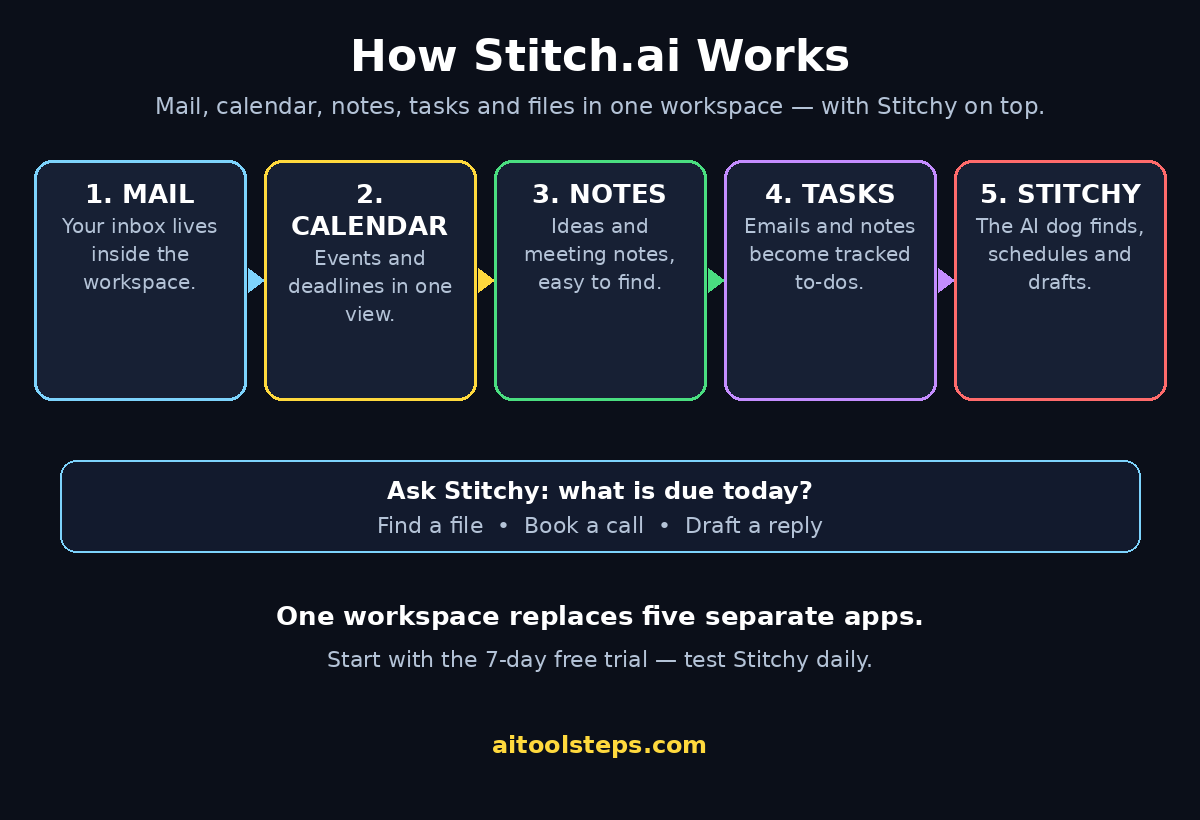
Stitch.ai is an all-in-one workspace. Instead of five separate apps that barely talk to each other, you get one place where everything is already connected. Your email lives next to your calendar. Your notes sit beside your tasks. Your files, sheets and slides are in the same workspace, so the AI assistant can see the full picture when you ask it something.
Everything is built in, so there are no integrations to configure and no extra email client to install. You sign up, and mail, calendar, contacts, tasks, notes, sheets, slides, boards and files are all there. That is the core idea: the workspace is the product, not a collection of plugins.
The second idea is Stitchy, the AI assistant. Stitchy is a friendly robot dog that lives inside your workspace and has access to your mail, calendar, notes, files and tasks. You can ask her to find information, schedule events, send emails, and surface files and notes you forgot about. Because she can see across your whole workspace, she can answer questions a single-app assistant cannot — like “what did the client say about the deadline, and is it on my calendar?”
Think of it this way: if your current setup is a desk covered in separate piles of paper, Stitch.ai is a desk where every pile is labelled, linked and searchable by one assistant. For a freelancer juggling clients, a student managing classes and deadlines, or a small team drowning in tools, that is a genuinely useful change.
Step 2: Create Your Free Stitch.ai Account
Getting started takes a few minutes, and the Product Hunt listing shows a price of $0, with a free 7-day trial of the paid features.
- Open the official site. Go to stitch.ai in your browser, or open the Stitch.ai page on Product Hunt and follow the launch link to the official website. Always start from the official site, never from a random download link.
- Sign up with your email. Enter your email address and create your account. There is no credit card step for the free trial.
- Confirm your email. Check your inbox for the confirmation message and click the link to verify your address.
- Pick your workspace name. Give your workspace a name — your own name, your business name, or a project name. You can change it later.
- Choose what you do. Stitch.ai may ask a couple of setup questions about how you work, so it can arrange your workspace sensibly. Answer honestly; it only affects the starting layout.
Because Stitch.ai is brand new — it launched on November 5, 2026 — expect the product to change quickly in its first weeks. Treat the official site and the Product Hunt listing as the source of truth for the latest features and pricing, and check the pricing page inside your account before you build a workflow your business depends on.
Step 3: Take the First Tour of Your Workspace
When you first sign in, take ten minutes to look around before you import anything. A workspace you understand is a workspace you will actually use.
- Mail is your inbox, built into the workspace instead of living in a separate app.
- Calendar shows your events and lets you book time without leaving the workspace.
- Notes is where quick thoughts, meeting notes and reference material live.
- Tasks turns emails and notes into to-dos you can track.
- Sheets and Slides cover simple tables and presentations without opening another app.
- Boards are visual spaces for planning projects, like a whiteboard with cards.
- Files keeps your documents in one place, searchable by Stitchy.
- Stitchy sits in the workspace ready to help — look for her in the sidebar or the assistant panel.
Click through each section once. Notice how an email can become a task, how a task can link to a note, and how the calendar shows what is due. That connectedness is the whole point of Stitch.ai, and it is what makes Stitchy useful later.
Step 4: Bring Your Mail Into Stitch.ai
Mail is the heart of most workdays, so set it up first. Because mail is built into Stitch.ai, you do not need a separate email client.
- Connect your email account. In the Mail section, follow the prompts to connect the email address you already use. Stitch.ai will guide you through the sign-in for your provider.
- Let your inbox load. Give it a few minutes to pull in your recent messages. Your folders and labels should come across with them.
- Try the basics. Read a message, reply to one, and star an important email. Check that sending works by emailing yourself or a colleague.
- Turn an email into a task. Open an email that needs action and convert it into a task with a due date. This one habit — email in, task out — is how the workspace starts paying for itself.
- Ask Stitchy to summarise. Select a long email thread and ask Stitchy for a short summary. This is the fastest way to feel what an assistant with full workspace access can do.
A practical tip for busy inboxes: use Stitchy to triage. Ask her to find every email from a particular client, or every message that mentions an invoice, and you will see in seconds why having mail and AI in the same place matters. Small businesses that run their client work through email often find this is where a digital agency would normally step in to organise things — Stitch.ai gives you a simpler, do-it-yourself version of that same tidy-up.
Step 5: Connect Your Calendar and Contacts
Once mail is in, connect your calendar so Stitchy can schedule around your real availability.
- Connect your calendar. In the Calendar section, connect the calendar you already use. Your existing events should appear in the Stitch.ai calendar view.
- Check your contacts. Your contacts come with the workspace, so the people you email most are already there when you need to invite someone or assign a task.
- Create your first event. Add a meeting from inside Stitch.ai and invite a colleague. Notice that you can attach a note or a file to the event, so everything for that meeting lives in one place.
- Ask Stitchy to schedule. Try asking Stitchy to find a free hour with a colleague next week. She can see your calendar and your mail, so she can propose times that actually work and draft the invitation.
The calendar is also where the workspace starts to feel like one system instead of many. A deadline in your tasks shows up next to the meeting about it, and an email about a call links to the calendar event for that call. You stop keeping the same fact in three places.
Step 6: Organise Notes, Tasks, Sheets and Files
With mail and calendar connected, build the rest of your workspace. The goal is simple: everything you need for a piece of work should be findable in under a minute.
- Start a note for each project. Create one note per client or project and keep decisions, links and ideas in it. A short note beats a perfect note you never write.
- Make tasks from notes. When a note contains something to do, turn it into a task with a due date and, if you work with others, an owner.
- Keep one task list per day. Each morning, pick three tasks that matter most and pin them. Stitchy can help here too — ask her what is due today and what is overdue.
- Use Sheets for simple tracking. A budget, a content list or a client tracker fits nicely in Stitch.ai Sheets without opening a separate spreadsheet app.
- Store files in the workspace. Upload the documents you reach for often, so Stitchy can find them when you ask. A file buried in a downloads folder cannot help you; a file in your workspace can.
Teams that run content, client work or small projects across many tools often pay for AI automation services to glue everything together. Stitch.ai takes the opposite approach: instead of gluing separate tools, it puts the tools in one place from the start, so a beginner gets the connected feeling without setting up any automation at all.
Step 7: Meet Stitchy, Your AI Assistant
Stitchy is the feature that makes Stitch.ai more than a tidy bundle of apps. She is an AI assistant — drawn as a friendly robot dog — with access to your mail, calendar, notes, files and tasks, so she can work across all of them in one conversation.
- Find Stitchy. Look for her in the workspace sidebar or assistant panel. Click to open a chat with her.
- Ask her to find things. Try “find the file about the March invoice” or “what did Sara say about the launch date?” She searches across your whole workspace, not just one app.
- Ask her to summarise. Point her at a long email thread, a meeting note or a document and ask for the key points in plain language.
- Ask her to draft. “Draft a polite reply to this email” or “write a short update for the team about the project” are good first prompts. Always read the draft before sending — Stitchy is fast, but you are responsible for what goes out under your name.
- Ask her to schedule. “Book a 30-minute call with Ahmed next Tuesday” works because she can see your calendar and your contacts together.
One honest note: Stitchy is available on paid plans on the Stitch.ai app, according to the launch video, so check inside your account whether your trial includes her and what happens when the trial ends. The free 7-day trial is the right time to test her properly — use her every day for a week, then decide whether she earns a paid seat.
Step 8: Ask Stitchy to Find, Schedule and Draft for You
Once you know what Stitchy can do, build a daily routine around her. The best AI assistants are the ones you use for the same small jobs every day until the habit sticks.
- Morning brief. Start the day by asking Stitchy what is on your calendar, what is due, and which emails need a reply. In one answer you get the shape of your whole day.
- Meeting prep. Before a call, ask her to pull together the notes, files and emails about that client or topic. You walk in prepared instead of searching five apps for context.
- Follow-up drafts. After a meeting, ask her to draft the follow-up email from your notes, then edit it in your own voice before sending.
- Lost file rescue. When you know a file exists but not where it lives, describe it to Stitchy instead of digging through folders. “The presentation with the blue cover about pricing” is often enough.
- End-of-day tidy. Ask her what is still open and what slipped today, then turn the leftovers into tomorrow’s tasks.
Keep your prompts specific. “Find the contract” is vague; “find the signed contract PDF for the Riverside project” gets you the right file the first time. The more precise your words, the more useful her answer — the same rule that applies to every AI tool, from chatbots to Bridge AI, which also puts AI agents inside your meetings.
Step 9: Build Boards and Run Projects in One Place
Boards are Stitch.ai’s visual planning space, and they are where the workspace idea clicks for teams. A board is a shared surface where cards can hold notes, tasks, files and links together.
- Make a board for one project. Name it after the project, not the tool — “Website Redesign”, not “Tasks”.
- Add columns for stages. Simple columns like To Do, Doing and Done are enough to start. Move cards across as work progresses.
- Attach the real work. Link the relevant note, file and email thread to each card, so anyone opening it has the full context without asking you.
- Let Stitchy keep it honest. Ask her which cards have not moved in a week, or which tasks on the board have no owner. A board nobody updates is decoration; a board Stitchy helps you maintain stays true.
For a solo user, a board is a gentle project manager. For a small team, it replaces the status meeting: everyone can see what is moving and what is stuck without a call about it. If you already run projects in another tool, keep both for a week and compare — the one you open first in the morning is the one that is actually working for you.
Step 10: Understand the Free Plan, Limits and Pricing
Stitch.ai lists a price of $0 on Product Hunt and offers a free 7-day trial of the paid features, with Stitchy available on paid plans. That means the sensible way to try it is: use the trial hard for seven days, then decide.
- Test Stitchy daily. She is the main reason to pay, so judge her on a week of real work, not a five-minute demo.
- Check what stays free. Look in your account settings for which parts — mail, calendar, notes, tasks — remain available after the trial, and which need a paid plan.
- Count your seats. If a team will use it, check the per-person pricing before inviting everyone. A tool that is cheap for one person can surprise you at ten.
- Confirm the export options. Before you move your whole work life in, check how your notes, tasks and files come back out. A workspace should never hold your work hostage.
- Watch for launch changes. Stitch.ai is days old at the time of writing, so features, limits and prices can all move. The pricing page on stitch.ai is the source of truth, not this article.
Step 11: Stitch.ai vs the Alternatives
Stitch.ai is not the only way to organise your work. Here is how it compares with the tools most beginners already know, so you can decide whether switching is worth it.
| Tool | What it does best | AI assistant | Price to start | Best for |
|---|---|---|---|---|
| Stitch.ai | Mail, calendar, notes, tasks, files in one workspace | Stitchy, across the whole workspace | $0 listed, 7-day free trial | People who want one workspace, not five apps |
| Google Workspace | Gmail, Calendar, Docs, Drive that everyone knows | Gemini, inside Google apps | Free Gmail; paid Workspace plans | Teams already living in Google apps |
| Notion | Flexible notes, docs and databases | Notion AI, inside pages | Free plan available | Note-takers and knowledge bases |
| Microsoft 365 | Outlook, Teams, Word and Excel together | Copilot, across Microsoft apps | Paid plans; some free web apps | Workplaces standardised on Microsoft |
| Superhuman | Extremely fast email with AI triage | AI email drafting and triage | Paid, from $30/month | Email-heavy professionals |
The honest summary: Google Workspace and Microsoft 365 are safer choices if your whole team already lives there. Notion is better if notes and documents are your main work. Stitch.ai wins for someone starting fresh who wants mail, calendar, notes and tasks in one place with an assistant that can see all of it — especially a freelancer or small team tired of paying for five subscriptions. Its weakness is its age: it launched on November 5, 2026, so it does not yet have the years of polish, integrations and community answers the older tools have.
Step 12: Honest Limits Beginners Should Know
Every new tool has rough edges, and a good guide says so plainly. Here are the limits to keep in mind before you commit your work to Stitch.ai.
- It is days old. Stitch.ai launched on November 5, 2026. Expect bugs, missing features and fast changes in the first weeks. Keep a backup of anything critical outside the workspace until it proves itself.
- Stitchy is a paid feature. The assistant is the headline feature, and it sits on paid plans. Budget for that if she becomes part of your daily work.
- Fewer integrations than older tools. Because everything is built in, you may miss a niche app you rely on. Check your must-have tools before switching fully.
- AI mistakes are your mistakes. Stitchy can misread an email, draft the wrong tone, or book the wrong time. Read everything before it goes out, especially to clients.
- Your data trains nothing by default — verify. Check the privacy settings in your account to see how your workspace data is used, and adjust them to your comfort before importing sensitive mail.
- Name confusion is real. People will mix Stitch.ai up with Google Stitch. When you share it with colleagues, send the link — stitch.ai — not just the name.
Frequently Asked Questions About Stitch.ai
Is Stitch.ai really free?
Stitch.ai is listed at $0 on Product Hunt and offers a free 7-day trial of the paid features. The workspace itself is free to start, while Stitchy, the AI assistant, is available on paid plans. Check the pricing page inside your account for the current split between free and paid, because launch pricing can change.
Is Stitch.ai the same as Google Stitch?
No. Google Stitch is a Google Labs tool that turns text prompts into app screen designs, at stitch.withgoogle.com. Stitch.ai is a separate product from Atlassian — an all-in-one workspace for mail, calendar, notes, tasks and files, at stitch.ai, with an AI assistant called Stitchy. They share a name and nothing else.
Does Stitchy read my email?
Yes, by design — that is how she can find information, summarise threads and draft replies. She works across your mail, calendar, notes, files and tasks inside your workspace. If that worries you, review the privacy settings in your account before connecting a sensitive inbox, and keep confidential mail out until you are comfortable.
Which devices can I use Stitch.ai on?
Stitch.ai is a web workspace, so it runs in your browser on any computer. Check the official site for mobile apps and desktop apps, since a brand-new launch may add those after the first release. Your workspace and data stay in your account, so you can sign in from any device.
Can I leave Stitch.ai and take my work with me?
Before you move your whole work life into any new workspace, check the export options in your account settings — how notes, tasks and files come back out. A good workspace makes leaving easy. Confirm this during your free trial, not after a year of use.
Who should try Stitch.ai first?
Freelancers, students and small teams who juggle mail, calendar, notes and tasks across too many apps will feel the benefit fastest. If you already run your work in one system that everyone on your team knows, the switching cost may not be worth it yet — try the trial for a single project first and compare honestly.
Final Thoughts
Stitch.ai arrives at exactly the right moment. Work has split across so many apps that organising the work now takes longer than doing it, and a workspace that puts mail, calendar, notes, tasks and files in one place — with an assistant that can see all of it — is a genuinely useful idea. Its number one Product Hunt launch on November 5, 2026 suggests a lot of people agree.
Try it the right way: sign up free, connect your mail and calendar, build one project board, and use Stitchy every day of the 7-day trial. If, by day seven, you are opening Stitch.ai first every morning instead of your old five tabs, it has earned its place. If not, you have lost nothing but a week of experimenting — and you will know exactly what you actually need from a workspace, which is useful knowledge on its own.
Explore More Free AI Tools
Stitch.ai is one of many free AI tools that can tidy up your working day. Explore more beginner-friendly guides on AIToolSteps: try the AI Title Generator to write better headlines, the Meta Description Generator for search-ready summaries, the AI Rewriter to polish your drafts, and the Keyword Density Checker to keep your content SEO-friendly. Small tools, used daily, add up to hours saved every week.