

You copy an API key from your dashboard, paste it into ChatGPT to debug an error, and only later realise the key is now sitting in a chat log on someone else’s server. The same thing happens with passwords, email addresses, card numbers and client data — one careless paste and your secret is gone. PasteGuard AI catches that mistake before you hit send.
PasteGuard AI for Mac was built to stop exactly that mistake. Launched on Product Hunt on November 3, 2026, PasteGuard is a free Mac menu-bar app that watches your clipboard and masks secrets the moment you copy them, so every paste into ChatGPT, Claude, Slack or a terminal is safe. It needs no account, no permissions and no internet connection — nothing ever leaves your Mac.
This beginner-friendly guide shows you exactly how to use PasteGuard AI, from installing it free to setting up custom rules, turning on the on-device Apple Intelligence check, and building a daily habit that keeps your secrets out of AI chats. You do not need any technical skills, and you do not need a credit card to start.
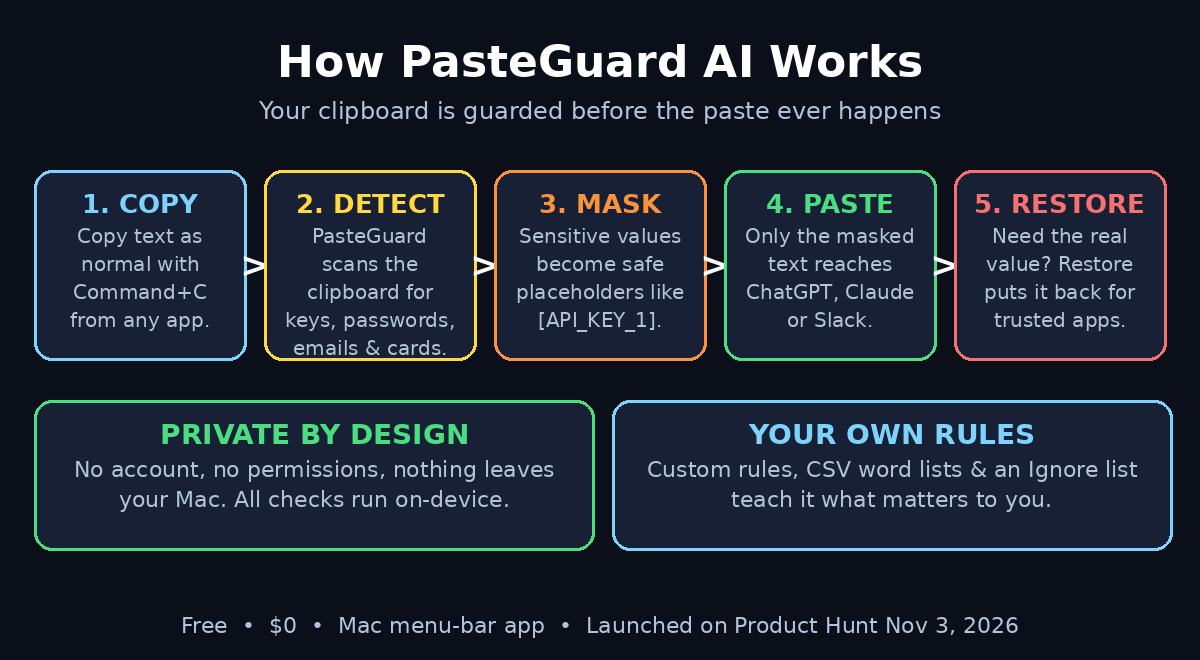
Step 1: Understand What PasteGuard AI Actually Is
PasteGuard AI is not another chatbot, and it is not a password manager. It is a small Mac app that lives in your menu bar and guards your clipboard — the invisible place where everything you copy waits before you paste it.
Here is the simple version of how it works:
- Copy. You copy something the normal way — Command+C — from any app on your Mac.
- Detect. PasteGuard checks the copied text the instant it lands on the clipboard. It recognises API keys, passwords, email addresses, card numbers, tokens and other sensitive patterns.
- Mask. If the text looks sensitive, PasteGuard replaces the real values with safe placeholders, like [EMAIL_1] or [API_KEY_1], right on the clipboard.
- Paste. When you paste into ChatGPT, Claude, Slack, email or a terminal, only the masked version goes in. Your secret never reaches the other app.
- Restore. When you need the real value back — for example to paste a key into your own code editor — one shortcut puts the original text back on the clipboard.
The key idea is that PasteGuard protects you at the moment of copying, not at the moment of pasting. By the time your fingers reach Command+V, the dangerous text is already gone. That is why it works in every app, not just in one browser or one chat window.
One important note: there are a few products called PasteGuard, including a Windows clipboard app and a browser extension with a similar name. This guide covers the Mac app that launched on Product Hunt on November 3, 2026. If you use Windows, look for the Windows edition from the same family — the ideas in this guide still apply, but the menus will look different.
Step 2: Check What Your Mac Needs
PasteGuard AI for Mac is a lightweight menu-bar app, so the requirements are simple. Before you download it, check two things:
- You need a Mac. PasteGuard for Mac runs on macOS. There is no Windows or Linux version of this exact app, and no iPhone or Android version. If your main computer is a Windows PC, this guide is not for you — but the privacy habit in Step 10 still is.
- Apple Intelligence is optional. The extra on-device AI check uses Apple Intelligence, which is available on newer Macs with Apple silicon. If your Mac does not support Apple Intelligence, PasteGuard still works — the built-in pattern rules do the masking, and you lose nothing essential.
You do not need an account, an email address or a credit card. The Product Hunt listing shows a price of $0, and the app asks for no special permissions. That is the whole point: a privacy tool that asks for your data would defeat its own purpose.
Step 3: Download and Install PasteGuard AI for Free
Installing PasteGuard takes about two minutes, and there is no setup wizard to fight through.
- Find the official download. Search for “PasteGuard for Mac” on Product Hunt and open the launch page, or search the web for PasteGuard and open the official site from the launch listing. Always download from the official source — a clipboard app from a random mirror is exactly the kind of risk you are trying to avoid.
- Download the Mac app. The listing shows a price of $0. Download the app file and move it to your Applications folder, the same way you install any Mac app.
- Open it once. The first time you open PasteGuard, macOS may ask you to confirm that you want to run an app downloaded from the internet. Click Open. PasteGuard appears as a small icon in your menu bar, at the top right of your screen.
- Leave it running. PasteGuard only protects you while it is running. It is designed to sit quietly in the menu bar and start with your Mac, so set it to launch at login if the app offers that option. If you quit it, your clipboard is unguarded again.
There is nothing to sign up for and nothing to configure before your first protected paste. The default rules are already on.
Step 4: Let PasteGuard Watch Your Clipboard
Once PasteGuard AI is running, it watches your clipboard in the background. You do not need to open the app or press anything for it to work.
The default rules catch the secrets most people paste by accident:
- API keys and tokens — the long random strings from OpenAI, Stripe, GitHub, AWS and other services.
- Passwords — anything that looks like a login password.
- Email addresses — your own address and other people’s.
- Card numbers — credit and debit card numbers.
- Other personal data — phone numbers and similar patterns, depending on the built-in rules.
Try it right now: copy any API key or password you have handy, then paste it into a plain text note. You should see a placeholder like [API_KEY_1] instead of the real key. That is PasteGuard doing its job. If you see the real key, check that the app is actually running in the menu bar — a quit app protects nothing.
Because all of this happens on your Mac, nothing is uploaded anywhere. PasteGuard’s own description is blunt about it: no permissions, no account, nothing leaves your Mac. For a privacy tool, that is the feature that matters most.
Step 5: Copy Something Sensitive and Watch It Mask
The best way to understand PasteGuard is to see it mask something in real time. Here is a safe test you can run in under a minute.
- Open any app with a secret in it. Your password manager, a developer dashboard, or a settings page with an API key all work.
- Copy the secret. Select it and press Command+C, exactly as you normally would.
- Paste it into a safe place. Open TextEdit or Notes and press Command+V.
- Look at what arrived. Instead of the real secret, you should see a placeholder token such as [API_KEY_1] or [EMAIL_1]. The real value never reached the clipboard in its raw form.
If you copy something ordinary — a sentence from a web page, a link, a normal word — PasteGuard AI leaves it alone. It only steps in when the text matches a sensitive pattern, so your everyday copying and pasting feels exactly the same as before.
This is also the moment to learn PasteGuard’s one golden rule: the masked text is what travels. Once a secret is masked on the clipboard, every paste of it carries the placeholder. That is protection, not a bug — but it means you need to know how to get the real value back when you actually need it. That is Step 7.
Step 6: Paste Into ChatGPT or Claude Safely
This is the workflow PasteGuard AI was built for. You are debugging code, writing a prompt, or asking an AI to explain an error — and the text you need to paste contains a secret.
- Copy the text that contains the secret. It could be an error log with an API key in it, a config file, or a code snippet with a token.
- Let PasteGuard mask it. The moment you copy, the sensitive parts are replaced with placeholders. You do not need to edit anything by hand.
- Paste into ChatGPT, Claude, Gemini or any AI chat. The AI sees the placeholder, not your key. It can still help you — it understands that [API_KEY_1] stands for a key, and it can explain the error around it.
- Read the answer and move on. Your secret stayed on your Mac. The AI company never received it, it is not in your chat history, and it cannot leak in a future data breach.
This matters more than most people realise. AI chats are stored on company servers, they may be reviewed by humans for training or safety, and they can appear in exports and shared conversations. A single pasted key can force you to rotate credentials across every service that key touches. PasteGuard turns that risk into a non-event.
If you work with AI tools all day, this one habit is worth more than any prompt trick. And if your team handles client data at scale, a digital agency can help you build safer AI workflows across the whole team, so the protection does not depend on one person’s memory.
Step 7: Restore the Real Values When You Need Them
Masking is only useful if you can get the real value back when you genuinely need it. PasteGuard’s Restore feature does exactly that.
- Restore puts the original text back on the clipboard. When you need to paste a real key into your own code editor, your terminal, or a trusted app, use PasteGuard’s Restore shortcut or menu option. The real value returns to the clipboard, and you paste it where it belongs.
- Restore is a deliberate action. It does not happen automatically, and that is by design. If PasteGuard AI restored secrets on its own, the protection would be worthless. You choose the moment, and you choose the destination.
- Paste into trusted apps only. Use Restore for your own editor, your own terminal, or a password field you control. Never restore a secret and then paste it into a chat window, a shared document or a public form — that is the exact mistake PasteGuard exists to prevent.
A practical routine: keep Restore for the two or three apps you trust with secrets, and let everything else receive the masked version. After a few days, the shortcut becomes muscle memory, and you stop thinking about it — which is exactly how a good safety tool should feel.
Step 8: Add Custom Rules and an Ignore List
The built-in rules catch the common secrets, but your work may have its own sensitive words: a client’s name, an internal project codename, a private server address, or a support ticket ID you never want in a public chat.
PasteGuard AI lets you teach it what matters to you:
- Custom rules. Add your own words, phrases or patterns. When PasteGuard sees one of them on the clipboard, it masks it like any other secret. This is useful for client names, internal hostnames, private project names and anything else that should never leave your Mac.
- Import CSV word lists. If you already keep a list of sensitive terms — for example a spreadsheet of client names or internal codenames — you can import it as a CSV file instead of typing each entry by hand. That makes team-wide setup fast: one list, imported once, protects everyone who uses it.
- Ignore list. Some things look sensitive but are safe to share: a public demo key, a test email address, or a placeholder password from documentation. Add those to the Ignore list and PasteGuard will leave them alone, so you are not fighting false alarms all day.
Take ten minutes to set this up once, and the app gets noticeably smarter about your actual work. The custom rules are also stored locally — like everything else in PasteGuard, they never leave your Mac.
Step 9: Turn On the Apple Intelligence Check
Pattern rules are good at catching things that look like secrets — long random strings, card-shaped numbers, email shapes. But some sensitive text does not follow a pattern. A sentence like “my mother’s maiden name is…” or a private address in plain words can slip past a rule.
That is what the optional Apple Intelligence check is for. When you turn it on, your Mac’s own on-device AI reads the copied text and catches sensitive content the rules miss.
- It runs on your Mac. The check uses Apple Intelligence on-device, so the text is not sent to Apple or to any cloud service. Your clipboard stays private.
- It catches what rules miss. Names, addresses, personal details and unusual secrets that do not match a fixed pattern are the cases where this check earns its keep.
- It is optional. If your Mac does not support Apple Intelligence, or you prefer to keep things simple, leave it off. The pattern rules alone already stop the most common leaks — keys, passwords, emails and card numbers.
To turn it on, open PasteGuard AI settings and look for the Apple Intelligence option. If the option is greyed out, your Mac does not support it, and the app will tell you so. Do not install anything extra to force it — the pattern rules are the core protection, and they work on every Mac.
Step 10: Build a Daily Habit That Keeps You Safe
A tool only helps if it is running and if you trust it. Here is a simple daily routine that makes PasteGuard AI part of your workflow instead of another app you forget about.
- Morning: check the menu bar. When you start work, glance at the top right of your screen. If the PasteGuard icon is there, you are protected. If it is not, open the app. This takes two seconds and it is the only check that matters.
- Before every AI chat: copy, then paste. You do not need to change how you work. Copy the text, let PasteGuard mask it, paste it into the chat. The protection happens between the copy and the paste, with no extra step from you.
- Weekly: review your custom rules. Add any new client name, project codename or secret that appeared this week. Remove anything from the Ignore list that should no longer be shared. A five-minute weekly review keeps the rules honest.
- Monthly: rotate any key that ever leaked. If you pasted a real key into an AI chat before you installed PasteGuard, rotate that key now. PasteGuard protects the future, not the past — and a key that already left your Mac should be treated as compromised.
For teams, the same habit scales: everyone installs the app, everyone imports the same CSV word list, and nobody pastes a client secret into a shared AI chat again. If your organisation is building agent workflows that touch customer data, AI automation services can help you design those workflows with privacy built in from the start, instead of bolting it on after a leak.
PasteGuard AI vs Other Ways to Stay Safe
| Method | Catches secrets automatically | Works in every app | Needs an account | Costs money |
|---|---|---|---|---|
| PasteGuard AI for Mac | Yes, at copy time | Yes, system-wide | No | Free ($0) |
| Checking by hand before pasting | No, depends on your memory | Yes, but you must remember | No | Free, but slow |
| Browser extension guard | Yes, but only inside the browser | No, misses desktop apps | Sometimes | Often freemium |
| Never pasting anything sensitive | Yes, but blocks real work | Yes | No | Free, but impractical |
The table makes the trade-off clear. Checking by hand works until the one busy afternoon when you forget. A browser extension helps in Chrome but does nothing when you paste into Slack, Terminal or a desktop app. PasteGuard sits at the clipboard level, so it protects every paste from every app — and it costs nothing.
Frequently Asked Questions About PasteGuard AI
Is PasteGuard AI really free?
Yes. The Product Hunt listing for the Mac app shows a price of $0, and there is no account, no subscription and no credit card step. You download it, open it, and it starts protecting your clipboard. Because the tool is brand new — it launched on November 3, 2026 — check the official listing for the latest details, since early tools can change their pricing or features in the first weeks.
Does PasteGuard AI work on Windows?
Not this exact app. The Mac edition covered in this guide is for macOS only. There is a separate Windows clipboard app from the same family, and a browser extension with a similar name, but they are different products with different menus. If you use Windows, search for the Windows edition specifically instead of installing the Mac app.
Does PasteGuard AI upload my clipboard anywhere?
No. PasteGuard AI runs entirely on your Mac. The masking rules run locally, the optional Apple Intelligence check runs on-device, and your custom rules and word lists stay on your computer. The app asks for no account and no special permissions, and nothing leaves your Mac.
What happens to my real secret after it is masked?
The real value is held safely by PasteGuard so you can restore it when you need it. Use the Restore shortcut or menu option to put the original text back on the clipboard, then paste it into a trusted app — your own code editor or terminal. Never restore a secret just to paste it into a chat.
Can PasteGuard AI catch every kind of secret?
No tool can promise that. The pattern rules catch the common cases — API keys, passwords, emails, card numbers and tokens — and the Apple Intelligence check catches sensitive text that does not follow a pattern. But a brand-new secret format, or a secret hidden inside a long document, can still slip through. Treat PasteGuard as a strong safety net, not a guarantee, and stay careful about what you paste.
Do I still need a password manager if I use PasteGuard AI?
Yes. PasteGuard and a password manager do different jobs. A password manager stores your secrets safely and fills them in for you. PasteGuard stops secrets from leaking when you copy and paste them. Use both: the manager to store, PasteGuard to guard the clipboard in between.
Final Thoughts
Most privacy tools ask you to change how you work. PasteGuard AI asks for nothing — it sits in the menu bar, watches the clipboard, and quietly replaces your secrets with placeholders before they can reach an AI chat. The first time you paste [API_KEY_1] into ChatGPT instead of your real key, you will understand why that matters.
The setup takes two minutes, the price is $0, and there is no account to create. The only real requirement is leaving the app running. Check the menu bar icon each morning, add your custom rules once, rotate any key that leaked before you installed it, and the most common AI privacy mistake becomes something that simply cannot happen on your Mac.
PasteGuard launched on Product Hunt on November 3, 2026, so it is very new — expect quick updates in the first weeks, and treat the official listing as the source of truth for features and requirements. But the idea behind it is already proven: the safest paste is the one that never carried the secret in the first place.
Explore More Free AI Tools
Want more free AI tools that make your work faster and safer? Try the free tools on AIToolSteps — the AI Title Generator, Meta Description Generator, AI Rewriter and Keyword Density Checker are all free, with no signup needed. And if you use AI chats every day, read our beginner’s guide to Typace AI — a keyboard that fixes, translates and humanises your text in any app.