

If you have ever recorded a podcast or a video and then stared at the raw footage thinking about the hours of editing ahead, you already understand the problem Riverside Agents AI was built to solve. On 26 October 2026, Riverside launched a team of four AI agents — Producer, Editor, Clipper and Marketer — that take a single recording and carry it through preparation, editing, clipping and publishing. You stay the director. The agents do the repetitive work.
This is not another generic AI chatbot bolted onto a video tool. Each agent is a specialist with one job, built on proprietary AI tuned for video production, and each works natively inside Riverside, where your recordings already live. The result is a workflow where you record once and end up with a polished episode, short vertical clips for social media, and written posts to go with them — without opening a timeline editor for hours.
In this beginner guide, you will learn exactly how to use Riverside Agents AI from your first free account to your first finished episode: how the four agents work, how to record a session the agents can work with, how to review and approve every edit, and how to turn one recording into a week of content. No video editing experience is needed.
Step 1: Understand What Riverside Agents AI Actually Is
Riverside is a recording studio in the browser. It records every guest on their own device, on a separate track, in full quality — up to 4K video on paid plans — so a weak internet connection never ruins your footage. Riverside Agents AI is a team of four AI specialists that sits on top of that studio and handles the stages that used to eat your evenings.
Here is the team:
- Producer — preps the session before you record and helps you run it while you record.
- Editor — turns your raw recording into a finished, standout episode.
- Clipper — finds your best moments and cuts them into short clips for social media.
- Marketer — writes your captions and schedules every post.
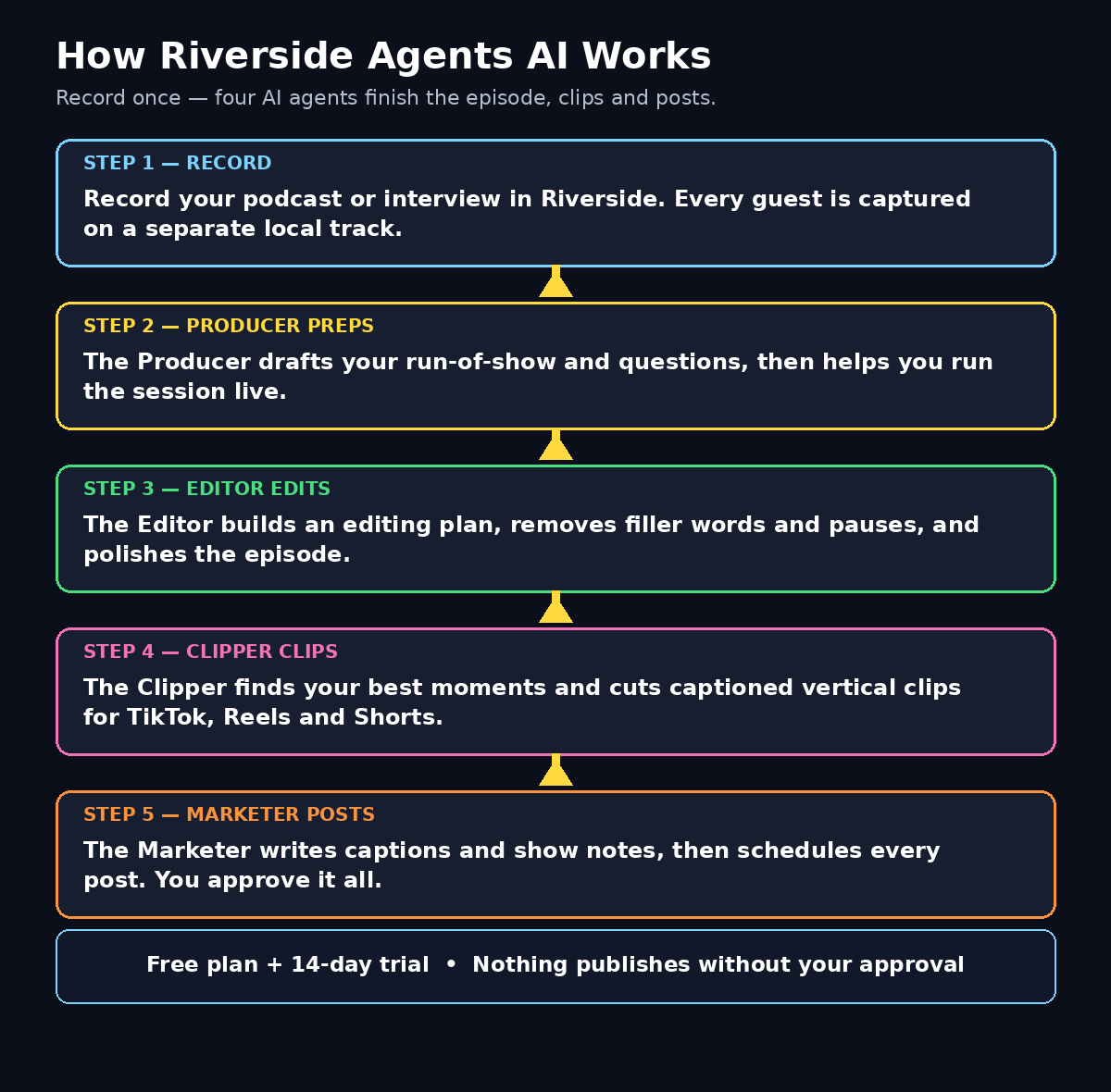
The key idea is handoff. The agents pass work between stages on their own: when you stop recording, the Editor starts building an editing plan, the Clipper starts hunting for shareable moments, and the Marketer starts drafting posts. You do not have to ask each one separately. You review, adjust, and approve — nothing goes out without your sign-off, which matters a lot when an agent is writing in your name.
Riverside Agents are available on every Riverside plan, including the free plan, although what each agent can do depends on your plan. You can try Riverside free for 14 days, and the free plan carries a watermark on exports. Paid plans start from $24 per month billed yearly ($29 month to month). A few features that run on AI credits, such as video enhancement, still use credits when an agent applies them, so keep an eye on your credit balance on bigger projects.
Step 2: Create Your Free Riverside Account
Getting started takes about three minutes, and the free plan is genuinely enough to learn the whole workflow.
- Open Riverside in your desktop browser and click Sign Up. You can register with an email address or with Google.
- Choose the free plan when asked. You do not need a credit card for the free plan, and the 14-day trial unlocks the paid features so you can test the agents properly.
- Set up your studio. Give your first studio a name — your show name works — and pick your recording defaults. Choose 1080p to start; you can raise the quality later.
- Check your microphone and camera. Riverside runs a quick test before your first session. Use headphones to avoid echo, and record in a quiet room with soft furnishings if you can.
- Open the Agents panel. You will see the four agents listed in your studio. Nothing to install — they are built in.
One practical tip: agents work best when they can hear everyone clearly. A decent USB microphone and a stable connection make a bigger difference to agent output quality than any setting inside the tool.
Step 3: Let the Producer Prep Your Session
The Producer is the agent most beginners skip, and it is the one that saves the most time. Before you record, ask the Producer to prepare the session: it can draft a run-of-show, suggest questions based on your topic, and prepare talking points so you never sit down in front of the camera wondering what to say first.
- Give it a topic and a goal. For example: “A 30-minute interview about starting a YouTube channel, aimed at beginners, with three practical tips.”
- Review the outline it returns. Move questions around, delete anything off-topic, and add your own must-ask questions.
- Use it live. During the recording, the Producer can help you run the session — keeping track of the plan and nudging you when a segment runs long.
Think of the Producer as a showrunner who never gets tired. It does not replace your judgment about what makes a good conversation, but it removes the blank-page problem that stops most people from recording at all.
Step 4: Record a Session the Agents Can Work With
Agents are only as good as the material you give them. A clean recording makes every later step faster and more accurate.
- Record in Riverside, not in a separate app. The agents work natively with Riverside recordings, so recording inside the studio gives them direct access to every track.
- Keep segments distinct. Say a short phrase when you change topics — “Now, the second tip” — so the Clipper can find clean cut points later.
- Pause instead of rambling. Short silences are easy for the Editor to remove. Long, wandering answers are harder for any agent to rescue.
- Record a 10-second intro and outro. A simple “Welcome back to the show” and “Thanks for watching” gives the Editor clean bookends.
When you stop recording, the magic starts. The agents come back with how to edit the episode and which clips to cut — you do not have to chase them. Riverside records each person locally, so the files upload in the background and are ready to work with the moment you stop.
Step 5: Let the Editor Build Your Episode
Open the Editor agent after your recording finishes. It will present an editing plan for the whole episode: suggested cuts, filler-word removal, pauses to trim, and places where B-roll or motion graphics would help.
- Read the plan before accepting it. The Editor explains what it wants to change and why. If a cut removes something you wanted to keep, restore it before approving.
- Ask for changes in plain language. “Cut the first 20 seconds of preamble” or “Make the answer about pricing tighter” — the Editor works through your requests with you, in conversation.
- Use text-based editing. Riverside lets you edit video by editing the transcript: delete a sentence in the transcript and the video follows. This is the fastest way for beginners to shape an episode.
- Check the audio. Ask the Editor to clean up background noise and normalize levels so every speaker sounds equally loud.
The Editor’s goal is a studio-level edit, not a rough cut. It suggests the cuts, B-roll and motion graphics that make a show look polished — but you approve every change. General-purpose AI does a bit of everything; this team only does video, and that focus is why the edits feel production-ready instead of generic.
Step 6: Turn Highlights Into Clips With the Clipper
This is where one recording becomes a week of content. The Clipper watches your finished episode, finds the moments most likely to perform on social media, and cuts them into short vertical clips with captions.
- Ask for a number. “Give me five clips under 60 seconds” is a good starting prompt.
- Pick your platforms. Clips are framed vertically for TikTok, Instagram Reels and YouTube Shorts. Tell the Clipper which platform matters most to you and it will frame accordingly.
- Review each clip’s hook. The first three seconds decide whether someone keeps watching. If a clip starts slowly, ask the Clipper to start it at the punchline instead.
- Check the captions. The Clipper adds styled captions automatically. Fix any misspelled names or technical terms before exporting.
- Repurpose your back catalog. The Clipper also works on old recordings, so you can mine past episodes for new posts without recording anything new.
A useful habit: export two or three clips per episode and schedule them across the week instead of posting everything at once. Consistency beats volume, and the Clipper makes consistency cheap.
Step 7: Let the Marketer Write and Schedule Your Posts
The Marketer is the final agent in the chain. It takes your episode and clips and drafts the words that go around them: social captions, show notes, and even newsletter drafts.
- Give it your voice. Paste one or two of your previous posts so the Marketer matches your tone instead of writing generic marketing copy.
- Review every draft. The Marketer drafts posts, but it does not publish without you. Read each caption, fix anything that sounds off, and check that links and handles are correct.
- Schedule, don’t dump. The Marketer can fill your content calendar so clips go out on different days. A steady schedule grows an audience faster than a single burst.
- Keep the human check. Creators should always review agent output before publication. The Marketer is fast, but only you know whether a joke lands or a claim is accurate.
For small teams and solo creators, this is the step that changes the economics of content. Writing captions and scheduling posts used to take as long as recording. Now it takes the time of a careful review.
Step 8: Review, Approve and Publish — You Make the Calls
Riverside’s own rule is simple: nothing goes out without your sign-off. Build a short approval routine and use it every time:
- Watch the episode once through. Check for bad cuts, audio drops, or captions with errors.
- Watch each clip on your phone. A clip that looks fine on a desktop monitor can feel cramped on a phone screen.
- Read every caption out loud. If a sentence sounds strange spoken, rewrite it.
- Check exports. Confirm resolution, watermark settings and file names before downloading.
- Publish from your schedule, not from excitement. The Marketer’s calendar exists so you can space posts out.
This approval habit is also a safety net. AI agents are powerful, but they can mishear a name, cut a sentence mid-thought, or write a caption that overstates what you actually said. A five-minute review protects your reputation more than any setting.
Step 9: Use Riverside Agents on Mobile Too
Everything the agents do on the web, they do on mobile. That matters when you record on the go or want to approve a clip from your phone.
- Review clips while you commute. Approve or reject Clipper suggestions from the mobile app.
- Approve posts on the go. The Marketer’s drafts are available on mobile, so a post never waits for you to get back to your desk.
- Record anywhere. Riverside turns your phone into a portable studio, recording in full quality and syncing to your workspace when you stop.
Mobile access turns the agent team into something closer to a real production crew: the work keeps moving even when you are not at your desk.
Step 10: Build a Repeatable Weekly Workflow
The real value of Riverside Agents AI is not one episode. It is the routine you build around it. Here is a simple weekly system that works for most beginners:
- Monday — plan. Ask the Producer to outline the week’s episode.
- Tuesday — record. One session, one episode, clean segments.
- Wednesday — edit. Review the Editor’s plan, approve the cut, export the episode.
- Thursday — clip. Ask the Clipper for five clips, review them on your phone.
- Friday — schedule. Let the Marketer draft and schedule next week’s posts.
After two or three weeks, this routine runs on autopilot — and you will notice how much time it returns. If you run a small business and want help turning that content system into a wider marketing engine, a specialist team such as the crew at D365A can help you connect your video output to your website and campaigns, while Agentic Affairs covers AI automation services that keep the whole pipeline running without extra headcount.
Riverside Agents vs Other AI Video Tools
| Feature | Riverside Agents AI | Descript (Underlord) | General AI Chatbots |
|---|---|---|---|
| Main strength | Full production team for video | Text-based video editing | General answers and drafts |
| AI agents | 4 specialists: Producer, Editor, Clipper, Marketer | 1 AI editor (Underlord) | None built for video |
| Recording quality | Local recording, separate tracks, up to 4K | Cloud recording, up to 4K | No recording |
| Clipping for social | Built-in Clipper with captions | Magic clips via AI | Manual only |
| Scheduling and captions | Marketer writes and schedules | Limited marketing tools | Manual only |
| Free starting point | Free plan + 14-day trial | Free plan available | Free tiers vary |
| Best for | Podcasters and interview shows | Solo editors who like text editing | Quick drafts and ideas |
Descript is a strong choice if your main problem is the edit itself — its text-based editing is excellent. But if your problem is the whole pipeline, from preparing a session to posting clips every day, Riverside Agents cover more of the journey in one place.
Frequently Asked Questions
Is Riverside Agents AI really free?
You can start free. Riverside has a free plan, and new accounts get a 14-day trial of the paid features. The agents are available on every plan, but what each agent can do depends on your plan, and some AI-credit features still use credits. Paid plans start from $24 per month billed yearly. Treat the free tier as a proper trial: record a real episode, run all four agents, and decide whether the workflow earns a subscription.
Do I need video editing experience to use Riverside Agents?
No. That is the point of the agent team. You describe what you want in plain language — “cut the preamble”, “make five clips”, “write a caption for Instagram” — and the agents do the technical work. Text-based editing means you can shape an episode by deleting sentences from a transcript. If you can write an email, you can direct these agents.
Will the agents publish a video without asking me?
No. Riverside says posts and scheduled items need your approval, and nothing goes out without your sign-off. The agents draft edits, clips and captions, but you review and approve every piece before it reaches your audience. Keep it that way: a quick review catches misheard names and overconfident captions.
What is the difference between the Editor and the Clipper?
The Editor works on the whole episode: it builds an editing plan, removes filler words and pauses, and produces a polished full-length video. The Clipper works on moments: it finds the most shareable 30-to-60-second passages and cuts them into vertical clips with captions for TikTok, Reels and Shorts. Use the Editor for the episode and the Clipper for the promotion.
Can Riverside Agents work with my old recordings?
Yes. The Clipper and Marketer can work through your back catalog and find moments worth sharing, turning old episodes into new posts. You only need the recordings inside Riverside. Upload an old episode, ask the Clipper for highlights, and you have fresh content without recording anything new.
Does Riverside Agents AI work on mobile?
Yes. Everything the agents do on the web, they do on mobile. You can review clips, approve posts and tweak an edit from your phone, and you can record on mobile too. Sessions sync to your Riverside workspace the moment you stop recording.
Final Thoughts
Riverside Agents AI, launched on 26 October 2026, is one of the clearest examples yet of what AI agents are actually for: not replacing the creator, but removing the repetitive work around creating. The Producer prepares, the Editor polishes, the Clipper finds the moments, and the Marketer gets the word out — and you make every call that matters.
For beginners, the best way to learn it is to run one real episode through the full pipeline. Record a 20-minute conversation, let the Editor build the cut, ask the Clipper for five clips, and let the Marketer draft the posts. Review everything carefully, publish the best pieces, and notice how much time you got back. Then do it again next week.
If you are a podcaster, an interviewer, or a small business owner who records talking-head videos, Riverside Agents AI is worth a free trial this week. Start free, keep your approval habit strict, and let the team of four handle the grind while you focus on the conversation only you can have.
Explore More Free AI Tools
Want more free tools like Riverside Agents AI? Try our free tools on AIToolSteps — the AI Title Generator, Meta Description Generator, AI Rewriter, and Keyword Density Checker are all free and ready to use right now.