

Most AI assistants live in a chat window. You open a tab, type a question, read a wall of text, and then go and do the work yourself anyway. Mo AI flips that idea around. Mo is a little character who lives right on your Mac screen and actually does the work for you: sorting files, reading PDFs, answering email, checking your calendar, changing settings, and searching the web. You talk to him or type to him like you would ask a friend, and every answer comes back as a clean, readable card — not a paragraph you have to decode.
Mo launched on Product Hunt on 28 October 2026, and it does 232 tasks on its own, with no other app needed. It costs $19.99 once — no subscription — and you can try everything free for 7 days first. There is even a launch-week discount of 25% with the code MOLAUNCH until 4 November 2026. If you have a Mac and you are tired of doing small computer chores by hand, this guide will take you from your first download to your first finished task in about fifteen minutes. In it, you will learn exactly how to use Mo AI
Step 1: Understand What Mo AI Actually Is
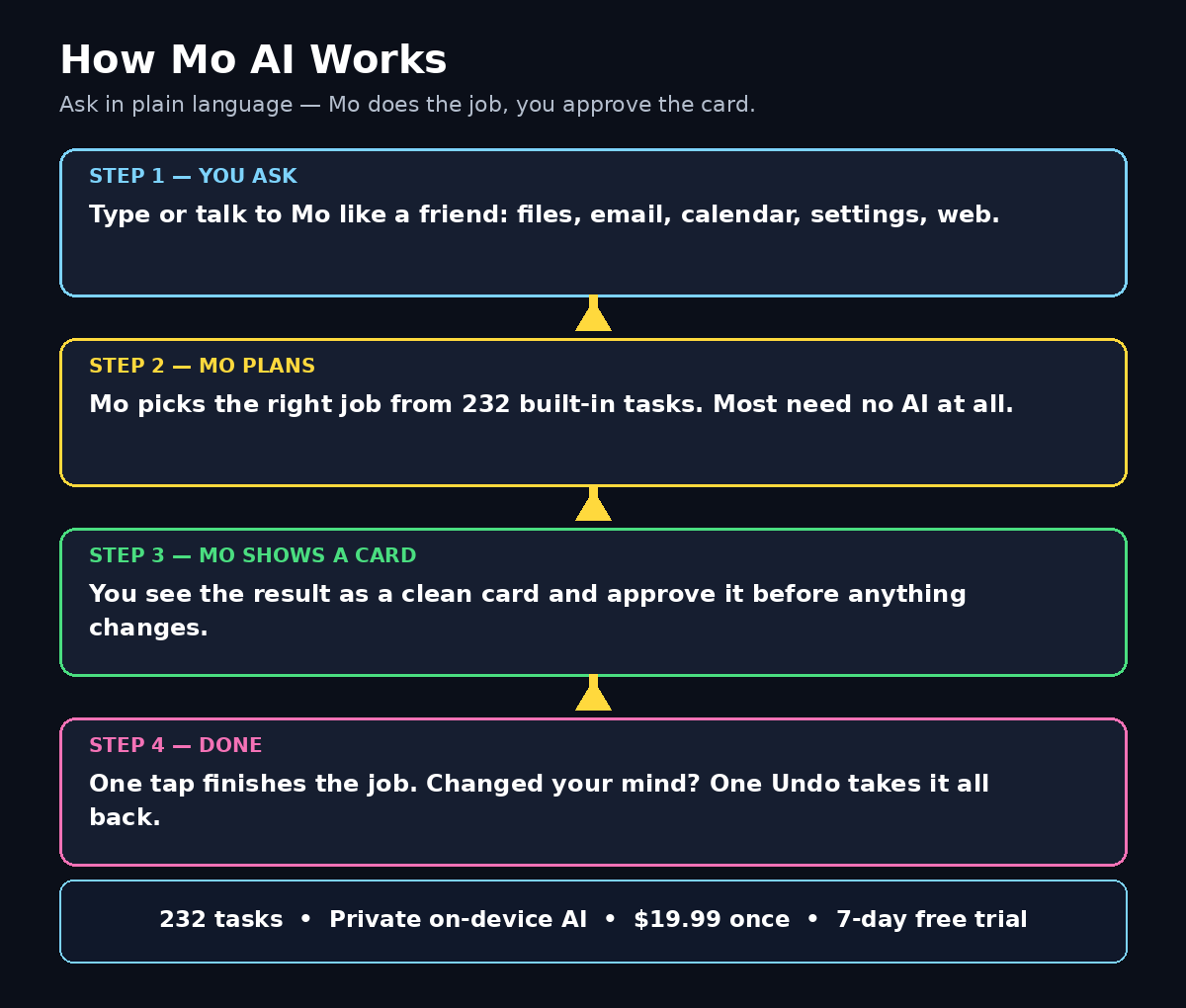
Mo is not a chatbot and it is not a search engine with a friendly face. It is a small on-screen character that works inside your Mac. You ask it to do something in plain language — “find every PDF invoice from last month and put them in one folder” — and Mo does it, then shows you a card with the result and the next button you might need.
Three ideas make Mo different from the assistants you already know. First, cards, not text: every answer is a designed card with the action built in, so you read at a glance and tap once instead of copying and pasting. Second, Mo asks before it changes anything: nothing is sent, deleted, or moved without your say-so, and a single Undo takes back whatever he did. Third, privacy comes first: Mo can run on free on-device models — Apple’s own models, or local models through Ollama or LM Studio — or you can add your own API key for the strongest answers. Most tasks need no AI at all, because they are simple computer jobs Mo already knows how to do.
In short, Mo is built for people who want an assistant that does things, not one that only talks about doing things. That is the starting point for learning how to use Mo AI well.
Step 2: Check What You Need Before You Start
Before you learn how to use Mo AI, make sure your setup is ready before you download anything. Mo is a Mac app, so you need a Mac running a recent version of macOS. You do not need a powerful machine for the basics, because most of Mo’s 232 tasks run without any AI model at all. If you want Mo to answer open-ended questions with local AI, an Apple silicon Mac will run the on-device models smoothly, and Ollama or LM Studio give you more local model choices.
You also do not need a credit card to start. The 7-day free trial lets you try everything, and you only pay the one-time $19.99 if you decide to keep it — on up to three of your Macs. If you already use a paid AI plan elsewhere, you can also plug in your own API key instead of using local models, which keeps your costs exactly where they already are.
One honest note for beginners: Mo is Mac-only. If you work on Windows or a Chromebook, this particular tool is not for you — but the way Mo works is a useful preview of where desktop AI assistants are heading, and the free trial makes it risk-free to test on any Mac you own.
Step 3: Download and Install Mo on Your Mac
Getting Mo onto your Mac takes about two minutes. Head to Mo’s official page — the easiest route is its Product Hunt launch page, which links straight to the download — and get the Mac app. Open the downloaded file and drag Mo into your Applications folder, exactly like any other Mac app.
When you first open Mo, macOS will ask for a few permissions. This is the important part, so do not rush past it. Mo needs permission to see your files, your calendar, and your email before it can do tasks involving them, and it needs accessibility permission to control parts of your Mac on your behalf. Grant the permissions one at a time and read what each one covers. Mo asks before it changes anything later, so these permissions are about letting it see — not letting it act without you.
Once the app opens, Mo appears as a small character on your screen. He stays out of the way until you need him, which is the whole point: he lives on your desktop the way a helpful colleague sits at the next desk, not buried in a browser tab you keep forgetting to open.
Step 4: Set Up Your AI Model — Free On-Device or Your Own Key
Mo works in two modes, and choosing between them is the first real decision you will make. The simplest option is the free on-device route. Mo can use Apple’s own on-device models, or local models you run through Ollama or LM Studio. Your questions and files never leave your Mac in this mode, which is ideal if you handle private documents, client work, or anything you would never paste into a cloud chatbot. Setup is usually just picking the model from a menu — no terminal, no configuration files.
The second option is to add your own API key from a provider like OpenAI, Anthropic, or Google. This gives you the strongest answers for hard, open-ended questions, and it costs whatever your provider charges for the tokens you use. Mo stores the key on your Mac, and you stay in control of the spending.
A practical beginner setup is to start with the free on-device models and only add a key later if you hit a question the local model cannot answer well. Most of Mo’s 232 tasks — finding files, organising photos, checking the calendar, changing a setting — need no AI at all, so you may find you rarely need the cloud option. That is also why Mo stays fast: simple jobs never wait for a server round-trip.
Step 5: How to Use Mo AI to Talk or Type Your First Task
This is where Mo starts to feel different. Click on Mo or use his keyboard shortcut, then just say or type what you want, the way you would ask a friend. You do not need commands, keywords, or special syntax. “What is on my calendar tomorrow?” works. So does “find the photos from last weekend and make an album” or “summarise this PDF in three bullet points.”
Mo answers with a card, not a wall of text. A calendar question returns a card with your events and a button to open the event or add a new one. A file search returns a card listing the files, with buttons to open, move, or rename them. The card format matters more than it sounds: it turns an answer into the next action in one tap, instead of leaving you to copy an answer and do the work yourself.
Try three easy first tasks to learn how Mo responds: ask what is on your calendar today, ask him to find your largest files, and ask him to summarise a short document. These three cover the three things Mo is best at — knowing your schedule, knowing your files, and reading for you — and they will teach you how specific your requests need to be. Short, clear requests with a named outcome (“find the five largest PDFs in Downloads”) get better results than vague ones (“clean up my computer”).
Step 6: How to Use Mo AI for Files, PDFs, Photos, and Video
File chores are where Mo earns his keep, because they are boring, repetitive, and easy to get wrong by hand. Mo’s 232 tasks cover the everyday jobs: finding files by name, type, date, or size; moving and renaming batches of files; sorting photos and videos; pulling text out of PDFs; and organising downloads that have been piling up for months.
A good beginner workflow is the weekly tidy-up. Ask Mo to show you every file added to Downloads in the last seven days, then ask him to move the installers to one folder, the PDFs to another, and the images to a third. Mo shows you a card with exactly what he plans to move before he moves anything, so you can approve, change, or cancel. If anything goes wrong, one Undo puts it all back.
PDFs deserve special attention. Ask Mo to summarise a long PDF before you read it, or to find the one sentence that mentions a price, a date, or a name. For students and freelancers who live inside contracts, invoices, and research papers, this one ability can save an hour a day. The same idea works for photos: ask Mo to find every screenshot, every duplicate, or every photo from a particular trip, and deal with them as a group instead of one by one.
Step 7: How to Use Mo AI for Email and Calendar
Email and calendar are the two places where a small assistant makes the biggest difference, because they are where other people’s priorities land in your day. Mo can read your email, draft replies, and check your calendar, all from the same little character on your screen.
Start with the calendar, because it is the safest place to learn. Ask “what is on today?” and “when am I free on Thursday afternoon?” before you let Mo create or move anything. Once you trust the answers, try “book a 30-minute call with Sara on Friday at 11” and watch the card Mo returns: it shows the event exactly as it will be created, and you approve it before it exists. That ask-first habit is built into Mo, and it is the reason you can let him work on your real schedule without worrying.
Email works the same way. Ask Mo to find the unread messages from one person, or to draft a polite reply to a meeting request. Mo shows you the draft on a card before anything is sent, and you edit or approve it yourself. Nothing goes out without you seeing it first. For busy inboxes, try asking Mo to summarise the five longest unread emails — you will know in a minute which ones actually need your attention and which ones can wait.
If you run a small business, this combination is genuinely useful: a digital agency workflow, for example, often means juggling client emails, calls, and deadlines across the same day, and a desktop assistant that drafts replies and guards your calendar can quietly save an hour that would otherwise go to admin.
Step 8: Use Mo for Mac Settings and Everyday Shortcuts
Once you know how to use Mo AI for files and email, try settings next. Mo is not only a file and email helper — he can also drive your Mac. Changing settings, opening apps, adjusting volume and brightness, connecting to Wi-Fi, toggling Do Not Disturb, and running the small system jobs you normally hunt through menus for are all part of the 232 tasks.
This is the part beginners overlook, and it is where Mo feels most like magic. Instead of opening System Settings and clicking through three screens to turn on Focus mode before a meeting, you just say “turn on Do Not Disturb for one hour.” Instead of searching for an app buried in Launchpad, you say “open the spreadsheet I was working on yesterday.” Mo knows your Mac, so he knows where things live.
Build yourself a small set of go-to phrases and use them every day: “start my workday” can mean opening your email, calendar, and notes together; “wind down” can mean closing extra apps and turning on Do Not Disturb. The exact phrases matter less than the habit — the more you route small jobs through Mo, the less time you spend clicking through menus, and the more natural talking to your Mac becomes. Teams that build these routines into their day often find the same payoff in other tools too: AI automation services follow the same idea at a bigger scale, turning repeated human steps into routines a system runs for you.
Step 9: Build Routines That Save You Time Every Day
Once the basics feel natural and you know how to use Mo AI for single tasks, the real win is routines — small chains of tasks Mo runs for you again and again. A routine is just a task you ask for the same way every time, and Mo remembers the pattern.
Here are three routines worth setting up in your first week. The morning briefing: “what is on today, and which emails need a reply before noon?” gives you the whole day on one card. The end-of-day tidy: “move today’s downloads into their folders and empty the trash” keeps your Mac clean without a weekly chore session. The meeting prep: “summarise the PDF for tomorrow’s 10am meeting and list the three key numbers” means you walk in prepared instead of skimming slides at the last minute.
The trick is to keep routines small and specific. A routine that does one thing well beats a grand routine that tries to do everything and fails halfway. If a routine ever does something unexpected, the Undo button is right there on the card, and Mo will ask before the next run too. After a week, count how many times you opened a menu, a folder, or a settings screen by hand — if Mo is working, that number should be falling fast.
Step 10: Know Mo AI’s Limits and Stay in Control
Mo is genuinely useful, but a good beginner guide is honest about limits. First, Mo is Mac-only, and the strongest on-device features work best on Apple silicon — older Intel Macs can still run Mo, but local AI will be slower. Second, Mo asks before changing things, which is a safety feature, not a flaw: it means you still approve the important actions, and you should. Never approve a card you have not read, especially one that moves, deletes, or sends something.
Third, remember the pricing: the 7-day trial is free and full-featured, but after that Mo costs $19.99 once, with no subscription, for up to three Macs. That is cheap compared with a monthly assistant subscription, but it is not a free-forever tool, so try everything during the trial week and decide with real experience. The launch-week code MOLAUNCH takes 25% off until 4 November 2026, so if you decide early, you pay less.
Finally, keep your expectations honest. Mo’s local models are private and fast, but they are not the most powerful models in the world — for very hard reasoning or writing, your own API key to a frontier model will do better. Use Mo for what it is best at — doing the small jobs on your Mac, quickly and privately — and use a full chatbot when you need deep thinking. That split is exactly how most productive Mo users work.
Mo AI vs Other Mac AI Assistants
| Feature | Mo AI | Siri / Spotlight | Cloud chatbot (ChatGPT, Claude) |
|---|---|---|---|
| Does tasks on your Mac | Yes — 232 built-in tasks | Limited system commands | No — answers only, you do the work |
| Answers as cards with action buttons | Yes | No | No — plain text replies |
| Asks before changing anything + one-click Undo | Yes | Partly | Not applicable |
| Runs privately on-device | Yes — Apple models, Ollama, LM Studio | Partly | No — everything goes to the cloud |
| Works offline for most tasks | Yes | Limited | No |
| Price | $19.99 once, 7-day free trial | Free with macOS | Free tier or $20/month subscription |
| Best for | Doing everyday Mac jobs by talking or typing | Quick system commands | Deep reasoning and long writing |
Frequently Asked Questions About Mo AI
Is Mo AI really free?
Mo AI is free to try, not free forever. You get a 7-day free trial with everything unlocked and no credit card required. After the trial, Mo costs $19.99 as a one-time purchase — no subscription — and you can use it on up to three Macs. The on-device AI models Mo can use, including Apple’s own models and local models through Ollama or LM Studio, are free, and most of Mo’s 232 tasks need no AI at all.
What can Mo AI actually do on my Mac?
Mo does 232 tasks across files, PDFs, photos, video, email, calendar, Mac settings, and the web. You can ask it to find and organise files, summarise documents, draft email replies, check and book calendar events, change settings, and run everyday shortcuts. You type or talk to it, and every answer comes back as a designed card with the next action built in.
Is Mo AI private?
Yes, privacy is one of Mo’s main selling points. It can run on free on-device models — Apple’s models or local models through Ollama or LM Studio — so your files and questions never leave your Mac. You can also add your own API key for stronger answers, in which case only those requests go to your chosen provider. Mo also asks before it changes anything, and one Undo reverses what it did.
Does Mo AI work on Windows?
No. Mo is a Mac-only app. It is designed around macOS, its permissions, and its apps. If you use Windows, you will need a different desktop assistant, but the idea — an on-screen character that does tasks instead of only chatting — is spreading to other platforms too.
How is Mo AI different from Siri?
Siri answers questions and runs a limited set of system commands. Mo is built to do multi-step work: it understands a request in plain language, carries out the task across your files, email, and calendar, shows you the result as a card, and lets you undo it. Siri is a voice command layer; Mo is a small worker who lives on your screen. The clearest way to see the difference is to learn how to use Mo AI for one real job, such as tidying a folder or drafting a reply, and compare it with asking Siri to do the same thing.
Is the MOLAUNCH discount still available?
The launch-week code MOLAUNCH gives 25% off Mo until 4 November 2026. After that date the price returns to the standard $19.99 one-time purchase. The 7-day free trial is available regardless of the discount, so you can try Mo first and decide later.
Final Thoughts
Mo AI is a small idea done well: once you know how to use Mo AI, you stop opening another chat window that answers questions and leaves the work to you, it puts a little character on your Mac screen who actually does the jobs — files, email, calendar, settings — and shows you the result as a card you can act on in one tap. The 232 tasks, the ask-before-changing rule, the one-click Undo, and the free on-device models make it private, safe, and genuinely useful for beginners.
The honest test is simple. Install Mo, run the 7-day free trial, and give it your three most boring daily chores for a week: the morning calendar check, the download tidy-up, and one PDF summary a day. If those three jobs feel easier by day seven, Mo has earned its one-time $19.99 — and with the MOLAUNCH code before 4 November, it costs even less. If not, you have lost nothing but a few minutes of setup, and you will still have learned what a desktop AI assistant can really do.
Start small, approve every card before it acts, and let Mo take the repetitive work off your plate one task at a time.
Explore More Free AI Tools
Want to keep building with free AI? Try the AI Title Generator, Meta Description Generator, AI Rewriter, and Keyword Density Checker at https://aitoolsteps.com/ — they are free, beginner-friendly, and a great next step after your first week with Mo AI.