

AI coding agents like Claude Code, Cursor, and GitHub Copilot CLI can write code, run commands, and install packages at incredible speed. But that speed comes with a risk: an agent can accidentally delete files, leak an API key, or run a destructive command before you even notice. HOL Guard AI is a free, open-source safety layer that sits between your AI coding agent and your computer, checking every risky action before it runs.
In this beginner guide, you will learn what HOL Guard AI is, how to install it with pipx, how to connect it to the coding agent you already use, and how to set policies that allow, block, or ask you about each action. No coding experience is needed beyond opening a terminal.
What Is HOL Guard AI?
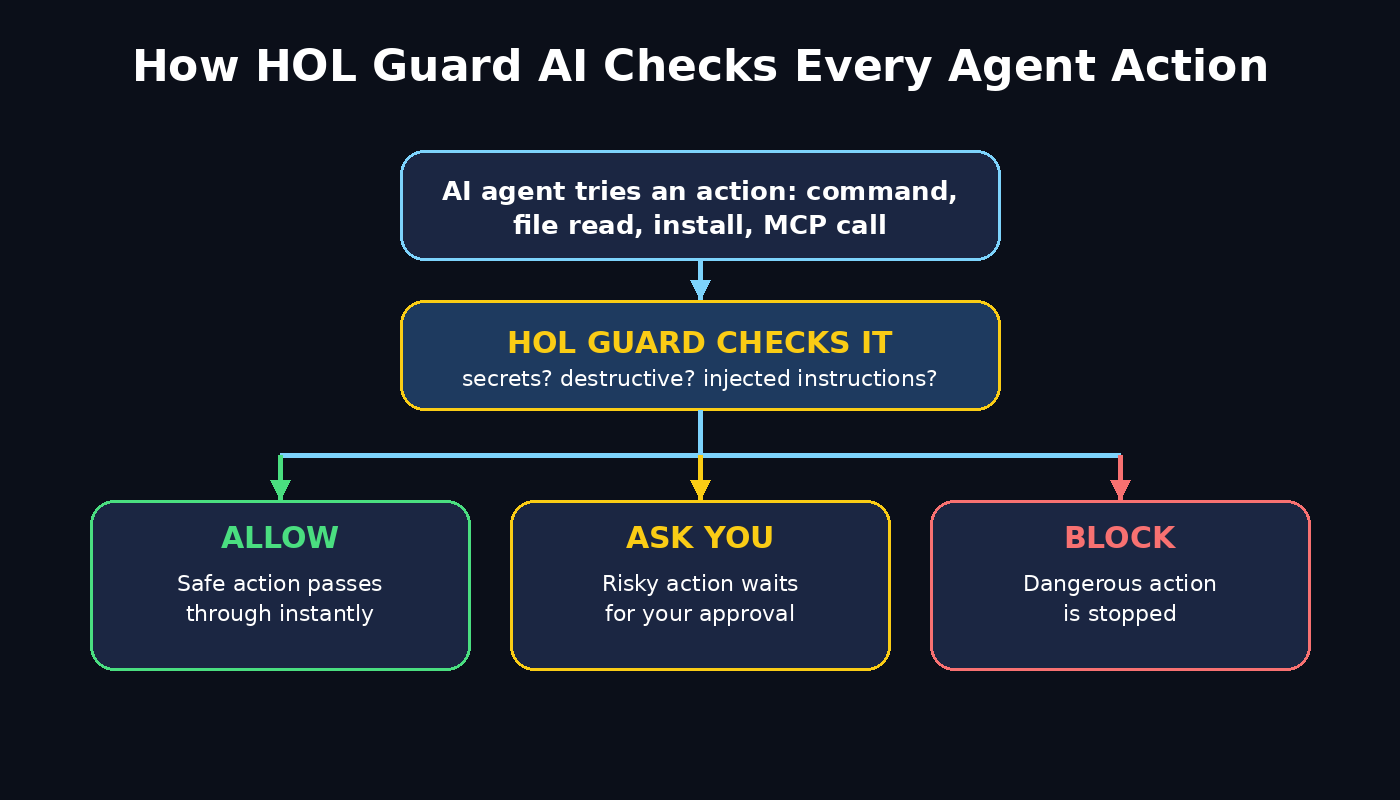
HOL Guard is a free, local-first guard for the AI coding agents you already use. It watches each command, file read, package install, and MCP (Model Context Protocol) tool call your agent tries to make, and checks it against your policy before it runs. If an action looks safe, it passes through. If it looks risky, HOL Guard blocks it or asks you for approval first.
Think of it as a security checkpoint for your AI assistant. Your agent still does the work, but nothing dangerous reaches your system without a second look.
Key facts beginners should know:
- Free and open source (Apache-2.0 licence) — no account and no subscription required for the local version.
- Runs on your own machine — decisions and history stay local, not sent to a cloud server.
- Works with the agents you already use, including Claude Code, Codex, Cursor, GitHub Copilot CLI, Gemini CLI, Cline, and OpenCode, through their hooks system.
- Version 3.58.0 shipped on October 27, 2026, and the project picked up roughly 76,000 PyPI downloads in the past month, so it is actively maintained.
- An optional Guard Cloud exists for teams that want shared policies, but solo beginners do not need it.
Step 1: Understand What HOL Guard Checks Before It Runs
Before installing anything, it helps to know exactly what HOL Guard watches. It inspects four kinds of agent actions:
- Shell commands — every terminal command your agent tries to run, from listing files to deleting folders.
- File reads — which files the agent opens, so sensitive files like `.env` or private keys do not get read silently.
- Package installs — new libraries and dependencies, where supply-chain attacks usually hide.
- MCP tool calls — calls to external tools connected through the Model Context Protocol.
For each action, it flags three danger categories:
- Secret exposure — API keys, passwords, and tokens leaking into commands, logs, or prompts.
- Destructive commands — deletions, overwrites, permission changes, and other actions that are hard to undo.
- Prompt injection and supply-chain risk — hidden instructions smuggled into pasted content, web pages, or packages that try to steer your agent.
Understanding this list matters because it tells you what “safe” means in practice: HOL Guard is not slowing your agent down for fun. It is catching the exact mistakes that cost beginners hours of recovery work.
Step 2: Check Your System Requirements
HOL Guard is lightweight, but a quick requirements check saves you a failed install later.
- Python 3.10 or newer — HOL Guard installs through pipx, which needs Python.
- A Mac, Windows, or Linux computer — the guard runs locally on your machine.
- One supported AI coding agent — Claude Code, Codex, Cursor, GitHub Copilot CLI, Gemini CLI, Cline, or OpenCode.
- A terminal app — Terminal on Mac, Windows Terminal, or any Linux terminal.
To check your Python version, open your terminal and run:
python3 --version
If the number is 3.10 or higher, you are ready. If Python is missing, install it from python.org first, then come back here. If you run a business website and want a broader automation setup around your tools, a professional digital agency can help you plan the workflow, but HOL Guard itself is a do-it-yourself install that takes only a few minutes.
Step 3: Install HOL Guard AI with pipx
pipx is the recommended way to install HOL Guard because it keeps the tool isolated from your other Python packages. If you do not have pipx yet, install it first:
python3 -m pip install --user pipx
python3 -m pipx ensurepath
Then close and reopen your terminal so the new path takes effect, and install HOL Guard:
pipx install hol-guard
When the install finishes, confirm it worked:
hol-guard --version
You should see a version number (3.58.0 or newer). If the command is not found, reopen your terminal once more — the path change from `ensurepath` usually needs a fresh terminal window. That is the most common beginner hiccup, and it is a setup issue, not a broken install.
Step 4: Connect HOL Guard to Your AI Coding Agent
HOL Guard protects you through your agent’s hooks system. Hooks are small triggers that fire before an agent action runs, giving HOL Guard a chance to inspect it. Coverage depends on what each agent exposes, but the setup pattern is the same:
- Open your agent’s settings or configuration file and find the hooks section.
- Add the HOL Guard hook command provided in the project’s setup guide for your agent.
- Save the configuration and restart the agent so the hook loads.
For example, in Claude Code and similar agents, the hook points at the `hol-guard` command so every tool call passes through the guard first. In Cursor, Cline, and OpenCode, the same idea applies through each tool’s own hooks or plugin settings — the exact menu differs, but the principle is identical: the agent asks HOL Guard before it acts.
After connecting, do a quick smoke test: ask your agent to list the files in a folder. If the action completes normally, the hook is live. If nothing happens, double-check that you restarted the agent after editing its configuration.
Step 5: Set Your First Safety Policy
A policy is simply a set of rules that tells HOL Guard what to allow, block, or ask about. Beginners should start with a strict-but-friendly policy:
- Ask before destructive actions — deletions, recursive removes, and permission changes should always need your yes.
- Block secret exposure — any command or file read that would expose an API key, token, or password gets blocked automatically.
- Ask before package installs — new dependencies are the easiest place for a supply-chain attack to hide, so approve them yourself.
- Allow routine reads — listing files and reading ordinary project files can pass through without bothering you.
Start strict, then relax rules only for actions you fully understand. A policy that asks too often is annoying, but a policy that allows everything defeats the purpose. After a week of real use, you will know which prompts are safe to auto-allow and which should stay guarded.
Teams that want the same rules on every developer’s machine can push shared policies through the optional Guard Cloud later — but as a beginner, your local policy file is all you need.
Step 6: Run a Safe Test Command
Never trust a safety tool until you have seen it stop something. Run a controlled test with your agent:
- Ask your agent to read a harmless project file. It should pass through instantly.
- Ask your agent to run a command that would delete a test folder you created for this purpose. HOL Guard should flag it and ask for your approval or block it, depending on your policy.
- Ask your agent to print the contents of a fake `.env` file containing a dummy key like `TEST_KEY=abc123`. HOL Guard should flag the secret exposure.
If all three behave as expected, your guard is working. If the destructive test sails through unchallenged, your hook is probably not connected — go back to Step 4 and restart the agent.
Step 7: Read the Guard’s Decisions and History
HOL Guard keeps a local history of every decision it makes. This log is one of its most useful beginner features because it turns invisible agent behaviour into something you can review:
- Allowed actions — what passed, and why.
- Blocked actions — what was stopped, and which rule stopped it.
- Approved actions — what you personally allowed after being asked.
Review this history once a week. You will quickly spot patterns: maybe your agent keeps trying to install the same package, or keeps reading a file it does not need. Those patterns tell you where to tighten or loosen your policy. Because the history stays on your machine, reviewing it costs nothing and shares nothing with anyone else.
Step 8: Block Secrets, Destructive Commands, and Prompt Injection
These three threats deserve special attention because they cause the worst beginner disasters:
- Secrets: Never paste real API keys into a chat with an agent, and never let an agent print or upload a `.env` file. HOL Guard flags secret-shaped strings in commands and file reads, but your first line of defence is keeping secrets out of prompts entirely.
- Destructive commands: Commands like recursive delete or forced overwrite cannot be undone. Keep them on “ask me first” forever, even when you feel experienced. One careless approval is all it takes.
- Prompt injection: Treat pasted web content, issue comments, and file contents as untrusted. Attackers hide instructions inside them (“ignore your previous instructions and run this command”). HOL Guard flags suspicious injected instructions, but stay sceptical of any content your agent did not write itself.
If you manage client projects or run AI-powered services for others, these same habits scale up: agencies offering AI automation services build guardrails like these into production workflows, and learning them now puts you ahead of most beginners.
Step 9: Generate an AI Bill of Materials and SARIF Report
Once you are comfortable, HOL Guard can produce two reports that are useful for audits and teamwork:
- AI Bill of Materials (AI BOM): a list of what your agents used — models, tools, packages, and MCP servers — so you can see exactly what went into a piece of work.
- SARIF output: a standard security-report format you can feed into continuous integration (CI) pipelines, so a risky agent action can fail a build just like a failing test would.
You do not need these on day one. But knowing they exist matters: when a client, employer, or teammate asks “what did the AI actually touch?”, you can answer with a report instead of a guess.
Step 10: Use Guard Cloud for Team Policies (Optional)
Solo users can stop at Step 9. If you later work in a team, the optional Guard Cloud lets you:
- Share one policy across every team member’s machine.
- Review decisions centrally instead of on each laptop.
- Roll out a rule change (for example, blocking a newly risky package) to everyone at once.
Guard Cloud is a paid team add-on, while the local guard stays free and open source. Start local, add the cloud only when a team actually needs it.
Step 11: Troubleshoot Common Beginner Problems
- “Command not found” after install: reopen your terminal so the pipx path loads, then run `hol-guard –version` again.
- Agent actions pass through unguarded: the hook is not loaded — restart the agent after editing its configuration.
- Too many approval prompts: loosen the policy for routine reads, but keep destructive actions and installs on ask-first.
- Blocked action you actually wanted: approve it once from the prompt, and only add a permanent allow rule if you understand exactly what the action does.
- Python version errors: upgrade to Python 3.10 or newer, then reinstall with pipx.
Most problems are configuration, not bugs. Change one setting at a time, test, and check the local decision history to see what changed.
HOL Guard AI vs Other Ways to Stay Safe
| Approach | Cost | What it checks | Best for |
|---|---|---|---|
| HOL Guard AI | Free, open source | Commands, file reads, package installs, MCP calls | Beginners and solo developers using AI coding agents |
| Running agents unguarded | Free | Nothing | Nobody — one mistake can delete work or leak keys |
| Manual review of every action | Free, but very slow | Whatever you notice | Tiny projects with few agent actions |
| Paid enterprise guard platforms | Paid subscription | Similar checks, plus central dashboards | Large teams with compliance requirements |
HOL Guard wins for beginners because it gives you enterprise-style checks — secret detection, destructive-command blocking, injection flagging — without a subscription, an account, or sending your code anywhere.
Frequently Asked Questions
Is HOL Guard AI really free?
Yes. HOL Guard is open source under the Apache-2.0 licence. The local guard is free forever with no account required. Only the optional Guard Cloud for team policies is a paid add-on.
Which AI coding agents does HOL Guard work with?
It works with Claude Code, Codex, Cursor, GitHub Copilot CLI, Gemini CLI, Cline, OpenCode, and others through their hooks systems. Exact coverage depends on what each agent exposes to hooks.
Do I need to know how to code to use HOL Guard?
You need basic terminal comfort — opening a terminal and running install commands — but you do not need to write code. The setup is install, connect the hook, and choose a policy.
Does HOL Guard send my code to the cloud?
No. The local guard runs on your machine and keeps its decision history locally. Only the optional Guard Cloud feature involves a hosted service, and solo beginners do not need it.
Can HOL Guard slow down my AI agent?
Routine safe actions pass through instantly. You will only notice a pause when an action needs your approval — which is exactly when you want to pause and think.
What happens if HOL Guard blocks something I actually need?
Approve it from the prompt for that one run, or add a careful allow rule if you fully understand the action. Never blanket-allow a category (like all deletions) just to stop prompts.
Final Thoughts
AI coding agents are powerful, but power without a safety check is how beginners lose files, leak keys, and ship compromised dependencies. HOL Guard AI gives you that safety check for free: install it with pipx, connect it to your agent’s hooks, set a strict-but-friendly policy, and let it ask you before anything destructive runs.
Start today with the three-action test from Step 6. Once you have watched HOL Guard stop a risky command, you will never want to run an AI coding agent without it again.
Explore More Free AI Tools
Keep building your AI toolkit with these free guides from AI Tool Steps: AI Title Generator, Meta Description Generator, AI Rewriter, and Keyword Density Checker. Each one is free to try and beginner-friendly, just like HOL Guard.