

Imagine an AI assistant that answers your questions, reads your documents, transcribes your meetings and even generates images — without sending a single word you type to a company's servers. That is the promise of Off Grid AI, a free and open-source app that runs AI models directly on the phone and computer you already own. It launched on Product Hunt on October 26, 2026, and quickly passed 250,000 downloads, because it flips the usual AI deal on its head: your data stays on your device, and the AI works even with the Wi-Fi off.
If you have ever hesitated before pasting something personal into a chatbot, this guide is for you. Below, you will learn what Off Grid AI is, how to install it, how to pick a model, and how to use it for everyday tasks — all in plain, beginner-friendly language. No technical background needed, no account required, and no credit card.
Step 1: Understand What Off Grid AI Actually Is
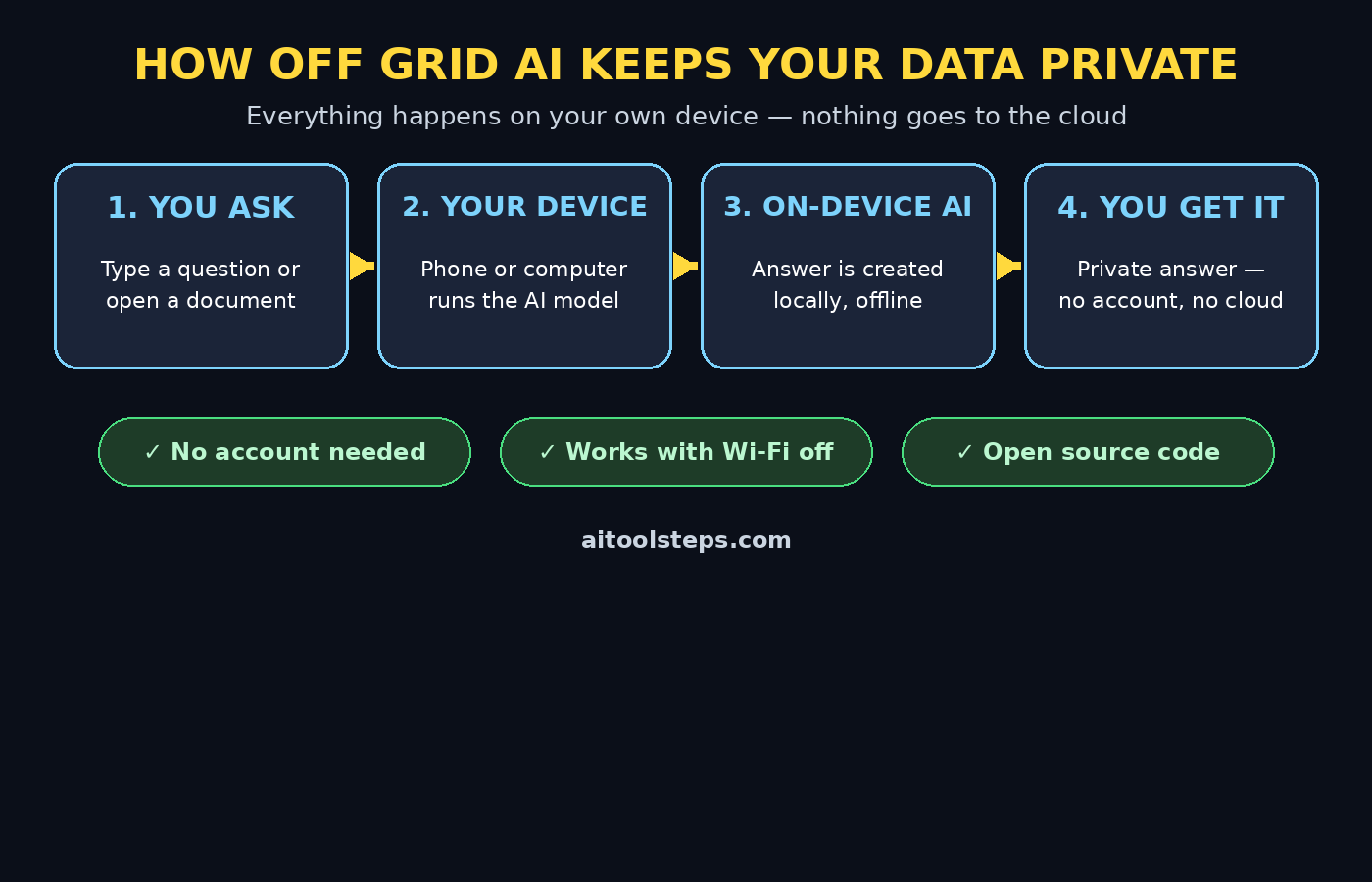
Most AI apps work like this: you type a question, it travels to a data center, a giant model answers, and the answer comes back. Off Grid AI works differently. It downloads an AI model onto your own device and runs it there, locally. Your notes, meetings, inbox and photos never leave your phone or laptop.
The app covers the everyday jobs people use AI for: chat, reading documents, asking questions about photos, voice conversations, and image generation. On a computer, it adds a memory of your day — meetings are transcribed on your machine with no bot joining the call — and you can ask things like "what did I promise Sam?" and get the answer with its source. It can also draft emails, tickets and invites, but nothing goes out until you approve it.
One more idea matters for beginners: Off Grid AI is open source, which means anyone can inspect its code. The makers put it simply — "the code is the privacy policy." If privacy is the reason you are interested, that transparency is the whole point.
Step 2: Check Whether Your Device Can Run It
Because the model runs on your hardware instead of a server, your device does the heavy lifting. That sounds technical, but the rule of thumb is simple: a phone or laptop made in the last few years can run a smaller model comfortably, and a more powerful machine can run bigger, smarter ones.
Off Grid AI is available on iOS, Android, macOS, Windows and Linux. The free app needs no account at all on your phone — you install it, download a model, and start chatting. If your phone is older or short on storage, start with the smallest suggested model and a short conversation to test performance before you try long documents or image generation.
A practical tip: free up a few gigabytes of storage before you install. Models are files, and even small ones are measured in gigabytes. On a computer, the app can also borrow power across devices — your phone can use your Mac's bigger models over a direct device-to-device sync, with no server in between.
Step 3: Download and Install the Free App
Getting started takes minutes. On your phone, find Off Grid AI in the App Store or Google Play and install it like any other app. On a computer, download it from the official website or its open-source repository and run the installer for your operating system.
When you open the app for the first time, you will notice what is missing: there is no sign-up wall. The free version asks for no account, no email address and no payment details. That is deliberate — an app that promises your data never leaves your device has no reason to collect your identity first.
Take a minute to look around the home screen. You will see a chat view, a way to pick or download models, and sections for documents, photos and voice. Knowing where the model picker lives will save you confusion later, because switching models is the main control you will use.
Step 4: Download Your First Model
A model is the brain of the app. Off Grid AI lets you download models onto your device, and your first choice matters less than you think — you can always download another one later.
For your first run, pick a small or medium general-purpose chat model recommended for your device. Smaller models answer faster and use less battery and storage, but they are less capable on hard questions. Larger models are smarter but slower on modest hardware. If you are unsure, start small: you can test the whole experience in minutes and upgrade later once you know what you need.
Downloading takes a little while depending on your connection, so do it on Wi-Fi the first time. Once the download finishes, the model works offline — you can switch your phone to airplane mode and keep chatting, which is a satisfying test of the whole idea.
Step 5: Have Your First Private Chat
Open a new chat and ask something ordinary first, like a summary of a topic, a draft email, or ideas for a weekend plan. Notice two things: the answer appears without any "connecting to server" step, and nothing you typed is tied to an account.
Then try the question that shows why this app exists: paste in something you would never send to a cloud chatbot — a personal note, a private document summary, or a sensitive work question. That is the real use case. A digital agency handling client material, for example, can brainstorm and draft locally before anything sensitive ever touches a shared system.
Good beginner prompts to try in your first session include asking the model to explain a difficult paragraph in simple words, turn rough notes into a tidy list, draft a polite reply to a message, or brainstorm ten ideas for a project. Keep your first prompts short and specific; small on-device models do their best work with clear instructions.
Step 6: Ask Questions About Your Documents and Photos
Off Grid AI is more than a chat window. You can load a document and ask questions about it, or show it a photo and ask what it contains. This is where an on-device assistant earns its keep for students, freelancers and small teams.
Try it with a real file: open a long PDF, report or set of meeting notes and ask for a three-point summary, a list of action items, or an explanation of one confusing section. For photos, try asking what is in the picture, or what text appears in it. Because everything happens on your device, you can do this with private files — contracts, medical letters, school records — that you would think twice about uploading anywhere.
One honest limitation to know: a small local model will not match the biggest cloud models on very hard reasoning or very long documents. If an answer looks thin, try a shorter document, a more specific question, or a larger model on a computer.
Step 7: Use Voice and Image Generation
On your phone, Off Grid AI supports voice conversations and image generation, both running on your own hardware. Voice is the fastest way to feel the difference: speak a question, get a spoken answer, and know the audio never left the device.
Image generation works the same way — describe a picture and the app creates it locally. It is slower than cloud generators, especially on a phone, and the results depend on the model you downloaded. Start with simple prompts: a single subject, a clear setting, and a plain style. If the first result is rough, simplify the prompt rather than adding more detail.
For creators and small businesses, this local approach has a side benefit. Drafts, voice notes and images for a campaign can be produced privately, and when a project grows, AI automation services can help turn a proven local workflow into a larger automated system. Start private, scale later — that order keeps your data under your control.
Step 8: Let the Computer Version Remember Your Day
If you install Off Grid AI on a computer, you unlock its most distinctive feature: a memory of your day. Meetings are transcribed on your machine, with no bot joining the call, and the app remembers what was said so you can search it later.
Try asking "what did I promise Sam?" after a transcribed meeting, and the app answers with its source. That source citation matters — you can check the original words instead of trusting a summary. You can also ask it to draft the follow-up email, ticket or invite, and — importantly — nothing is sent until you approve it.
This is the feature to test carefully before relying on it. Transcription quality depends on your microphone and audio quality, and memory features are part of the Pro tier on some setups, so check which parts are free on your device before you build a routine around them.
Step 9: Sync Between Your Devices Without a Server
Off Grid AI can sync across your devices without routing your data through its own servers. In practice, this means your phone can use your Mac's bigger models through a direct device-to-device connection, and your notes and memory can follow you from desk to pocket.
Set this up only once you are comfortable with the app on one device. Pair the devices on the same network, confirm the connection, and test it with a simple question before you rely on it. The paid Pro tier adds memory, approved actions, sync and a vault across up to five devices, but the free app already covers the core private experience on a single device.
A sensible beginner rule: keep one device as your "main" Off Grid device at first. Add a second device only when you have a concrete reason, such as wanting the bigger computer model while you are out with your phone.
Step 10: Build a Daily Habit That Stays Private
Tools only help when they become habits. Pick one daily job for Off Grid AI and use it for a week before adding more. Good starter habits include a morning summary of your notes, drafting the day's trickiest message locally, or a five-minute evening review asking what you promised people today.
Keep expectations honest. On-device AI is a privacy win, not a magic upgrade over cloud AI. It is best for personal notes, private documents, drafts and everyday questions — exactly the material you least want to upload. For heavy research or the hardest reasoning, a cloud assistant may still be stronger, and using both for different jobs is perfectly sensible.
Watch your storage and battery as you go. Models take space, and local AI uses more battery than a normal app. If your phone runs warm during long chats, switch to a smaller model or move heavy work to your computer. That trade-off is the price of privacy, and for many people it is a price worth paying.
Off Grid AI vs Cloud AI Assistants
Beginners often wonder whether they need an on-device assistant at all. The table below compares the main options in plain terms.
| Option | Where your data goes | Account needed | Works offline | Best for beginners? |
|---|---|---|---|---|
| Off Grid AI (free) | Stays on your device | No | Yes | Yes — if privacy matters to you |
| Cloud chatbots (ChatGPT, Gemini, Claude) | Sent to company servers | Yes | No | Yes — biggest models, easiest start |
| Other on-device apps (Underdog AI) | Stays on your device | Varies | Mostly | Yes — similar privacy idea |
The honest summary is that cloud assistants are more powerful and easier to start with, but they see everything you type. Off Grid AI trades some raw power for total privacy and offline use, and it costs nothing to try. For a beginner, that makes it the sensible first on-device assistant: if you love the privacy, keep it; if you miss the power, use it alongside a cloud tool for different jobs.
Frequently Asked Questions About Off Grid AI
Is Off Grid AI really free?
Yes. The free app is open source and available on iOS, Android, macOS, Windows and Linux, with no account required on your phone. A Pro tier adds memory, approved actions, sync, a vault and clipboard features across five devices, and was offered at a launch-day lifetime price, but a beginner can start and learn a great deal without paying anything. Always check the current pricing page before assuming a feature is included in the free tier.
Does Off Grid AI work without the internet?
Yes, once a model is downloaded. Chat, documents, photos, voice and image generation all run on your own hardware, so they work with the Wi-Fi off. You only need a connection for the first download and for optional updates.
Is my data really private?
Your chats and files stay on your device rather than going to a company's servers, and the code is open source, so independent developers can inspect how it works. No system is perfect, though: keep your device itself secure with a lock screen and updates, because local data is only as safe as the device holding it.
What devices does Off Grid AI support?
Phones and computers are both covered: iOS, Android, macOS, Windows and Linux. Performance depends on your hardware — newer devices run larger models faster, while older devices should start with the smallest suggested model.
Can Off Grid AI replace ChatGPT or Gemini?
For everyday writing, summaries, private documents and drafts, it can. For the hardest reasoning, the longest documents or the very latest information, the biggest cloud models are still stronger. Many people end up using both: Off Grid AI for private material, a cloud assistant for everything else.
Do I need technical skills to use it?
No. Installing the app, downloading a model and starting a chat needs no technical background. The only new idea is the model picker — think of it as choosing which brain your assistant uses — and the app suggests suitable models for your device.
Final Thoughts
Off Grid AI is one of the most interesting free AI launches of October 2026 for a simple reason: it removes the bargain every other assistant asks you to accept. You no longer have to hand your words to a company to get a smart answer. The app runs on hardware you already own, needs no account, works offline, and its open-source code lets anyone verify the privacy promise.
It is not the most powerful assistant you can use, and it will not replace a cloud chatbot for every job. But for personal notes, private documents, meeting memory and everyday drafts, it is a genuinely useful tool — and it costs nothing to try. Install it today, download a small model, and ask it one question you would never type into a cloud chatbot. That single test tells you more about the app than any review can.
Start with one private task, use it daily for a week, and only then decide whether to add the computer version, sync, or a larger model. That habit — small, private, useful — is how beginners turn AI curiosity into a tool they actually rely on.
Explore More Free AI Tools
Want to keep exploring free AI? Try the AI Title Generator, Meta Description Generator, AI Rewriter, and Keyword Density Checker at https://aitoolsteps.com/ — they are free, beginner-friendly, and a great next step after your first private AI session.