

Imagine pointing your iPhone at your living room, walking slowly around it for a few minutes, and getting back a photorealistic 3D copy of the whole space — with real measurements, real furniture, and real light. Not a cartoon version. Not an AI guess at what a living room might look like. Your room, rebuilt in 3D, at true scale.
That is exactly what SpAItial Echo-3 AI does. Launched on October 27, 2026, together with a companion iPhone app, Echo-3 is a new AI world model from SpAItial, the company led by Matthias Niessner, a co-founder of the AI video company Synthesia. The app turns a short phone video into a photorealistic 3D reconstruction of a real room, building, or outdoor space — delivered as a 3D Gaussian splat, a point cloud, or a mesh, all at metric scale.
The timing is interesting. Most of the world-model headlines this year have been about generative systems like Google DeepMind’s Genie, which conjure an explorable environment out of a text prompt or a single image. Echo-3 does the opposite. It treats reconstruction as what Niessner calls “conditional generation”: it builds the scene from what your camera actually saw, then fills in the small gaps the camera missed so they match the surroundings. Nothing is invented from scratch. If you have never made a 3D scan before, this beginner guide walks you through every step — from checking your phone to sharing your first digital twin — in plain language, with no technical background needed.
Step 1: Understand What SpAItial Echo-3 AI Actually Is
Before you scan anything, it helps to understand what you are getting. Echo-3 is not a camera filter, and it is not a game. It is a physically grounded world model: software trained to understand real spaces in three dimensions, including how big things are and how far apart they sit.
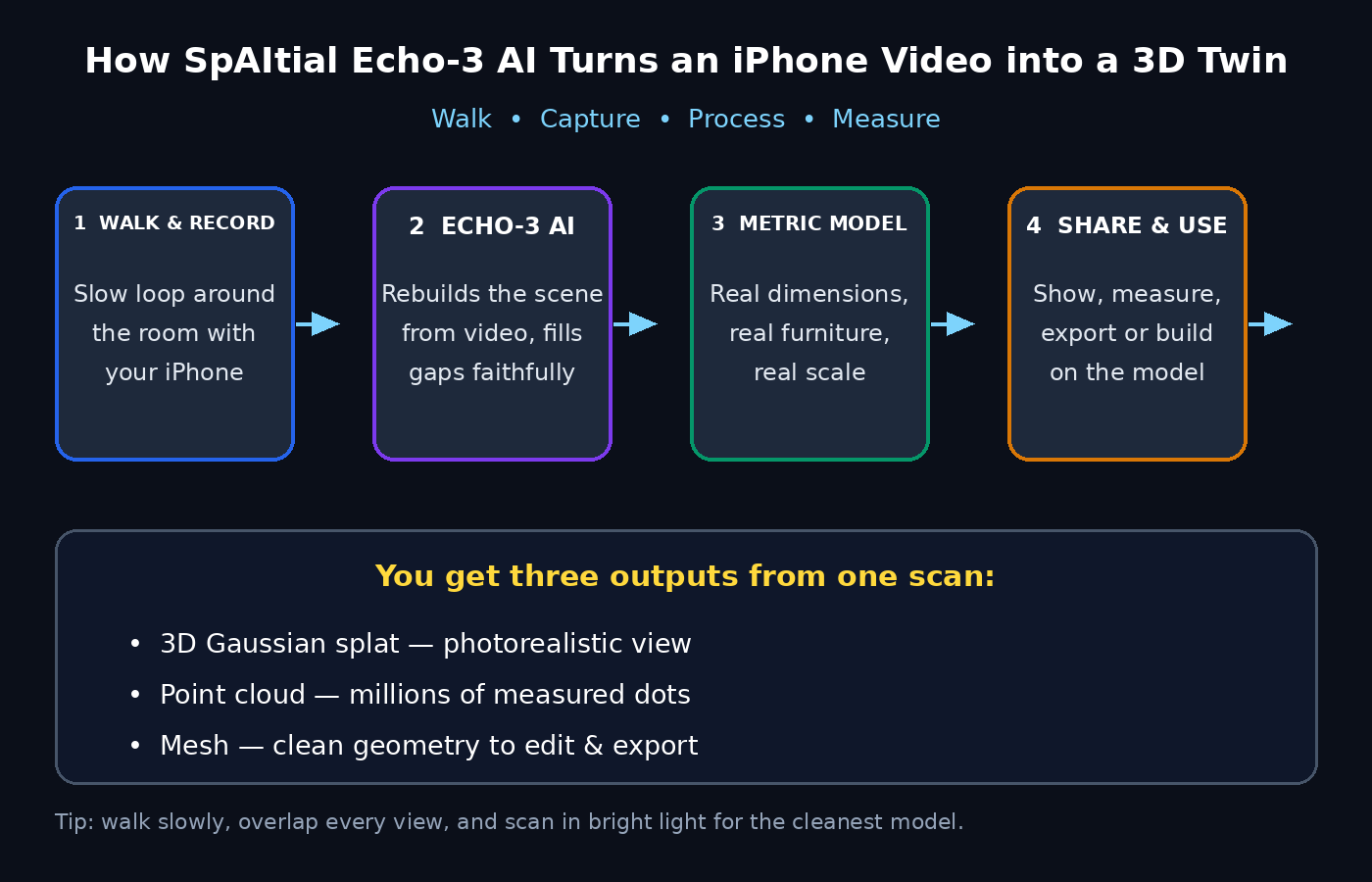
When you capture a room, the app records a short video as you walk through it. Echo-3 then rebuilds that space as an explorable 3D environment. The key word is metric: the reconstruction keeps real-world dimensions. A two-metre sofa measures two metres in the model. A doorway is a real doorway width. That is what separates Echo-3 from a pretty 3D render — you can measure things in it, plan around it, and trust the geometry.
The output comes in three flavours, and you do not need to understand the maths behind them to use them:
- 3D Gaussian splat (3DGS): the most photorealistic view — smooth, photographic, and great for showing a space to someone else.
- Point cloud: millions of coloured dots marking where surfaces sit — useful for measurement and technical work.
- Mesh: a clean surface model made of connected triangles — best for editing, exporting, and building on top of.
Echo-3 can handle scales from a single room up to multi-floor buildings, outdoor spaces, and public venues, according to the company’s launch announcement. That range is what makes it useful for everyone from a homeowner planning a renovation to a teacher capturing a classroom or a small business documenting a shop floor.
Step 2: Check Your iPhone Is Ready
The SpAItial app requires iOS 18 or later and runs on any modern iPhone. You do not need a LiDAR scanner or any extra hardware — a regular iPhone camera is enough, because Echo-3 rebuilds the scene from ordinary video.
That said, iPhone Pro models with LiDAR get a small bonus: live coverage guidance while you capture, and a denser scan preview as you walk. If you have a Pro model, you will see more feedback during the scan itself. If you do not, you can still get excellent results — just follow the capture technique in Step 5 carefully, since you are relying on the video alone.
Before your first scan, do three quick checks:
- Update your iPhone to iOS 18 or later in Settings, then restart it.
- Free up storage space — a few minutes of video plus a processed 3D model takes room, and a full phone can interrupt a capture.
- Charge your battery above 50 percent, or keep a charger nearby, so the phone does not die mid-scan.
One honest limitation to know up front: Android support is coming, according to SpAItial, but it is not live yet. This guide is for iPhone users for now, and Android owners should watch for the company’s announcement rather than hunting for unofficial copies.
Step 3: Download the App and Start Your Free First Month
Open the App Store on your iPhone and search for “SpAItial”. Make sure you download the official app from SpAItial — check the developer name before installing, because brand-new AI tools always attract copycat apps.
The app is free to download, but processing a scan draws down credits. SpAItial offers new users a free first month under its subscription plans, which is the sensible way to try it: you can run several real scans, learn the technique, and decide whether the ongoing cost is worth it for you before paying anything.
When you first open the app, it will ask for camera permission — that is essential, since the whole product is a camera capture tool. Grant camera access, and if it asks about photo library access, allow it too so you can save and share results. Read the subscription screen carefully before confirming: note the date your free month ends, and set a reminder a day or two before it, so the decision to continue or cancel is yours, not an accident. If you run a digital agency or a small business, the same discipline applies at work — free trials are only free when you track the renewal date.
Step 4: Prepare the Room Before You Scan
A good 3D scan starts before you press record. Echo-3 can only rebuild what the camera sees, so a few minutes of preparation pays off in a much cleaner model:
- Turn the lights on. Bright, even lighting helps enormously. Open curtains, switch on ceiling lights, and avoid scanning a room that is half dark — shadows become holes in the model.
- Tidy the obvious clutter. You do not need a show home, but move bags, cables, and laundry out of walkways so you can move smoothly and the camera sees the room, not the mess.
- Close doors you want included, open the ones you want to pass through. The model captures the space as it is at scan time, so decide the route first.
- Keep people and pets out of the shot. Moving people create ghosting and blur in the reconstruction. Ask everyone to step out for the few minutes of the capture.
- Watch out for mirrors and glass. Reflective surfaces confuse every 3D scanner. You cannot remove all glass, but avoid lingering on a big mirror — keep moving and the model will handle it better.
Finally, plan your walking route. For a single room, a slow loop around the edges plus a pass through the middle covers most surfaces. For a larger space, think of it as a series of connected loops, one per room, walking through the doorways that join them.
Step 5: Capture Your First Scan the Right Way
This is the step that decides whether your digital twin looks stunning or patchy. The good news is that the technique is simple — slow and steady beats fast and fancy every time.
- Hold the phone steadily, roughly at chest height, in portrait or landscape as the app guides you. Do not wave it around or swing it quickly.
- Walk slowly. Think of a slow stroll, not a normal walk. Fast movement blurs frames and breaks the tracking.
- Overlap everything. Each new view should share about half of the previous view. If you jump from one corner to the opposite wall with nothing in common, the model cannot connect the two.
- Point at surfaces, not just ahead. Tilt the phone gently toward walls, furniture, and the floor as you pass them, so each surface gets a clear look.
- Loop back to where you started. Closing the loop — ending near your starting point — helps the model tie the whole space together.
- On a LiDAR Pro iPhone, watch the live coverage guidance. If the app shows an area as uncovered, walk back and cover it before finishing.
A typical room takes just a few minutes. A multi-room flat or a small shop takes longer, but resist the urge to rush: a slow ten-minute capture beats a hurried three-minute one that needs redoing. When you finish, stop the recording and let the app confirm the capture before you move on.
Step 6: Process the Scan and Choose Your Output
Once the capture is uploaded, Echo-3 processes it into your 3D reconstruction. Processing takes some time — the model is doing serious work — and it draws down your credits, so do not reprocess the same scan repeatedly unless you need to.
When the result is ready, open it and explore. Rotate around it, zoom in, and check the areas that matter most to you. Then choose the output format that fits your purpose:
- Show it to someone: the photorealistic 3D Gaussian splat is the most impressive and easiest to understand.
- Measure it: the point cloud or mesh gives you geometry you can work with and check against real dimensions.
- Build on it: the mesh is the best starting point for editing, importing into design tools, or sharing with a professional.
Remember the metric-scale promise: because the model preserves real dimensions, you can use it to check whether a sofa fits a wall, whether a wheelchair can pass a doorway, or how far apart two workstations sit. For anyone exploring AI automation services for property, retail, or facilities work, a trustworthy measured model is the foundation everything else builds on — a chatbot can describe a room, but only a metric model can measure it.
Step 7: Review the Result and Fix the Gaps
Your first scan will probably not be perfect, and that is normal. A quick phone capture is inevitably incomplete: some surfaces are only briefly visible, and the camera misses others entirely. Echo-3 fills in missing regions to match their surroundings, but it can only do so much with a thin capture.
Review with a checklist:
- Floaters: stray fragments floating in space where nothing exists. SpAItial’s own comparison with other capture apps highlights clean surfaces with no visible floaters as Echo-3’s strength — if you see many, your capture was probably too fast.
- Holes: blank patches on walls or floors you did not point the camera at long enough.
- Blurry or stretched textures: areas the camera only glimpsed from far away.
- Wrong scale clues: doorways or furniture that look stretched or squashed, which usually means tracking broke mid-walk.
The fix is almost always a re-scan of the problem area, walking slower and overlapping more — not a settings change. Scan the gap deliberately, then reprocess. After two or three scans you will develop a feel for the pace, and your results will jump in quality.
Step 8: Share, Export, and Put Your Digital Twin to Work
A digital twin sitting on your phone helps nobody, so share it. The obvious uses depend on who you are:
- Homeowners: share a scan with a builder, interior designer, or estate agent so they can measure and plan without a site visit.
- Teachers and trainers: capture a classroom, lab, or workshop once and reuse it for remote lessons and inductions.
- Small businesses: document a shop, restaurant, or factory floor for insurance, layout planning, or staff training.
- Creators: use a real location as the starting point for a virtual scene, rather than modelling it from scratch.
- Teams and developers: SpAItial also offers an enterprise API, so companies can build reconstruction into their own products and workflows.
When you share, send the format your recipient can actually open — a photorealistic view for a client, a mesh or point cloud for a professional. And always check what you are sharing: a scan of your home contains your belongings, your layout, and sometimes reflections of personal items. Share deliberately, not by default.
Step 9: Stay Safe With Privacy and Scan Data
Echo-3’s power cuts both ways: a metric 3D model of a real place is sensitive data. Before you scan someone else’s property, a workplace, or any space with people in it, get permission. Never scan a private home, office, or venue without the owner’s clear agreement, and never scan people without their consent.
Also read the app’s terms on uploaded scans before you rely on it for business use. Coverage of the launch notes that the service’s scan-data terms are something customers should weigh — in plain terms, understand who can access your uploaded captures, how long they are kept, and whether they are used to improve the model. If you handle client properties, that answer belongs in your own privacy notes too.
Practical habits that keep you safe:
- Delete test scans you no longer need instead of letting them pile up.
- Do not include documents, screens, or whiteboards with readable personal information in a scan you plan to share.
- Keep your account secured with a strong password and your phone’s lock screen on.
- Check the app’s sharing settings before sending a link to anyone — a link that anyone can open is a public document.
Step 10: Go Further — Pro Tips and Honest Limits
Once you have a clean first scan, a few habits take you from beginner to confident user:
- Start small, then scale up. Master one room before attempting a multi-floor building. Each scale teaches you something about pacing and coverage.
- Scan in daylight when you can. Natural light is even and generous; a dim evening scan will always be noisier.
- Compare with the alternatives. SpAItial’s own side-by-side test reconstructed the same scene with Polycam, KIRI Engine, and Niantic Scaniverse following a similar path. Trying one alternative on the same room teaches you what Echo-3 does better — and where another tool might suit a particular job.
- Use the model, don’t just admire it. Measure one real thing in every scan and check it against a tape measure. That single habit builds trust in the tool faster than any demo video.
- Keep an eye on Android. If your team is mixed iPhone and Android, plan your rollout around the Android release rather than forcing everyone onto one platform.
And the honest limits: Echo-3 cannot fix a rushed capture, it cannot see through walls or closed doors, and it cannot turn a dark, cluttered, fast walkthrough into a clean model. It also does not replace a professional surveyor for legal or structural measurements — always verify important dimensions on site before you build, buy, or sign anything based on a scan.
SpAItial Echo-3 AI vs the Alternatives
| Option | What you capture with | Real-world scale | Best for |
|---|---|---|---|
| SpAItial Echo-3 AI | iPhone video (iOS 18+) | Yes — metric scale | Photorealistic digital twins of real spaces |
| Polycam | iPhone photo / LiDAR | Yes, with LiDAR | Quick object and room scans |
| KIRI Engine | Phone photos | Approximate | Object scans from photo sets |
| Niantic Scaniverse | iPhone / Android | Yes, with LiDAR | Sharing splats socially |
| Manual photos + tape measure | Any camera | Manual only | Zero-cost, low-detail records |
The honest comparison is this: manual photos are free but flat and unmeasured, older scan apps are good but often need LiDAR or many photos, and Echo-3’s edge is turning one short ordinary iPhone video into a faithful, measurable 3D world — no scanner, no crew, no photogrammetry expertise. Its current trade-offs are iPhone-only availability, credit-based processing, and a subscription after the free first month.
Frequently Asked Questions
Is SpAItial Echo-3 AI really free?
The app is free to download, and new users get a free first month under its subscription plans. Processing scans uses credits, so check the subscription and credit details in the app before your free month ends, and set a reminder so you decide deliberately whether to continue.
Do I need a LiDAR iPhone to use Echo-3?
No. Echo-3 runs on any modern iPhone with iOS 18 or later and rebuilds the scene from ordinary video. LiDAR Pro models get live coverage guidance and a denser preview while capturing, but they are a bonus, not a requirement.
Can Echo-3 scan a whole building or an outdoor space?
Yes, according to SpAItial — from a single room up to multi-floor buildings, outdoor spaces, and public venues. Start with one room to learn the technique, then scale up to larger spaces with connected walking loops.
What is the difference between Echo-3 and a generative world model like Genie?
A generative world model invents an explorable environment from a prompt or an image, with no obligation to match anything real. Echo-3 reconstructs a place that actually exists, from your camera footage, preserving its real appearance and real dimensions — then fills only the small gaps the camera missed.
Does SpAItial Echo-3 AI work on Android?
Not yet. Android support is coming, according to the company, but the app is iPhone-only at launch. Android users should wait for the official release rather than installing unofficial copies.
Can I trust the measurements in a scan?
For planning, layout, and everyday decisions, yes — the reconstructions are metric, so dimensions match the real space. For legal, structural, or safety-critical work, always verify important measurements on site with a tape measure or a professional survey.
Final Thoughts
SpAItial Echo-3 AI is one of those tools that sounds like science fiction until you try it: walk around a room with your phone, and walk away with a measurable 3D copy of it. Launched on October 27, 2026 by a team with serious 3D credentials, it lowers the barrier that used to keep digital twins in the hands of professionals with expensive scanners. Now the barrier is just a slow walk, good light, and a modern iPhone.
Start with your free first month, scan one room slowly, measure one real thing in the result, and judge it on that evidence. If the model matches your tape measure, you have a genuinely useful new tool — for moving house, planning a renovation, documenting a business, or teaching from a real place instead of a flat photo. The future of capturing the world may not be a better camera. It may just be the phone already in your pocket, walking slowly.
Explore More Free AI Tools
Want to keep building your AI toolkit? Try our AI Title Generator, Meta Description Generator, AI Rewriter, and Keyword Density Checker — all free on AIToolSteps, and all built for beginners who want results without a learning curve.