

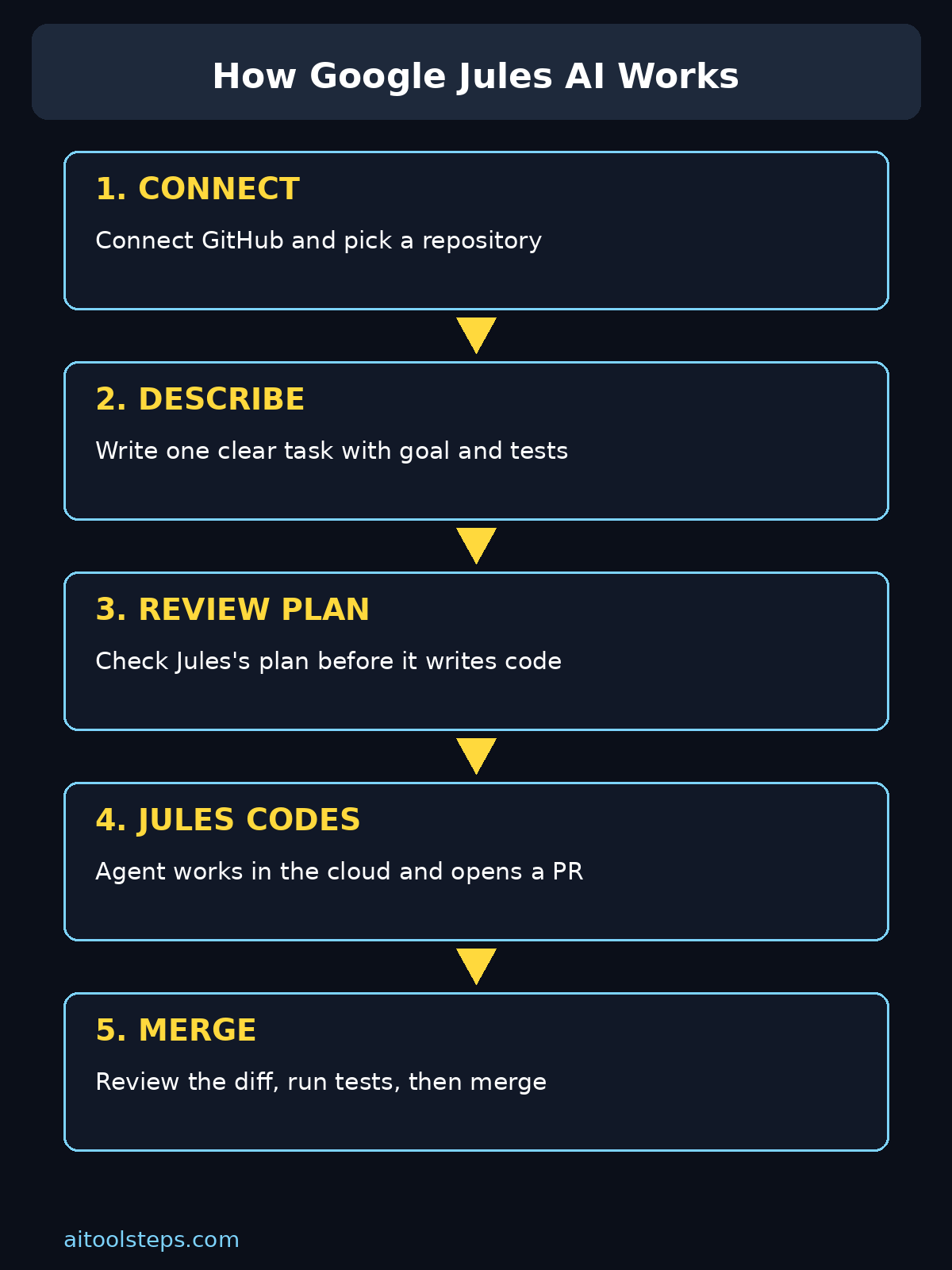
If you have ever stared at a GitHub repository and thought, “I wish someone would just fix this for me,” Jules is that someone — except it is an AI agent, it never gets tired, and it shows its working before it touches your code. In this beginner-friendly guide, you will learn exactly how to use Google Jules AI, from signing up and connecting GitHub to writing good prompts, reviewing pull requests, and avoiding the mistakes beginners make.
Step 1: Understand What Google Jules AI Actually Does
Before you click anything, it helps to understand the mental model. Jules is not a chatbot that writes a snippet you copy and paste. It is an agent that works inside your repository. When you give it a task, it copies your repository into a fresh cloud virtual machine, installs the dependencies, reads the relevant files, and drafts a plan. You can approve that plan, ask for changes, or let it run, and it then edits the code and opens a pull request on GitHub.
That asynchronous design is the whole point. A normal AI coding assistant sits beside you in your editor and answers in real time. Jules works like a junior developer you hand a ticket to: you assign the work, walk away, and come back to a finished pull request with a diff, a summary, and even an audio changelog explaining what changed. This makes it perfect for the backlog jobs developers keep postponing: fixing flaky tests, updating an old dependency, adding validation to a form, or writing tests for code that has none.
Jules is powered by Google’s Gemini models, and Google says it does not train on your private repository content. It is built for GitHub workflows, so if your code lives on GitHub — or you are learning with a public practice repository — you are already in the right place. If your code lives somewhere else, you will want a GitHub copy first, because Jules works through GitHub pull requests.
Step 2: Sign Up for Google Jules AI for Free
Getting started takes only a few minutes. Open Jules in your browser and sign in with a Google account. There is no separate download and no installation on your own computer, because Jules runs in the cloud. The free plan is genuinely usable: 15 tasks in a rolling 24 hours, with up to 3 tasks running at the same time. That is plenty for a beginner learning the ropes or a hobby developer clearing a small backlog.
Paid plans exist if you ever outgrow the free tier. Jules in Google AI Pro allows 100 tasks a day and 15 running at once, while Jules in Google AI Ultra allows 300 tasks a day and 60 at once, with higher or priority access to the latest Gemini models. You do not need either of those to follow this guide. Start free, learn the workflow, and upgrade only when you regularly hit the daily limit — which, for most beginners, takes a while.
One practical note: paid upgrades currently require an individual Google account, and Google points business users to an interest form. For a personal learning project, a standard Google account is all you need, so do not let the pricing page slow you down.
Step 3: Connect Jules to Your GitHub Account
Jules cannot work until it can see your repositories, so the next step is connecting GitHub. When you sign in to Jules for the first time, it asks you to
authorize
GitHub access. Grant the access for the repositories you want Jules to work on — you can limit it to specific repositories rather than every repository you own, which is the safer choice for beginners.
After
authorization
, Jules lists your repositories. Pick one to
practice
with, ideally a small project you understand, not your most important production codebase. A personal practice project, a tutorial app, or a small open-source repository is ideal. If you have no repository yet, create a simple one first — even a small website or a to-do app gives Jules something real to work with, and it gives you something safe to review.
Take a moment to check the repository settings inside Jules as well. Make sure Jules is allowed to open pull requests on the branch you expect, and confirm which account the work will be attributed to. These small checks save confusion later, when you are looking for a pull request and cannot find it because it landed on an unexpected branch.
Step 4: Write Your First Task the Right Way
This is the step where beginners either fall in love with Jules or get frustrated, and the difference is almost always the prompt. Jules is powerful, but it is not a mind reader. A vague task like “fix my app” gives it too much room to guess, and you will get a pull request that solves the wrong problem. A good Jules task has four ingredients: the goal, the context, the constraints, and the definition of done.
For example, instead of writing “fix the login bug,” write something like: “Fix the login form on the sign-in page so that an incorrect password shows the message ‘Incorrect password, please try again’ instead of a blank page. Do not change the design. Add a test that submits a wrong password and checks the error message appears.” That prompt tells Jules where to look, what success looks like, and what not to touch — and it asks for a test, which makes the result far easier to trust.
Keep your first few tasks small and single-purpose. One bug, one feature, or one set of tests per task. If a task needs three unrelated changes, split it into three tasks. Small tasks are faster, easier to review, and far less likely to break something else. As you get comfortable, you can hand Jules larger jobs, but the habit of one task, one job will serve you for a long time.
- State the goal in one sentence first.
- Name the exact file, page, or feature involved.
- Describe the current
behavior
- and the
behavior
- you want.
- List anything Jules must not change.
- Ask for a test when the change can be tested.
Step 5: Review the Plan Before Jules Writes Code
One of Jules’s best features for beginners is that it shows its plan before it writes code. Do not skip this step. When a task starts, Jules analyses your repository and presents a plan: which files it will touch, what approach it will take, and what it expects the outcome to be. Read it like you would read a plan from a human colleague.
If the plan looks wrong — it plans to edit the wrong file, or it misunderstands the feature — say so and ask Jules to revise it. Steering a task while it runs is part of the workflow, and correcting a plan takes seconds, while untangling a wrong pull request takes far longer. If the plan looks right, approve it and let Jules work. You can leave the tab, do other work, and check back later; Jules keeps working in the background and notifies you when the task is done.
This plan-review habit is also how you learn. Watching how Jules breaks a task into steps teaches you how experienced developers think about a codebase: find the relevant code, understand the flow, change the smallest thing that fixes the problem, and verify it. Beginners who read every plan improve faster than beginners who blindly merge every pull request.
Step 6: Review the Pull Request Like a Professional
When Jules finishes, it opens a pull request on GitHub. Your job now is to review it properly, and this is not optional — even though Jules is good, you are the one responsible for your code. Open the pull request, read the summary, and then read the diff: the actual lines added, changed, or removed. Ask yourself three questions. Does this change do what I asked? Does it touch anything I did not ask it to touch? Does the code look like something I understand?
Run the tests if the project has them, and try the feature yourself if you can. If Jules added a test, run it and watch it pass. If something looks off, do not just merge and hope — leave a comment on the pull request, ask Jules to fix the issue, or edit the code yourself. Jules can iterate on feedback, so a first draft that is 90 percent right is normal, not a failure.
If you are working on a team project, the same rules apply, only more so. Never merge a Jules pull request without review just because an AI wrote it. Teams that treat Jules output like any other colleague’s pull request — reviewed, tested, and discussed — get the best results and the fewest surprises.
Step 7: Use Jules for Tests, Fixes, and Small Features
Once you trust the basic loop, Jules becomes genuinely useful across a whole range of everyday jobs. The tasks it handles best are the ones developers describe as “important but boring”: writing tests for existing code, fixing a failing test, updating a deprecated library call, improving an error message, or adding input validation to an API endpoint. These are also the tasks beginners learn the most from, because reviewing them teaches testing, debugging, and code style at the same time.
Jules can also suggest tasks on its own by scanning your codebase for TODO comments and possible improvements, and it can run scheduled tasks daily, weekly, or monthly. That is a powerful habit-builder: imagine a weekly task that checks for outdated dependencies or a daily task that keeps documentation in step with the code. Start with manual tasks, though, and only add scheduled or suggested tasks once you are confident reviewing Jules’s output quickly.
Another underrated use is learning a new codebase. Give Jules a task like “add a short README section explaining how the authentication flow works,” and read the pull request. The explanation it writes, and the files it chose to read, will teach you the architecture faster than clicking through folders at random. For students and self-taught developers, that is a genuine shortcut — as long as you verify what it wrote.
Step 8: Handle Mistakes, Failures, and Limits Gracefully
Jules will sometimes get things wrong, and knowing what to do then is part of using it well. If a task fails, read the error and the logs before retrying; often the problem is a missing dependency, a repository permission, or a task that was too broad. Narrow the task, fix the permission, and try again. If a pull request is wrong, comment on it with specifics — “this changes the checkout page, but I only asked for the login page” — rather than starting over from scratch, because Jules can use that feedback.
Watch the free-plan limits too. Fifteen tasks a day sounds generous until you burn five of them iterating on one vague prompt. That is another reason to write precise prompts and review plans early: every wasted task is a task you cannot use later that day. When you hit the limit, you can still view and manage existing sessions; you simply cannot start new ones until the rolling window resets.
Be honest about what Jules is not. It is not a replacement for learning to code, it is not an interactive pair programmer sitting in your editor, and it is not the right tool for a complex multi-file refactor that needs deep architectural
judgment
. For real-time coding help, tools like Copilot or Claude Code fit better. Jules shines as a background worker for your GitHub backlog — use it for that, and it will feel almost magical.
Step 9: Build a Daily Jules Workflow That Sticks
The developers who get the most from Jules treat it like a daily habit, not a one-off experiment. A simple workflow looks like this: each morning, pick the two or three smallest items from your backlog; write one clear task for each; approve the plans; and review the pull requests in the afternoon. Over a week, that clears a surprising amount of backlog, and over a month, it can transform a neglected side project.
Keep a short list of task ideas so you never stare at a blank prompt box. Good recurring candidates include: write tests for any new feature, fix the oldest open issue, update one outdated dependency, improve one error message, and document one confusing function. If you run a small business or a freelance practice, this kind of steady automation matters — a reliable workflow is exactly what a professional digital agency would set up for a client, and the same discipline helps solo developers ship consistently. Similarly, when you want to understand how automated workflows fit into a wider business, reading about AI automation services can give you ideas for the next process worth handing to an agent.
Track what Jules does for you, too. Note which kinds of tasks succeed first time and which need two or three rounds of feedback, and adjust your prompts accordingly. Within a few weeks you will have a personal playbook: the phrasing that works for your codebase, the task sizes that succeed, and the review checklist you run before every merge. That playbook is worth more than any single pull request.
Step 10: Compare Jules With Other AI Coding Tools
Jules is not the only AI coding tool, and choosing well means knowing where it fits. The table below compares it with the tools beginners most often consider, so you can pick the right one for each job instead of forcing one tool to do everything.
| ToolBest forFree planHow it worksGoogle Jules AIBackground backlog work via GitHub15 tasks/day, 3 at onceAsync agent, opens pull requestsGitHub CopilotReal-time coding in your editorLimited free tierSuggests code as you typeClaude CodeInteractive terminal codingPaid, with limitsAgent working beside youCursorAI-first code editorLimited free tierEditor with built-in agent chatGoogle AntigravityFull agent-first IDE projectsFree during rolloutAgentic IDE, builds whole apps |
|---|
The honest summary: use Jules when you have a GitHub backlog and want finished pull requests waiting for you; use an editor assistant when you want help while you type. Many developers use both, and that combination — Jules for the backlog, an editor assistant for live coding — is a strong, free-friendly setup for beginners.
Frequently Asked Questions
Is Google Jules AI really free?
Yes. The free plan gives you 15 tasks per day with up to 3 running at once, powered by Gemini models. Paid plans through Google AI Pro and Ultra raise those limits, but beginners can learn the entire workflow without paying anything.
Do I need to know how to code to use Jules?
You need basic familiarity with GitHub and with reading code, but you do not need to be an expert. Jules explains its plan and its changes, which makes it a good learning tool — as long as you review every pull request instead of merging blindly.
Does Jules work without GitHub?
No, Jules is built around GitHub workflows. It clones repositories, works in a cloud virtual machine, and delivers its work as a GitHub pull request. If your code is not on GitHub, move or mirror it there first.
Is my private code safe with Jules?
Google says Jules does not train on private repository content, and each task runs in an isolated cloud virtual machine. Still, follow normal caution: limit GitHub access to the repositories Jules needs, and never put passwords or secret keys directly in your code or your task prompts.
What should I do if Jules makes a mistake?
Review the pull request, leave a specific comment about what is wrong, and ask Jules to fix it — or edit the code yourself. Treat its output like a colleague’s draft: useful, usually close, and always worth checking before it ships.
Can Jules replace a human developer?
No. Jules is excellent at well-scoped backlog tasks, tests, and fixes, but it does not replace
judgment
about architecture, product decisions, or security. The best results come from a human directing the work and reviewing the output.
Final Thoughts
Google Jules AI is one of the friendliest ways for a beginner to experience what AI agents can actually do for real work. It does not ask you to learn a new editor or
memorize
a new language; it asks you to describe a task clearly, review a plan, and review a pull request — skills every good developer needs anyway. Start with a small practice repository, keep your tasks small and specific, and build the review habit from day one. Within a week, you will have a cleaner backlog, better tests, and a much clearer sense of how AI coding agents fit into your workflow.
If you want to keep the momentum going, try assigning Jules one small task tomorrow morning before you start coding, and review the pull request before lunch. That single habit, repeated daily, is how a free tool quietly becomes one of the most useful members of your development workflow.
Explore More Free AI Tools
Want more free AI tools to try next? Explore the AI Title Generator, Meta Description Generator, AI Rewriter, and Keyword Density Checker at AIToolSteps — all free, all beginner-friendly, and all designed to help you create better content and code faster.