

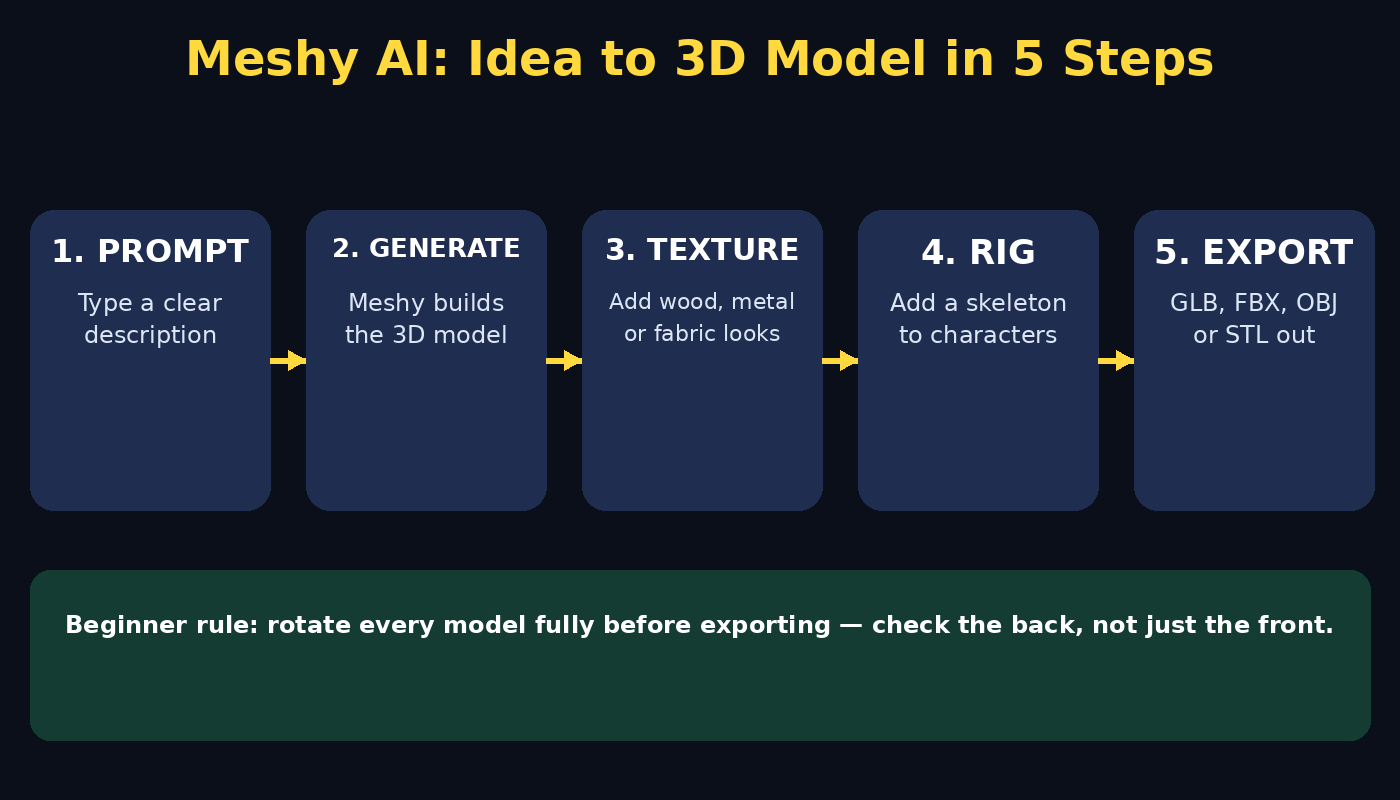
Imagine describing a chair in one sentence — “a cosy wooden armchair with soft green cushions” — and watching a finished 3D model appear in your browser a minute later, ready to drop into a game, a product mockup, or a 3D printer. That is exactly what Meshy AI does. Meshy is an AI-powered 3D creation platform from Sunnyvale, California, and on October 25, 2026 it expanded its free, browser-based toolkit so anyone can generate and modify 3D models without installing heavy desktop software. You type a description, or upload a picture, and Meshy builds the model for you. Then you can refine it with AI texturing, give it a skeleton with auto-rigging, and export it in standard formats like GLB, OBJ, FBX, and STL.
The best part for beginners is the low barrier to entry. Traditional 3D modelling takes weeks to learn and needs a powerful computer, specialist software, and a lot of patience. Meshy removes most of that friction. The work happens in your browser, the free tier lets you try real projects before paying anything, and the workflow is built around simple prompts rather than complex menus. This beginner guide walks you through everything step by step: creating your free account, writing your first text-to-3D prompt, turning a photo into a 3D model, adding textures, rigging a character, fixing files for 3D printing, and exporting your finished model for games, design work, or printing.
Step 1: Understand What Meshy AI Is (and Is Not)
Meshy is an AI-assisted 3D asset generator, not a replacement for a professional 3D artist. Think of it as a very fast junior modeller: it turns your idea into a solid first draft in minutes, and you then refine, check, and polish that draft for your project. It is ideal for game developers who need props quickly, product designers exploring shapes, teachers showing 3D concepts, hobbyists making printable models, and small teams that cannot afford a full 3D department yet.
What Meshy does well:
- Turns text descriptions into 3D models in minutes.
- Turns a single image into a 3D model you can rotate and inspect.
- Adds realistic surface textures automatically from a description or reference.
- Auto-rigs humanoid characters so they can be posed and animated.
- Repairs STL files for 3D printing in the browser.
- Exports to the formats games, design tools, and printers actually use.
What it does not do: it will not read your mind. Vague prompts produce vague models, complex mechanical parts may need manual fixing, and a generated model is a starting point, not a finished production asset. Set that expectation now and you will enjoy the tool far more — and get far better results from it.
Step 2: Create Your Free Meshy Account
Getting started takes only a few minutes, and everything runs in your browser:
- Open your browser and search for “Meshy AI” — always open the official Meshy website, never a link from a random ad or message.
- Click Sign Up and create an account with your email address, or use Google sign-in if offered.
- Verify your email if asked, then sign in to reach the Meshy dashboard.
- Take a minute to look around: your generated models, your credits or free-tier allowance, and the creation tools all live here.
- Bookmark the dashboard so your next session starts in one click.
Beginner tip: check your free-tier balance before you start a big batch of generations. Free credits are best spent on your strongest ideas first — test one prompt, judge the result, then refine, rather than burning credits on ten untested guesses. If you run a small studio, this is also where good planning pays off: a digital agency workflow usually starts with a short list of the exact assets a project needs, and Meshy fits that list-first habit perfectly.
Step 3: Write Your First Text-to-3D Prompt
This is the heart of Meshy, and prompt quality decides model quality. A good Meshy prompt is specific, visual, and structured. Instead of “a dog”, write “a small cartoon-style robot dog, rounded white body, orange ears, sitting pose, friendly expression, simple clean shapes”. That one sentence tells Meshy the subject, the style, the pose, and the level of detail.
Follow this simple formula:
- Subject: exactly what the object is.
- Style: realistic, cartoon, low-poly, stylised, or toy-like.
- Key details: colours, materials, and standout features.
- Pose or shape: sitting, standing, front view, symmetrical, and so on.
- What to avoid: anything you do not want, stated plainly.
Good prompt examples to try first:
- “A low-poly pine tree with snow on its branches, stylised game asset, simple shapes.”
- “A realistic ceramic coffee mug, matte blue glaze, with a handle, on a flat base.”
- “A cartoon treasure chest, open lid, gold coins inside, chunky toy style.”
Generate your first model, then rotate it slowly in the preview. Look at it from every angle — the front can look perfect while the back is messy. That full rotation check is the single most useful habit a Meshy beginner can build, and it takes ten seconds.
Step 4: Turn a Photo Into a 3D Model (Image-to-3D)
If describing something in words feels hard, start from a picture instead. Meshy’s image-to-3D tool takes one clear photo and rebuilds it as a 3D model, which is brilliant for real objects: a product, a toy, a piece of furniture, or a handmade prototype you want to digitise.
For the best result:
- Use one clear photo with the object fully in frame, on a plain background if possible.
- Use even, bright lighting and avoid harsh shadows or reflections.
- Photograph the object from a natural front or three-quarter angle.
- Avoid cluttered backgrounds, other objects touching it, or heavy filters.
- Upload a sharp, high-resolution image — blurry input gives blurry geometry.
After generation, compare the model to the photo side by side. Check the silhouette first: if the outline is wrong, the details will not save it. If the shape is close, you can regenerate with a slightly different prompt or reference and pick the better version. Many beginners generate two or three versions of the same object and keep the cleanest one — that is normal, not wasteful, and it is how you learn what Meshy handles best.
Step 5: Refine the Model — Geometry, Details, and Fixes
Your first generation is rarely your last. Meshy’s browser tools let you inspect and improve the model before you export it, and a few minutes here saves hours later in another program.
Work through this quick refinement checklist:
- Rotate the model fully and look for holes, spikes, or melted-looking areas.
- Check proportions: does the object look balanced from the side as well as the front?
- Simplify if needed: game assets usually want cleaner, lighter geometry than a display render.
- Regenerate weak areas with a clearer prompt rather than accepting a flawed first try.
- Save versions as you go, so you can always return to an earlier model that worked.
A practical mindset helps here. If a model is 80 percent right, ask whether the remaining 20 percent matters for your use. A background game prop does not need the same polish as a hero product shot, and knowing when to stop is part of getting faster. Teams that ship a lot of content — including teams offering AI automation services for creative workflows — treat Meshy as the fast first draft in a pipeline, with a short human review pass before anything goes live.
Step 6: Add AI Textures That Make Models Look Real
An untextured 3D model looks like grey clay. Texturing is what turns it into wood, metal, fabric, or skin, and Meshy’s AI texturing does this from a description or a reference image, without you painting anything by hand.
Try this workflow:
- Open the texture tool on your finished model.
- Describe the surface plainly, for example “worn dark leather with stitching” or “smooth glossy red plastic”.
- If you have a reference photo of the material, use it — it beats words for tricky surfaces.
- Preview the texture under different lighting angles, not just the default view.
- If a texture looks stretched or patchy, regenerate it or simplify the description.
Beginner tip: one material per idea works best. Asking for “wood and metal and glass and fabric” in a single texture prompt usually produces a muddle. Texture the main surface first, get it right, then add detail. And remember that textures also affect file size and performance in games, so keep textures reasonable for the platform you are targeting — a mobile game does not need the same texture resolution as a desktop showcase render.
Step 7: Auto-Rig Characters for Posing and Animation
Rigging sounds technical, but Meshy’s auto-rigging makes it beginner-friendly. Rigging means giving a character an internal skeleton — joints for the arms, legs, spine, and head — so you can pose it or animate it instead of it standing frozen like a statue.
Here is how to use it:
- Start with a roughly humanoid character: two arms, two legs, a head, and a torso.
- Open the auto-rigging tool and let Meshy place the joints automatically.
- Check the joint positions in the preview, especially shoulders, elbows, hips, and knees.
- Try a simple pose first — an arm wave or a walking stance — before attempting a complex animation.
- Export the rigged model in a format your animation or game tool supports, such as FBX or GLB.
Auto-rigging works best on standard proportions. Extremely stylised characters with very long arms, missing limbs, or unusual shapes may rig imperfectly, and that is normal. If a rig looks wrong, try a more standard-proportioned character first to learn the workflow, then experiment with stylised designs once you know what good looks like.
Step 8: Prepare Models for 3D Printing With the STL Tools
Meshy’s browser platform also includes utilities for makers, including an STL repair tool that cleans up model files for printing. This is a genuinely useful bridge between AI generation and the physical world: you can design a small object by describing it, check it, repair it, and send it to a printer.
Follow this printing checklist:
- Export or convert your model to STL format for printing.
- Run the built-in repair tool to fix holes, non-manifold edges, or broken geometry.
- Check the model’s size and scale before printing — AI models do not know real-world centimetres unless you set them.
- Add supports in your slicer software for overhangs, just as you would for any printed model.
- Print a small test version first for anything large or detailed, to catch problems cheaply.
Beginner tip: start with simple, chunky objects for your first prints — a phone stand, a small planter, a simple figurine. Thin, delicate, or highly detailed shapes are the hardest to print cleanly, whatever tool made them. A successful small print teaches you more than a failed ambitious one, and it gives you a physical object to show for your first hour with Meshy.
Step 9: Export in the Right Format for Your Project
Meshy supports the industry-standard formats, but picking the right one matters. Exporting everything as one format and hoping for the best causes avoidable headaches later.
Use this quick guide:
- GLB: best for web viewers, AR previews, and many modern game engines.
- FBX: best for animation pipelines and tools like Unity or Blender with rigs.
- OBJ: a widely supported classic format for static models and design tools.
- STL: the standard for 3D printing, focused on geometry rather than colour or texture.
Before you export, name your file clearly — “robot-dog-v2-textured.glb” beats “model-final-2.glb” when you come back to it next week. Keep a simple folder habit: one folder per project, with the source model, the textured version, and the final export kept together. Future you will be grateful, especially when a client or teammate asks for a small change to a model you made months ago.
Step 10: Build a Simple First Project From Start to Finish
The fastest way to actually learn Meshy is one complete project, not ten half-finished experiments. Here is a beginner project you can finish in one evening: a small set of three game props — a treasure chest, a potion bottle, and a low-poly tree.
Work through it like this:
- Write one prompt per prop and generate all three models.
- Rotate and check each one, regenerating anything that looks broken.
- Texture each prop with one clear material description.
- Export all three in the same format, GLB if you are showing them on the web.
- Drop them into a free viewer or game engine scene and take a screenshot of the result.
That finished screenshot is your proof of learning, and it is also your first portfolio piece. Share it, note what went wrong and what you would prompt differently next time, and repeat the same project with harder subjects. Three good props teach the whole Meshy workflow; thirty rushed generations teach only how to click Generate.
Meshy AI vs the Alternatives
| Feature | Meshy AI | Traditional 3D software | Other AI 3D tools |
|---|---|---|---|
| Runs in the browser | Yes, no heavy install | Usually desktop software | Varies by tool |
| Free starting tier | Yes, free tier available | Often paid or complex free tools | Often credit-based |
| Text-to-3D generation | Yes | No, manual modelling | Yes, on many tools |
| Image-to-3D generation | Yes | No | Yes, on many tools |
| AI texturing | Yes | Manual painting | Yes, on some tools |
| Auto-rigging | Yes | Manual rigging, technical | Varies |
| STL repair for printing | Yes, built-in utility | Via separate tools | Rarely built in |
| Learning curve for beginners | Low | High, weeks to months | Low to medium |
| Best for | Fast props, prototypes, learning | Production-grade custom work | Quick single models |
The honest takeaway: Meshy wins on speed and accessibility, traditional software wins on total control, and other AI tools overlap heavily. Use Meshy when you need a good model fast, and learn traditional tools later if you need precision work that AI cannot yet deliver.
Frequently Asked Questions
Is Meshy AI really free?
Meshy offers a free tier and a browser-based platform, so you can start generating models without paying. Like most AI tools, heavier use, higher resolutions, or commercial-scale output may need a paid plan, so check the current pricing page before planning a large project. The free tier is genuinely useful for learning and small projects.
Do I need a powerful computer to use Meshy AI?
No. Because Meshy runs in the browser, the heavy generation work happens on Meshy’s side rather than on your machine. A normal laptop and a stable internet connection are enough to create, preview, texture, and export models. A bigger screen does make inspecting models easier, but it is not a requirement.
What file formats can I export from Meshy?
Meshy supports standard formats including GLB, OBJ, FBX, and STL. GLB suits web and AR use, FBX suits animation and game engines, OBJ is a widely compatible static format, and STL is the standard for 3D printing. Pick the format your next tool expects, not just the first one in the list.
Can beginners really make usable game assets with Meshy?
Yes, for props, background objects, and prototypes — the exact assets that eat up the most time in small game projects. Hero characters and complex mechanical models still benefit from human polish in a tool like Blender, but a beginner can absolutely fill a game scene with Meshy-generated props within days of starting.
Does Meshy AI own the models I generate?
Ownership and commercial-use terms depend on Meshy’s current terms of service and your plan, so read the terms before using generated models in a product you sell. This is standard advice for every AI tool: the generation is fast, but the licence is what makes it safe to ship, so check it once and keep a note of what your plan allows.
Can I 3D print a model made with Meshy AI?
Yes. Export to STL, run Meshy’s built-in repair tool to clean up the geometry, set the real-world scale in your slicer, and print a small test first. Simple, chunky designs print most reliably for beginners, while thin or highly detailed shapes need more care and testing.
Final Thoughts
Meshy AI’s October 2026 browser expansion matters because it removes the two biggest excuses for never trying 3D: expensive software and a steep learning curve. You can now describe an object, see it in three dimensions, texture it, rig it, and export it for a game or a printer — all from a browser tab, starting free. The models will not always be perfect on the first try, and they are not a substitute for a skilled 3D artist on precision work. But for learning, prototyping, indie games, product exploration, and hobby printing, Meshy is one of the most beginner-friendly doors into 3D creation available today.
If you want to pair your 3D models with AI-generated images, see our guide to Krea AI for creating stunning AI images in real time.
Start small, check every model from every angle, keep your prompts specific, and finish one complete project before chasing the next idea. That discipline — more than any single feature — is what turns a fun AI demo into a skill you can actually use.
Explore More Free AI Tools
Keep building your AI toolkit with more free guides from AIToolSteps: try the AI Title Generator, Meta Description Generator, AI Rewriter, and Keyword Density Checker at https://aitoolsteps.com/ — all free, all beginner-friendly, and all designed to pair with the content and projects you create with tools like Meshy.