

Google has just made it much easier for AI coding assistants to work with real company data. On October 24, 2026, Google announced the general availability of its Data Agent Kit — a free, open-source toolkit that connects AI coding agents to more than 15 Google Data Cloud services. If you have ever wished your AI assistant could actually look at your database instead of guessing about it, this tool is built for you.
In this beginner-friendly guide, you will learn what Google Data Agent Kit is, how it works, and how to set it up step by step — even if you have never configured an AI agent before. No advanced coding degree is required. If you can open a terminal and follow instructions, you can use this tool.
What Is Google Data Agent Kit?
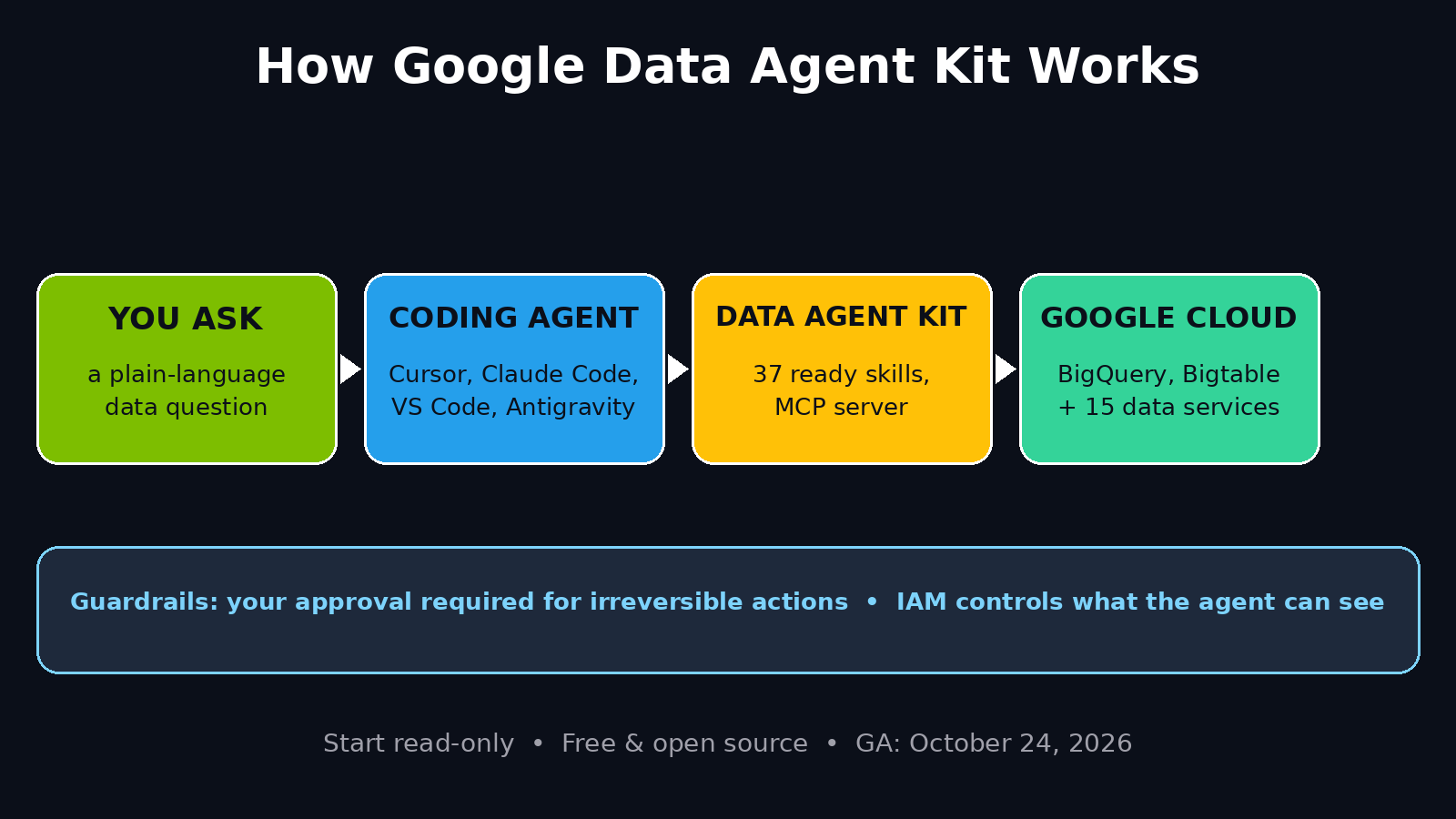
Google Data Agent Kit is an open-source toolkit that acts as a bridge between AI coding agents and Google Cloud data services. Think of it as a translator: your coding agent (such as Cursor, Claude Code, Codex, VS Code, or Antigravity) speaks in plain language, and the Data Agent Kit translates those requests into safe, precise actions on your data.
The kit ships with 37 ready-made skills and connects to services including BigQuery, Bigtable, and other Google Data Cloud products. Instead of your AI assistant hallucinating table names or guessing at your schema, it can read live schemas, understand table structures, and work with your actual data — with guardrails that require your consent before irreversible actions.
Version 1.0.0 arrived on September 29, 2026, version 1.1.0 followed on October 13, 2026, and general availability was announced on October 24, 2026. Because it is open source and free, anyone can try it today.
Why Beginners Should Care
You might be thinking: “This sounds like a developer tool — why should a beginner care?” Here is the honest answer: AI agents are quickly becoming the way everyday work gets done, and data is where most real work lives. Reports, dashboards, customer lists, inventory, and sales figures all live in databases. Until now, connecting an AI assistant to that data safely was hard. The Data Agent Kit changes that in three important ways:
First, it removes guesswork. Default coding agents often struggle with database partitioning and table schemas, which limits how useful they are in professional environments. The kit gives them direct access to live schemas.
Second, it is safe by design. Built-in guardrails require user consent for irreversible actions, and access is controlled through Google Cloud IAM policies, so you decide exactly what the agent can touch.
Third, it is free and open. You do not need an expensive enterprise contract to experiment. For students, freelancers, and small teams, that matters enormously — and it is exactly the kind of practical, budget-friendly tool that a modern digital agency recommends when clients ask how to bring AI into their data workflows without blowing the budget.
Step 1: Understand What You Need Before You Install
Before touching any code, take five minutes to answer three questions. This preparation saves hours later.
What data do you want the agent to access? A BigQuery dataset, a Bigtable instance, or another Google Cloud service? You need a Google Cloud project with at least one data service enabled.
Which coding agent will you use? The kit works with VS Code, Cursor, Codex, Claude Code, and Antigravity. Pick the one you already use — do not switch tools just for this guide.
What should the agent never do? Write down your boundaries now: read-only access is the safest starting point for beginners. You can grant write access later once you trust the setup.
If you do not have a Google Cloud account yet, create one and enable billing (Google Cloud offers a free tier and trial credits for new accounts). You only pay for the underlying cloud services you use; the Data Agent Kit itself is free.
Step 2: Install the Data Agent Kit
The Data Agent Kit is distributed as an MCP (Model Context Protocol) server. MCP is simply a standard way for AI tools to connect to outside data and tools — you do not need to understand the protocol deeply to use it.
Open your terminal and follow the official installation instructions from Google’s Data Agent Kit repository. In general, the flow looks like this:
- Clone or download the toolkit from its official repository.
- Install its dependencies with the provided setup command.
- Configure the server with your Google Cloud project ID and the services you want to expose.
Because the project is open source and actively updated, always follow the README in the repository rather than copying commands from random blog posts — commands change between versions, and the official docs for version 1.1.0 and later reflect the general-availability release.
Step 3: Connect It to Your Coding Agent
This is the step where the magic happens. You register the Data Agent Kit as an MCP server inside your coding agent’s settings.
In VS Code, Cursor, or Claude Code, open the MCP server configuration file and add an entry pointing to the Data Agent Kit server, including your project ID and the list of services you want to enable. Restart the agent or reload the window, and the agent will discover the kit’s 37 skills automatically.
Test the connection with a simple prompt such as: “List the datasets in my BigQuery project.” If the agent returns your real datasets, the connection works. If it cannot see them, check two things first: that your Google Cloud credentials are authenticated, and that the service account has permission to read those datasets.
Step 4: Try Your First Real Task
Start small. A great first task is asking the agent to explore and explain your data, not change it. Try prompts like these:
- “Describe the schema of my sales table and explain what each column means.”
- “Find the top 10 products by revenue last month and explain the result in plain English.”
- “Check whether my tables are partitioned, and tell me if partitioning could save query costs.”
Because the kit exposes live schemas, the agent answers from your actual data structure instead of inventing one. Review every answer against your own knowledge of the data — this is how you build trust in the tool.
Step 5: Use the 37 Built-In Skills
The 37 skills are the kit’s real power. Each skill is a pre-built capability — for example, reading a schema, running a query, or explaining a table’s structure — that your agent can call without you writing custom code.
Think of skills as apps on a phone: you do not need to build them, you just use them. When you ask a question, the agent picks the right skill automatically. Beginners should let the agent choose skills at first; once you are comfortable, you can read the skill list in the repository to learn exactly what each one does and when to invoke it directly.
Step 6: Set Guardrails and Permissions
Never skip this step. The kit includes guardrails that require your consent for irreversible actions, but you should also control access at the Google Cloud level:
- Give the agent’s service account the smallest permissions that get the job done (read-only to start).
- Use IAM policies to restrict which datasets and tables it can see.
- Keep a separate service account for the AI agent — never reuse your personal admin credentials.
- Review the agent’s proposed actions before approving anything that writes, deletes, or modifies data.
These habits protect you even if a prompt goes wrong, and they are the same practices that professional teams at AI automation services apply when they deploy agents against client data.
Step 7: Build a Daily Workflow With the Kit
Once the basics work, fold the kit into a routine you actually use. For example:
- Morning check: “Summarise yesterday’s sales from BigQuery in three bullet points.”
- Weekly review: “Compare this week’s sign-ups with last week’s and flag any unusual drops.”
- Monthly cleanup: “List tables that have not been queried in 90 days so I can review storage costs.”
The goal is not to automate everything at once. Pick one recurring question you answer manually today, automate that one question, and expand only when it works reliably.
Step 8: Troubleshoot Common Beginner Problems
Most beginner problems fall into four buckets:
Authentication errors usually mean your Google Cloud credentials are missing or expired. Re-authenticate and confirm the active project matches the one in your configuration.
Permission denied errors mean the service account lacks access to a dataset or table. Grant the minimum required role in IAM and try again.
Empty or wrong results usually mean the agent queried the wrong dataset. Ask it to list datasets first, then point it at the right one explicitly.
Slow queries often mean a table is not partitioned or the query scans too much data. Ask the agent to explain the query plan before running large scans.
If you get stuck, the project’s issue tracker and documentation are genuinely helpful — open-source maintainers for a Google-backed project respond to well-described problems.
Step 9: Combine the Kit With Other Free AI Tools
The Data Agent Kit does not replace your chatbot, your writing assistant, or your dashboards — it connects them to real data. A practical beginner stack might look like this: use the kit inside Cursor or Claude Code for data questions, use NotebookLM to summarise the reports it produces, and use a free AI writing tool to turn those summaries into client-ready updates.
This layered approach is also how small businesses get the most value from AI without hiring a data team: one connected toolkit, used consistently, beats five disconnected subscriptions.
Step 10: Stay Safe and Keep Learning
AI agents that touch data deserve healthy scepticism. Always verify numbers that matter — revenue figures, customer counts, anything you would send to a client — before acting on them. Keep your toolkit updated, since each release improves guardrails and adds skills. And never connect the agent to production data containing sensitive personal information until you understand IAM permissions and audit logging.
The field is moving fast: general availability in October 2026 is only the start. Follow the official repository for new skills and service integrations, and revisit your permissions each time you upgrade.
Google Data Agent Kit vs Other Ways to Query Data
| Method | Setup difficulty | Live schema access | Safety guardrails | Cost |
|---|---|---|---|---|
| Google Data Agent Kit | Easy–Medium | Yes | Built-in + IAM | Free (pay only for cloud usage) |
| Manual SQL in console | Medium | Yes | Manual | Pay for cloud usage |
| Plain chatbot (no data link) | Very easy | No | None | Free/paid plans |
| Custom API integration | Hard | Yes | You build them | Development time + cloud usage |
For beginners, the Data Agent Kit hits the sweet spot: easier than building a custom integration, far more accurate than asking a disconnected chatbot about your data.
Frequently Asked Questions
Is Google Data Agent Kit really free?
Yes. The toolkit itself is free and open source. You only pay for the Google Cloud services it connects to, such as BigQuery queries or Bigtable storage, under your normal Google Cloud billing — and Google Cloud’s free tier covers small-scale experimentation.
Do I need to know how to code to use it?
Basic terminal comfort helps, but you do not need to be a professional developer. If you can follow installation instructions and edit a configuration file, you can set it up. The agent does the heavy lifting once connected.
Which coding agents work with the Data Agent Kit?
VS Code, Cursor, Codex, Claude Code, and Antigravity are supported. Pick the one you already use; switching tools adds unnecessary friction for beginners.
Is it safe to let an AI agent access my databases?
It can be, if you follow the guardrails: start read-only, use a dedicated service account with minimal IAM permissions, and require your approval for irreversible actions. Never give an agent admin credentials or unrestricted production access on day one.
What changed in the October 24, 2026 announcement?
Google announced general availability of the Data Agent Kit, following version 1.0.0 (September 29, 2026) and version 1.1.0 (October 13, 2026). General availability signals that the toolkit is stable and supported for production use, not just experimentation.
Can beginners use it without a Google Cloud project?
No — you need a Google Cloud project with at least one data service enabled, because the kit connects agents to your cloud data. Creating a project and enabling BigQuery’s free tier is a quick, one-time setup.
Final Thoughts
Google Data Agent Kit is one of those rare tools that is both genuinely new and genuinely useful on day one. It solves a real frustration — AI assistants that cannot see your actual data — with a free, open-source, safety-conscious design. For beginners, the smartest path is simple: start read-only, connect one dataset, ask one recurring question, and expand from there.
Set it up this weekend, try the schema-exploration prompts above, and you will quickly see whether connected AI agents deserve a permanent place in your workflow. For most people working with data, the answer will be yes.
Explore More Free AI Tools
Want to keep building your free AI toolkit? Try the AI Title Generator, Meta Description Generator, AI Rewriter, and Keyword Density Checker at aitoolsteps.com — all free, all beginner-friendly, and all designed to pair with the guides on this site.