
Have you ever typed a perfect prompt into an AI image generator, only to get a poster with misspelled words, a crooked layout, and a headline you cannot use? That is the exact frustration Canva decided to fix. This beginner guide shows you exactly how to use Canva Craft AI, step by step. On October 22, 2026, Canva launched Canva Craft, its first in-house image model, built by Canva Research specifically for design work. Unlike general image generators that treat text as an afterthought, Craft plans the layout and the text first, then renders the image — so posters, infographics, and product shots come out with legible words and elements you can actually edit.
Canva Craft is available to all Canva users inside Dream Lab, Canva’s AI image playground, and developers can also reach it through Canva’s public API. Generations use AI credits, and Canva MCP support is coming soon. If you already use Canva for social posts, presentations, or marketing, Craft slots straight into a workflow you know. If you have never designed anything, this is one of the friendliest places to start, because you describe what you want in plain words and Craft handles the layout.
In this beginner guide, you will learn exactly how to use Canva Craft AI: how to find it in Dream Lab, how to write prompts that produce clean text, how to pick the right size and format, how to edit the result, and how to avoid the mistakes that waste your credits. By the end, you will have a publish-ready design made with your own words.
Step 1: Understand What Makes Canva Craft Different
Before you generate anything, it helps to know why Craft exists. Most AI image models were trained mainly on photographs, so they guess at letters and often garble them. Craft was built for design: it plans where the headline goes, how big it should be, and how the other elements sit around it, before it renders the final image in up to 2K resolution and more than 30 aspect ratios.
That design-first approach matters for three kinds of work in particular:
- Posters and flyers where the headline is the whole point
- Infographics where labels, numbers, and short explanations must be readable
- Product shots where a clean background and a clear product name sell the item
Craft also returns elements you can edit one at a time, rather than a single flat picture you cannot change. That means a typo or a wrong color is a quick fix, not a reason to start over. For a beginner, that single difference saves hours.
A realistic expectation still matters. Craft is a design assistant, not a mind reader. Short, clear prompts with one main message beat long, complicated briefs every time. Start simple, look at the result, and refine — that loop is the whole skill.
Step 2: Open Canva and Find Dream Lab
Everything starts inside Canva, so open canva.com in your browser or open the Canva app on your phone or computer. Sign in with your existing Canva account, or create a free one — Craft is available to all Canva users, so you do not need a paid plan to try it.
Once you are in, look for Dream Lab. This is Canva’s dedicated space for AI image generation, separate from the regular template editor. If you cannot see it at first, use the search bar at the top of the Canva homepage and type “Dream Lab”. Pin it or bookmark it, because you will return here for every Craft generation.
Take a minute to look around before you generate. Notice where the prompt box sits, where the size and ratio options live, and where your past generations are saved. Knowing the layout now means you will not hunt for buttons later, when you are in the middle of a project. If you run a small business or manage content for clients, this is also the moment to think about brand consistency — the same colors and fonts across your designs make your work instantly recognizable, and a good digital agency will tell you that consistency is half of good branding.
Step 3: Write Your First Craft Prompt the Right Way
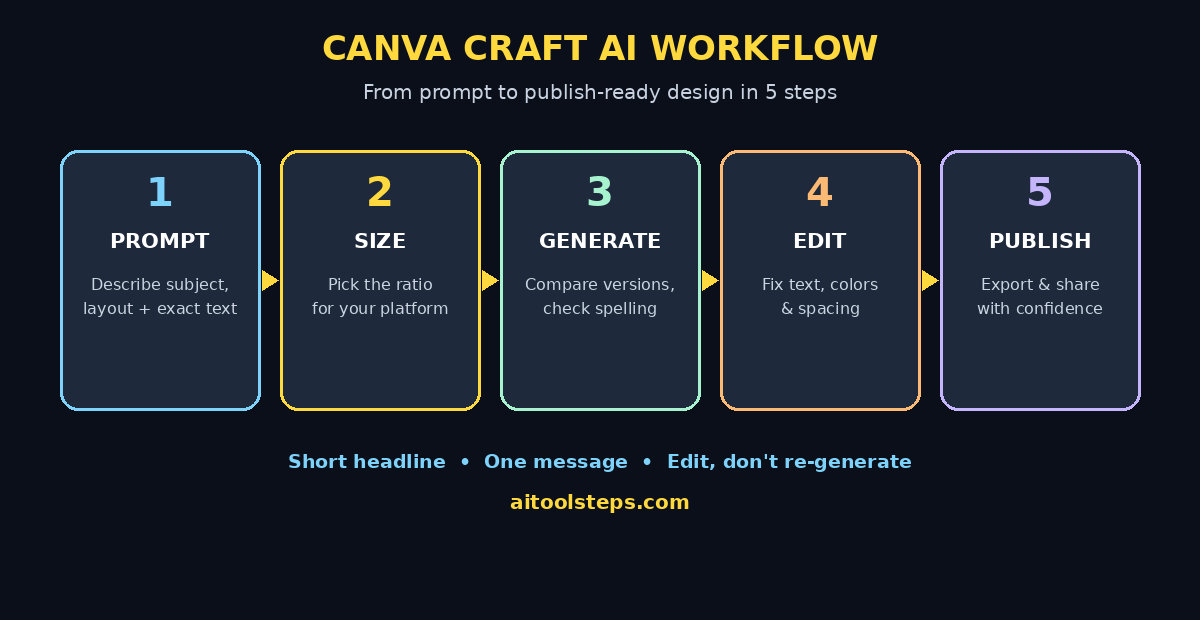
A Craft prompt has three parts: the subject, the layout, and the text. Most beginners only write the subject (“a coffee poster”) and then wonder why the result looks random. Tell Craft all three, and the output improves immediately.
A good beginner formula looks like this:
- Subject: what the design is about, in one sentence
- Layout: the format and mood, such as “bold poster, headline at the top, product photo below”
- Text: the exact words you want on the design, in quotation marks
For example: “Bold cafe poster, warm morning light, headline at the top, a cup of coffee below. Text: ‘Fresh Coffee Every Morning’.” That prompt gives Craft a subject, a structure, and exact wording to render. Keep your headline short — under eight words is ideal — because short text renders more reliably and reads better at a glance.
Other beginner tips that save credits:
- Put the most important words first in the prompt
- Use one main message per design, not three competing headlines
- Name the colors you want (“navy background, yellow headline”) instead of leaving them to chance
- Ask for one clear focal point, such as a single product or person
If your first result is close but not perfect, do not rewrite the whole prompt. Change one thing — the headline wording, the color, or the layout — and generate again. Small, controlled changes teach you what Craft responds to, and they cost fewer credits than starting from scratch each time.
Step 4: Choose the Right Size and Aspect Ratio
Canva Craft AI supports more than 30 aspect ratios, which sounds generous until you pick the wrong one and your poster gets cropped on Instagram or looks tiny on a printed flyer. Choose the size before you generate, not after, because the layout is planned around it.
Here is a simple cheat sheet for beginners:
- Instagram or Facebook post: square (1:1) or portrait (4:5)
- Story, Reel cover, or TikTok: vertical (9:16)
- YouTube thumbnail or website banner: landscape (16:9)
- Printed poster or flyer: portrait (2:3 or 4:5)
- Presentation slide or infographic header: landscape (16:9)
If you are unsure, start with the platform where the design will live first, and generate for that size. You can always generate a second version for another platform later — and because Craft plans the layout per size, each version will look intentional rather than stretched or cropped. Teams that publish across many channels often use AI automation services to keep this kind of multi-format work consistent, but for your first designs, doing it by hand teaches you the most.
Step 5: Generate, Compare, and Pick the Best Version
Type your prompt, pick your ratio, and generate. Craft will return one or more versions — look at all of them before you fall in love with the first. Check four things in this order:
- Is the text correct? Read every word, including small labels. A beautiful poster with a misspelled headline is unusable.
- Is the layout balanced? The headline should be easy to find, and nothing important should be cut off at the edges.
- Does it match your message? A playful design for a serious announcement, or a dark moody poster for a kids’ event, sends the wrong signal.
- Would it work at small size? Shrink it mentally to phone-screen size. If the headline is still readable, it passes.
Save the best version to your Canva project right away. Beginners often generate ten versions, forget which one they liked, and burn credits re-generating. Pick a winner, save it, and only then refine. If none of the versions work, change one element of the prompt and try again — that is normal, and even experienced designers rarely keep their first generation.
Step 6: Edit the Elements One by One
This is where Craft earns its name. Instead of accepting a flat image, open the result in the Canva editor and adjust the individual elements: move the headline, change a color, swap a font, or resize an icon. Because Craft plans the layout first, the pieces behave more like a real Canva design than a baked-in picture.
A practical editing order for beginners:
- Fix the text first — spelling, wording, and size
- Then fix the colors so they match your brand or the mood you want
- Then adjust spacing so nothing feels crowded or lost
- Finally, add your own finishing touches, such as a logo, a website address, or a call to action
Do not over-edit. A common beginner trap is adding stickers, extra text boxes, and effects until a clean poster becomes cluttered. If your Craft result already looks good, a logo and one call to action are usually enough. Clean beats busy, especially on social media, where people scroll past in under two seconds.
Step 7: Create a Poster with Legible Text
Posters are Canva Craft AI’s strongest showcase, so let us walk through a complete example. Suppose you run a weekend bake sale and need a poster by tonight.
Start with a prompt like: “Cheerful bake sale poster, warm bakery colors, big headline at the top, cupcakes and bread on a wooden table below. Text: ‘Weekend Bake Sale’.” Generate it in portrait ratio, check the spelling, and open the winner in the editor. Add the details that matter — the date, the time, and the location — as clean Canva text boxes under the headline, rather than cramming them into the AI prompt. This split is a pro habit: let Craft handle the big visual and the main headline, and let Canva’s own text tools handle the precise details, where you control every character.
Export the poster as a PNG for printing or a JPG for social sharing, and preview it at full size before you send it anywhere. Check the edges, the small print, and the colors one last time. A poster that looks perfect in the editor but has a cut-off date in the export is a poster you will have to redo.
Step 8: Build an Infographic That People Actually Read
Infographics fail when they try to say everything. Craft helps with the layout, but you still need to choose what to include. The rule for a beginner infographic is simple: one topic, three to five points, and one takeaway.
A good workflow looks like this:
- Write your three to five points as short sentences first, outside Canva
- Prompt Craft for the overall infographic layout, with short labels for each section
- Open the result and replace any garbled label text with clean Canva text boxes
- Keep numbers large and labels short — “Save 40% time” beats a paragraph every time
- End with one clear takeaway or next step at the bottom
Use color to guide the eye: one color for headings, one for numbers, and a neutral background. If every section screams in a different color, readers will not know where to start. And always read the finished infographic out loud, in order, from top to bottom. If the story does not flow when spoken, it will not flow when read.
Step 9: Make a Clean Product Shot
Product shots are the third place Canva Craft AI shines. A clean product image — the product centered, the background simple, the name readable — can lift a small shop’s social posts and listings enormously, without a photo studio.
Prompt for simplicity on purpose: name the product, name the background (“soft beige background, gentle shadow”), and keep the text to the product name only. Avoid asking for a busy scene, a crowd, or ten props around the product, because each extra element is another chance for something to look wrong. One product, one background, one short line of text is the formula that works.
After generation, check the product itself closely: its shape, its label, and its proportions. AI models can subtly change a product’s packaging, so if the label text matters — a brand name, a flavor, a size — verify it letter by letter, and fix it with a Canva text overlay if needed. For a shop or brand page, accuracy here matters more than style: customers must recognize the exact product they will receive.
Step 10: Use Craft with Canva’s Templates and Brand Kit
Craft is not meant to replace the rest of Canva — it works best inside it. Once you have a Craft image you like, drop it into a Canva template for a social post, a presentation slide, or a video cover. The template gives you safe margins, proven layouts, and ready-made text styles, while the Craft image gives you a custom visual no one else has.
If you use Canva regularly, set up a simple brand kit: your two or three main colors, your usual font, and your logo. Then, every time you edit a Craft result, apply those same choices. After a few designs, your content will start to look like it comes from one place — and that recognition is valuable whether you are building a personal brand, a shop, or a content channel. Many creators combine Craft visuals with Canva’s scheduling and template tools to publish consistently, and that consistency is what turns one good poster into a growing audience.
Step 11: Manage Your AI Credits and Avoid Waste
Canva Craft AI generations use AI credits, so a little planning goes a long way. Before you generate, know roughly how many credits you have and how many designs you actually need this week. The most common waste comes from generating the same prompt ten times hoping for perfection, instead of generating two or three versions and editing the best one.
A credit-smart routine looks like this:
- Draft your prompt on paper first, with the exact headline text decided
- Generate two or three versions, not ten
- Pick a winner and edit it in Canva instead of re-generating
- Reuse strong designs: change the headline and colors for a new post, rather than starting from zero
- Keep a small folder of your best Craft images so you can reuse backgrounds and layouts
If you hit a credit limit, that is a good moment to practice editing rather than generating. Some of the best beginner progress happens in the editor — learning spacing, color, and typography — and those skills make every future generation better, because you will prompt for designs you know how to finish.
Step 12: Avoid the Beginner Mistakes
Most Canva Craft AI disappointments come from a handful of repeatable mistakes. Watch for these:
- Too much text in the prompt. A paragraph of headline text will garble. Keep on-design text under ten words.
- No layout instruction. Without a layout hint, Craft guesses — and guesses vary. Say where the headline goes.
- Vague style words. “Nice” and “cool” mean nothing to an image model. Name colors, moods, and formats instead.
- Skipping the small-size test. A design that looks great full-screen can turn to mush on a phone feed.
- Publishing the first generation. Compare versions, check spelling, and edit before you post.
- Ignoring the license and brand rules. Use Craft for your own projects and your own brand, and do not reproduce other brands’ logos or protected characters in your designs.
If a generation keeps failing on the same word, simplify that word. Short, common words render far more reliably than long, unusual ones, and a simpler headline is usually a stronger headline anyway.
Canva Craft AI vs Other AI Image Tools
| Feature | Canva Craft AI | General AI image generators | Canva templates alone |
|---|---|---|---|
| Text accuracy | High — layout and text planned first | Often garbled, especially long words | Perfect — you type the text yourself |
| Editable elements | Yes, edit pieces one by one | Usually a flat image only | Fully editable |
| Aspect ratios | 30+ ratios, up to 2K | Varies by tool | All standard sizes |
| Best for | Posters, infographics, product shots | Artistic or photorealistic images | Fast posts with proven layouts |
| Learning curve | Low — plain-language prompts | Low to medium | Very low |
| Cost to try | Available to all Canva users, uses AI credits | Free tiers vary | Free templates included |
| Best combined with | Canva editor, templates, brand kit | Photo editing software | Craft images for custom visuals |
The honest takeaway: Craft does not replace general image generators for pure art, and it does not replace templates for speed. Its sweet spot is the middle — custom designs where the words matter as much as the picture. If your work lives in that middle, which most social, marketing, and teaching content does, Craft is the tool to learn first.
Frequently Asked Questions
Is Canva Craft AI really free?
Canva Craft is available to all Canva users inside Dream Lab, including free accounts. Generations use AI credits, so the number of free generations depends on your plan and remaining credits. Check your credit balance in Canva before starting a big project, and use the editing-first routine in Step 11 to make your credits last.
Where do I find Canva Craft in Canva?
Open Canva, then open Dream Lab — Canva’s AI image generation space. Craft is the in-house image model inside Dream Lab. If you do not see Dream Lab on the homepage, search for it in the Canva search bar. Developers can also access Craft through Canva’s public API.
Why is my text misspelled in the generated image?
Long or unusual words are the usual cause. Shorten the headline, use common words, and put the exact text in quotation marks in your prompt. If one word keeps failing, replace it with a simpler synonym, or generate the visual without that word and add it as a clean Canva text box afterwards. That hybrid approach is the most reliable fix.
Can I use Canva Craft images for my business?
Yes, for your own projects, marketing, and content, following Canva’s terms of use. Avoid reproducing other companies’ logos, trademarks, or protected characters, and double-check any product label text before publishing. For client work, confirm the usage terms on your plan, as with any AI tool.
Does Canva Craft replace Canva templates?
No — the two work best together. Templates give you proven layouts and fast production; Craft gives you custom visuals with legible text. A strong beginner workflow is to generate a Craft image, drop it into a template, and finish it with your brand colors, logo, and call to action.
What sizes can Canva Craft generate?
Craft renders in up to 2K resolution across more than 30 aspect ratios, covering square posts, vertical stories, landscape banners, and portrait posters. Always pick the ratio for the platform you will publish on first, so the layout is planned for that shape rather than cropped afterwards.
Final Thoughts
Canva Craft AI is a genuine step forward for beginners because it solves the problem that used to make AI design frustrating: unreadable text and unusable layouts. By planning the layout and the words first, Canva Craft AI hands you designs you can actually publish — posters people can read, infographics people can follow, and product shots people can trust. The skill itself is simple: describe the subject, the layout, and the exact text; compare versions; and finish the winner in the Canva editor instead of chasing a perfect first generation.
Start today with one small project — a poster, a social post, or a simple infographic — and run it through the full loop in this guide. By your third or fourth design, prompting, comparing, and editing will feel natural, and you will have a small library of custom visuals that look like they came from a designer. That is the real promise of Craft: not replacing designers, but giving every beginner a fast, friendly way to make designs worth sharing.
Explore More Free AI Tools
Want to keep building your AI toolkit? Try these free tools on AIToolSteps — the AI Title Generator for headlines that get clicks, the Meta Description Generator for search-friendly summaries, the AI Rewriter for polishing rough drafts, and the Keyword Density Checker for tuning your content for search. Each one is free, beginner-friendly, and pairs perfectly with the designs you will make in Canva Craft.