

Most people use AI to write paragraphs. But most software does not need a paragraph — it needs an answer it can act on. Is this message spam? Which department should handle this ticket? How urgent is this complaint? On October 6, 2026, OpenAI released a tool built exactly for those small, high-volume judgment calls: the Decisions API. In this beginner-friendly guide, you will learn what the OpenAI Decisions API is, how it works, how to try it for free in the playground, and how to build your first working decision — even if you have never called an API before.
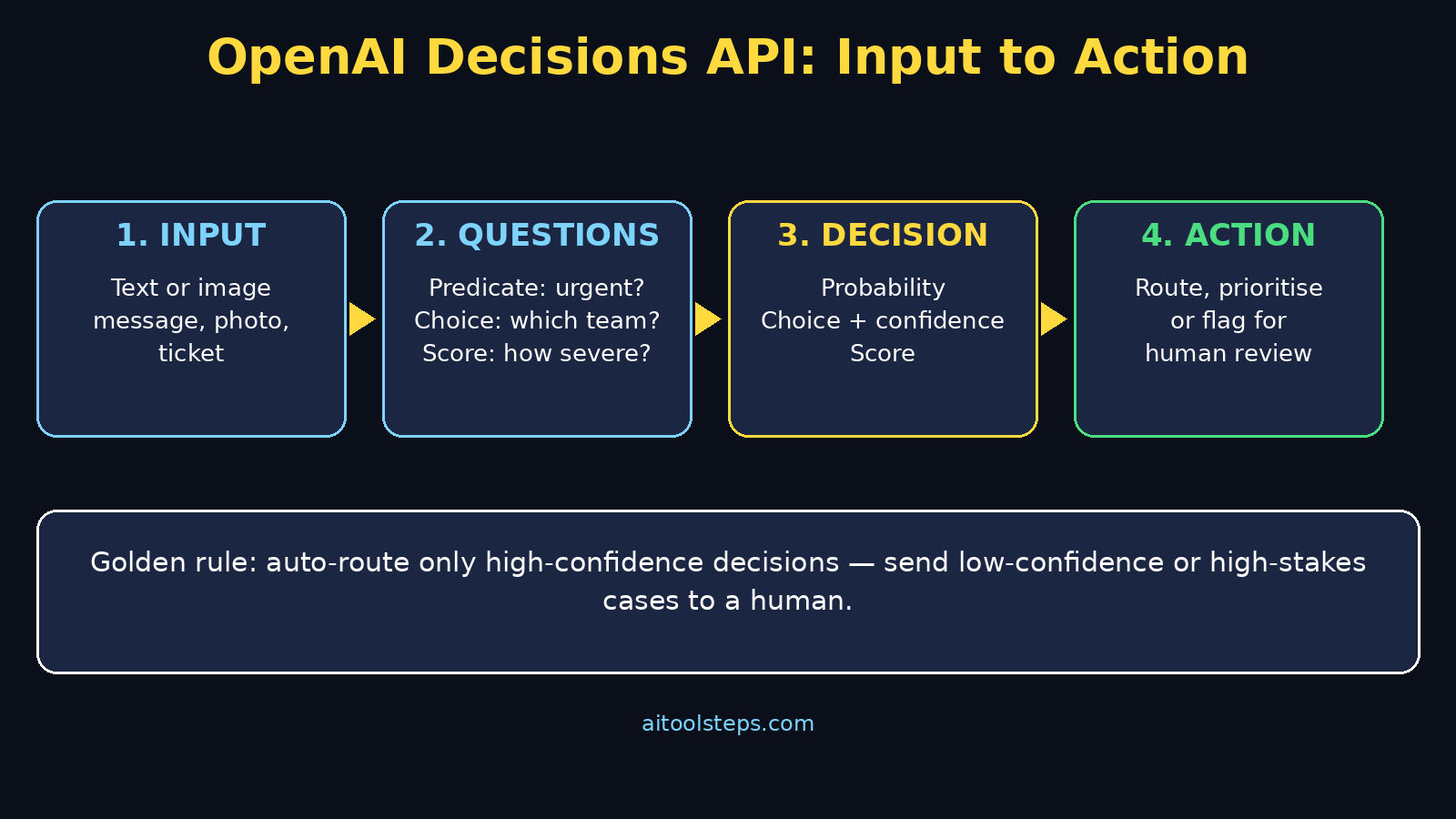
Think of it this way. A normal chatbot gives you words, and then you have to read those words and decide what to do. The Decisions API skips that middle step. You send it a piece of text or an image. You ask a clear question. It returns a structured answer — a probability, a choice, or a score — that your app can use at once. No parsing paragraphs, no guessing what the model meant, and no paying for long essays you never read.
This guide keeps things practical. You do not need to be a professional developer to follow along, but you will see real examples, a simple code sketch, and honest limits, so you know exactly when this tool helps and when a normal chat model is still the better choice.
Step 1: Understand What the OpenAI Decisions API Actually Does
The OpenAI Decisions API is a dedicated endpoint, POST /v1/decisions, that turns text or images into typed, machine-readable answers. It runs on GPT-6 Luna, which is currently the only supported model, and it was shown in a narrower preview at DevDay in late September 2026 before entering public beta on October 6, 2026. OpenAI says it expects general availability in the coming weeks, so the details here describe the public beta.
Here is the core idea in one sentence: instead of asking an AI to explain something, you ask it to decide something. You define the question in advance, and the API answers only in the shape you defined. That constraint is the whole point. It makes the output predictable, fast, and cheap. That matters when you make thousands of small decisions daily, from sorting tickets to checking photos.
For a small business owner, this is powerful because it turns AI from a chat window into a reliable worker inside your workflow. A digital agency that handles client inboxes, for example, could route every incoming message to the right team automatically, instead of paying someone to read and forward each one by hand. The same pattern works for online stores, schools, clinics, and creators who receive far more messages than they can read one by one.
Step 2: OpenAI Decisions API Decision Types — Predicate, Choice, and Score
Every Decisions API question falls into one of three types. Learning these three is really learning the whole tool.
- Predicate: Is a condition true? The API returns a probability from 0 to 1. Example: “Is this message urgent?” A result of 0.92 means very likely urgent; 0.12 means almost certainly not.
- Choice: Pick one option from a fixed list you provide. Example: “Which department should handle this complaint?” with choices Billing, Technical Support, Shipping, Account, and Other. The API returns the chosen option plus confidence information.
- Score: Rate the input against ordered levels you define. Example: severity levels Low, Medium, High, and Critical. The API returns a score and confidence, which is perfect for prioritizing a queue.
Notice what all three have in common: you control the vocabulary. The model cannot invent a new department, a new severity level, or a surprise answer. That control is what makes the output safe to feed straight into code, a spreadsheet, or a support tool without a human re-reading every result.
Step 3: See How It Differs From ChatGPT and the Responses API
If you ask a normal chat model “Which department should handle this complaint?”, you might get a helpful paragraph: “This appears to be a billing-related issue involving a duplicate transaction, so I recommend sending it to the billing department.” That is lovely for a human, but terrible for software. Your code then has to guess which department the paragraph meant, handle synonyms, and cope when the wording changes next time.
The Decisions API removes that guessing. You ask the same question with fixed choices, and you get back something like “Billing” with a confidence value. Your code can route the ticket instantly. OpenAI also reports that decisions come back about 10 times faster than asking the same question through the Responses API. Treat that speed claim honestly: it is OpenAI’s own figure, not an independent benchmark yet, but the design reason makes sense — returning a short typed answer is far less work than generating a paragraph.
The trade-off is equally clear. The Decisions API cannot write an essay, draft an email, or explain its reasoning in prose. If you need words, use ChatGPT or the Responses API. If you need a decision, use Decisions. Many real apps use both: Decisions to route and triage, and a chat model to draft the reply once the routing is done.
Step 4: OpenAI Decisions API Access — Playground First, API Key Second
Start in the free playground, not in code. The OpenAI Decisions API playground is the fastest way to see a structured answer. OpenAI provides a Decisions playground where you can type an input, define a question, and see the structured answer immediately, without writing a single line of code. This is the best way for beginners to build intuition: try ten different messages, watch how probabilities move, and learn how wording your question changes the result.
When you are ready to build something real, you will need an OpenAI API key from the developer platform. Keep that key private, exactly like a password — never paste it into a public document, a screenshot, or a shared chat. Billing is refreshingly simple for this endpoint: OpenAI charges $0.10 per 1 million input tokens, with no charge for output tokens or cache reads and writes in the beta pricing. Because decisions return almost no output text, a small project can process a huge number of decisions for pennies, though regional processing premiums and long-context multipliers can still apply.
One practical tip for beginners: set a small spending limit on your API account on day one. Even a cheap API can surprise you if a loop runs wild, and a limit turns a mistake into a lesson instead of a bill.
Step 5: OpenAI Decisions API Predicate Question — “Is This Urgent?”
Let us build your first decision mentally before we touch code. Imagine you run a small shop and customer messages arrive all day. Some need an answer within an hour; most can wait until tomorrow. A predicate question solves the triage problem.
Your input is the customer message: “My order arrived broken and I need it for a wedding tomorrow.” Your question is: “Is this message urgent?” The API might return a probability of 0.94. Your rule is simple: anything above 0.80 goes to the top of the queue and triggers a notification; anything below 0.30 waits for the normal queue; anything in between gets a human glance. That middle band is important — it is where you admit uncertainty instead of pretending the AI is always sure.
Good predicate questions are specific and testable. “Is this message urgent?” works. “Is this message bad?” does not, because “bad” could mean rude, sad, broken, or late. If your probabilities look random, your question is usually too vague. Rewrite it until a human colleague would answer it the same way nine times out of ten.
Step 6: OpenAI Decisions API Choice Router — Send Every Ticket to the Right Team
Choice questions are the workhorse of the Decisions API, and ticket routing is the classic example. Suppose your support inbox covers Billing, Technical Support, Shipping, Account, and Other. You send each incoming message with the same choice question and the same five options, and the API picks one.
The beginner mistake here is offering too many choices. Ten overlapping departments will confuse the model just as they confuse new staff. Start with four or five broad buckets, measure accuracy on 50 real messages, and only split a bucket when you can show it is mixing two genuinely different problems. Also add an “Other” bucket on purpose: it catches the weird cases instead of forcing them into the wrong team, and you can review “Other” weekly to discover new categories.
Confidence matters as much as the choice itself. If the API picks Billing with low confidence, route it to a human for a quick check instead of auto-sending it. That one rule — auto-route only high-confidence decisions — is how beginners get professional reliability without professional effort. Teams that use AI automation services for customer workflows follow the same pattern: automate the clear cases, and let humans handle the edge cases the model is unsure about.
Step 7: Use Scores to Prioritize — From “Everything Is Urgent” to a Real Queue
Choice tells you where something goes. Score tells you how soon it matters. Define ordered levels — for example, Low, Medium, High, Critical — and ask the API to rate each item. A complaint about a late delivery might score Medium; a complaint about a safety issue or a payment charged twice scores Critical.
Scores shine when combined with choices. First, a choice routes the ticket to Shipping. Then, a score decides whether it jumps the queue. Without scores, every team faces the same problem: a queue sorted by arrival time, where a minor question from Monday blocks a serious problem from today. With scores, your team works in order of impact, not order of arrival, and customers with genuine problems feel the difference immediately.
Be careful to define your levels with examples, not just labels. Write one example message for each level and test them in the playground. If two levels keep swapping, your definitions overlap, and you should merge them or rewrite the examples until the boundary is obvious.
Step 8: Ask Several Questions at Once About the Same Input
One of the most useful OpenAI Decisions API beta features is that you can ask several independent questions about the same input in a single request. A single customer message can be checked for urgency (predicate), routed to a department (choice), and scored for severity (score) all at once, without sending the message three times.
This saves time and money, but it also keeps your decisions consistent. When three separate calls run at different moments, they can disagree. When one call answers all three questions together, your routing, priority, and urgency all describe the same message in the same moment. For beginners, the practical lesson is simple: design your decision set as a group. What do you need to know about this input before you act? Ask all of it in one request, then act once.
Step 9: OpenAI Decisions API Image Decisions — Check Photos Without Reading Essays
The Decisions API accepts text, images, or both. That opens a whole second set of beginner projects: visual checks. A classic example is asking, “Does this product photo show visible damage?” The API returns a probability, and your returns team can prioritize damaged-item claims before the photos are even opened by a human.
There is one technical detail to know: in the beta, images must be sent as inline base64 data URLs, up to 128 per request, and hosted links or uploaded file IDs are refused. In plain language, you embed the image data inside the request itself rather than pointing the API at a web link. Tutorials and SDK examples show the exact encoding step, and for playground experiments you can upload an image directly without worrying about the encoding at all.
Visual decisions follow the same quality rules as text decisions. Ask one clear question per check, use the same middle-band rule for uncertain results, and never use a single image decision as the sole basis for an irreversible action like banning an account or rejecting a payment. Use it to prioritize human review, and your accuracy will feel far higher than the raw numbers suggest.
Step 10: See a Simple Code Sketch (You Can Copy the Pattern)
You do not need to memorize this code to understand the pattern, but seeing it once removes the mystery. In Python, a Decisions request looks roughly like this: you send the model name gpt-6-luna, your input text, and a list of questions, each with a name and a type. The response gives you back each answer in its typed shape — a probability, a choice, or a score — ready for an if-statement in your code.
That is the entire OpenAI Decisions API mental model: input in, decision out, rule applied. If the choice is Billing and the confidence is high, forward the ticket. If the probability of urgency is above your threshold, notify the team. If the score is Critical, move it to the front. Beginners who grasp that loop can read any Decisions API tutorial, because every example is just a variation on it with different questions.
If you have never written code, start by copying an official example, changing only the question and the choices, and running it in the playground or a small script. Change one thing at a time. The fastest way to learn any API is to break a working example in small, reversible ways and watch what changes.
Step 11: OpenAI Decisions API Costs, Limits, and Honest Limitations
The OpenAI Decisions API pricing story is genuinely attractive: $0.10 per 1 million input tokens and no output-token charge makes high-volume classification affordable for small projects. But beginners should still watch three costs that are easy to miss. First, long inputs cost more, so trim messages to what the decision actually needs instead of sending entire email threads. Second, images add tokens too, so resize photos before sending them when fine detail does not matter. Third, asking the same question repeatedly in a loop — for example, polling for a change — multiplies cost without adding information.
The beta limits matter as well. Only GPT-6 Luna is supported right now, so you cannot swap in another model if you dislike a result. Regional processing is listed for the United States and Europe, so teams elsewhere should check privacy requirements before sending sensitive customer data. And because the API is in beta, expect the details to evolve before general availability — keep an eye on the official changelog rather than memorizing this guide as permanent law.
Finally, remember what the API cannot do. It cannot explain itself in prose, write a reply, or guarantee a correct answer. Its probabilities are estimates, not facts. The professional way to use it is as a triage and routing layer with human review for high-stakes or low-confidence cases — not as an unsupervised judge.
Step 12: OpenAI Decisions API Beginner Project — One Day to Your First Router
Here is an OpenAI Decisions API project you can finish in a day. Pick one inbox you already manage — support email, a contact form, or a community channel. Collect 50 real messages and label each one by hand with the correct department and urgency. That labeled set is your gold standard, and it is worth more than any tutorial.
Next, write one choice question and one predicate question, test them in the playground against your 50 messages, and count how many the API gets right. Fix the question wording, not the model, when results disappoint. When accuracy is good and low-confidence cases are rare, wire the same questions into a small script that reads new messages, routes them, and logs every decision. Review the log weekly for a month. That review loop — not the first launch — is what turns a demo into a dependable tool your team actually trusts.
| Approach | What you get back | Best for | Watch out for |
|---|---|---|---|
| OpenAI Decisions API | Probability, choice, or score | Routing, triage, classification, visual checks | Beta only; GPT-6 Luna only; no prose output |
| Responses API / ChatGPT | Free-form text answer | Drafting replies, explanations, brainstorming | Output needs parsing; slower and costlier per decision |
| Manual rules (keywords) | Match or no match | Simple, exact cases like order numbers | Breaks on synonyms, typos, and new phrasing |
| Human-only triage | Expert judgment | High-stakes or sensitive cases | Slow, expensive, and inconsistent at scale |
Frequently Asked Questions
Is the OpenAI Decisions API free to try?
Yes, for learning. The playground lets you experiment without writing code, and the API pricing itself is very low at $0.10 per 1 million input tokens with no output-token charge in the beta. You still need an OpenAI account and, for API calls beyond the playground, an API key with billing enabled, so set a spending limit before you experiment at scale.
Do I need to know how to code to use it?
Not to learn it. The playground covers the core ideas — predicates, choices, and scores — with no code at all. To use it inside a real app, you will need basic API skills or a developer’s help, but the pattern is simple: send input and questions, receive typed answers, and apply your own rules to those answers.
Can the Decisions API replace ChatGPT?
No, and it is not trying to. ChatGPT writes, explains, and brainstorms. The Decisions API decides. The strongest setups use both: Decisions to route and prioritize, and a chat model to draft the human-facing reply after the decision is made.
How accurate is it?
Accuracy depends mostly on your questions, not just the model. Clear, specific questions with well-separated choices score far higher than vague ones. Always test on your own real data — 50 labeled examples will tell you more about accuracy for your use case than any marketing claim — and keep a human review band for low-confidence results.
Is it safe to send customer messages to the API?
For general triage it is widely used, but check your own privacy obligations first. Avoid sending highly sensitive personal data unless you have reviewed OpenAI’s data handling and regional processing options, and never use a single automated decision as the sole basis for banning, firing, or rejecting someone. Use it to prioritize human review for sensitive actions.
What should I build first?
Start with ticket routing or urgency triage on one inbox you already manage. It is easy to measure, easy to roll back, and immediately useful. Once that runs reliably for a few weeks, add severity scoring, then image checks — one decision type at a time, with a weekly log review after each step.
Final Thoughts
The OpenAI Decisions API is a small tool with an outsized payoff: it turns the fuzzy work of reading and sorting into fast, structured decisions your software can act on. Start in the playground, learn the three question types, test on your own real messages, and automate only the high-confidence cases. That disciplined path — clear questions, measured accuracy, human review for the uncertain middle — is what separates a gimmick from a tool your team relies on every day.
The beta timing is also in your favor. Learning it now, while it is simple and cheap, means you will already have working routing and triage when it reaches general availability. Pick one inbox, write your first three questions today, and let your first decision be a small, reversible one. Momentum, not perfection, is how beginners become builders.
Explore More Free AI Tools
Keep building your free AI toolkit with more beginner guides from AI Tool Steps: try the AI Title Generator, the Meta Description Generator, the AI Rewriter, and the Keyword Density Checker — all on aitoolsteps.com.