

You know exactly what you want AI to do for you — draft that tricky email, plan a birthday party, write a product description that actually sells — but the moment you open ChatGPT, your mind goes blank. You type a vague one-liner, get a vague answer back, and quietly conclude that AI is overhyped. Personal Prompt Builder AI fixes that.
The truth is almost the opposite: AI is only as good as the instructions it receives. A well-crafted prompt can turn a generic chatbot into a genuinely useful assistant, while a sloppy prompt gets you sloppy results. The problem is that “prompt engineering” sounds like a skill you need a course for — and most beginners do not have the time or patience for one.
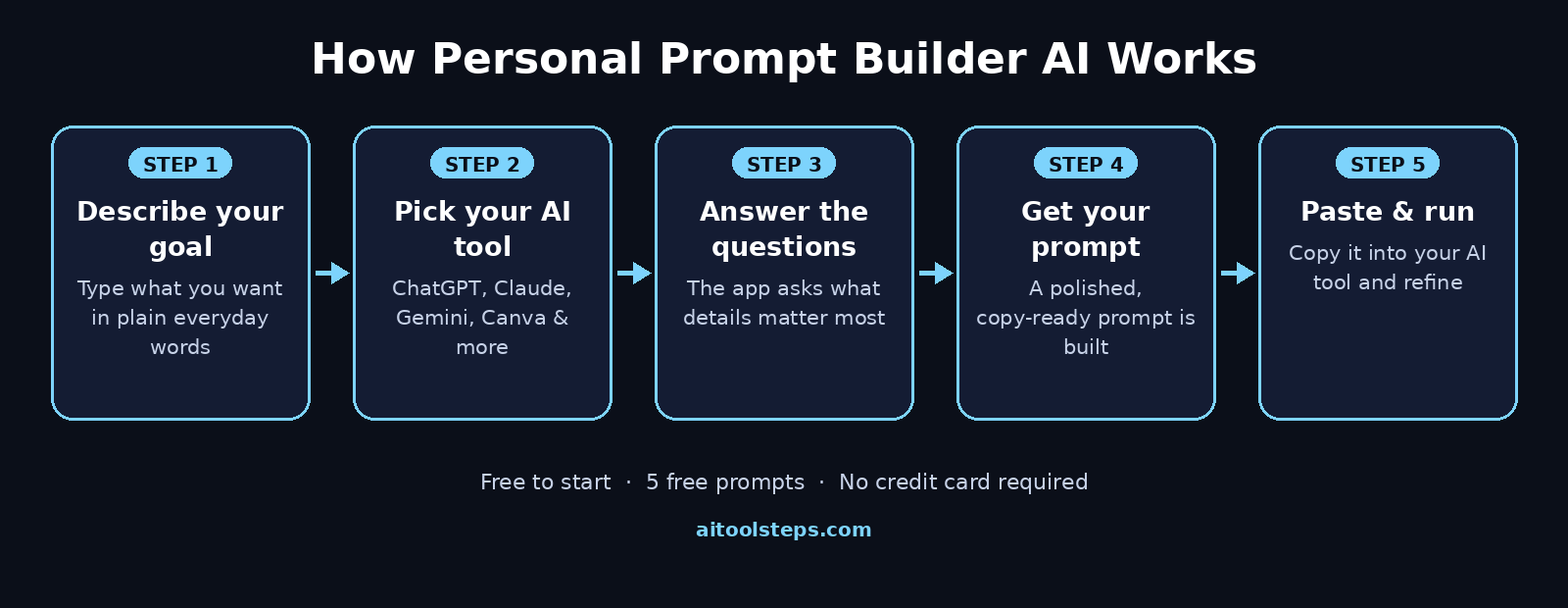
That is exactly the gap the Personal Prompt Builder AI was built to close. Launched on October 14, 2026 by AI Prompting Made Easy, this free guided web app flips the whole process around: instead of you learning how to write perfect prompts, you describe your goal in plain everyday words, answer a few clarifying questions, and the app builds a polished, copy-ready prompt for whichever AI tool you use — ChatGPT, Claude, Gemini, Copilot, Canva, and more. Setup and your first five prompts are completely free, with no credit card required.
In this beginner-friendly guide, you will learn how to use Personal Prompt Builder AI step by step: what it actually does, how the guided flow works, how to build a new prompt, improve an old one, adapt prompts between AI tools, and how to squeeze maximum value out of the free plan.
Step 1: Understand What Personal Prompt Builder AI Actually Is
Before clicking anything, it helps to understand what you are dealing with — because Personal Prompt Builder AI is not another chatbot and not a library of copy-paste templates.
It is a guided prompt-building web app at app.promptingmadeeasy.com. The brand’s promise sums it up in one line: “YOU know what you want. WE know how to ask.” You bring the goal; the app supplies the prompt-engineering expertise — which details the AI needs, how to structure the request, and how to phrase it so the target tool responds well.
The app works in three modes:
- Build a new prompt — start from scratch: describe your goal, and the app constructs a complete prompt for you.
- Improve an existing prompt — paste a prompt you already wrote that is underperforming, and the app strengthens it.
- Adapt a prompt for a different AI tool — take a prompt that works in one tool (say, ChatGPT) and reshape it for another (say, Claude or Canva).
Personal Prompt Builder AI supports prompt creation for all the major AI tools beginners actually use: ChatGPT, Claude, Gemini, Microsoft Copilot, Grok, DeepSeek, Perplexity AI, Canva, and InVideo — plus an “Other” option for anything else. The same straightforward process works across conversational AI and creative tools, from writing and research to image and video generation.
Behind the app is AI Prompting Made Easy, founded by creator Kenya S, whose website also offers prompting tips, practical AI tools, educational resources, ready-to-use prompts for work and everyday life, and a book collection on AI prompting.
Step 2: Open Personal Prompt Builder AI and Set Up Your Free Account
Getting started takes about two minutes, and the free tier is genuinely free — no credit card, no trial countdown anxiety.
- Go to app.promptingmadeeasy.com in any modern browser (Chrome, Edge, Firefox, or Safari). There is nothing to download or install.
- Create your free account with an email address. The setup itself is free.
- You immediately get 5 free prompt generations — enough to build real, useful prompts before spending anything.
- If you need more later, paid plans start at $9.99 per month: Starter (25 prompt generations per month), Pro (200 per month), and Power (500 per month).
Take a minute after signing up to explore the main website at promptingmadeeasy.com too — its tips and ready-to-use prompt examples are a good free education in what great prompts look like, which will make you even better at answering the app’s questions in the next steps.
Step 3: Describe Your Goal in Plain Words
This is where the magic starts. The app’s opening screen asks you a refreshingly simple question: what do you want to accomplish?
Do not overthink it, and do not try to sound technical. Write the way you would explain it to a friend:
- “Plan my mother’s 60th birthday party for 20 guests.”
- “Write a follow-up email to a client who stopped replying two weeks ago.”
- “Create a 4-week workout plan for a beginner who hates running.”
- “Draft a product description for handmade candles I sell online.”
Describe the outcome you want, not the wording you think the AI needs. The app’s job is to translate your plain goal into prompt-engineering language — role, context, constraints, format — so you never have to learn that vocabulary yourself.
One tip that improves everything downstream: include one concrete detail about who the result is for. “Write a birthday speech” is okay; “Write a funny 2-minute birthday speech for my dad, who is a retired teacher” gives the app far more to work with.
Step 4: Pick the AI Tool You Will Use in Personal Prompt Builder AI
After your goal, the app asks which AI tool the prompt is for. Choose from the supported list — ChatGPT, Claude, Gemini, Microsoft Copilot, Grok, DeepSeek, Perplexity AI, Canva, InVideo — or pick “Other” and name your tool.
This step matters more than it looks. A great prompt for a chat assistant is structured differently from a great prompt for an image tool like Canva or a video tool like InVideo: chat tools want context and reasoning instructions, while creative tools want visual detail, style words, and composition notes. Telling the app your target tool lets it shape the prompt to that tool’s strengths.
If you are not sure which tool you will use yet, pick the one you use most and do not worry — Step 9 shows you how to adapt the finished prompt to a different tool in seconds.
Step 5: Answer the Clarifying Questions in Personal Prompt Builder AI
This is the heart of Personal Prompt Builder AI, and the step that replaces prompt-engineering knowledge entirely. Based on your goal and chosen tool, the app asks you the questions a professional prompt engineer would ask: Who is the audience? What tone do you want? How long should the result be? What format — email, list, table, script? Are there constraints like budget, deadlines, or things to avoid?
Imagine you entered “plan my mother’s 60th birthday party.” The app might ask:
- How many guests, and what is your rough budget?
- Indoor or outdoor? Any venue already booked?
- Formal dinner or casual gathering?
- Any dietary restrictions or accessibility needs to consider?
- Do you want a full timeline for the day or just ideas?
Answer honestly and specifically — and if you genuinely do not know something, say so rather than guessing. “I don’t know the budget yet, keep it flexible” is a perfectly good answer that keeps the prompt honest.
Most beginners discover something here: the questions themselves teach you what a good prompt needs. After building three or four prompts this way, you will start naturally including these details even when you write prompts on your own.
Step 6: Get Your Polished Prompt and Copy It
Once you have answered the questions, the app assembles everything into a complete, well-structured prompt — typically covering the role the AI should play, your goal, the context you provided, and exactly what the output should look like.
Read it before you copy it. This 30-second review is the one habit that separates great results from good ones. Check that the goal is right, that no detail got twisted, and that the requested format matches what you actually want. If something is off, go back and adjust your answers rather than fixing the prompt text by hand — the app’s structure is doing quiet work you do not want to break.
When it looks right, hit copy. The prompt is plain text, ready to paste into your chosen AI tool.
Step 7: Test It and Refine with One Follow-Up
Paste the prompt into your AI tool and run it. Then evaluate the result against your original goal — not against perfection, but against what you needed.
If the result is close but not quite right, resist the urge to start over. The fastest path is a short follow-up message in the same conversation: “Make it shorter and more casual,” or “Add a section about vegetarian menu options.” Because the original prompt already established strong context, small follow-ups usually nail it.
If the result is completely off-target, that is useful information too — it usually means one of your answers in Step 5 was vague. Go back to the app, sharpen that answer, and regenerate. This loop is fast: most people land on an excellent result within two tries.
Step 8: Improve an Existing Prompt You Already Wrote
You probably have old prompts lying around — the one-liners you typed into ChatGPT months ago that gave mediocre results. The app’s improve mode gives them a second life.
Paste your existing prompt, tell the app what you were trying to achieve, and it will rebuild it with proper structure: clear role, richer context, explicit format instructions, and the details your original was missing.
A typical before-and-after looks like this:
- Before: “Write a blog post about AI.”
- After (conceptually): a structured prompt specifying the target reader (small business owners), the angle (practical AI tools under $20/month), the tone (friendly, jargon-free), the length (800 words), and the structure (intro, 5 tools with pros/cons, conclusion with a call to action).
Same goal, wildly different results. Improve mode is also the fastest way to learn: comparing your original with the rebuilt version shows you exactly what was missing.
Step 9: Adapt a Prompt for a Different AI Tool
Got a prompt that works beautifully in ChatGPT but need it in Claude, Gemini, or Canva? Adapt mode reshapes it for the new tool instead of making you start over.
Adaptation is more than find-and-replace. Different tools have different strengths, context limits, and formatting quirks — and creative tools like Canva and InVideo need visual and structural detail that chat prompts do not include. The app re-tunes the prompt for the target tool’s conventions while keeping your goal and context intact.
Practical uses beginners love:
- Move a winning ChatGPT writing prompt to Claude for a second opinion or a different writing style.
- Convert a text prompt into a Canva-ready prompt with visual direction for social media graphics.
- Reshape a research prompt for Perplexity AI, which excels at cited, up-to-date answers.
Step 10: Make Your 5 Free Prompts Count
Five free prompts is enough to change how you work — if you spend them strategically instead of experimentally.
- Spend free prompts on recurring tasks, not one-offs. A great prompt for your weekly client emails, your monthly report summaries, or your regular social media captions pays you back every single time you reuse it.
- Save every finished prompt in a notes app or document. You are quietly building a personal prompt library — arguably the most valuable thing the app helps you create.
- Use improve mode on your weakest existing prompt first. It is the fastest win: one free generation can fix a prompt you use every day.
- Try adapt mode once to see how one good prompt becomes three good prompts across tools.
If you find yourself hitting the free limit regularly, that is the signal a paid plan makes sense: Starter (25 generations a month) suits casual users, Pro (200) fits freelancers and creators, and Power (500) is built for teams and heavy daily use. Pricing details come from the October 2026 launch announcement — check the app for current plans before subscribing.
Personal Prompt Builder AI vs. the Alternatives
How does a guided builder compare with the other ways beginners get prompts? Here is the honest breakdown:
| Personal Prompt Builder AI | Writing prompts yourself | Free prompt template packs | |
|---|---|---|---|
| Prompt-engineering skill needed | None — the app interviews you | High — you must learn the craft | Low — but results are generic |
| Time per quality prompt | 2–5 minutes guided | 15–60 minutes of trial and error | 1 minute to find, then heavy editing |
| Personalization | Built around your exact goal | Fully custom | One-size-fits-all |
| Tuned for your AI tool | Yes — you pick the target tool | Only if you know the tool’s quirks | Rarely |
| Cost to start | Free (5 prompts, no card) | Free (but slow) | Free (but low quality) |
The pattern is clear: writing prompts yourself is powerful but slow to learn, template packs are fast but generic, and a guided builder sits in the sweet spot for beginners — fast and personalized.
Frequently Asked Questions
Is Personal Prompt Builder AI really free?
Yes, to start. Account setup is free and includes 5 free prompt generations with no credit card required. If you need more, monthly plans start at $9.99: Starter includes 25 prompt generations per month, Pro includes 200, and Power includes 500. Those figures come from the October 2026 launch announcement, so confirm current pricing in the app.
Do I need to know prompt engineering to use it?
No — that is the entire point of the app. You describe your goal in plain words and answer guided questions; the app handles the prompt-engineering structure (roles, context, constraints, formatting) behind the scenes. Many users find the questions themselves teach them what good prompts need.
Which AI tools can I build prompts for?
ChatGPT, Claude, Gemini, Microsoft Copilot, Grok, DeepSeek, Perplexity AI, Canva, and InVideo, plus an “Other” option for any tool not on the list. The same guided process works for conversational AI, research tools, and creative tools.
What is the difference between “improve” and “adapt”?
Improve takes a weak prompt you already wrote and rebuilds it with better structure for the same tool. Adapt takes a working prompt and re-tunes it for a different AI tool, adjusting for that tool’s strengths and conventions.
Who is behind Personal Prompt Builder AI?
It was created by AI Prompting Made Easy, founded by creator Kenya S, and launched on October 14, 2026. The company’s website also offers prompting tips, practical AI tools, educational resources, ready-to-use prompts for work and everyday life, and a book collection about AI prompting.
Can beginners use it for work projects?
Absolutely — work projects are one of its main use cases, alongside business marketing and household planning. Emails, reports, meeting agendas, marketing copy, and project plans are exactly the kind of recurring tasks where one well-built prompt pays for itself many times over.
Final Thoughts
Personal Prompt Builder AI earns its place in a beginner’s toolkit by removing the single biggest barrier to getting value from AI: knowing how to ask. You bring the goal in plain words, it brings the prompt-engineering expertise, and the result is a polished prompt tuned for the exact tool you use — built in minutes, not learned over months.
Start with your five free prompts this week: improve one weak prompt you already use, build one fresh prompt for a recurring task, and adapt one winner to a second tool. Save everything in a personal prompt library, and you will feel the difference every day.
And the same principle applies beyond prompting. If you run a business, a professional digital agency can help you turn everyday AI wins into real workflows across marketing, content, and customer support. When you are ready to connect AI tools and agents directly into your business processes, AI automation services take that automation to the next level.
Explore More Free AI Tools
Want to keep building your free AI toolkit? Try these next:
- AI Title Generator — craft click-worthy headlines for your blog posts and videos: AIToolSteps
- Meta Description Generator — write SEO-perfect meta descriptions in seconds: AIToolSteps
- AI Rewriter — rephrase essays and articles while keeping the meaning: AIToolSteps
- Keyword Density Checker — check your content is SEO-optimized before publishing: AIToolSteps
For hundreds more beginner-friendly AI guides, browse the tutorials at aitoolsteps.com.