

AI writing tools can draft an essay, a blog post, or a business report in seconds — but anyone who has read raw AI output knows the problem. The sentences sound uniform, the phrasing repeats, and the tone feels flat and mechanical. Teachers, editors, and AI detectors spot it instantly. Resea AI Humanizer was built to fix exactly that: it rewrites AI-assisted drafts into clearer, more natural-sounding text while keeping your ideas, terminology, and citations intact.
On October 16, 2026, Resea AI announced a platform update that puts its Humanizer front and center with a genuinely generous free tier: 10 humanization requests per day, up to 1,000 words each — 10,000 words of free humanizing daily, no credit card required. With over 300,000 users already on the platform and a 2026 user survey reporting 94% satisfaction with the Humanizer, this is one of the best free AI writing refiners a beginner can try right now.
This beginner-friendly guide walks you through Resea AI Humanizer step by step: what it is, how to sign up free, how to paste and humanize your first draft, how keyword locking and citation protection work, how to read its AI detection scores, and how to stay inside the free limits. No writing background needed — just bring an AI-generated draft and follow along.
Step 1: Understand What an AI Humanizer Actually Does
Before touching the tool, it helps to know what “humanizing” means. An AI humanizer does not write new content from scratch. It takes text you already have — usually a first draft from ChatGPT, Claude, Gemini, or another AI writer — and rewrites it so it reads more like a person wrote it. Specifically, Resea’s Humanizer:
- Smooths out sentence structure — AI drafts often repeat the same sentence patterns (“Additionally…”, “Furthermore…”, “In conclusion…”). The Humanizer varies them.
- Removes repetitive phrasing — those tell-tale robotic phrases get replaced with natural alternatives.
- Warms up the tone — detached, mechanical wording becomes clearer and more engaging.
- Preserves your core ideas and exact terminology — this is the key difference from a basic paraphraser. Resea is designed to keep technical terms, brand names, and citations intact, which is why researchers and students rely on it.
Think of it this way: the AI gives you the skeleton, and the Humanizer gives it a human voice. If you use AI for writing tasks at school, work, or for content, this single step can be the difference between a draft that gets flagged and one that reads naturally.
Step 2: Create Your Free Resea AI Account
Getting started takes about a minute. Here is the exact beginner workflow:
- Go to the official site. Open your browser and search for “Resea AI” on Google, then choose the official result (resea.ai). Never sign up through a link in a random ad — phishing copies of popular AI tools are common.
- Click Sign Up. The button is in the top-right corner of the homepage.
- Register with your email or Google account. Pick whichever you use most often; a Google sign-up is usually fastest.
- Verify your email if asked. Some accounts require a one-click confirmation from the inbox.
- Check your dashboard. After logging in, you land on your workspace, where the Humanizer, Research, Writing, and Cite Checker tools live side by side.
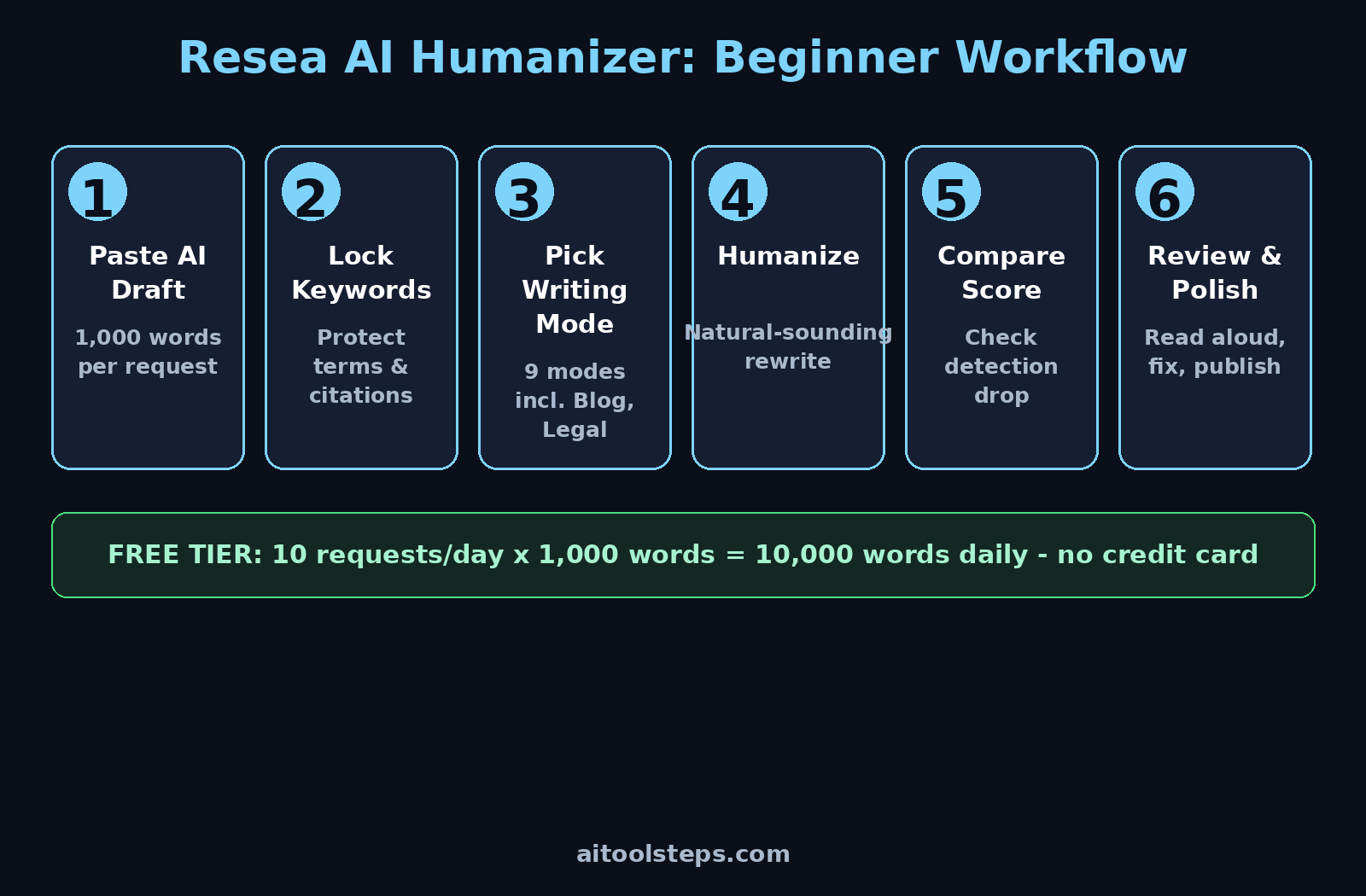
The free tier activates immediately. You do not need to enter a credit card, which makes it safe to try. Your daily allowance — 10 requests of up to 1,000 words each — resets every day, so even a light user gets plenty of room to experiment.
Step 3: Open the Humanizer and Paste Your First Draft
Now the fun part. Here is how to run your first humanization:
- Select the Humanizer from your dashboard or the main tool menu.
- Copy your AI-generated draft from wherever you made it (ChatGPT, Claude, Gemini, or your notes).
- Paste it into the Humanizer’s input box. For your first try, use a short paragraph — 100 to 300 words — so you can clearly see what changes.
- Check the word count. The tool shows how many words you have pasted. Keep it under 1,000 words per request to stay inside the free limit.
- Hit the Humanize button. Processing usually takes a few seconds for short texts and under a minute for longer ones.
Beginner tip: pick a paragraph with obvious AI tells — lots of “moreover” and “it is important to note that” — and watch how the output replaces them. Seeing the before and after side by side is the fastest way to learn what the tool does well.
Step 4: Pick the Right Writing Mode
One of Resea’s best features is its writing modes. Instead of one-size-fits-all rewriting, you tell the Humanizer what kind of text you are working with, and it adjusts its style. The available modes include:
- General — the default; safe for everyday text, emails, and mixed content.
- Blog — conversational and engaging, tuned for online readers. Content creators who publish at scale — including teams at a digital agency — often start here.
- Business — professional and concise for reports, proposals, and client communication.
- Story — narrative and expressive for creative writing and fiction.
- Letter — formal and polite for applications and official correspondence.
- Legal — precise and structured for contracts and legal summaries.
- Literature — rich and analytical for essays and academic work.
- Art — descriptive and evocative for creative and design-related writing.
- Expanded — develops and enriches the text rather than just smoothing it.
Choosing the right mode matters. A term paper humanized in Blog mode can sound too casual; a product description humanized in Legal mode can sound stiff. Match the mode to the text and you will need far less manual editing afterwards.
Step 5: Lock Keywords and Protect Your Citations
This is where Resea AI Humanizer earns its keep for students, researchers, and professionals. Two features separate it from a generic paraphraser:
- Keyword locking. Before you humanize, you can lock selected words and phrases — technical terminology, brand names, product names, or any term that must stay exactly as written. The Humanizer rewrites around them instead of replacing them with synonyms. If your field demands precise language, lock those terms first.
- Citation and formatting protection. The tool is designed to preserve references, citations, and document structure while the wording changes. Headings, lists, and numbered points should come through in the same layout.
How to use them in practice: before hitting Humanize, scan your draft for the 5–10 terms that matter most (method names, product names, key concepts) and lock them. Then, after humanizing, do a quick review pass — Resea itself recommends checking that citations, terminology, and meaning remain accurate, because no AI tool is perfect. This two-minute review is what separates careful users from careless ones.
Step 6: Humanize and Compare the AI Detection Score
After you click Humanize, you get your rewritten text — and Resea shows something most humanizers hide: AI detection scores for comparison. The platform displays a detection score so you can see how the revised text measures up against the original. Here is how a beginner should read it:
- Compare before and after. Run the original draft through a detector too, then compare the numbers. A meaningful drop is what you are looking for.
- Do not chase a perfect zero. Detection scores are estimates, not verdicts. Resea is clear that detection results do not establish authorship or guarantee how another service will score your text.
- Use it as a guide, not a guarantee. A lower score plus genuinely better readability is the goal. Never rely on a score alone to submit academic work.
Honest note: humanizers are editing tools, not cheat codes. Submitting AI-written work as your own may violate your school or employer’s rules regardless of how it scores. Use Resea the way its 300,000+ users do — to polish drafts you are allowed to write with AI help, and to make your own writing clearer and more natural.
Step 7: Review, Edit, and Run a Second Pass
Your first humanized output is rarely the final version. Follow this review routine and your results will improve fast:
- Read the output out loud. Awkward phrasing that hides on screen jumps out when spoken.
- Check locked terms. Confirm every locked keyword survived unchanged.
- Verify citations and facts. The Humanizer preserves meaning well, but always confirm references and data are accurate before submitting or publishing.
- Adjust the tone manually. If a sentence is technically fine but does not sound like you, tweak it by hand. Five small edits can make the whole piece feel personal.
- Run a second pass if needed. Very robotic drafts sometimes benefit from humanizing twice — first in General mode, then once more in the mode that matches your audience. Each pass counts as one of your 10 daily requests, so plan accordingly.
For bloggers and freelancers, pairing humanized drafts with proper SEO habits matters too — a team focused on AI automation services will tell you that polished, original-sounding content is only half the ranking battle; structure, links, and metadata do the rest.
Step 8: Try the Companion Tools — Research, Writing, and Cite Checker
The Humanizer is the headline act, but Resea AI is a small writing platform with tools that cover the whole workflow:
- Research — gather information and develop ideas before you write. Great for finding angles and supporting points for your draft.
- Writing — an AI writing assistant that helps develop your drafts from an outline or rough notes.
- Cite Checker — reviews your citations so you can catch formatting or accuracy problems before submission.
A practical beginner workflow looks like this: Research the topic, Write a rough draft, Humanize it for natural flow, then run the Cite Checker on the final version. Because all four tools live in the same dashboard, you never have to copy text between five different websites — and the whole loop fits comfortably inside the free daily allowance.
Step 9: Use Resea in Another Language
Resea AI supports six languages: English, Chinese, French, Spanish, German, and Portuguese. If you write in any of these — or translate drafts between them — select your language before humanizing so the tool applies the right rewriting patterns.
How to use it: find the language selector near the input area, set it to the language of your draft, and humanize as normal. This is genuinely useful for non-native English speakers: write your draft in your strongest language, get it humanized there, then translate. The result often reads more naturally than writing directly in a second language and humanizing afterwards.
Step 10: Stay Inside the Free Limits — and Upgrade Only If Needed
The free plan is generous, but it has edges. Here is how to make 10,000 free words a day last:
- Batch short texts. If you have five 200-word paragraphs, paste them as one 1,000-word request instead of five separate ones. Fewer requests, same result.
- Draft carefully first. Humanizing the same text five times because you keep changing it burns through your 10 daily requests fast.
- Use the free tier for a full week. A week of daily use tells you exactly which features you actually rely on — much better than guessing on day one.
- Upgrade only when you hit the ceiling twice. If you exhaust the free allowance two days in a row, higher usage limits are available on paid plans. Check the current pricing on Resea’s site before deciding; plans change.
For most students, freelancers, and casual bloggers, the free tier is more than enough — 10,000 words a day covers several full-length articles.
Resea AI Humanizer vs Popular Alternatives
How does Resea compare to the other AI writing refiners beginners usually meet? Here is an honest side-by-side at a glance:
| Feature | Resea AI Humanizer | QuillBot | Generic AI Rewriter |
|---|---|---|---|
| Free daily humanizing | 10,000 words/day (10 × 1,000) | Limited paraphrase words/day | Often capped per session |
| No credit card for free tier | Yes | Yes | Usually yes |
| Keyword locking | Yes | Freeze words (paid plans) | Rarely |
| Citation & formatting protection | Yes | No | No |
| Built-in AI detection score | Yes | No | Rarely |
| Writing modes | 9 modes | Several modes | Usually 1–2 |
| Languages | 6 (EN, ZH, FR, ES, DE, PT) | Many | Varies |
| Companion tools (research, cite check) | Yes, in one dashboard | Grammar + plagiarism checkers | Usually none |
Resea’s standout advantage is the researcher-friendly package: keyword locking plus citation protection plus a detection score, all free. QuillBot wins on language coverage and brand familiarity, while most generic rewriters are simpler but far less careful with technical text.
FAQ
Is Resea AI Humanizer really free?
Yes. The free plan includes 10 humanization requests per day, up to 1,000 words each — 10,000 words daily in total — with no credit card required. Higher usage limits and some advanced features vary by plan, so check the pricing page if you outgrow the free tier.
Will humanized text bypass AI detectors like Turnitin or GPTZero?
Humanizing usually lowers detection scores, and Resea shows its own detection score for comparison — but no tool can guarantee how Turnitin, GPTZero, or any other detector will score your text. Scores are estimates, not proof of authorship. More importantly, submitting AI-written work as your own may break academic or workplace rules, so use the tool to polish permitted drafts, not to deceive.
Does Resea change my citations or technical terms?
It is designed not to: keyword locking keeps selected terms exactly as written, and citation protection preserves references and document structure. Still, always review the output before submitting — Resea itself advises confirming that citations, terminology, and meaning remain accurate.
Which languages does Resea AI support?
Six: English, Chinese, French, Spanish, German, and Portuguese. Choose your draft’s language before humanizing for the best results.
How is Resea different from QuillBot?
QuillBot is mainly a paraphraser; Resea is a humanizer built around natural-sounding rewrites with keyword locking, citation and formatting protection, built-in AI detection scores, nine writing modes, and companion Research, Writing, and Cite Checker tools — plus a generous 10,000 free words per day.
Is my text private when I use Resea?
Resea is a cloud tool, so pasted text is sent to its servers for processing. Avoid pasting passwords, private client data, or anything you would not share with a third-party service. For sensitive drafts, check the privacy policy on resea.ai before uploading.
Final Thoughts
Resea AI Humanizer solves one of the most common beginner frustrations with AI writing: drafts that sound like a machine. Its October 2026 update made the deal hard to ignore — 10,000 free words a day, nine writing modes, keyword locking, citation protection, and built-in detection scores, all without a credit card. The 94% satisfaction figure from its 2026 user survey suggests the 300,000+ users on the platform are not just trying it; they are staying.
The smartest way to start: take one real draft this week — an assignment, a blog post, a cover letter — and run it through the ten steps above. Lock your key terms, pick the right mode, compare the detection scores, and read the result out loud. Within a few runs you will know exactly where the Humanizer helps most in your workflow.
And once your drafts read naturally, the next skill is getting them found — which is where consistent practice with SEO-minded writing habits pays off for students, freelancers, and creators alike.
Explore More Free AI Tools
Want to keep building? Pair your polished drafts with these free helpers from AIToolSteps:
- AI Title Generator — create catchy headlines for your articles and essays in seconds
- Meta Description Generator — write SEO-friendly descriptions that get clicks from Google
- AI Rewriter — polish sentences and vary your wording instantly
- Keyword Density Checker — make sure your key phrases appear naturally in your content
All four are free at https://aitoolsteps.com/ — no signup needed.