

If you use an AI coding agent like Claude Code, Cursor, Codex or Copilot every day, you have probably watched your API bill climb for a reason that feels unfair. A single code search can return hundreds of results, a build log can contain thousands of nearly identical lines, and a database query can come back as a mountain of JSON fields the model will never read. All of that gets shipped to the model token by token — and every token costs money.
Headroom AI is a free, open-source tool built to fix exactly this. Created by Tejas Chopra, a senior engineer at Netflix, Headroom sits between your AI agent and the model provider and compresses everything the agent reads — tool outputs, logs, files, RAG chunks and conversation history — before it reaches the model. The project claims token reductions of 60 to 95 percent on repetitive content like JSON and logs, with the same answers. It runs locally on your machine, it is licensed under Apache 2.0, and it has gathered more than 76,000 GitHub stars, making it one of the most-watched open-source AI infrastructure projects of October 2026.
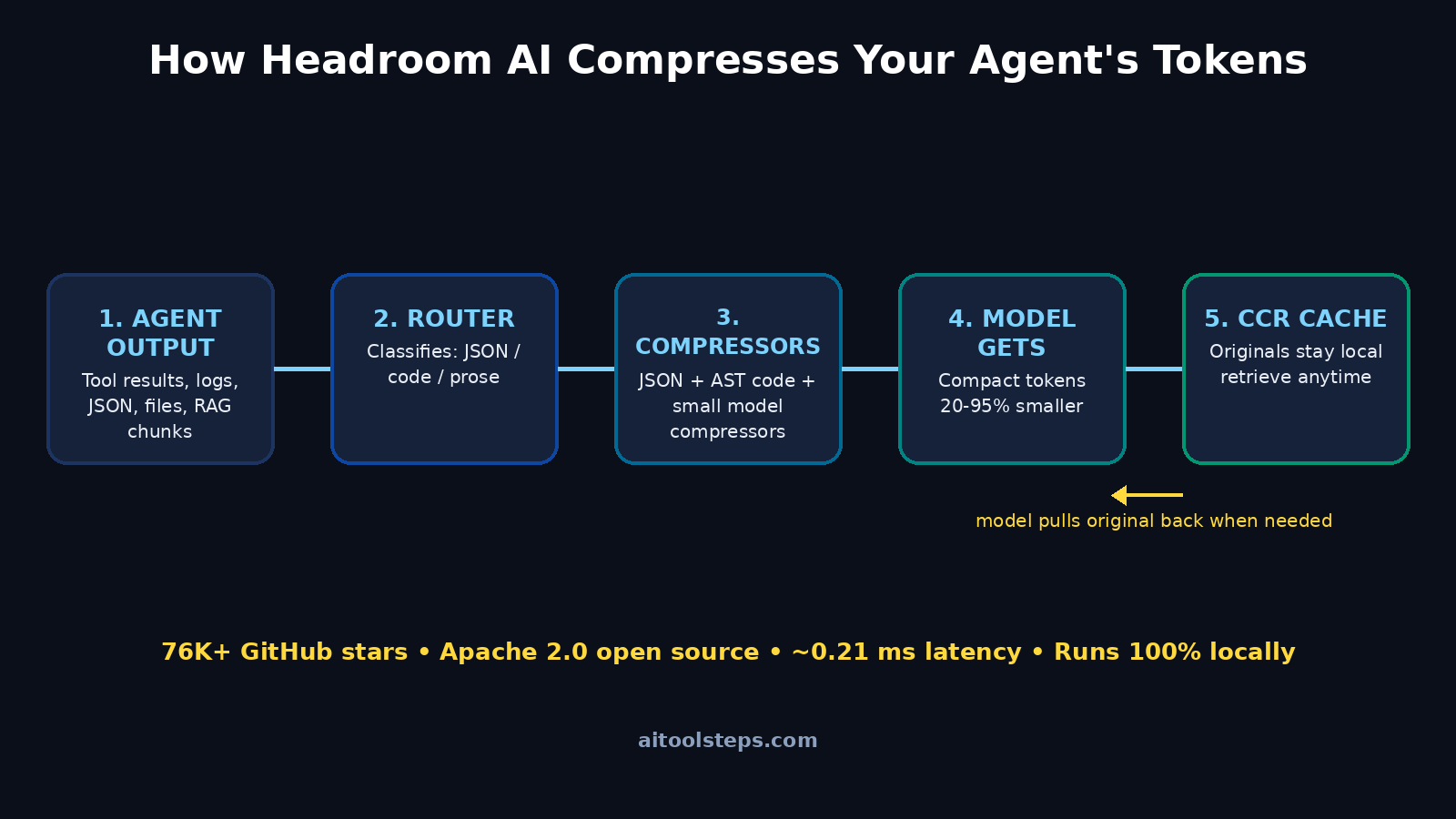
The clever part is that Headroom’s compression is reversible. The original content stays cached on your computer, and the model can ask for the full original back whenever it actually needs the detail. That design choice is what makes it safer than bluntly deleting text: you compress aggressively because nothing is ever truly thrown away.
This beginner-friendly guide walks you through everything: what Headroom does, how to install it in minutes, how to wrap your existing AI agent with zero code changes, how to use the proxy, library and MCP server modes, and how to measure your savings. No advanced programming knowledge is required — if you can open a terminal and run a single command, you can follow this guide.
Step 1: Understand What Headroom AI Actually Does
Think of Headroom as a smart filter between your AI agent and the language model it talks to. Every time your agent receives tool output — say, the results of a file search or a long error log — Headroom intercepts that text, rewrites it in a compact form, and sends the smaller version to the model.
What makes it smarter than simply deleting words is its router. Headroom first classifies the incoming content as JSON, source code or prose, then hands it to a specialized compressor for that content type: a JSON compressor, an AST-based code compressor, or a small open model for text. Repetitive JSON arrays and logs can shrink by more than 90 percent, code search results by around 20 percent, and prose barely compresses at all — the documentation is honest about that.
Headroom also includes a component that flags content that changes often and could break the provider’s prompt cache, helping you avoid cache misses that would silently eat your savings. Because it runs entirely on your own machine, no data ever leaves your computer, which matters for anyone working with private codebases.
Step 2: Check the Requirements Before You Install
Before installing, make sure your setup is ready. You need:
- Python 3.9 or newer — Headroom is a Python tool. On Windows, install Python from python.org; on macOS, use the official installer or Homebrew; most Linux distributions ship with Python already.
- A terminal or command prompt you are comfortable opening and typing commands into.
- An AI coding agent you already use — Headroom wraps Claude Code, Codex, Cursor and Aider, and works with any OpenAI-compatible client. If you use AI assistants daily for work, the savings add up fastest.
- A few gigabytes of free disk space — the reversible cache that stores originals locally needs roughly 1 to 5 GB for heavy use.
If you are a freelancer or run a small team where AI agent costs are becoming a real line item, tools like this one pair naturally with professional help: a digital agency experienced with AI automation services can help you set up efficient AI workflows across your business.
Step 3: Install Headroom on Your Computer
Installation takes about a minute. Open your terminal and run:
pip install "headroom-ai[all]"
This installs Headroom together with all optional extras, including the specialized compressors. If you prefer a minimal install, you can leave off the [all] part, but for this guide the full install keeps things simple.
Once the installation finishes, verify it worked by running headroom --version. You should see the current version number printed (v0.41.0 was the latest release as of mid-October 2026, with roughly one minor release per week). If the command is not found, your Python Scripts folder may not be on your system PATH — re-running the Python installer with the “Add Python to PATH” option usually fixes this on Windows.
Step 4: Run Your First Compression Test
Before touching your agent, try Headroom on a sample file so you can see the compression with your own eyes. Create a test JSON file:
echo '{"results": [{"id": 1, "status": "ok"}, {"id": 2, "status": "ok"}]}' > test.json
Then compress it:
headroom compress test.json
Headroom will show you the original token count and the compressed token count side by side. On tiny files the savings look modest, but this is just a taste. The tool’s own README demo shows a 10,144-token production log dump compressed to 1,260 tokens — with the critical FATAL line surviving byte for byte.
For a quick health check of your installation, run headroom doctor to verify that the content router is working correctly, and headroom perf to see latency benchmarks. Compression is remarkably fast: about 0.21 milliseconds median on a 10,000-token JSON result, so it adds effectively zero delay to your agent’s responses.
Step 5: Wrap Your AI Coding Agent With Zero Code Changes
This is the step most beginners love: you do not have to change a single line of your own code. Headroom can wrap your existing AI coding agent directly. For Claude Code, the command is:
headroom wrap claude
From that moment on, everything your agent reads passes through Headroom’s compression layer automatically. The same pattern works for the other supported agents, so Cursor, Codex and Aider users get the same one-command experience.
Two things are worth knowing here. First, an anonymous telemetry beacon is turned on by default — if you would rather not send any usage data, set the environment variable HEADROOM_BEACON=off before running the wrap command. Second, headroom wrap also installs Serena, a coding memory tool, unless you pass --code-memory none. Decide in advance whether you want that extra piece, especially in professional environments where every dependency should be a deliberate choice. Staying current on how the AI agent ecosystem evolves — including tools covered by outlets like Agentic Affairs — helps you decide which wrappers and helpers are worth keeping.
Step 6: Try the Local Proxy Mode
If you want Headroom to work with any tool that speaks to an OpenAI-compatible API — without changing any code at all — the local proxy mode is your friend. Headroom starts a small proxy server on your machine at port 8787. You simply point your agent or application at the proxy instead of the provider’s API address, and Headroom compresses everything flowing through it.
This mode is perfect when you use several different agents or scripts, because the proxy sits in one central place: every request from every tool gets compressed, and you only configured it once. The proxy needs no code changes in any language, so it works with Python, TypeScript, or whatever your stack uses. According to independent reporting, users see roughly 20 percent fewer tokens for coding agents and 60 to 95 percent fewer on JSON-heavy work — with the same answers.
Step 7: Add Headroom to Your Agent as an MCP Server
Headroom also ships as an MCP (Model Context Protocol) server, which is the modern way to give AI agents new abilities. When you connect the MCP server, your agent gains three tools:
headroom_compress— compresses any text, log or file content on demand.headroom_retrieve— fetches the full original back from the local cache when the model needs the detail.headroom_stats— reports how many tokens you have saved so far.
This is the most flexible setup for agent builders: instead of compressing everything automatically, your agent decides when to compress and when to pull the original back. If you are building agents with retrieval-augmented generation (RAG) pipelines that chew through tokens at high query volume, this mode lets the savings compound quickly while keeping the model’s judgment in control.
Step 8: Use Headroom as a Python Library
If you write your own Python scripts or agent loops, you can call Headroom directly from code. The simplest form is:
from headroom import compress
compressed = compress(messages)
Pass in your list of messages — the same format you would send to an LLM API — and Headroom returns the compressed version, routed through the right compressor for each content type. Source code passes through unchanged by design, so you never have to worry about your code being mangled. This library mode is ideal when you want fine-grained control, for example compressing only the tool-result messages in a long agent conversation while leaving your system prompt untouched.
Step 9: Tune the Compression to Your Workflow
Headroom’s defaults work well out of the box, but a few settings let you match the compression to your needs:
compression_level=0.8— controls how aggressive the compression is. Higher values shrink more but are worth testing against your own workloads first.preserve_fields=["error_code", "timestamp"]— lists fields that must never be compressed. If your debugging depends on exact error codes or timestamps, protect them here.content_type_override="logs"— forces a specific compressor instead of letting the router decide. Useful when you know your content type better than the auto-detection does.enable_cache_optimization=True— maximizes provider prompt-cache hits, protecting the savings you would otherwise lose to cache misses.
A sensible beginner approach: start with the defaults, measure your savings for a week, then tighten compression_level or add preserve_fields only where your tests show a difference. Remember that vendor benchmarks are project claims, not independent measurements — run the benchmarks against your own data before trusting any percentage.
Step 10: Measure Your Savings and Monitor Health
Headroom gives you built-in commands to keep an eye on what you are saving. headroom stats shows total tokens saved across your sessions, headroom doctor verifies the router and compressors are healthy, and headroom perf re-runs the latency benchmarks.
To estimate your actual dollar savings, multiply your saved tokens by your provider’s price per million tokens. For example, a coding agent session that used 100,000 input tokens at $3 per million costs $0.30; if Headroom cuts that to 60,000 tokens, the same session costs $0.18. Multiply that across dozens of sessions a day, and across a team, and the monthly number becomes very real.
One trade-off to keep in mind: compressed prompts are harder to inspect when debugging, and the local cache needs that 1 to 5 GB of disk space mentioned earlier. For most users these are minor costs compared with the token savings, but they are worth knowing before you roll Headroom out to a whole team.
Step 11: Protect Your Privacy and Your Data
Because Headroom runs entirely on your own machine, your code and logs never travel to a third-party server — the compression happens locally and only the compressed text goes to your model provider. That local-first design is one of its biggest selling points for anyone handling private codebases or sensitive data.
Two privacy notes for the careful user: the anonymous telemetry beacon mentioned in Step 5 is opt-out, not opt-in, so disable it with HEADROOM_BEACON=off if you want zero data leaving your machine. And the wrap command’s bundled Serena install is GPL-licensed software — in corporate environments, check your license policy before accepting it, or pass --code-memory none to skip it.
Headroom vs Other Ways to Cut Token Costs
| Approach | Token Savings | Code Changes | Reversible | Cost |
|---|---|---|---|---|
| Headroom AI | 20–95% depending on content | None (wrap/proxy modes) | Yes — originals cached locally | Free, open source (Apache 2.0) |
| Provider native compaction | Varies by provider | None | No — history only, summaries only | Included in provider plan |
| Manual prompt trimming | Depends on your effort | Yes — you rewrite prompts | No — deleted text is gone | Free, but costs your time |
| Doing nothing | 0% | None | — | You pay full token prices |
The key difference is coverage: native compaction usually touches only conversation history, while Headroom compresses every type of content flowing through the agent — tool outputs, logs, files and RAG chunks. And unlike manual trimming, nothing is ever permanently deleted thanks to the reversible cache.
Frequently Asked Questions
Is Headroom AI really free?
Yes. Headroom is open source under the Apache 2.0 license — free to use, free to modify, including for commercial purposes. There is no paid tier, no credit system and no account to create. Your only cost is the compute on your own machine and the disk space for the local cache.
Does compression change the model’s answers?
According to the project’s benchmarks, accuracy is preserved on standard tests like GSM8K (math) and TruthfulQA (factuality), and the critical lines in logs survive byte for byte. Independent reviewers describe the reversible design — where the model can retrieve the original on demand — as the reason this works. Still, treat vendor benchmarks as claims: test on your own workloads before relying on it for anything critical.
Which AI agents does Headroom work with?
It wraps 18 named agents plus any OpenAI-compatible client, including Claude Code, Codex, Cursor and Aider. The proxy mode works with anything that can point at a local HTTP proxy, and the MCP server works with any agent that supports the Model Context Protocol.
Do I need to be a programmer to use it?
For the wrap and proxy modes, no — if you can open a terminal and run one install command plus one wrap command, you are done. The Python library and MCP server modes are aimed at developers building their own agents.
Does Headroom work with languages other than Python?
The core tool is Python, and the library integration is Python and TypeScript. The proxy mode, however, is language-agnostic: any tool that talks to an OpenAI-compatible API can use it with zero code changes. Go and Rust SDKs are not available yet.
Where can I get help if something breaks?
The project has 337 contributors, 174 releases and a very active GitHub repository — the issue tracker and README are the best first stops. The documentation also includes troubleshooting guidance, and the headroom doctor command diagnoses most setup problems automatically.
Final Thoughts
Headroom AI arrived at exactly the right moment. AI agents are getting more capable every month, but their appetite for tokens — and your budget — keeps growing with them. A free, open-source, locally-run compression layer that cuts token costs by 20 to 95 percent without changing your code or your answers is one of the most practical AI tools to appear in 2026.
Start simple: install it, run the sample compression test, and wrap your coding agent with headroom wrap. Measure your savings for a week with headroom stats before you tune anything. If your sessions are dominated by large, repetitive tool output — logs, JSON dumps, database rows — you will likely see the biggest wins. And if you only use one provider’s native compaction and do not need cross-agent features, the README itself says you can skip it — an honesty you do not see every day.
Explore More Free AI Tools
Liked this guide? AIToolSteps publishes beginner-friendly tutorials on the best free AI tools every day. Try our free AI Title Generator to craft better headlines for your projects, our Meta Description Generator for SEO-ready snippets, our AI Rewriter to polish your writing, and our Keyword Density Checker to keep your content optimized. Visit the AIToolSteps homepage to explore them all.