

Building a landing page used to mean juggling three or four different tools: a page builder for the design, a form tool for capturing signups, a spreadsheet or CRM for the responses, and an automation tool to follow up. On October 6, 2026, Typeform — the company behind the famous conversational forms — launched Typeform AI Landing Pages, a tool that collapses that entire stack into a single chat conversation. You describe the page you want, and Typeform AI builds a branded, publish-ready landing page with native forms, connected workflows, and response management built in.
The feature shipped in beta on October 7, 2026, and it is available on every Typeform plan, including the free one. That makes it one of the most beginner-friendly ways to publish a professional signup, event, or lead-capture page in 2026 — no coding, no design skills, and no credit card required.
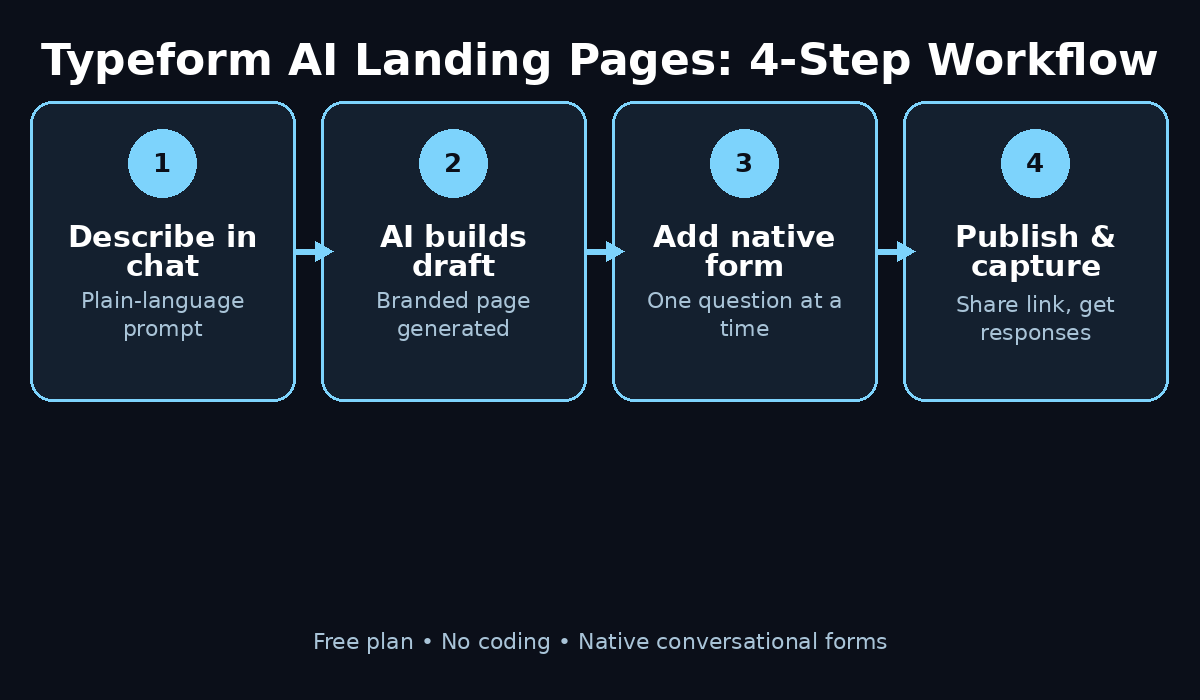
This guide walks you through the whole process step by step: creating your free account, writing your first page prompt, refining the AI draft, adding a native form, connecting your apps, and publishing. By the end, you will have a live landing page collecting responses.
Step 1: Create Your Free Typeform Account
Everything starts with a free Typeform account. Head to typeform.com and sign up — no credit card is required. The free plan is enough to build your first pages, add forms, and test them with real visitors.
After you verify your email address, you land in the Typeform workspace. This is your home base: every page, form, and response you create lives here. Take a minute to look around the dashboard before you move on — knowing where the “Create” button and the workspace navigation are will make the rest of this tutorial much smoother.
One thing to know up front: Typeform’s free plan has response limits on forms (paid tiers raise them), so your first page is perfect for testing an idea, collecting waitlist signups, or running a small event — exactly the use cases this guide focuses on.
Step 2: Find the AI Landing Pages Feature (Beta)
AI Landing Pages is still in beta, which means it is rolling out gradually. In your dashboard, look for the Pages option or an “AI Landing Pages” entry point — this is where the conversational builder lives.
Important honesty check: Typeform’s own help documentation warns that beta access is not guaranteed even on a paid account. In their words: “If you don’t see the option to create a page, it isn’t enabled for you yet.” If the option is missing from your account, do not panic — check back in a few days, because the rollout is expanding. The feature is included with every plan once it is enabled, including free.
When you do see it, click through to the builder. You will find a chat box — that chat box is the entire page builder. There is no blank canvas to stare at and no toolbar to learn first.
Step 3: Describe Your Page in the Chat Box
Here is where the magic happens. In the chat box, describe the landing page you want in plain language, exactly as you would explain it to a colleague. The AI reads your description and generates a branded draft page from it.
A real-world prompt from Typeform’s own announcement works perfectly as a template:
“Build a one-page quote request for my consulting offer, add my intake form, and match my brand colors.”
To get the best first draft, include four things in your prompt:
- The goal of the page — waitlist signup, event RSVP, quote request, lead capture, newsletter signup.
- Your audience and offer — who the page is for and what they get.
- The form fields you need — name, email, phone, company size, preferred date.
- Brand direction — your colors, logo style, or the general mood (playful, corporate, minimal).
The more specific you are, the less refining you will need later. A prompt like “make a signup page” will give you a generic result; a prompt like “make a waitlist signup page for my free AI photography course, ask for name and email, use dark blue and gold colors” will give you something close to finished.
Step 4: Refine the AI Draft Through Conversation
Your first draft is a starting point, not a final product. This is the step most beginners skip — and the step that separates an average page from a great one.
Refine the page the same way you created it: by chatting. Ask the AI to shorten the headline, add a testimonial section, change the button color, rearrange sections, or rewrite the copy in a friendlier tone. You can also edit blocks directly if you prefer clicking to typing — both approaches work, and you can mix them freely.
Plan on two or three refinement rounds. After each round, read the page out loud as if you were a first-time visitor: is it obvious what the page offers? Is the next step (the form or button) impossible to miss? Is anything confusing? Fix whatever you find with one more chat message. This loop is fast — each round takes seconds, not hours.
Step 5: Add a Native Form That Matches Your Goal
A landing page without a form is just a poster. Typeform AI Landing Pages lets you add a form in two ways: embed a form you already built in Typeform, or ask the AI to generate a new one tailored to the page’s goal.
This is the feature’s biggest advantage over stitching tools together. Because the form and the landing page are both built in Typeform, you skip the sizing and responsiveness problems that usually come with embedding a third-party form onto a page. Typeform reports that its native conversational forms collect 3.5x more data than static forms — the one-question-at-a-time format feels like a chat, so visitors actually finish it.
Beginner tips for your form:
- Keep it short. Every extra field costs you completions. Ask only for what you truly need.
- Use the conversational format. One question per screen keeps long forms feeling light.
- End with a clear thank-you screen. Tell visitors exactly what happens next (“We’ll email your download link within 5 minutes”).
Step 6: Connect Your Favorite Apps
A landing page becomes a workflow when it talks to your other tools. Typeform Connectors let the AI pull context from apps like Canva, Notion, Shopify, Slack, and Stripe while it builds your page — so your brand assets, product info, or team notifications flow in automatically.
Think about what should happen after someone submits your form:
- Notifications: send each new signup to a Slack channel so your team sees it instantly.
- Products and payments: pull product details from Shopify or Stripe while the page is being built.
- Content and design: reference brand assets stored in Canva or Notion for a consistent look.
If you are on a plan with Growth Flow, you can go further: form submissions can trigger enrichment, routing, follow-up messages, and nurture campaigns automatically — without configuring separate integrations between tools. That is the “one conversation” idea Typeform’s product chief talked about at launch: the page, the response, and what happens next are all part of the same system.
Step 7: Brand the Page With Your Colors, Fonts and Logo
A generic-looking page converts like a generic-looking page — poorly. Before you publish, make the design unmistakably yours: set your brand colors, upload your logo, choose fonts that match your website, and add a background image or video if it fits.
The AI draft usually gets the structure right but the personality only halfway there. This is the moment to push it: ask the chat for a bolder hero section, a different color palette, or a more playful tone of voice. Small branding touches — a consistent button color, your real logo instead of a placeholder, your actual product photos — make visitors trust the page enough to hand over their email address.
And here is an honest tip: if the AI draft still feels generic after a few rounds, there is no shame in getting professional help. A professional digital agency can take your AI-generated draft and polish the design, copy, and layout into a premium brand asset — often in less time than it would take to build the page from scratch. Use the AI for speed, and experts for the final 10 percent that makes a page convert.
Step 8: Set SEO Metadata and Publish the Page
Before your page goes live, give search engines something to work with. The builder lets you configure custom metadata for SEO — a page title and description — so your page can show up properly when shared or searched.
Then publish. You can publish on a Typeform-hosted URL, which is the fastest option and works perfectly for testing. One beta limitation to know: custom domains are not live yet, so for now use the Typeform-hosted link and share it directly — in your bio, your emails, your social posts, or a QR code on printed material.
Before you share the link widely, do a final quality pass:
- Open the page on your phone. The design system handles responsive layout automatically, but always verify.
- Submit a test response yourself and confirm it arrives where you expect.
- Read every word on the page once more. Typos kill trust faster than any design flaw.
Step 9: Manage and Act on Responses in Typeform Contacts
Every form submission flows directly into Typeform Contacts — one place to see and manage the customer information your page captures. No more exporting CSVs from one tool and importing them into another.
Open Contacts regularly, especially in your first week. Look at which questions get skipped, where people drop off, and what the actual responses tell you about your offer. That data is gold: it tells you whether your headline promises the right thing and whether your form asks the right questions.
Then act on it. Reply to quote requests fast — speed is the single biggest factor in converting a lead. Teams that want every lead followed up automatically can plug in AI automation services to route, enrich, and nurture each response without manual work: new signups get welcomed, hot leads get flagged, and nobody slips through the cracks while you sleep.
Step 10: Test, Share and Improve Your Page
Publishing is the starting line, not the finish line. Your first version is a hypothesis — now test it.
Share the link with a small group first: friends, your email list, a relevant community. Watch the first 20–50 visits closely. If visitors bounce without submitting, your headline or offer probably needs work — ask the AI chat to rewrite it. If they start the form but do not finish, your form is too long — cut a field. Each fix is one more chat message away.
A few honest notes about the beta, so you plan correctly:
- Availability is gradual. Some accounts do not see the feature yet; check back if yours is missing.
- Custom domains are not live. Publish on the Typeform-hosted URL for now.
- There is no built-in analytics dashboard yet. Use UTM parameters on your shared links and watch your form’s response stats to measure performance.
- Treat vendor statistics as directional. Figures like “3.5x more data” come from Typeform’s own marketing — run your own small test rather than assuming you will match them.
None of these are deal-breakers for a beginner. They are simply the edges of a brand-new tool — and getting in early means you learn the workflow before everyone else does.
Typeform AI Landing Pages vs. The Alternatives
How does the conversational builder compare with the usual ways beginners make landing pages? Here is a quick side-by-side:
| Typeform AI Landing Pages | Traditional page builder (WordPress/Elementor) | Google Forms shared link | |
|---|---|---|---|
| Build method | Describe it in chat; AI generates the page | Manual drag-and-drop or coding | Form only — no page at all |
| Forms | Native, conversational, one question at a time | Plugin or third-party embed, sizing issues | Plain multi-field form |
| Skills needed | None | Some design and tech skill | None |
| Price to start | Free plan | Hosting plus theme/plugin costs | Free |
| SEO metadata | Custom title and description | Full control (with plugins) | Almost none |
| Best for | Quick branded signup, event, or lead pages | Full custom websites | Simple surveys and quizzes |
The pattern is clear: if you need a full custom website, a traditional builder still wins. If you need a polished page that captures responses this week — with zero learning curve — the AI conversational route is the fastest path from idea to live link.
Frequently Asked Questions
Is Typeform AI Landing Pages really free?
Yes — the feature is included on every Typeform plan once the beta is enabled on your account, including the free plan. The free plan’s form response limits still apply, so it is ideal for testing ideas, waitlists, and small campaigns. Paid plans raise the limits and unlock extras like Growth Flow automations.
Do I need coding or design skills to use it?
No. That is the entire point of the tool. You describe what you want in plain language, the AI generates the page, and you refine it by chatting. If you can write an email, you can build a landing page with it.
Why can’t I see the Pages option in my Typeform account?
The feature is in beta and rolling out gradually. Typeform’s own documentation says: “If you don’t see the option to create a page, it isn’t enabled for you yet.” Check back in a few days — availability is expanding, and the feature is included on all plans once enabled.
Can I use my own custom domain?
Not yet. As of the October 2026 beta, custom domains are not live — you publish on a Typeform-hosted URL. For testing, waitlists, and social sharing, the hosted link works perfectly fine.
How is this different from Typeform’s regular form builder?
The regular builder makes forms. AI Landing Pages builds the entire branded landing page around the form — headline, sections, branding, connectors to your other apps, and a contacts hub for responses — all from a chat conversation. It replaces the page builder, not just the form.
What should my first page be?
Pick the smallest real goal you have: a waitlist for something you are launching, an RSVP for an event, or a quote request for a service. Small pages teach you the workflow fast, and you can build a bigger one once the first is collecting responses.
Final Thoughts
Typeform AI Landing Pages is one of those rare launches that actually lowers the bar for beginners instead of raising it. Describe your page in a chat, refine the draft, add a native form, connect your apps, and publish — the whole workflow lives in one place, and the free plan means experimenting costs you nothing but an afternoon.
Start small: build one waitlist or RSVP page this week using the ten steps above. Test it with real visitors, read the responses in Typeform Contacts, and refine with one more chat message. By your second page, the workflow will feel like second nature — and you will have a skill (shipping landing pages in minutes) that most small businesses would happily pay for.
The tool is young and the beta has rough edges, but the direction is unmistakable: the future of building pages is describing what you want, not dragging rectangles around a canvas.
Explore More Free AI Tools
Want to keep building? Pair your new landing page with these free helpers from AIToolSteps: use the AI Title Generator to write headlines that convert, the Meta Description Generator to craft the SEO metadata from Step 8, the AI Rewriter to polish your page copy, and the Keyword Density Checker to make sure your key phrases appear naturally. All four are free at https://aitoolsteps.com/ — no signup needed.