

What if you could describe a video in plain English and watch it render itself — no timeline scrubbing, no render queue anxiety, no subscription bill? That is the idea behind HyperFrames, an open-source framework from HeyGen that turns an ordinary web page into an MP4 video. Its tagline says it all: “Write HTML. Render video. Built for agents.” This guide shows you how to use HyperFrames AI to do exactly that.
HyperFrames broke out this month (October 2026) as one of the most-starred open-source AI projects on GitHub, and HeyGen followed it with HyperFrames Studio, a video editor where you describe the video and an AI agent builds it with you. The exciting part for beginners: you do not need to learn video editing or even web development. An AI coding agent writes the HTML and CSS for you, and HyperFrames renders the finished MP4 deterministically — the same input always produces the exact same video.
In this beginner guide, you will learn exactly how to use HyperFrames AI: what it is, the three ways to make videos with it, how to get your first MP4 out the door without writing a line of code yourself, and the tricks that make your renders look professional.
Step 1: Understand What HyperFrames AI Actually Is
HyperFrames is not a normal video editor and not a text-to-video AI like the ones that hallucinate footage from a prompt. It is a rendering engine — think of it as a robot that opens a web page, takes a photograph of every frame, and stitches those photographs into an MP4 file.
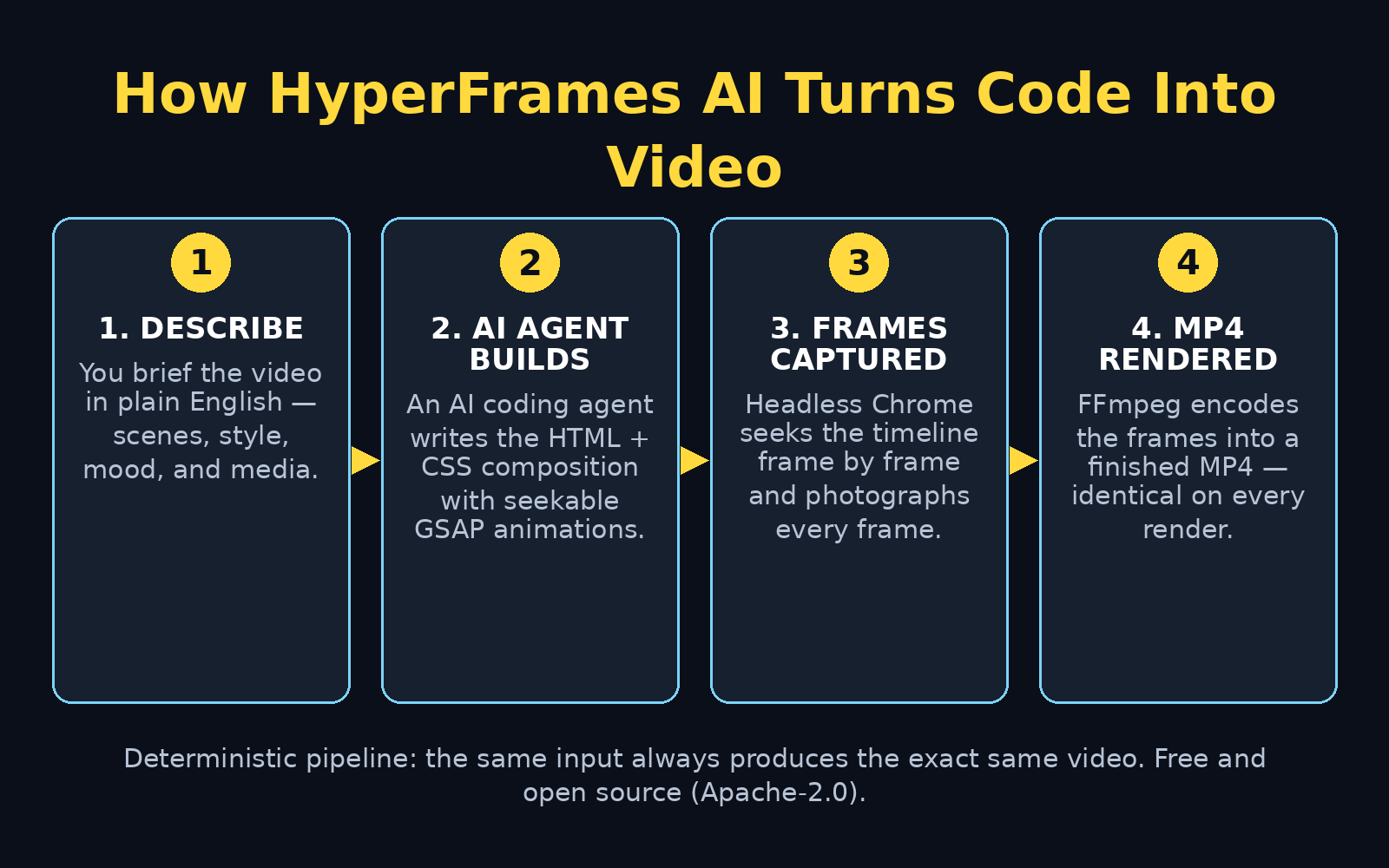
Here is the pipeline in plain language:
- A composition is just an HTML file. Each scene is markup, so anything a browser can display — text, layouts, images, charts — can become a video frame.
- Motion comes from animation libraries. HyperFrames works with GSAP, CSS keyframes, Lottie, Three.js, Anime.js, and the Web Animations API. These animations are “seekable,” meaning the renderer can jump to any exact moment instead of playing the video live.
- Headless Chrome captures every frame. The renderer opens the page invisibly, asks for frame 1, then frame 2, then frame 3, and so on.
- FFmpeg encodes the frames into an MP4. The result is a standard video file you can upload anywhere.
Because rendering is deterministic, frame-by-frame seeking has a big practical benefit: a slow computer cannot drop moments from the finished video. Every frame is captured deliberately, so the output is identical no matter how fast your machine is.
The project is released under the Apache-2.0 license, which means it is genuinely free — no per-render fees, no commercial-use thresholds, no watermark. You can run it on your own computer or use its cloud rendering.
Step 2: Pick the Right Way In — Studio, CLI, or Cloud
There are three ways to use HyperFrames, and as a beginner you should start with the easiest one:
- HyperFrames Studio (easiest — no code). Announced October 5, 2026, Studio is described as “a video editor built for agents, from scratch.” You describe the video in plain words, the AI agent builds it, and you both work on the same timeline. You can even draw or comment on a frame and the agent makes the edit. It comes with hundreds of inspirations and templates. If you have never opened a terminal, start here.
- The CLI with an AI coding agent (recommended for creators who want control). You install 21 “skills” that teach an AI coding agent the entire production loop — plan the video, write the HTML, wire the animations, add media, lint, preview, and render. This works with Claude Code, Cursor, Gemini CLI, Codex, and other agents that support skills. You still describe everything in plain English; the agent writes the code.
- Cloud rendering (for automation). Package your composition as a ZIP, upload it, and HeyGen’s headless renderer produces the video through an API: upload the bundle, submit the render, poll until it is completed, then download the MP4. A single CLI command,
hyperframes cloud render, wraps the whole flow.
For this guide, we will focus on the first two paths — the ones where you never have to touch code yourself.
Step 3: Open HyperFrames Studio and Start Your First Project
The fastest route to your first HyperFrames video is Studio:
- Go to the HyperFrames Studio site (hyperframes.heygen.com) and sign in or create a free account.
- Start a new project from a template or a blank canvas. Templates cover common formats: product launches, explainers, slideshows, and motion graphics.
- You will see a timeline-like view where scenes, titles, and audio each get a start time, a duration, and a track number — but everything is described in words, not keyframes.
If Studio asks what you want to make, answer like you are briefing a video editor: the topic, the length, the mood, and what should appear on screen. The more specific you are, the better the first draft.
Step 4: Describe Your Video in Plain English
This is the step that makes HyperFrames beginner-friendly. You do not write HTML — you describe it, and the agent writes it. A good brief has four ingredients:
- Goal: what the video should achieve (“explain my product,” “announce a sale,” “teach a concept”)
- Structure: how many scenes and what happens in each (“Scene 1: headline appears. Scene 2: three benefits animate in one by one.”)
- Style: colors, mood, and references (“dark tech background, glowing blue accents, modern sans-serif text”)
- Media: what to show — logos, screenshots, product images, background music
Example brief you can adapt:
“Make a 20-second promo video for a fitness app. Scene 1 (0–5s): big headline ‘Train Smarter, Not Harder’ fades in over a dark background with a glowing blue pulse. Scene 2 (5–15s): three benefit cards slide in one by one — ‘AI workout plans’, ‘Progress tracking’, ‘Home-friendly routines’. Scene 3 (15–20s): ‘Download free today’ call to action with the app logo. Upbeat, modern, clean.”
The agent turns that brief into an HTML composition with data attributes for timing and tracks, wires up the animations, and shows you a preview right in the browser — no build step needed.
Step 5: How to Use HyperFrames AI with an AI Coding Agent (CLI Path)
If you prefer working with a coding agent like Claude Code or Cursor, HyperFrames ships 21 installable skills that teach the agent its whole workflow. The setup looks like this:
- Install the skills with one command:
npx skills add heygen-com/hyperframes. - Describe your video to the agent. A router skill called
/hyperframesreads your request and picks the right workflow, for example:/product-launch-video— a promo or site tour from a URL, a brief, or a script/faceless-explainer— explain a topic with type, diagrams, and data visualizations/pr-to-video— turn a GitHub pull request into a changelog or feature video/embedded-captions— add captions to an existing talking-head video/motion-graphics— a short logo sting, lower third, or animated headline
- The agent follows the production loop: plan, write valid HTML, wire seekable animations, add media, lint, preview, and render.
You will need Node.js 22 or newer and FFmpeg installed for local rendering — both are free, one-time installs. If that sounds intimidating, the agent itself can usually walk you through the install, or you can stay in Studio and skip the terminal entirely.
Step 6: Preview the Video in Your Browser Before Rendering
One of HyperFrames’ nicest properties is that a composition is just a web page, so you can preview it interactively in an ordinary browser before spending time on a render. The CLI can launch a preview server; in Studio, the preview is built in.
Use the preview to check four things:
- Timing: does each scene hold long enough to read? Aim for at least 3 seconds per text-heavy scene.
- Typography: is the text readable at video size? Big, bold, high-contrast type wins.
- Animation smoothness: do elements glide in and settle, or do they jump?
- Audio sync: if you added music or voiceover, does the mood match the pacing?
Fix issues by describing the change in words (“make Scene 2 stay 2 seconds longer,” “use a larger headline font”). This describe-and-adjust loop is the whole editing experience — no timeline scrubbing required.
Step 7: How to Use HyperFrames AI to Render Your Video to MP4
When the preview looks right, render. The CLI command produces a deterministic MP4: HyperFrames loads your composition in headless Chrome, seeks the timeline frame by frame, captures each frame, and FFmpeg encodes the result.
Two things worth knowing about rendering:
- It is deterministic. Render the same composition twice and you get byte-identical frames. That makes HyperFrames perfect for versioned, repeatable videos — you can store the composition in git, review changes like code, and regenerate the video whenever the source data changes.
- Slow machines are fine. Because the renderer seeks each frame deliberately instead of screen-recording live playback, a weak laptop cannot cause dropped frames or stutter. It just renders more slowly.
Typical output is a standard MP4 (commonly 1080p) that uploads directly to YouTube, TikTok, Instagram, or any other platform — HyperFrames is a rendering primitive and does nothing downstream of producing the file, so publishing is your step.
Step 8: Add Captions, Motion Graphics, and Polish
Once the base video renders cleanly, level it up with the finishing touches that make content look professional:
- Captions: the
/embedded-captionsworkflow adds captions to a talking-head or narrated video, which matters because most social video is watched on mute. - Motion graphics: logo stings, lower thirds, and animated headlines give your video a branded feel in seconds.
- Data visualizations: charts and diagrams animate in beautifully because they are just HTML and SVG — great for faceless explainers.
- Music and sound: the media layer can freeze music, sound effects, images, and color looks into local files so the render always finds them.
Small polish checklist: consistent brand colors across scenes, one font family (two at most), captions on every spoken word, and a clear call to action in the final 3 seconds.
Step 9: Create Templated and Bulk Videos Like a Pro
This is where HyperFrames leaves traditional editors behind. Because the video is plain text, you can template it and generate hundreds of variants programmatically:
- A product video for every item in your catalog — swap the name, price, and image in the HTML, render again.
- A changelog video from every release — the
/pr-to-videoworkflow turns a pull request into a feature video automatically. - Localized versions — duplicate the composition, translate the strings, render each language.
- A/B test variants — change the headline, re-render, compare performance.
Digital teams already run pipelines like this for everything from data-viz clips to templated product videos. A digital agency that produces recurring client content, for instance, can turn one composition into a reusable video factory instead of re-editing the same format by hand every week — and specialists in AI automation services use the same code-driven approach to remove repetitive production work from their clients’ workflows.
Step 10: Download, Publish, and Reuse Your Composition
Your final MP4 is a normal video file. Download it and publish it wherever your audience lives — YouTube Shorts, TikTok, Instagram Reels, Pinterest, or your own site. Add a title, description, tags, and a designed thumbnail, just like any other upload.
Then save your composition. That HTML file is the real asset: next week, when the price changes, the logo updates, or you want a Spanish version, you edit a few lines (or describe the change to your agent) and re-render in minutes instead of re-editing from scratch.
Keep your compositions organized in folders by campaign, and if you are technical, put them in git — version-controlled video is one of HyperFrames’ superpowers.
HyperFrames vs Other Video Tools: Honest Comparison
| Feature | HyperFrames | Traditional editors (Premiere, CapCut) | AI text-to-video tools |
|---|---|---|---|
| How you create | Describe in words; agent writes HTML | Drag clips on a timeline | Type a prompt; AI generates footage |
| Cost | Free and open source (Apache-2.0) | Free tiers exist; pro plans paid | Mostly paid credits/subscriptions |
| Deterministic output | Yes — same input, same video | Yes | No — every generation differs |
| Bulk/templated videos | Excellent — code templates | Painful — manual duplication | Weak — inconsistent results |
| Learning curve | Low with Studio or an agent; code helps | Medium — timeline skills needed | Very low |
| Best for | Repeatable, data-driven, branded videos | One-off creative edits | Quick AI-generated clips |
| Publishing built in | No — you upload the MP4 yourself | Often yes | Usually yes |
The honest summary: HyperFrames is infrastructure for building a video workflow, not a hosted editor that removes deployment or publishing decisions. If you want one polished video today, a normal editor or text-to-video tool is faster. If you want a hundred consistent videos this quarter — or a pipeline that makes them automatically — HyperFrames is in a class of its own.
Frequently Asked Questions
Is HyperFrames really free?
Yes. It is open source under the Apache-2.0 license with no per-render fees, no commercial-use thresholds, and no watermark. The CLI runs on your own machine; cloud rendering is available through HeyGen’s platform if you prefer not to render locally.
Do I need to know how to code to use HyperFrames?
Not anymore. The original CLI path rewards some web knowledge, but HyperFrames Studio and the agent skills mean you can describe your video in plain English and let an AI agent write the HTML, CSS, and animations. Knowing a little HTML helps you tweak things faster, but it is optional.
What do I need installed to render locally?
The command-line version needs Node.js 22 or newer and FFmpeg — both free. There is no build step: you write (or your agent writes) a plain index.html composition and render it. If you use Studio or cloud rendering, you need nothing installed at all.
How is HyperFrames different from AI video generators?
AI video generators create footage from a text prompt and give you a different result every time. HyperFrames renders a web page you (or your agent) designed, so the output is exact, repeatable, and editable — change one line of text and re-render. It is “video as code” rather than “video from imagination.”
Can HyperFrames add captions and music?
Yes. There is a dedicated workflow for embedding captions into existing videos, and the media layer handles music, sound effects, images, and color looks. Because everything is code, captions and graphics stay perfectly synced with the timeline.
Who should NOT use HyperFrames?
If you need one creative, emotional, cinematic edit — a wedding film, a travel vlog — a traditional editor serves you better. HyperFrames shines for repeatable, templated, data-driven, and branded video: explainers, product promos, changelogs, slideshows, captions, and motion graphics.
Final Thoughts
HyperFrames flips the video-making process on its head: instead of learning a timeline, you describe what you want and let an AI agent write the video as a web page. The rendering is free, open source, deterministic, and infinitely templatable — a combination no subscription video tool can match.
As you learn how to use HyperFrames AI, start with Studio or a single agent-built explainer this week. Render one video, change the headline, render it again, and feel how different video production becomes when your video is code. That loop — describe, preview, render, reuse — is the skill that will matter as AI agents take over more of the production pipeline.
Explore More Free AI Tools
Want to keep creating with AI? Try these free tools on AIToolSteps:
- AI Title Generator — create catchy headlines for your videos in seconds: https://aitoolsteps.com/
- Meta Description Generator — write SEO-friendly descriptions that get clicks from Google: https://aitoolsteps.com/
- AI Rewriter — polish your video scripts and descriptions instantly: https://aitoolsteps.com/
- Keyword Density Checker — optimize your video titles and descriptions to rank higher: https://aitoolsteps.com/