

If you want the power of a modern AI chatbot without handing over your email address, phone number, or chat history, Duck.ai is the tool to learn. Built by the team behind the privacy-first DuckDuckGo search engine, Duck.ai lets you chat with top-tier AI models from OpenAI, Anthropic, Mistral, and Meta — completely free, with no login, no account, and no profile following you around.
In this beginner’s guide, you’ll learn how to use Duck.ai from scratch: opening your first chat, picking the right model, writing prompts that get great answers, comparing models side by side, managing your chat history, and locking down every privacy setting. By the end, you’ll be using Duck.ai confidently for writing, research, brainstorming, coding help, and more — all while staying anonymous.
Step 1: Open Duck.ai in Your Browser
Getting started with Duck.ai couldn’t be simpler. There is nothing to download and nothing to sign up for.
- Open any modern browser — Chrome, Edge, Safari, Brave, Firefox, or the DuckDuckGo browser all work.
- Go to duck.ai and you’ll land directly on the chat interface.
- That’s it. No login screen, no “continue with Google,” no trial countdown, no credit card wall.
The first thing you’ll notice is a clean prompt box and a friendly suggestion or two for getting started. Duck.ai works entirely in the browser, so it also works on phones and tablets — just bookmark duck.ai on your home screen and you have a private AI chatbot that behaves like a native app.
Step 2: Start Your First Chat — No Login Required
Using Duck.ai feels just like using any other AI chatbot, minus the surveillance.
- Click or tap the prompt box at the bottom of the screen.
- Type your first question — something simple like “Explain what inflation is in one paragraph” — and press Enter.
- Duck.ai sends your question through its privacy layer (more on that in Step 10) and streams back the answer in seconds.
There is no daily account to create and no usage counter tied to your identity. The free tier comes with generous daily usage limits, so casual daily use — a few dozen questions — won’t cost you a cent or ask you to verify anything about yourself. If you ever hit a limit, DuckDuckGo’s paid plan raises the caps, but most beginners never need it.
Step 3: Pick the Right AI Model for the Job
One of Duck.ai’s biggest advantages is the model picker: instead of being locked into a single AI, you can choose which model answers you.
- Look for the model selector at the top of the chat (it usually shows the currently active model’s name).
- Tap it to see the available models from providers like OpenAI, Anthropic, Meta, and Mistral.
- Free users get solid, fast models such as GPT-5 mini and strong open models; subscribers get access to heavier reasoning models like GPT-5.2 with a reasoning-mode toggle for deeper thinking on hard problems.
Which should you pick? A simple rule of thumb:
- Quick everyday questions (definitions, emails, translations): use the default or fastest free model.
- Coding help and math: pick a stronger reasoning model if you have access to one.
- Sensitive questions (health, money, personal dilemmas): choose a model labelled “zero provider visibility” — these run inside a Trusted Execution Environment where even the hosting provider technically cannot read your prompt.
You can switch models mid-conversation, and Duck.ai keeps the chat flowing. This flexibility is rare on the free tier of most chatbots, and it’s one of the best reasons to learn how to use Duck.ai properly.
Step 4: Write Better Prompts That Get Better Answers
Duck.ai answers are only as good as the questions you ask. A few prompt habits separate beginners from power users:
- Be specific. Instead of “write about dogs,” try “Write a 150-word Instagram caption about adopting a senior rescue dog, in a warm and funny tone.”
- Give context. Tell the model who you are and what the output is for: “I’m a 10th-grade student. Explain photosynthesis like I’m studying for a quiz.”
- Ask for formats. Need a table, a checklist, or bullet points? Say so: “Compare Python and JavaScript in a table with columns for speed, learning curve, and job demand.”
- Iterate. If the first answer isn’t right, follow up: “Make it shorter,” “Give me 5 more options,” or “Explain that last part again, simpler.”
- Set the role. “Act as a friendly Spanish tutor and correct my sentences as we chat.” Role-setting dramatically improves relevance.
Keep prompts in plain English — no special syntax needed. If you run a blog or website, strong prompts like these pair beautifully with free helpers such as the AI Title Generator and AI Rewriter on AIToolSteps to polish whatever Duck.ai drafts for you.
Step 5: Compare Models Side by Side
Not sure which model is smartest for your task? Duck.ai lets you put them to the test.
- Ask the same question to two different models by switching the model picker between turns.
- Compare the answers for accuracy, tone, and detail — you’ll quickly learn which model you trust for writing vs. coding vs. brainstorming.
- For subscriber models, try the reasoning mode toggle: it makes the model “think longer” before answering, which shines on logic puzzles, math, and multi-step planning.
This side-by-side habit is how beginners become informed users. And because switching models costs you nothing extra and requires no new account, Duck.ai is arguably the best free sandbox for learning what different AI models are good at.
Step 6: Use Voice Chat for Hands-Free Answers
Duck.ai isn’t text-only. Its voice chat feature lets you talk to AI models out loud and hear spoken replies.
- Look for the microphone or voice-chat option in the chat interface and tap it.
- Speak your question naturally; Duck.ai streams your audio through an encrypted relay to the model.
- According to DuckDuckGo, neither it nor the model provider keeps recordings after the session ends, and voice data is never used for training.
Voice chat is free within daily limits and works in most browsers. It’s perfect for cooking while asking for recipe steps, brainstorming out loud, or practicing a language. If you change your mind, you can disable voice chat any time in Duck.ai’s settings.
Step 7: Generate and Edit Images With AI
Beyond text, Duck.ai can create images from your descriptions — no separate tool needed.
- Start a new chat or open the image option and choose New Image.
- Describe the picture you want: “A cozy reading nook with a window, rain outside, warm lamp light, watercolor style.”
- Refine it with follow-up prompts: “Make the window bigger” or “Switch to a night scene.”
Image generation carries its own daily usage limit on the free tier, so use it thoughtfully. And keep in mind that uploaded images and files are scanned for illegal content by a third-party moderation provider — a standard safety measure — though they aren’t retained otherwise.
Step 8: Manage Your Recent Chats (and Nuke Them With the Fire Button)
Here’s where Duck.ai’s privacy design really shows:
- Recent chats are stored locally on your device only — never on DuckDuckGo’s servers. Your conversation history never leaves your browser’s local storage.
- Tap the Fire Button (DuckDuckGo’s signature flame icon) to instantly wipe all recent chats.
- You can pin up to 5 conversations to protect them from the Fire Button wipe.
- An optional Sync & Backup feature stores chats in end-to-end encrypted form that DuckDuckGo itself cannot read — handy if you switch devices.
Because nothing is tied to an account, clearing your browser data or hitting the Fire Button genuinely removes your history. Compare that to a logged-in chatbot, where your chats live on a company’s servers indefinitely.
Step 9: Upload PDFs and Images for Smarter Help
Need Duck.ai to work with your own documents? Depending on the selected model, you can upload files directly into the chat.
- PDF documents — the free tier supports PDF uploads with a page limit (paid plans allow more), great for summarizing reports, contracts, or study material.
- Images — upload a photo or screenshot and ask questions about it, from “What’s wrong with this plant?” to “Transcribe this handwritten note.”
- Not every model supports every file type, so if an upload fails, try switching to a different model.
Practical uses beginners love: summarizing a long terms-and-conditions document before signing, extracting action items from meeting notes, or getting a second opinion on an essay. Small businesses and freelancers use this constantly — and if you ever need a full digital partner for bigger AI projects, agencies like D365A build custom AI automation and web solutions for teams that outgrow DIY tools.
Step 10: Lock Down Your Privacy Settings
You now know how to use Duck.ai — let’s make sure you’re getting the full privacy benefit.
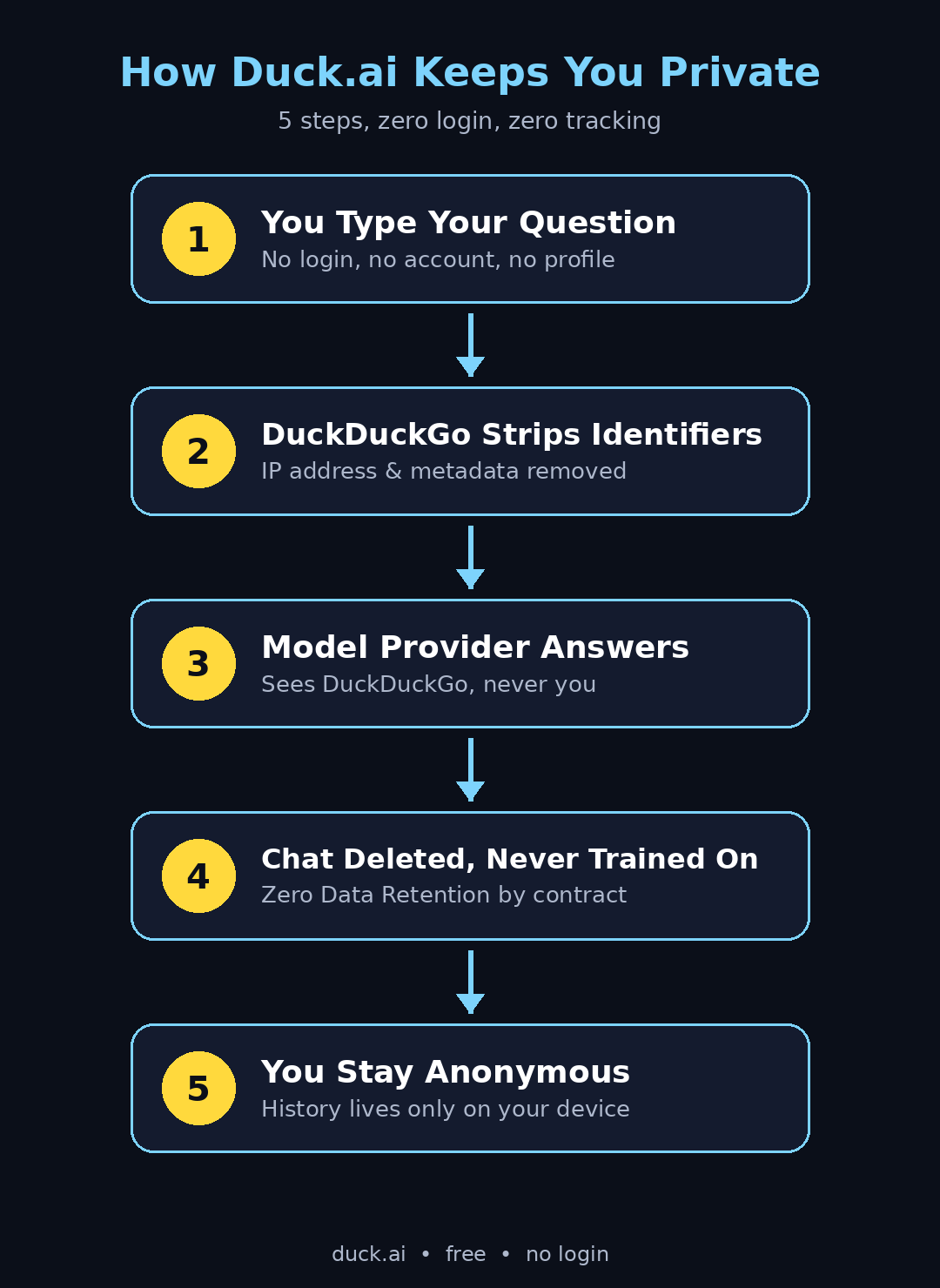
- Know the pipeline: DuckDuckGo acts as a proxy. Your IP address and identifying metadata are stripped before your prompt reaches the model provider, so to OpenAI, Anthropic, or Mistral, the request looks like it came from DuckDuckGo itself — not from you.
- Zero Data Retention: every provider on Duck.ai contractually agrees to delete your prompts and responses immediately after generating a reply, to never use your chats for model training, and to never share your data with third parties for commercial purposes.
- Two technical extras: some models run with “zero provider visibility” (a Trusted Execution Environment where the host can’t read your prompt at all), and providers only hold chats in short-term prompt-caching memory for up to about an hour — never written to disk.
- Your responsibilities: don’t type passwords or banking details into any chatbot, private or not. And remember Duck.ai can’t tell who typed what — if you paste personal information into the chat, it still can’t be tied back to you, but keeping sensitive details out is always the safest habit.
- Review settings: hide the chat icon, set how often AI assists your searches (from Often to Never), or turn off voice chat in Duck.ai’s settings panel.
For readers exploring how AI is reshaping work and society more broadly, the team at Agentic Affairs publishes thoughtful coverage of AI agents and automation trends worth following alongside your hands-on practice.
Duck.ai vs ChatGPT Free vs Gemini Free
| Feature | Duck.ai (Free) | ChatGPT (Free) | Gemini (Free) |
|---|---|---|---|
| Login required | No — fully anonymous | Yes, account required | Yes, Google account required |
| Privacy / training | Zero Data Retention; chats not used for training; IP stripped | Chats may be used for training unless you opt out | Chats may be used for training; tied to Google account |
| Model choice | Multiple providers: OpenAI, Anthropic, Meta, Mistral | Single provider (OpenAI) | Single provider (Google) |
| Chat history | Local device only; Fire Button wipe | Stored on OpenAI servers | Stored on Google servers |
| Cost | Free with daily limits; Pro plan ~$9.99/mo for higher limits | Free with limits; Plus $20/mo | Free with limits; Advanced via paid plan |
Frequently Asked Questions
Is Duck.ai really free?
Yes. Duck.ai is free to use with no account and no payment details. The free tier has daily usage limits that vary by model (heavier models cost more to run, so you get fewer of those per day). A paid DuckDuckGo Pro plan (around $9.99/month) raises the limits and unlocks advanced models, a VPN, and other privacy tools — but beginners rarely need it.
Do I need an account to use Duck.ai?
No. Duck.ai requires no login, no email, and no phone number. Open duck.ai and start chatting. Your recent chats are saved only in your browser’s local storage on your own device, and you can wipe them instantly with the Fire Button.
Are my Duck.ai chats used for AI training?
No. DuckDuckGo states that chats are not used to train models by DuckDuckGo or any underlying provider. Every provider contractually agrees to delete prompts and responses immediately after generating a reply (Zero Data Retention), never train on them, and never share them commercially. The only brief exception is prompt caching, which holds a chat in short-term memory for up to about an hour without writing it to disk.
Which AI models can I use on Duck.ai?
Duck.ai offers models from OpenAI, Anthropic, Meta, and Mistral through its model picker. Free users get capable models like GPT-5 mini plus strong open models; subscribers unlock heavier options like GPT-5.2 with a reasoning-mode toggle. The exact lineup evolves as new models release, so check the model picker for the current list.
Does Duck.ai save my chat history?
Only on your own device. Recent chats live in your browser’s local storage — DuckDuckGo’s servers never see them. You can pin up to 5 chats, wipe everything with the Fire Button, or optionally enable end-to-end encrypted Sync & Backup that even DuckDuckGo can’t read.
Can I use Duck.ai on my phone?
Absolutely. Duck.ai runs in any mobile browser with no app install needed. Bookmark duck.ai to your home screen for one-tap access to private AI chat anywhere.
Final Thoughts
Learning how to use Duck.ai takes about five minutes, but the habit it builds — reaching for a private, no-login AI first — pays off every day. You get multi-model choice that rivals paid chatbots, genuine Zero Data Retention privacy backed by contracts rather than promises, and a free tier generous enough for real daily work.
Start simple: open duck.ai, ask it something you’ve been curious about, then try switching models and comparing the answers. Experiment with voice chat, image generation, and the Fire Button. Once the basics feel natural, you’ll have a private AI assistant in your pocket that asks for nothing in return — not even your name.
Explore More Free AI Tools
Enjoyed this guide? AIToolSteps is packed with free tools and tutorials to level up your AI workflow. Try the AI Title Generator for click-worthy headlines, the Meta Description Generator for perfect SEO snippets, the AI Rewriter to polish any draft, and the Keyword Density Checker to fine-tune your content — all free, all at aitoolsteps.com.