

Every few years a new browser claims to reinvent the web. Most are just a fresh coat of paint on the same old engine. The LastBrowser AI browser is different — and not because of how it looks. Launched in October 2026 by Austrian developer Dominik Rainer, this free, open-source browser puts an AI assistant called Sidekick in a split-screen panel right beside your tabs. It keeps your data on your own device with a local-first design. Best of all, it asks for nothing in return: no account, no subscription, no sign-up.
In this beginner-friendly guide to the LastBrowser AI browser, you will learn how to download it, install it, chat with Sidekick about any page you are reading, run the AI fully offline for maximum privacy, and organize your work and personal life with its Spaces feature. No technical background needed — if you can use Chrome, you can use LastBrowser in the next fifteen minutes.
Why the LastBrowser AI Browser Is Worth Your Attention
Before the steps, here is what makes the LastBrowser AI browser stand out from the dozen browsers already on your computer:
- Sidekick, the built-in AI assistant: a split-screen panel beside your tabs that can summarize, explain, and answer questions about the page you are on — no extensions to install.
- Local-first privacy: your browsing data stays on your device instead of being synced to a company’s cloud servers by default.
- Offline AI option: connect Sidekick to free local models through Ollama and use AI with no internet connection at all.
- Bring your own API key: prefer frontier models? Plug in your own key and pay your provider directly.
- Spaces: keep work and personal accounts — cookies, caches, and logins — isolated in separate profiles inside one window.
- Free and open source: released under the GPL-3.0 license with its code published publicly, and free to download with no account required.
- Power-user extras: a vertical tab sidebar, an integrated command terminal (PowerShell and CMD on Windows), an Extension and MCP Hub, and a Privacy Shield.
Step 1: Download the LastBrowser AI Browser for Free
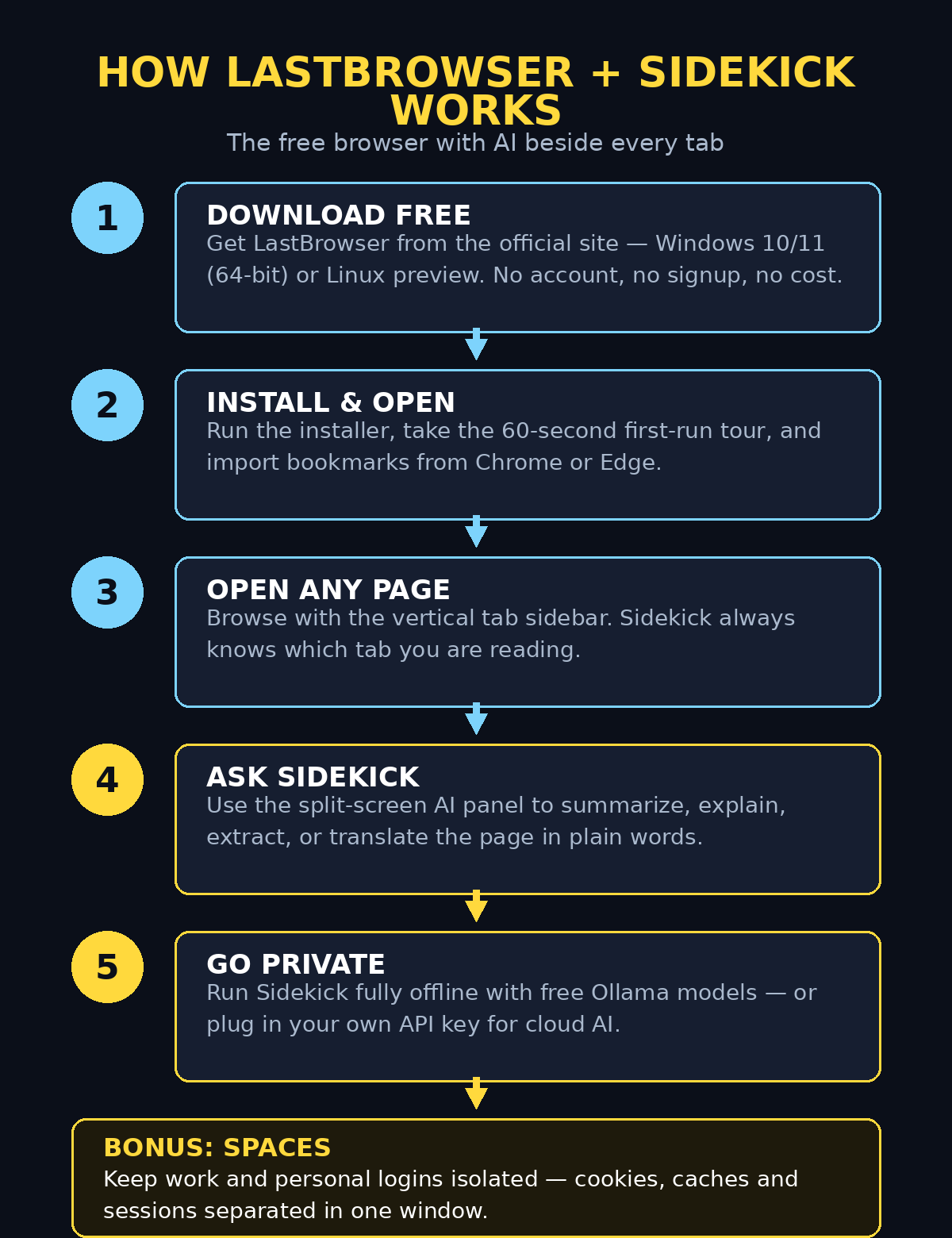
Head to the official LastBrowser website and grab the installer. The browser is currently available as a free download for 64-bit Windows 10 and 11, with a preview release for Linux x64. A version for Apple devices is planned but not out yet, so Mac users will need to wait a little longer. Importantly, there is no account registration — you download the file and you are done. No email, no license key, no trial clock ticking.
Step 2: Install and Launch It
First, run the installer you just downloaded and follow the on-screen prompts — it takes under a minute on a modern PC. When LastBrowser opens for the first time, you will get a short first-run tour. It points out Sidekick, the vertical tab sidebar, and Spaces. Take the tour, because it is genuinely useful and lasts only sixty seconds. You can also import your bookmarks from Chrome or Edge during setup. As a result, your favorite sites come with you from day one.
Step 3: Meet Sidekick, Your Built-In AI Assistant
Look to the side of any open tab and you will see the Sidekick panel. It is the integrated AI assistant of the LastBrowser AI browser, living in split-screen view right beside the web page. Click its icon to open or collapse it. Unlike browser extensions that bolt AI on as an afterthought, Sidekick is part of the browser itself. Therefore, it always knows which page you are looking at. Type a question in plain language — “What is this article about?” or “Explain this in simple words” — and it answers in the context of the current tab.
Step 4: Ask the LastBrowser Sidekick About Any Page You Read
This is where the LastBrowser AI browser earns its place on your taskbar. With a page open, try these prompts in the Sidekick panel:
- Summarize: “Give me the five key points of this article in bullet points.”
- Simplify: “Explain this page like I am twelve years old.”
- Extract: “List every price, date, and name mentioned on this page.”
- Translate and clarify: “Translate this paragraph to Urdu and explain the technical terms.”
- Compare: open two product pages and ask, “Which of these two is the better deal and why?”
Because Sidekick reads the live page, its answers stay grounded in what is actually on screen rather than drifting into generic AI guesses.
Step 5: Run Sidekick Fully Offline with Local AI Models
Here is the feature privacy fans will love most. Sidekick can run completely offline using local AI models through Ollama, a free app that runs open models on your own computer. In plain terms, the AI lives on your PC. Your questions never leave your PC, and it works even with no internet. To set it up, first install Ollama. Next, download a model it offers. Then point Sidekick at your local Ollama setup in the browser’s AI settings. Responses from smaller local models can be slower than cloud AI. However, for summarizing pages and answering questions they are surprisingly capable — and your data never touches a server. This offline mode is a big reason privacy fans are switching to the LastBrowser AI browser.
Step 6: Connect Your Own API Key (Optional)
If you want the smartest frontier models instead of local ones, Sidekick also lets you connect your own API key from an AI provider. Paste the key once in the AI settings, and Sidekick will use that provider’s models for its answers. You pay the provider’s normal usage rates directly, because the LastBrowser AI browser adds no markup and needs no subscription. This “bring your own key” approach is refreshingly honest. The browser stays free, and you only pay for exactly the AI you use — if you use any.
Step 7: Separate Work and Personal Life with Spaces
Most of us juggle two digital lives: a work email, a personal email, client accounts, side projects. LastBrowser’s Spaces feature keeps cookies, caches, and login sessions isolated in separate profiles that live side by side in a single window. Create a “Work” space and a “Personal” space, and you can stay logged into two different accounts on the same website at the same time — no more incognito-window juggling. Freelancers and small teams love this: if you manage client work alongside your own projects, dedicated spaces keep everything cleanly separated. Businesses that want help wiring AI tools into their daily workflows often work with a digital agency to set things up properly — but for the browsing side, Spaces gives you that professional separation for free, in one click.
Step 8: Tame Tab Chaos with the Vertical Sidebar
LastBrowser replaces the classic horizontal tab strip with a vertical tab sidebar down the edge of the window. It sounds like a small change until you try it. Tab titles stay readable no matter how many you open. In addition, on today’s widescreen monitors the vertical layout gives websites more room. Pin your daily sites to the top, and use the sidebar together with Spaces so each profile keeps its own tab set. However, give it three days — most people who switch never go back to top tabs.
Step 9: Try the Built-In Command Terminal
Tucked into the browser is an integrated command terminal supporting PowerShell and CMD on Windows. If you are a beginner, think of it as a mini command prompt that lives inside your browser window — handy for developers and IT students who want to run commands without switching apps. Non-technical users can safely ignore it; it does not get in the way. But if you are learning to code, having a terminal one click away while you follow a tutorial in the next tab is genuinely convenient.
Step 10: Explore the Extension and MCP Hub
LastBrowser ships with an Extension and MCP Hub. Extensions work the way you expect — small add-ons like ad blockers and password managers. MCP is the newer idea. It stands for Model Context Protocol, a standard that lets AI assistants securely use external tools and data sources. In plain English, it means Sidekick can eventually do more than chat. For example, it could check your calendar, query a database, or act on web services you connect. This is the same agentic AI wave reshaping how software works in 2026, and LastBrowser is positioning Sidekick to ride it. For now, browse the hub and install the extensions you already know. Meanwhile, keep an eye on the MCP section as it grows.
Step 11: Turn On the Privacy Shield
Open the browser settings and look for the Privacy Shield. This is LastBrowser’s built-in tracker and nuisance blocker — it cuts down the advertising trackers and fingerprinting scripts that follow you around the web. Pair it with the local-first design (your data stays on your device) and the offline Ollama option from Step 5, and you have one of the most private mainstream browsing setups available in 2026. Review the shield’s settings once: the default balance of blocking versus site compatibility suits most beginners, and you can whitelist individual sites that misbehave.
Step 12: Make the LastBrowser AI Browser Your Daily Driver
For your first week, a few tips will smooth the transition. Import everything — bookmarks, passwords, and history from your old browser — so nothing feels lost. Set it as your default browser in Windows settings so links open here automatically. Build one Space per role in your life (work, personal, side project) before tab chaos builds up. Also remember the Linux release is still a preview, so expect the occasional rough edge there. The Windows build of the LastBrowser AI browser is the polished one. Finally, if a site ever misbehaves, the fastest fix is usually toggling the Privacy Shield off for that site or opening it in a fresh Space.
LastBrowser AI Browser vs Other Browsers
How does the newcomer compare with the browsers you already know? Here is an honest side-by-side:
| Feature | LastBrowser | Google Chrome | Microsoft Edge | Brave |
|---|---|---|---|---|
| Built-in AI assistant | Sidekick, split-screen beside tabs | Gemini in separate tab/app | Copilot sidebar | Leo AI panel |
| Offline / local AI option | Yes, via Ollama | No | No | Limited |
| Work/personal separation | Spaces (isolated, one window) | Profiles (manual switching) | Profiles (manual switching) | Profiles |
| Open source | Yes (GPL-3.0) | No | No | Yes |
| Account required | No | For sync | For sync | No |
| Price | Free | Free | Free | Free |
LastBrowser’s real edge is the combination no one else offers: a built-in assistant plus a true offline mode plus no account — all free and open source.
Frequently Asked Questions
Is the LastBrowser AI browser really free?
Yes. The LastBrowser AI browser is free to download and free to use, with no account, subscription, or trial limits. It is open source under the GPL-3.0 license. If you connect your own API key for cloud AI models, you pay that AI provider’s normal usage fees. However, the browser itself costs nothing, and the offline Ollama option is free too.
Do I need to create an account to use LastBrowser?
No. Unlike most modern browsers that nudge you to sign in for sync, LastBrowser requires no registration at all. Its local-first design keeps your data on your device rather than tying it to a cloud account.
Can I use the AI without an internet connection?
Yes — this is one of its standout features. By running free local models through Ollama, Sidekick works fully offline. Your questions and the page content never leave your computer in this mode.
Is LastBrowser safe to install?
The browser is open source with its code published publicly, which lets anyone inspect what it does — a strong transparency signal. As with any new software, download only from the official website, and note the Linux build is still labeled a preview, so Windows users currently get the most polished experience.
When is the Mac version coming?
A version for Apple devices is planned, but no release date has been announced. Mac users should watch the official LastBrowser website for updates rather than downloading unofficial copies from third-party sites.
Can Sidekick replace ChatGPT for me?
For page-related tasks — summarizing, explaining, extracting, translating what you are reading — Sidekick is arguably more convenient because it sees your tab. For long creative writing or complex reasoning, a dedicated chatbot with a frontier model (via your own API key, if you like) may still serve you better. Many people will end up using both.
Final Thoughts
The LastBrowser AI browser arrives at exactly the right moment. AI assistants are becoming part of everything, yet most browsers still treat them as an add-on tab you have to go visit. By building Sidekick into the window itself, offering a genuinely offline mode, and asking for neither your money nor your email address, it makes a compelling case for beginners and privacy-minded users alike. It will not dethrone Chrome overnight, because the Mac version is still pending and the Linux build is a preview. But as a free, open-source daily driver with AI beside every tab, the LastBrowser AI browser deserves a spot on your taskbar. Download it today and spend fifteen minutes on the steps above. Then see how the web feels when the assistant is always one glance away.
Explore More Free AI Tools
Want to keep building with AI? Try these free tools on AIToolSteps:
- AI Title Generator — create catchy headlines for your blog posts in seconds
- Meta Description Generator — write SEO-friendly descriptions that get clicks from Google
- AI Rewriter — polish your articles and website copy instantly
- Keyword Density Checker — optimize your content to rank higher in search results