
How to Use Suno Speech AI for Beginners: Create AI Voiceovers with Music in 2026
Step 1: Understand What Suno Speech AI Actually Is
Suno is best known as the AI music generator that blew up in 2024 and 2025. In October 2026, Suno entered a new territory with Suno Speech, a public beta feature that combines AI voice narration and music in a single track.
What does that actually mean? Imagine you write a podcast intro script. Instead of hiring a voice actor and then mixing in background music in an audio editor, Suno Speech generates both the spoken narration and the musical bed together — as one polished audio file.
Want to master Suno Speech AI faster? Explore our AI how-to guides for more step-by-step tutorials.
Key things to know as a beginner:
- Suno Speech is in public beta (launched October 1, 2026)
- There is a free plan with download limits, so you can try it without paying
- It works right in your browser — no software installation
- You do not need audio editing experience to get good results
- The output is perfect for YouTube videos, podcasts, TikToks, Reels, and presentations
If you have ever struggled with recording your own voice or finding royalty-free background music, Suno Speech solves both problems at once. That combination is what makes it worth learning.
Step 2: Create Your Free Suno Account
Everything starts with a Suno account. Here is the exact process:
- Go to the Suno website in your browser (search “Suno” on Google and pick the official site — never use a link from a random ad).
- Click Sign Up.
- Sign up with your Google account or email address.
- Verify your email if asked.
That is it. You are now on the free plan, which includes download limits on the tracks you generate. Free plans are usually enough for experimenting and producing short content.
Tip: Keep an eye on your remaining credits or download allowance on your account dashboard. Generating lots of long tracks in a row can burn through the free quota quickly, so plan your best ideas first.
Step 3: Find the Speech Mode in the Creator
After signing in, look for the main Create button in the left sidebar. In the creator panel:
- Click Create to open the generation workspace.
- Look for the mode selector — you will see options for music generation and the newer Speech mode.
- Select Speech.
The interface looks similar to Suno’s regular music creator: a prompt box for your script, and below it settings for voice and style. If you have never used Suno before, do not worry — the Speech mode is deliberately simpler than the music mode.
Step 4: Write a Script That Sounds Natural When Spoken
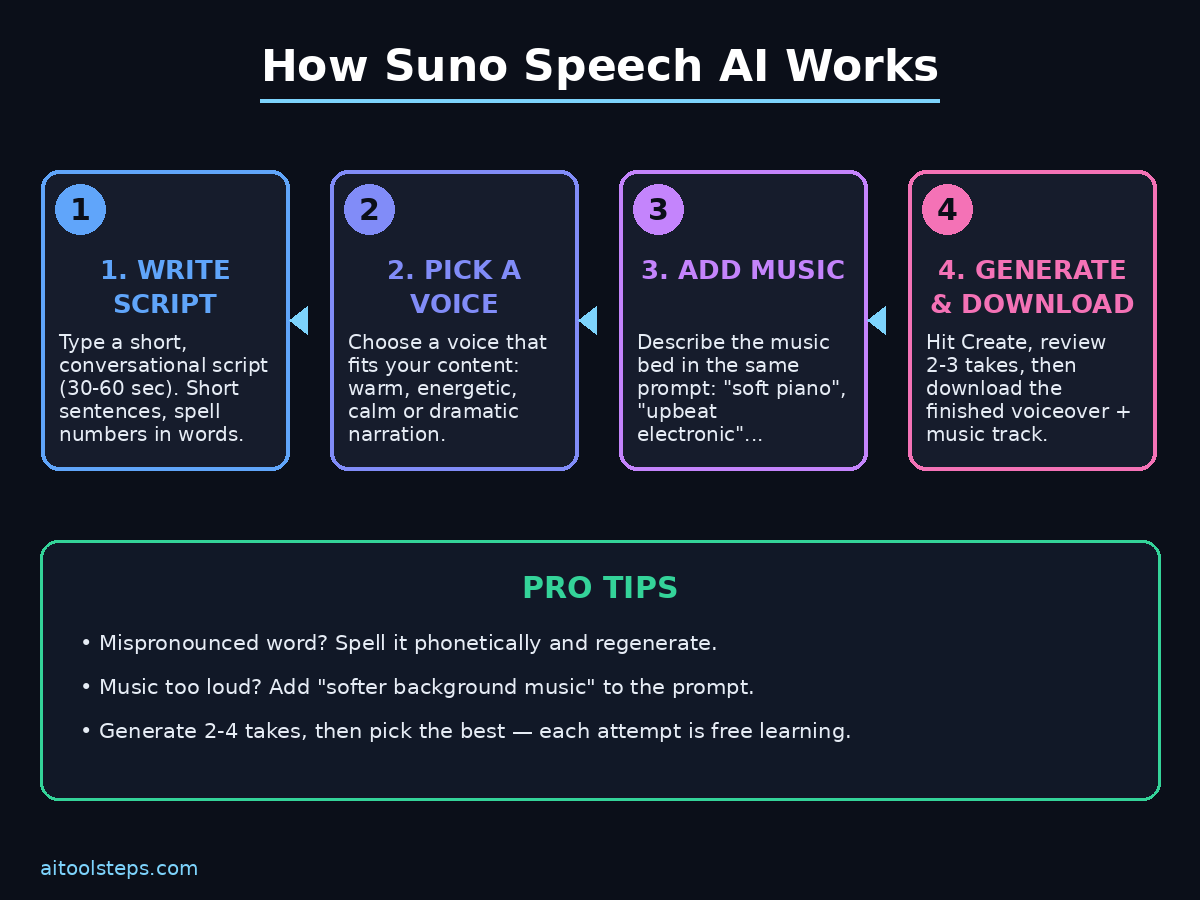
This is the most important step, and where beginners improve the fastest. AI speech sounds robotic when the script was written for reading, not speaking. Write your script to be heard.
Rules for a natural-sounding script:
- Use short sentences. Long sentences make the AI rush or pause weirdly.
- Write numbers in words. “Twenty twenty-six” instead of “2026”.
- Use conversational language. Write the way you talk, not the way you write essays.
- Add natural pauses with commas and periods. Punctuation controls the rhythm.
- Keep it under your plan’s limits. Start with 30–60 second scripts while learning.
Bad example (reads well, sounds stiff):
“The utilization of artificial intelligence in contemporary content creation workflows has fundamentally transformed the paradigm of digital media production.”
Good example (sounds natural):
“AI has changed how we make content. Today, I will show you how to turn a simple script into a voiceover with music — in under five minutes.”
See the difference? The second version is what you actually want to paste into Suno Speech.
Step 5: Choose a Voice That Fits Your Content
Suno Speech gives you voice options to match the mood of your project. When picking a voice, think about your audience:
- Warm and friendly — tutorials, kids’ content, lifestyle videos
- Energetic and punchy — ads, TikToks, fitness content
- Calm and professional — business presentations, explainers, corporate training
- Deep and dramatic — movie-style trailers, storytelling, documentaries
Beginner tip: Try two or three voices with the same short script and compare. This takes minutes and teaches you more about voice selection than any tutorial. Pick the one that sounds right for your brand — consistency matters, so once you choose a voice style, stick with it across your videos.
Step 6: Add the Music Layer (The Magic Part)
This is where Suno Speech stands out from every free text-to-speech tool. Instead of downloading your narration and hunting for royalty-free music separately, you describe the music right in the same prompt:
- Describe the music vibe: “soft piano background”, “upbeat electronic”, “cinematic strings”, “lo-fi chill”
- Set the energy level: background music should support, not fight, the voice
- Match the mood to your script: calm narration + aggressive music = confusing output
Example prompts for the music part:
- Narration: product review → Music: “light upbeat pop, subtle, not overpowering”
- Narration: meditation guide → Music: “ambient pads, very slow, calming”
- Narration: tech news update → Music: “modern electronic, confident, mid-tempo”
- Narration: bedtime story → Music: “gentle acoustic guitar, warm and soft”
The AI balances the voice-over-music mix automatically. If the music is too loud in your first generation, regenerate with “softer background music” or “quieter instrumental” in your prompt.
Step 7: Generate, Listen, and Regenerate Smartly
Click Create and wait. Generation usually takes a minute or two for short tracks.
Your review checklist after each generation:
- ✅ Does the voice sound natural, not robotic?
- ✅ Are there any mispronounced words? (Fix the spelling in your script and regenerate)
- ✅ Is the music too loud or too quiet?
- ✅ Does the pacing match your video or presentation?
- ✅ Any weird pauses or cut-off sentences?
Do not accept a bad first take — regeneration is free learning. Each attempt teaches you what prompt wording works. Most creators generate 2–4 versions before finding the winner.
Pro tip: If one word is mispronounced, try spelling it phonetically. For example, write “dee-thirty-A” if the AI mangles “d365a”, or break unusual brand names into syllables. This trick fixes 90% of pronunciation problems.
Step 8: Download and Use Your Track
Once you are happy with a generation:
- Click the track to open it.
- Hit Download (this uses your free-plan download allowance).
- Choose your format — MP3 is the universal safe choice.
Where beginners use Suno Speech tracks:
- YouTube video voiceovers and intros
- TikTok, Reels, and Shorts narration
- Podcast intros, outros, and sponsor reads
- Presentation narrations
- Audiobook-style content for blogs
One important note: check Suno’s current terms for commercial use of free-plan generations. Policies change, and if you are monetizing content, you may need a paid plan. Always read the terms before publishing client work.
Step 9: Combine Speech Tracks with Your Video Workflow
Here is a simple beginner workflow that many AI creators use:
- Write your video script (or use an AI writing tool to draft it).
- Generate the narration + music in Suno Speech.
- Edit your visuals around the audio — cut clips to match the voiceover timing.
- Add captions (most viewers watch on mute; captions + great audio = maximum reach).
- Publish.
Because Suno Speech handles both voice and music, you skip the two most time-consuming parts of beginner video production: recording clean audio and licensing background music. For solo creators, this is a genuine productivity unlock — and it is exactly why many digital agencies now list AI voiceover production as a core service on sites like d365a.com, where AI content automation is part of the modern creative stack.
Step 10: Level Up — Series, Branding, and Consistency
Once you have the basics down, these habits separate beginners from pros:
- Create a signature sound. Same voice + same music style across all your content = instant brand recognition.
- Build a prompt library. Save the exact voice + music prompts that worked. Reuse them.
- Batch your generations. Write all scripts for the week, then generate all tracks in one session while you are in the creative flow.
- A/B test intros. Generate two versions of your channel intro and ask your audience which they prefer.
- Keep learning the ecosystem. The AI audio space moves fast — follow AI automation news on https://www.agentic-affairs.com/ to stay current on new voice tools and agentic workflows.
For the latest AI audio developments, follow Suno Speech AI updates and AI automation news.
Suno Speech vs Other Free Voice Tools: Quick Comparison
| Feature | Suno Speech (Beta) | Standard Free TTS Tools | AI Voice Cloning Tools |
|---|---|---|---|
| Voice + music in one track | ✅ Yes — single generation | ❌ Voice only, mix music manually | ❌ Voice only |
| Free plan | ✅ Yes, with download limits | ✅ Usually yes | ⚠️ Often limited trials |
| Ease of use | Very easy — prompt-based | Easy | Medium — needs voice samples |
| Best for | Content creators, video makers | Simple narration, accessibility | Personal branding, dubbing |
| Audio editing needed | None | Manual music mixing | Manual music mixing |
| Current status | Public beta (Oct 2026) | Stable | Mostly stable |
FAQ
Is Suno Speech really free?
Yes — Suno Speech launched with a free plan that includes download limits. You can create an account and generate narrated tracks with music without paying. Heavy users or anyone producing lots of commercial content should check the paid tiers for higher limits.
Do I need to install anything to use Suno Speech?
No. It runs entirely in your browser. You sign up, open the Create panel, select Speech mode, type your script, and generate. Nothing to download, no audio software required.
Can I use Suno Speech tracks in monetized YouTube videos?
Check Suno’s current terms of service for the plan you are on. Free plans sometimes have restrictions on commercial use, while paid plans typically grant broader rights. Never assume — read the licensing terms before publishing monetized content.
How long can a Suno Speech track be?
Limits depend on your plan and the beta’s current settings. Beginners should start with short 30–90 second scripts, which are ideal for Shorts, Reels, TikToks, and video intros. Test longer scripts once you are comfortable.
Why does the AI mispronounce some words?
Text-to-speech models guess pronunciation from spelling. Fix it by spelling tricky words phonetically in your script (e.g., “say-lo” instead of a brand name the AI mangles). This solves most pronunciation issues in one regeneration.
Is Suno Speech better than recording my own voice?
It depends on your goal. Your real voice is more authentic and builds a personal connection — but it needs a good mic, a quiet room, and editing time. Suno Speech is faster, consistent, and includes music automatically. Many creators use AI narration for faceless channels and their real voice for personal brand content.
Final Thoughts
Suno Speech is one of those rare beta features that is genuinely useful from day one. It takes the two most annoying parts of beginner content creation — recording clean voiceovers and finding background music — and collapses them into a single prompt box.
Start with the free plan, write short conversational scripts, test a few voices, and generate 2–3 versions of each track before picking a winner. Within an hour, you can have professional-sounding narrated audio for your next video.
Explore More Free AI Tools
Want more free AI tools to speed up your content workflow? Try our AI Title Generator, Meta Description Generator, AI Rewriter, and Keyword Density Checker — all free at https://aitoolsteps.com/.