

Introduction
Studying the old way — rereading the same notes five times and hoping something sticks — is officially over. AI study apps are climbing the education charts this week, and one of the breakout names is Gizmo AI Tutor, a free AI flashcard and study app that turns almost anything (your PDFs, class notes, PowerPoint slides, even YouTube videos) into smart flashcards and quizzes in seconds.
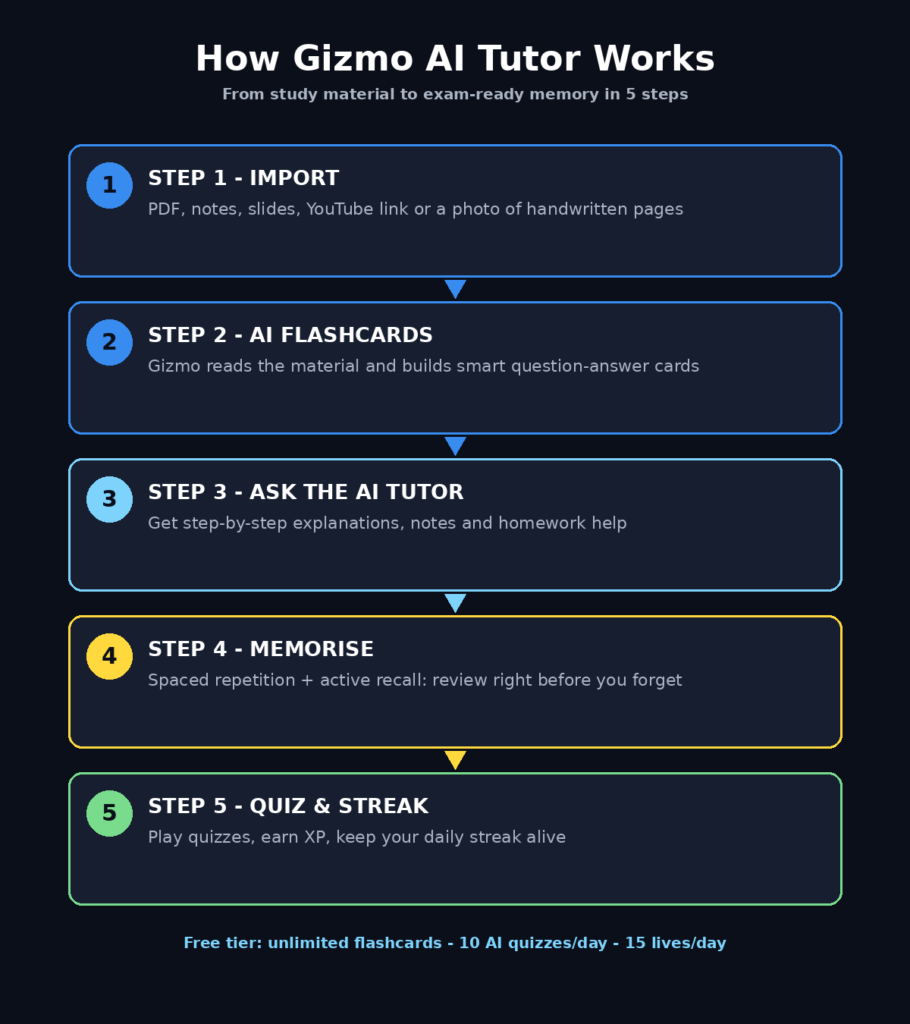
Gizmo was built by a Cambridge alumni team back in 2021, and it now holds a 4.8-star rating from over 14,000 reviews on the App Store. It works on iPhone, Android, and the web, and the free tier is genuinely generous: unlimited basic flashcards, up to 10 AI-generated quizzes per day, and 15 free lives per day for gamified study sessions.
In this beginner guide, you will learn exactly how to use Gizmo AI Tutor step by step — from creating your free account and importing your first study material to using the AI tutor, spaced repetition, and public deck library like a pro. No technical skills needed. If you can take a photo, you can use Gizmo.
Step 1: Download Gizmo and Create Your Free Account
Getting started takes about two minutes.
- On iPhone or iPad: Open the App Store, search for “Gizmo: AI Tutor” (seller: Save All Ltd), and install. It requires iOS 16.4 or later.
- On Android: Open the Google Play Store and search for “Gizmo: AI Tutor.”
- On desktop: Use the web version — perfect for importing large PDFs and working with a keyboard.
Open the app and sign up with your email or a one-tap social login. You do not need a credit card for the free tier, which already includes unlimited flashcard creation, daily lives, and a capped number of AI quizzes per day.
Beginner tip: Start on your phone for the camera-scanning feature, but do heavy imports (long PDFs, slide decks) on the web version where uploading is faster.
Step 2: Explore the Home Screen and Create Your First Deck
After signing in, you will land on the Gizmo home screen. It looks clean and minimal — a deliberate design choice to keep you focused on studying, not settings.
The three main areas are:
- Files: Organize your study material into folders (one per subject works great).
- Decks: Each deck is a collection of flashcards. Think of decks as digital flashcard packs.
- Memorise: Gizmo’s spaced-repetition engine, where review sessions happen.
Tap the big “+” button to create your first deck manually, or skip ahead to Step 3 and let AI build one for you automatically. For your first run, we strongly recommend the AI route — it shows off what makes Gizmo special.
Step 3: Use AI Import to Turn a PDF into Flashcards
This is Gizmo’s headline feature — AI Import (also called Magic Import). Upload a PDF textbook chapter, a lecture handout, or study notes, and Gizmo’s AI reads it and generates smart flashcards plus quiz questions automatically.
Here’s how:
- Tap Import (or the “+” button → Import).
- Choose PDF and upload your file.
- Gizmo processes the document — usually in under a minute for a typical chapter.
- Review the generated flashcards. You can edit, delete, or add cards freely.
Pro tip: The quality of the output depends on the input. Clean, well-structured PDFs with clear headings produce the best flashcards. If your PDF is a messy scan, try the camera-scan method in Step 6 instead.
The AI does not just copy sentences — it identifies key terms, definitions, dates, and concepts, then turns them into question-and-answer pairs designed around active recall, the study technique where you retrieve answers from memory instead of passively rereading.
Step 4: Convert Notes and PowerPoint Slides into Decks
Have your revision notes in a Word document or class slides in PowerPoint? Gizmo handles those too.
- Text notes: Paste or import your typed notes directly. Gizmo chunks them into logical topics and generates cards per topic.
- PowerPoint slides: Upload the .pptx file. Gizmo reads each slide, extracts the key points, and builds flashcards around them.
This is a lifesaver at exam time. Instead of flipping through 80 slides the night before a test, you get a tight deck of flashcards that quiz you on exactly what those slides contained. Many students at digital agencies and marketing teams — like the folks at a digital agency who use AI tools to stay sharp on platform updates — import training decks the same way to learn new skills fast.
Beginner tip: Break long documents into chapters or sections before importing. Smaller, focused decks are easier to study and score higher on Gizmo’s memory tracking.
Step 5: Turn Any YouTube Video into Study Flashcards
This feature surprises most beginners. Gizmo can take a YouTube video link and convert the spoken content into flashcards and quizzes.
- Copy the YouTube URL of a lecture, tutorial, or explainer video.
- In Gizmo, choose Import → YouTube and paste the link.
- Gizmo processes the video’s content and generates a deck.
It is perfect for students who learn from video lectures, crash courses, and recorded classes. Since AI summaries can occasionally miss context, always skim the generated cards against the video’s main points — treat the AI as your assistant, not your examiner. The team at Agentic Affairs, which follows AI automation closely, notes that AI-generated study material is most effective when you verify it against the original source — a habit that also trains critical thinking.
Good to know: This works best with educational videos that have clear spoken explanations — lectures, tutorials, and documentaries — rather than music videos or vlogs.
Step 6: Scan Handwritten Notes with Your Phone Camera
If your notes live in a notebook, you do not need to retype them. Gizmo’s scanner turns handwritten pages into flashcards and quizzes.
- Tap Import → Scan.
- Hold your phone over the page and take a clear, well-lit photo.
- Gizmo reads your handwriting (yes, even messy handwriting) and converts it into a deck.
Lighting matters here: photograph pages in bright, even light and keep the page flat. Crooked or shadowy photos produce weaker results.
This single feature is why so many students switched from manual flashcard apps — the jump from paper notebook to AI-generated quiz deck takes about 30 seconds.
Step 7: Ask the AI Tutor to Explain Topics Step by Step
Flashcards handle memorization, but understanding comes from the AI Tutor. Think of it as a patient teacher inside the app.
You can ask the AI Tutor to:
- Explain a concept in simple words, step by step.
- Generate notes on any topic you type in.
- Create quiz questions on demand for extra practice.
- Help with homework problems, walking through the solution rather than just giving the answer.
Example: stuck on photosynthesis? Ask the tutor to “explain photosynthesis like I’m 12,” then ask it to quiz you with five multiple-choice questions. The tutor keeps explanations conversational and adjusts to follow-up questions.
One honest caveat from user reviews: the tutor can occasionally oversimplify complex topics, so for exam-critical material, always cross-check with your textbook. Free-tier users get a capped number of AI tutor sessions per day — enough for regular study, with unlimited access on the paid plan.
Step 8: Memorise — Study the Smart Way with Spaced Repetition
Creating flashcards is only half the battle. Remembering them is where Gizmo’s Memorise mode shines.
Memorise uses two science-backed techniques:
- Spaced repetition: Cards you struggle with come back sooner; cards you know well come back later — timed to appear right before you would naturally forget them. Research shows this can roughly double recall rates compared to cramming.
- Active recall: You must answer (or attempt to answer) before revealing the card’s answer. This effort of retrieval is what builds long-term memory.
How to run a session:
- Open any deck and tap Memorise.
- Answer each card honestly — do not peek.
- Mark whether you got it right. Gizmo adjusts the schedule automatically.
Beginner tip: Short daily sessions beat marathon cramming. Even 15 minutes a day in Memorise, right before you would forget, outperforms a 3-hour panic session the night before an exam.
Step 9: Play Quizzes, Keep Your Streak and Climb Leaderboards
Gizmo turns studying into a game — and the game mechanics genuinely work for building habits.
- Quizzes: Multiple-choice and written questions generated from your decks. Free users get up to 10 AI-generated quizzes per day.
- Lives (hearts): You get 15 free lives per day. Wrong answers cost a life, which makes you slow down and think — and prevents mindless tapping.
- Streaks: Study daily to build a streak. Breaking a long streak hurts just enough to keep you coming back.
- XP and leaderboards: Earn points for every session and compete with friends or classmates on leaderboards.
The social angle is a big part of Gizmo’s appeal: you can study with friends in real-time collaborative quizzes, share decks, and hold each other accountable. As any agency running AI automation services will tell you, gamified consistency beats occasional intensity — the same principle applies to learning.
Beginner tip: Invite one study buddy in your first week. Shared accountability doubles the chance you will still be studying in week three.
Step 10: Explore 1 Million+ Free Public Decks
Do not want to build everything from scratch? Gizmo hosts a public library of over one million shared decks made by other students.
Search the library for your topic — history timelines, biology terms, language vocabulary, math formulas — and you will likely find a ready-made deck. One tap copies it into your account, where you can edit it and add your own cards.
This is the fastest way to start: search, import, and begin a Memorise session within two minutes of opening the app. Always skim public decks before relying on them, since quality varies by contributor.
Step 11: Migrate Your Quizlet and Anki Decks in One Tap
Already have decks in Quizlet or Anki? Gizmo offers one-tap import from both.
- Choose Import → Quizlet or Import → Anki.
- Follow the prompts to connect or upload your exported deck.
- Your cards appear in Gizmo, ready for Memorise sessions and AI-generated quizzes.
This makes switching painless — your existing study work carries over, and you immediately gain the AI tutor, spaced repetition, and gamification on top. Students migrating from Anki often say Gizmo feels friendlier and faster to set up, while Anki still wins on deep customization and add-ons.
Step 12: Decide Whether Gizmo Unlimited Is Worth It for You
The free tier is generous: unlimited basic flashcards, daily lives, 10 AI quizzes a day, and capped AI tutor sessions. For most casual students, that is genuinely enough.
Gizmo Unlimited (the paid tier, listed from about $6.99/week or roughly $78/year on the App Store, with regional pricing variations) removes the caps: unlimited imports, unlimited AI tutor sessions, unlimited quizzes, and extra hearts.
Upgrade if: you study multiple subjects daily, hit the import or quiz caps regularly, or rely on the AI tutor for homework help every evening.
Stay free if: you study one or two subjects, build decks weekly rather than daily, and mostly use Memorise sessions.
There is no long-term contract, and you can cancel anytime — so it is safe to try the free tier for a few weeks and decide based on real usage, not promises.
Gizmo AI vs Quizlet vs Anki: Quick Comparison
| Feature | Gizmo AI Tutor | Quizlet | Anki |
|---|---|---|---|
| AI flashcard generation | Yes — PDF, notes, slides, YouTube, camera | Limited (paid tiers) | No (manual only) |
| AI tutor / explanations | Yes, built in | Partial | No |
| Spaced repetition | Yes (Memorise) | Partial | Yes (advanced) |
| YouTube-to-flashcards | Yes | No | No |
| Handwritten note scanning | Yes | No | No |
| Public deck library | 1,000,000+ decks | Large library | Shared decks |
| Free tier | Unlimited cards, 10 AI quizzes/day, 15 lives/day | Limited | Free (desktop), paid mobile |
| Gamification (streaks, XP) | Yes | Yes | No |
| Best for | Students who want AI to build and quiz decks fast | General flashcard users | Power users who want full control |
Frequently Asked Questions
Is Gizmo AI Tutor really free?
Yes. Gizmo is free to download on the App Store and Google Play with no credit card required. The free tier includes unlimited basic flashcards, up to 10 AI-generated quizzes per day, and 15 lives per day. A paid plan called Gizmo Unlimited removes these caps for users who study heavily every day.
Can Gizmo AI turn a PDF into flashcards?
Yes. Upload a PDF through AI Import (Magic Import) and Gizmo generates smart flashcards and quiz questions from it in under a minute. Clean, well-structured PDFs with clear headings produce the best results.
Can Gizmo AI make flashcards from YouTube videos?
Yes. Paste a YouTube link into the YouTube import option, and Gizmo converts the video’s spoken content into flashcards and quizzes. It works best with lectures, tutorials, and educational explainers. Always review the generated cards against the video since AI summaries can miss context.
Does Gizmo AI use spaced repetition?
Yes. The Memorise mode uses spaced repetition — cards you struggle with return sooner, cards you know return later — combined with active recall, where you answer before revealing the answer. This combination is backed by research showing roughly double the recall of plain rereading.
Is Gizmo AI better than Anki?
Neither is universally better. Gizmo AI is the stronger fit if you want automatic card generation, quizzes, an AI tutor, and progress mechanics with minimal setup. Anki is the stronger fit if you want deep customization, add-ons, media-rich cards, and full control over the spaced-repetition algorithm. Try both with the same small topic and keep the one you actually open every day.
What age is Gizmo AI for?
The App Store lists Gizmo for ages 13 and up. It is designed for school students, college students, and adult learners preparing for exams, certifications, or professional tests.
Final Thoughts
Gizmo AI Tutor earns its spot near the top of the education charts because it removes the most boring part of studying: making the flashcards. Point it at a PDF, a YouTube lecture, or a page of handwritten notes, and seconds later you have a smart deck ready for spaced-repetition review — plus an AI tutor on standby when a concept does not click.
Start free, import one real chapter from a subject you are studying right now, and run a 15-minute Memorise session today. If the streak, lives, and leaderboards pull you back tomorrow, the app is doing its job. And if you ever hit the free tier’s limits, you will know exactly which paid features you need — because you will have felt their absence.
Happy studying — your future self, walking into that exam calm and prepared, says thanks.
Explore More Free AI Tools
Want to sharpen more than your study game? Try our free AI tools at aitoolsteps.com: the AI Title Generator for catchy headlines, the Meta Description Generator for SEO-ready snippets, the AI Rewriter for polished paraphrasing, and the Keyword Density Checker to fine-tune your content.