
If you are new to AI image generation, this guide will show you exactly how to use Krea AI for beginners — from creating your free account to generating and upscaling your first images. Learning how to use Krea AI for beginners is easier than you think: everything happens on a live canvas, and by the end, you will know how to use Krea AI for beginners with confidence.
Most AI image generators make you type a prompt, wait, and hope for the best. Krea AI flips that experience on its head: the moment you start typing or sketching, the image appears and updates live on a real-time canvas. It feels less like ordering a picture and more like painting alongside an AI partner. In this guide, you will learn exactly how to use Krea AI for free as a complete beginner — from creating your account to generating your first real-time images, upscaling them, and staying inside the free plan limits.
What Is Krea AI?
Krea AI is an all-in-one AI creative platform for generating and enhancing images and short videos. Its signature feature is the real-time generation canvas: instead of submitting a prompt and waiting for a finished render, you see the image evolve live as you type, draw, or adjust settings. Beyond the canvas, Krea packs in image upscaling (up to 22K on the top plan, 2K on the free plan), sketch-to-image rendering, image-to-image editing, LoRA style training, and an aggregator library of third-party models such as Flux, Ideogram, Veo, and Kling — plus its own in-house Krea 2 model released in 2026.
The free plan is genuinely usable: 100 compute units per day, no credit card required, with real-time image generation and basic upscaling included. That makes Krea one of the best free entry points into AI image creation right now.
Step 1: Create Your Free Krea AI Account
Getting started takes about two minutes.
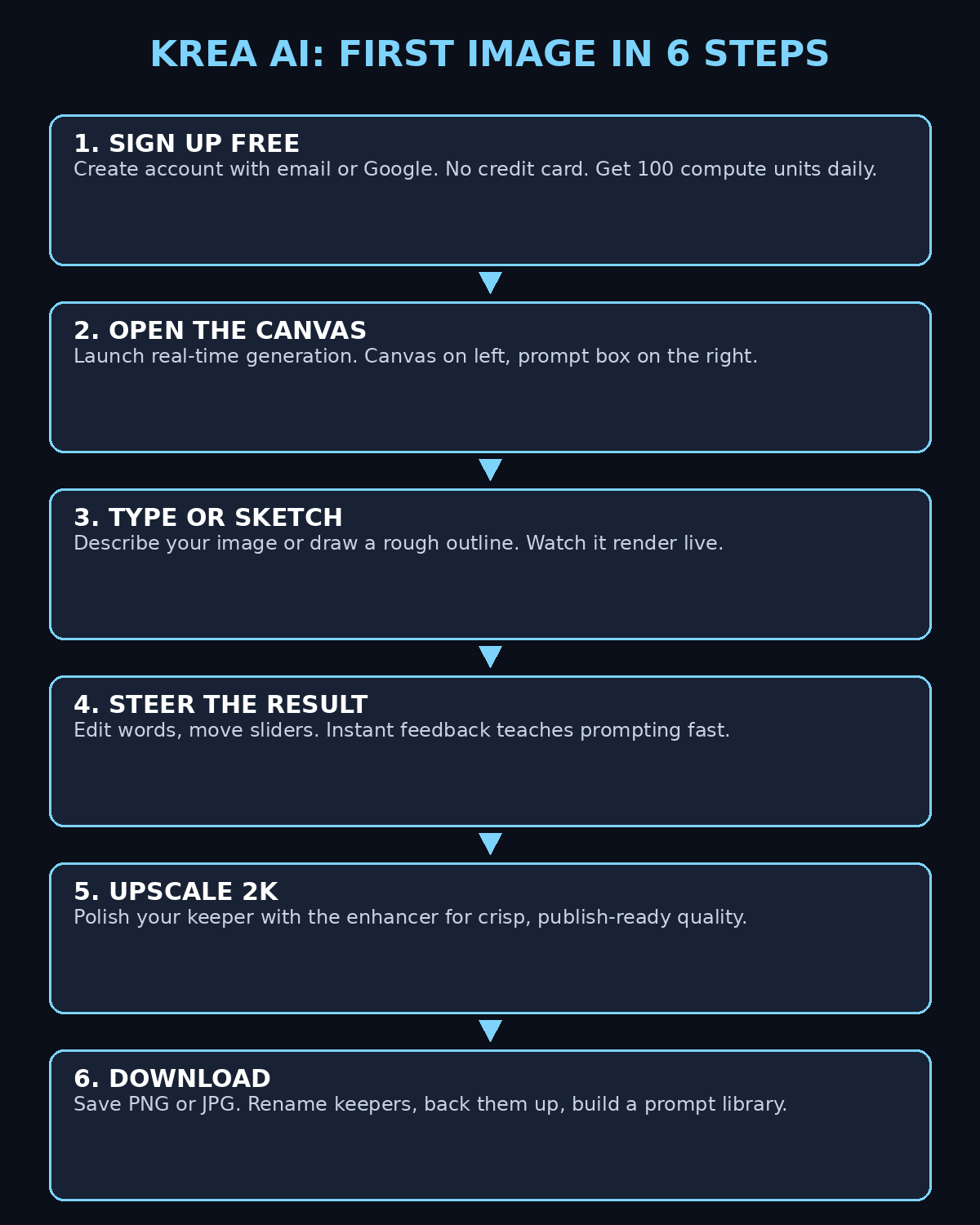
- Go to krea.ai and click Sign Up. You can register with a Google account or an email address — no credit card is asked for at any point on the free plan.
- Verify your email if you signed up with one, then sign in to land on the Krea home screen.
- Your account starts with 100 compute units per day. Think of these as fuel: every generation burns a small amount, and the meter refills daily. You can watch your balance in the account menu.
- One beginner tip: bookmark the dashboard. You will return to it constantly, and hunting through menus is the fastest way to burn your units on accidental generations.
If you have ever hesitated to try an AI tool because of paywalls, this is the opposite experience — the free tier is front and centre, not hidden behind a trial countdown.
Step 2: Tour the Dashboard Before You Generate Anything
Krea’s interface looks busier than simpler tools, so spend five minutes learning the map before touching the canvas.
- Real-time generation canvas: the star of the show. A big canvas on the left, a prompt box and controls on the right. Everything you type or draw updates the image live.
- Image tools: text-to-image, image-to-image, sketch rendering, and the enhancer/upscaler live here as separate modes.
- Video tools: AI video generation from text or still images, using models like Veo and Kling. Note that premium video models burn free-plan units very fast, so treat video as a peek, not your daily driver, on the free tier.
- Asset manager: every image you generate is saved here automatically, so you never lose a result.
- Mini apps: small specialised tools for quick jobs like logos, patterns, and design experiments.
Click around without generating first. Hover over the icons, open the canvas, and read the tooltips. Five minutes of orientation will save you from wasting units on settings you did not mean to change.
Step 3: Generate Your First Image with Real-Time Generation
This is where Krea feels magical. Open the real-time canvas and follow along.
- In the prompt box, type something simple and visual: “a cosy treehouse cafe at sunset, warm glowing windows, lush green forest, storybook illustration style”.
- Watch the canvas: the image starts appearing within seconds and refines itself as the AI processes more of your prompt. Keep typing and it keeps updating.
- Change one word — swap “sunset” for “moonlight” — and observe how the whole scene re-renders live. This instant feedback loop is what makes Krea so good for learning: you see exactly what each word does.
- When you like what you see, hit the capture/download button to save the frame you want. You can generate dozens of variations in the time a normal generator takes for one.
The key mindset shift: in Krea you do not “submit and pray”. You steer. Small prompt edits, watched live, teach you prompting faster than any tutorial.
Step 4: Write Prompts That Actually Work
Real-time feedback makes Krea forgiving, but a good prompt still gets you there faster. Use this four-part formula:
- Subject: what is in the image — “a red vintage bicycle”.
- Setting: where it is — “leaning against a Parisian cafe wall at dawn”.
- Style: the look — “photorealistic, golden hour lighting, shallow depth of field”.
- Details: the finishing touches — “wet cobblestones reflecting the light, film grain”.
Put it together: “a red vintage bicycle leaning against a Parisian cafe wall at dawn, photorealistic, golden hour lighting, shallow depth of field, wet cobblestones reflecting the light, film grain”.
Two beginner mistakes to avoid:
- Vague prompts: “a cool dragon” gives you a generic dragon. Add setting, style, and lighting and the result transforms.
- Keyword stuffing: cramming twenty style words (“ultra HD 8K masterpiece trending on artstation”) usually muddies the image. Pick one clear style and commit to it.
Because Krea updates live, you can experiment fearlessly: add a phrase, watch what changes, remove it if it hurts. Treat prompting as play, not homework.
Step 5: Try Sketch-to-Image and Watch AI Paint Over Your Drawing
Krea’s sketch-to-image mode is a hidden gem for beginners who “cannot draw”. Here is how it works.
- Open the canvas in sketch mode and draw a rough outline with your mouse or trackpad — a circle for a head, a rectangle for a house, a few squiggles for trees. It can be genuinely terrible; that is the point.
- In the prompt box, describe what the sketch is meant to become: “a charming cottage in a flower garden, watercolour illustration”.
- The AI renders your crude sketch into a finished illustration in real time, keeping your composition but replacing your lines with professional-looking art.
- Adjust the AI strength slider: lower values keep more of your drawing, higher values let the AI take over completely.
This mode is brilliant for thumbnails, concept art, logos, and storyboards. Many creators sketch the layout they want, let Krea render it, then upscale the result. For content creators who need custom visuals fast, this workflow alone is worth the free signup — and it pairs nicely with broader creative services, the kind a professional digital agency would build into a content pipeline.
Step 6: Edit and Enhance Existing Photos with Image-to-Image
Krea is not only for creating from scratch. Upload any photo and transform it.
- Upload a photo into the image-to-image tool: a selfie, a product shot, a landscape from your phone.
- Describe the change in the prompt: “same photo, golden hour sunset lighting, cinematic colour grade”.
- Slide the strength control down to keep the original photo recognisable while applying the style, or push it up for a dramatic transformation.
- Use the enhancer to rescue old or blurry photos: it sharpens details, restores faces, and adds fine texture. Old family photos and low-resolution web images come back to life surprisingly well.
Practical beginner projects: turn a dull product photo into a polished listing image, give your social profile picture a consistent art style, or restore a scanned childhood photo for a family member. Each takes minutes and costs only a few compute units.
Step 7: Upscale Your Images to Crisp 2K Quality
AI generators often produce images that look fine on a phone but soft on a larger screen. Krea’s upscaler fixes that.
- Select any generated image and open the upscaler/enhancer tool.
- On the free plan you can upscale to 2K, which is plenty sharp for social posts, blog featured images, and prints up to a moderate size.
- Choose an upscale model suited to your image: photo models for realistic images, art models for illustrations. Krea’s upscaler is powered by several models including Topaz-based options on higher plans.
- Compare before and after at 100% zoom: edges sharpen, textures gain detail, and compression artefacts fade.
Pro tip for beginners: always upscale the image you plan to actually publish, not every experiment. Upscaling burns more units than generation, so reserve it for your keepers. This is also a good habit if you ever scale up to client work — agencies offering AI automation services treat upscaling as a final production step, not an experiment step, and your unit budget will thank you for the same discipline.
Step 8: Train a Mini LoRA on Your Own Style (Optional but Powerful)
LoRA training sounds advanced, but Krea makes it approachable — and the free plan includes limited training on up to 50 images.
- Collect 10–50 images in one consistent style: your own illustrations, a set of product photos with the same look, or portraits with matching lighting.
- Upload them to the LoRA trainer, give your style a name, and start training. Krea handles the technical side.
- Once trained, your custom style appears as a selectable option in the generator. Type any prompt and it renders in your look automatically.
Why bother? Consistency. If you run a blog, a YouTube channel, or a small brand, a trained LoRA means every thumbnail and featured image shares the same visual identity — no more mismatched art styles across your content. Start with 10–15 images to learn the ropes before committing your full 50-image free allowance.
Step 9: Save, Organise, and Download Your Creations
Krea auto-saves everything to its asset manager, but a little organisation goes a long way.
- Name your keepers: rename important generations so you can find them later (“youtube-thumbnail-dragon-v3” beats “generation-482”).
- Download in the right format: PNG for images with sharp graphics or transparency needs, JPG for photos and general sharing (smaller files).
- Upscale before downloading if the image is destined for print or a large hero banner — do the 2K pass first, then download.
- Back up externally: the free plan’s storage is convenient but not a permanent archive. Keep copies of your best work on your own drive or cloud storage.
One more beginner habit: when a generation turns out great, screenshot or copy the exact prompt into a notes file. Building a personal prompt library is the fastest way to get consistently good results over time.
Step 10: Master the Free Plan Limits (and Know When to Upgrade)
The free plan gives you 100 compute units daily — generous for learning, tight for heavy use. Here is how to stretch it.
- Real-time generation is your friend: it uses units efficiently compared to high-end still renders and most video models.
- Avoid premium video models on the free plan: they drain the daily allowance in a handful of generations. Peek once to see the quality, then save video experiments for later.
- Batch your experiments: plan a session, generate in bursts, and review before generating more, rather than idling on the canvas with live updates running.
- Upgrade path: if you consistently run out, Basic is $9/month (5,000 units, all image models, commercial licence) — a sensible first step before the pricier Pro tier. Annual billing cuts the cost roughly 40%.
And if Krea’s free tier ever feels too limiting, solid free alternatives include Leonardo AI’s daily tokens, Ideogram’s free tier, Microsoft Designer, and Pollinations.ai — each covered in other guides here on AIToolSteps.
Krea AI vs Other Free AI Image Generators
| Feature | Krea AI (Free) | Leonardo AI (Free) | Ideogram (Free) | Midjourney |
|---|---|---|---|---|
| Price to start | $0, no credit card | $0 with daily tokens | $0 free tier | No free plan |
| Daily allowance | 100 compute units/day | Daily token refresh | Limited generations | Paid only |
| Real-time canvas | Yes — signature feature | No | No | No |
| Sketch-to-image | Yes | Partial | No | No |
| Upscaling | Up to 2K free | Yes, limited | Yes, limited | Built-in upscale |
| Custom style training | LoRA up to 50 images | Yes, limited | No | Style refs only |
| Commercial licence | Paid plans only | Varies by plan | Check terms | Paid plans |
| Best for | Live creative exploration | Volume generation | Text-in-image accuracy | Artistic finished pieces |
The honest take: choose Krea when you want to explore — when you do not know exactly what you want yet and need to see ideas take shape live. Choose a volume generator when you already know the prompt and just need twenty variations.
Frequently Asked Questions
Is Krea AI really free?
Yes. The free plan costs $0, requires no credit card, and gives you 100 compute units per day, covering real-time image generation, limited access to image tools, LoRA training on up to 50 images, and basic upscaling to 2K. Premium video models and the commercial licence sit behind paid plans starting at $9/month.
Do I need a credit card to sign up?
No. Krea’s free tier needs only an email address or a Google account. You will only be asked for payment details if you choose to upgrade to a paid plan.
Can I use Krea’s free-plan images commercially?
The free plan does not include a commercial licence, so free-tier generations are best kept to personal projects, learning, and portfolio experiments. Paid plans include the commercial licence for business use such as marketing and client work. When in doubt, check Krea’s current terms on their pricing page.
Is Krea AI better than Midjourney?
They serve different purposes. Midjourney produces more polished, artistic finished images with a wider style range, but it has no free plan. Krea’s advantage is interaction: the real-time canvas and sketch-to-image make it better for exploring and iterating on ideas, and it is free to start. Many creators use both — Krea for discovery, Midjourney for final art.
Does Krea AI work on mobile?
Krea runs in the browser, so it works on mobile browsers, but the real-time canvas and sketch tools are far more comfortable on a desktop or laptop with a mouse. For serious creating sessions, use a computer.
What are compute units?
Compute units are Krea’s way of metering usage. Every generation, upscale, or training job consumes units based on how much processing it needs — simple real-time generations cost little, premium video models cost a lot. Free accounts get 100 units refreshed daily; paid plans get monthly bundles from 5,000 up to 80,000 units.
Final Thoughts
Krea AI earns its place in a beginner’s toolkit because it teaches while you create. The real-time canvas turns prompting from a guessing game into a conversation: type, watch, adjust, and learn what each word does. Start with the free plan’s 100 daily units, master the real-time canvas and sketch-to-image, upscale only your keepers, and you will be producing genuinely impressive visuals within your first week — without spending a cent.
Explore More Free AI Tools
If you enjoyed this guide, keep exploring the free AI toolbox here on AIToolSteps: try the AI Title Generator, the Meta Description Generator, the AI Rewriter, and the Keyword Density Checker — all free at https://aitoolsteps.com/.
How to Use Krea AI for Beginners: Quick-Start Checklist
Short on time? Here is the fastest route to learning how to use Krea AI for beginners, distilled from the full guide above.
Create your free account at krea.ai, open the real-time canvas, and describe the image you want. Steering the live render is the core skill you build as you learn how to use Krea AI for beginners.
Then try sketch-to-image and image-to-image edits on your favourite results, and upscale only your keepers to 2K. Once you know how to use Krea AI for beginners, revisit the steps above whenever you want to explore LoRA training or video tools — the free plan resets daily.
How to Use Krea AI for Beginners: Three Day-One Mistakes to Avoid
Everyone learning how to use Krea AI for beginners makes the same early mistakes. Do not burn your units on premium video models on day one; avoid vague one-word prompts; and save upscaling for your keepers. Sidestep these three, and your first week with the free plan will go much further.