

You are reading a tutorial, a release note, or a landing page with a layout you love. Normally, what happens next is a small annoying dance: copy the link, switch to your terminal, paste it into your coding agent, and then spend five minutes explaining the context of the page you were just looking at. By the time the agent understands what you saw, you have lost the thread of your own research.
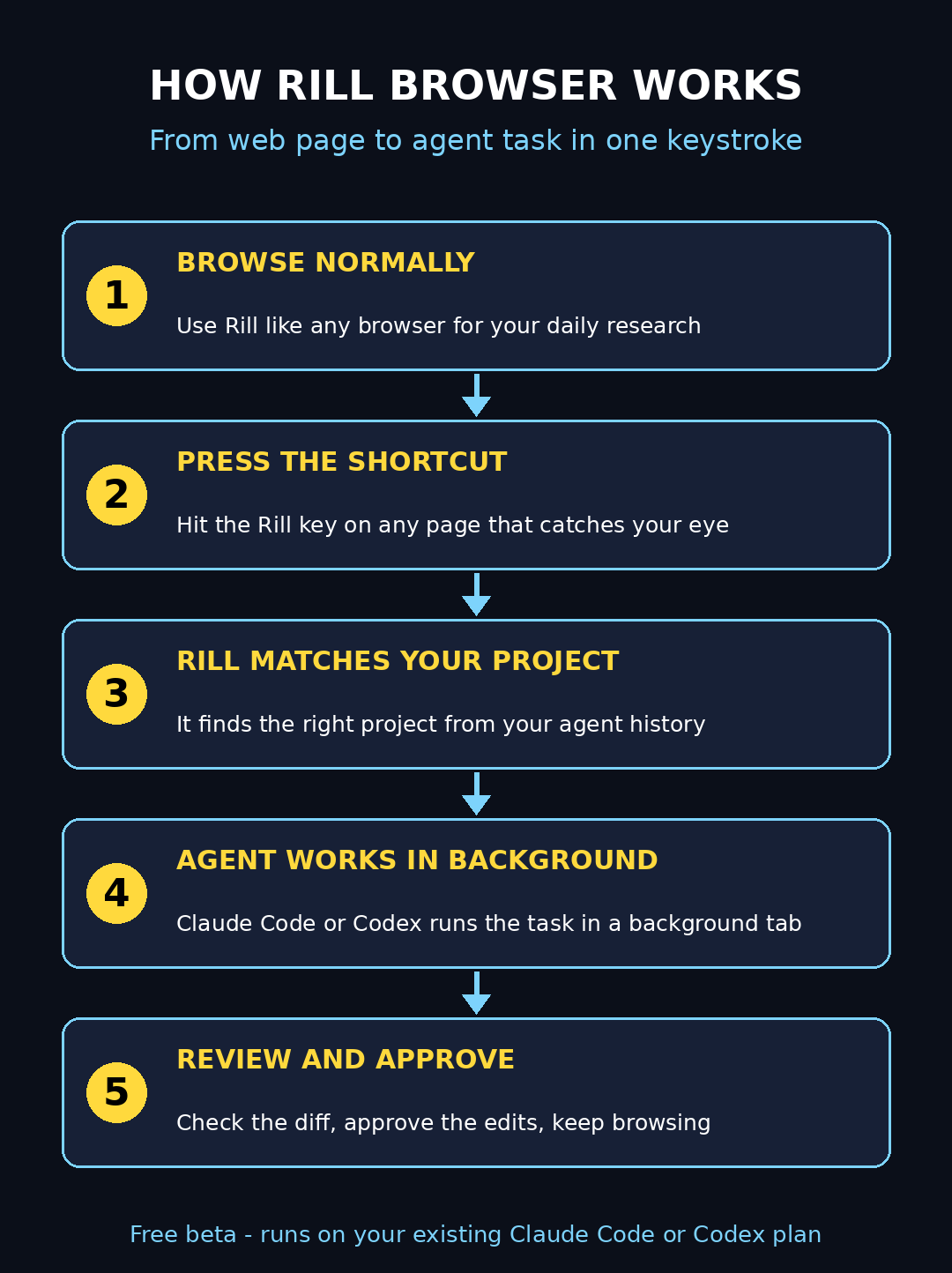
Rill Browser was built to kill that dance. It is a new AI-native web browser, launched in October 2026, that is designed around the AI coding agents you may already use — Claude Code and Codex. You browse the web completely normally, and the moment something catches your eye, you press one keyboard shortcut. The page you are looking at instantly becomes a task for your agent, with all of its context passed along automatically. The agent then gets to work in a background tab while you keep browsing.
The best part for beginners: the browser itself is free. Its AI features run on the Claude Code or Codex plan you already have, so there is no new subscription to buy. In this beginner-friendly guide, I will show you exactly how to use Rill Browser step by step — from checking the requirements and installing it, to turning your first web page into an agent task, reviewing the agent’s work safely, and organizing everything with smart tabs and searchable history. Let's dive in.
Step 1: How to Use Rill Browser — Check the Requirements First
Before you download anything, make sure your setup qualifies, because Rill is picky about where it runs. It is currently in an early beta (version 0.1.5 at the time of writing), and the makers have limited it to one platform while they polish it.
- A Mac with Apple silicon (M1, M2, M3, M4 or newer). Intel Macs are not supported in the beta.
- macOS 14 or newer installed.
- An active Claude Code or Codex plan. This is the important one: Rill's browser is free, but its agent features run on the agent subscription you already pay for. If you do not use Claude Code or Codex yet, Rill will still work as a normal browser, but you will miss the whole point of it.
Beginner tip: because this is a v0.1.0-era beta, expect a few rough edges — occasional UI quirks, features that move between updates. Try it on a side project first, not your most important work repository.
Step 2: Download and Install Rill on Your Mac
Head to the official Rill website and look for the Mac download button. The installer is a standard macOS app download — open the downloaded file and drag the Rill icon into your Applications folder, just like any other Mac app.
When you launch Rill for the first time, macOS will ask you to confirm that you want to open an app downloaded from the internet. Click Open. Rill may also request a few permissions (for example, accessibility access so it can work smoothly with your system) — grant the ones it asks for, since the agent features depend on them.
The whole install takes about two minutes. When it finishes, you will see a clean browser window that will feel familiar if you have ever used Chrome or Arc — address bar on top, tabs along the top or side, and a normal new-tab page. Do not worry about the AI features yet; get comfortable browsing first.
Step 3: Connect Your Claude Code or Codex Account
This is the step that unlocks everything. Rill needs to talk to the coding agent you already use, so open Rill's settings or onboarding flow and find the agent connection section. Sign in with the same account you use for Claude Code or Codex.
Once connected, Rill detects your existing plan automatically. Remember the pricing model here because it is refreshingly simple: Rill itself costs nothing, and all of its agentic features run on the plan you already have. You are not buying a second subscription, and you are not paying per task. If your agent plan has usage limits, those same limits apply to tasks you launch from Rill — the browser does not add its own meter on top.
Beginner tip: if you have both Claude Code and Codex, connect the one you use most day to day. Rill is built to work with either, but starting with your primary agent keeps things simple while you learn.
Step 4: Learn the Layout in Two Minutes
Before you press any AI shortcuts, spend two minutes learning where things live. Rill keeps the familiar browser basics, then adds three AI-native panels on top:
- Tabs — work like normal browser tabs, but Rill can automatically sort them into themes (more on that in Step 8).
- History as days — instead of one endless list, your browsing history is organized into searchable days you can query by description (Step 9).
- Projects — a single view showing every project your agents are working on, across all your tabs (Step 10).
Browse normally for a little while — open a few sites, do some real research. This matters because Rill's headline feature works on whatever you are already looking at. The more natural your browsing, the more natural the AI moments feel when they arrive.
Step 5: Turn Any Page Into an Agent Task With One Keystroke
Here is the core move, and the reason Rill exists. You are reading something useful — a tutorial, a component library, a competitor's pricing page, a UI you admire — and you want your coding agent to do something with it.
Press ⌘E (Command + E). That is the whole interaction. Rill captures the page you are viewing and turns it into a task draft for your agent. A small prompt appears where you describe what you want in plain words, for example:
- "Try this layout in my portfolio project"
- "Summarize this pricing page and compare it with our plan"
- "Recreate this component in my design system"
Then Rill does something clever: it picks the right project from your agent history automatically, and passes the page's context along with your instruction. If it is not sure which project you mean, it asks instead of guessing. You never copy a URL, never paste a screenshot, never re-explain what you were looking at — the context travels with the task.
One more safety detail beginners will appreciate: new tasks start read-only until you explicitly allow edits. Your agent can look, read and plan, but it cannot change your files until you say so. That makes the ⌘E habit safe to build from day one.
Step 6: Review the Agent's Work Before It Changes Anything
After you launch a task, the agent starts working in a background tab. Rill shows you exactly what it is doing: the tool steps it takes, the files it reads, and — once you allow edits — a visible diff of every file change it proposes. For projects stored in Git repositories, you even get an Undo option for changes, which is a wonderful safety net while you are learning.
Build this review habit from your very first task:
- Read the agent's plan before approving any edits.
- Check the diff line by line for your first few tasks — you will quickly learn what good agent output looks like.
- Use Undo freely. It exists so you can experiment without fear.
And keep Rill's built-in guardrails in mind: web tasks stop before anything irreversible — the agent will not pay for something, post on your behalf, send messages, or delete things without you. Those hard stops are there so a misunderstood instruction can never turn into a real-world accident.
Step 7: Keep Browsing While the Agent Works
This is where the workflow clicks. While your agent grinds away in its background tab — refactoring code, drafting a comparison, rebuilding a layout — you just keep browsing. Open new tabs, continue your research, read the next article. You are no longer blocked waiting for the agent to finish.
Rill keeps every project your agents are working on in one place, so you can glance over, check progress, and jump back to your research in seconds. When a task completes, you will know — review the result, approve the changes, and move on. Developers who live in research tabs all day describe this as the moment the browser stops being a passive window and starts feeling like a teammate.
Digital marketing agencies feel this kind of tab chaos every single day — the team at the digital agency routinely juggles client research, competitor pages and campaign docs across dozens of tabs, which is exactly the workflow an agent-native browser is designed to calm down. If your workday looks like that, Rill's background-task model will feel immediately familiar.
Step 8: Organize Your Tabs Into Themes Automatically
Power users know the pain: thirty open tabs, three different research threads, and no idea which tab belongs to which project. Rill attacks this with automatic tab themes — it groups your tabs by topic so each research thread stays together.
You do not have to set anything up. As you browse, Rill notices patterns (all those documentation pages, all those competitor sites) and sorts tabs into themed groups. You can rename a theme, pin the important ones, and collapse the rest. Combined with background agent tasks, your browser starts to look less like a junk drawer and more like a tidy desk where every pile is labeled.
Beginner tip: when you launch a ⌘E task from a page inside a themed tab group, the agent task stays visually connected to that research thread — handy when you come back an hour later and wonder why you opened all those tabs.
Step 9: Search Your History as Searchable Days
Traditional browser history is a graveyard: a flat list of page titles you will never scroll through. Rill rebuilds history as searchable days — your browsing is organized day by day, and you can search it by describing what you remember.
Instead of trying to recall an exact page title, you search the way you think: "that pricing page I looked at on Tuesday" or "the tutorial with the dark dashboard screenshots." Rill matches your description against what you actually visited. It can also create day summaries, so you get a quick recap of an entire research session — genuinely useful when a client or teammate asks what you found last week.
You can even compare tabs side by side from history, which is perfect for those "which of these three tools was the cheapest?" moments that normally send you re-opening everything from scratch.
Step 10: Manage Every Agent Project in One Place
The final piece is the projects view: a single map of everything your agents are working on. Every ⌘E task you have launched, every project Rill matched from your history, all visible together. Jump between projects, check which tasks are still running, and review completed work without hunting through tabs.
For teams, this view is quietly powerful. If you run a small studio or offer AI automation services, you can see at a glance which client experiments have active agent tasks and which are waiting for your review — no more "wait, did the agent finish that thing?" moments. Even as a solo beginner, the projects view teaches you good hygiene: one place to see all your AI work, instead of tasks scattered across forgotten tabs.
Rill Browser vs Other Browsers: Quick Comparison
How does Rill stack up against the browsers you already know? Here is an honest side-by-side for beginners deciding whether to try it:
| Feature | Rill Browser | Google Chrome | Arc | Comet (Perplexity) |
|---|---|---|---|---|
| AI agent integration | Built in — ⌘E turns any page into a Claude Code/Codex task | Only via extensions | AI features via Arc Max | Built-in Perplexity assistant |
| Price | Free — runs on your existing agent plan | Free | Free | Free / Pro tiers |
| Platforms | Mac (Apple silicon) only, beta | All major platforms | Mac and Windows | Mac and Windows |
| Tab organization | Automatic themes | Manual tab groups | Spaces | Workspaces |
| History search | Searchable days + summaries | Keyword search | Keyword search | AI-powered search |
| Best for | Developers already using coding agents | Everyone, maximum compatibility | Power users who love customization | Fans of AI-powered search |
The honest takeaway: Rill is not trying to replace Chrome for everyone. It is a specialist tool — if you already pay for Claude Code or Codex and you constantly copy web context into your agent, Rill removes that friction completely. If you have never used a coding agent, start with a regular browser and come back to Rill when you do.
Staying Safe: What Beginners Should Know
Letting an AI agent see your browsing is powerful, which means it deserves a moment of caution. Rill's own documentation is refreshingly honest here: its prompt-injection safeguards lower the risk but do not remove it. A malicious web page could, in theory, try to trick your agent with hidden instructions.
- Keep new tasks read-only until you trust the workflow — Rill defaults to this anyway.
- Be extra careful launching tasks from pages where you are signed in (email, banking, admin panels).
- Remember the hard stops: agents halt before paying, posting, sending or deleting.
- Review diffs before approving edits, especially in the first week.
Treat Rill like a very capable intern: give it real work, but check the work before it ships.
Frequently Asked Questions
Is Rill Browser really free?
Yes — the browser itself is free, including during the current beta. Its AI features run on the Claude Code or Codex plan you already have, so there is no new subscription and no per-task fee from Rill. Your agent plan's normal usage limits still apply.
Does Rill Browser work on Windows or Linux?
Not yet. The beta is macOS 14 or newer on Apple silicon Macs only. Windows, Linux and Intel Mac users will need to wait for future releases — the makers have not announced dates.
Do I need to know how to code to use Rill?
The ⌘E workflow itself is simple enough for anyone: browse, press the shortcut, describe what you want. But Rill is built around coding agents, so it shines brightest if you already use Claude Code or Codex for development work. Total beginners can still use it as a fast, tidy browser while they learn.
Is it safe to let an AI agent see my browsing?
Rill includes prompt-injection safeguards and strong defaults — tasks start read-only, and agents stop before paying, posting, sending or deleting. The makers themselves note these measures lower the risk without removing it entirely, so review agent actions and be cautious on pages where you are signed in.
What exactly happens when I press ⌘E?
Rill captures the page you are viewing, opens a task prompt, and — when you describe what you want — matches the task to the right project from your agent history, then passes the page context to Claude Code or Codex. The agent works in a background tab while you keep browsing, and you review and approve its changes.
Can Rill replace my current browser completely?
It can, if you are on a supported Mac — it handles normal browsing just fine. Many early users run it alongside their main browser during the beta, switching to Rill specifically for research sessions where they expect to launch agent tasks.
Final Thoughts
Rill Browser is one of the most interesting browser ideas in years, precisely because it does not try to be a slightly better Chrome. Instead, it asks a different question: what if your browser and your AI coding agent were the same workspace? The ⌘E shortcut is a genuinely elegant answer — capture intent at the exact moment of discovery, and let the agent do the tedious translation from "cool page" to "working task."
It is early, it is Mac-only, and it assumes you already live in the Claude Code or Codex world. But if that describes you, the 10-minute test is free: install it, browse normally, and the next time you catch yourself copying a link into your terminal, press ⌘E instead. You will feel the difference immediately — and teams building AI automation services are already watching tools like this closely, because agent-native workflows are where the industry is heading.
Happy browsing — and happy delegating.
Explore More Free AI Tools
Want more free AI tools like Rill Browser? Try these handy free tools on AIToolSteps:
- AI Title Generator — create catchy blog and video titles in seconds
- Meta Description Generator — write perfect SEO meta descriptions fast
- AI Rewriter — rewrite any text in a fresh, natural style
- Keyword Density Checker — check keyword usage for better SEO