

Imagine uploading your class notes, a 60-page report, or ten research papers, and then asking one question — “What are the three main arguments in these documents?” — and getting an instant, accurate answer with exact citations. That is what Google NotebookLM does, and it is one of the most genuinely useful free AI tools you can start using today.
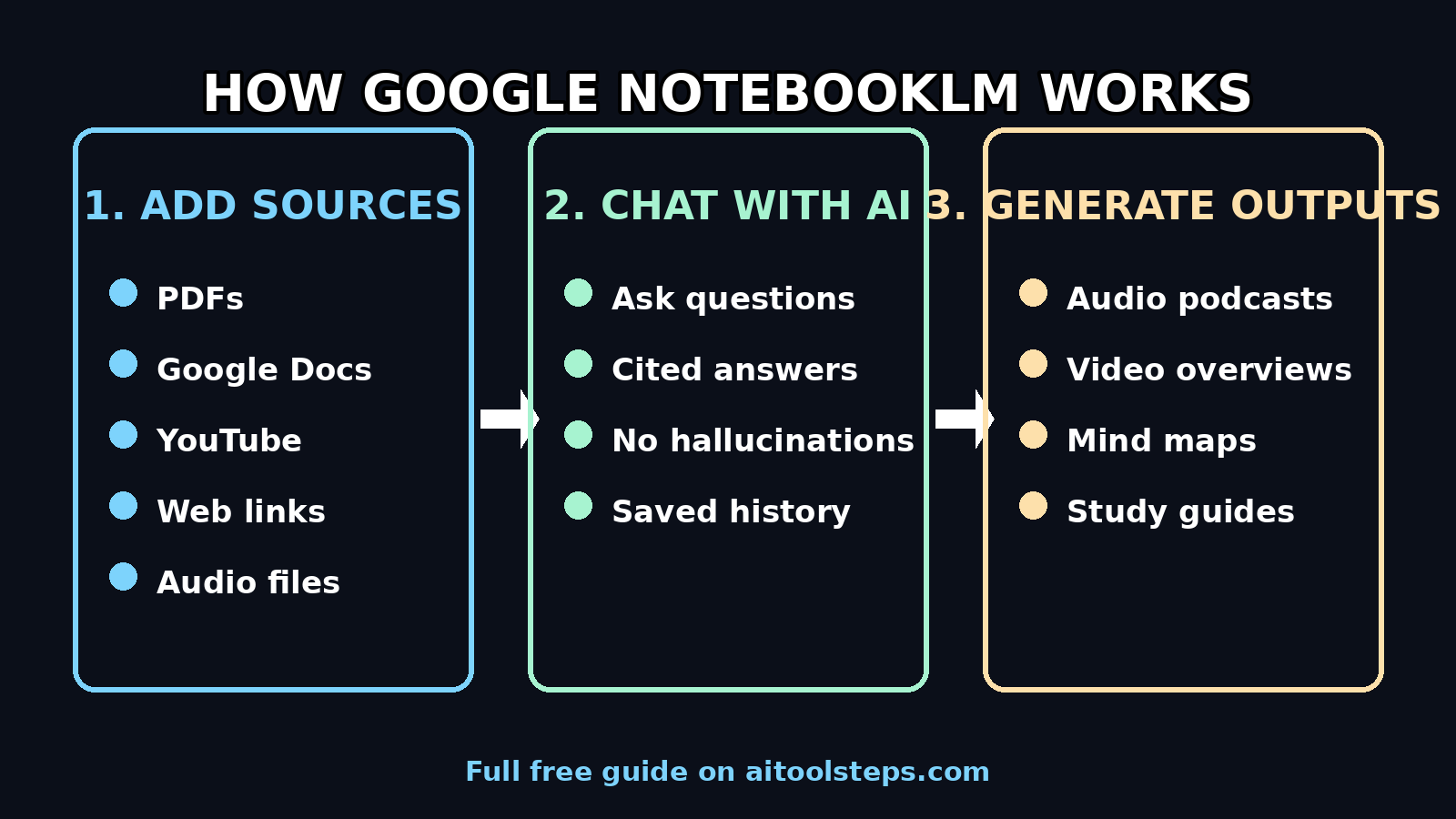
NotebookLM is Google’s AI research assistant. Instead of answering from its general training data like ChatGPT or Gemini, it reads only the documents you give it — PDFs, Google Docs, web pages, YouTube videos, even audio files — and answers your questions based on those sources. Because every answer is grounded in your material, it barely hallucinates, which makes it dramatically more trustworthy for studying and research.
In July 2026 Google folded NotebookLM into the Gemini family and renamed it Gemini Notebook (the same tool, same notebooks, new name with deeper Gemini integration). You may see both names online — this guide covers whichever name your screen shows. In this beginner guide, you will learn exactly how to use Google NotebookLM step by step: signing up free, creating notebooks, adding sources, chatting with documents, generating AI audio podcasts from your material, and using the powerful Studio outputs.
Step 1: Understand What Google NotebookLM Actually Is
A regular AI chatbot answers from what it “knows” from training. The problem: it sometimes makes things up with total confidence. NotebookLM solves this with a different design called source grounding.
You add your own sources — up to 50 sources per notebook with up to 500,000 words per source on current 2026 plans. Then you chat. When you ask a question, NotebookLM searches your sources, finds the relevant passages, and answers using only that material, with inline citations pointing to the exact passages. If the answer is not in your sources, it tells you so instead of inventing one.
Think of it as a research assistant who has read your entire filing cabinet and remembers everything. For students, researchers, writers, analysts, and small businesses, that is a superpower. A digital agency working on client research, for example, can load every competitor report into one notebook and query it in seconds instead of re-reading everything manually.
Step 2: Sign Up for Google NotebookLM (Free)
Getting started takes about one minute:
- Open your browser and go to notebooklm.google.com.
- Sign in with your Google account — the free tier is generous and perfect for beginners.
- Accept the welcome screens and you land on your notebooks dashboard.
Google now offers four tiers after the May 2026 reshuffle: Free, Plus ($4.99/month via Google AI Plus), Pro ($19.99/month via Google AI Pro), and Ultra ($99.99 or $199.99/month via Google AI Ultra). Start with the free plan — it covers everything in this guide except the Ultra-only cinematic video overviews, which we will flag in Step 7.
Step 3: Create Your First Notebook
Click “Create new notebook”. A notebook is a container for one project: one course, one research topic, one client, one book. Name it clearly, for example “Marketing Research” or “Biology Unit 4.”
Inside the notebook you will see three panels: Sources (left), Chat (center), and Studio (right). Sources is where your documents live, Chat is where you ask questions, and Studio is where you generate audio podcasts, videos, mind maps, study guides, FAQs, and more.
Step 4: Add Your Sources
This is the most important step — great sources mean great answers. Click the + in the Sources panel and choose a source type:
- Upload files — PDFs, text files, Markdown, and audio files from your computer.
- Google Docs / Slides — pull straight from Google Drive.
- Web links / URLs — paste any article or webpage address.
- YouTube — paste a video link and NotebookLM reads the transcript.
- Plain text — paste copied notes directly.
Beginner tip: start with 3–5 strong sources on one topic. Once they finish processing (usually seconds), a small badge confirms each source is ready. Remove weak or irrelevant sources — quality beats quantity, because every answer is built from what is in here.
Step 5: Chat With Your Sources
Now the fun part. In the Chat panel, ask anything about your material:
- “Summarize the main arguments across all my sources.”
- “Where do these sources disagree with each other?”
- “Explain this concept as if I am a complete beginner.”
- “Make a timeline of the events described in these documents.”
Every answer arrives with clickable citations — click one and NotebookLM jumps to the exact passage in the original source. This is the feature that makes it trustworthy: you can verify every claim in one click. Conversations now save automatically, so you can close the tab, come back next week, and resume a semester-long dialogue with your course materials.
Power move: tell the notebook how to behave. Custom personas and goals let you add up to 5,000 characters of instruction to a notebook — for example: “Act as a tutor preparing me for a closed-book exam. Quiz me before explaining anything.” Five minutes of setup turns a summary machine into a personal teaching assistant. Most users never touch this setting, which is exactly why it is such an advantage.
Step 6: Generate an Audio Overview (The Viral Podcast Feature)
This is the feature that made NotebookLM famous. In the Studio panel, click Audio Overview and NotebookLM generates a two-host, podcast-style discussion of your notebook — two AI voices chatting naturally about your material.
It is excellent for revision: upload your lecture notes, generate a 10-minute audio overview, and listen while you walk. You can even direct the focus — tell it to explain the material to a beginner, zoom in on the technical details, or only cover one section. The voices sound natural, the discussion is genuinely intelligent, and you can download or share the audio.
Best beginner use cases: turning dense reading into listenable revision, catching up on long reports during a commute, or reviewing meeting notes. Students use this daily — it is effectively a personal podcast made from your own study material.
Pro tip: grab a comfortable pair of lightweight Bluetooth earphones for those walking revision sessions — you will hear every word clearly even outdoors. Disclosure: as an Amazon Associate, AIToolSteps earns from qualifying purchases.
Step 7: Try Video Overviews and Deep Research
Google keeps adding new Studio outputs, and two stand out for beginners:
- Video Overviews — transform your documents into narrated slideshow-style videos with diagrams, quotes, and automated narration. The most cinematic version (powered by Veo 3) is currently limited to Google AI Ultra subscribers, but simpler video overviews keep expanding to lower tiers.
- Deep Research — an agentic mode that searches the web on its own and compiles a citation-backed report into your notebook automatically. Great when your own sources do not cover something yet.
Teams that produce content at scale sometimes combine NotebookLM’s research outputs with AI automation services to turn research into finished deliverables faster — but for most beginners, the free Studio outputs are more than enough.
Step 8: Use the Other Studio Outputs (Mind Maps, FAQs, Study Guides)
The Studio panel goes far beyond audio and video. With one click you can generate:
- Mind maps — visual maps of how ideas in your sources connect.
- FAQs — the questions your material answers, with answers.
- Study guides — structured revision sheets from your documents.
- Briefing docs and timelines — polished summaries for reports.
- Data tables — structured tables extracted from messy documents.
For a student, the workflow is: upload all lecture slides → generate the study guide → generate the audio overview → quiz yourself with the persona from Step 5. That is a full revision system built in about 15 minutes.
Step 9: Talk to Your Notebook and Share It
On the Android and iOS apps, you can have a real-time voice conversation with your notebook — ask out loud, get answers only from your sources, and interrupt mid-answer to redirect it. Perfect for revising while walking or commuting.
Sharing is simple too: generate a share link and collaborators can view the notebook, and with collaboration features, multiple people can add sources to the same notebook. Group study, client research, and team wikis all become notebooks instead of scattered documents.
Step 10: Build a Weekly Research Habit
NotebookLM is most powerful as a habit, not a one-off tool. A simple weekly routine:
- Monday: add the week’s new sources to your notebook (new articles, lecture notes, reports).
- Mid-week: chat with the notebook to clarify anything confusing, and save key conversations.
- Weekend: generate a fresh audio overview as a 10-minute revision of everything you learned.
Because your chats and sources persist, the notebook compounds — by month three, you are querying a personal knowledge base that knows your entire semester or your entire project history.
Pro tip: all of this runs best on a light machine you can carry to class — this lightweight student laptop handles NotebookLM research sessions with ease. Disclosure: as an Amazon Associate, AIToolSteps earns from qualifying purchases.
Google NotebookLM vs Other AI Tools
| Feature | Google NotebookLM | ChatGPT / Gemini | Perplexity AI |
|---|---|---|---|
| Answers based on | Only your uploaded sources | Training data + web | Live web search |
| Citations | Inline, click-to-source | Rare on free tier | Inline web citations |
| Hallucinations | Very low (says when unknown) | Possible | Low |
| Audio podcast overviews | Yes, built-in | No | No |
| Free plan | Generous | Generous, usage limits | 5 Pro searches/day |
| Best for | Your documents & study | General questions | Web research |
Frequently Asked Questions
Is Google NotebookLM really free?
Yes — the free tier is generous and covers notebooks, sources, chat, audio overviews, and most Studio outputs. Paid tiers (Plus, Pro, Ultra) raise limits and unlock extras like the cinematic Veo 3 video overviews. For a beginner, the free plan is the right place to start.
Is it called NotebookLM or Gemini Notebook?
Both. Google renamed NotebookLM to Gemini Notebook in July 2026, adding deeper integration with the Gemini app and Google Workspace. Your existing notebooks carried over, and notebooklm.google.com still works. If a tutorial says one name and your screen says the other, it is the same product.
Does NotebookLM keep my documents private?
Your sources stay inside your notebook and are used to answer your questions — they are not used to train public models. For sensitive material, review Google’s current privacy terms in the product’s settings, and avoid uploading anything you would not trust to a cloud service.
Can it really say “I don’t know”?
Yes — this is one of its best traits. If the answer is not in your sources, NotebookLM tells you instead of inventing a confident-sounding answer. That honesty is exactly why students and researchers trust it more than general chatbots.
How many sources can I add?
On current 2026 plans, up to 50 sources per notebook with up to 500,000 words per source. That is roughly a whole semester of lecture notes or a shelf of reports in a single notebook. Limits can change, so check the official site for the latest numbers.
Final Thoughts
Google NotebookLM earns its reputation: it is the rare AI tool that makes you more accurate instead of just faster. Upload your sources, chat with them, verify with citations, and turn the hard parts of research into podcasts, study guides, and mind maps. The free plan gives you nearly everything, the learning curve is about ten minutes, and the weekly habit compounds into a personal knowledge base that knows your work better than you do.
Start with one notebook on one topic today. Add five good sources, ask it three hard questions, and generate your first audio overview. Once you hear your own notes come back as a podcast, you will wonder how you ever researched any other way.
Explore More Free AI Tools
Want more free AI tools like this? Try our AI Title Generator, Meta Description Generator, AI Rewriter, and Keyword Density Checker — all free on aitoolsteps.com.