

You have probably used a chatbot that answers questions. Now imagine an AI that does not just answer — it actually does things: browses the web for you, runs code on your computer, organizes your files, and even sends messages through Telegram while you sleep. That is what an AI agent does, and right now one of the most talked-about free AI agents is OpenClaw AI.
OpenClaw is an open-source AI agent framework that lets you build, run, and control autonomous AI agents on your own computer. It started trending almost overnight because it solves a real frustration: most AI tools only do one job, but OpenClaw connects everything into a single team of agents that work together.
In this beginner-friendly guide, you will learn exactly how to use OpenClaw AI from scratch — what it is, how to install it on Mac, Windows, or Linux, how to connect a free AI model so it costs nothing, how to add skills, and how to create your first agent that completes real tasks for you. No advanced coding needed.
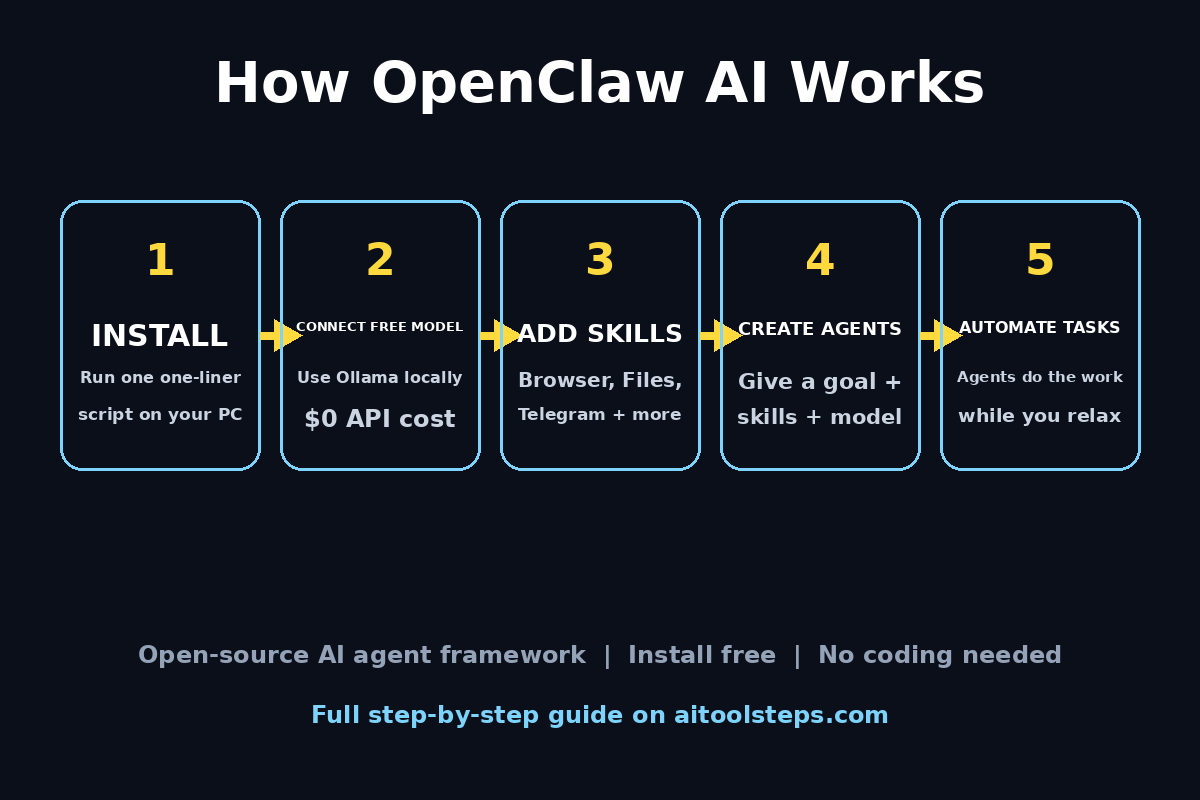
Step 1: Understand What OpenClaw AI Actually Is
Before installing anything, it helps to understand what makes OpenClaw different from tools like ChatGPT or Gemini.
A regular chatbot waits for your question and replies with text. An AI agent, on the other hand, takes a goal and works toward it in steps: it plans, uses tools, checks its own results, and keeps going until the job is done. OpenClaw is the framework that makes this possible — it is the orchestration layer that coordinates AI models, tools, and skills into one unified system.
Think of it like this: instead of hiring one assistant, you are building a small team. One agent browses the web, another writes and runs code, another manages your files — and OpenClaw makes them act as a single team working for you.
OpenClaw is built from three core building blocks:
- Skills — individual capabilities you give to OpenClaw, like web browsing, code execution, file management, Telegram messaging, and memory. Skills are modular: you install only the ones you need.
- Agents — the autonomous workers. You configure an agent with a goal, a set of skills, and a preferred AI model, and it executes multi-step tasks on its own.
- The OpenClaw app — a clean dashboard where you launch agents, watch their progress in real time, review logs, and manage which skills are active.
A fun fact for context: OpenClaw was originally called Clawdbot, created by Austrian developer Peter Steinberger in late 2025. After a trademark issue with Anthropic, it briefly became Moltbot and finally landed on the name OpenClaw in early 2026. Same tool, same code, new name — so if you see all three names online, they refer to the same project.
Step 2: What You Need Before Installing OpenClaw AI
OpenClaw runs on your own machine, so you do not need a cloud account to get started. Here is what you need:
- A computer — Windows 10/11, macOS, or Linux all work. A decent laptop is fine for light use.
- An internet connection — for the initial download and, optionally, for connecting cloud AI models.
- An AI model — this is the "brain" of your agents. You can connect paid models like OpenAI or Claude via API, or run a completely free local model with Ollama. We will use Ollama in this guide so your total cost stays at zero.
- About 10 minutes — the official one-liner installer handles almost everything automatically, including Node.js, Python, and the CLI.
Pro tip: if you need a machine to run everything in this guide, this Dynabook business laptop handles OpenClaw plus a local Ollama model comfortably. Disclosure: as an Amazon Associate, AIToolSteps earns from qualifying purchases.
Do you need a server for OpenClaw AI? Not for getting started. OpenClaw AI runs fine on a personal laptop. Only when you want agents running 24/7 or accessible remotely does a small VPS (around $5–6/month from providers like Hostinger or Vultr) become useful. Start locally, upgrade later if you love it.
Step 3: Install OpenClaw AI on Your Computer
The OpenClaw team built official one-liner scripts for each platform, so there is no complex environment setup and no manual dependency hunting. Pick the method for your system.
On macOS or Linux — full install (recommended):
Open your Terminal and run:
“`
curl -fsSL –proto '=https' –tlsv1.2 https://openclaw.ai/install.sh | bash
“`
This is the guided path: it installs everything and walks you through the initial setup.
On Windows — PowerShell install:
Open PowerShell and run:
“`
iwr -useb https://openclaw.ai/install.ps1 | iex
“`
The script auto-detects your environment and installs all required dependencies.
On a server — Docker install:
Running OpenClaw on a VPS or home server? Docker is the cleanest approach for 24/7 deployments. The official GitHub repository includes the compose files and server documentation.
After the installer finishes, OpenClaw guides you through connecting your first AI model and your first messaging channel. The whole onboarding takes under 10 minutes for most users.
Step 4: Connect a Free AI Model to OpenClaw AI with Ollama
Here is where OpenClaw becomes genuinely free. OpenClaw itself costs nothing to download and run — the framework, the app, the skills library, the agent system are all open-source. The only place costs can appear is the AI model powering your agents: connect OpenAI or Claude and you pay their API rates (roughly $5–20/month depending on use).
The zero-cost path is Ollama — a free tool that runs AI models locally on your own machine. Your computer does all the thinking, nothing is sent to the cloud, and your total cost stays at $0.
During the OpenClaw onboarding, choose the Ollama option when asked which model to connect. If you already have Ollama installed, OpenClaw will detect it. If not, install it from ollama.com first, pull a capable model (such as llama3.1 or qwen2.5), and then point OpenClaw at it.
Why does this matter? Because the combination of OpenClaw + Ollama is the closest thing available right now to a free, fully private, autonomous AI assistant — your data never leaves your machine. For businesses handling sensitive workflows, this is also why many teams evaluating automation turn to a digital agency for help deploying self-hosted AI stacks like this one.
Step 5: Open the OpenClaw AI Dashboard
Once installed, launch the OpenClaw app or web interface. This is your control center, and it is where everything happens:
- Launch agents with a single click or command.
- Monitor progress in real time — watch what each agent is doing as it happens.
- Review logs to see exactly what steps an agent took (great for learning and debugging).
- Manage skills — enable, disable, or add new ones.
- Control the gateway — this manages how agents communicate with external services and AI providers, giving you full visibility and control over what your agents can and cannot access.
Spend a few minutes clicking around the dashboard before building anything. Knowing where the logs and skill settings live will save you time later when your first agent behaves unexpectedly.
Step 6: Add Skills to Your First OpenClaw AI Agent
Skills are the modular superpowers of OpenClaw. Each skill teaches OpenClaw how to do a specific job, and you install only what you need so the system stays lean.
Here are the most useful built-in skills for beginners:
- Browser — navigates the web autonomously. Best for research, price monitoring, and data collection.
- Code Execution — writes and runs code on your machine. Best for automation and data processing.
- File Manager — reads, writes, and organizes files. Best for document workflows and backups.
- Telegram — sends and receives Telegram messages. Best for notifications and bot automation.
- Memory — stores context across sessions. Best for long-running tasks and personalization.
In the dashboard, go to the skills section and enable the ones matching your first project. For a beginner's first agent, Browser + File Manager + Memory is a perfect starter set: research something, save it to a file, and remember the context for next time.
The skills library is growing fast because the project is open-source — the community keeps adding new ones. If you need a capability that does not exist yet, custom skills are possible too.
Step 7: Create Your First OpenClaw AI Agent
Now the fun part. Creating an agent means answering three questions:
- What is the goal? Be specific. "Research the best budget laptops under $500 and save a comparison to a file" beats "do some research."
- Which skills does it need? Assign only the skills relevant to the goal. Fewer skills means fewer surprises.
- Which AI model should power it? If you followed Step 4, pick your local Ollama model for zero cost.
Give your agent a clear name like "Research Assistant" and write the goal in plain language, as if briefing a human intern. Good instructions look like: *"Every morning, check these three tech news sites, summarize the top AI stories, and save the summary to a dated file in my Documents folder."*
You can run multiple agents in parallel, each with a different role — one handling research, one organizing files, one managing messages. That is when OpenClaw stops feeling like a tool and starts feeling like an actual team.
Step 8: Give Your OpenClaw AI Agent Its First Real Task
Start small with a concrete, low-risk task. Here are three beginner-friendly first projects:
- Daily news digest: "Browse two AI news sites and write a 5-bullet summary of today's top stories into a text file." This uses Browser + File Manager.
- File organizer: "Go through my Downloads folder, group files by type, and move them into dated subfolders." This uses File Manager.
- Price watcher: "Check the price of this product once a day and append it to a spreadsheet with the date." This uses Browser + Code Execution + Memory.
Launch the agent from the dashboard and watch the live log. You will see it plan, act, check results, and adjust — the full agent loop in action. Your first task might take a few minutes as the local model thinks through each step; that is normal, especially on a laptop.
If something goes wrong, run this in your terminal:
“`
openclaw doctor
“`
This built-in diagnostic tool surfaces misconfigurations and risky setup issues before they become real problems.
Step 9: Connect Telegram to Your OpenClaw AI Agent
One of OpenClaw AI's standout features is that your agents can talk to you through the apps you already use. The Telegram skill lets agents send you messages and receive your instructions, so you can control your agent team from your phone.
The typical setup flow is:
- Create a Telegram bot via BotFather and get your bot token.
- Add the token in OpenClaw's Telegram skill settings.
- Start a chat with your bot and send it a test instruction.
Now your morning news digest can arrive as a Telegram message instead of a file you have to go find. For teams and creators who want this kind of automation professionally configured — agents connected to WhatsApp, Telegram, or Discord — it is worth exploring professional AI automation services rather than wiring everything by hand.
Step 10: Keep Your OpenClaw AI Agents Running 24/7 (Optional)
So far everything in this OpenClaw AI guide runs on your laptop — agents work when your computer is on. If you want a true "digital employee" that works while you sleep, you need an always-on machine. Your options:
- Leave your computer on — fine for casual use and testing.
- A cheap VPS — entry-level servers from Hostinger or Vultr start around $5–6/month and handle OpenClaw comfortably. Install with Docker (see Step 3) for the cleanest setup.
- A home server or mini PC — a Raspberry Pi-class device or old laptop works for light workloads.
The honest bottom line on cost: run OpenClaw locally with Ollama and your cost is $0. Add premium AI APIs and a VPS for 24/7 uptime, and expect $10–30/month realistically. For a fully autonomous multi-agent system, that is extraordinary value compared to any all-in-one AI platform subscription.
OpenClaw AI vs Alternatives: Honest Comparison
| Tool | Best For | Cost | Privacy | Setup Difficulty |
|---|---|---|---|---|
| OpenClaw (formerly Clawdbot) | Autonomous local agents, multi-tool workflows | Free (core) | Fully private with Ollama | Medium — one-liner install |
| OpenAI Agents / ChatGPT | Polish, reliability, zero setup | Free tier / $20+ | Cloud — data leaves your machine | Easy |
| Ollama alone | Local model engine underneath everything | Free | Fully private | Medium |
| AutoGPT / LangChain | Developer-first agent frameworks | Free | Depends on setup | Hard — code required |
The takeaway: OpenClaw dominates when you want a persistent, autonomous agent running locally that actually *does things* across your apps and messaging channels without babysitting. ChatGPT wins on polish and zero friction for non-technical users. Ollama is the perfect engine underneath OpenClaw for a 100% free stack. AutoGPT and LangChain are powerful but built for developers building products, not for personal productivity.
Frequently Asked Questions
Is OpenClaw AI really free?
Yes — the core is free forever: the framework, the app, the skills library, and the agent system are all open-source with no subscription and no usage limits. Costs only appear if you connect paid AI APIs (like OpenAI or Claude) or rent a server for 24/7 uptime. Run it with a local Ollama model on your own computer and your total cost is $0.
What is the difference between OpenClaw AI and Clawdbot?
There is none — they are the same tool. Clawdbot was the original name, created by Peter Steinberger in late 2025. After a trademark issue with Anthropic, it was briefly renamed Moltbot, then became OpenClaw in early 2026. If you see tutorials under any of these names, they apply to the same project.
Do I need to know how to code to use OpenClaw AI?
No. The one-liner installer handles the technical setup, the dashboard is visual, and agents are configured in plain language. You will need to be comfortable with a terminal for the install step and basic troubleshooting (like running openclaw doctor), but you do not need to write code. Developers get more power through custom skills, but beginners can do plenty without them.
Can OpenClaw AI run on my phone?
Not directly — OpenClaw runs on a computer or server. But once it is running, you can control your agents from your phone through messaging channels like Telegram. Set the agent up on your laptop, connect the Telegram skill, and chat with your agent from anywhere.
Is it safe to let OpenClaw AI run code on my computer?
This is the right question to ask. OpenClaw gives you full visibility through logs and a gateway system that controls what agents can access — but you are still granting an AI real capabilities on your machine. Start with read-only, low-risk tasks; enable only the skills an agent needs; review logs regularly; and never connect an agent to sensitive accounts until you fully understand its behavior. The openclaw doctor command helps flag risky configurations.
What can I actually automate with OpenClaw AI as a beginner?
Realistic starter projects: daily news or price summaries, file organization, research with saved reports, Telegram notifications for events you care about, and simple data processing. As you get comfortable, you can chain skills — research + write + message — into genuinely useful workflows that run on autopilot.
Final Thoughts
OpenClaw AI is one of the most exciting free tools to appear in 2026 because OpenClaw AI changes what "using AI" means: instead of chatting with a bot, you are directing a small team of agents that browse, code, organize, and message on your behalf. The open-source core is free, the Ollama pairing keeps costs at zero, and the one-liner install means you can go from curious to running your first agent in under an hour.
Start with the local setup, pick one small task, and watch your first agent work. Once you see it plan, act, and deliver, you will understand why thousands of users searched for this tool almost overnight — it is the closest thing yet to a real digital employee, and it runs on the laptop you already own.
Explore More Free AI Tools
Want to keep building your free AI toolkit? Try our other free tools at AIToolSteps:
- AI Title Generator — create catchy, SEO-friendly titles in seconds
- Meta Description Generator — write perfect meta descriptions that get clicks
- AI Rewriter — refresh and improve any text instantly
- Keyword Density Checker — optimize your content for search engines
Explore them all at aitoolsteps.com and turn your new OpenClaw agent into the research arm of a much bigger free toolkit.