
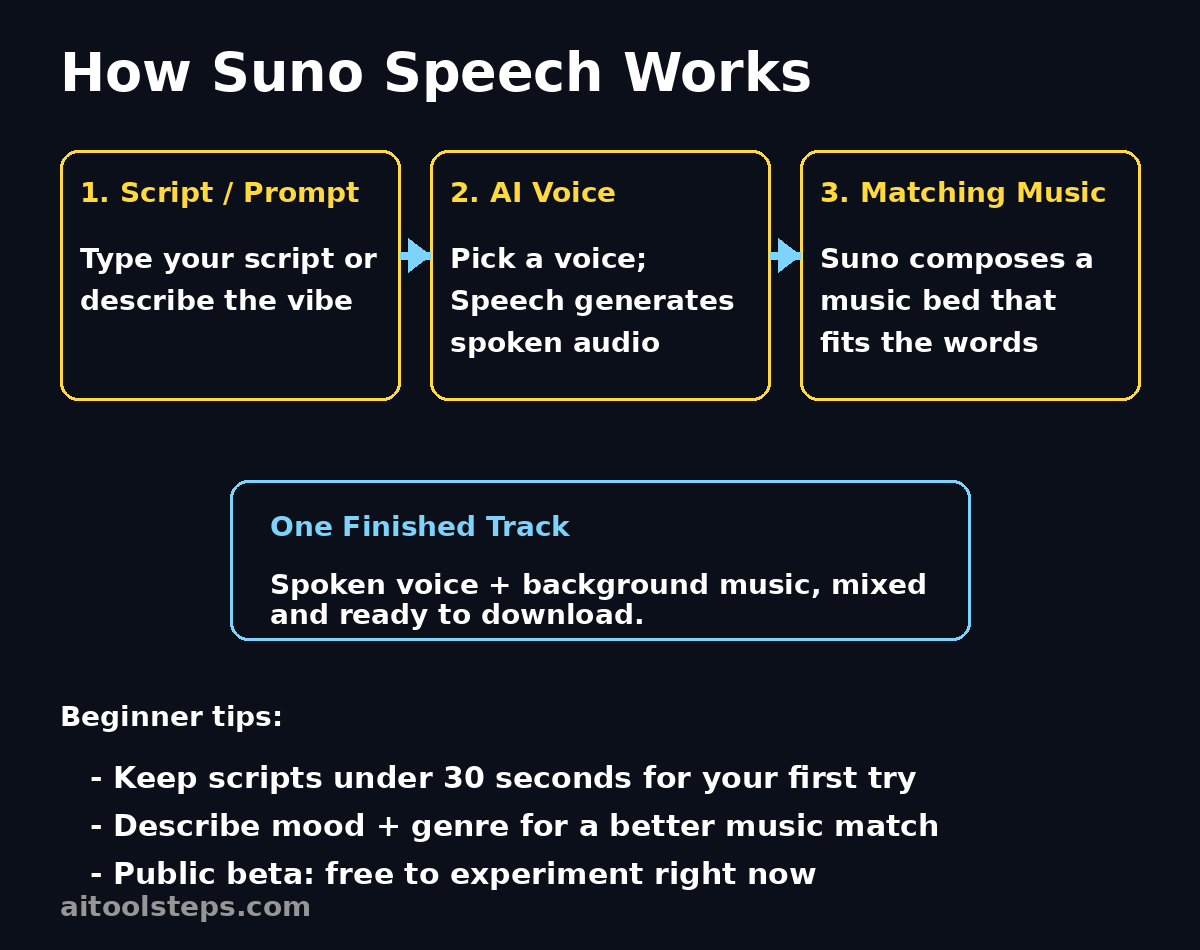
Suno has always been known as the AI music generator. But on October 1, 2026, it launched something different: Suno Speech, a public beta feature that generates a spoken voice and original background music together as one finished audio track.
If you are a beginner who makes narrated shorts, podcast intros, or faceless-channel voiceovers, this is one of the easiest ways to get a polished narration. Instead of the old three-step workflow — generate a voiceover with a text-to-speech tool, find matching royalty-free music, then mix the two in an editor — you type your script, describe the voice and the music you want, and Suno delivers a single composed track.
This guide walks you through every step, from finding the Speech tab to downloading your finished clip, plus the free-plan limits and the beginner mistakes to avoid.
Step 1: Create a Free Suno Account
Before you can use Speech, you need a Suno account.
- Go to the official Suno website or download the Suno app (iOS and Android).
- Sign up with your email or a Google account.
- On the free plan, you start with daily credits you can spend on generations. Third-party testers have reported that a Speech generation costs about 10 credits, and the free plan gives 50 credits per day — but check the Create screen on your own account, because Suno has not published official Speech pricing and it can change during the beta.
Once you are signed in, you will land on the Home or Library screen. The Speech tool lives on the Create screen, which is where Step 2 takes you.
Step 2: Find the Speech Tab on the Create Screen
Speech is built directly into Suno, right next to the song tools you may already know.
- Open the Create screen (on mobile, tap the Create button; on desktop, use the main navigation).
- Look for the mode tabs at the top — Songs, Sounds, and Speech.
- Select Speech (it is marked BETA).
This is the key detail many beginners miss: Speech is a separate mode from Suno’s music generation, and it is also different from Suno’s Voices feature, which is about singing voices inside songs. Speech is only for spoken narration — voiceovers, readings, meditations, pep talks.
If you do not see the Speech tab, update the app to the latest version, or try the web version, which got the beta first.
Step 3: Start With Simple Mode for Your First Generation
Suno Speech gives you two ways to create: Simple mode and Advanced mode. As a beginner, start with Simple mode — it is one prompt box and teaches you how the tool thinks.
- In Simple mode, you describe what you want in a single text box, for example: “a pirate captain rallying his crew before a battle, cinematic orchestral drums underneath”.
- The AI invents both the voice and the soundtrack from that description.
- Hands-on testers report the Simple prompt accepts up to about 3,000 characters, but a short, vivid description of 2–4 sentences works best.
Simple mode is perfect for experiments: a dramatic reading of a friend’s text, a grocery list in an ASMR whisper, a hype speech over stadium drums. Try two or three of these just to learn what good prompts look like before you write a real script.
Step 4: Describe the Voice You Want in Detail
The voice description is where your narration gets its character. Do not write just “male voice” — paint the performance.
Describe these traits in plain language:
- Age and gender — for example, “a woman in her 30s” or “an older man”.
- Tone and energy — warm, dramatic, calm, excited, serious, playful.
- Pace and delivery — slow and measured for a meditation, fast and punchy for a promo.
- Accent or character — “British narrator,” “pirate captain,” “movie trailer voice.” Note the beta caveat: Suno itself warns that accents can drift mid-generation (their famous example: a British accent wandering off to Australia and back).
- Setting — “like she’s recording in a cozy studio” can nudge the vibe.
The more specific you are, the less you will need to re-roll. Write the voice description first in a notes app so you can reuse it across projects with a consistent feel.
Step 5: Describe the Background Music to Match
Because the voice and music are generated together by one model, the score is composed around your words — music can dip under a pause and swell when the delivery rises. That is the whole advantage of Speech over a normal text-to-speech tool.
When describing the music, mention:
- Genre — lo-fi hip-hop, soft piano, cinematic strings, ambient pads, stadium drums.
- Mood — calm, epic, mysterious, uplifting, tense.
- Intensity — background and subtle for tutorials; bold and driving for promos.
- Placement — you can hint at “music quietly behind the voice” or “big swelling score.”
You also get a Background music On/Off toggle. Turn it off if you only need clean narration — for example, a voiceover you plan to mix yourself, or audio for a noisy TikTok where music competes with trending sounds.
Step 6: Switch to Advanced Mode for Real Scripts
When you have an actual script — a podcast intro, a YouTube Shorts narration, a product explainer — switch to Advanced mode. This is where Speech becomes a production tool instead of a toy.
Advanced mode gives you separate fields:
- Script field — paste the exact words you want spoken. Testers report a limit of about 5,000 characters, which is roughly 8–10 minutes of spoken audio depending on pace.
- Tone field — describe the delivery: tone, pacing, mood and setting (reported limit around 1,000 characters).
- Vocal gender — Male or Female selector.
- Background music — On or Off.
- Variety slider — Off, Normal, High, Extra, Max, controlling how much variation the AI adds between takes (Normal is the default).
For your first Advanced-mode clip, paste a 100–150 word script — about 45–60 seconds of audio. It is cheap in credits, fast to generate, and long enough to judge the voice quality before you commit to a full 5,000-character script.
Step 7: Generate, Then Listen Like an Editor
Hit generate and wait. When the track finishes, listen to the whole thing at least once with this checklist:
Pro tip: listen on a good pair of noise-cancelling headphones — these wireless Bluetooth headphones make it much easier to catch pronunciation slips and music-balance issues. Disclosure: as an Amazon Associate, AIToolSteps earns from qualifying purchases.
- Pronunciation — beta models mispronounce unusual words. If a name or term comes out wrong, rephrase or respell it phonetically in the script (e.g., “Suno” as “SOO-noh”).
- Pauses — Suno warns that dramatic pauses can be very dramatic. If a pause is too long, shorten that sentence or split it into two.
- Accent drift — if the accent wanders mid-clip, simplify the accent description or re-roll.
- Music balance — is the music fighting the voice? Regenerate with “music quieter, gentle background only.”
- Ending — does the music resolve cleanly, or does it cut off awkwardly? Trim the ending in a free editor like Audacity if needed.
Do not skip this step. The beta is genuinely unpredictable — Suno’s own chief product officer says the team kept finding uses that “made us laugh, or occasionally surprised us with how moving they could be.”
Step 8: Re-Roll and Tweak Instead of Starting Over
A generation you do not love is not a waste — it is a draft. Each generation produces takes you can compare, and small prompt changes usually fix the biggest issues.
- Voice is wrong? Keep the music description identical and only rewrite the voice description. Changing one variable at a time shows you what actually matters.
- One line is broken? Cut that sentence from the script and regenerate the clip, or regenerate just the problematic section and stitch it in Audacity.
- Music is too loud? Add “background music sits far behind the voice” to the music description.
- Delivery is flat? Push the Tone field harder: “excited, energetic, rising intensity like a sports commentator.”
Save every version you generate — Suno keeps your library of generations, so a take that is wrong for one project may be perfect for another.
Step 9: Download Your Finished Track (and Watch the Limits)
Downloading is where the free-plan limits actually bite, so plan before you click.
- Free plan: you can experiment using daily credits, but downloading is capped. Suno allows free accounts up to 7 lifetime trial downloads (one-time, never resetting — and only guaranteed for accounts created before September 3, 2026; newer accounts may only occasionally receive trial downloads). Downloads are MP3 only and for personal use, not commercial projects.
- Paid plans: Pro (around $8/month) allows about 20 downloads per month, Premier (around $24/month) about 60 per month, with commercial rights for output downloaded while subscribed.
- WAV and stem downloads are paid-plan features; the free plan exports MP3.
The honest strategy: generate as many versions as you like while learning (credits renew daily), but only spend a download on the clip you will actually use. Seven downloads is a lifetime allowance — treat each one like a decision. Always check the official Suno pricing page before you build a project around these numbers, since beta terms can change.
Step 10: Know the Commercial Rules Before You Publish
This is the step beginners skip — and the one that can get a video claimed or a client project in trouble.
- Free-plan clips are for personal use only. Do not put them on monetized YouTube channels, paid ads, or client work. Upgrading to a paid plan later does not retroactively give commercial rights to clips made on the free plan.
- Paid-plan clips downloaded during an active subscription carry commercial rights under Suno’s terms.
- Suno has not published Speech-specific commercial terms yet, so the safe rule is: treat Speech clips under the same plan rules as Suno songs.
- No API yet. There is no announced developer API for Speech — it is app-only for now. Teams building bigger pipelines, or anyone who needs API-driven narration, may need a dedicated text-to-speech provider or help from specialists in AI automation services like the team at Agentic Affairs — always check the official site for the latest availability before planning a commercial workflow around the beta.
If you are producing content for clients, this matters even more. Creators who work with a digital agency like D365A on ad campaigns know that rights paperwork is part of the job — generate your client-ready clips on a paid plan so the commercial rights are clean.
Step 11: Add Your Speech Track to a Video or Podcast
Your finished track is a single mixed MP3 (voice + music already composed together). Here is how to put it to work:
- YouTube Shorts / TikTok / Reels: import the MP3 into CapCut or your editor, pair it with captions and visuals. Because the music is already baked in, you often do not need any extra audio layer.
- Podcast intros and segments: use Speech for intros, transitions, or sponsored-read style segments. Turn background music off in Speech if your podcast already has a theme song, so the two scores do not clash.
- Faceless YouTube channels: narrate full scripts in Advanced mode, then pair with stock footage or AI visuals. Keep each clip short and stitch sections together — it is easier to fix one bad paragraph than one eight-minute take.
- Meditations and bedtime stories: this is one of Suno’s own flagship use cases — calm voice plus gentle music in one take.
- Presentations and ads: generate energetic voiceovers with swelling music, then trim in a free editor like Audacity (its Truncate Silence effect is great for fixing those overly dramatic pauses).
Pro tip: if you generate with music ON but the mix is not right for your video, regenerate the same script with music OFF and add your own royalty-free track underneath. You keep the voice, you control the mix.
Step 12: Avoid the 5 Mistakes Every Beginner Makes
- Writing one vague prompt and expecting a masterpiece. “Narrator voice, nice music” will disappoint you. Be specific about voice, tone, genre, and mood every time.
- Burning download slots on drafts. Preview everything, download only keepers. Remember: seven lifetime downloads on the free plan.
- Trusting accents and timing. The beta drifts — always listen end-to-end before you publish, especially for client or monetized work.
- Using free-plan clips commercially. Keep free-tier audio on personal projects. Monetized channels and client ads need paid-plan downloads.
- Fighting the tool’s nature. Speech shines at short, expressive pieces — poems, intros, pep talks, narrated shorts. Long, timing-critical narration (a voiceover that must fit exactly 30 seconds of video) is not its strength yet; use a dedicated text-to-speech tool with timestamp control for that.
Suno Speech vs. the Traditional Voiceover Workflow
| Suno Speech (beta) | Traditional workflow | |
|---|---|---|
| Voice generation | Describe the voice in plain language | Type script into a TTS tool, pick a stock voice |
| Background music | Generated together with the voice, reacts to delivery | Search a royalty-free library, license the track |
| Mixing | Already mixed as one track | Mix voice + music in an editor yourself |
| Speed | Minutes from idea to finished track | Voice render + music search + mixing: 30+ minutes |
| Control | Steering with descriptions; beta surprises | Precise: timing, stems, per-word edits |
| Music toggle | One-click Off for clean voice | Delete the music layer yourself |
| Best for | Short expressive pieces, intros, narrated shorts | Long-form, timing-critical, commercial narration |
| Cost to try | Free plan with daily credits (check the official site) | Free TTS tools + free music libraries exist too |
FAQ
Is Suno Speech free to use?
Yes, you can try it on Suno’s free plan using your daily credits — testers report about 10 credits per generation and 50 free credits per day, but check the Create screen since Suno has not published official pricing. The real limit is downloading: free accounts get up to 7 lifetime trial downloads, MP3 only, personal use only.
How long can a Suno Speech clip be?
Coverage of the launch reports clips up to about eight minutes, and the Advanced script field reportedly accepts around 5,000 characters. However, Suno has not published an official maximum duration, and one hands-on tester’s longest take ran just over two minutes. Start short and check the official announcement for updates.
Can I use Suno Speech clips in my YouTube videos?
Only clips downloaded on a paid plan come with commercial rights — free-plan clips are personal use only, and upgrading later does not change that. For a monetized channel, generate and download on Pro or Premier, and check the official site for the latest terms before publishing.
Can I separate the voice from the music?
Not currently. Speech outputs a single mixed track. Suno sells stem-splitting on paid plans for songs, but it has not said whether that works on Speech clips. If you need separate voice and music layers, generate with background music turned off and add your own track underneath.
Does Suno Speech work on mobile?
Yes. The beta launched on the web and in Suno’s official iOS and Android apps, open to all users. Look for the Speech tab (marked BETA) on the Create screen next to Songs and Sounds.
How do I fix accent drift or weird pauses?
Regenerate first — each run is a fresh roll. Simplify the accent description, spell tricky words phonetically, shorten sentences that produce over-long pauses, and use Audacity’s Truncate Silence effect to clean up what remains. If a voice will not stay consistent, it is a beta limit, not your fault.
Final Thoughts
Suno Speech is one of the most fun AI launches of 2026 for creators: type words, describe a voice and a soundtrack, and get a finished narrated track back in minutes. For podcast intros, narrated shorts, meditations, and faceless-channel voiceovers, it removes the most boring part of production — hunting for music and mixing it under a voice.
Go in with the right expectations: it is a beta, so accents drift, pauses get dramatic, and wording is not guaranteed identical between runs. Generate freely, download sparingly, keep free-plan clips off monetized projects, and always listen end-to-end before you publish.
If you outgrow it — you need exact timing, a fixed brand voice, or API access — a dedicated text-to-speech engine plus your own music workflow is still the professional answer. But for fast, expressive, scored narration, Speech earns a permanent spot in a creator’s toolbox.
Explore More Free AI Tools
Ready to level up your content even further? AIToolSteps offers free tools that pair perfectly with your Suno Speech projects: use the AI Title Generator to craft clickable titles for your narrated videos, the Meta Description Generator to write SEO-friendly descriptions for every upload, the AI Rewriter to polish your scripts before you paste them into Suno, and the Keyword Density Checker to make sure your video descriptions and blog posts rank. All free, all in one place — start creating smarter today.